
- What Perfex CRM timesheets are
- Step 1: Check the task before you track time
- Step 2: Start the timer or add a timesheet by hand
- Step 3: Read the timesheets of a project
- Step 4: See all timesheets of your staff
- Step 5: Use the hours for billing
- Good habits for billable hours
- Related guides
- Summary
- Frequently asked questions
Perfex CRM timesheets record how long your team works on each task, so you can see where the hours go and bill them to a customer. This guide, tested on Perfex CRM 3.4.1, shows how to start a timer, add time by hand, read the timesheets of a project and use the numbers for billable hours.
What Perfex CRM timesheets are #
A timesheet is one block of time that a staff member spent on a task: a start time, an end time and an optional note. The CRM adds up the blocks into the task’s Total logged time, the project’s Total Logged Hours and the amounts you can invoice. Timesheets live in three places: inside the task window, in the Timesheets tab of a project and on the timesheets overview of a staff member.
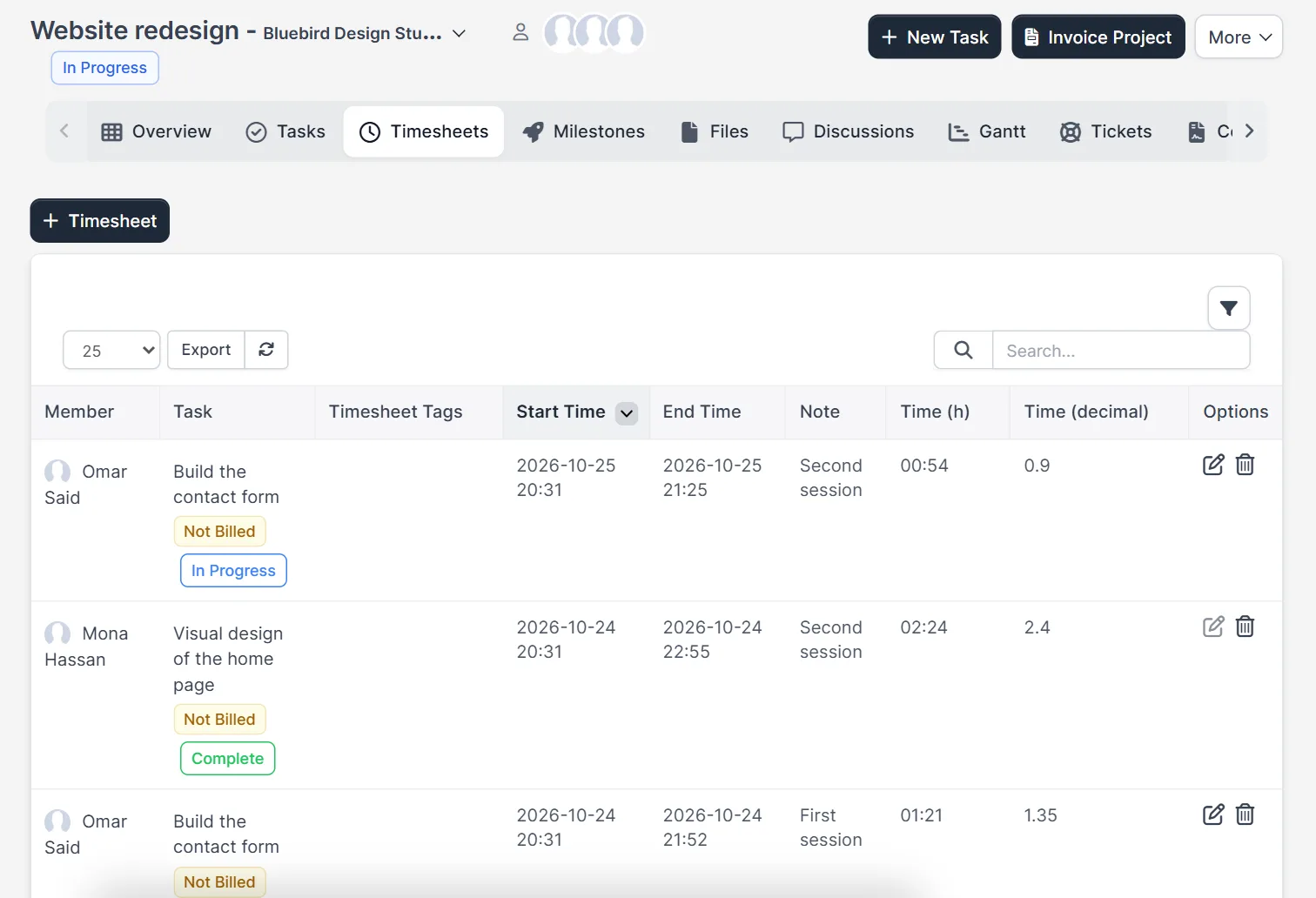
The table lists the member, the task with its billing status, the start and end time, the note and the time in hours and in decimal hours. The edit and delete icons are in the last column.
Step 1: Check the task before you track time #
Open a task. The window shows the status, the start and due date, the Hourly Rate, whether the task is Billable and the Billable Amount that the logged time adds up to. A timer can only be started by a staff member who is assigned to the task; for anyone else the Start Timer button shows a hint that you need to be assigned.
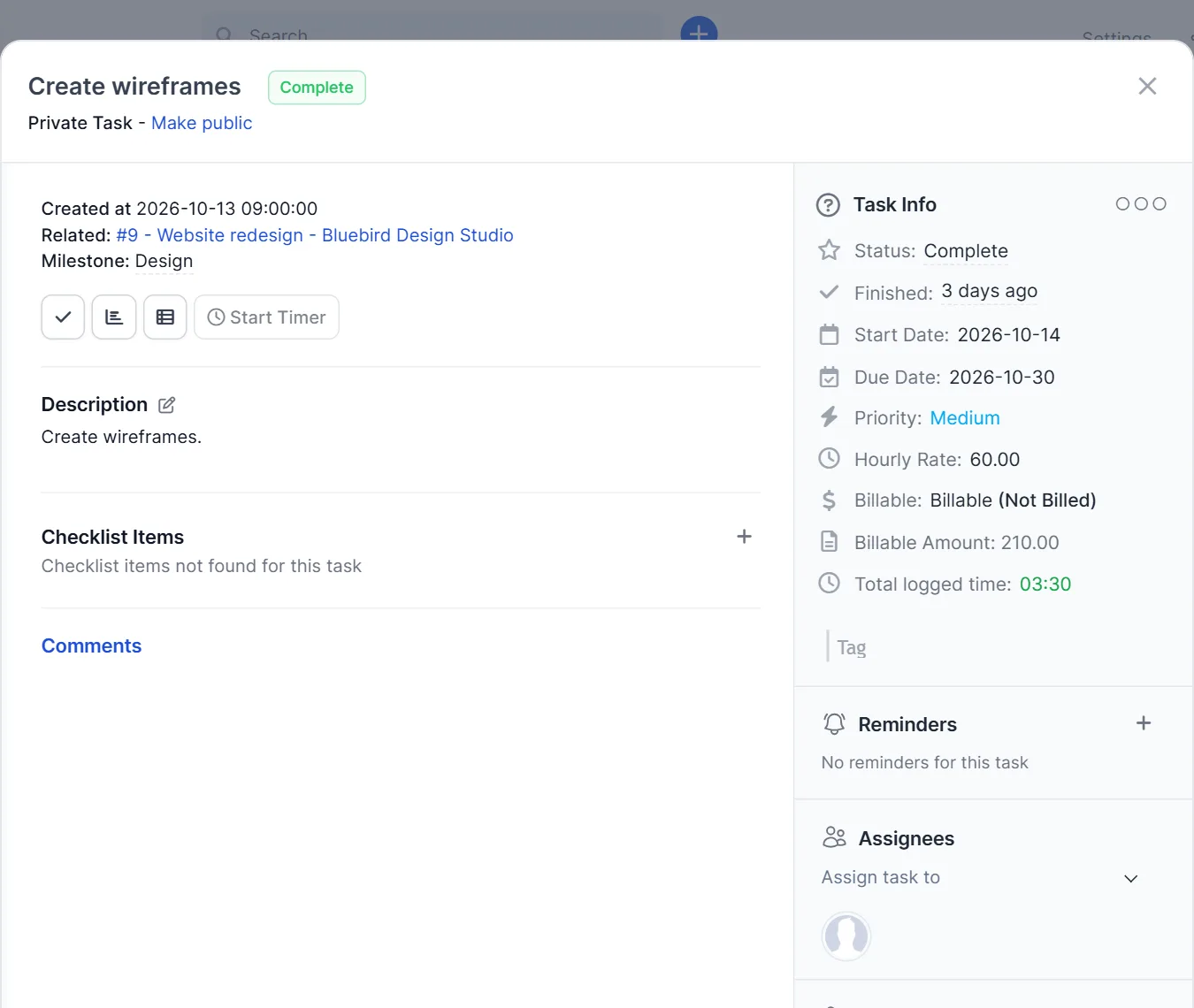
Step 2: Start the timer or add a timesheet by hand #
Click Start Timer when you begin and click it again when you stop. The CRM saves the block for you. If you forgot to start the timer, open the timesheets icon in the task window and use Add timesheet: choose the start and end time, or switch to Enter time duration instead, pick the Member and write a short note.
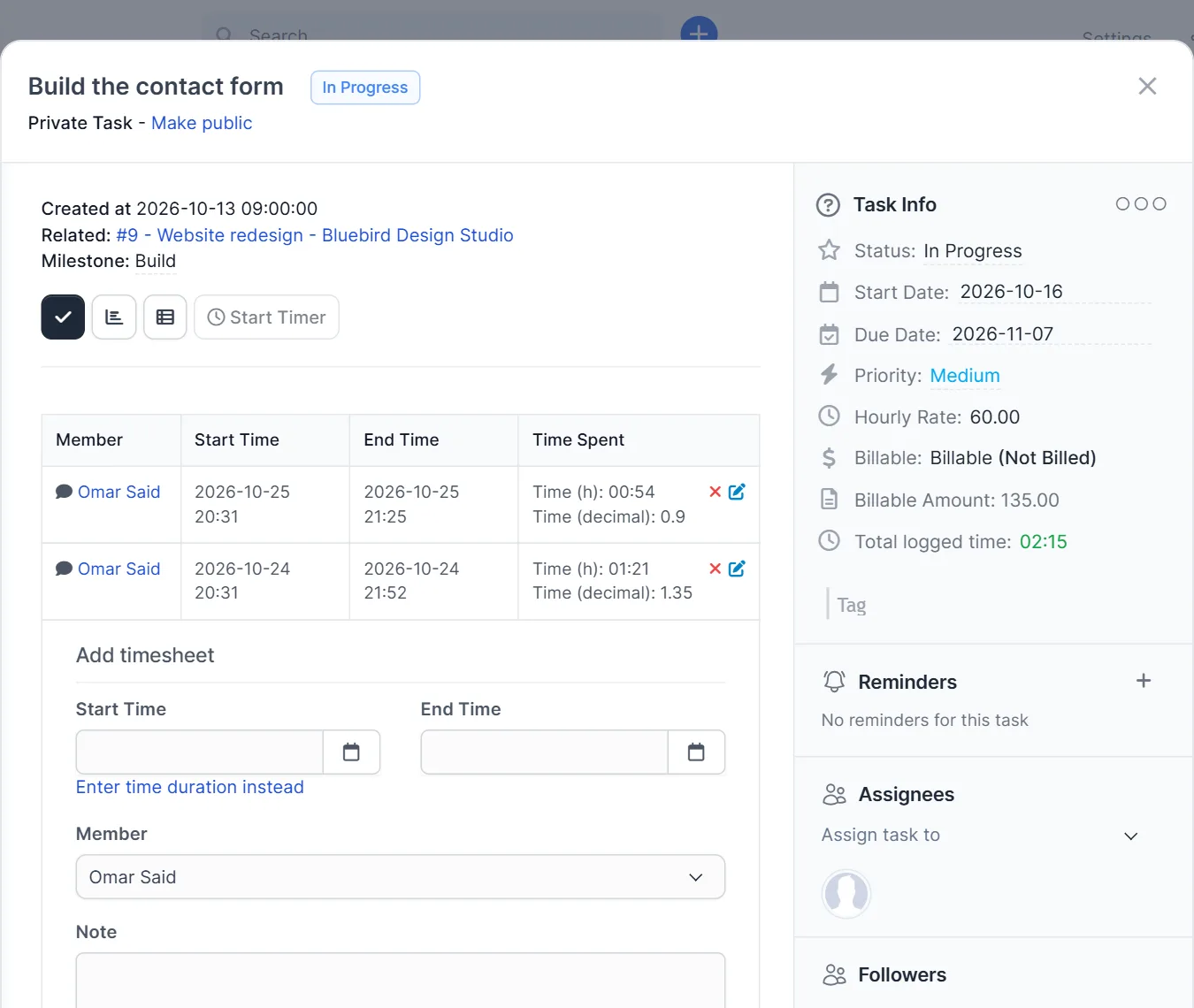
- Write the note as one line that your customer can read, such as the page you worked on.
- Pick the right member before you save, because the hours are counted for that person.
- Edit or delete a wrong block with the icons in the timesheet table.
Step 3: Read the timesheets of a project #
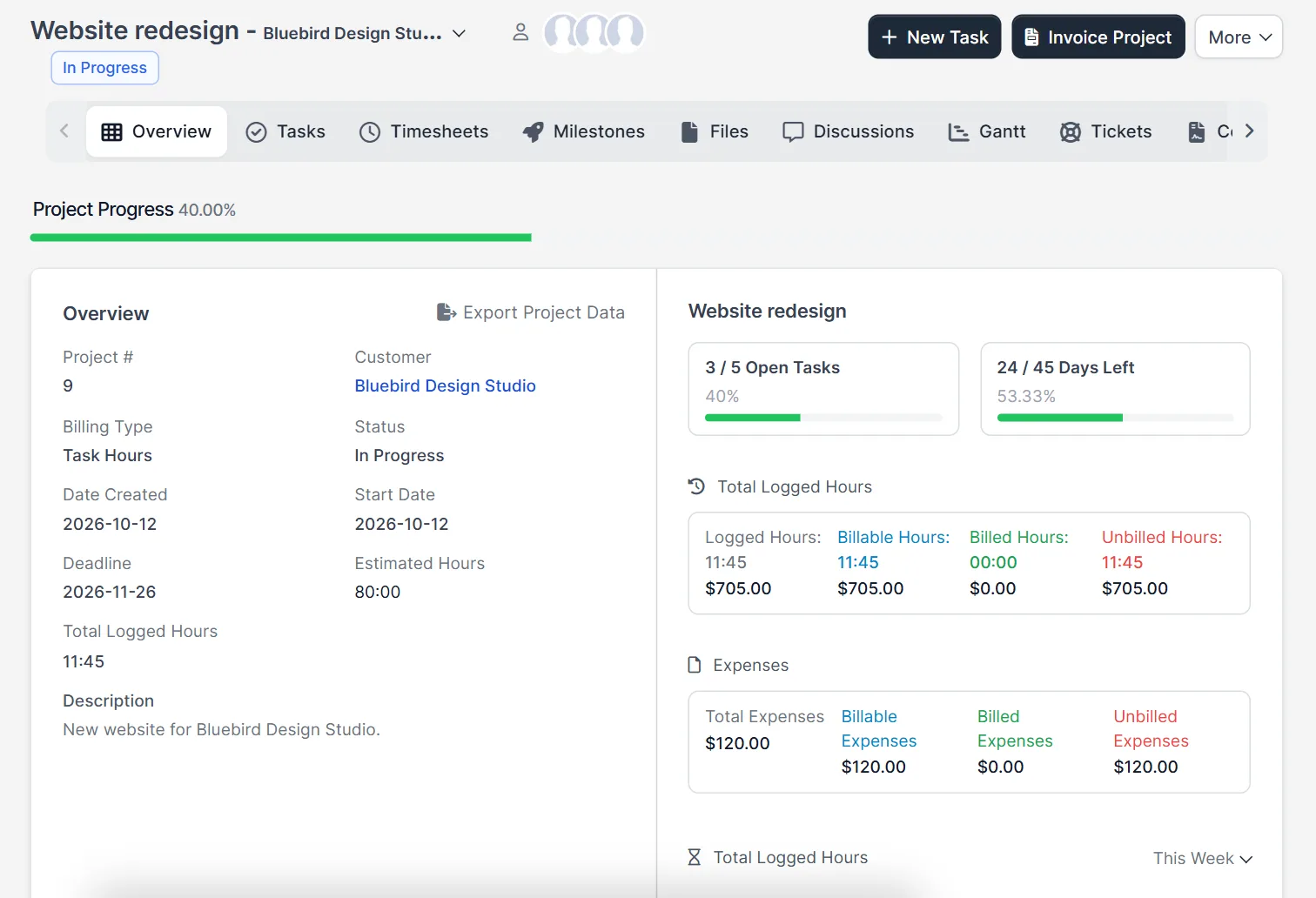
Open the project and click Timesheets. Every block of every task of the project is in one table, and the + Timesheet button adds a block for any task. Use the search box and the filter icon to narrow the list by member or task. The overview of the project adds the totals: logged hours, billable hours, billed hours and unbilled hours, each with an amount at the hourly rate.
Step 4: See all timesheets of your staff #
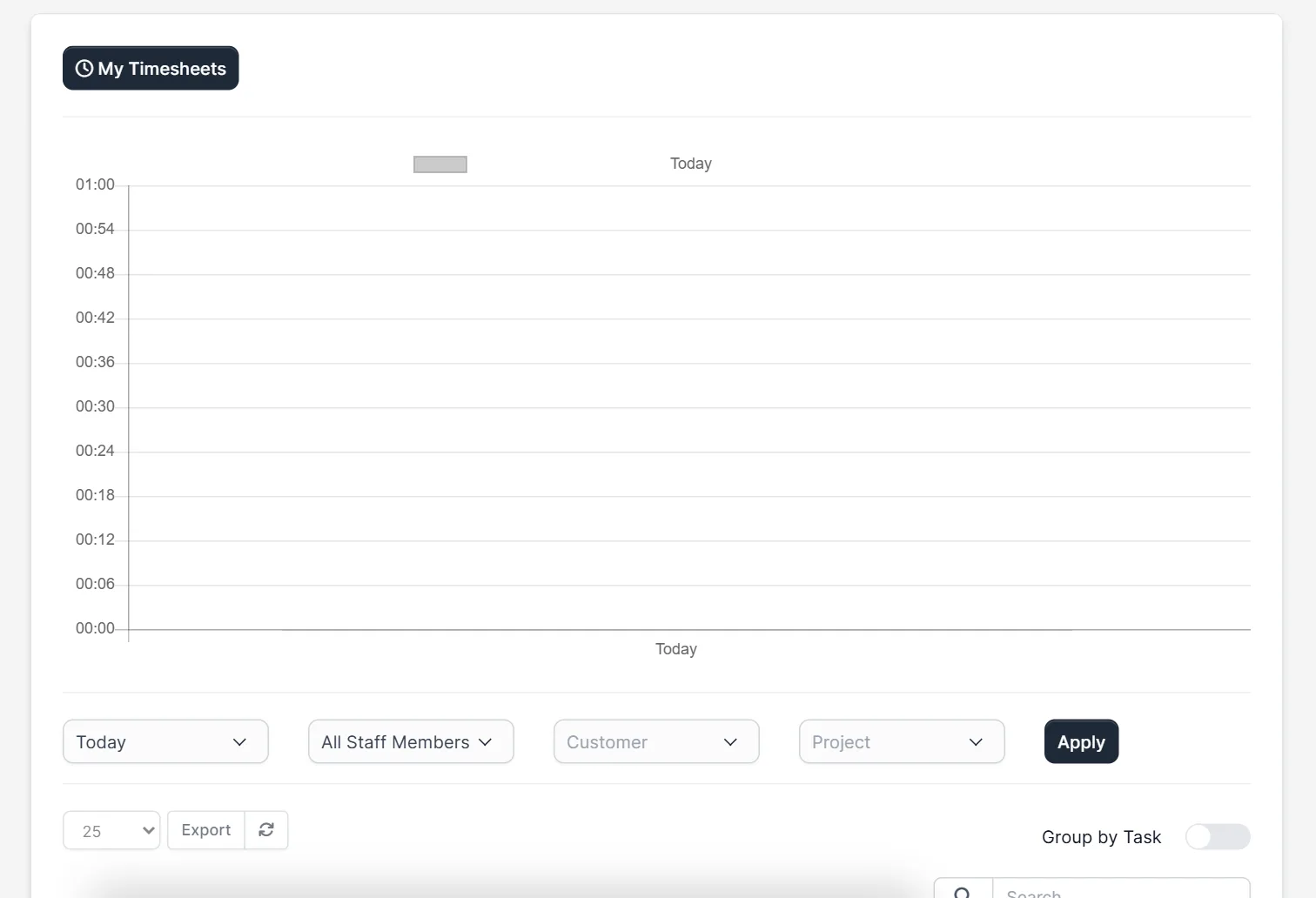
Open the timesheets overview page of the CRM (its address ends with /admin/staff/timesheets). It starts with your own hours in a chart and a summary for the week and the month. The View All Timesheets button lists everyone, and the filters let you pick a day range, a staff member, a customer or a project and click Apply. Turn on Group by Task to see one line per task.
Step 5: Use the hours for billing #
Hours become money when the task is billable and the project billing type is Task Hours. The unbilled hours stay in the project overview until you invoice them, and our guide to invoicing a project in Perfex CRM shows how. Marked as billed, the hours leave the unbilled total.
Good habits for billable hours #
- Set the hourly rate on the task or the project before the work starts, so every block has a price.
- Keep one timer running at a time and stop it when you switch tasks.
- Review the project timesheets once a week and fix missing notes.
Related guides #
- Plan the work with Perfex CRM tasks and projects.
- Repeat regular work with recurring tasks.
- Track leave and attendance with our Timesheets and Leave module.
- Read the official Perfex CRM help for more project topics.
The screenshots come from a demo CRM. Starting and stopping a live timer and the exact wording of the timer tooltip were not tested; the blocks in the pictures were added as saved data.
Summary #
Perfex CRM timesheets turn working time into numbers: a timer or a manual block on each task, a table for the whole project and a staff overview. Set the rate, track the billable hours and invoice them when the project is ready.
Frequently asked questions #
Where are Perfex CRM timesheets? #
Open a task and click the timesheets icon, open the Timesheets tab of a project, or open the timesheets overview from your profile menu.
Who can start a timer on a task? #
Only a staff member who is assigned to the task can start its timer.
Can I add time I forgot to track? #
Yes. Use Add timesheet in the task or the + Timesheet button in the project, enter the start and end time or the duration, choose the member and save.
How do I see the billable hours of a project? #
The project overview shows logged, billable, billed and unbilled hours with their amounts, based on the hourly rate.


