
- What Perfex CRM recurring expenses are
- Step 1: Open the expense form
- Step 2: Turn on Recurring for Perfex CRM recurring expenses
- Step 3: Check the saved expense
- Step 4: Follow the copies
- Keep the categories tidy
- Common mistakes with Perfex CRM recurring expenses
- Related guides
- Summary
- Frequently asked questions
Perfex CRM recurring expenses let you record a cost once and have it repeat on its own, such as a software subscription, hosting or rent. This guide, tested on Perfex CRM 3.4.1, shows how to turn an expense into a recurring one, choose how often it repeats and how many times, and find the repeated copies later.
What Perfex CRM recurring expenses are #
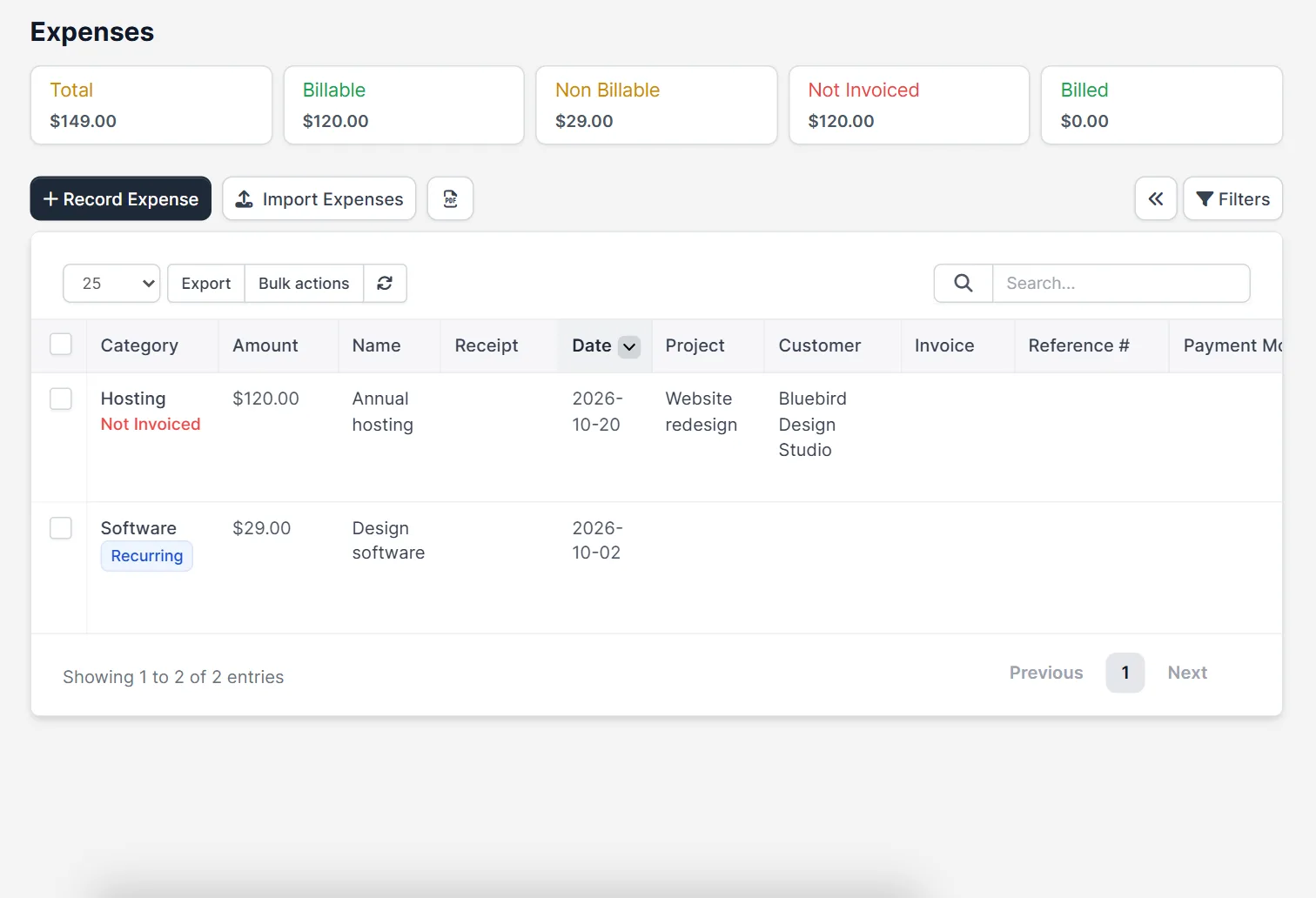
A recurring expense is a normal expense with a schedule. You enter the first one, choose a period such as one month, and the CRM creates a new copy each time the period ends. The copies are called child expenses and stay linked to the first one. The expenses page shows the totals for the whole list, with Total, Billable, Non Billable, Not Invoiced and Billed amounts, and marks every recurring expense with a small Recurring label.
Step 1: Open the expense form #
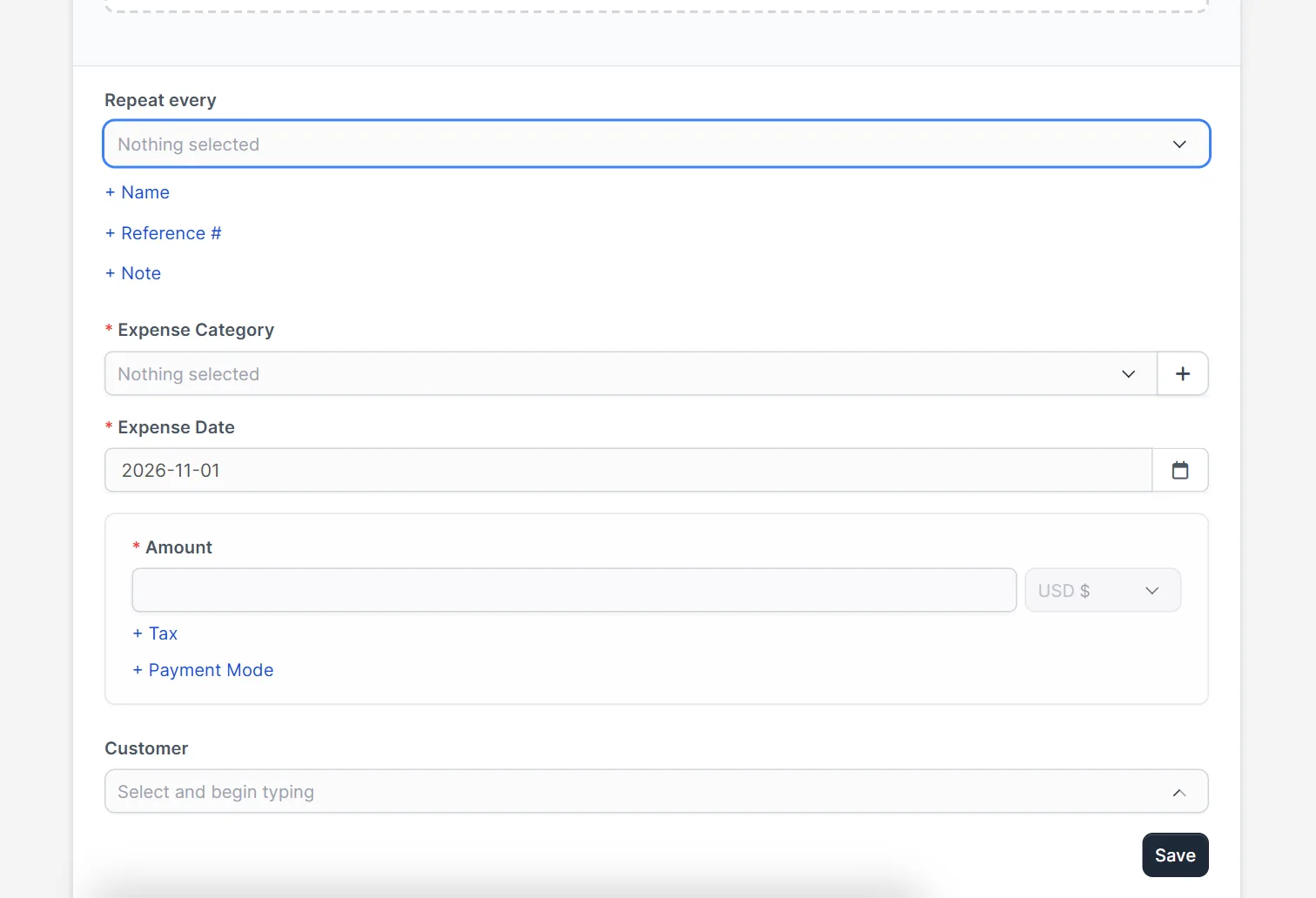
Go to Expenses and click Record Expense. Choose the Expense Category and the Expense Date, then type the Amount. You can add a tax, a payment mode and a customer. If the category you need does not exist yet, create it first as described in Perfex CRM expense categories.
Step 2: Turn on Recurring for Perfex CRM recurring expenses #
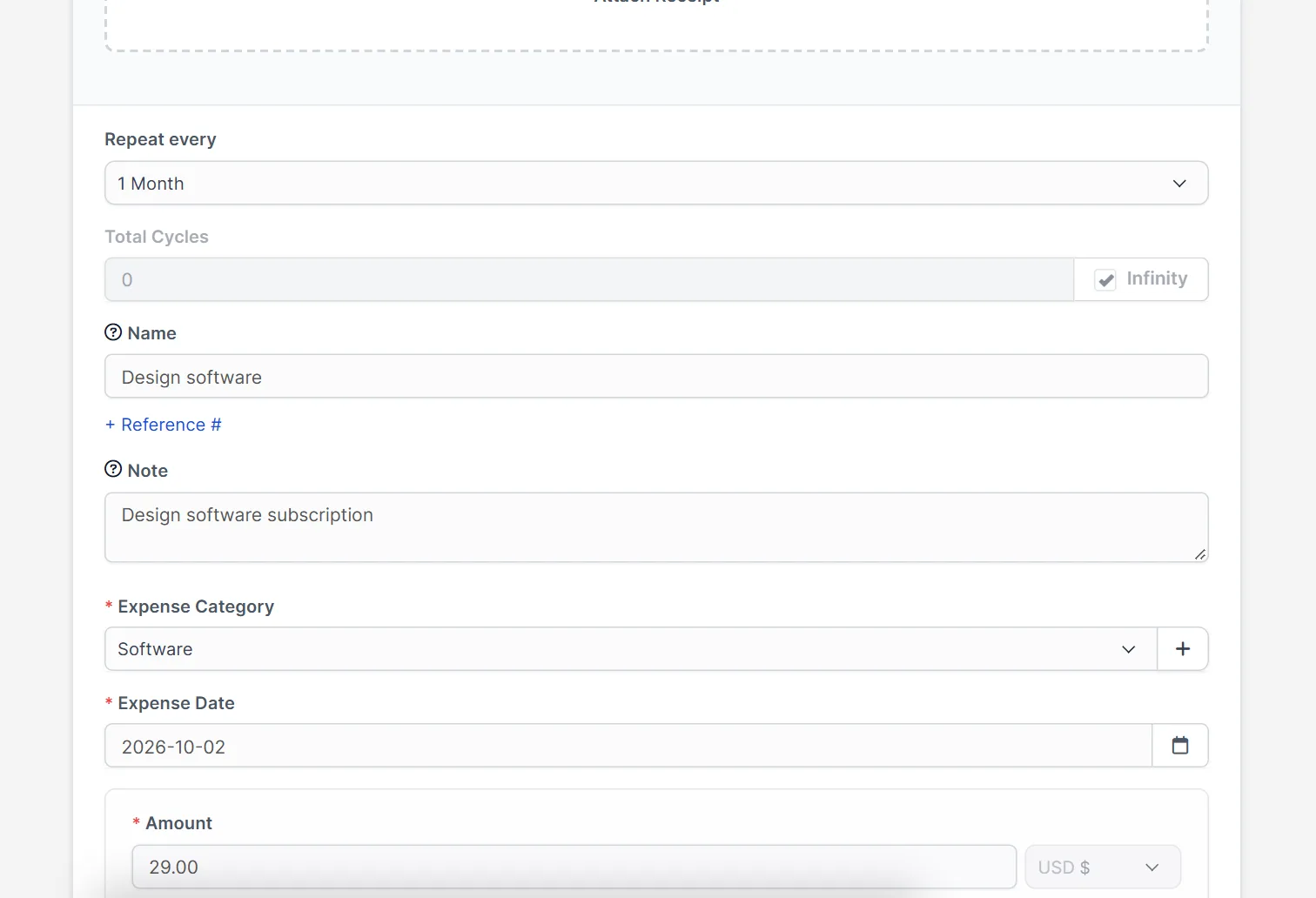
Above the category you see small links: + Recurring, + Name, + Reference # and + Note. Click + Recurring. A Repeat every list appears. Pick the period, for example 1 Month, and the Total Cycles field, where you can set a number of repeats or tick Infinity for a cost that never ends. Add a name so you recognise the cost in the list.
- Use a clear name such as the supplier and the plan, because the name shows in the list.
- Choose a number of cycles for a cost with an end date, such as a 12 month contract.
- Leave Infinity ticked for a subscription that you stop by hand.
Step 3: Check the saved expense #
Open the expense again to see the schedule. The form shows Repeat every with the period, the Total Cycles setting, the name, the note, the category and the amount. Change the period or the amount here when your supplier changes the price; the next copy uses the new values.
Step 4: Follow the copies #
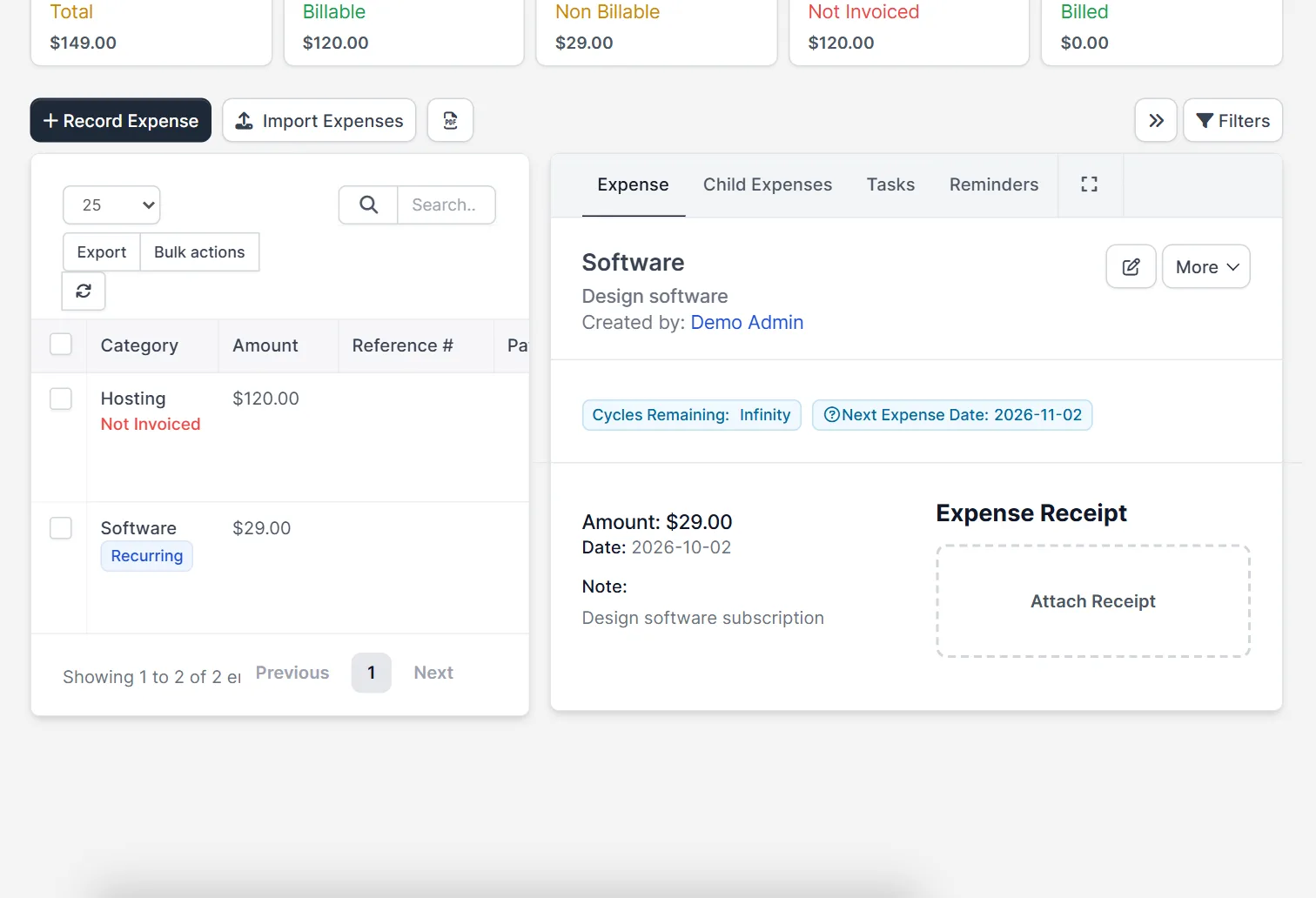
Click the expense in the list. The side panel shows how many cycles remain (Cycles Remaining), the date of the next copy (Next Expense Date) and four tabs: Expense, Child Expenses, Tasks and Reminders. The Child Expenses tab lists each copy that the CRM has created so far. Use Attach Receipt to keep the invoice of the supplier with the expense.
Keep the categories tidy #
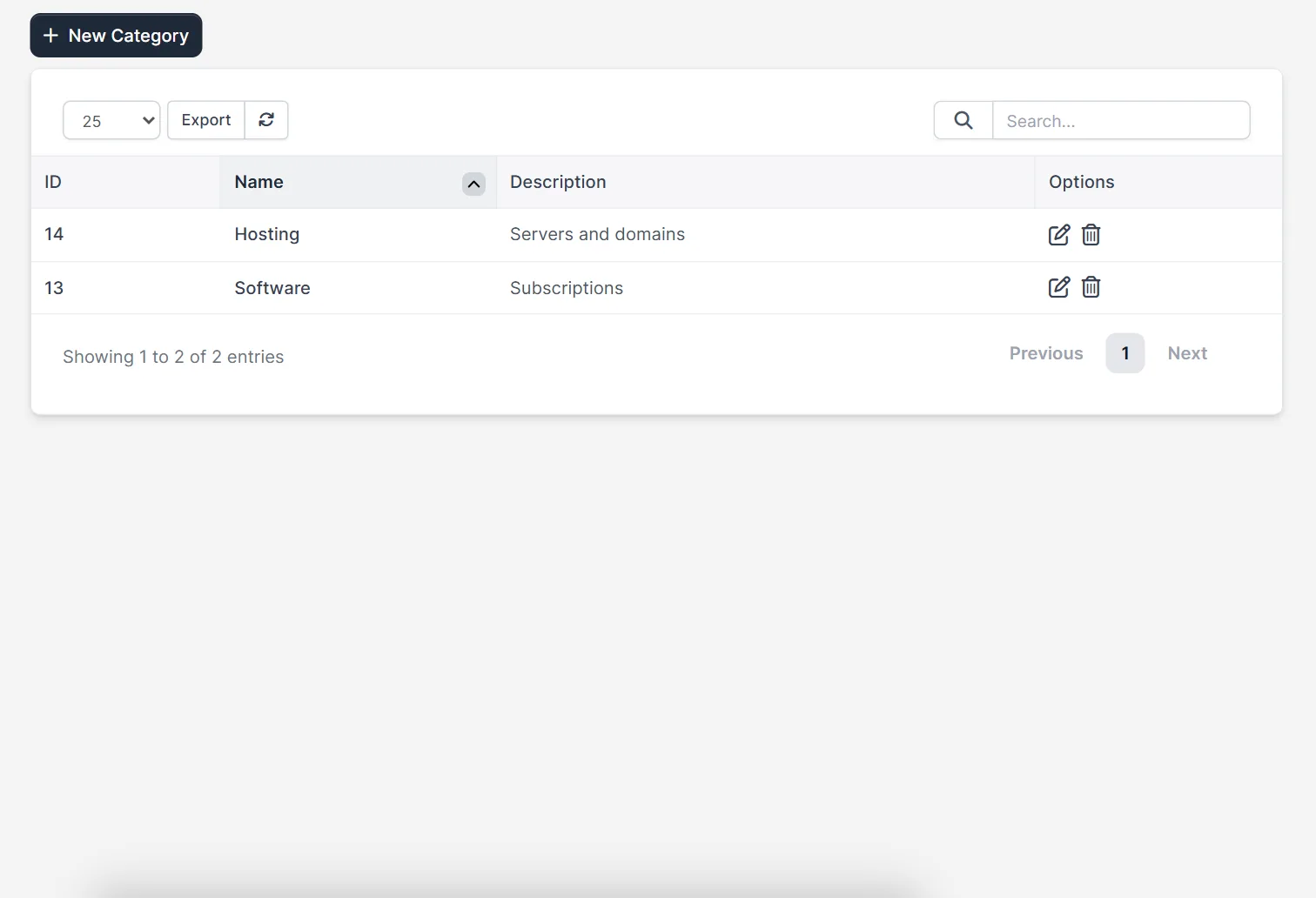
Recurring costs are easy to report on when they use few, clear categories, for example Software and Hosting. The categories page lists them with an ID, a name and a description, and the edit and delete icons.
Common mistakes with Perfex CRM recurring expenses #
Perfex CRM recurring expenses are easy to set and easy to forget. A repeat expense with Infinity cycles keeps running until you stop it, so review the list every quarter and edit or remove the costs that have ended. Another mistake is a vague name: a list full of lines called Subscription hides which cost is which. A third mistake is the wrong category, which spoils the expense reports. Check the next expense date in the side panel after you save, and make sure the cron job runs on your server, because without it the repeat expense is not created on time.
Related guides #
- Record single costs with Perfex CRM expenses.
- Repeat sales documents with recurring invoices.
- The CRM creates the copies on a schedule, so make sure the cron job runs.
- See profit and loss with our Financial Management module.
- Read the official Perfex CRM help for more expense topics.
The screenshots come from a demo CRM. The creation of a new child expense by the cron job, and the exact list of period choices, were not tested here.
Summary #
Perfex CRM recurring expenses save time on costs that come back every month: record the first expense, click Recurring, choose the period and the number of cycles, and follow the copies in the side panel. Keep the name and category clear so the repeat expense is easy to find.
Related module: After you have sorted out Perfex CRM recurring expenses, the Purchase Management module manages vendors, quotations and purchase orders, so repeated costs start from an order, not from a manual entry.
Frequently asked questions #
How do I make an expense recurring in Perfex CRM? #
Open Record Expense, click + Recurring, choose Repeat every and Total Cycles, fill in the amount and category and save.
Can a recurring expense run forever? #
Yes. Tick Infinity in Total Cycles for a cost that repeats until you stop it.
Where do I see the copies of a recurring expense? #
Click the expense in the list and open the Child Expenses tab.
Do recurring expenses need the cron job? #
The CRM creates the copies on a schedule, so the Perfex CRM cron job must run.


