
- What customers can do in the customer area
- Step 1: Open the customer settings
- Step 2: Decide about customer registration
- Step 3: Set what contacts may manage
- Step 4: Set the default permissions
- Step 5: Add the knowledge base
- Step 6: Send customers the login link
- Step 7: Check the portal as a customer
- Tips for a better Perfex CRM customer portal
- Perfex CRM customer portal FAQ
- Modules that improve the customer area
- Quick checklist for Perfex CRM customer portal
- Summary
The Perfex CRM customer portal is the area where your customers sign in to see invoices, estimates, contracts, proposals, projects and support tickets. Many people call it the customer area or client portal. A well set up portal means fewer emails, faster payments and happier customers. This guide was tested on Perfex CRM 3.4.1 and shows how to set it up in seven steps.
What customers can do in the customer area #
After they sign in, contacts can see only the things you allow: invoices and payments, estimates, contracts, proposals, projects and tasks, support tickets and the knowledge base. They can also change their profile and upload files. Each contact has its own permissions, so one company can have an accountant who sees invoices and a manager who sees projects.
Step 1: Open the customer settings #
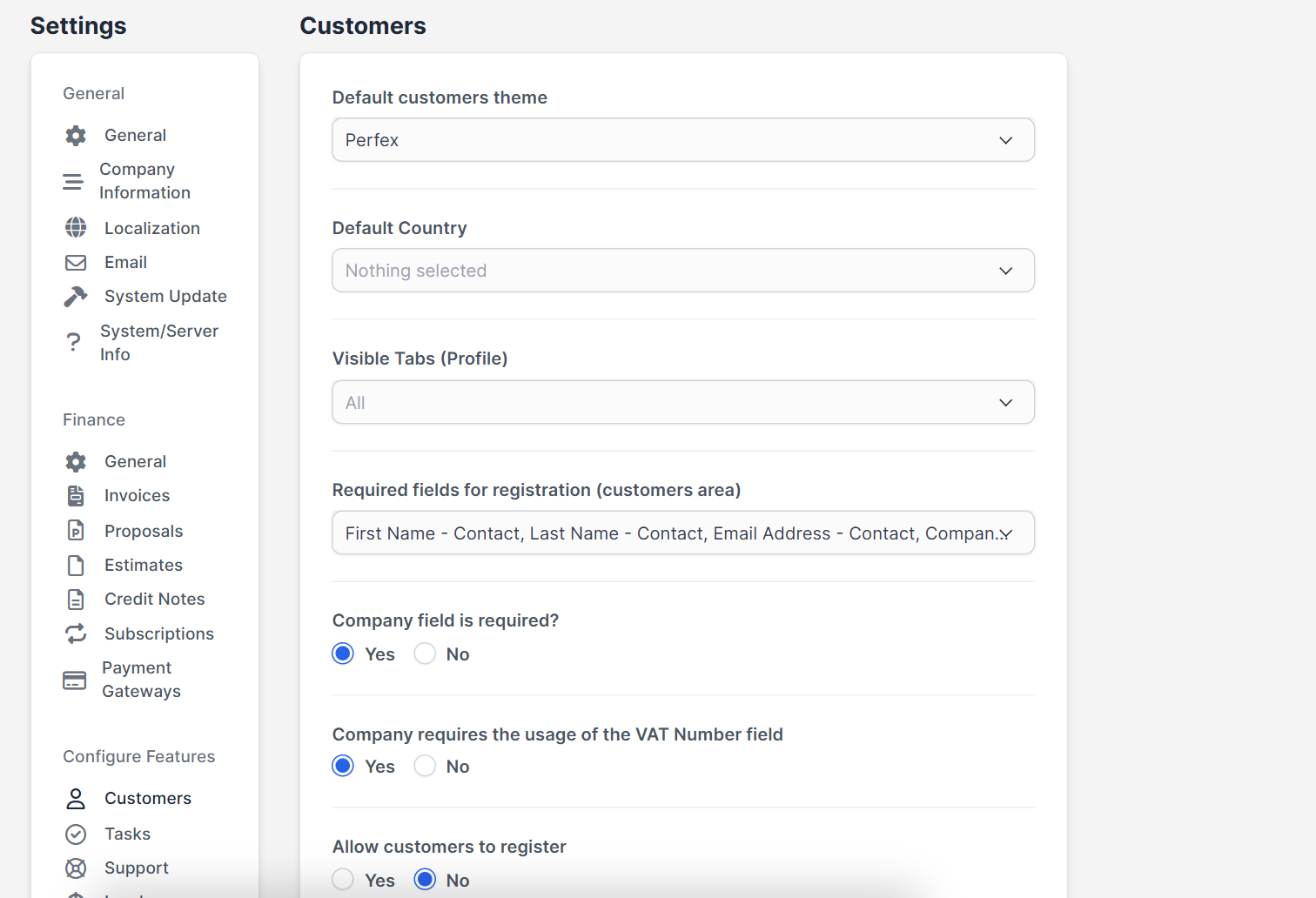
Open Setup > Settings > Customers. This page controls the portal for all customers.
Step 2: Decide about customer registration #
For customer registration, use Allow customers to register to show a sign-up form. Then set Require registration confirmation from administrator after customer register if you want to approve each account. Use Required fields for registration (customers area) to choose what people must fill in, and Enable Honeypot spam validation to block simple bots. If you do not want public sign-ups, leave registration off and create contacts yourself, see Perfex CRM customer contacts.
Step 3: Set what contacts may manage #
- Allow primary contact to manage other customer contacts lets the main contact add colleagues.
- Allow primary contact to view/edit billing & shipping details lets the customer keep addresses current.
- Allow contacts to delete own files uploaded from customers area is best left off unless you need it.
- Show Estimate request link in customers area? adds a request link for new quotes.
Step 4: Set the default permissions #
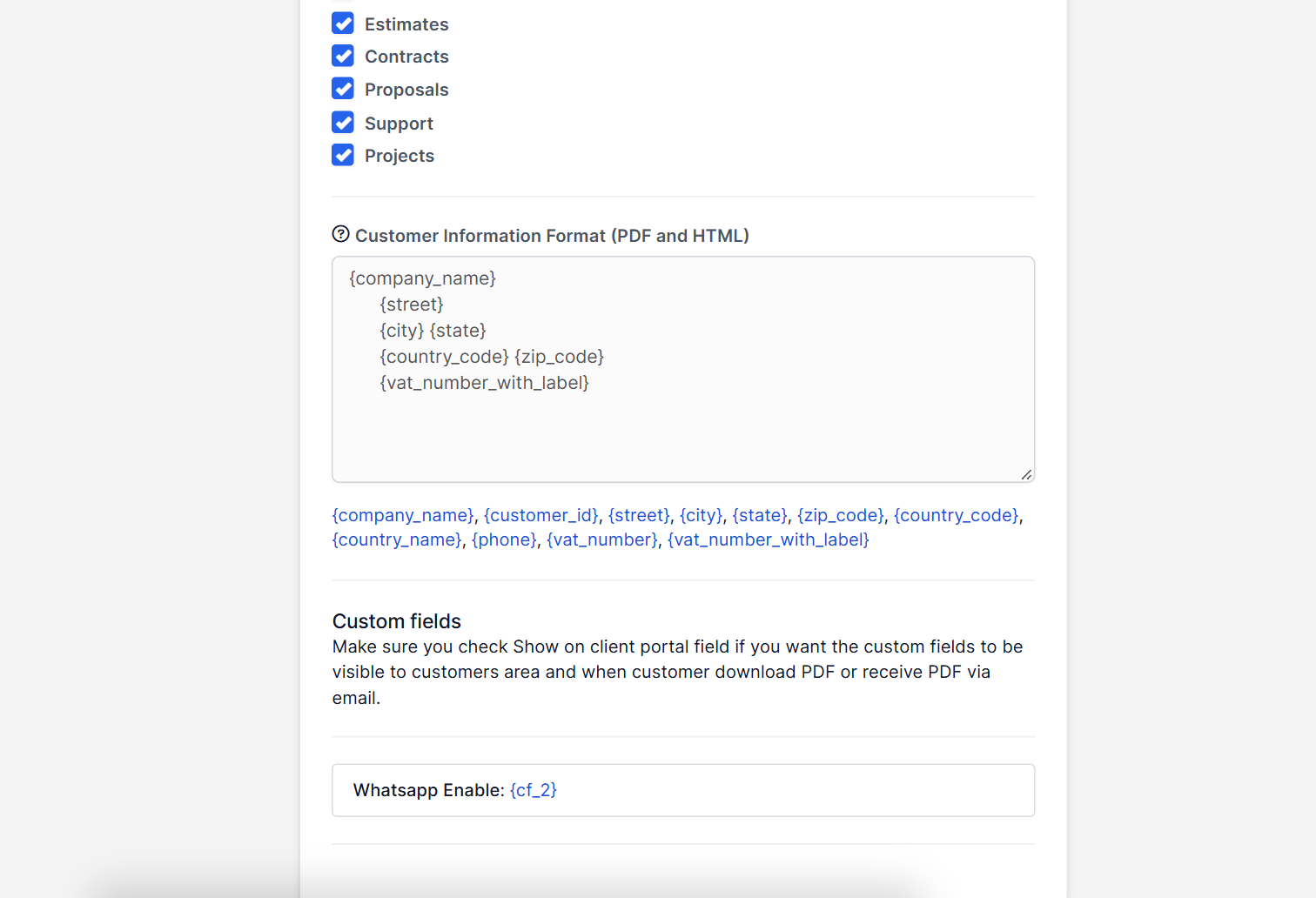
Under Default contact permissions tick Invoices, Estimates, Contracts, Proposals, Support and Projects as needed. These are the starting rights of every new contact, and you can change them for each person later.
Step 5: Add the knowledge base #
Turn on Use Knowledge Base and decide whether it is public with Allow knowledge base to be viewed without registration. See how to build a Perfex CRM knowledge base.
Step 6: Send customers the login link #
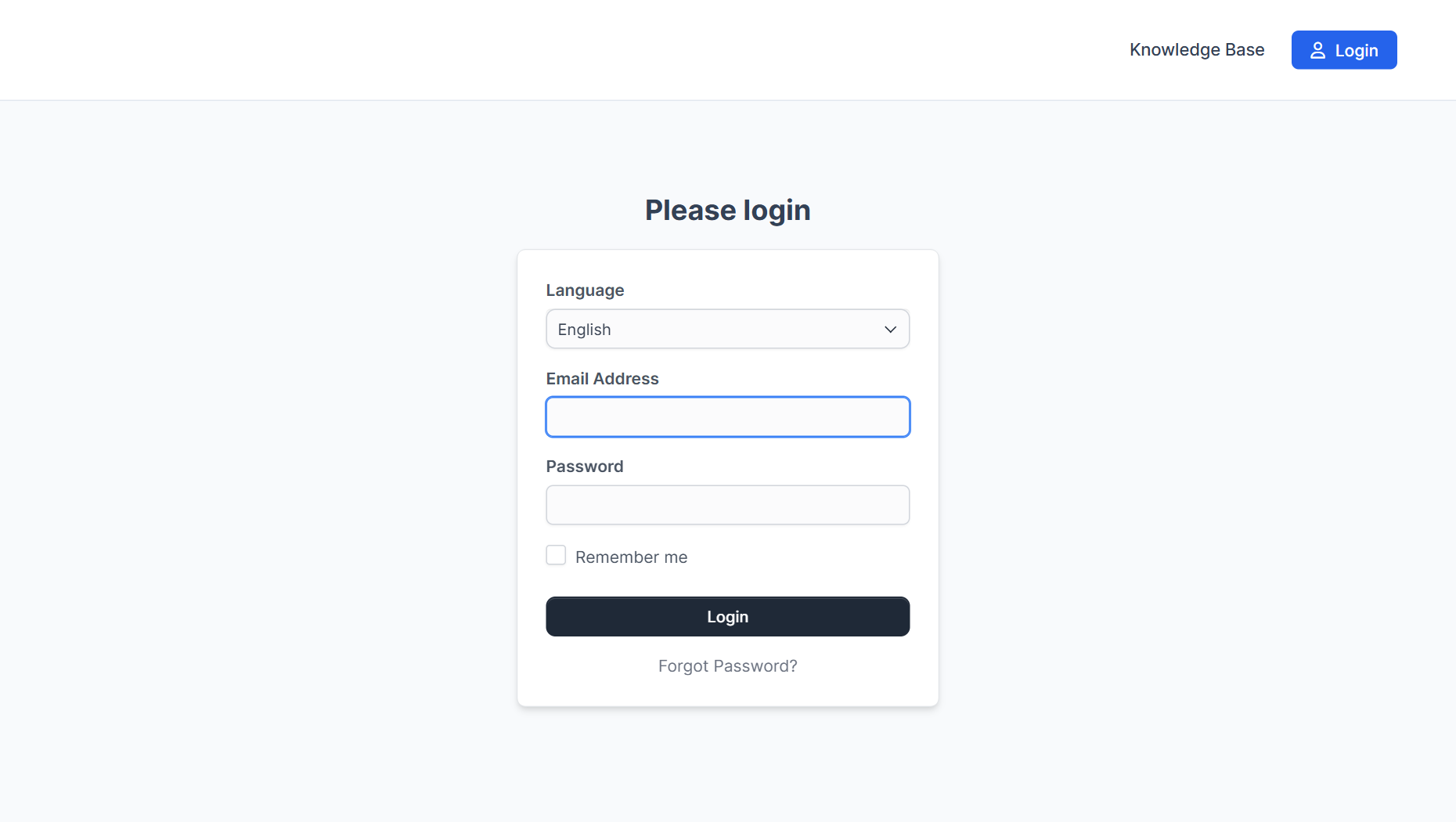
The customer sign-in page is your CRM address with a short path, and it asks for the Email Address and Password, with a Remember me option and a language choice. When you create a contact, switch on the welcome email or the set password email so the person gets access. Your emails need working SMTP settings.
Step 7: Check the portal as a customer #
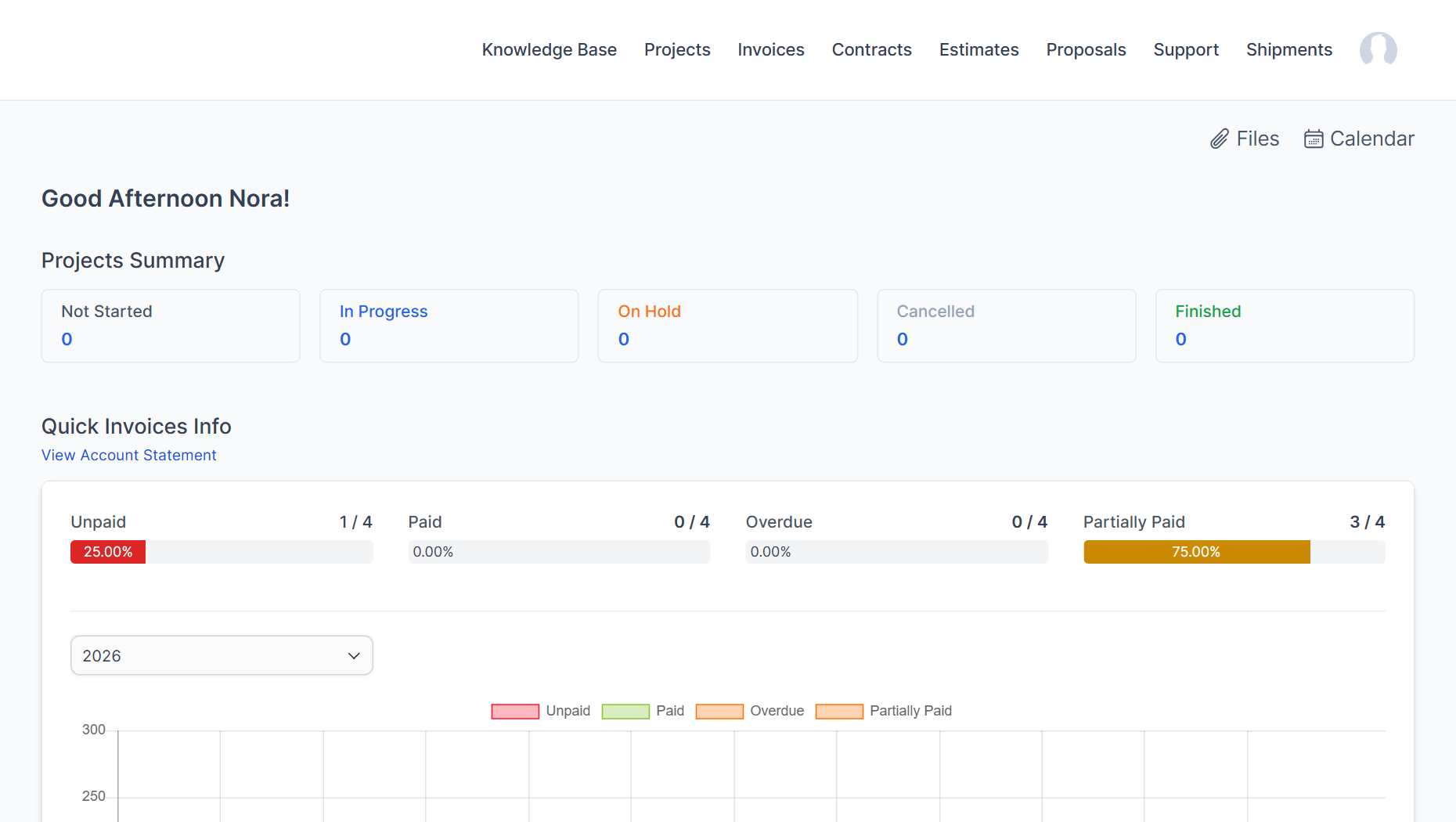
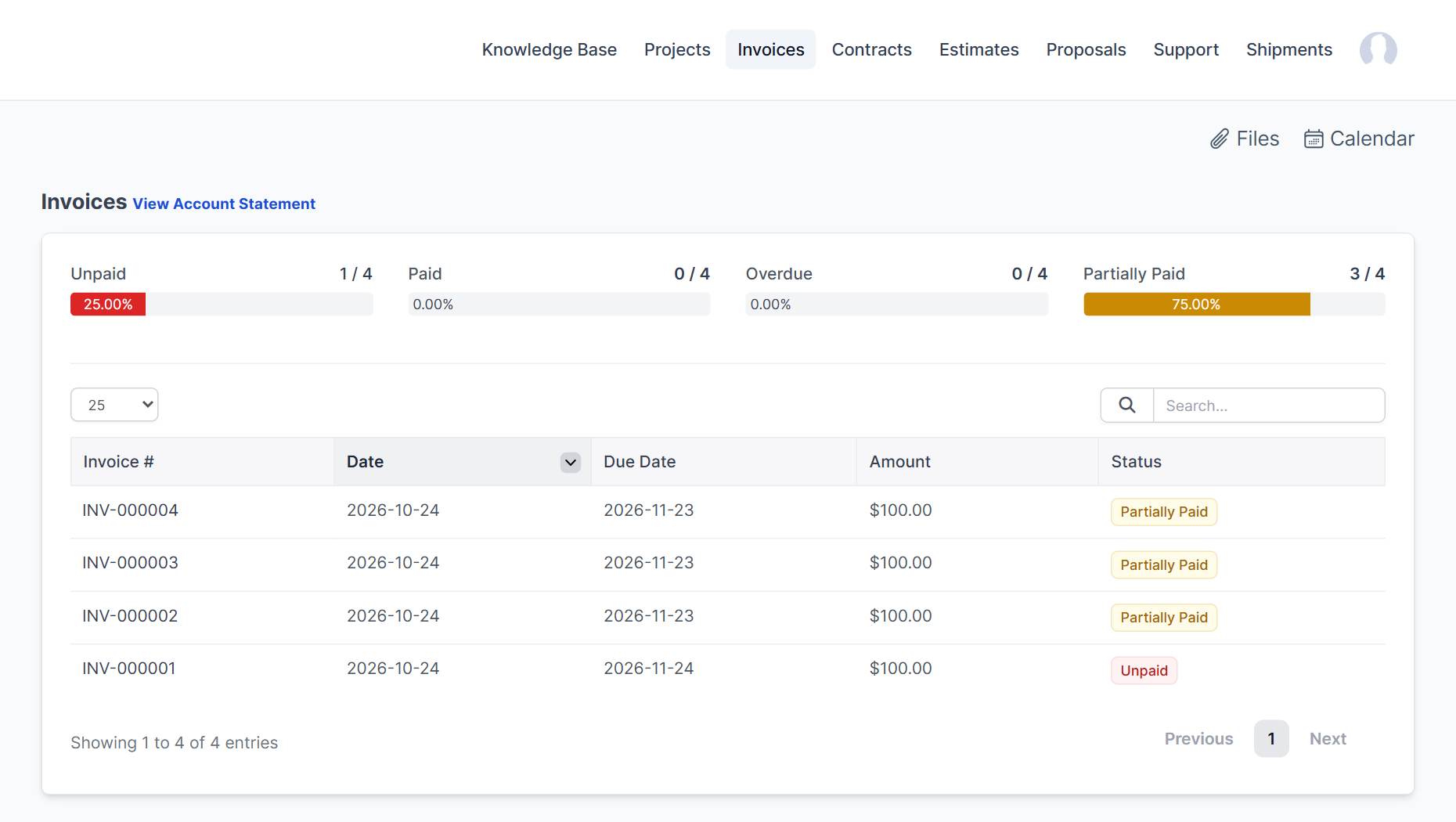
Sign in with a test contact and look at each page. A contact with all permissions sees the menu Knowledge Base, Projects, Invoices, Contracts, Estimates, Proposals and Support, and a dashboard with a projects summary and a quick invoices overview. Check that invoices open, that tickets can be created and that nothing private is visible. Then try an online payment if you use Perfex CRM payment gateways.
Tips for a better Perfex CRM customer portal #
- Add your logo so customers recognize the page. See how to change the Perfex CRM company logo.
- Use the same email domain for all messages so they are not marked as spam.
- Give each contact only the permissions their job needs.
- Show a link to the portal in your invoices and email signatures.
- Test the portal after every Perfex CRM update.
Perfex CRM customer portal FAQ #
What is the Perfex CRM customer portal? #
It is the customer area where contacts sign in to see invoices, estimates, contracts, projects and tickets.
How do customers log in? #
With their email address and password on the customer sign-in page. They can reset the password from the same page.
Can I stop customers from registering themselves? #
Yes, turn off Allow customers to register and add contacts yourself.
Can customers pay invoices in the portal? #
Yes, when you have set up a payment gateway and allowed it on the invoice.
Modules that improve the customer area #
Let customers chat with your team through the Perfex CRM Chat Module and give your team a phone version with the Perfex CRM Mobile App.
Quick checklist for Perfex CRM customer portal #
- Turn on only the options your customers need in the Perfex CRM customer portal.
- Test the Perfex CRM customer portal with a real contact before you announce it.
- Mention the Perfex CRM customer portal link in every invoice email.
Summary #
A clear Perfex CRM customer portal starts with the right registration rules, sensible default permissions and a tested login. Decide who can sign up, set permissions for each contact and check the customer area yourself. More information is on the official Perfex CRM website, and a tidy Perfex CRM customer portal reduces your daily support work.


