
- Where to find the Perfex CRM PDF settings
- Step 1: Choose the PDF font and size
- Step 2: Set the table colors
- Step 3: Control the logo on documents
- Step 4: Choose what the PDF shows
- Step 5: Add a signature
- Step 6: Set the company details and page format
- Test your documents
- Perfex CRM PDF settings FAQ
- Quick checklist: Perfex CRM PDF settings
- Summary
Every invoice, estimate, proposal and contract you send is a PDF, so the Perfex CRM PDF settings decide how your business looks to customers. You can change the font, the size, the logo width, the table colors, the signature and the extra information on the page. This guide was tested on Perfex CRM 3.4.1 and shows each option and where it is.
Where to find the Perfex CRM PDF settings #
Open Setup > Settings and choose PDF in the Other group of the menu. The page has several blocks: Signature, Document formats, the font settings, the logo options and a list of switches for what to show.
Step 1: Choose the PDF font and size #
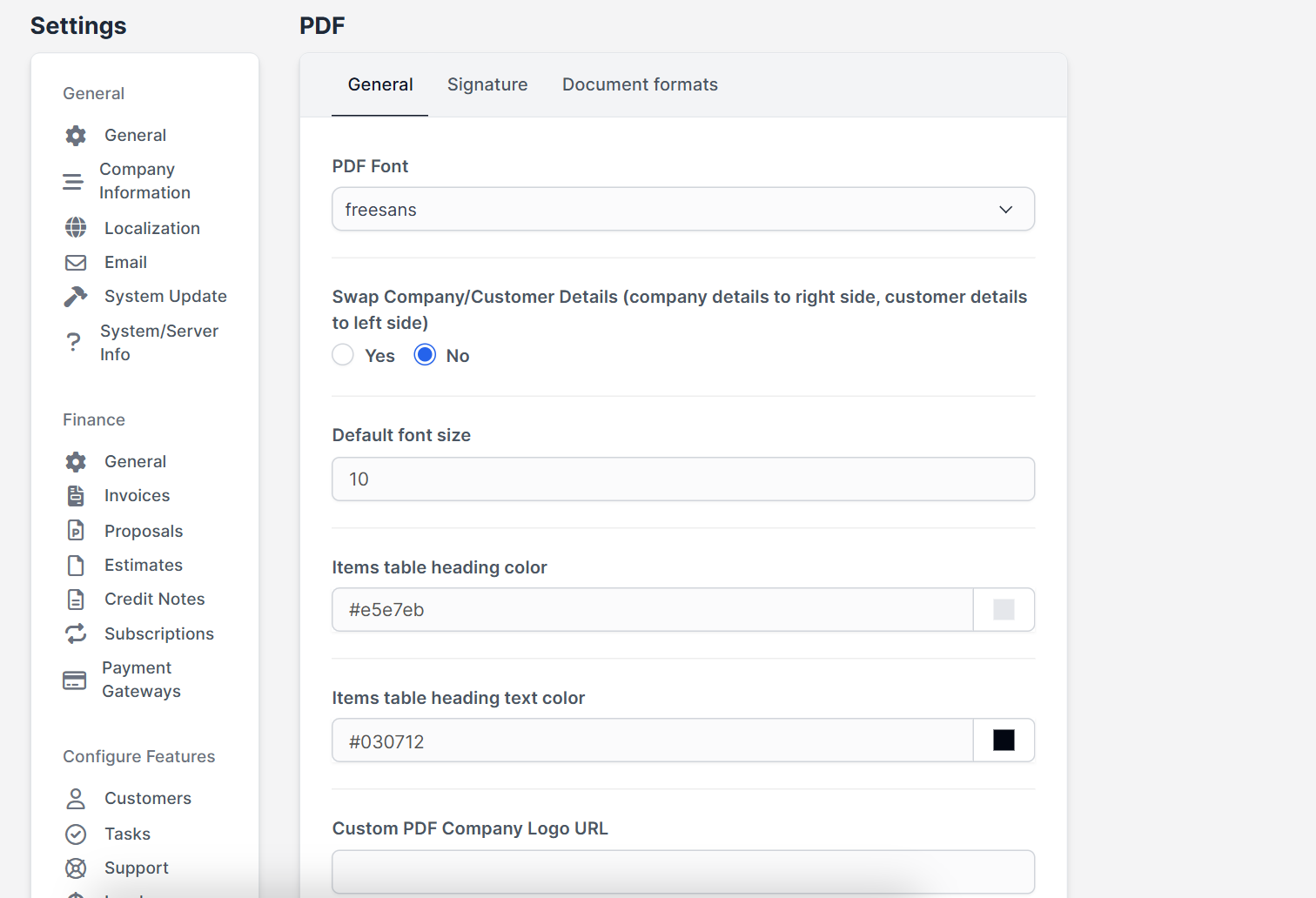
The PDF Font field decides which font is used in all documents. The default is freesans. If your customers use another script, such as Arabic or Chinese, choose a font that includes those characters, or letters may appear as boxes. The Default font size sets the text size. Keep it between 9 and 12 for easy reading. See Perfex CRM language settings if you work in more than one language.
Step 2: Set the table colors #
Items table heading color and Items table heading text color style the header row of the items table. Use your brand color for the background and white for the text, and check that the text stays readable when printed in black and white.
Step 3: Control the logo on documents #
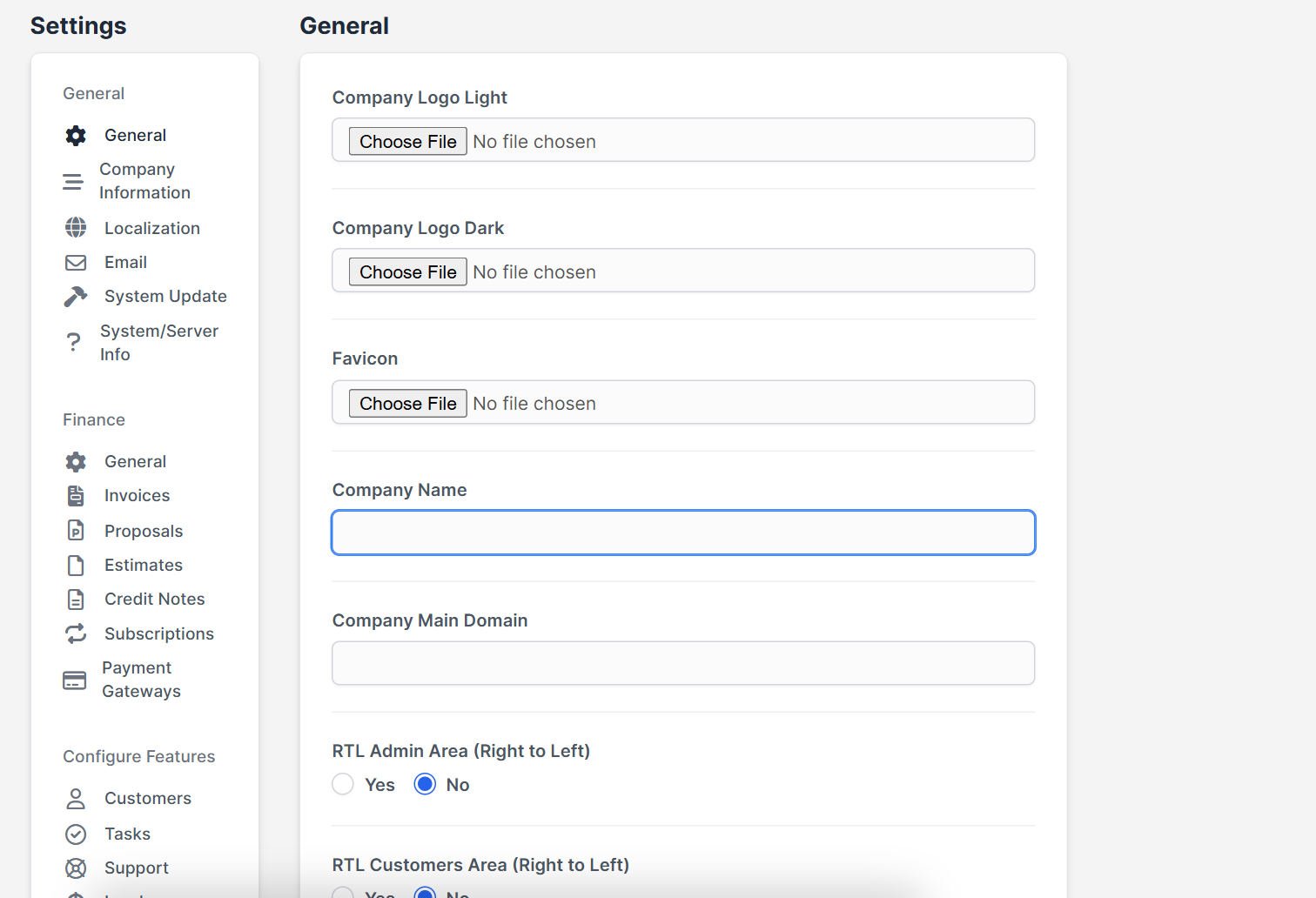
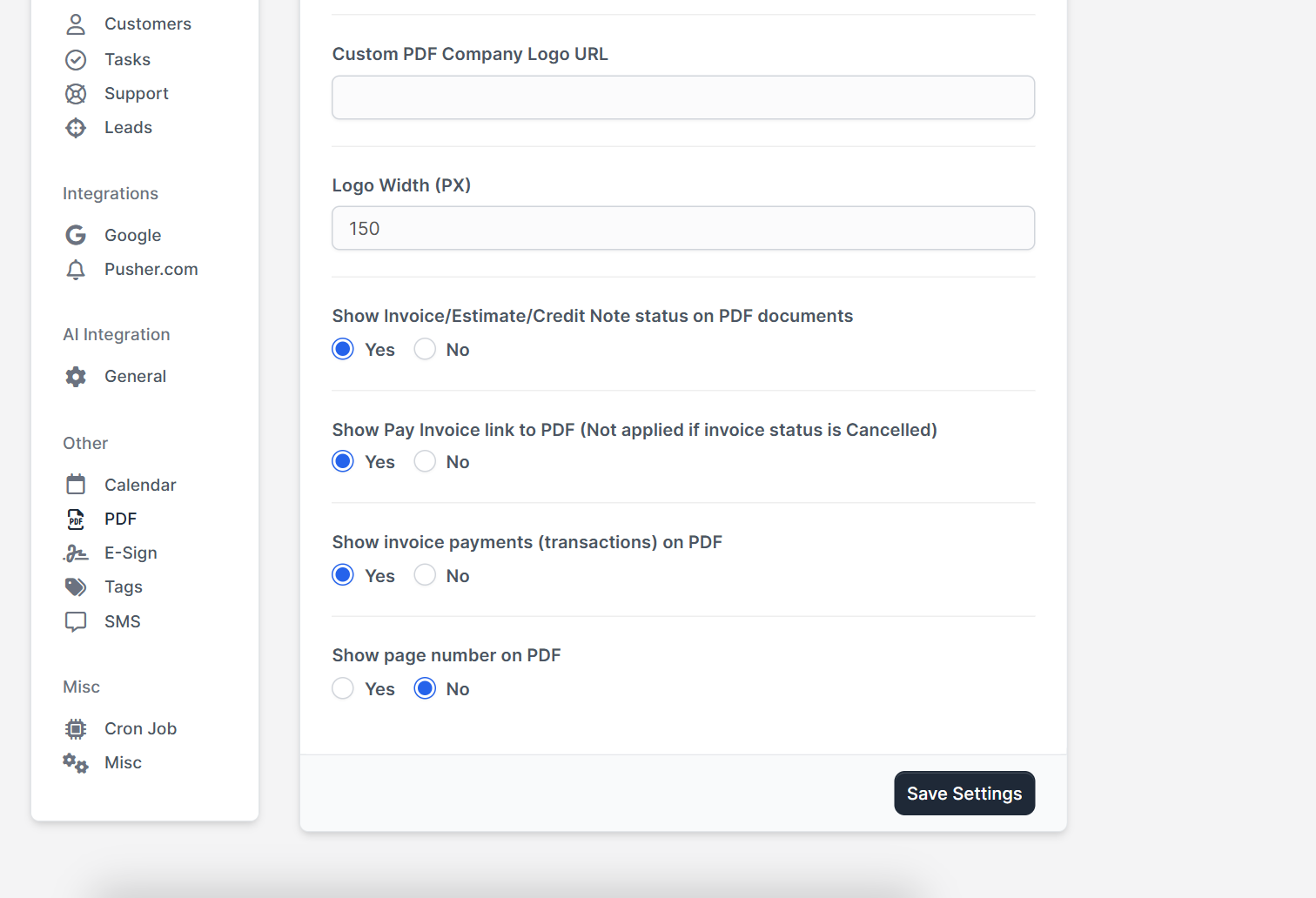
The logo comes from Setup > Settings > General, see how to change the Perfex CRM company logo. On the PDF page you can set Custom PDF Company Logo URL to use a different image only for PDFs, and Logo Width (PX) to control its size. A width of 150 pixels is the default. In our test, a PDF with a wrong logo address still opened, but without the logo, so check the image after each change.
Step 4: Choose what the PDF shows #
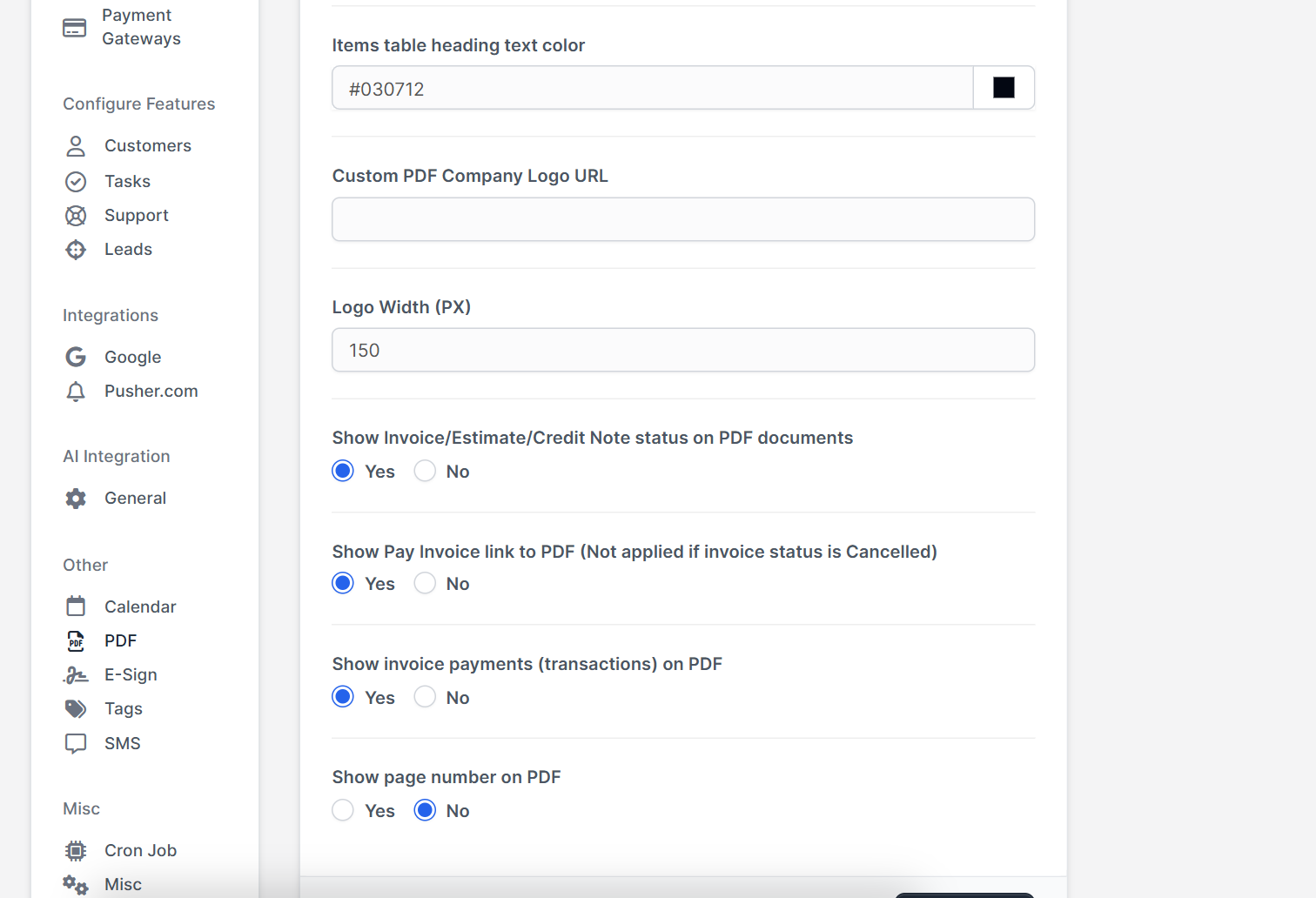
- Show Invoice/Estimate/Credit Note status on PDF documents
- Show Pay Invoice link to PDF, which is not applied to cancelled invoices
- Show invoice payments (transactions) on PDF
- Show page number on PDF
Turn the status and payments on if customers use the PDF as a statement, and turn the pay link on to get paid faster. See how to create an invoice.
Step 5: Add a signature #
Under Signature you can show a signature on invoices, estimates, credit notes, contracts and proposals, and upload the Signature Image. Use a clear image with a transparent background. Customers can sign contracts too, see Perfex CRM contracts.
Step 6: Set the company details and page format #
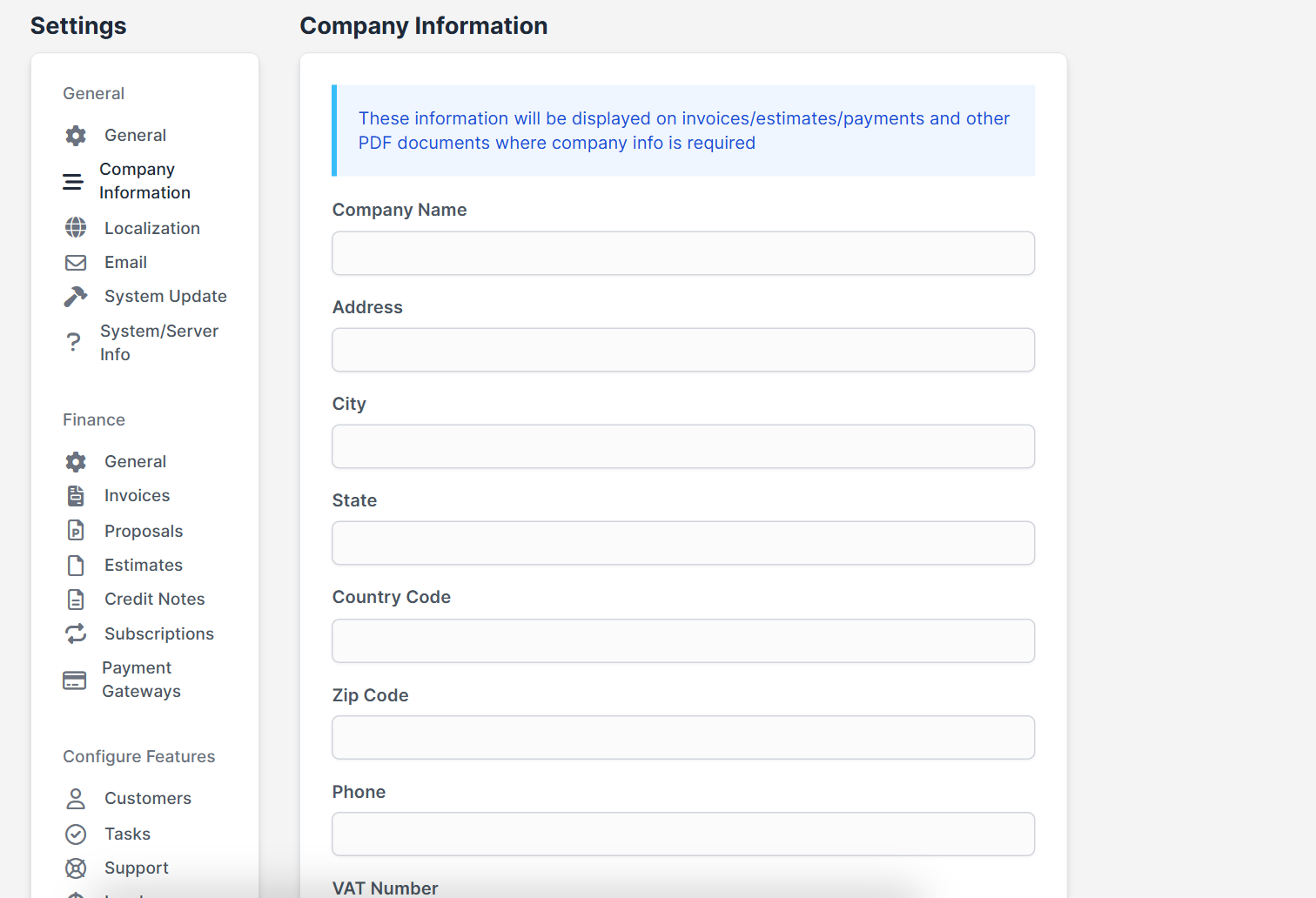
The block with your name, address and tax number comes from Company Information, which you can edit in settings. Under Document formats you can choose the page layout for each type of document, for example A4 portrait for invoices, estimates, proposals, payments, credit notes, contracts and statements.
Test your documents #
Open one invoice and download the PDF after every change. Check the logo, the font, the amounts and the page numbers. Then check an estimate, see Perfex CRM estimates, and a proposal.
Perfex CRM PDF settings FAQ #
How do I change the font of invoices in Perfex CRM? #
Open Setup, Settings, PDF and change the PDF Font and the default font size. Save and download a new PDF.
Why do some letters show as boxes in my PDF? #
The chosen font does not contain those characters. Choose a font that supports your language.
Can I use a different logo only for PDFs? #
Yes, use the Custom PDF Company Logo URL field and set the logo width.
Do changes apply to old invoices? #
The PDF is created when you open it, so a new download uses the new settings.
Quick checklist: Perfex CRM PDF settings #
- Review your Perfex CRM PDF settings before you send the first invoice.
- Download a PDF after every change.
- Use one PDF font and one size for all documents.
Summary #
The Perfex CRM PDF settings give you control over the PDF font, the logo, the colors, the signature and the information shown. Change one thing at a time, download a PDF and check it. More details are on the official Perfex CRM website. Good Perfex CRM PDF settings make every document look professional.


