
Changing fifty records one by one is a waste of an afternoon. Perfex CRM bulk actions let you tick many rows in a list and change them in one step. This guide, tested on Perfex CRM 3.4.1, shows the button, the options for customers, tasks and leads and the one warning you must read. We opened each window and did not confirm any change.
What Perfex CRM bulk actions are #
Many lists in the CRM have a tick box in the first column of each row, a tick box in the header to select all rows, and a button Bulk Actions above the table. Select rows, click the button and a window opens with the changes you can make. The options depend on the list. Nothing happens until you click Confirm.
Step 1: Select the rows #
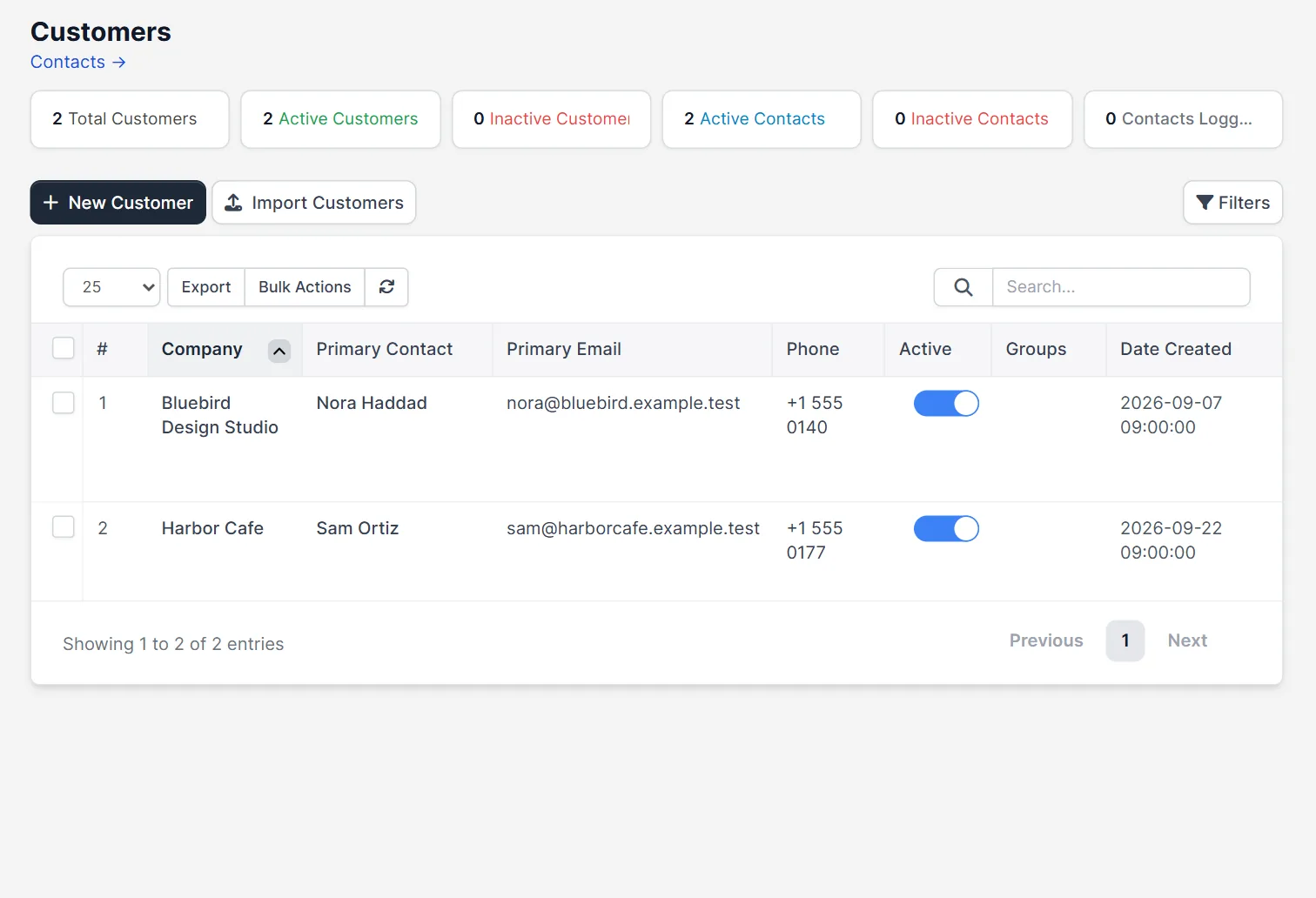
Open Customers. The table shows the company, the primary contact, the email, the phone, the active switch, the groups and the date created. Tick the boxes of the customers you want, or tick the box in the header to select every row on the page. Use the search and the filters first, so you select the right group of rows.
Step 2: Bulk actions for customers #
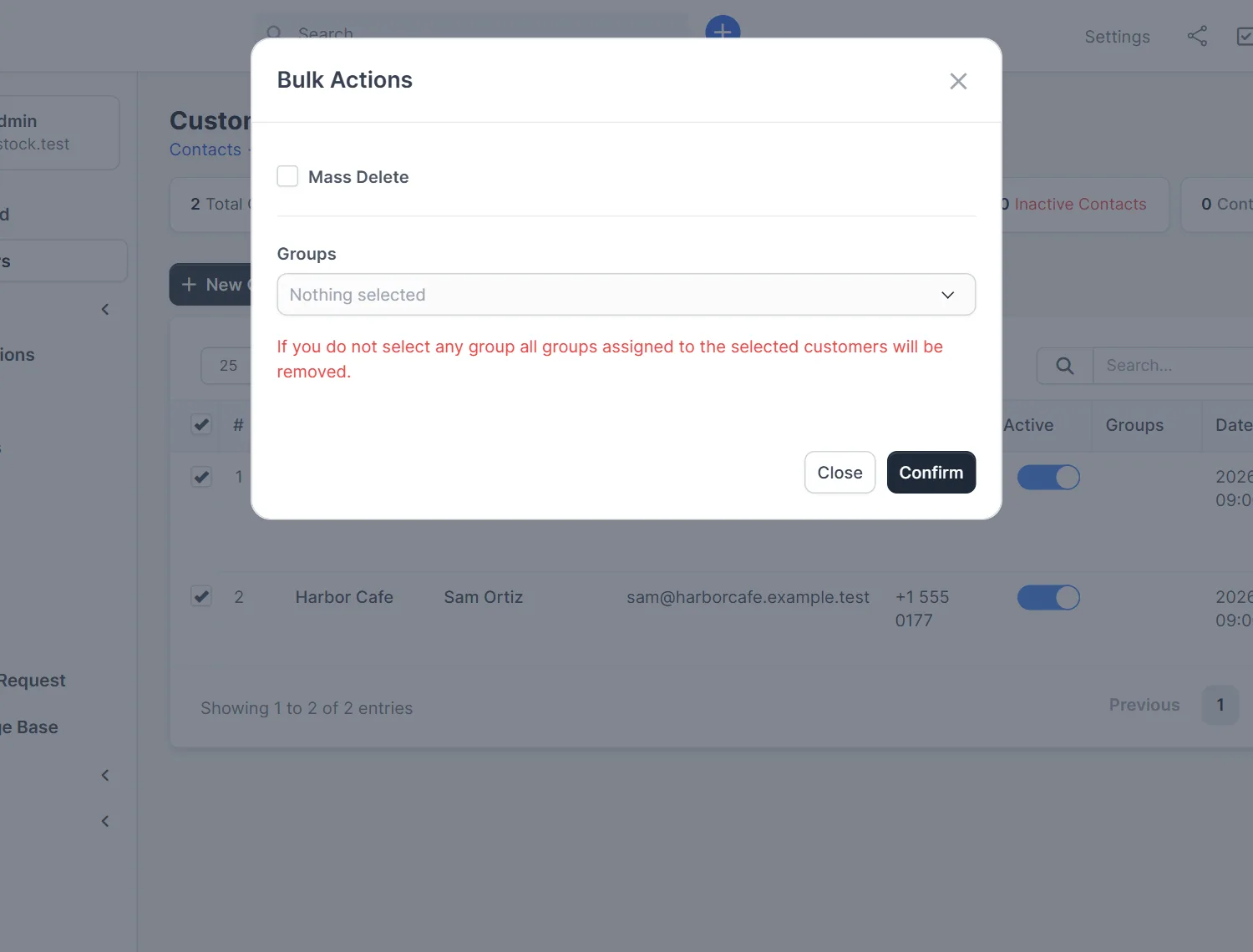
With rows selected, click Bulk Actions. The window has a tick box Mass Delete and a list Groups. Choose one or more groups to assign them to all selected customers. Read the red note under the list: “If you do not select any group all groups assigned to the selected customers will be removed”. Confirming with the list empty wipes the groups of every selected customer. This warning is the most important line for Perfex CRM bulk actions on customers.
Step 3: Open the tasks list #
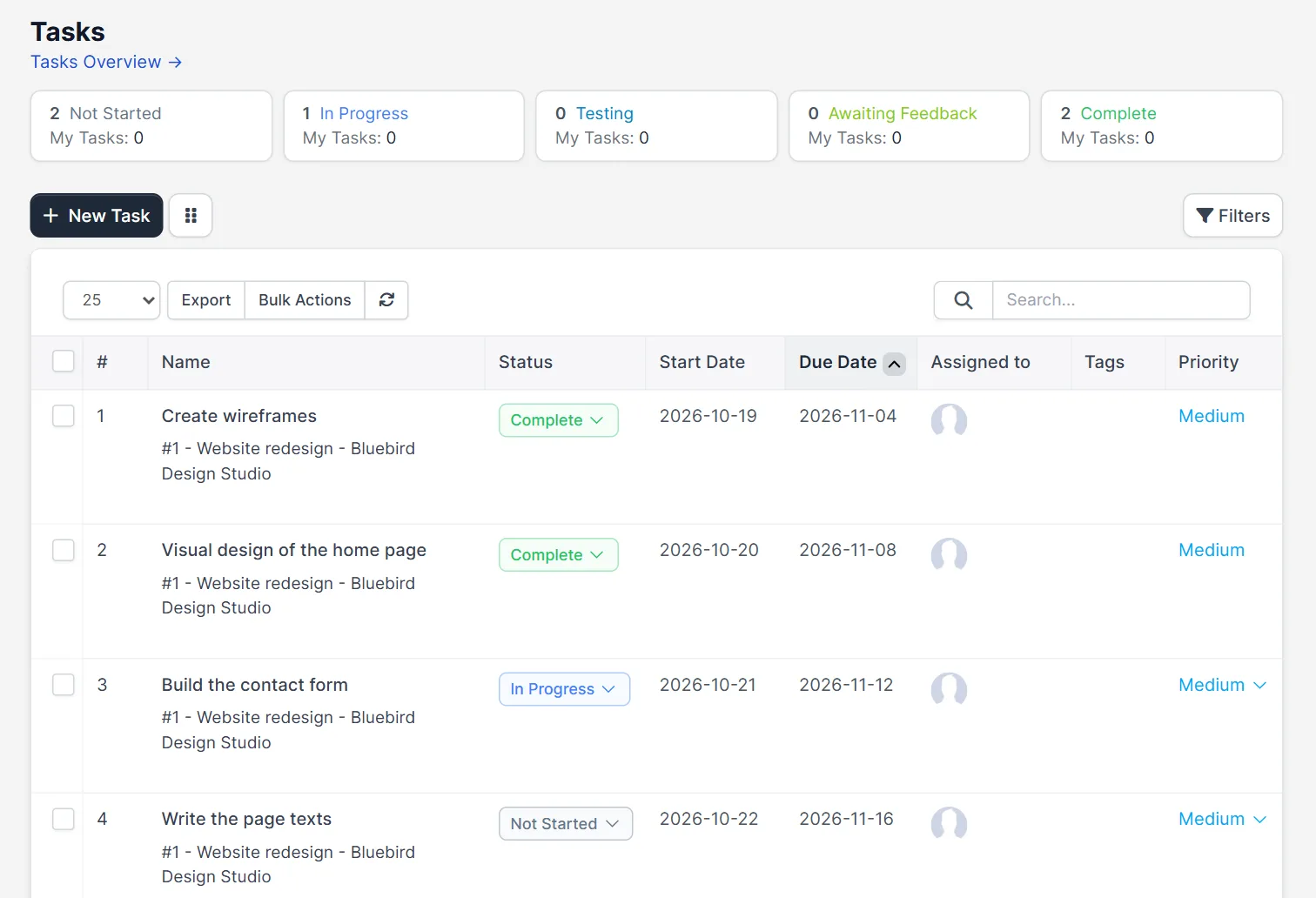
Open Tasks. The list shows the number, name, status, start date, due date, assigned person, tags and priority, and the same tick boxes. Select the tasks you want to change. Bulk actions on tasks are a quick way to finish a sprint, move work to another person or set a new priority.
Step 4: Bulk actions for tasks #
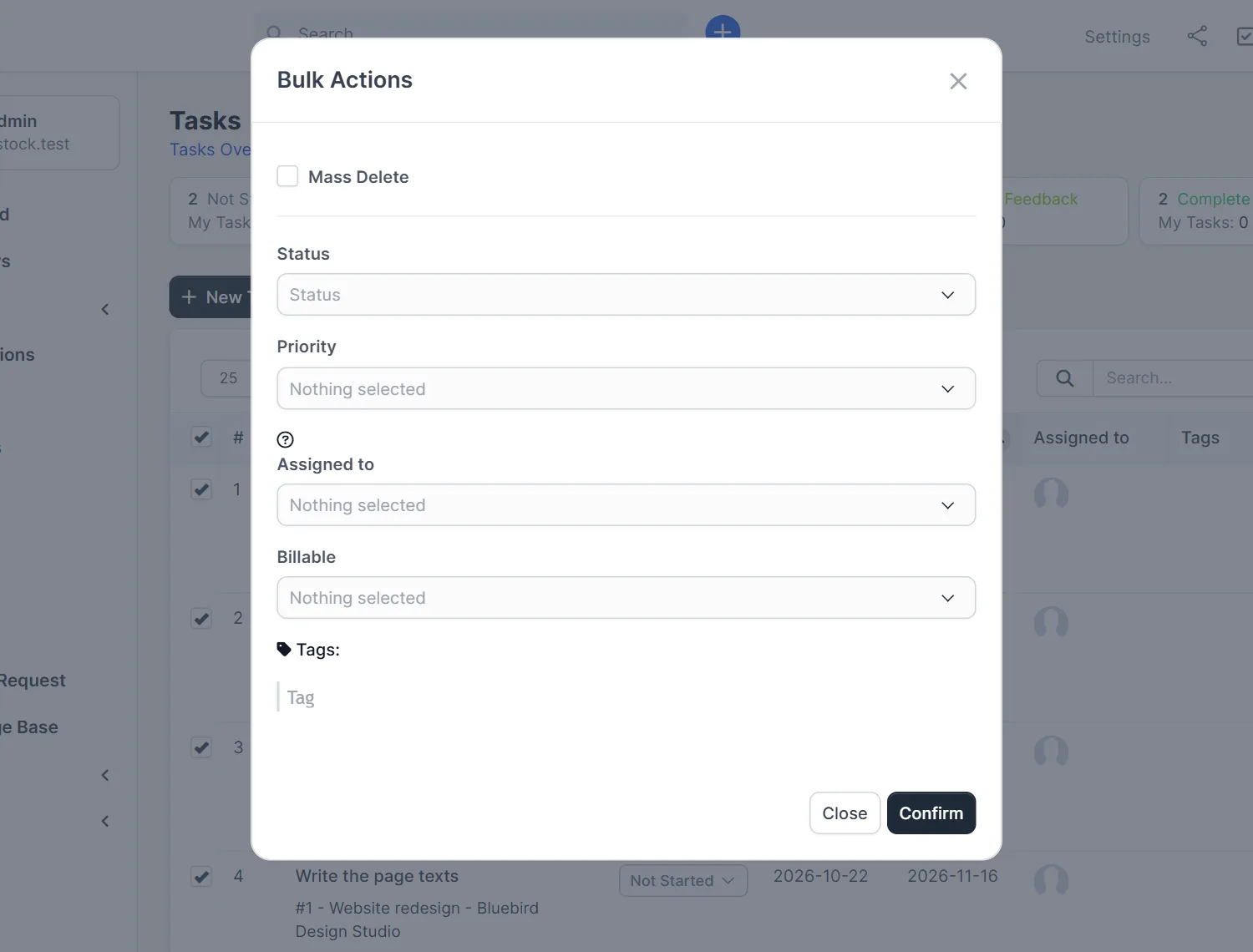
The window for tasks has Mass Delete, Status, Priority, Assigned to, Billable and Tags. Fill in only the fields you want to change. A field that you leave empty is not changed. Use Billable to mark many tasks as billable before you invoice, as Perfex CRM billing tasks explains. Use Tags to label a group of tasks.
Step 5: Bulk actions for leads #
On the leads list, the window has Mass Delete, Mark as lost, Change Status, Lead Source, Last Contact, Assigned, Tags and a choice between Public and Private. This is handy after an import or a campaign. Assign fifty new leads to a sales person, or set the same source for all, in one action. See Perfex CRM import customers for imports.
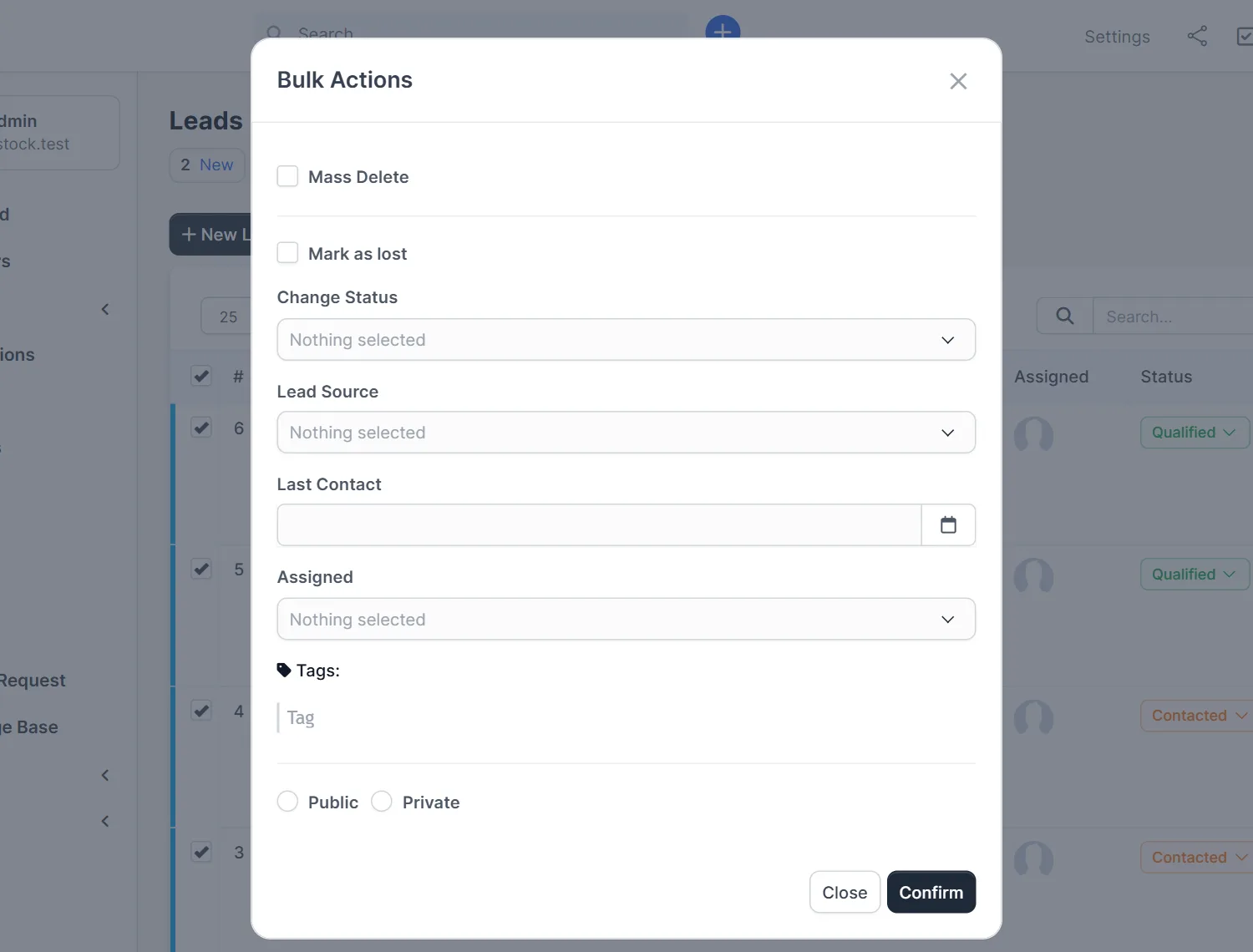
Mass delete: use it with care #
The Mass Delete box deletes all selected rows. We did not use it. Deleting cannot be undone from the screen, so take a database backup before a big clean-up and check the number of selected rows. Remember that deleting a customer can remove or affect invoices and other records. Think about your accountant’s needs and read Perfex CRM GDPR if privacy rules ask you to delete data.
Tips for bulk work #
- Filter first, select second, and look at the count before you confirm.
- Test the action on two rows before you run it on two hundred.
- Leave a field empty if you do not want to change it. Groups on customers are the exception.
- Back up the database before a mass delete.
- Look at Perfex CRM tasks and Perfex CRM customer groups for the fields behind the actions.
Why use Perfex CRM bulk actions #
Perfex CRM bulk actions turn an hour of clicking into one step. After an import, Perfex CRM bulk actions help you assign leads and tag tasks in seconds. Use Perfex CRM bulk actions with care: the same speed that saves time can also spread a mistake to many records at once.
Not tested here: confirming any bulk action, the select-all box on several pages, and the bulk actions of other lists such as invoices and expenses. Read the official Perfex CRM help for more.
Related module: If a bulk change should trigger follow-up work, the Workflow Rules for Perfex CRM module lets you write rules that create tasks, send emails and notify your team. Check the product page for the events it supports.
Frequently asked questions #
Where are Perfex CRM bulk actions? #
On lists such as customers, tasks and leads: tick the rows and click the Bulk Actions button above the table.
What happens if I confirm without choosing a group for customers? #
All groups of the selected customers are removed, as the red note in the window says.
Does an empty field change the records? #
For tasks and leads, an empty field is not changed. Customers are the exception because of the groups warning.
Can I undo a mass delete? #
Not from the screen. Take a database backup before you delete many records.


