
A contract that runs out without anyone noticing can cost you a customer or a month of work. Perfex CRM contract expiry handling gives you counts on the contracts page, a reminder before the end date and a renewal function with a history. This guide, tested on Perfex CRM 3.4.1, shows where to set the reminder, how to renew a contract and what the CRM changes when you do.
How Perfex CRM contract expiry works #
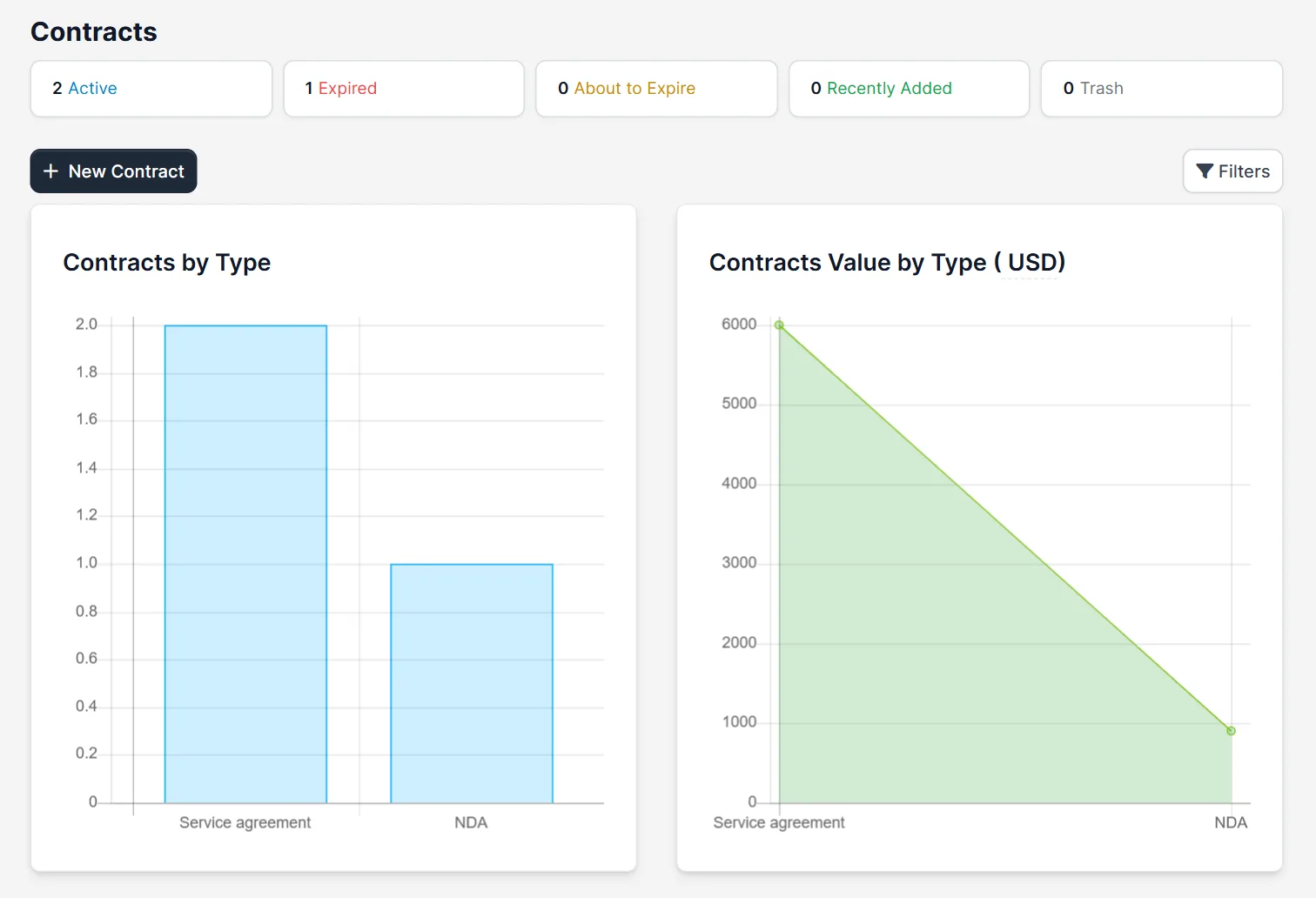
Every contract can have an End Date. Open Contracts and read the boxes at the top: Active, Expired, About to Expire, Recently Added and Trash. In our test, two contracts were active and one had expired. The charts below show contracts and their value by type. The list itself has the columns Subject, Customer, Contract Type, Contract Value, Start Date, End Date and Signature.
Step 1: Set the Perfex CRM contract expiry reminder days #
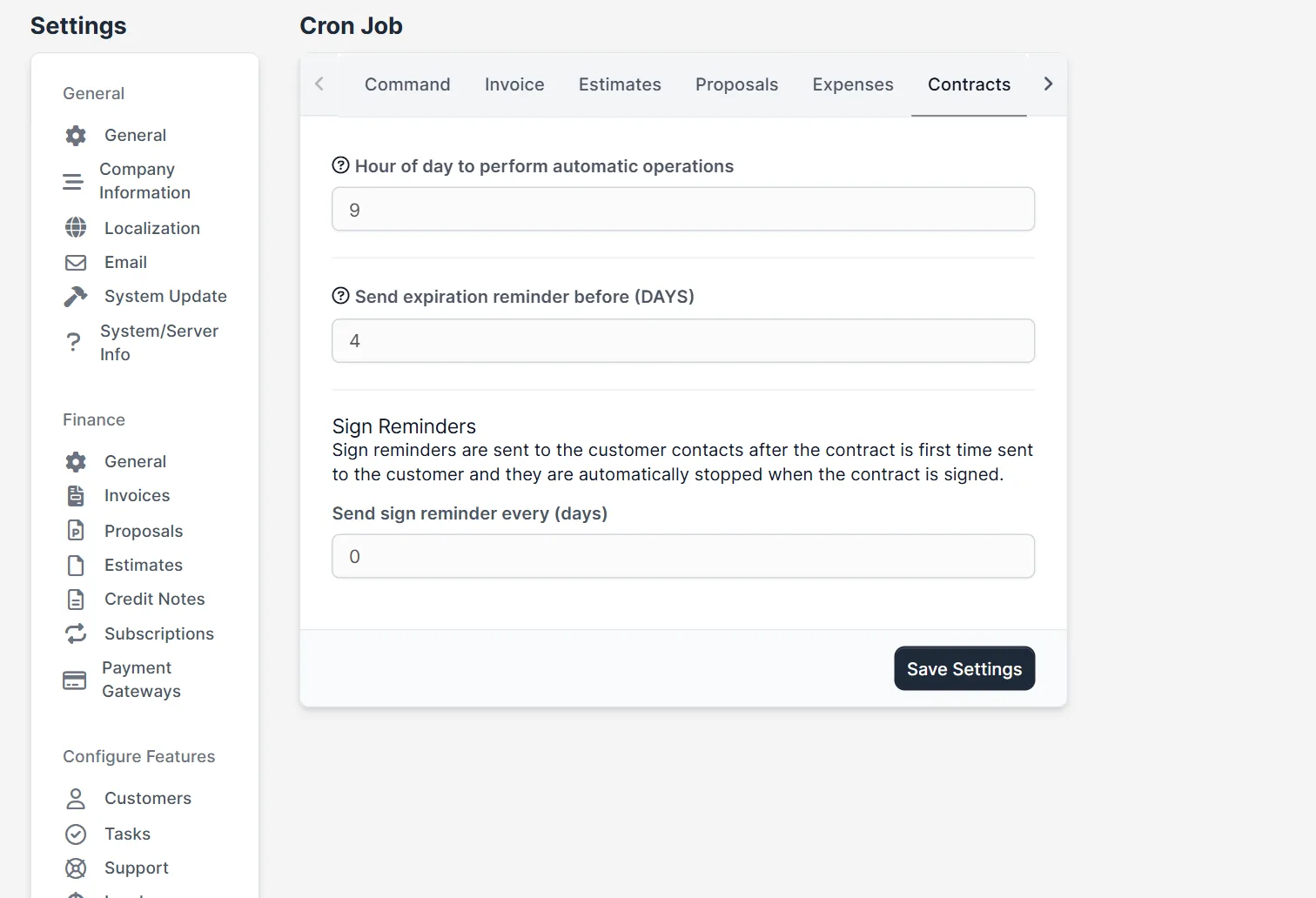
Open Setup > Settings, choose Cron Job under Misc and click the tab Contracts. The field Send expiration reminder before (DAYS) holds the number of days. It was 4 in our install. Above it, Hour of day to perform automatic operations was 9. Under it, the sign reminder is Send sign reminder every (days), which was 0. Change the days to a value that gives you time to talk to the customer, for example 30, and click Save Settings.
Step 2: Know who gets the reminder #
The code of the cron job checks contracts once a day at that hour. It picks contracts that have an end date in the future, are not in the trash and were not reminded before. When the days left are at or below your setting, the CRM marks the contract as notified. Then it sends a notification and the email template for staff to admins and to the person who added the contract. If the contract is visible to the customer, active contacts who receive contract emails get the customer email. Each contract is reminded once. So Perfex CRM contract expiry reminders need a working cron job. See Perfex CRM cron job.
Step 3: Open the renewal history #
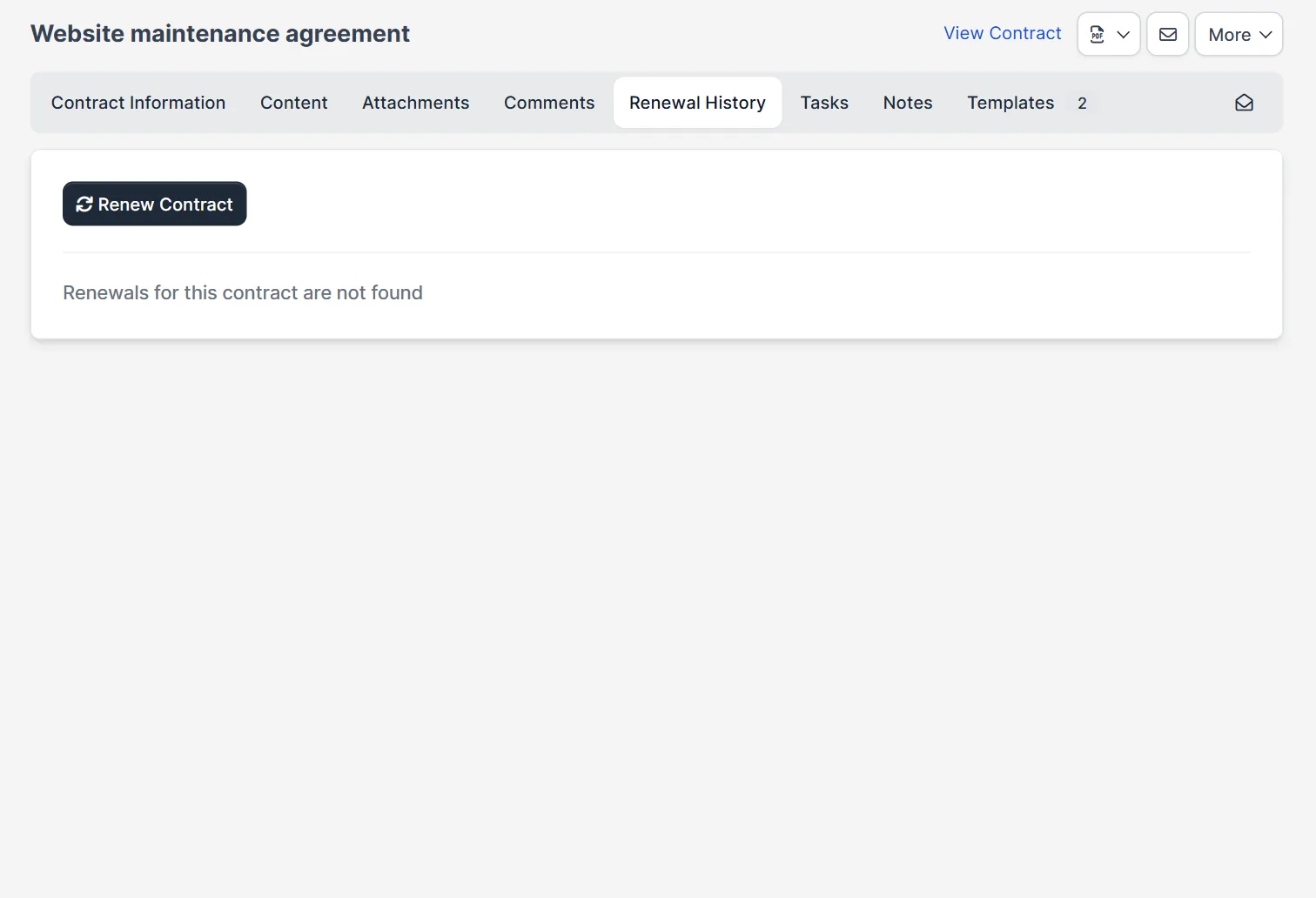
Open the contract and click Renewal History. A new contract shows the text “Renewals for this contract are not found” and the button Renew Contract. Use this tab when you want to renew contract terms without creating a second contract. This is the second half of Perfex CRM contract expiry: first the reminder, then the renewal.
Step 4: Renew the contract #
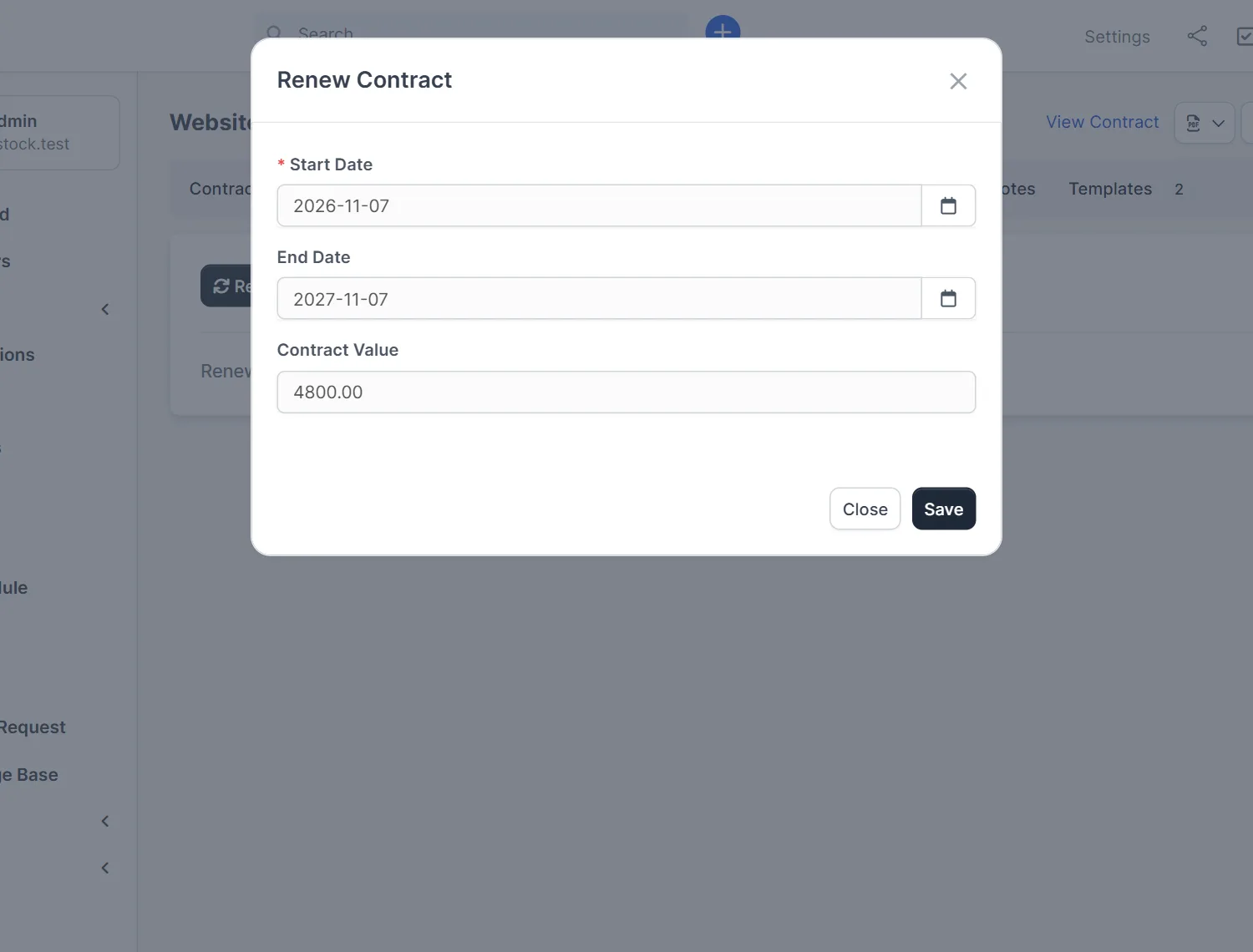
Click Renew Contract. The window asks for a Start Date, an End Date and the Contract Value. The value starts with the current amount. Enter the new period and a new value if the price changed, then click Save.
Step 5: Read the history #
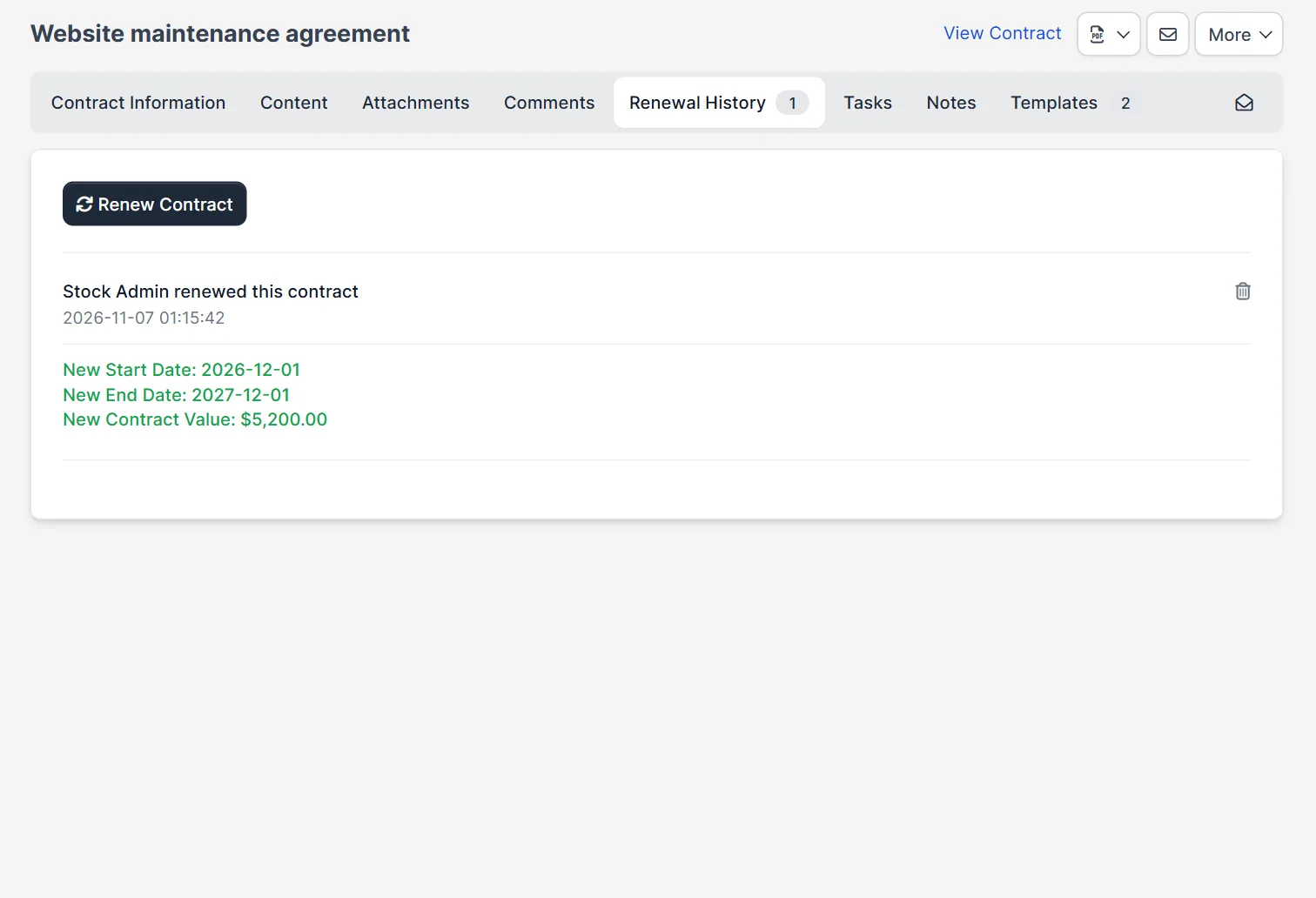
After a renewal, Perfex CRM contract expiry starts again from the new end date. The history now shows one entry: who renewed the contract, the time, and the green lines New Start Date, New End Date and New Contract Value. A number appears on the tab. In our test, the contract then showed the new value of 5,200.00 and the new dates. An administrator or the person who renewed can delete an entry with the bin icon.
What a renewal changes #
The code shows that a renewal replaces the start date, the end date and the value of the contract and resets the reminder, so you get a new reminder before the new end date. It also clears the signature unless the option to keep the signature is ticked, so the customer must sign again. Ask yourself before you renew contract terms: do the terms change, or only the dates? If the terms change, a new signature is the right thing. If only the dates change, keep the signature when the window offers that option. We did not see the option on an unsigned contract.
Tips for expiry and renewal #
- Set Perfex CRM contract expiry reminders to 30 days or more for annual contracts, because renewals take time.
- Check the Expired box of Perfex CRM contract expiry every Monday and call the customers on that list.
- Always write the new value in the window, even when it is the same, so the history is complete.
- Use Perfex CRM contract templates to prepare the text of the new term.
- Read Perfex CRM contract types to group contracts, and Perfex CRM reminders for your own reminders.
Not tested here: the reminder emails themselves, because no cron run or mail server was set up for contracts, the option to keep the signature on a signed contract, and deleting a renewal. Read the official Perfex CRM help for more.
Related module: If you want a rule such as “when this happens, notify my team”, the Workflow Rules for Perfex CRM module creates tasks, sends emails and notifies people. Check the product page for the events it supports.
Frequently asked questions #
How do I set Perfex CRM contract expiry reminders? #
Open Setup, Settings, Cron Job, then the Contracts tab. Enter the number of days in Send expiration reminder before (DAYS) and save.
How do I renew a contract? #
Open the contract, click Renewal History, click Renew Contract, enter the new dates and value and save.
Does a renewal keep the signature? #
Not by default. The code clears the signature unless the keep signature option is ticked.
How many times is the reminder sent? #
Once per contract. A renewal resets it, so you get a new reminder before the new end date.


