
- How Perfex CRM overdue invoice reminders work
- Step 1: Open the cron settings
- Step 2: Set the days for Perfex CRM overdue invoice reminders
- Step 3: Stop reminders for one invoice
- Step 4: Check the email template
- Step 5: Test Perfex CRM overdue invoice reminders with one invoice
- Choose good days
- Tips for faster payment
- Frequently asked questions
Late payments cost money and chasing them by hand costs time. Perfex CRM overdue invoice reminders send a notice to the customer when an invoice passes its due date and repeat it until the customer pays. This guide, tested on Perfex CRM 3.4.1, shows the settings, what the cron job does and how to stop the reminders for one invoice.
How Perfex CRM overdue invoice reminders work #
The cron job looks at all invoices that are not paid, not cancelled and not drafts. At the hour you set, it updates their status. An invoice past its due date becomes Overdue. If reminders are on, it then sends the overdue notice to the customer after the number of days you chose, and repeats it after a second number of days. Nothing happens if the cron job does not run, so check Perfex CRM cron job first.
Step 1: Open the cron settings #
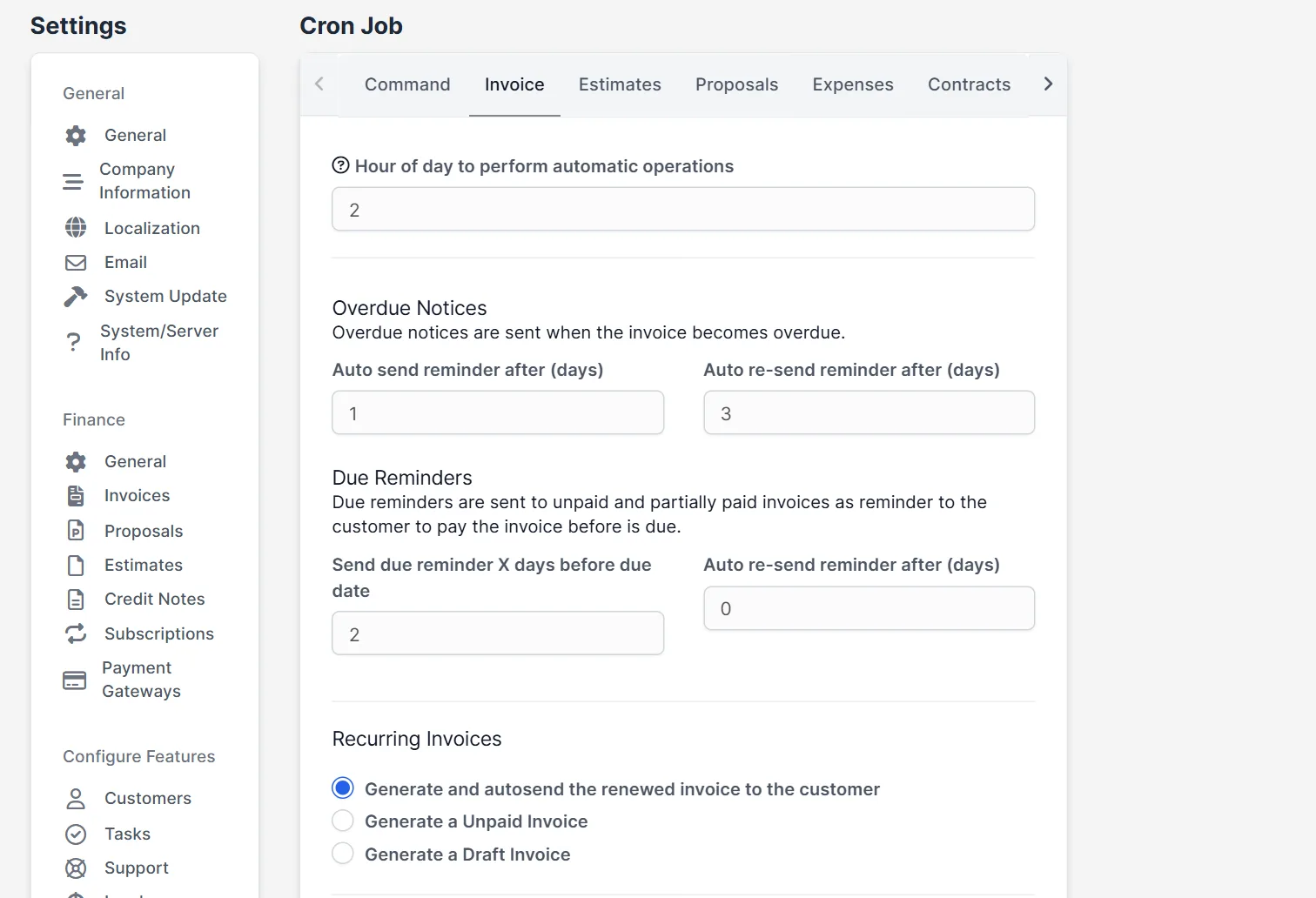
Open Setup > Settings and choose Cron Job under Misc. Click the tab Invoice. The field Hour of day to perform automatic operations decides when the work runs, for example 9 for nine in the morning. It was 21 in our install. The hour follows the time zone of the CRM.
Step 2: Set the days for Perfex CRM overdue invoice reminders #
In the block Overdue Notices, the field Auto send reminder after (days) is the time between the due date and the first notice. It was 1. The field Auto re-send reminder after (days) is the pause between further notices. It was 3. A value of 0 for the second field means that the notice is sent only once, as the code shows. Below, the block Due Reminders works before the due date: Send due reminder X days before due date was 2. Click Save Settings.
Step 3: Stop reminders for one invoice #
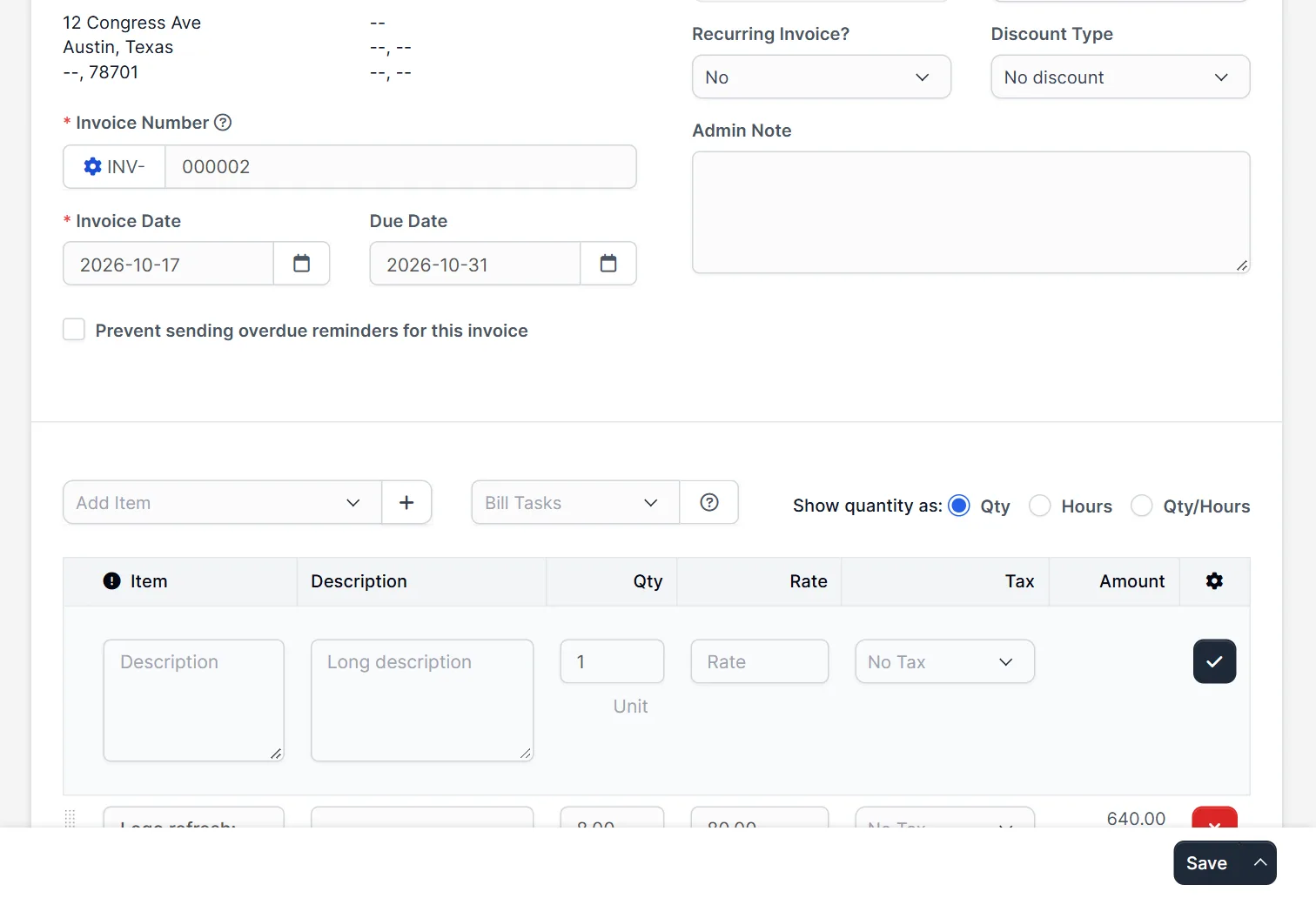
Some customers have an agreement with you, so Perfex CRM overdue invoice reminders should skip them. Open the invoice in edit mode. Under the invoice date and due date, tick Prevent sending overdue reminders for this invoice and save. That invoice then gets no overdue notices, while all others still do.
Step 4: Check the email template #
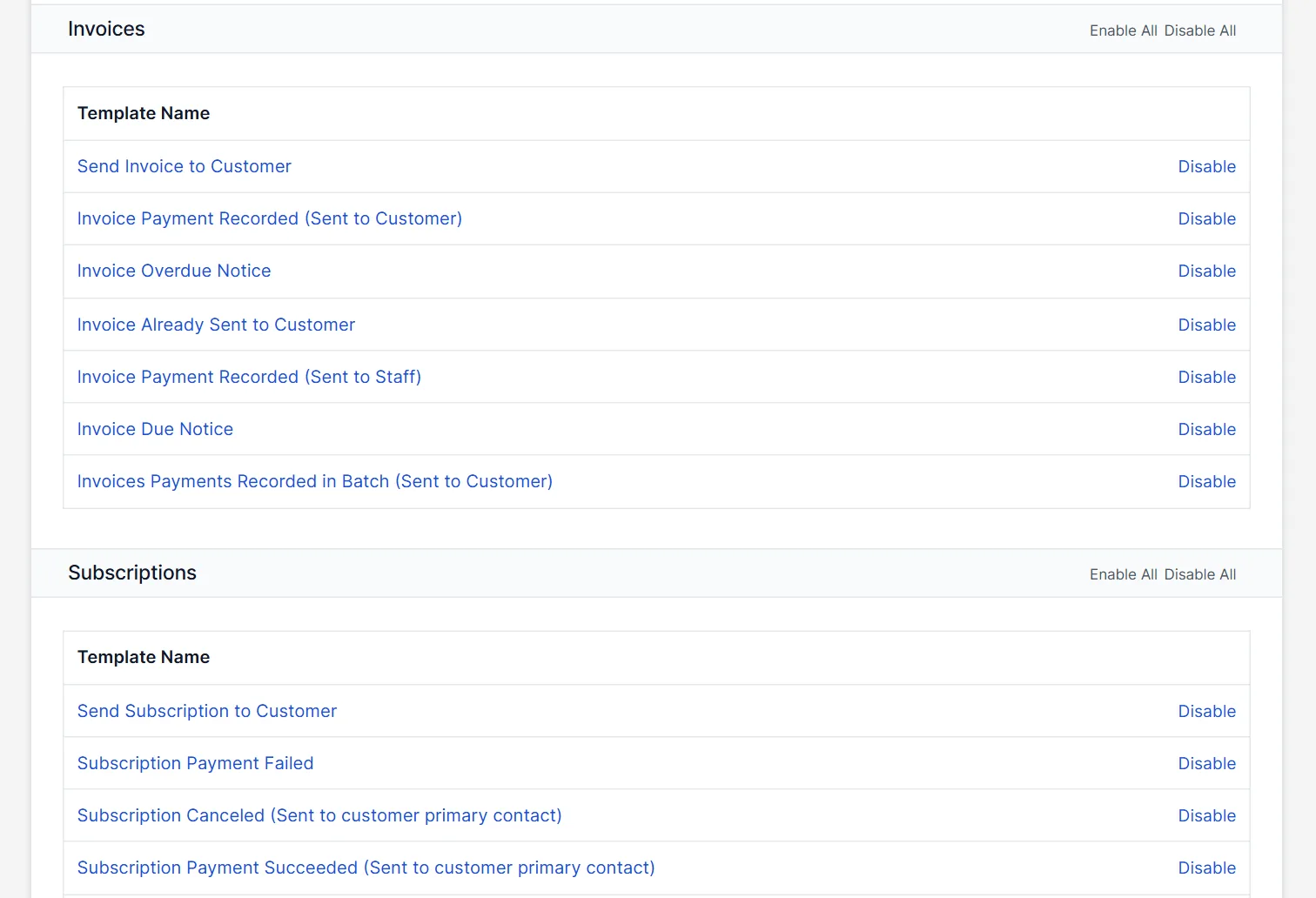
Open Setup > Email Templates and find the group Invoices. The template Invoice Overdue Notice is the text of the Perfex CRM overdue invoice reminders. It has a Disable link on the right. Write a polite and clear text with the invoice number, the amount and how to pay. Our guide to Perfex CRM email templates explains the editor and the merge fields.
Step 5: Test Perfex CRM overdue invoice reminders with one invoice #
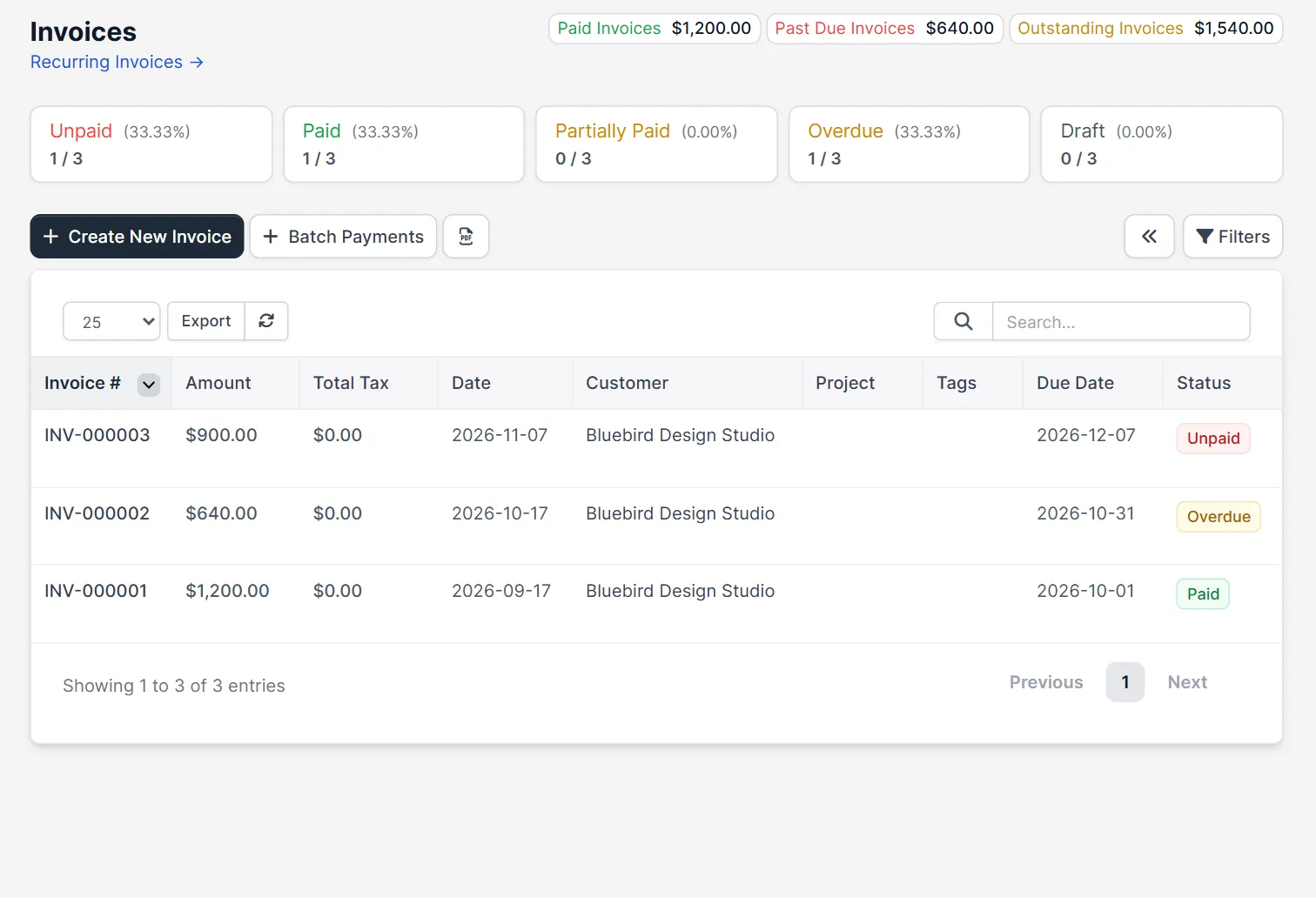
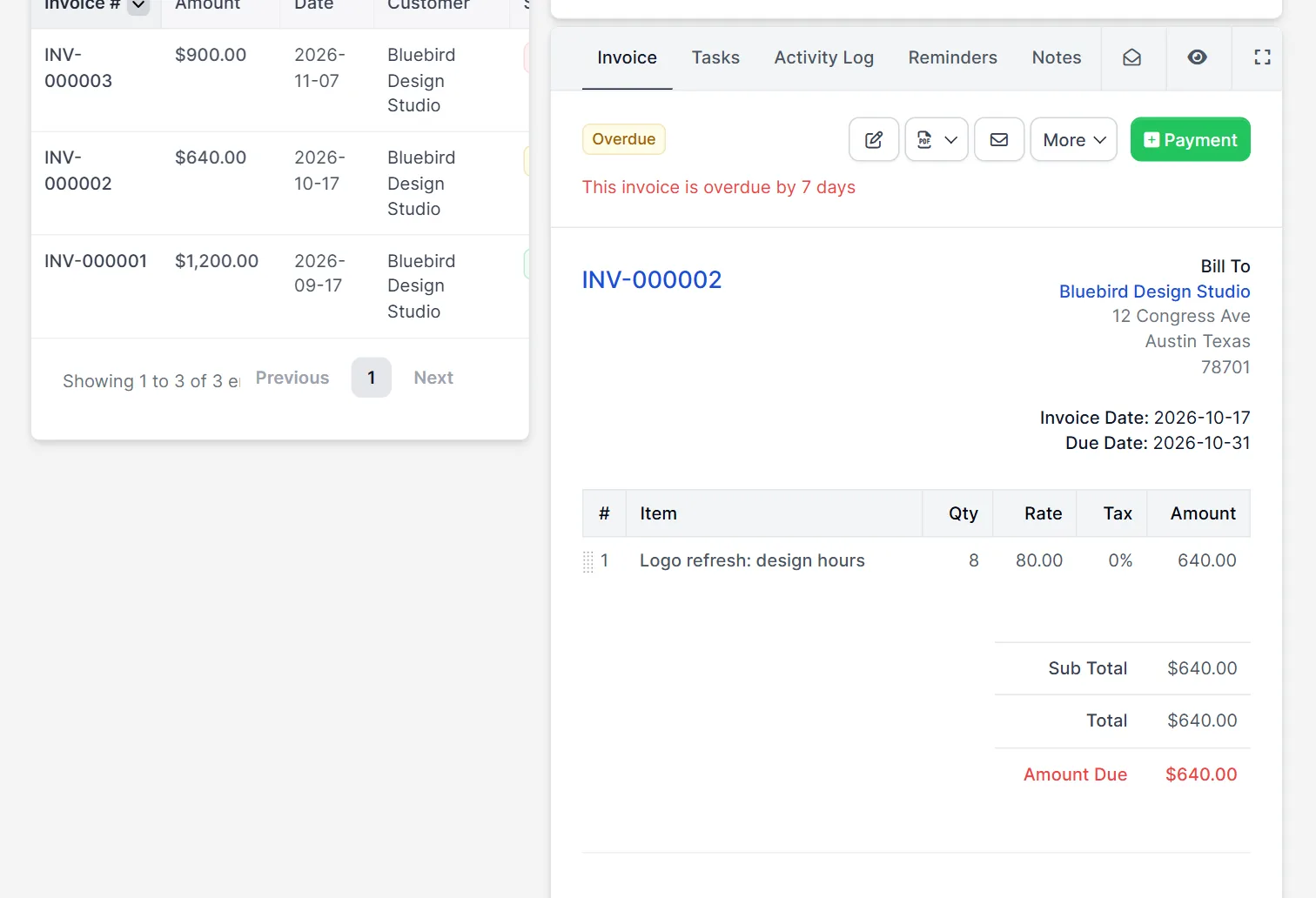
We made an invoice that was due seven days ago, set the hour to the current hour and ran the cron job. The invoice list then showed the status Overdue next to the invoice, and the summary boxes counted it. The invoice page showed the text that it is overdue by 7 days. The invoice also got a date for its last overdue reminder, which is how the CRM knows when to send the next one. Note that the cron job runs at most once every five minutes, so wait before you try again. We had no mail server, so we did not see the email arrive.
Choose good days #
For business customers, a first notice one to three days after the due date is polite and effective. A repeat every seven days keeps the invoice in view without being rude. Avoid a pause of one day, because customers feel pushed. Use the due reminder two to five days before the date for customers who often forget. Together, the settings of Perfex CRM overdue invoice reminders do the chasing, and you only call the customers who do not react. Our guide to Perfex CRM payment methods not showing helps when customers cannot pay online.
Tips for faster payment #
- Make the payment link and the bank details easy to find in the notice.
- Test the email to yourself before you rely on Perfex CRM overdue invoice reminders.
- Set the due date on every invoice. Invoices without a due date get no reminders.
- Switch reminders off for single invoices that are in dispute.
- Look at Perfex CRM create invoice for the due date settings.
Not tested here: the email that reaches a customer, the repeat notice after the second number of days, partially paid invoices, and the due reminder before the date. Read the official Perfex CRM help for more.
Related module: If you want to be told in another tool when something happens to an invoice, the Webhooks for Perfex CRM module connects the CRM with services such as Zapier, Slack and Google Sheets.
Frequently asked questions #
Where are the Perfex CRM overdue invoice reminders settings? #
Open Setup, Settings, Cron Job and click the Invoice tab. The fields are in the block Overdue Notices.
How often are reminders sent? #
The first one after the days you set, then again after the second number of days. If that is 0, the notice is sent once.
Can I stop reminders for one invoice? #
Yes. Tick Prevent sending overdue reminders for this invoice in the invoice edit form.
Why did nothing happen when I ran the cron job? #
It runs automatic operations only at the set hour, and at most once every five minutes. Check the hour and wait.


