
- What the Perfex CRM ticket file extensions list does
- Step 1: Open the Support settings
- Step 2: Edit the Perfex CRM ticket file extensions
- Step 3: Set the attachment limit
- Step 4: See where attachments are added
- Step 5: Test a blocked file
- Why a file still fails
- Tips for safe attachments
- Frequently asked questions
A customer tries to send a screenshot or a spreadsheet and the ticket refuses it. Perfex CRM ticket file extensions are a list in the settings that decides which file types may be attached to a ticket. This guide, tested on Perfex CRM 3.4.1, shows where to change the list, how many files a ticket may take and what the error looks like.
What the Perfex CRM ticket file extensions list does #
When a customer or a staff member attaches a file to a ticket, the CRM compares the end of the file name with the list. If the ending is on the list, the file is accepted. If not, the person sees an error and the file is not saved. The list protects your server from risky files such as programs, so keep it as short as your work allows.
Step 1: Open the Support settings #
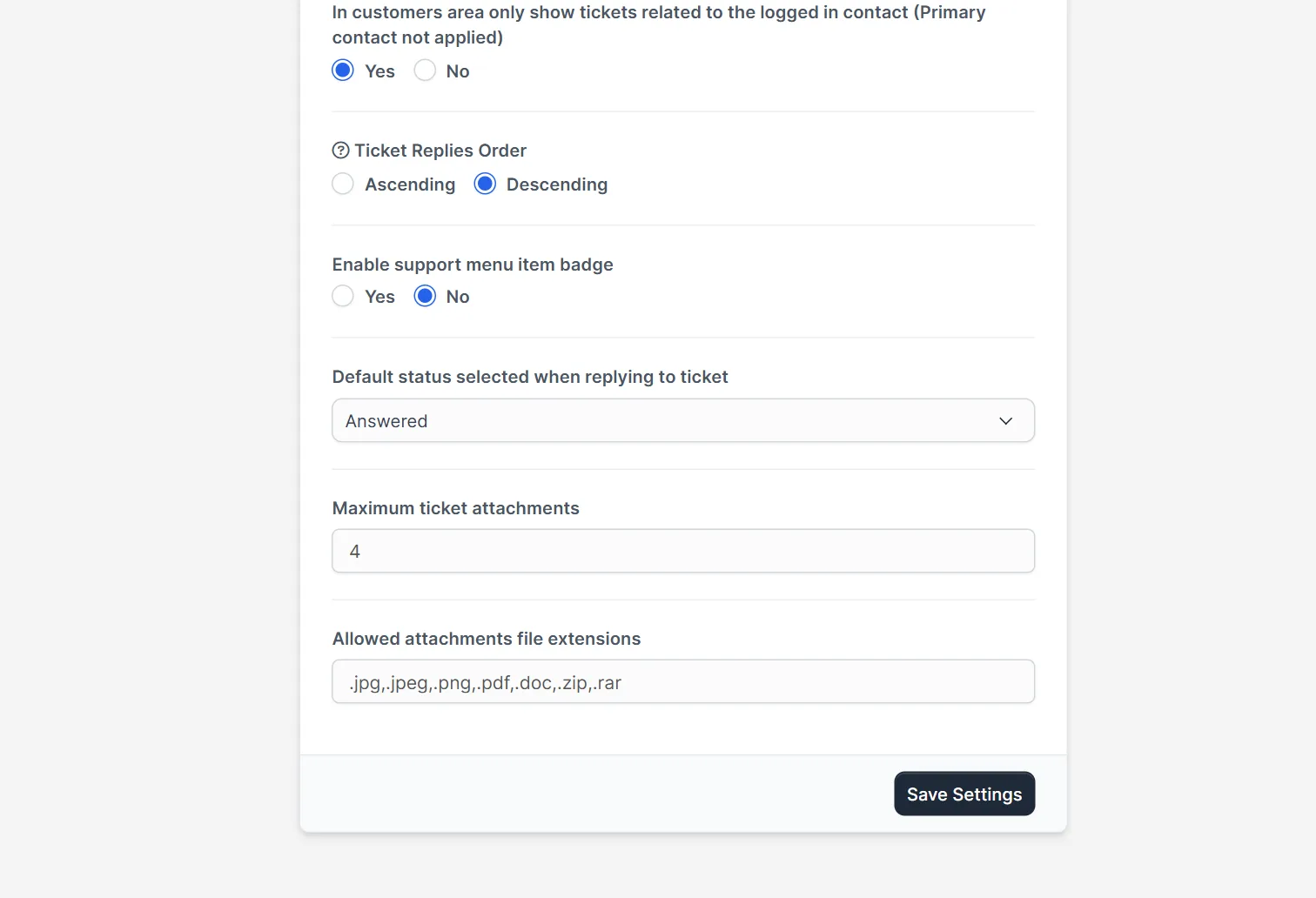
Open Setup > Settings and choose Support under Configure Features. The page has three tabs: General, Email Piping and Ticket Form. Stay on General and scroll to the end of the page.
Step 2: Edit the Perfex CRM ticket file extensions #
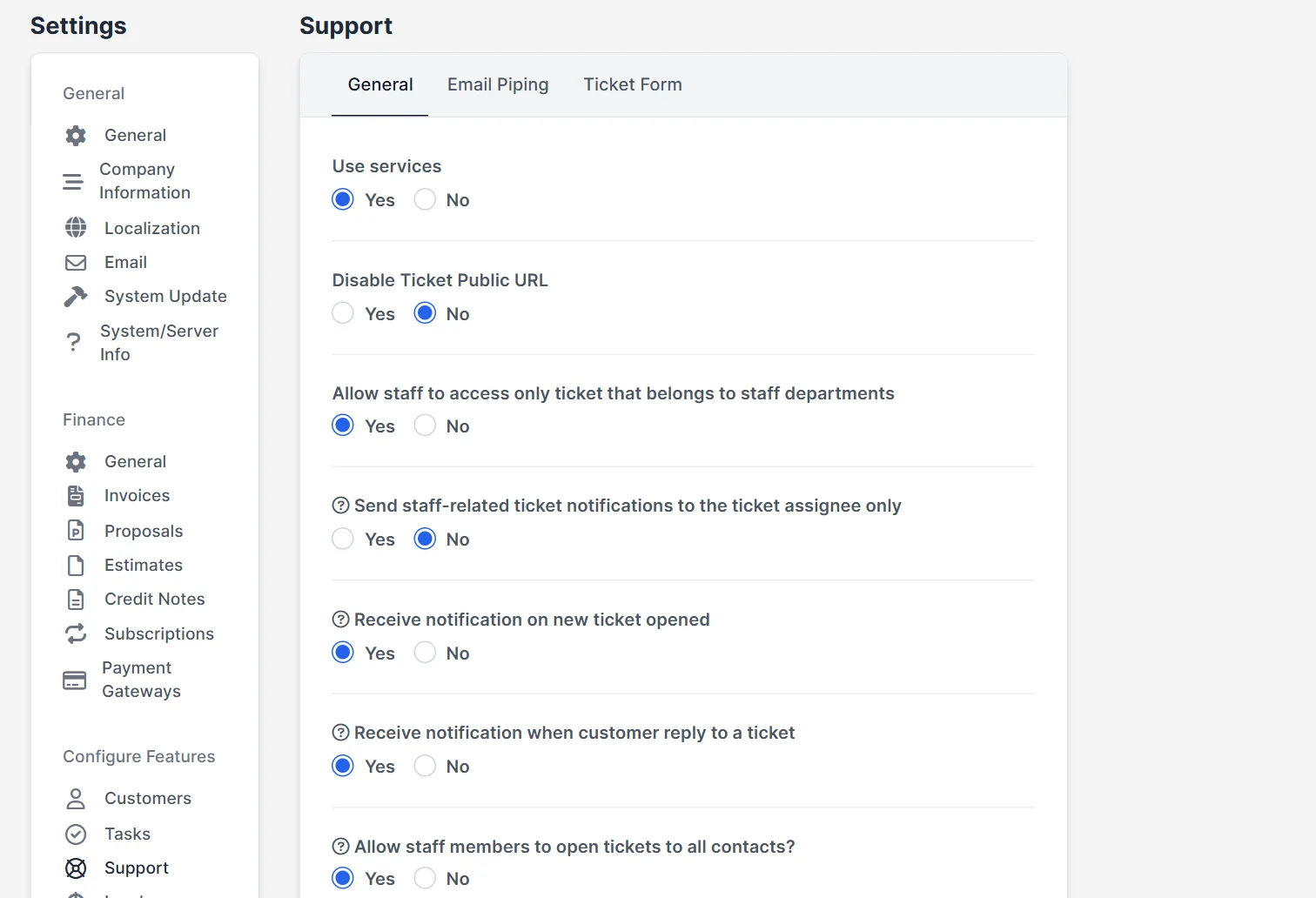
The field Allowed attachments file extensions holds the list. In the install tested here it was .jpg,.jpeg,.png,.pdf,.doc,.zip,.rar. Write each extension with a dot and separate them with commas, for example .jpg,.png,.pdf,.docx,.xlsx. Do not add spaces by habit, and do not forget the dot. Click Save Settings. The change works for the next upload. Keep Perfex CRM ticket file extensions short, because every extra type is a risk.
Step 3: Set the attachment limit #
Above the list, Maximum ticket attachments sets how many files one reply may carry. The value was 4 in our test. A higher number helps customers who send a series of screenshots, but it also lets a mistaken upload eat disk space. A low attachment limit forces customers to send one file at a time. Set the attachment limit and Perfex CRM ticket file extensions together, so the two rules agree. Four to six files is enough for most teams.
Step 4: See where attachments are added #
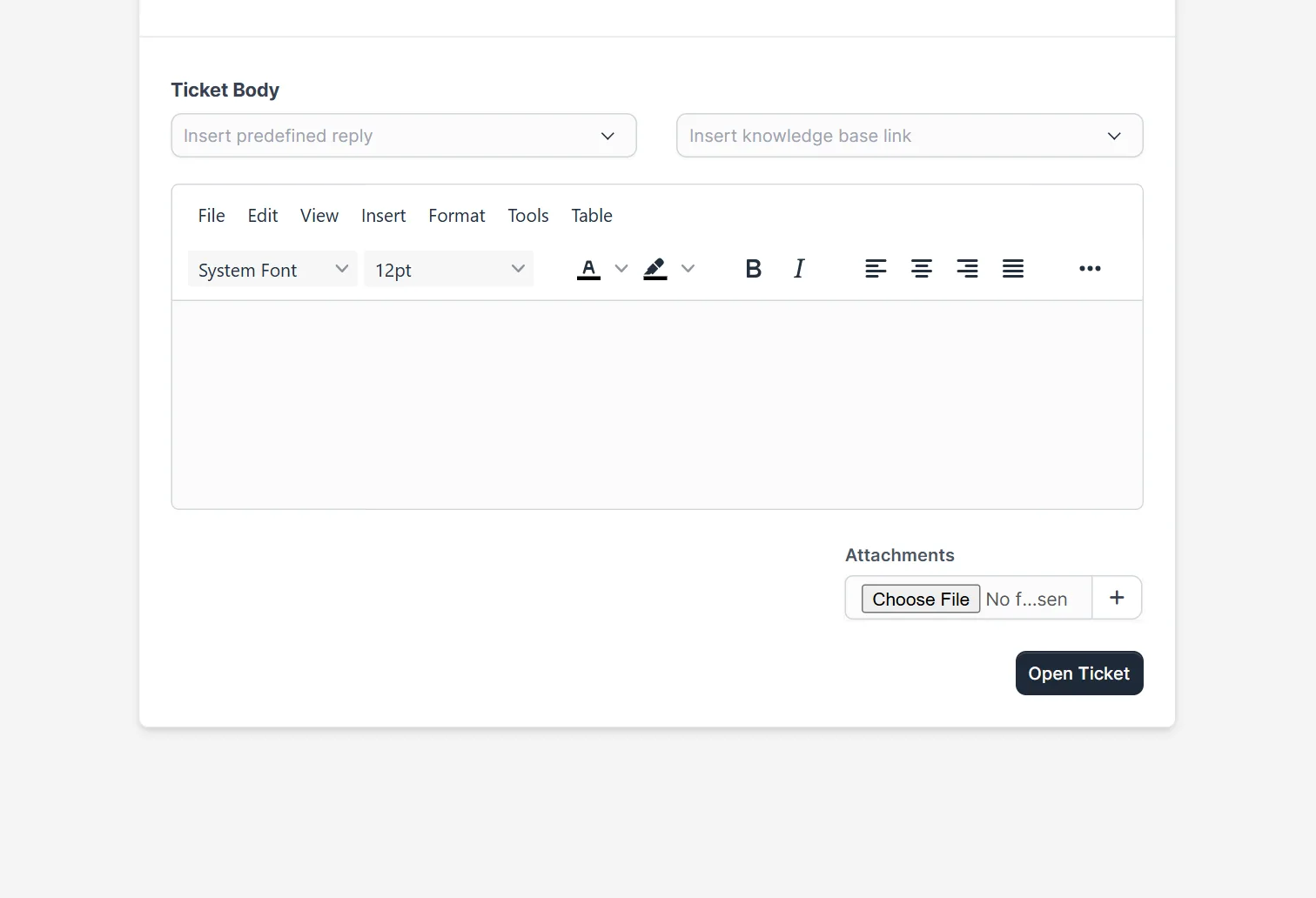
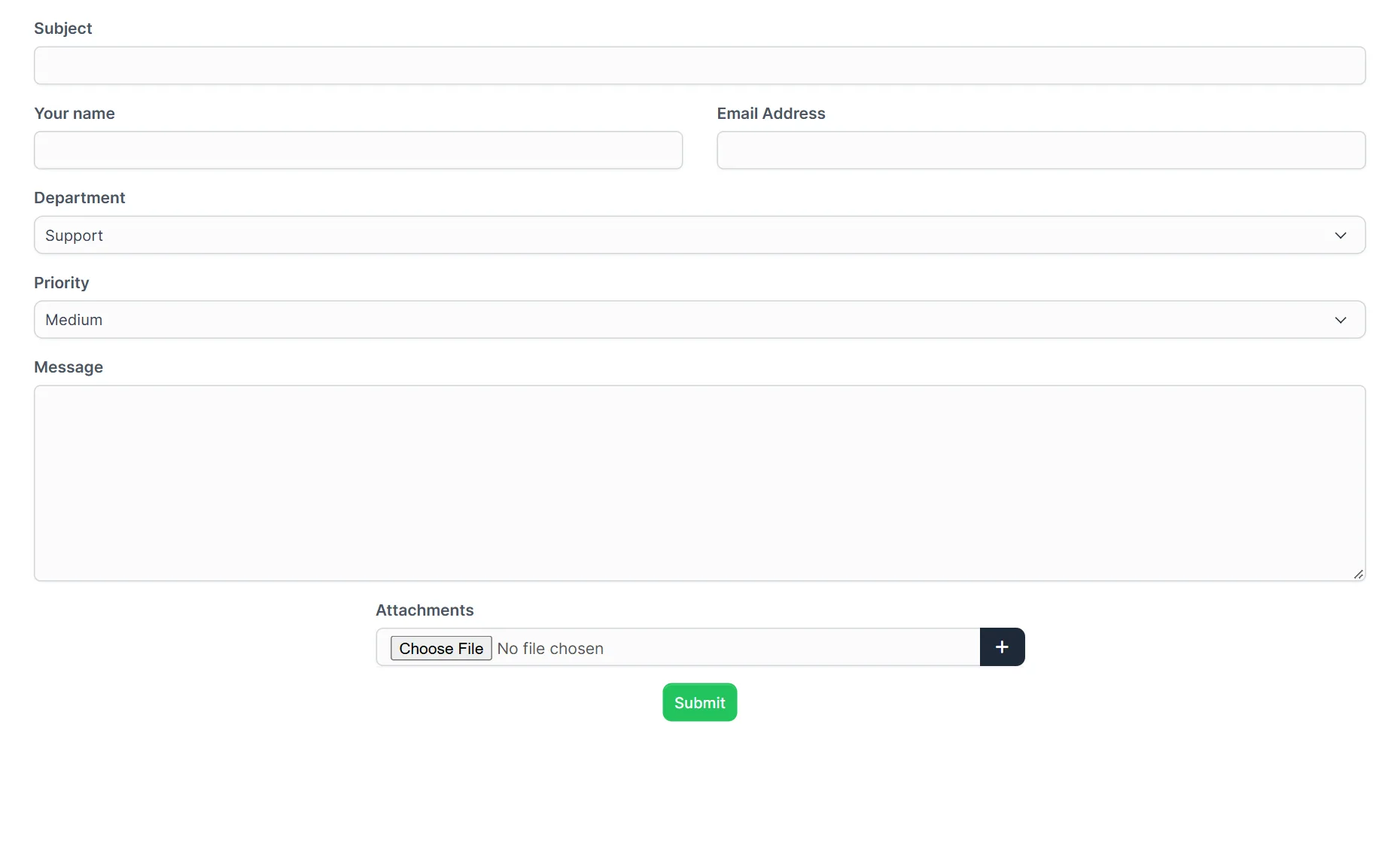
Staff add files in Support > New Ticket, where the Attachments field sits under the ticket body, and in the reply box of an existing ticket. Customers use the public ticket form or the customers area. The form is explained in Perfex CRM ticket form. The plus button next to the field adds another file field.
Step 5: Test a blocked file #
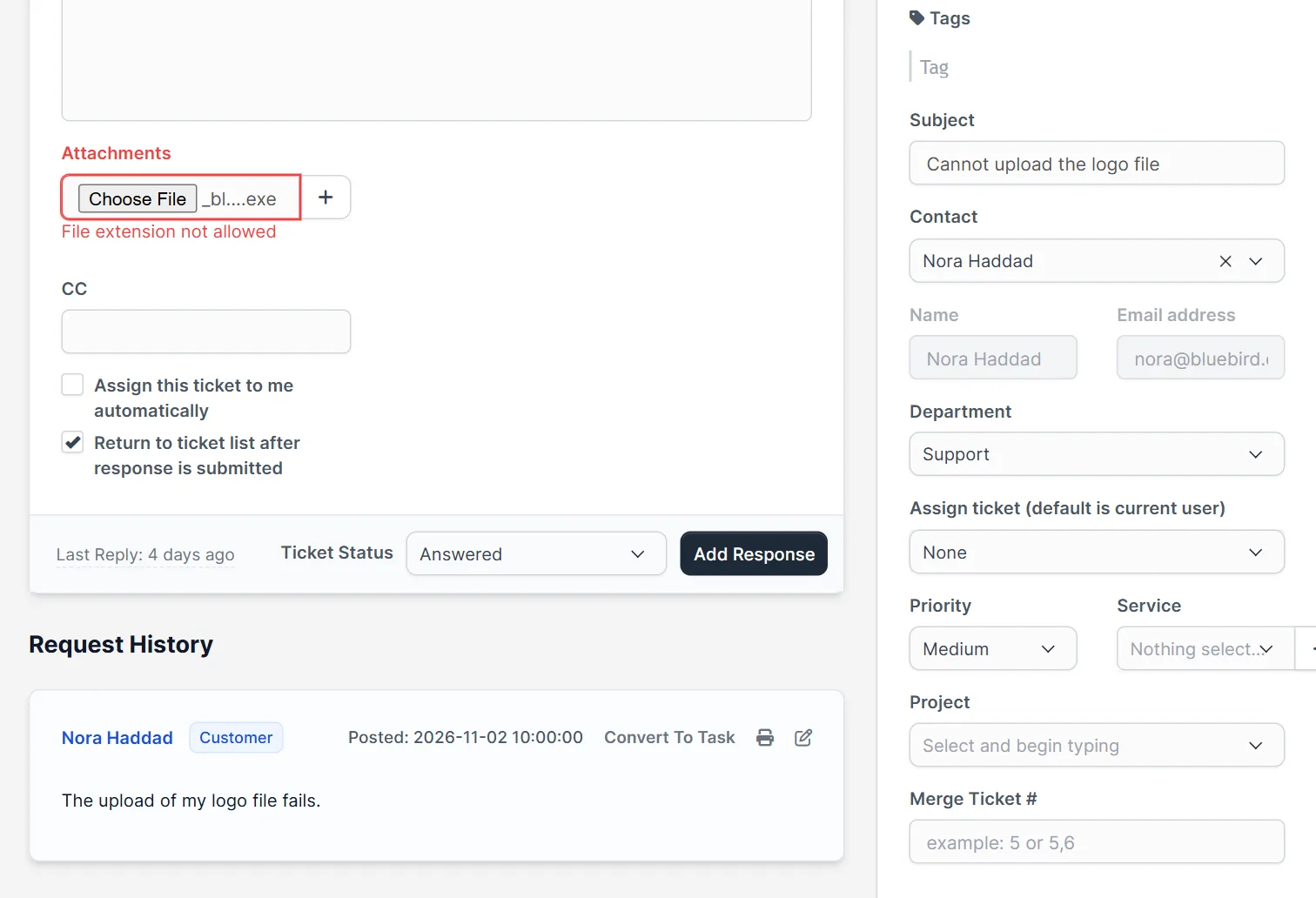
We tried to attach a file ending in .exe to a ticket reply. The field turned red and showed File extension not allowed under it, the file was refused and no reply was added to the ticket. Test Perfex CRM ticket file extensions after every change: attach a harmless file with an allowed ending, then one with a blocked ending, and read the message.
Why a file still fails #
If the ending is on your Perfex CRM ticket file extensions list and the upload still fails, the cause is often the server. PHP has its own size limits, and the settings page does not change them. Our guide to Perfex CRM file upload size explains how to raise them. Another cause is a typing slip in the list, such as a missing dot or a space. Check the case of the ending too, because a photo named IMG.JPG may not behave like img.jpg. We did not test this, so try it once with your own list.
Tips for safe attachments #
- Allow only what your team opens: images, PDF and office files cover most needs.
- Never allow .exe, .bat, .php or script files in a public form.
- Ask customers to send large videos by a link instead of an upload.
- Check Perfex CRM email piping if attachments arrive by email, because piping has its own rules.
- Keep a note of your Perfex CRM ticket file extensions, so you can restore the list after an update.
Not tested here: uploading a large file near the server limit, attachments that come in through email piping, and the case of an ending such as .JPG. Read the official Perfex CRM help for more.
Related module: Tickets are for short exchanges. If customers must share many documents, the File Sharing Module for Perfex CRM lets you share files and collaborate with clients in a separate area.
Frequently asked questions #
Where do I change Perfex CRM ticket file extensions? #
Open Setup, Settings, Support. Edit the field Allowed attachments file extensions and save.
How do I write the list? #
Use a dot before every ending and commas between them, for example .jpg,.png,.pdf.
How many files can a ticket take? #
The field Maximum ticket attachments sets it. It was 4 in our install.
Why does a file with an allowed ending fail? #
Check the PHP upload size limits of your server and look for typing slips in the list, such as a missing dot.


