
Privacy rules such as the GDPR ask you to give people their data, delete it on request and keep proof of consent. Perfex CRM GDPR tools cover these tasks inside the CRM, but they are off until you switch them on. This guide, tested on Perfex CRM 3.4.1, shows the page, what each tab offers and what stays off by default. It is not legal advice, so ask a lawyer what your business needs.
What Perfex CRM GDPR offers #
The tools sit on one page with six tabs: General, Right to data portability, Right to erasure, Right to be informed, Right of access/Right to rectification and Consent. Most options start at No, so switching on Perfex CRM GDPR changes nothing for your customers until you choose each option.
Step 1: Enable Perfex CRM GDPR #
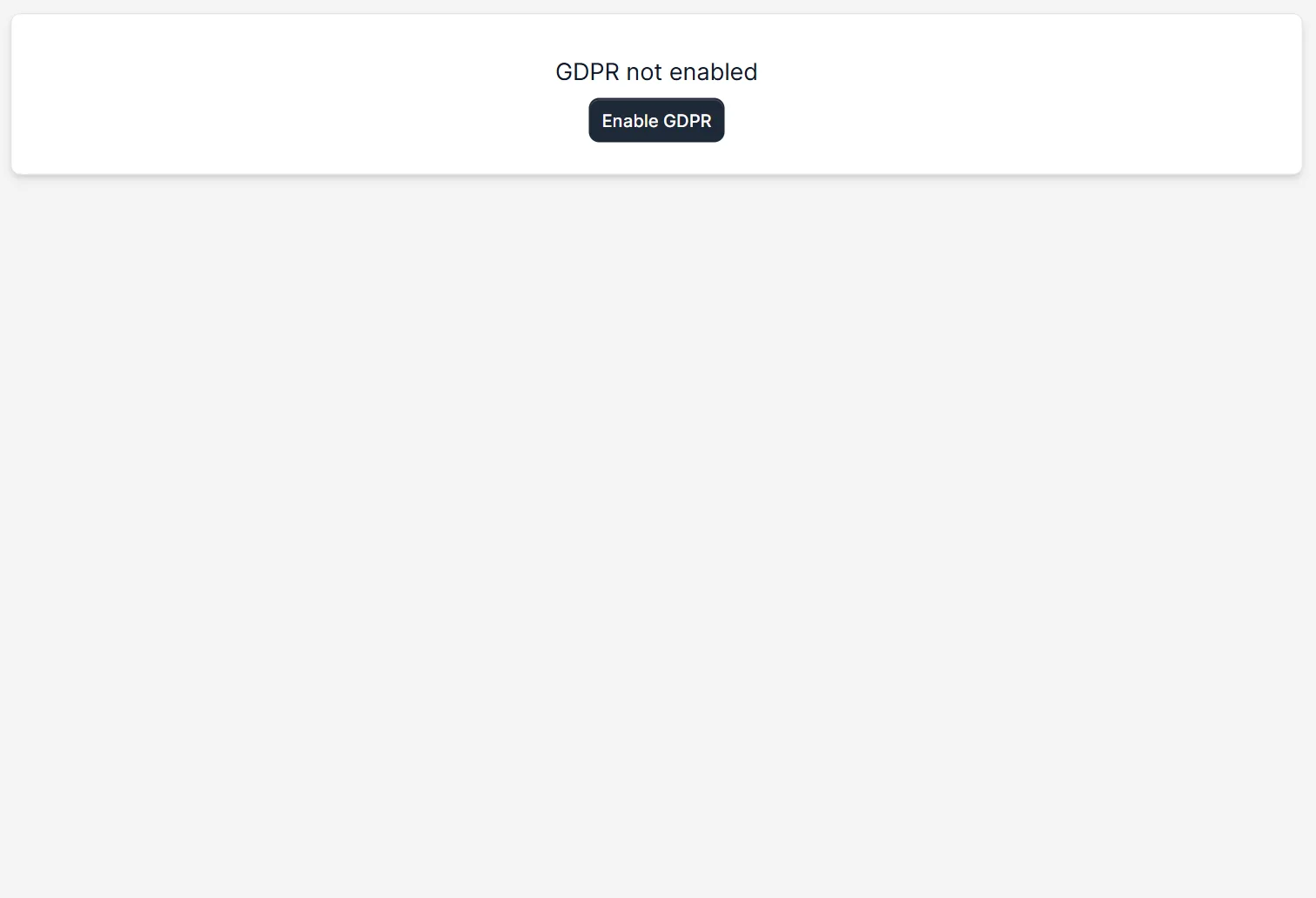
Open Setup > GDPR. A fresh install shows the text GDPR not enabled and a button Enable GDPR. Click it. The page then opens with the six tabs.
Step 2: Use the General tab #
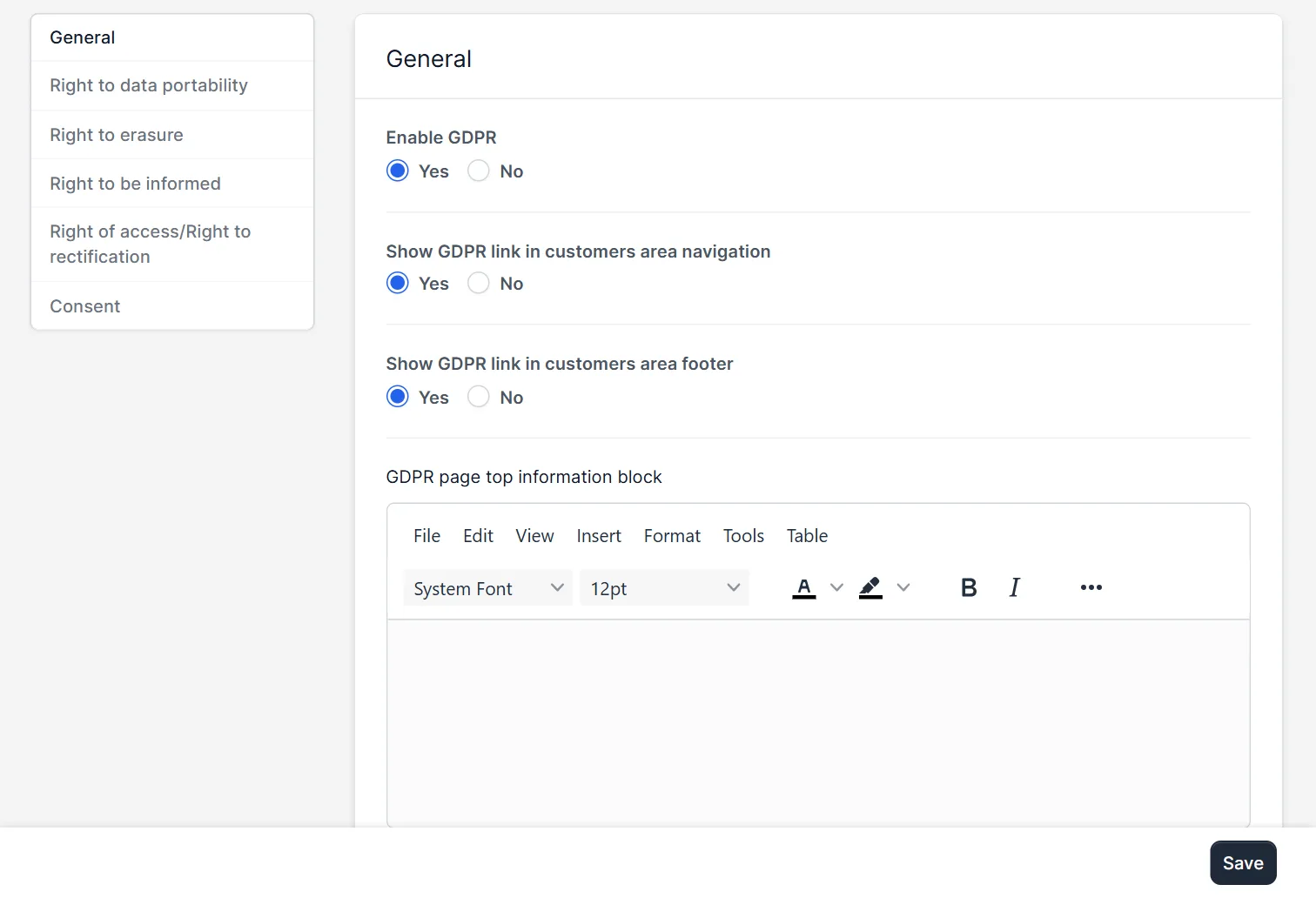
In Perfex CRM GDPR, the tab General has the switch Enable GDPR, so you can switch the tools off again. Two more questions decide where customers find the privacy page: Show GDPR link in customers area navigation and Show GDPR link in customers area footer. Both were Yes after we enabled the tools. Below them, an editor holds the GDPR page top information block, the text shown at the top of that page. Write who you are, what data you keep and how people contact you. Click Save.
Step 3: Choose data portability #
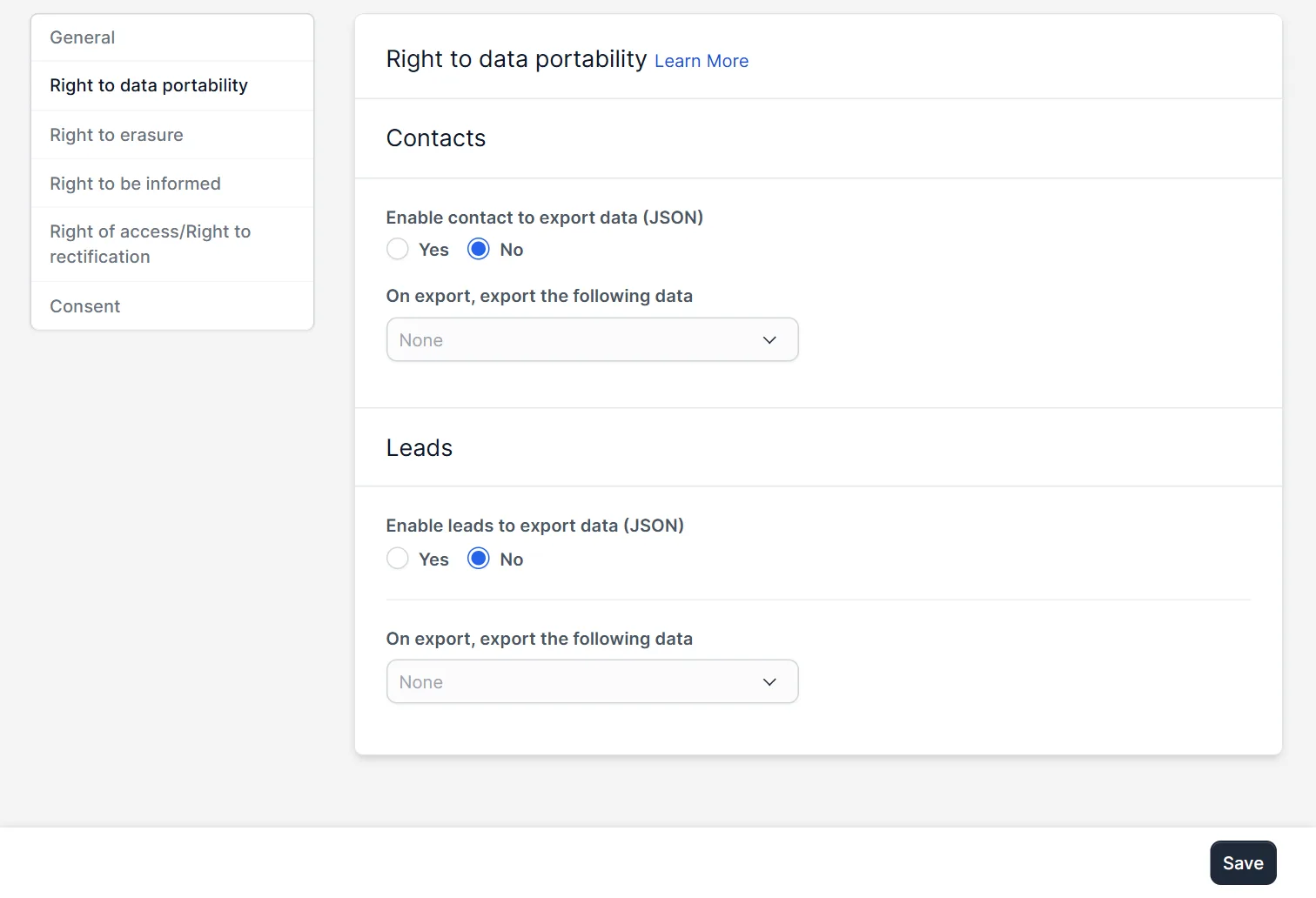
The tab Right to data portability lets people take their data with them. The block Contacts has Enable contact to export data (JSON), and the list On export, export the following data decides what is included. The block Leads has the same two options. Both were No at first. In Perfex CRM GDPR, data portability means a JSON file of the data you choose. Pick only data that belongs to the person.
Step 4: Choose the right to erasure #
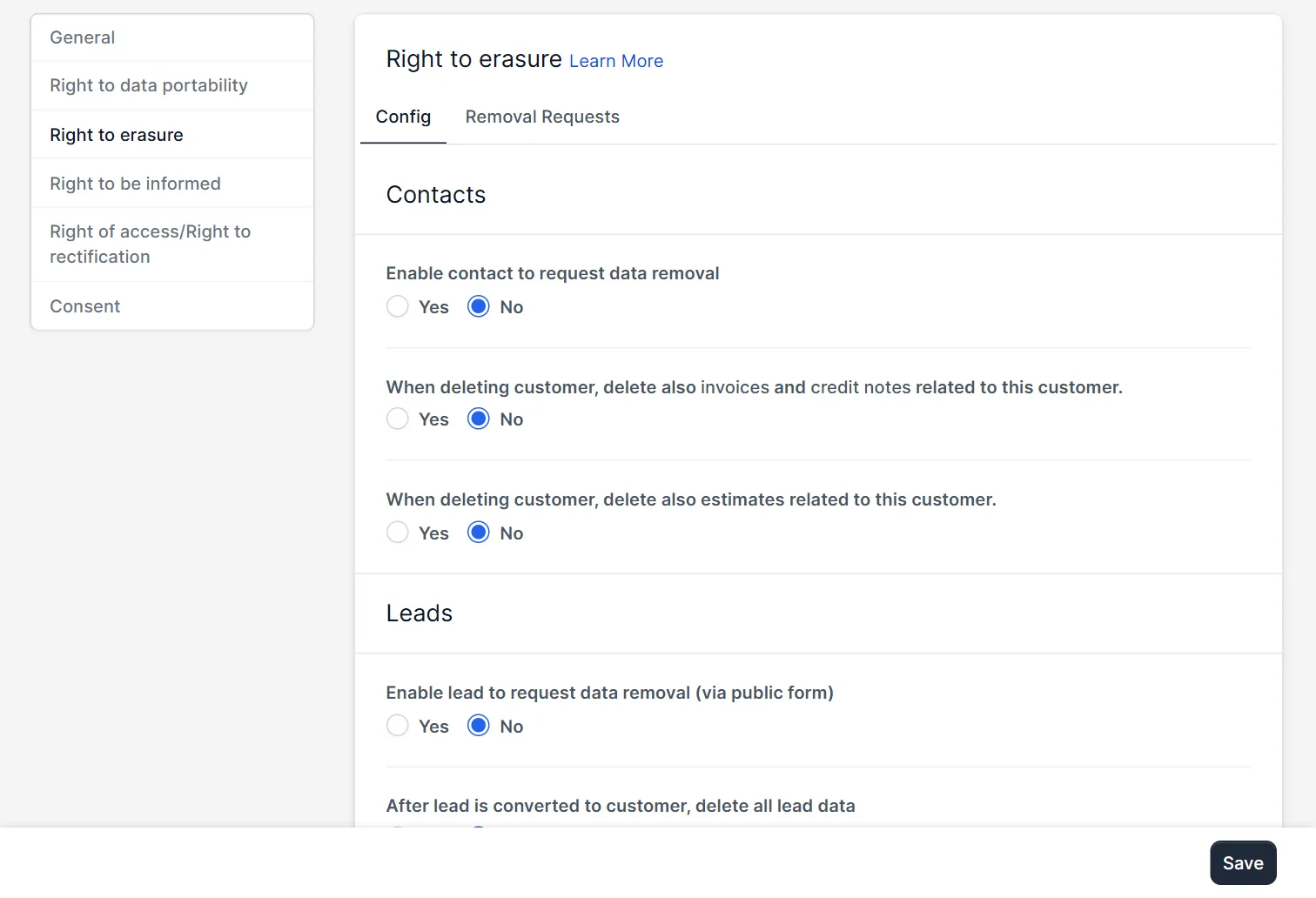
The tab Right to erasure has two parts, Config and Removal Requests. For contacts, Enable contact to request data removal adds a request button in the customers area. Two more questions decide what goes with a deleted customer: invoices and credit notes, and estimates. For leads, Enable lead to request data removal (via public form) and a switch for deleting all lead data after a lead becomes a customer are offered. All were No. Think about your tax rules before you switch on the deletion of invoices, because you may have to keep them.
Step 5: Choose consent #
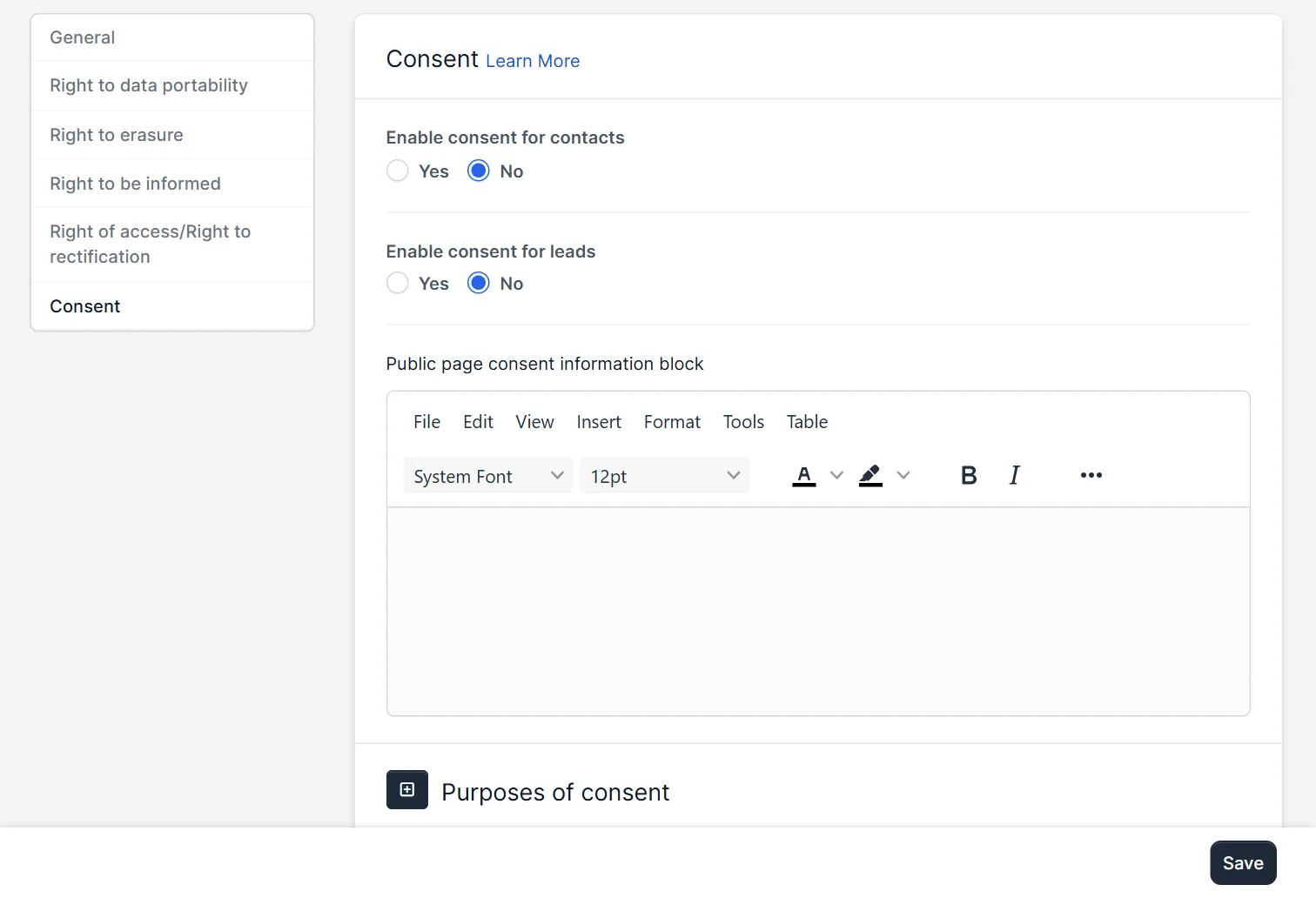
The tab Consent has Enable consent for contacts and Enable consent for leads, both No at first. A block Public page consent information block and a list called Purposes of consent follow. A purpose is a reason you contact people, such as the newsletter. Add one purpose for each use, so a person can agree to each one alone. Our guide to Perfex CRM web to lead form shows where leads come from.
The other two tabs #
The tabs Right to be informed and Right of access/Right to rectification hold the texts that tell people what you do and how they ask to see or fix their data. We did not open them in detail. Fill them in with your own wording, and make the texts match what your business really does. A text that promises more than you do causes trouble.
A simple plan for Perfex CRM GDPR #
Start with the General tab and a clear information text. Then switch on consent for leads if you collect leads from a web form, and add a purpose for each use. Switch on data portability for contacts only when you have a process to answer requests. Decide about erasure last, together with your accountant. Write down what you did, with dates. This note is useful if someone asks.
Tips for privacy #
- Switch on only what you can handle in Perfex CRM GDPR. A request button you do not answer is worse than none.
- Check who can see customer data with Perfex CRM roles and permissions.
- Remove old leads you no longer need. See Perfex CRM add lead for lead data.
- Keep backups safe, because they hold the same personal data.
- Read the privacy rules of your own country, since the CRM cannot know them.
Not tested here: the customer side of the page, exporting a JSON file, a removal request and its result, the consent purposes, and the two texts tabs. Read the official Perfex CRM help for more.
Related module: Privacy work often involves files. The File Sharing Module for Perfex CRM shares documents with clients, so check what you share and with whom.
Frequently asked questions #
How do I enable Perfex CRM GDPR tools? #
Open Setup, GDPR and click Enable GDPR. Then choose the options on the six tabs and save.
Does enabling it change anything for customers? #
Only the two links in the customers area are on at first. Data portability, erasure and consent start at No.
What does data portability do? #
It lets a contact or lead export their data as a JSON file, for the data types you choose.
Can I delete a customer with their invoices? #
There is a switch for deleting invoices and credit notes with a customer. Check your tax rules before you use it.


