
- What Perfex CRM customer registration does
- Step 1: Turn on Perfex CRM customer registration
- Step 2: Choose the required fields
- Step 3: See what the customer sees
- Step 4: Check the Perfex CRM customer registration form
- Step 5: Confirm the new customer
- A simple routine for Perfex CRM customer registration
- Tips for registration
- Frequently asked questions
Your customers can create their own accounts, and Perfex CRM customer registration controls how. You choose if anyone may sign up, which fields are required and if you approve every new account first. This guide, tested on Perfex CRM 3.4.1, shows the settings, the form a customer sees and where you confirm a new account.
What Perfex CRM customer registration does #
When registration is on, the login page of the customers area shows a Register button. A visitor fills in a form with a contact and a company, and the CRM creates the customer and its primary contact. With approval switched on, the new account stays inactive until you confirm it. This self registration saves you typing, but it needs a few rules so that only real customers get in.
Step 1: Turn on Perfex CRM customer registration #
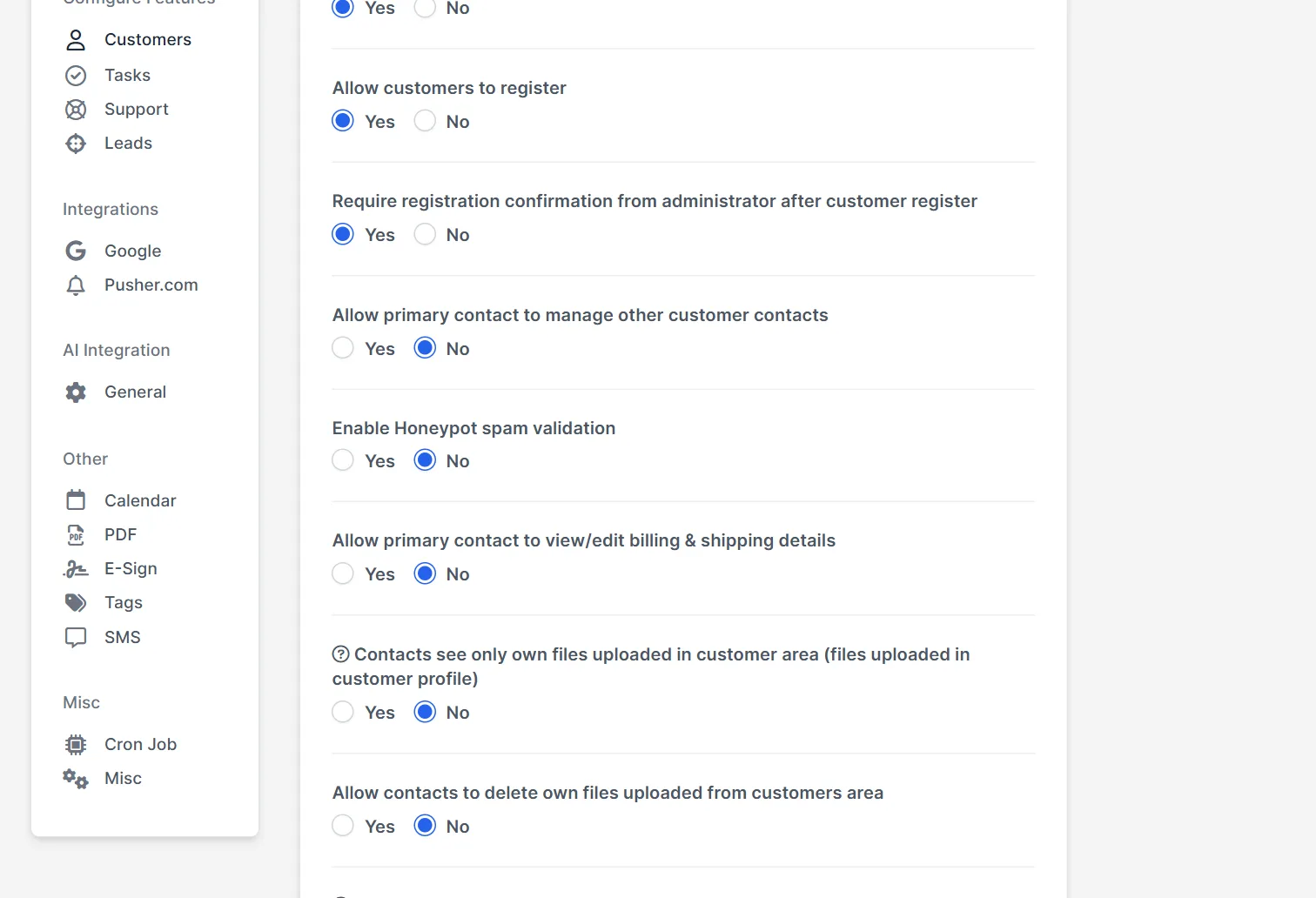
Open Setup > Settings and choose Customers under Configure Features. Set Allow customers to register to Yes. Below it, Require registration confirmation from administrator after customer register decides what happens next. Yes keeps every new account waiting for you. Click Save Settings at the bottom of the page.
Step 2: Choose the required fields #
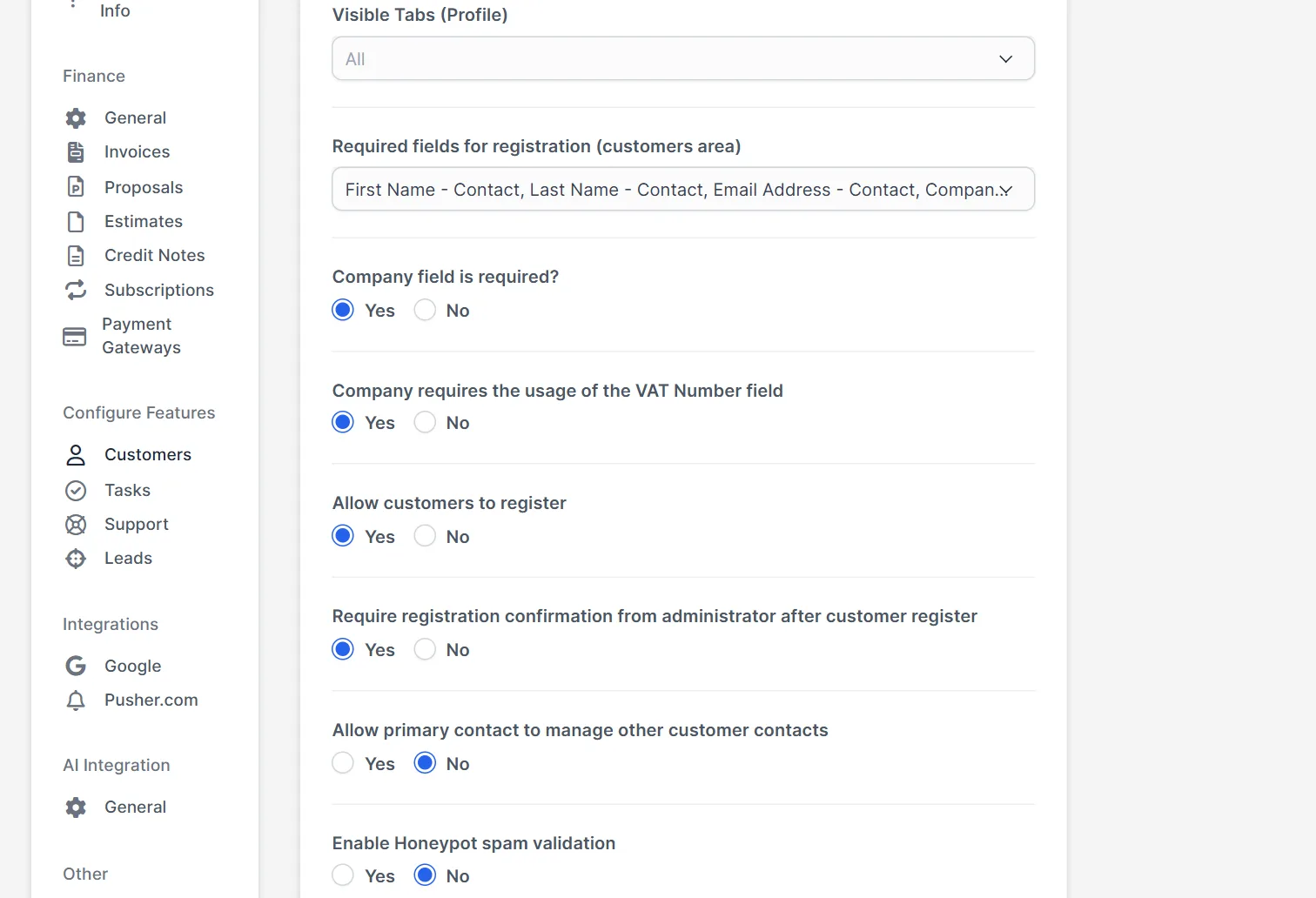
Good Perfex CRM customer registration asks for as little as your team can work with. The list Required fields for registration (customers area) sets what a visitor must fill in. In the install tested here, first name, last name, email address and company were selected. Two more questions add rules: Company field is required? and Company requires the usage of the VAT Number field. Enable Honeypot spam validation adds a hidden field that bots fill in and people do not. Keep the list short, because every extra field makes a visitor give up.
Step 3: See what the customer sees #
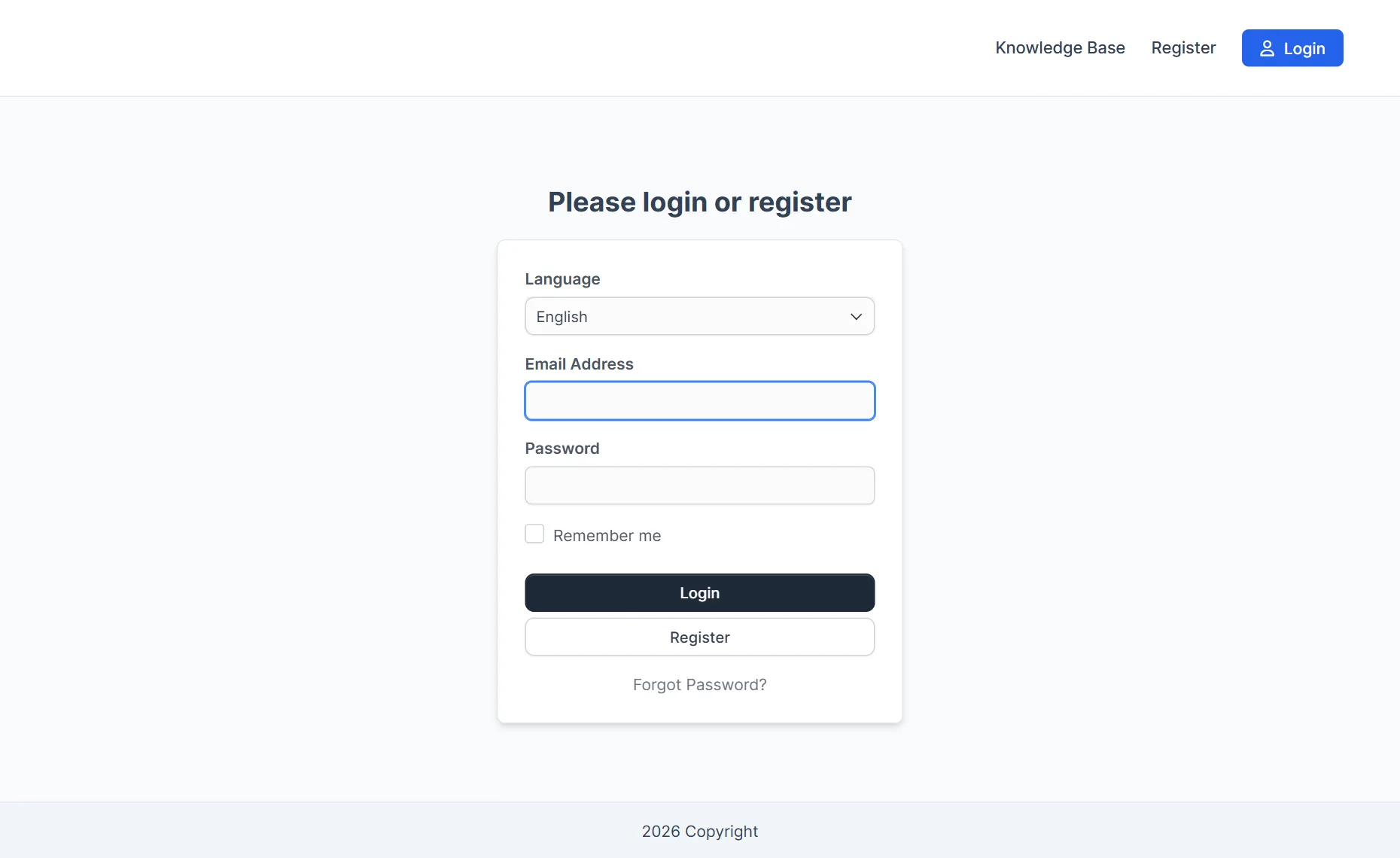
Customers open your CRM address followed by /authentication. The page Please login or register shows the login box with a Register button, and the top bar shows a Register link as well. If you do not see them, registration is off or the settings were not saved.
Step 4: Check the Perfex CRM customer registration form #
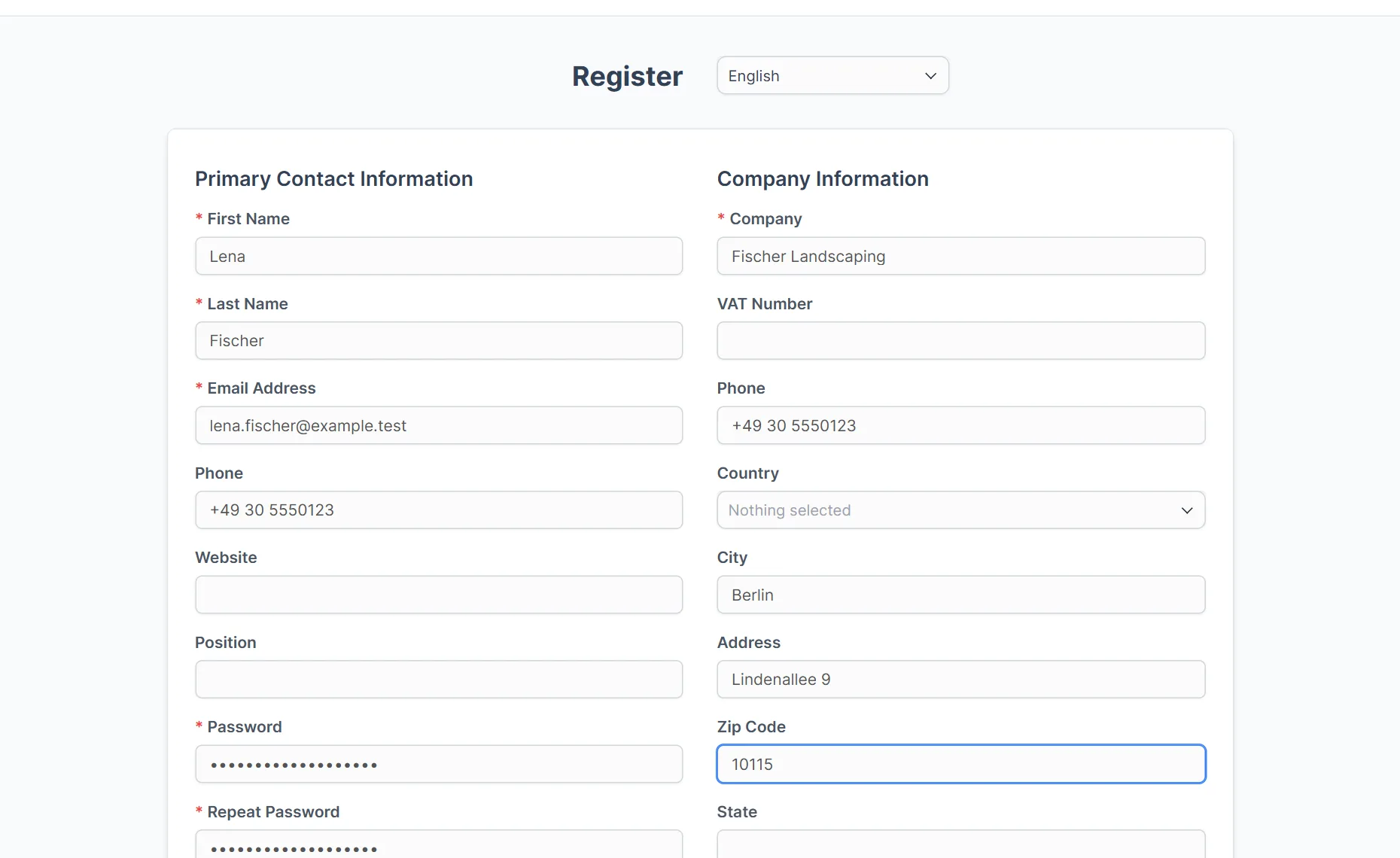
The form has two blocks. Primary Contact Information asks for first name, last name, email address, phone, website, position, password and a repeated password. Company Information asks for company, VAT number, phone, country, city, address, zip code and state. A red star marks a required field. We filled in a test company and pressed Register. The CRM sent the visitor back to the login page and created the customer as inactive, so the new contact could not log in yet.
Step 5: Confirm the new customer #
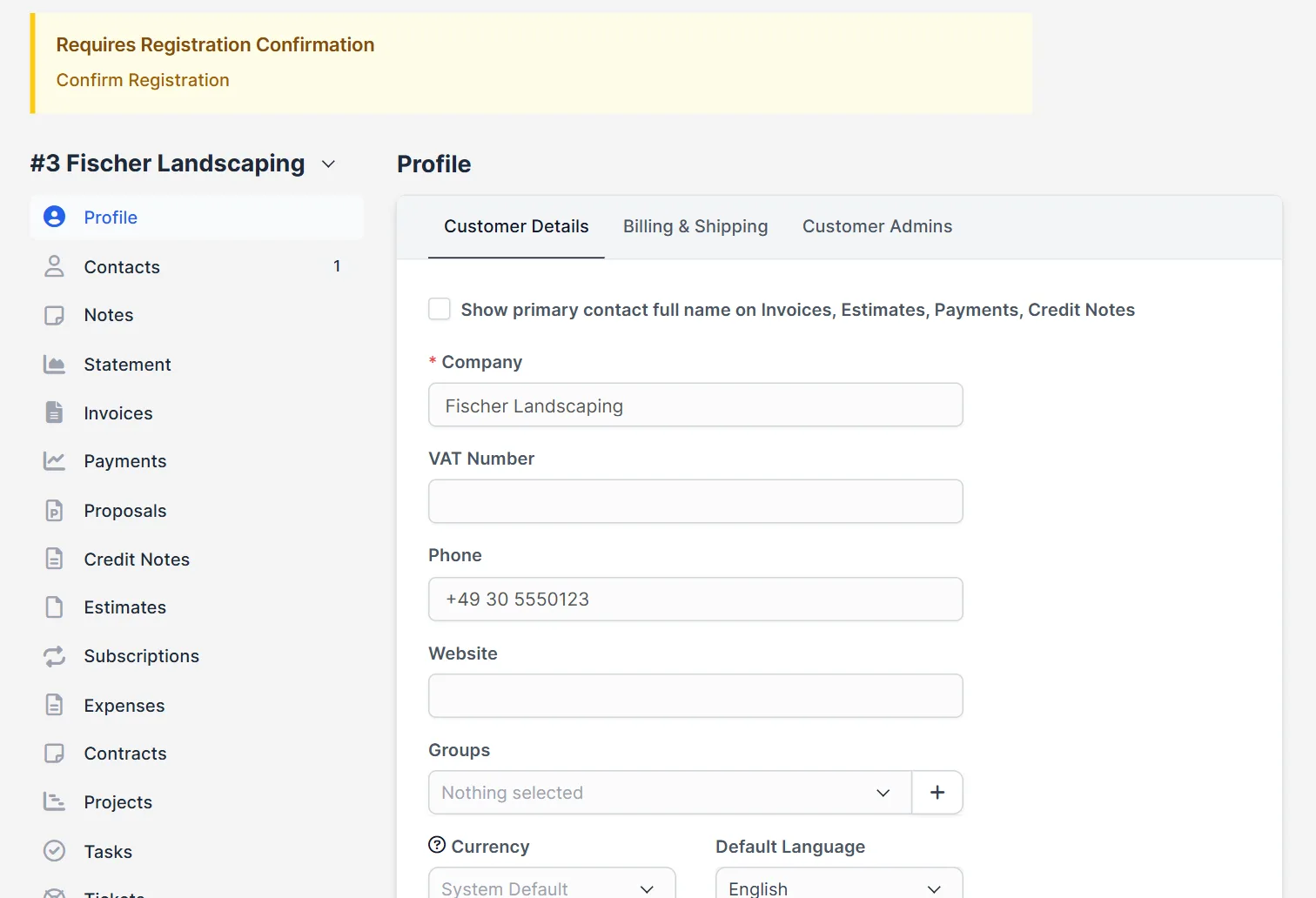
Open Customers. The new customer shows with its switch set to off. Open it: a yellow notice says Requires Registration Confirmation and offers a Confirm Registration link. Click it to activate the account. Look at the data first, because anyone can type anything into a form. Our guide to Perfex CRM new customer explains the profile fields, and Perfex CRM customer contacts covers the people under a customer.
A simple routine for Perfex CRM customer registration #
Treat Perfex CRM customer registration as a queue. Once a day, open the customer list and look for switches that are off. Compare the company name and email address with what you know, then confirm the real ones. Delete the rest. If you sell to businesses, keep approval on. If you offer a free portal and do not mind who joins, you may switch it off, but then every visitor gets access at once, so check the default permissions first.
Tips for registration #
- Open Setup > Settings > Customers and check Default contact permissions before you allow sign ups. They decide what a new contact can see.
- Keep the honeypot option on for every public Perfex CRM customer registration page. It costs nothing and stops simple spam bots.
- Tell customers on your website that a new account waits for approval, so they do not write to support.
- If you already have a customer list, use Perfex CRM import customers instead of asking everyone to register.
- The portal itself is explained in Perfex CRM customer portal.
Not tested here: pressing Confirm Registration and the email a customer then receives, the reCAPTCHA option, and the exact words of the pending notice. The language file of 3.4.1 says “Thank you for registering, your account is pending approval and will be confirmed soon”, but that text did not show on screen in our run. Read the official Perfex CRM help for more.
Related module: Perfex CRM customer registration puts new customers into the CRM. To pass them on to other tools, the Webhooks for Perfex CRM module connects the CRM with services such as Zapier, Slack and Google Sheets.
Frequently asked questions #
Where do I turn on Perfex CRM customer registration? #
Open Setup, then Settings, then Customers, and set Allow customers to register to Yes. Save the settings.
Can I approve new customers before they log in? #
Yes. Set Require registration confirmation from administrator to Yes. The new customer stays inactive until you click Confirm Registration on the customer profile.
Which fields can I make required? #
Use the list Required fields for registration. You can also make the company field and the VAT number field required.
Why can a new customer not log in? #
With approval on, the account is inactive until an administrator confirms it. Open the customer and click Confirm Registration.


