
Questions about a project often get lost in email. Perfex CRM project discussions keep each topic in one thread inside the project, with a subject, a description and comments. You can show a thread to the customer or keep it for your team. This guide, tested on Perfex CRM 3.4.1, shows how to start one, who sees it and what the page offers.
What Perfex CRM project discussions are #
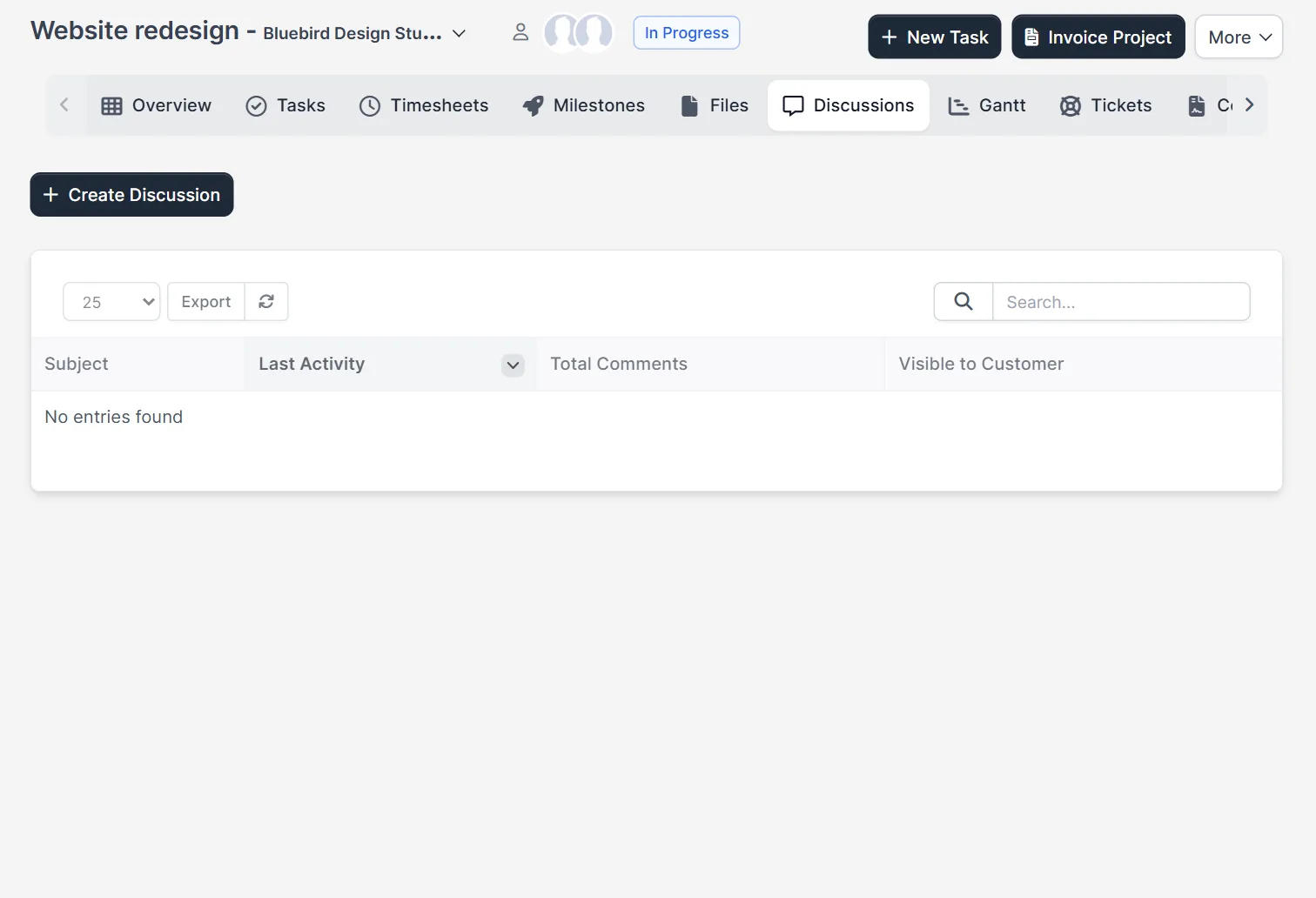
A discussion is a thread. It has a subject, a text and a list of comments from team members and, if you allow it, from the customer. Everything stays with the project, so a new team member can read the history. Open a project and click the tab Discussions. A new project shows a table with the columns Subject, Last Activity, Total Comments and Visible to Customer, and the text “No entries found”.
Step 1: Create a discussion #
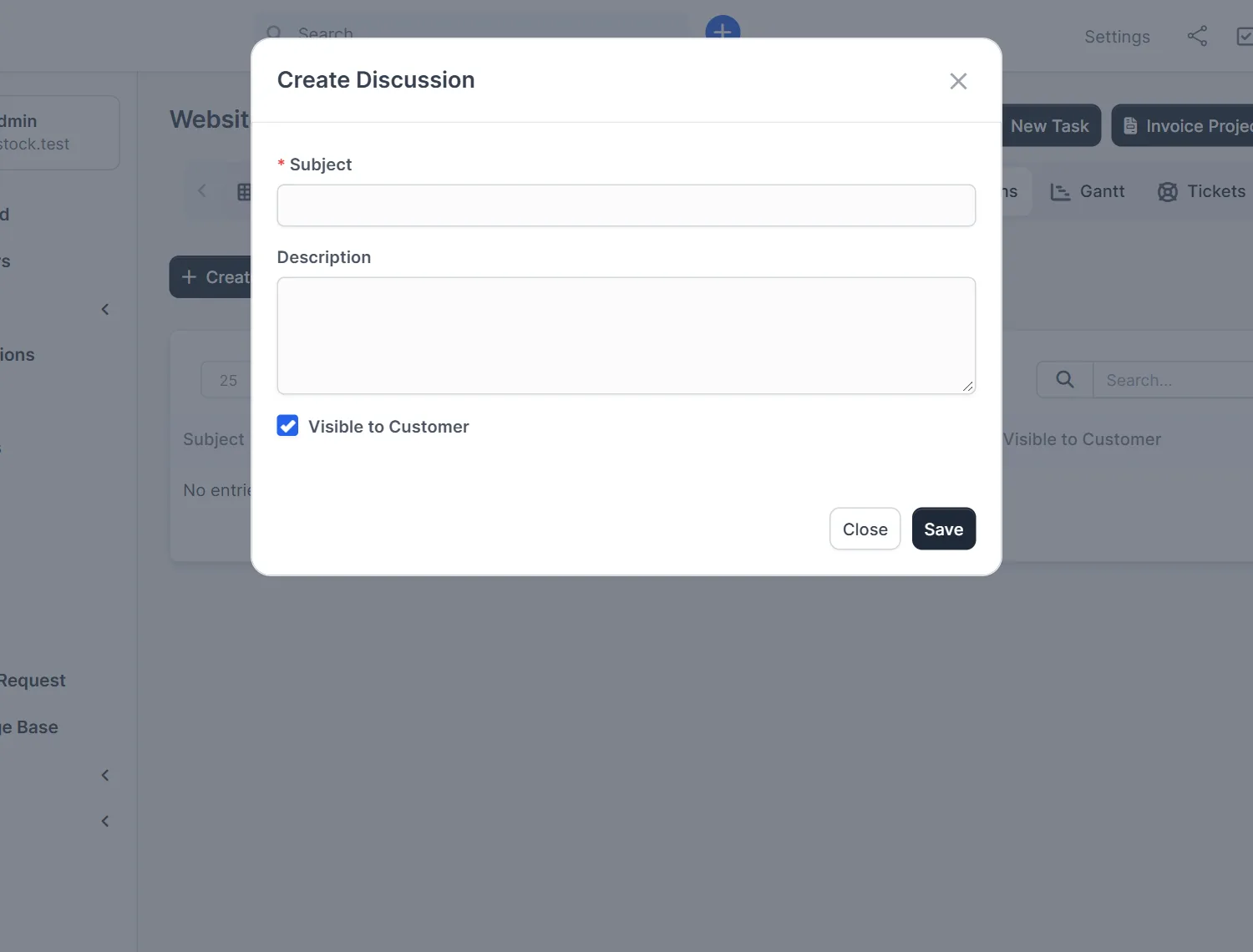
Click Create Discussion. A window opens with a required Subject, a Description and a tick box Visible to Customer. The box was ticked by default in our test, so a discussion is shared with the customer unless you untick it. Write a clear subject, such as “Homepage design feedback”, and click Save.
Step 2: Decide who sees it #
Use Visible to Customer with care. Tick it for feedback rounds and questions that the customer must answer. Untick it for internal talk about budget, risks or the customer. The setting is per discussion, and the list shows it in the last column, as Visible. Customers read project content in the customers area, so check Perfex CRM customer portal first.
Step 3: Read the list #
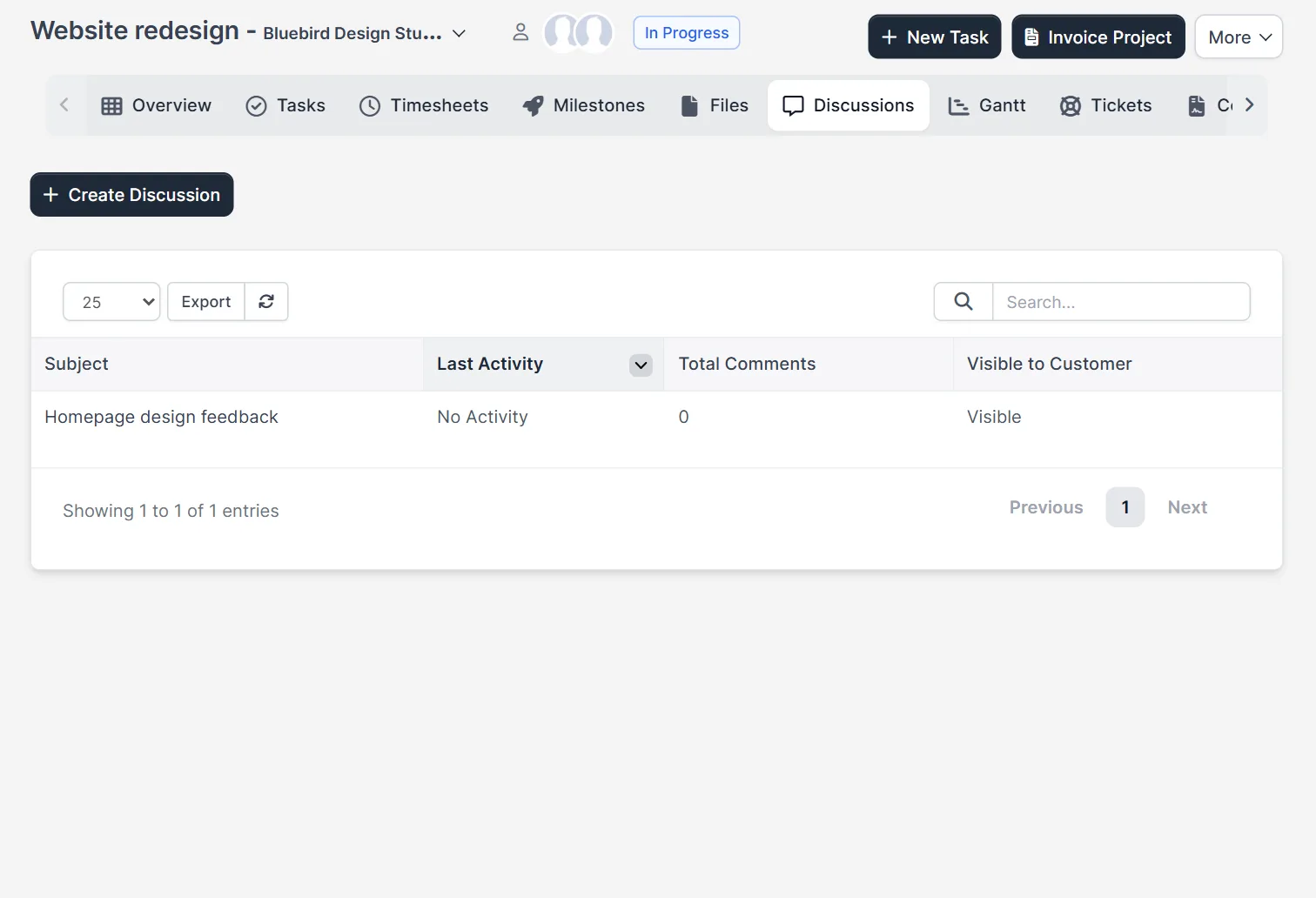
After saving, the discussion appears in the table: the subject as a link, No Activity under Last Activity, 0 comments and Visible. Over time, the Last Activity column shows when the last comment arrived, so you see which threads are alive. Click the subject to open the thread.
Step 4: Open the thread #
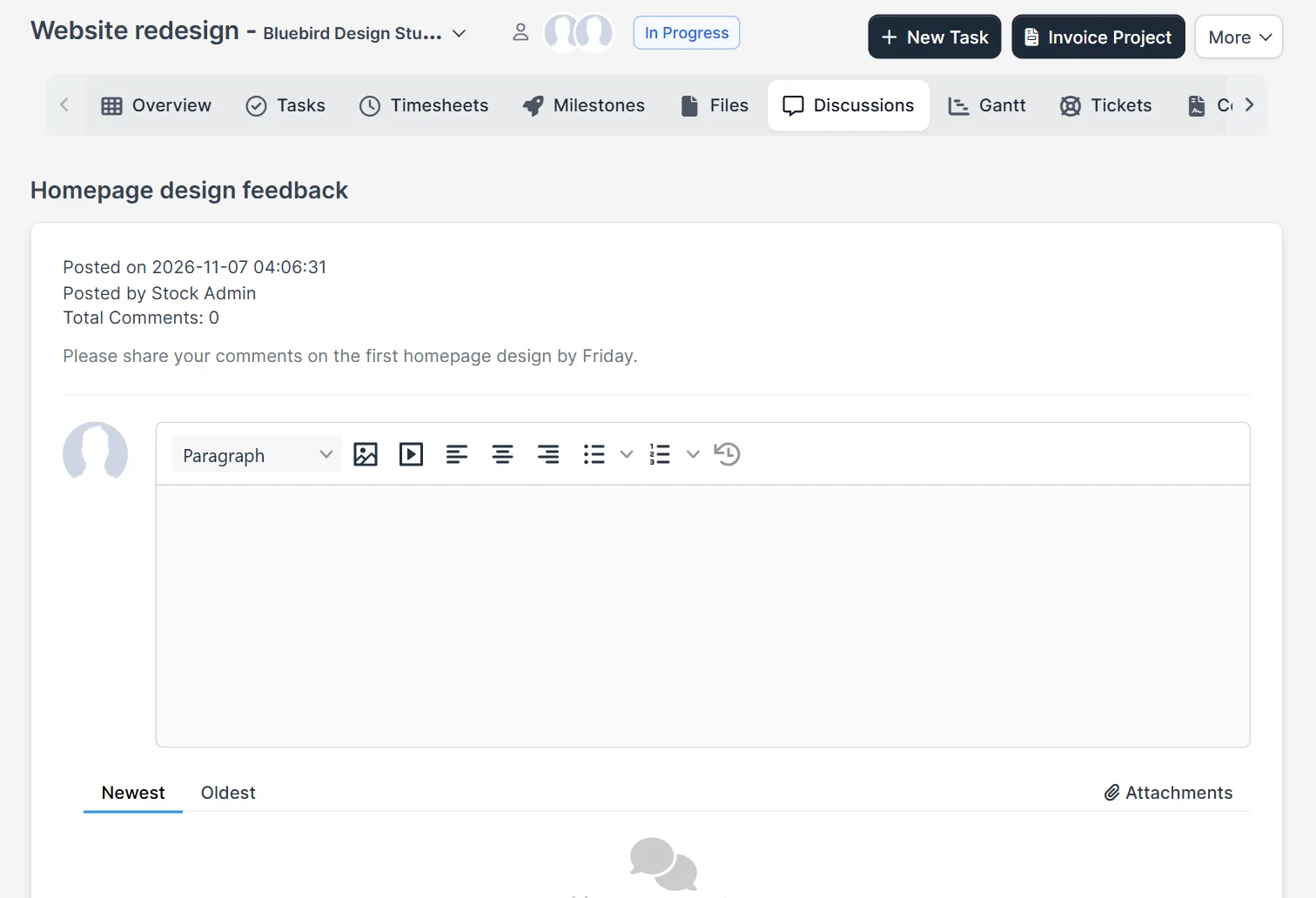
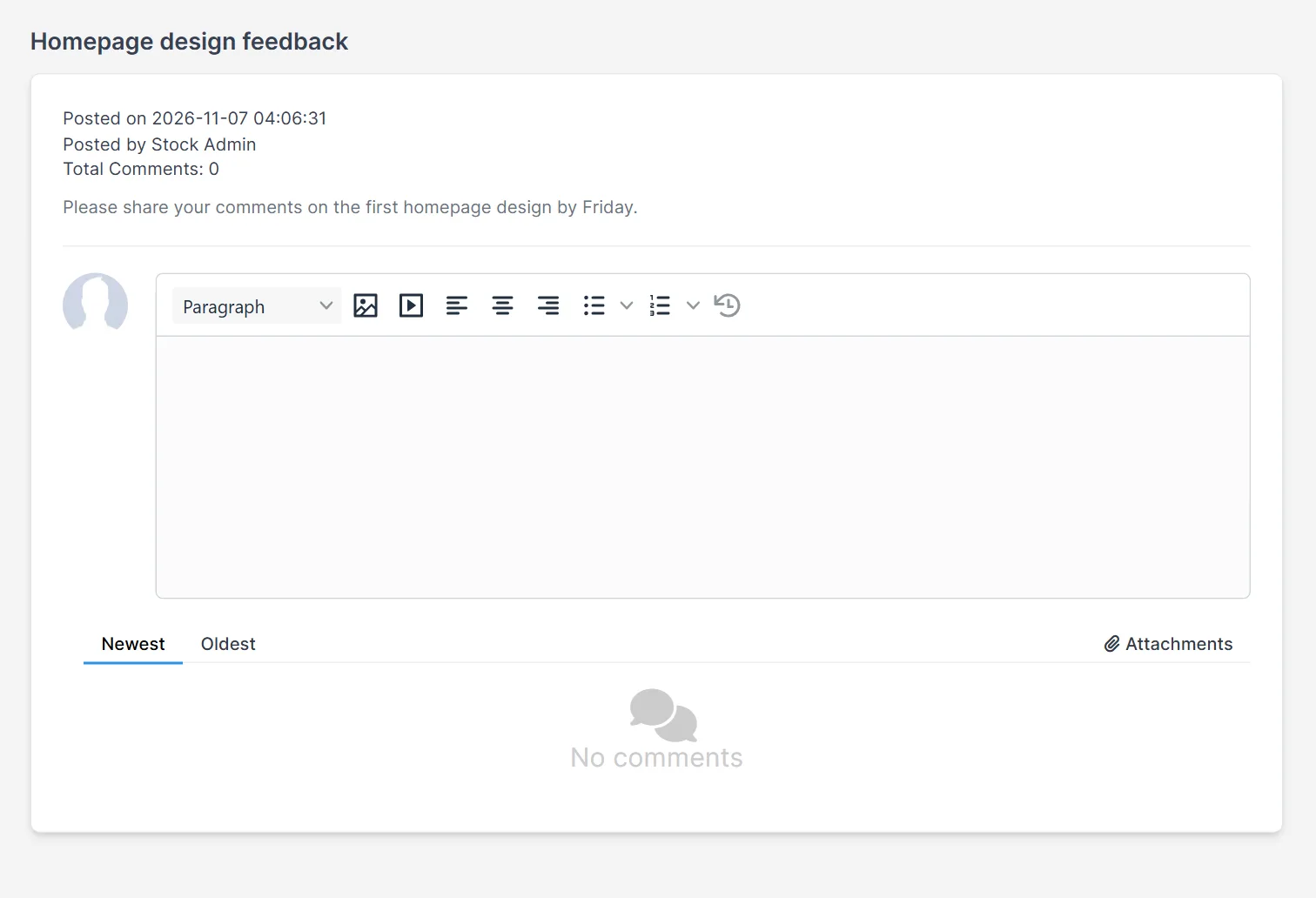
The thread page shows the subject, the date and the author, the number of comments and your description. Under it is an editor for a new comment with the usual buttons for headings, images, links and lists. Write your answer there. The tabs Newest and Oldest sort the comments, and a link Attachments shows the files of the thread.
Step 5: Keep threads tidy #
Scroll down on the thread page to the comments area. With no comments yet, it shows an empty speech bubble and the sort tabs. Start one thread per topic, and close the loop by writing the decision at the end. For files, use the project files tab instead, as Perfex CRM project files explains. For tasks, use a task.
When to use a discussion #
Use Perfex CRM project discussions for talk that belongs to the whole project: approvals, design feedback, scope changes and questions. Use a task for work that one person must do, and a ticket for support issues. Used like this, a customer sees one place for the topics of the project and your team does not search emails. Write short subjects, and answer within a day.
Tips for good threads #
- One topic per discussion. A thread with five topics is hard to follow.
- Name the decision you need in the first sentence of the description.
- Check the Visible to Customer box before you save. Think who will read it.
- Look at Perfex CRM projects for the other project tabs.
- Turn a decision into a task in Perfex CRM tasks, so somebody does it.
Why use Perfex CRM project discussions #
Perfex CRM project discussions replace long email chains with one thread per topic. New team members read Perfex CRM project discussions to learn why a decision was made. Because Perfex CRM project discussions stay inside the project, nothing is lost when a person leaves or a mailbox is cleaned.
Not tested here: posting a comment, attaching a file to a discussion, a customer answering in the customers area, and the emails about new comments. Read the official Perfex CRM help for more.
Related module: For talking with your team all day, the Perfex CRM Chat Module adds real-time messaging inside the CRM.
Frequently asked questions #
Where are Perfex CRM project discussions? #
Open a project and click the Discussions tab. Click Create Discussion to start a thread.
Can the customer see a discussion? #
Only if Visible to Customer is ticked. The box is ticked by default, so untick it for internal threads.
What does the table show? #
The subject, the last activity, the number of comments and whether the thread is visible to the customer.
How do I sort the comments? #
Use the Newest and Oldest tabs on the thread page.


