
- What it means to Perfex CRM convert estimate to invoice
- Step 1: Open the estimate
- Step 2: Look at the More menu
- Step 3: Choose how to convert
- Step 4: Check the new invoice
- Step 5: See what changed on the estimate
- A good routine for quotes
- Tips for conversions
- Why Perfex CRM convert estimate to invoice saves time
- Frequently asked questions
A customer says yes to a quote, and you do not want to type it all again. In the CRM you can Perfex CRM convert estimate to invoice with two clicks. The items, the customer and the amounts move to a new invoice. This guide, tested on Perfex CRM 3.4.1, shows the button, the two ways to use it and what the CRM changes on the estimate.
What it means to Perfex CRM convert estimate to invoice #
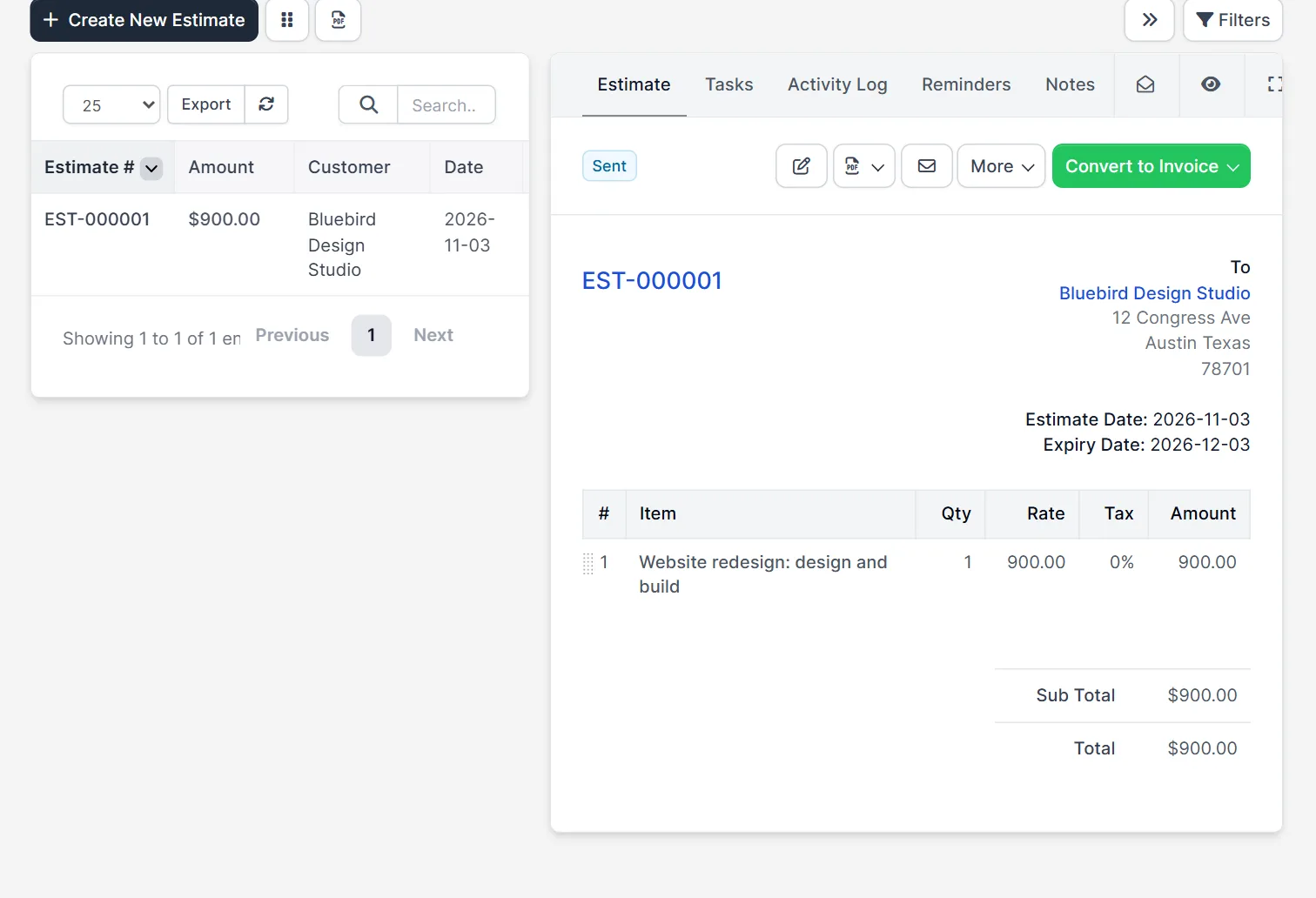
An estimate is an offer. An invoice is a request for payment. When you convert, the CRM creates an invoice for the same customer with the same lines and totals, and links it to the estimate. The estimate stays in the list, so you keep the history of the offer. Open Sales > Estimates and click an estimate to see its page on the right.
Step 1: Open the estimate #
The estimate page shows the number, the customer, the dates, the items and the totals. At the top right are the tabs Estimate, Tasks, Activity Log, Reminders and Notes, and a row of buttons: edit, PDF, email, More and a green Convert to Invoice. In our test, the estimate had the status Sent. Check the items and the prices first, because the invoice copies them.
Step 2: Look at the More menu #
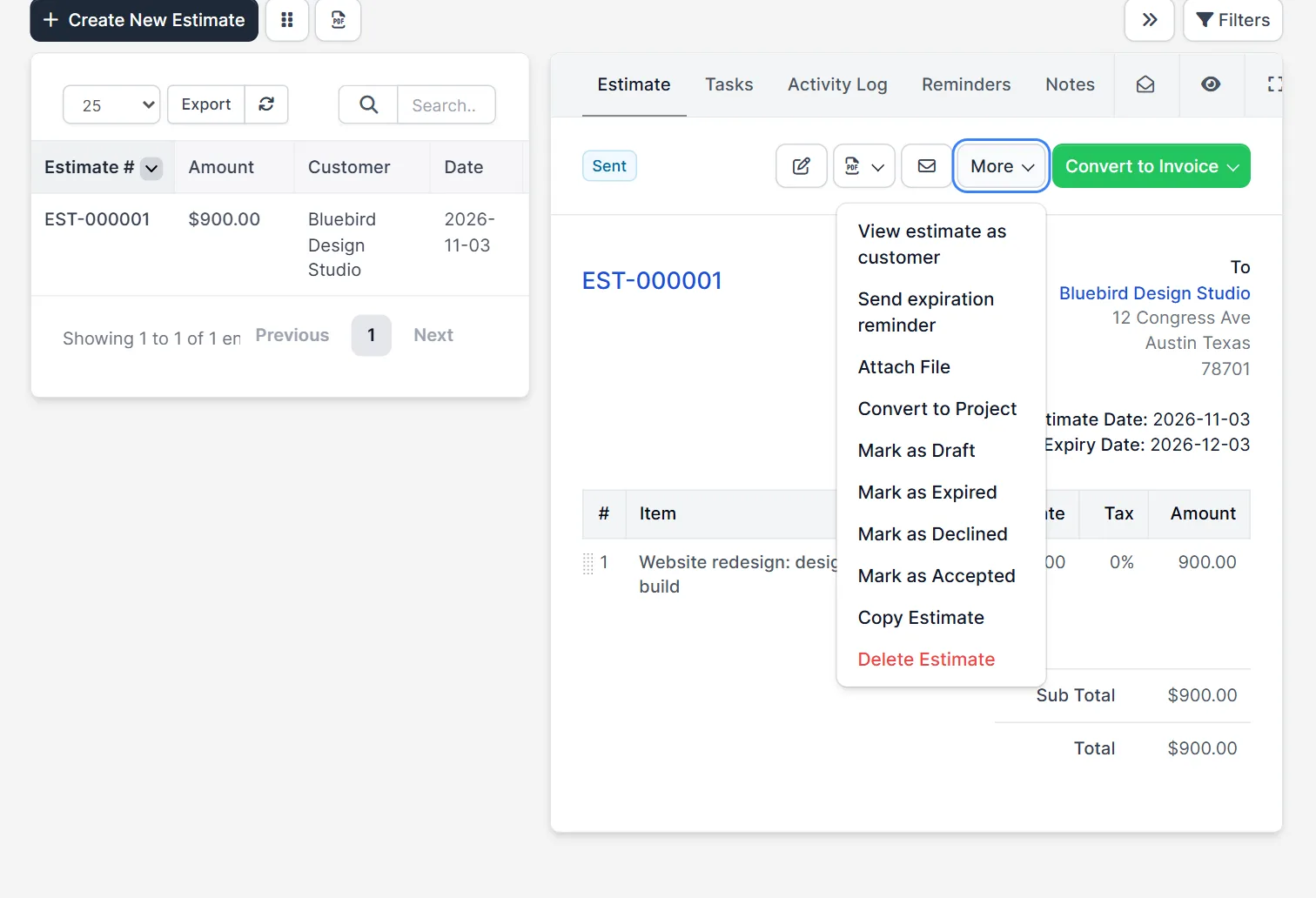
The More menu has View estimate as customer, Send expiration reminder, Attach File, Convert to Project, Mark as Draft, Mark as Expired, Mark as Declined, Mark as Accepted, Copy Estimate and Delete Estimate. The invoice is not here. It has its own green button, and the item Convert to Project is a different function that creates a project from the estimate.
Step 3: Choose how to convert #
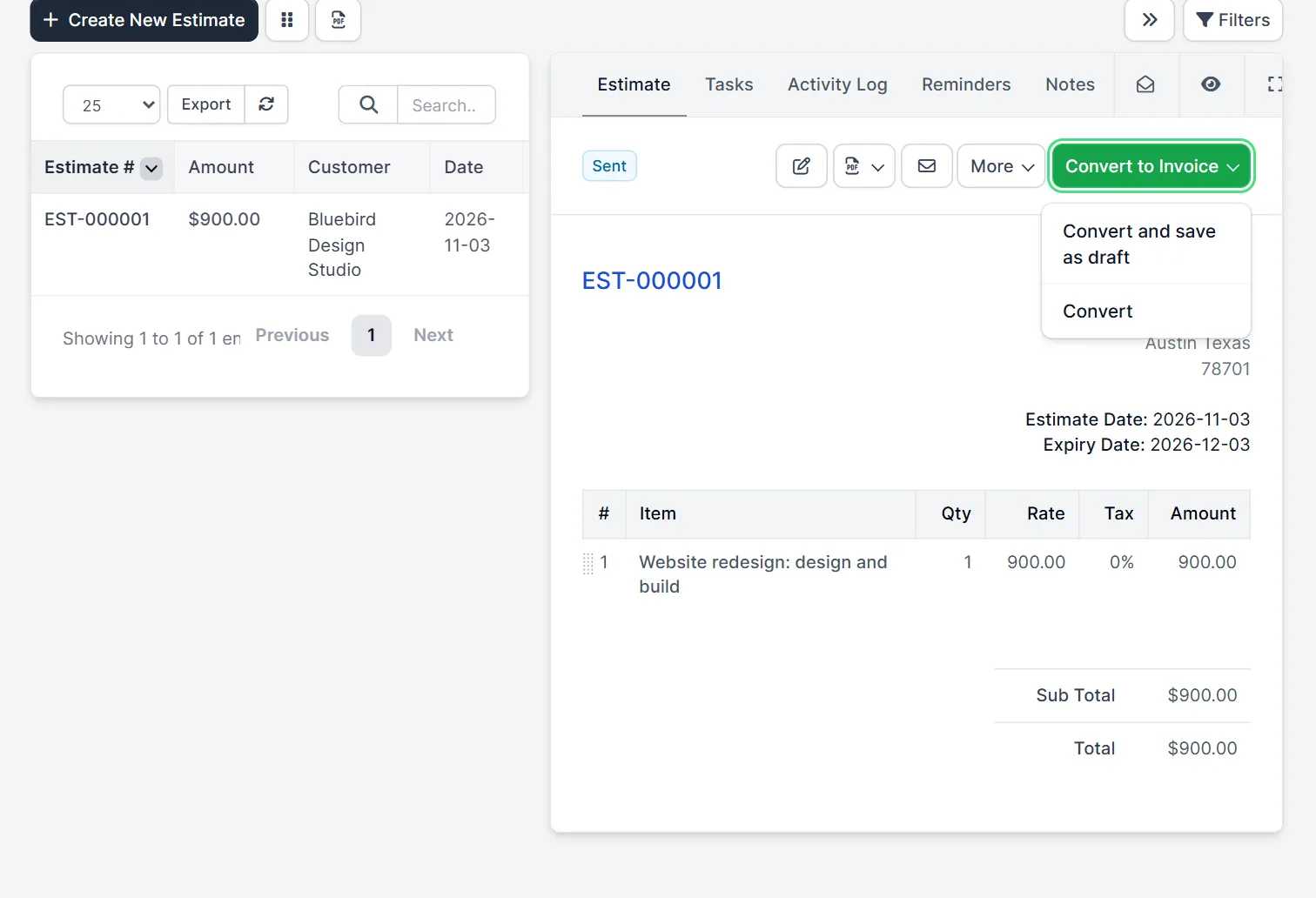
Click the green button. It opens a small menu with two choices: Convert and save as draft and Convert. The first makes an invoice with the status Draft, so you can change it before the customer sees it. The second makes the invoice at once. Use the draft option when you must add a shipping line, a discount or a note. Use plain Convert when the estimate is final. We used Convert in our test and did not try the draft option.
Step 4: Check the new invoice #
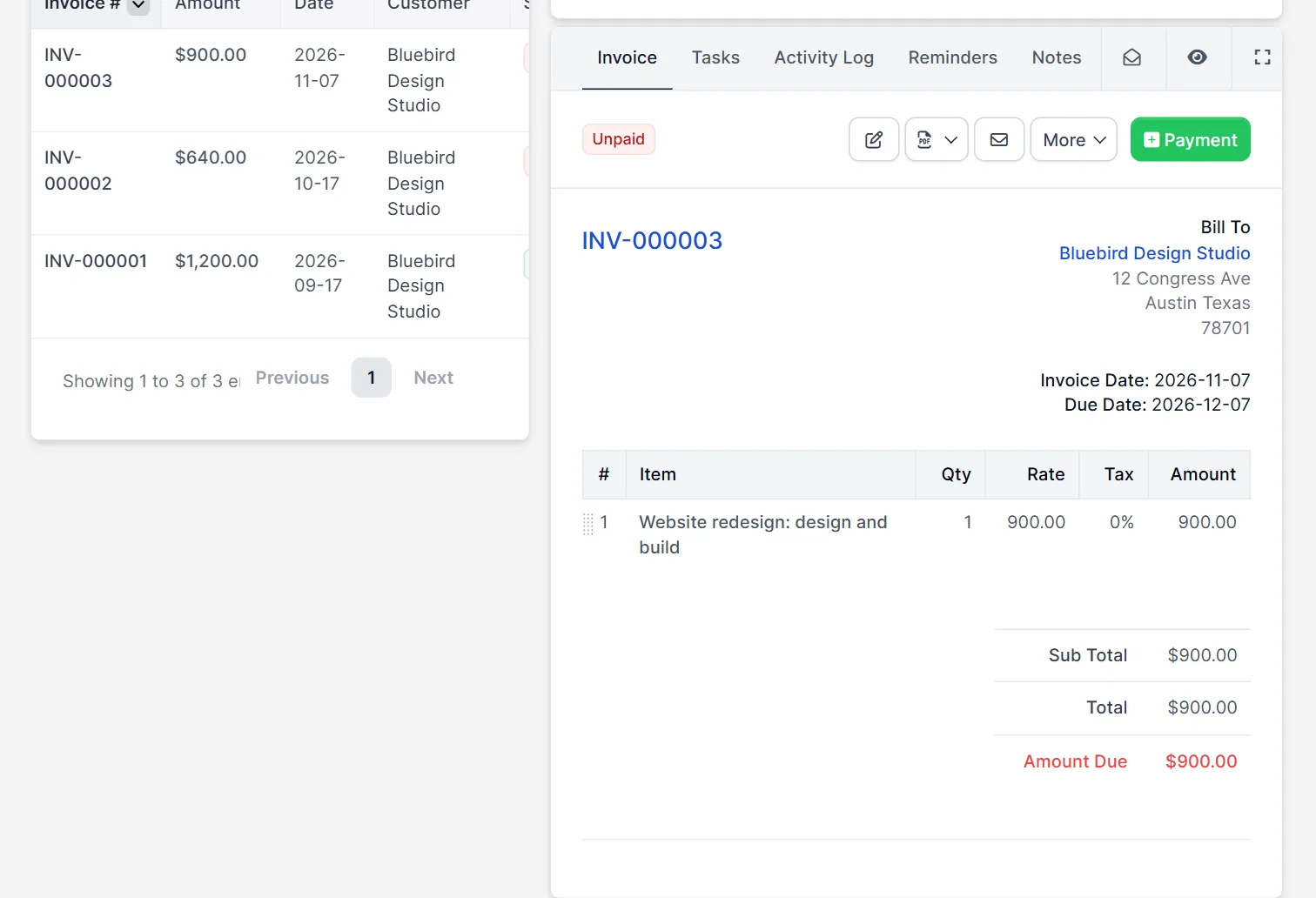
After Convert, the CRM opened the new invoice, here INV-000003. It had the status Unpaid and the same item and total of 900.00. The invoice date was the day of the conversion, and the due date was 30 days later, as set in the invoice settings. The page shows the buttons for a payment, an email and more. To change the due date days, open Setup > Settings > Invoices. Then send the invoice. See Perfex CRM create invoice.
Step 5: See what changed on the estimate #
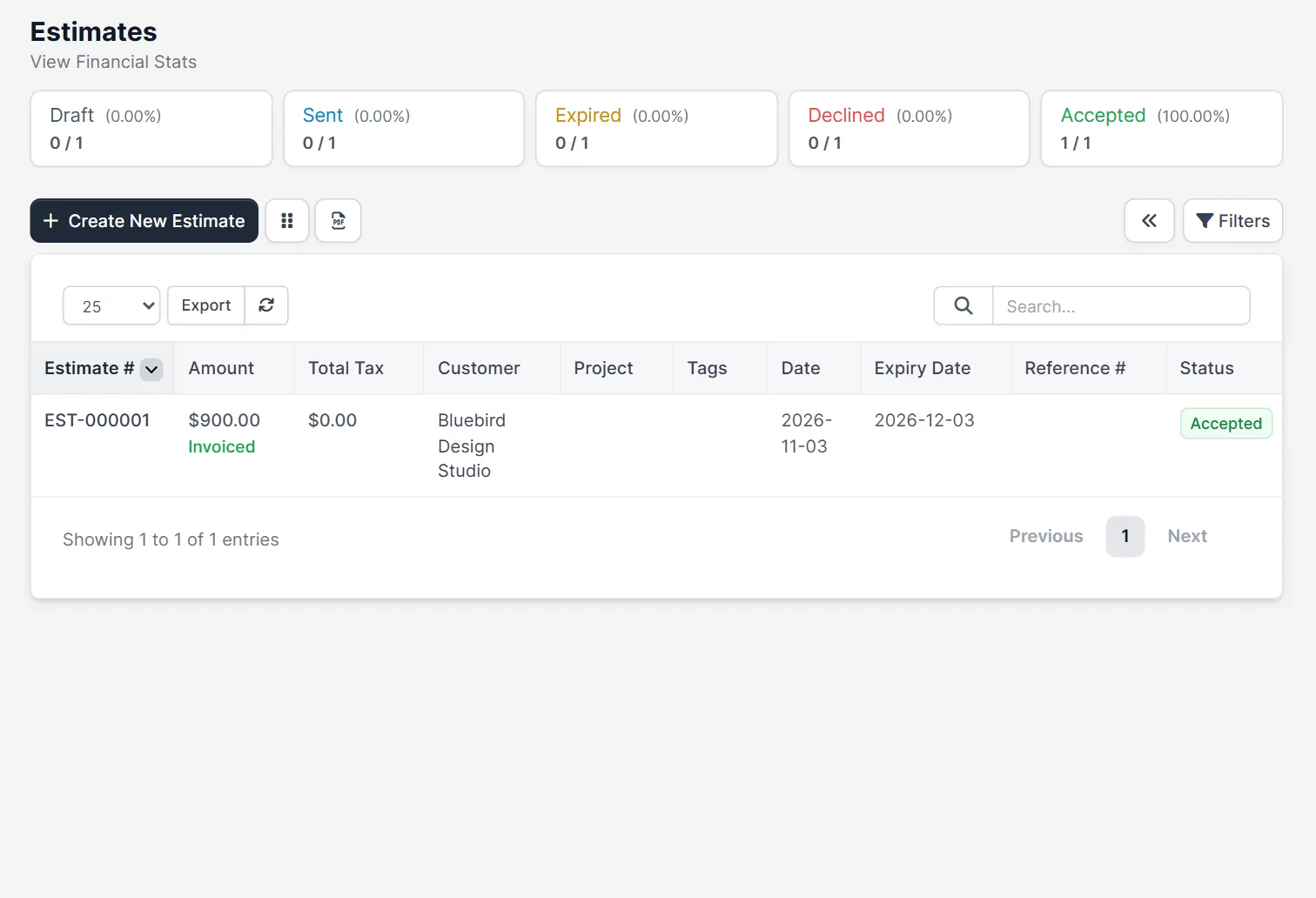
Back on the estimate list, the estimate now shows the status Accepted and the small label Invoiced under its amount. The summary box for Accepted counts it. So when you Perfex CRM convert estimate to invoice, the CRM also marks the offer as won. In our test, the estimate had been Sent and was never accepted by the customer. The conversion still worked and set the status for us.
A good routine for quotes #
Send the estimate, wait for the customer’s yes, and then convert it. If your customer accepts online, the status already says Accepted, and you only press Convert. If you want a signature first, switch on the signature option, as Perfex CRM e-signature explains. Always check the invoice before you send it. For project work, Perfex CRM invoice project is the better way, because it bills the hours.
Tips for conversions #
- Use Convert and save as draft when you are not sure, because a draft can still be edited and does not count as unpaid.
- Convert an estimate once. A second invoice from the same estimate creates a double bill.
- Check the tax and the currency on the invoice, as they come from the estimate.
- Look at Perfex CRM estimates for the estimate fields and statuses.
- Keep the estimate number in the invoice note, so the customer can match both documents.
Why Perfex CRM convert estimate to invoice saves time #
With Perfex CRM convert estimate to invoice, you type the items once. There are no copy errors between the offer and the bill, and the customer sees the same lines and prices that they approved. Teach every sales person to Perfex CRM convert estimate to invoice instead of creating a new invoice by hand, because it keeps the link between both documents. The way to Perfex CRM convert estimate to invoice takes less than a minute.
Not tested here: Convert and save as draft, converting an estimate in another currency, and an estimate that was already invoiced. Read the official Perfex CRM help for more.
Related module: If you want a rule such as “when this happens, create a task for my team”, the Workflow Rules for Perfex CRM module creates tasks, sends emails and notifies people. Check the product page for the events it supports.
Frequently asked questions #
How do I Perfex CRM convert estimate to invoice? #
Open the estimate, click the green Convert to Invoice button and choose Convert, or Convert and save as draft.
What happens to the estimate? #
It shows the status Accepted and the label Invoiced, and it stays in the list.
What does Convert and save as draft do? #
It creates the invoice with the status Draft, so you can edit it before the customer sees it.
Is the customer asked to accept first? #
No. In our test an estimate with the status Sent could be converted, and the CRM then marked it as Accepted.


