
- What the Perfex CRM dashboard shows
- Step 1: Open Dashboard Options on the Perfex CRM dashboard
- Step 2: Choose your widgets
- Step 3: Read the lower dashboard widgets
- Step 4: Use the calendar and payments
- Step 5: Hide a widget and bring it back
- A good Perfex CRM dashboard for each role
- Tips for the dashboard
- Frequently asked questions
The first page after login should show what needs you today. The Perfex CRM dashboard is made of widgets, small boxes with numbers and charts, and you decide which ones you see. This guide, tested on Perfex CRM 3.4.1, explains the widgets, where the options are and how to keep the page useful.
What the Perfex CRM dashboard shows #
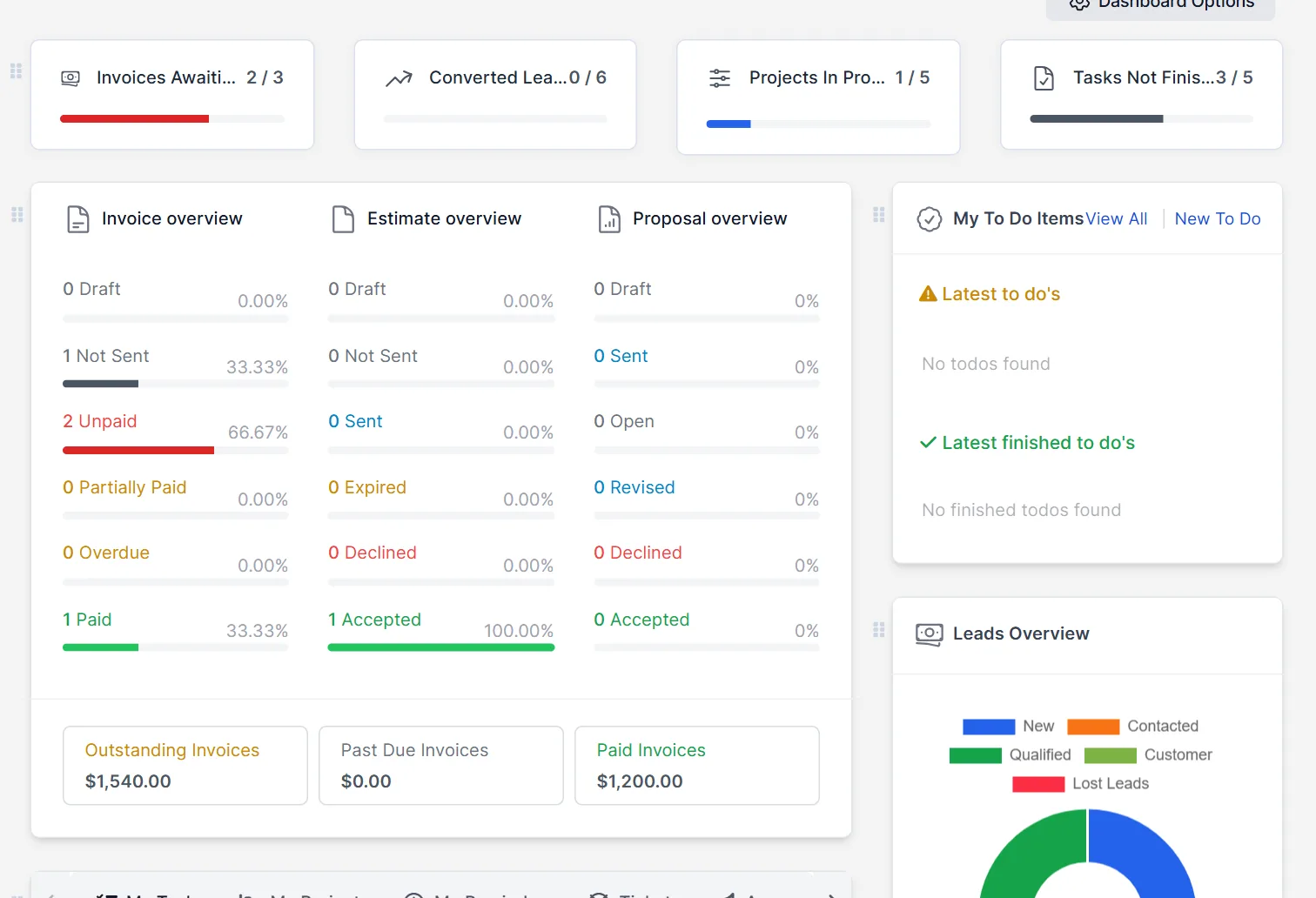
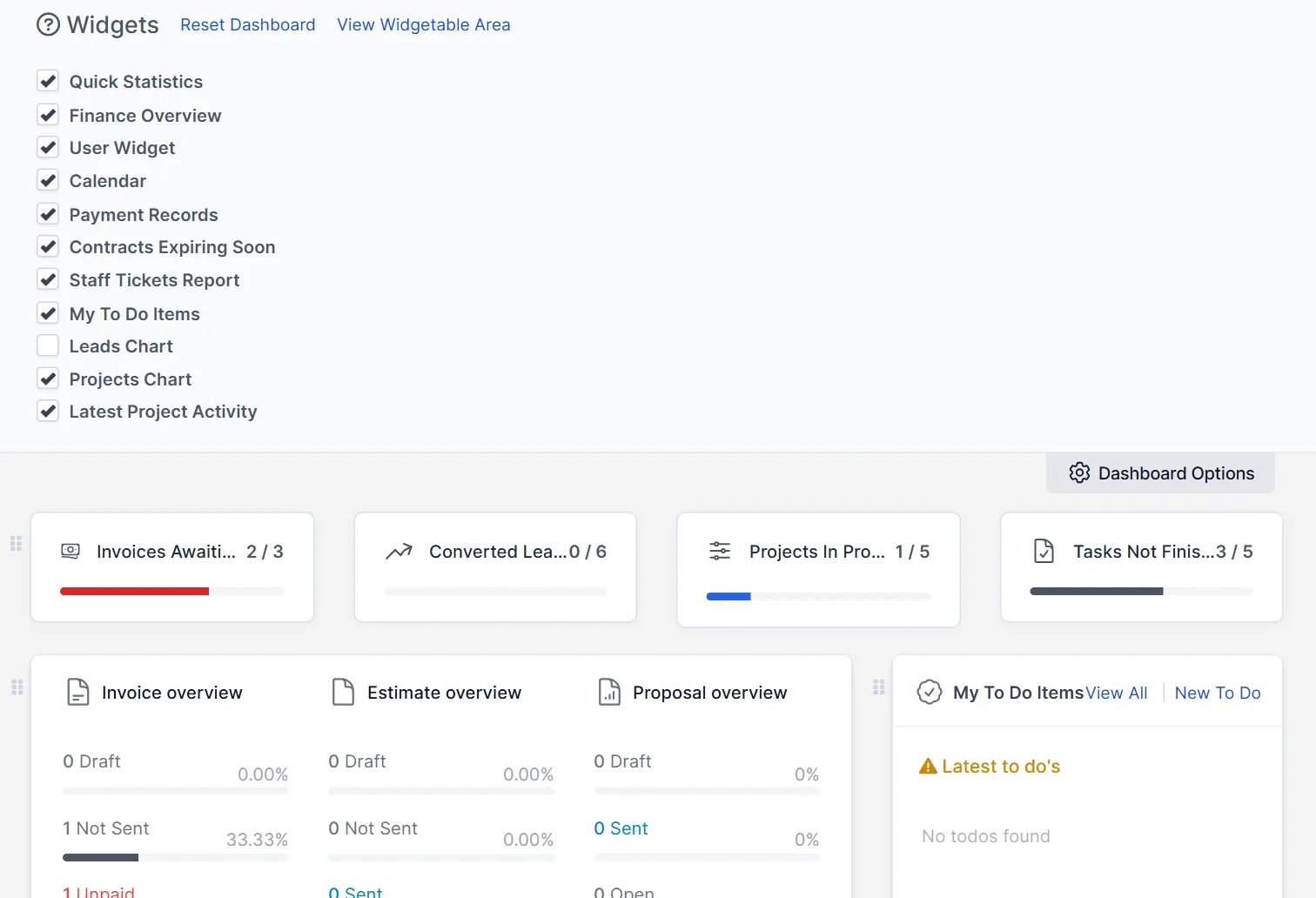
At the top, four boxes show quick statistics: Invoices Awaiting Payment, Converted Leads, Projects In Progress and Tasks Not Finished, each with a count and a bar. Under them, Invoice overview, Estimate overview and Proposal overview count documents by status, and three boxes show Outstanding Invoices, Past Due Invoices and Paid Invoices in money. On the right, My To Do Items and Leads Overview sit next to the finance block. A small handle with dots at the left of each widget shows that you can move it.
Step 1: Open Dashboard Options on the Perfex CRM dashboard #
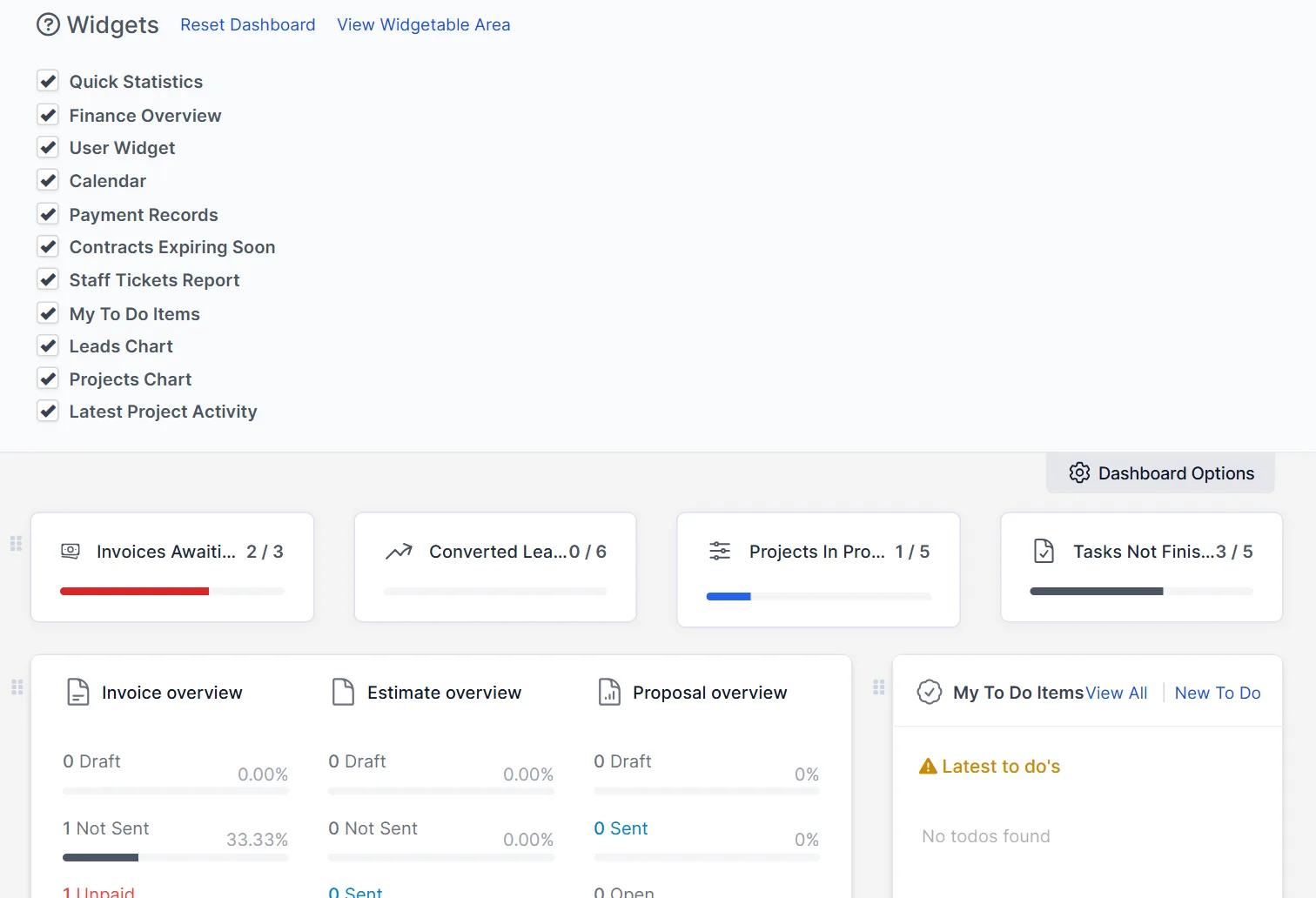
At the top right of the page, a tab called Dashboard Options opens a panel. The panel is titled Widgets and has two links: Reset Dashboard and View Widgetable Area. Under them is a list of check boxes, one for each widget.
Step 2: Choose your widgets #
The list names the widgets: Quick Statistics, Finance Overview, User Widget, Calendar, Payment Records, Contracts Expiring Soon, Staff Tickets Report, My To Do Items, Leads Chart, Projects Chart and Latest Project Activity. All were ticked in our install. Untick the ones you never use. A support agent may not need Payment Records, and a sales person may not need the tickets report. Each person has their own Perfex CRM dashboard.
Step 3: Read the lower dashboard widgets #
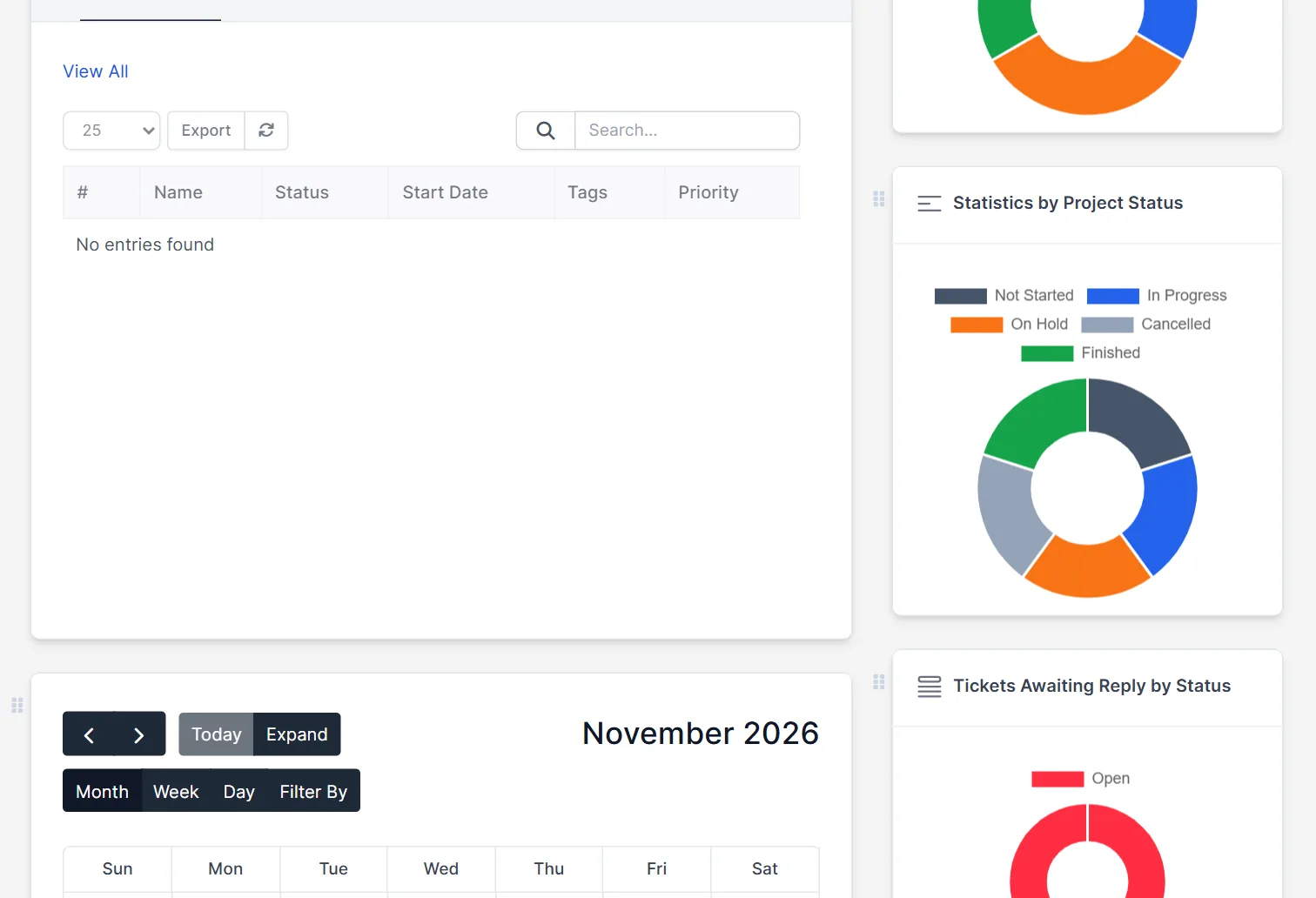
Scroll down. Statistics by Project Status shows your projects as a ring chart in the five project statuses, and Tickets Awaiting Reply by Status does the same for tickets. A table of your tasks, projects, reminders and tickets sits in a block with tabs. Use these as your daily check list. The numbers help you decide what to do first.
Step 4: Use the calendar and payments #
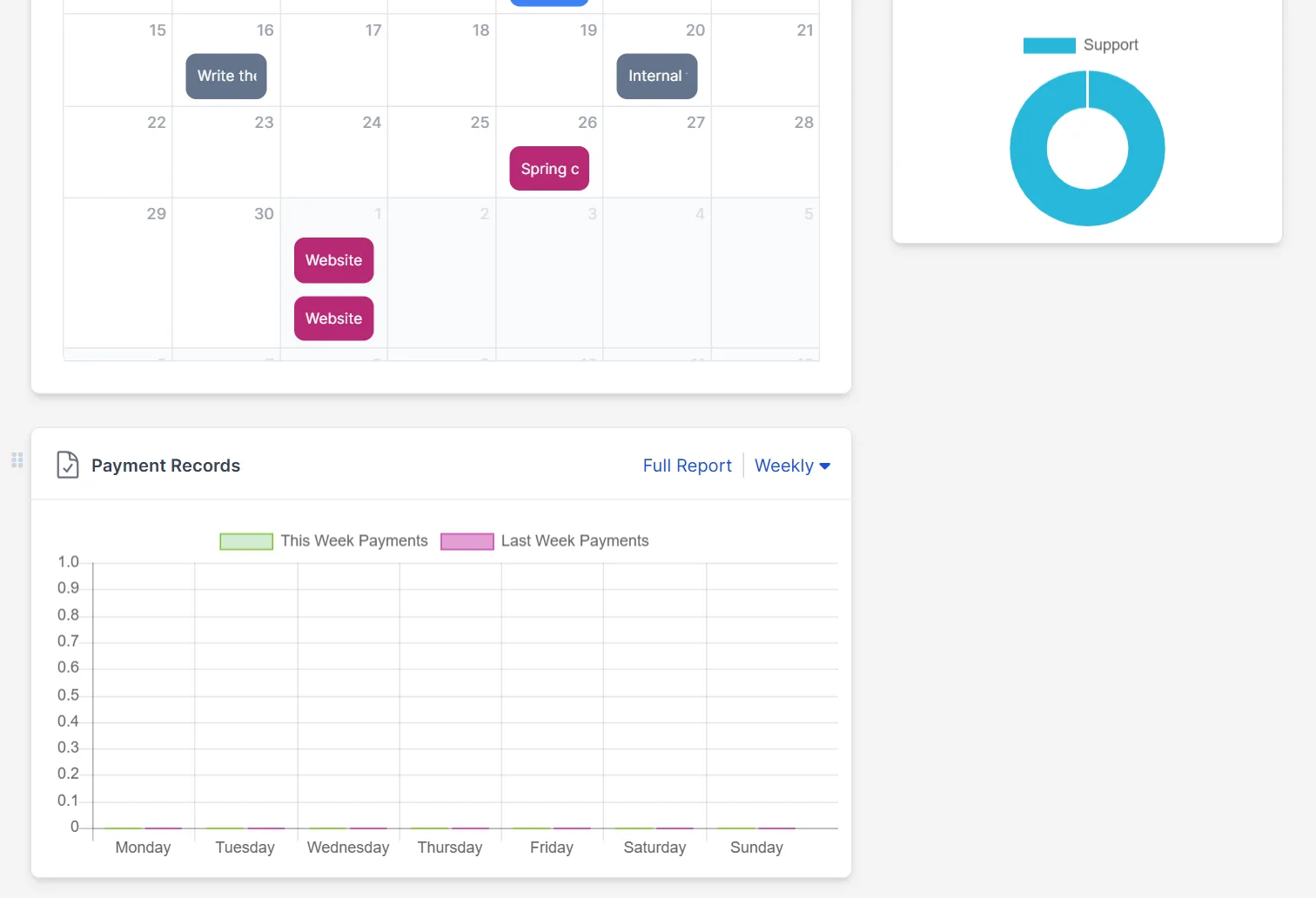
The Calendar widget shows the month with your events, tasks and due dates, and it has the buttons Today, Expand, Month, Week, Day and Filter By. The widget Payment Records compares this week’s payments with last week’s, and a link Full Report opens the report. See Perfex CRM calendar and Perfex CRM reports.
Step 5: Hide a widget and bring it back #
In our test, we opened Dashboard Options and unticked Leads Chart. The box was cleared. To bring a widget back, tick the box again. If the layout gets messy after many changes, Reset Dashboard puts it back to the start. Hiding a widget only changes your own Perfex CRM dashboard, and the data stays in the CRM.
A good Perfex CRM dashboard for each role #
A sales person needs Quick Statistics, Leads Chart, My To Do Items and the Calendar. An accountant needs Finance Overview and Payment Records. A project manager needs Projects Chart and Latest Project Activity. A support lead needs Staff Tickets Report. Ask each person to hide the rest in a short meeting, and the Perfex CRM dashboard becomes a one-screen morning check. Remember that the numbers depend on permissions. A person who may not see all invoices sees fewer numbers, as Perfex CRM roles and permissions explains.
Tips for the dashboard #
- Keep four to six dashboard widgets on your Perfex CRM dashboard. More than that and nobody reads them.
- Check the invoice and estimate boxes on Monday morning.
- Use the To Do widget for things that do not belong to a task.
- Start the day at the top block and the Calendar.
- Open Perfex CRM reminders to set your own alerts.
Not tested here: dragging widgets to a new place, whether a hidden widget stays hidden after a reload and after a new login, Reset Dashboard, and the widgets that need data we did not create, such as Contracts Expiring Soon. Read the official Perfex CRM help for more.
Related module: If you want numbers and charts from your own data on a spreadsheet page, the Spreadsheet Online for Perfex CRM module lets you manage, analyze and share data inside the CRM.
Frequently asked questions #
Where are the Perfex CRM dashboard settings? #
Click the Dashboard Options tab at the top right of the dashboard. A panel with a check box for each widget opens.
How do I hide a widget? #
Untick it in the Widgets list of Dashboard Options. Tick it again to show it.
Is the dashboard the same for everyone? #
Each person chooses their own widgets, and the numbers follow the permissions of the person.
How do I start over? #
Use the Reset Dashboard link in the Widgets panel.


