
- How Perfex CRM two-factor authentication works
- Step 1: Check that email works first
- Step 2: Open your profile for Perfex CRM two-factor authentication
- Step 3: Choose Email and save
- Step 4: Know what the login looks like
- Step 5: Google Authenticator needs one PHP extension
- If Perfex CRM two-factor authentication locks you out
- Tips for safer logins
- Frequently asked questions
A stolen password should not open your CRM. Perfex CRM two-factor authentication asks staff for a second proof at login. This guide, tested on Perfex CRM 3.4.1, shows where each person turns it on, how the two methods differ and what went wrong in our test when the mail server was not ready.
How Perfex CRM two-factor authentication works #
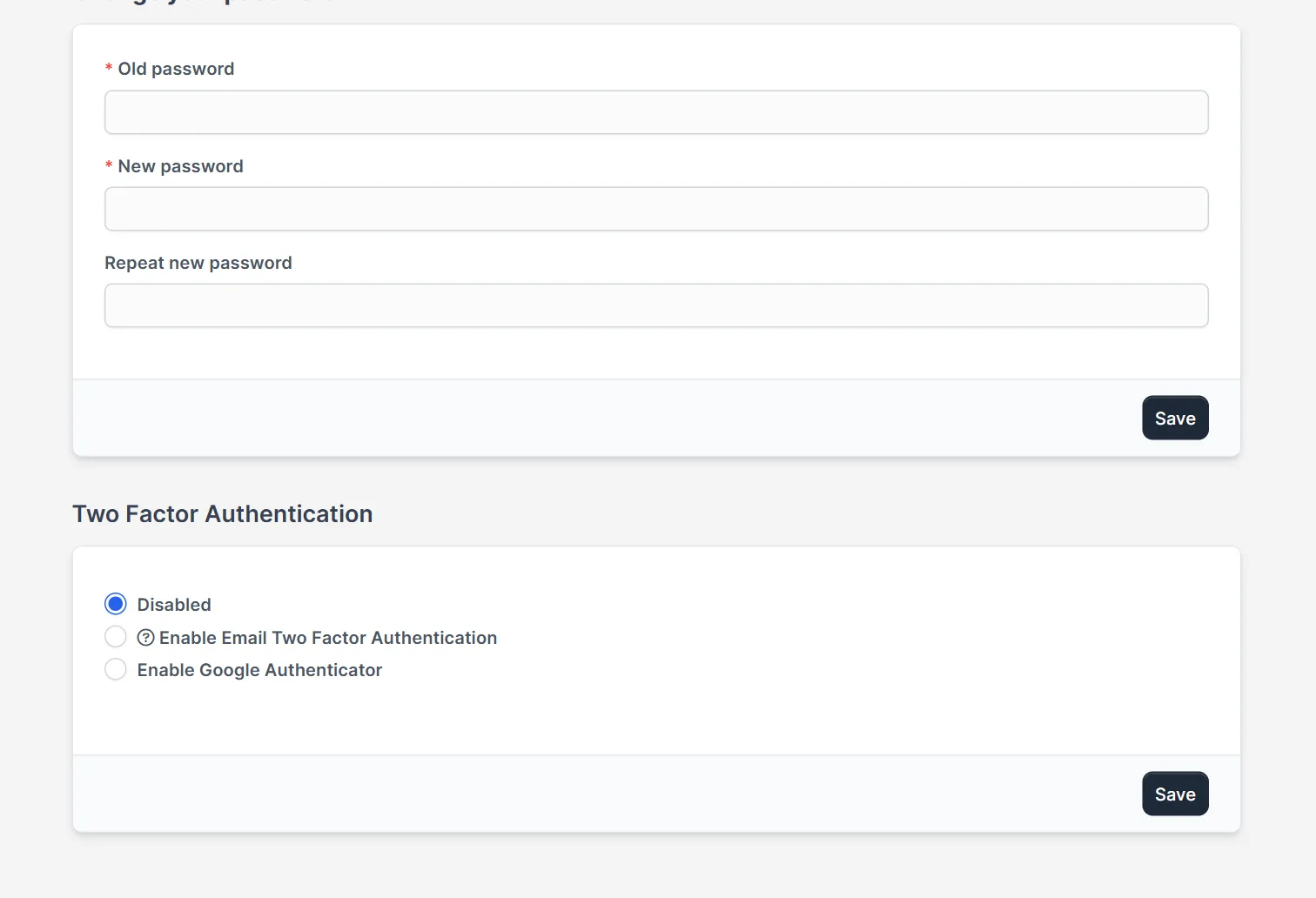
Each staff member chooses the method in their own profile. There are three choices: Disabled, Enable Email Two Factor Authentication and Enable Google Authenticator. With the email method, the CRM sends a code to the email address of the staff member after the password, and the person enters it. The help text says that this needs working SMTP settings. Nobody can force it on all staff from one settings page, so each person must switch it on, or an admin does it per person.
Step 1: Check that email works first #
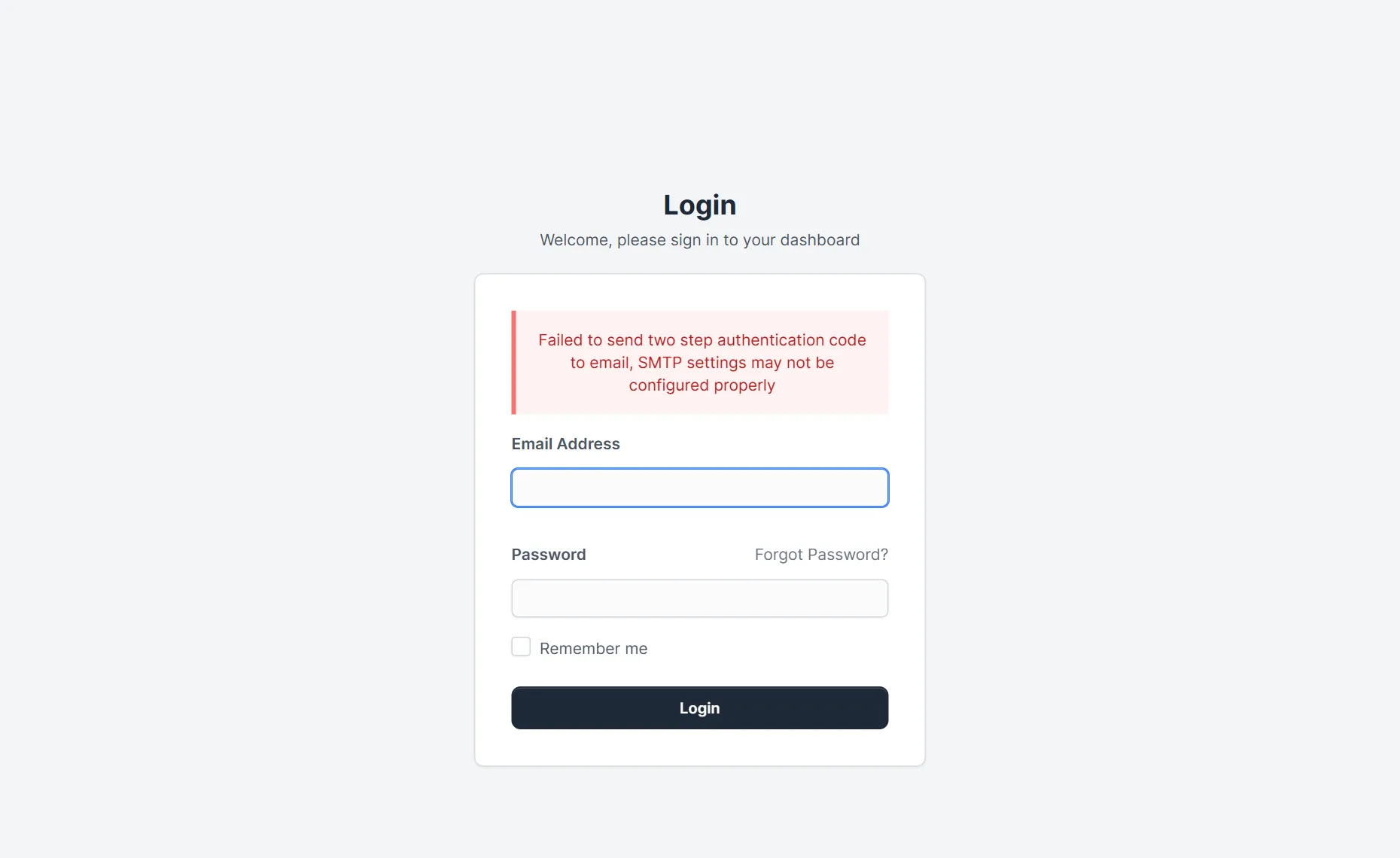
This step matters most. Open Setup > Settings > Email and send a test email. If email does not work, do not switch on the email method. In our test, we had no mail server. After we switched it on, the login did not finish. The login page showed: “Failed to send two step authentication code to email, SMTP settings may not be configured properly”. The person could not get in at all.
Step 2: Open your profile for Perfex CRM two-factor authentication #
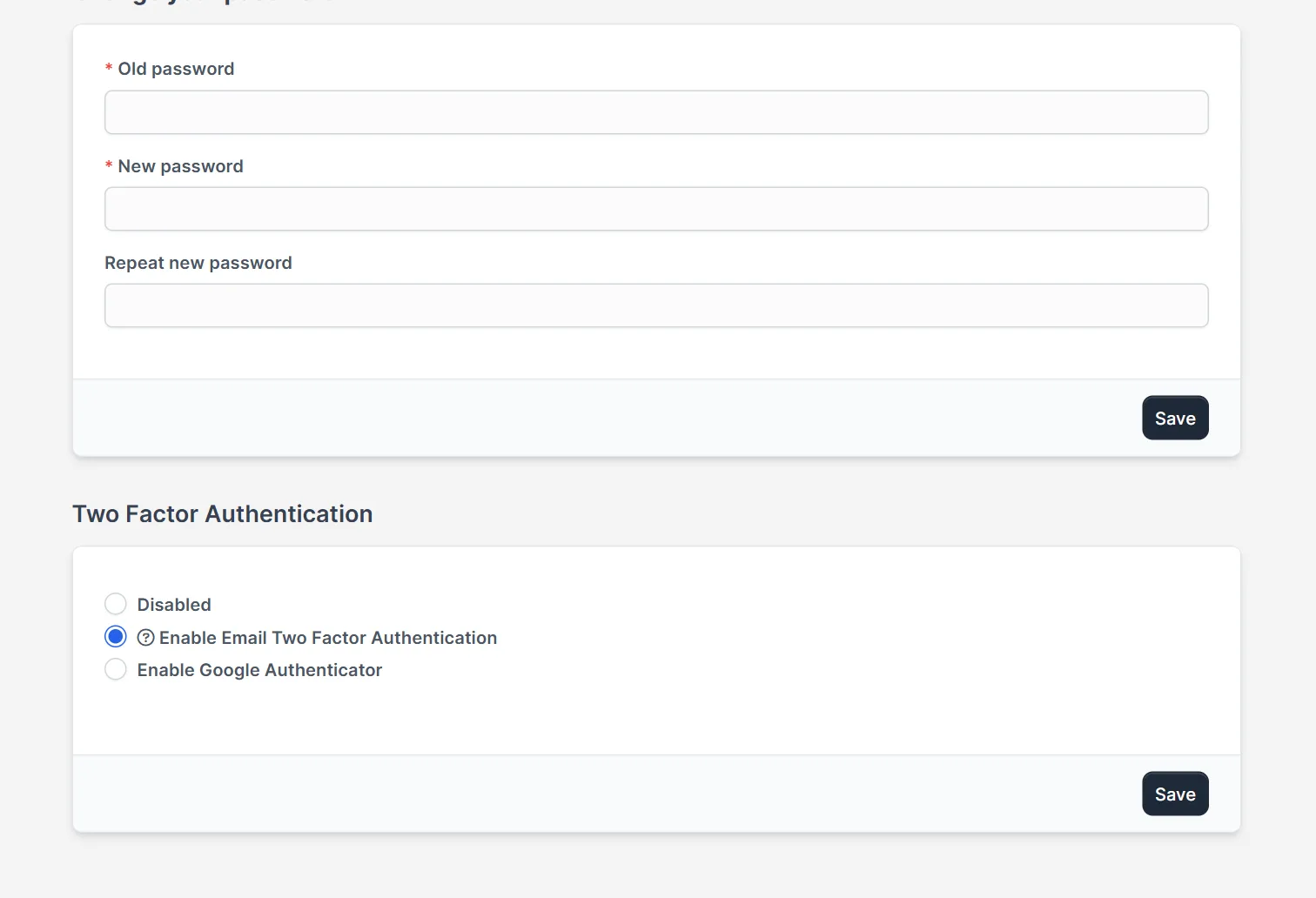
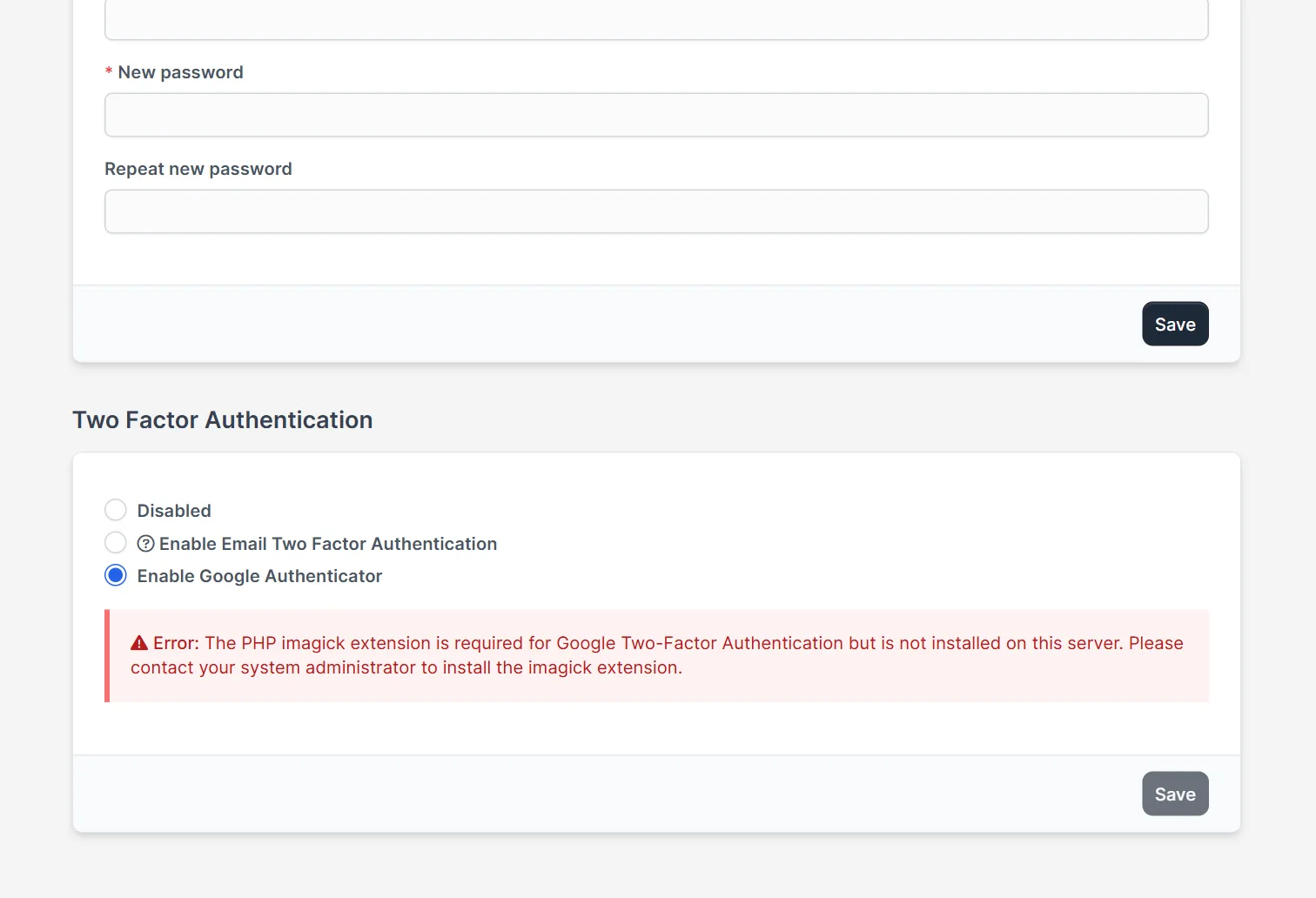
Click your name at the top of the left menu and choose Edit Profile. Scroll down to the block Two Factor Authentication. Under it you see the three choices and a Save button. Disabled is selected until you change it.
Step 3: Choose Email and save #
Select Enable Email Two Factor Authentication and click Save. From the next login on, Perfex CRM two-factor authentication asks for a code after the password. Keep your current session open while you test, so you can switch it off if the mail does not arrive.
Step 4: Know what the login looks like #
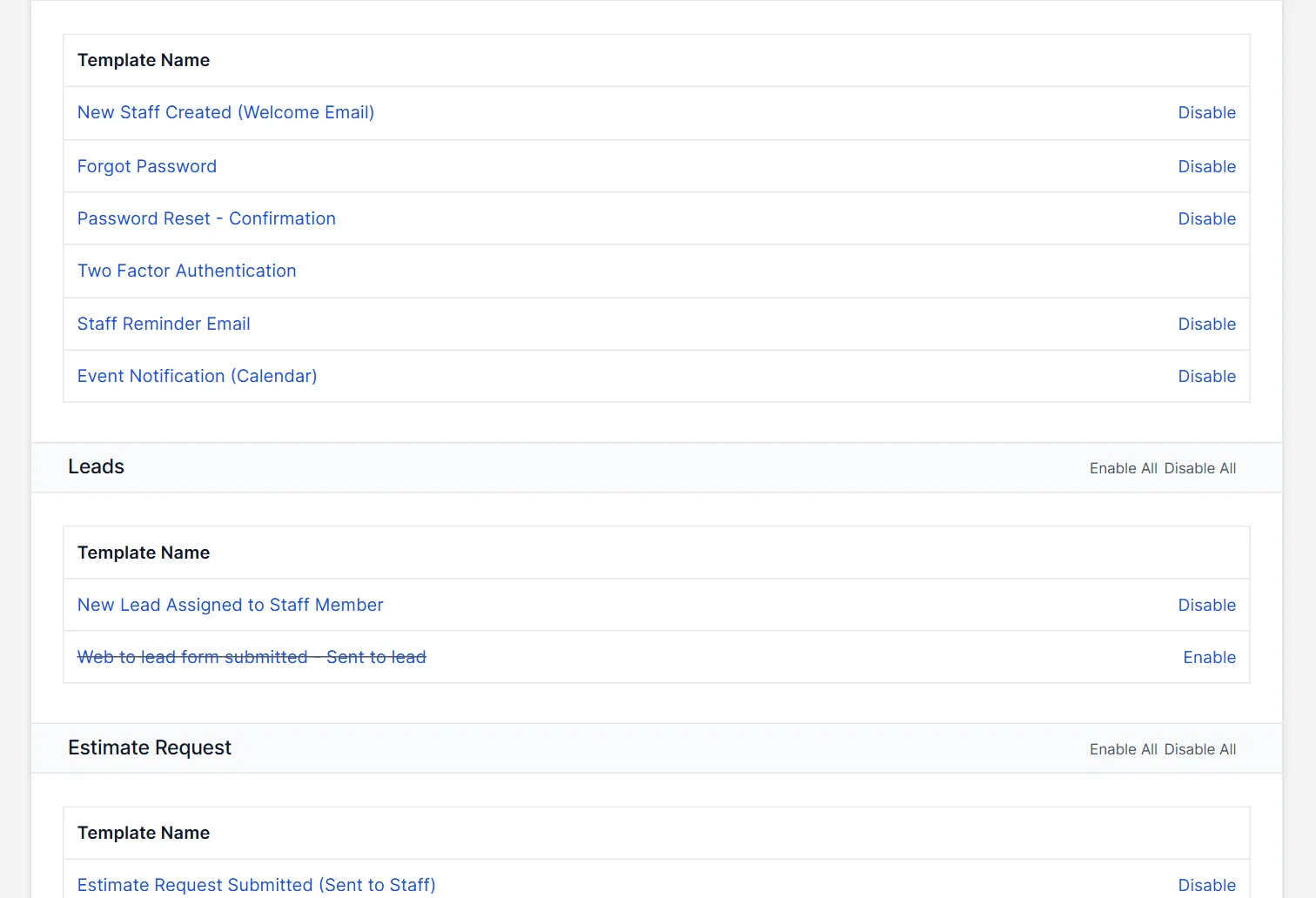
At the next login the CRM sends a unique key to the email address and waits for it. When sending works, the person types the key into the field. When it fails, the login page returns with the red message from Step 1. The email itself comes from the template Two Factor Authentication, which you find under Setup > Email Templates in the group for staff. It has no Disable link, unlike the templates around it, so you edit the text but you cannot switch it off there. See Perfex CRM email templates and Perfex CRM SMTP settings.
Step 5: Google Authenticator needs one PHP extension #
The third choice, Enable Google Authenticator, uses an app on your phone instead of email. On our server, selecting it showed a red error: “The PHP imagick extension is required for Google Two-Factor Authentication but is not installed on this server”. The Save button stayed grey. Ask your host to install the PHP imagick extension, or use the email method. Perfex CRM two-factor authentication with the app is then a good choice, because it does not depend on your mail server.
If Perfex CRM two-factor authentication locks you out #
This happened to us on the test install. With the email method on and no working mail, the login of the only admin failed. The way back was to switch the method off for that user in the database. In the table of staff members, set two_factor_auth_enabled to 0 for that person. After that, the password alone worked again. Ask your host or use a database tool, and take a backup first. To avoid all this, keep one admin without two-factor authentication until the mail test works, or test with a second account.
Tips for safer logins #
- Test email before you switch on Perfex CRM two-factor authentication for anyone.
- Keep one browser logged in while you test the first login.
- Turn on Perfex CRM two-factor authentication for every staff member who can see invoices, customer data or settings.
- Use a strong, unique password as well. The second step does not replace it. See Perfex CRM forgot password for resets.
- Check Perfex CRM roles and permissions to limit what each person sees.
Not tested here: receiving the email code and entering it successfully, the Google Authenticator app and its QR code (the server lacked the imagick extension), and customers’ contacts, which do not have this option in the profile. Read the official Perfex CRM help for more.
Related module: Security is also about what leaves the CRM. The REST API for Perfex CRM lets other apps connect with secure API endpoints, so check who gets access.
Frequently asked questions #
Where do I turn on Perfex CRM two-factor authentication? #
Open your profile, scroll to Two Factor Authentication, choose Email or Google Authenticator and click Save.
Why can I not log in after switching it on? #
The CRM could not send the code by email. Fix the SMTP settings, or set two_factor_auth_enabled to 0 for your user in the staff table.
Why does Google Authenticator show an error? #
The PHP imagick extension is missing on the server. Ask your host to install it.
Can I force two-factor authentication for all staff? #
We found no setting for that. Each person chooses the method in their own profile.


