
Visitors often ask for a price before they buy. Perfex CRM estimate requests give them a form on your website, and every answer lands in your CRM as a request that you can turn into an estimate. This guide, tested on Perfex CRM 3.4.1, shows how to build the form, share it and read what comes in.
What Perfex CRM estimate requests do #
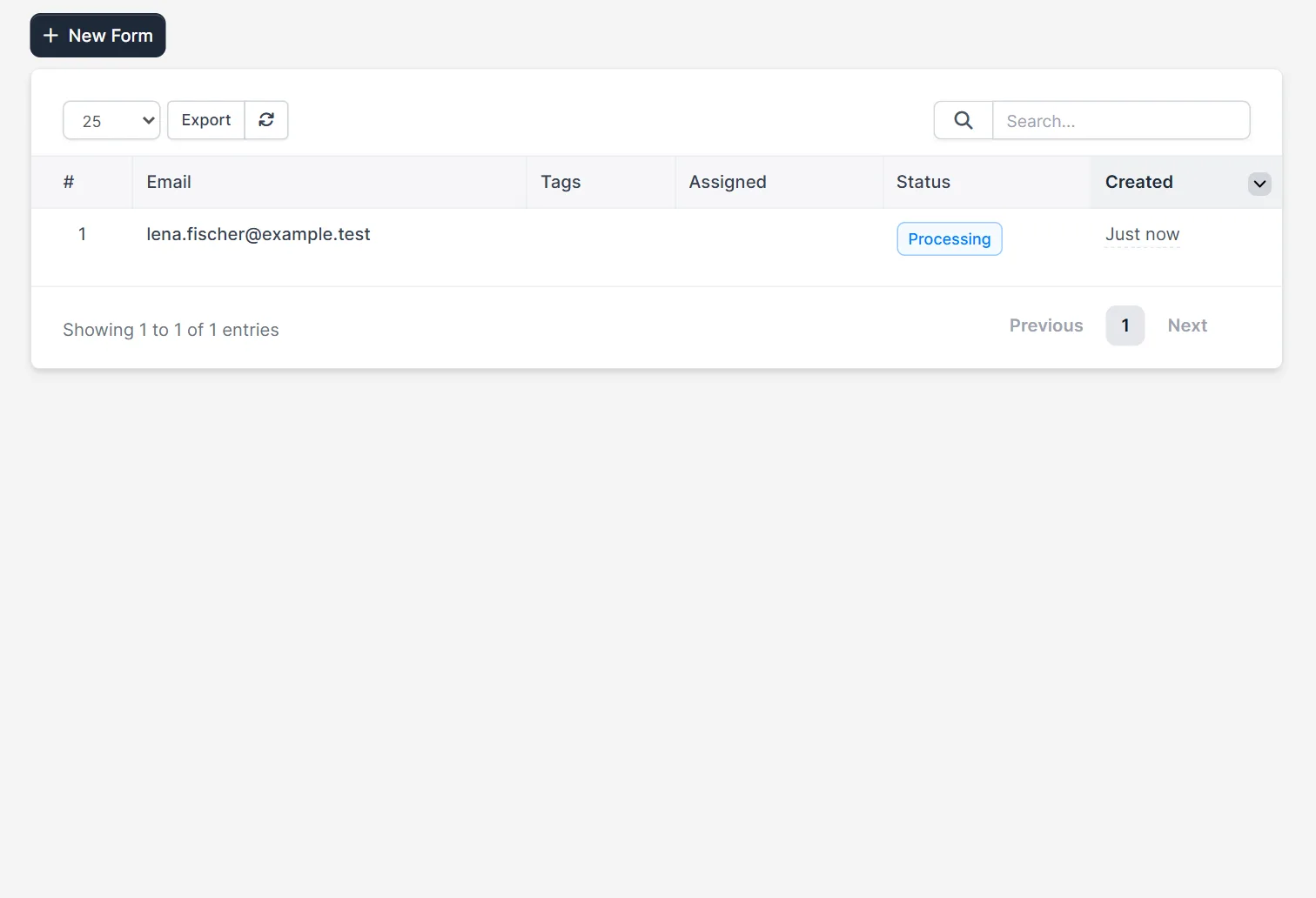
Open Estimate Request in the main menu. The page lists every request with the columns #, Email, Tags, Assigned, Status and Created, and a button New Form. A form is a public page with your own questions. Each answer becomes a row in this list, with the status you set for the form. A new CRM has no forms and no requests.
Step 1: Create the Perfex CRM estimate requests form #
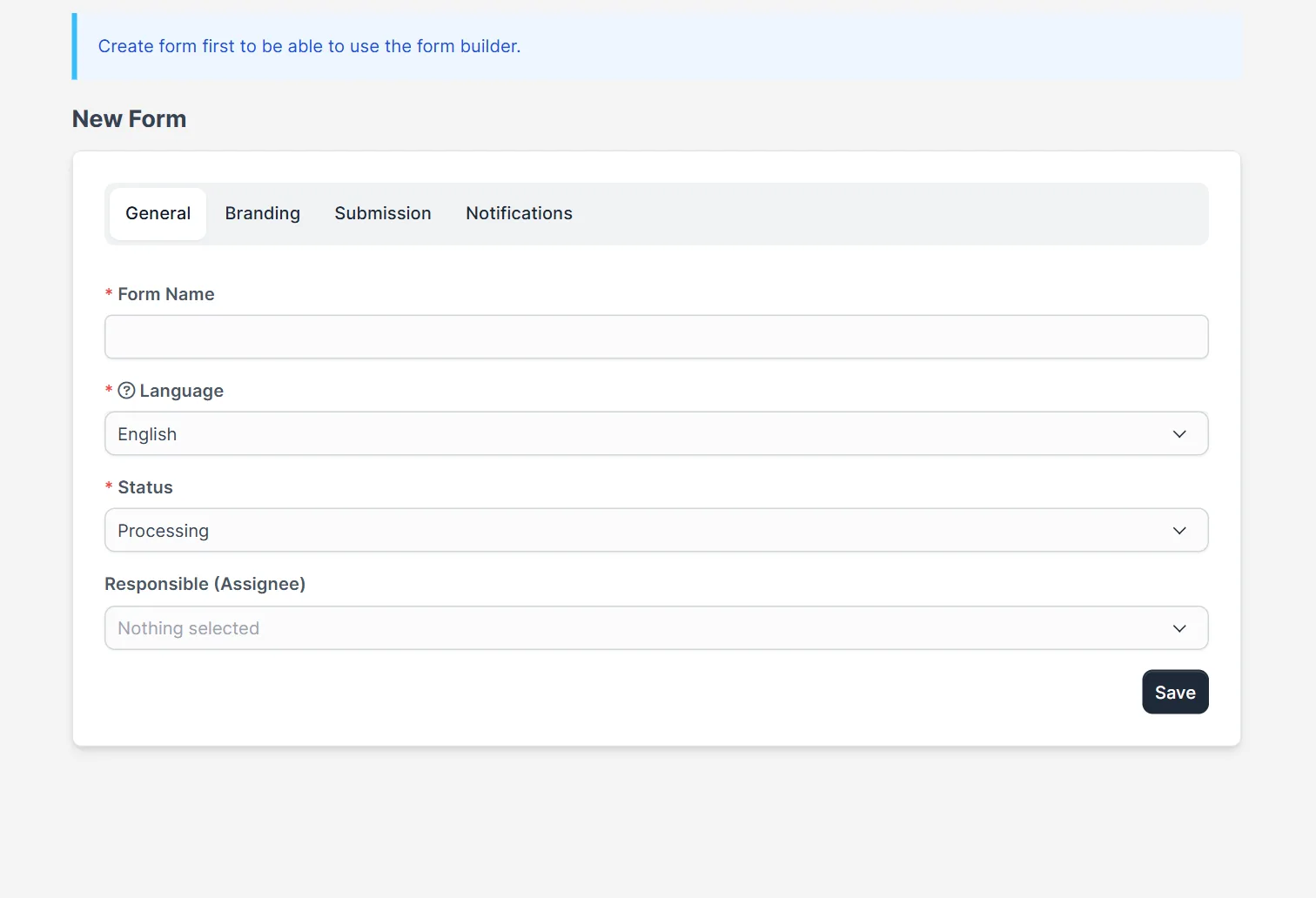
Click New Form. A note says that you must create the form first to use the form builder. The tab General has Form Name, Language, Status (Processing by default) and Responsible (Assignee). Give the form a name that tells its use, for example Website quote request.
Step 2: Set the other tabs #
Three more tabs sit next to General. Branding sets the text and colors of the submit button. Submission decides what happens after a visitor sends the form: show a thank you message or send the visitor to another website. The message is required. Notifications lets you notify specific staff members, staff with certain roles or the responsible person when a request arrives. Click Save. Perfex CRM estimate requests need a saved form first, so the CRM then opens the form builder.
Step 3: Build the request form #
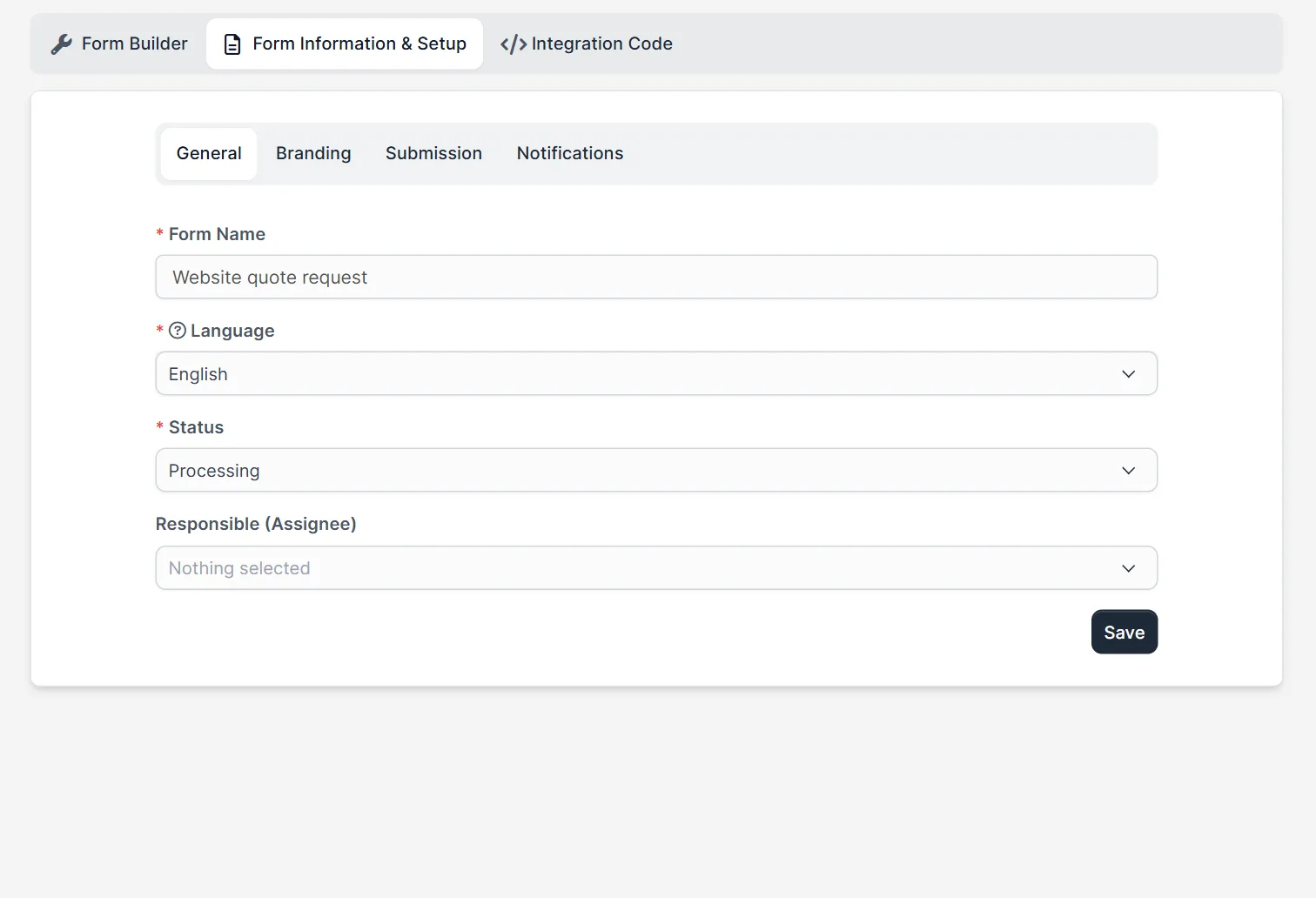
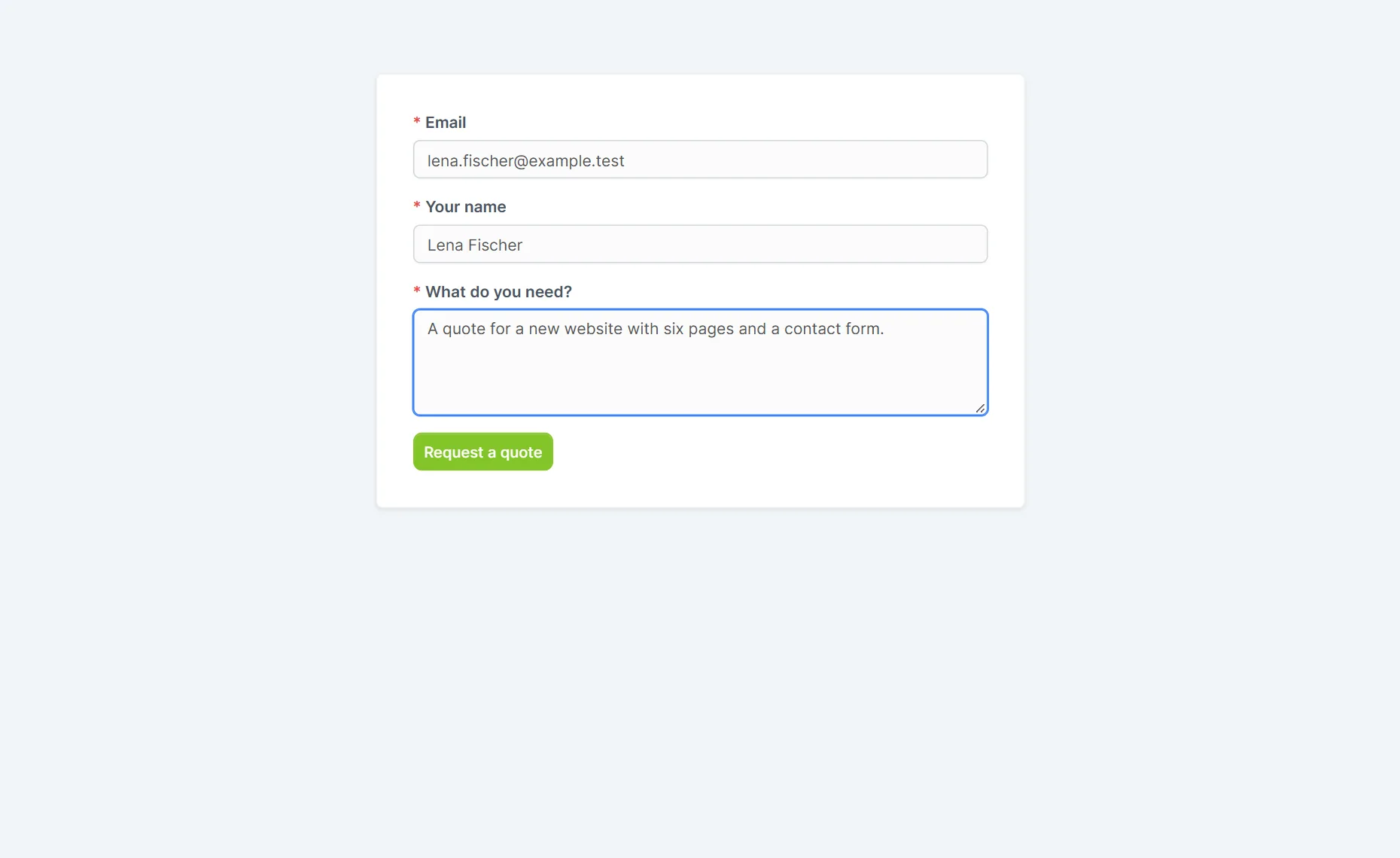
The form builder has the tabs Form Builder, Form Information & Setup and Integration Code. On the left, a list of field types: Header, Paragraph, File Upload, Email, Text Field, Text Area, Select, Checkbox Group, Radio Group and Date Field. Drag the types you need into the form, and click Save. In our test, we used an email field, a name field and a text area for the question “What do you need?”. Ask for little. Every question lowers the number of people who finish. The tab Form Information & Setup shows the General, Branding, Submission and Notifications settings again.
Step 4: Share the form #
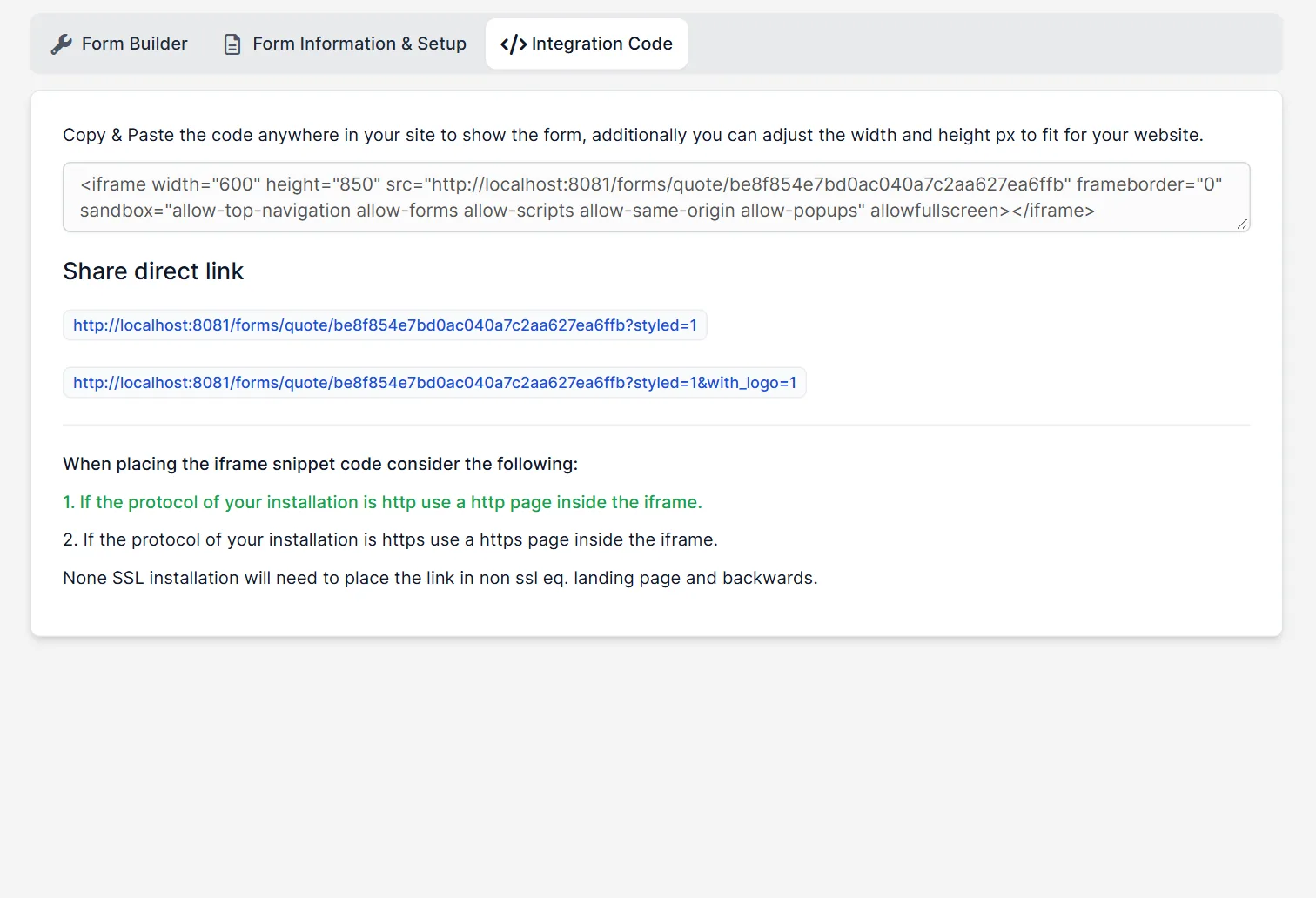
Open the tab Integration Code. It shows an iframe code to paste into your website and a section Share direct link with two links: one with ?styled=1 and one with ?styled=1&with_logo=1. The direct link has the form /forms/quote/ followed by the key of the form. If your website uses https, use an https address in the iframe. Our guide to Perfex CRM web to lead form works the same way for leads.
Step 5: Read the Perfex CRM estimate requests #
Open the public link and fill in the form. In our test, we typed an email address, a name and a short question, and clicked the submit button. The page showed our thank you message, and the request appeared in the list with the email address, the status Processing and the time Just now. Open a request to read the answers and start an estimate. We did not open one in our test. See Perfex CRM estimates for the next step.
A routine for incoming requests #
Set a responsible person on the form, so every request has an owner from the first minute. Check the list every morning. Answer within a day, because a visitor who asks for a price often asks three companies. Move the status when you start to work, and write the estimate in the CRM. Used like this, Perfex CRM estimate requests turn a website visit into a sales task that nobody forgets.
Tips for good forms #
- Keep the request form short: email, name and one question are enough to start Perfex CRM estimate requests.
- Write a thank you message that says when you will answer.
- Turn on a notification for the person who answers, or the requests wait unread.
- Test the public request form on a phone.
- Look at Perfex CRM proposals if the answer is a longer offer.
Not tested here: file uploads in the form, the notification emails (no mail server), changing the status of a request, and turning a request into an estimate. Read the official Perfex CRM help for more.
Related module: Quotes lead to customers. The Workflow Rules for Perfex CRM module lets you write rules that create tasks, send emails and notify your team. Check the product page for the events it supports.
Frequently asked questions #
Where do I make Perfex CRM estimate requests forms? #
Open Estimate Request in the main menu and click New Form. Name it, save it and build the fields.
How do visitors reach the form? #
Through the direct link, which has the form /forms/quote/ and the key of the form, or through the iframe code on the Integration Code tab.
What happens after someone submits? #
They see your thank you message or are sent to the website you choose, and the request appears in the list with the status you set.
Can I choose who is told about a request? #
Yes. The Notifications tab lets you pick staff members, roles or the responsible person.


