
- What Perfex CRM export customer data covers
- Step 1: Zip the invoices of one customer
- Step 2: Check what is inside the ZIP
- Step 3: Zip the payments
- Step 4: Zip estimates and credit notes
- Step 5: Export the customer list
- When to use which Perfex CRM export customer data option
- Tips for exports
- Frequently asked questions
Sometimes a customer, an accountant or an auditor asks for all documents of one customer. Perfex CRM export customer data gives you two ways to do it: a ZIP file of PDFs for one customer, and an export of the customer list. This guide, tested on Perfex CRM 3.4.1, shows where the buttons are and what the ZIP contains.
What Perfex CRM export customer data covers #
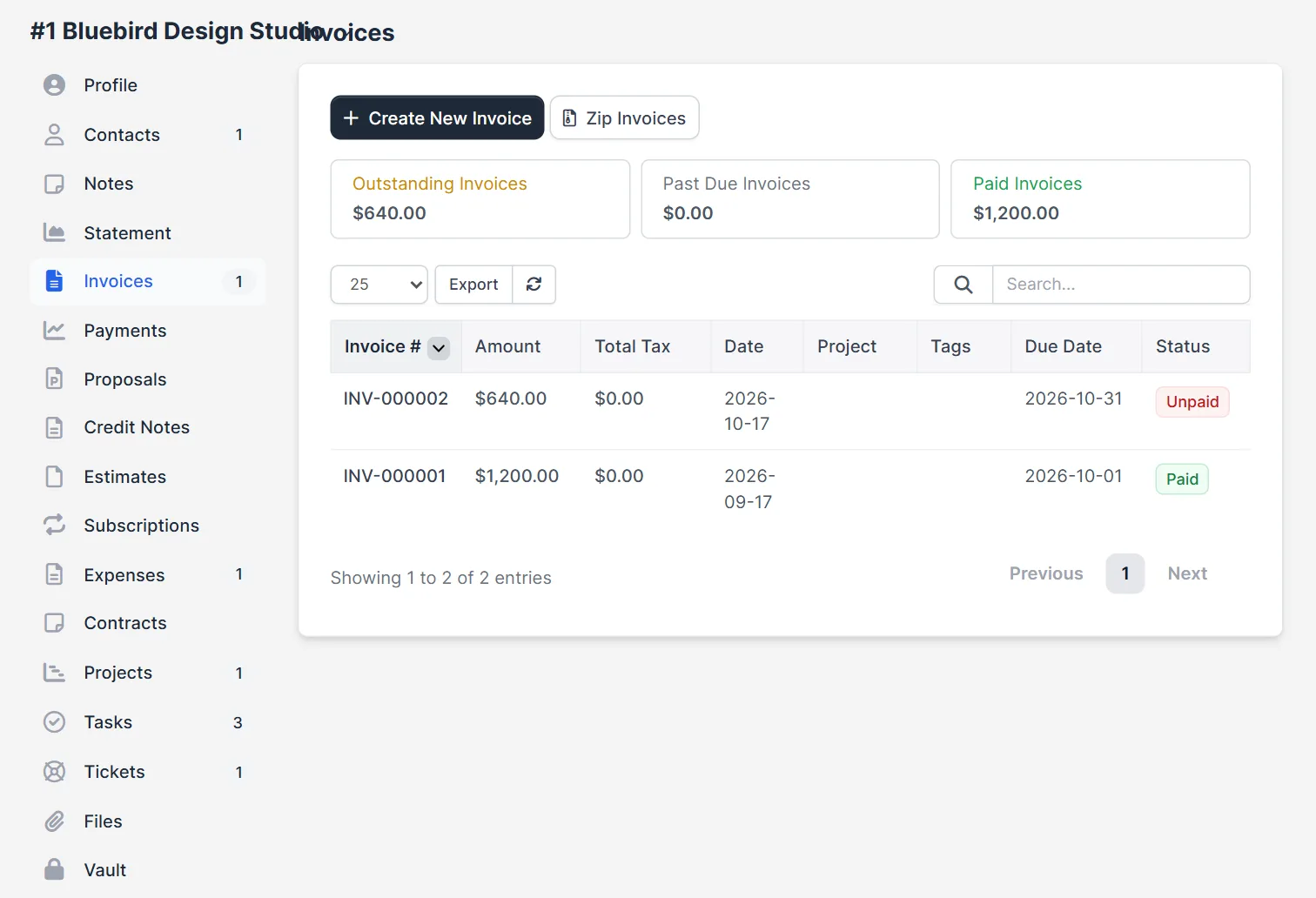
Open Customers and click a customer. The left menu of the profile has the tabs Invoices, Payments, Credit Notes and Estimates. Each one has a button that builds a ZIP with one PDF per document. The customer list has its own Export menu for the table. Both are part of Perfex CRM export customer data, but they answer different questions.
Step 1: Zip the invoices of one customer #
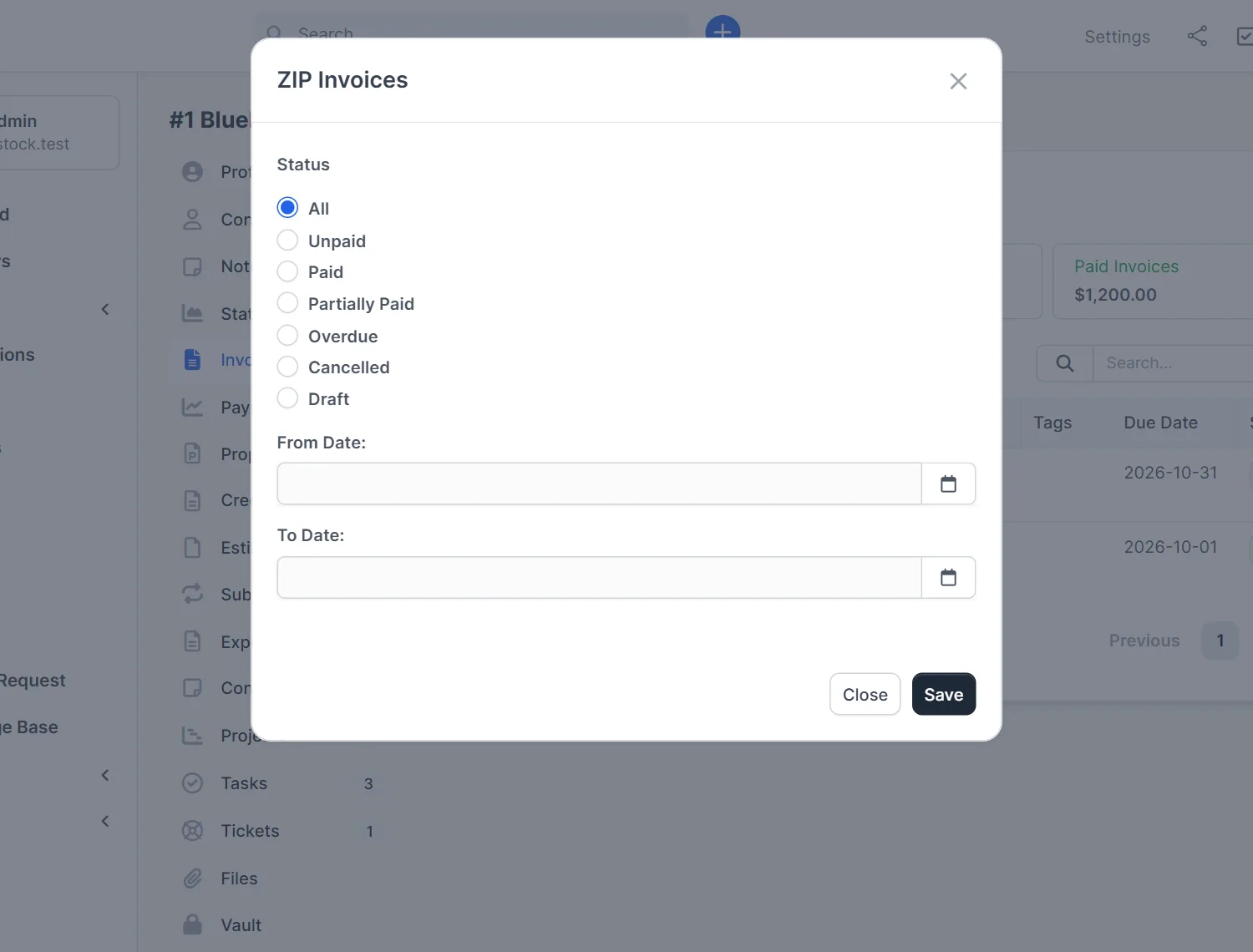
Open the customer and click Invoices, then Zip Invoices. A window named ZIP Invoices opens. Pick a status: All, Unpaid, Paid, Partially Paid, Overdue, Cancelled or Draft. Fill in From Date and To Date if you only need a period, then click Save. The browser downloads the file.
Step 2: Check what is inside the ZIP #
We tested this with a customer who had three invoices. The ZIP held one PDF for each invoice, named INV-000001.pdf, INV-000002.pdf and INV-000003.pdf. The files sit in folders in the order invoices, customer name and year, for example invoices/bluebird-design-studio/2026. Because each file is a normal invoice PDF, the layout comes from your PDF settings. See Perfex CRM PDF settings to change fonts or the logo.
Step 3: Zip the payments #
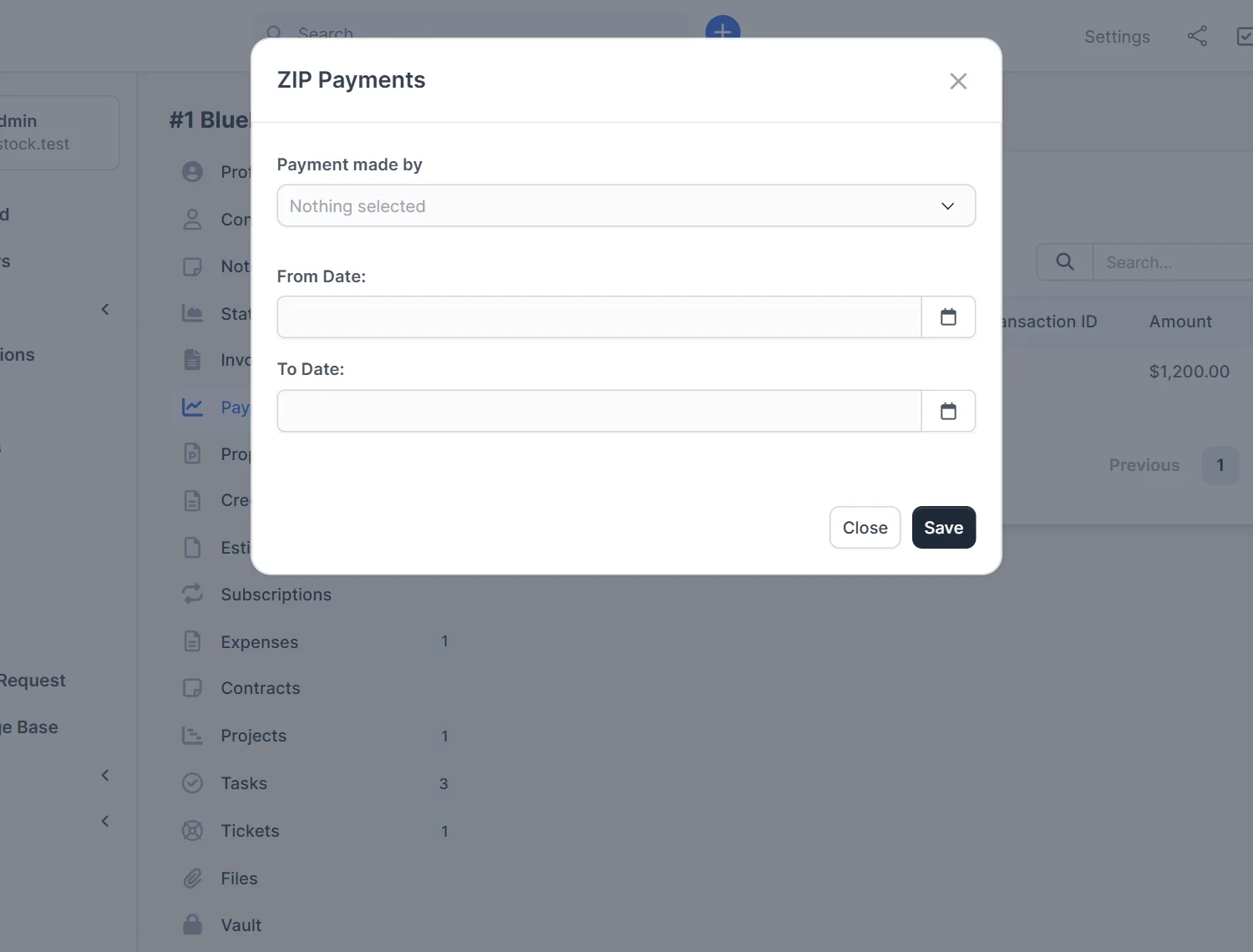
Click Payments, then Zip Payments. The window asks for Payment made by (a payment mode) and a date range. Save it, and the ZIP holds one receipt PDF per payment, for example payments/bluebird-design-studio/2026/PAYMENT-1.pdf. Use it when a customer asks for proof of payment for a year. Perfex CRM export customer data like this takes less than a minute.
Step 4: Zip estimates and credit notes #
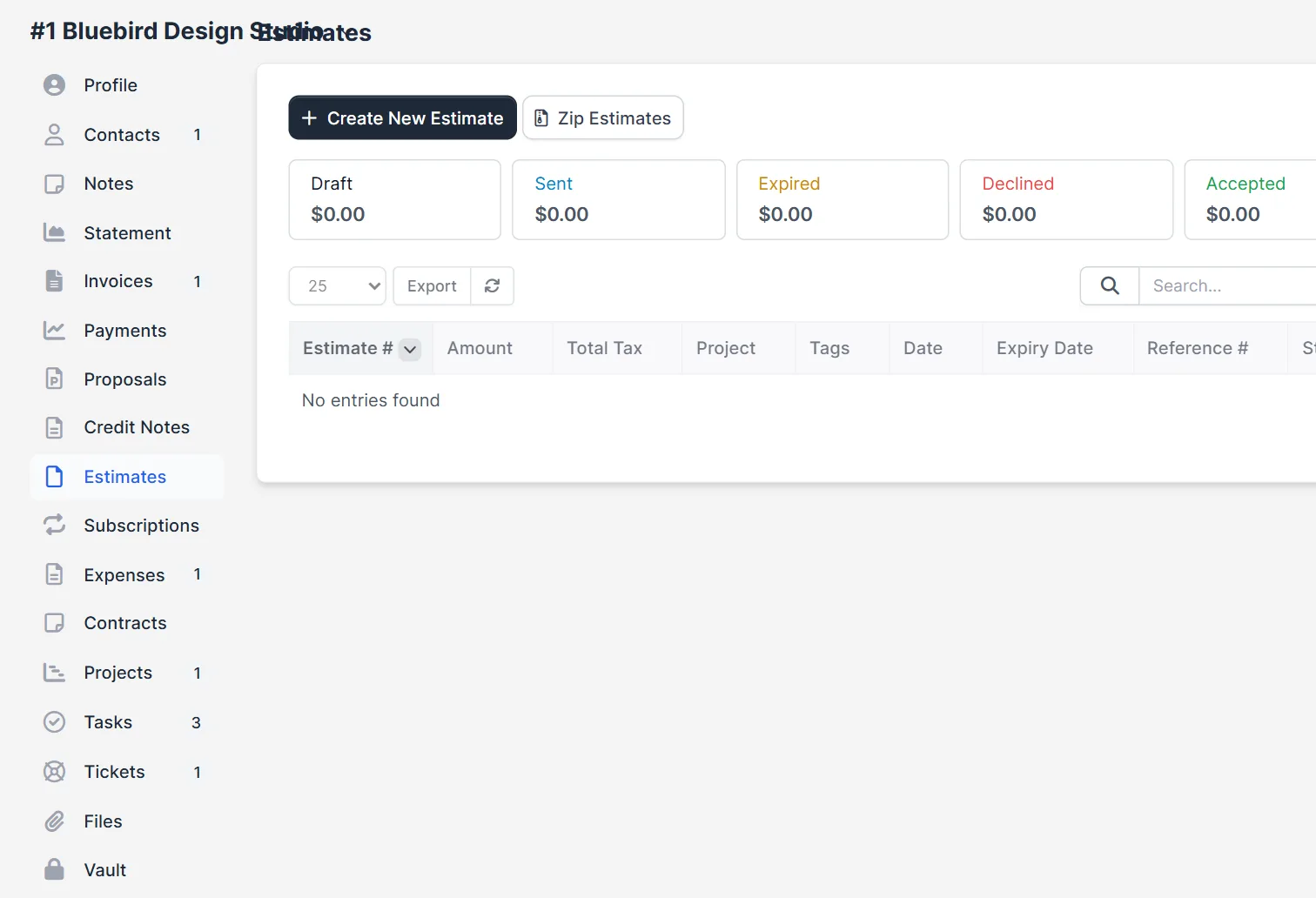
The Estimates tab has Zip Estimates, and the Credit Notes tab has a matching button. They work like the invoice button. Check the table first. In our test the customer had no estimates, so the table was empty.
Step 5: Export the customer list #
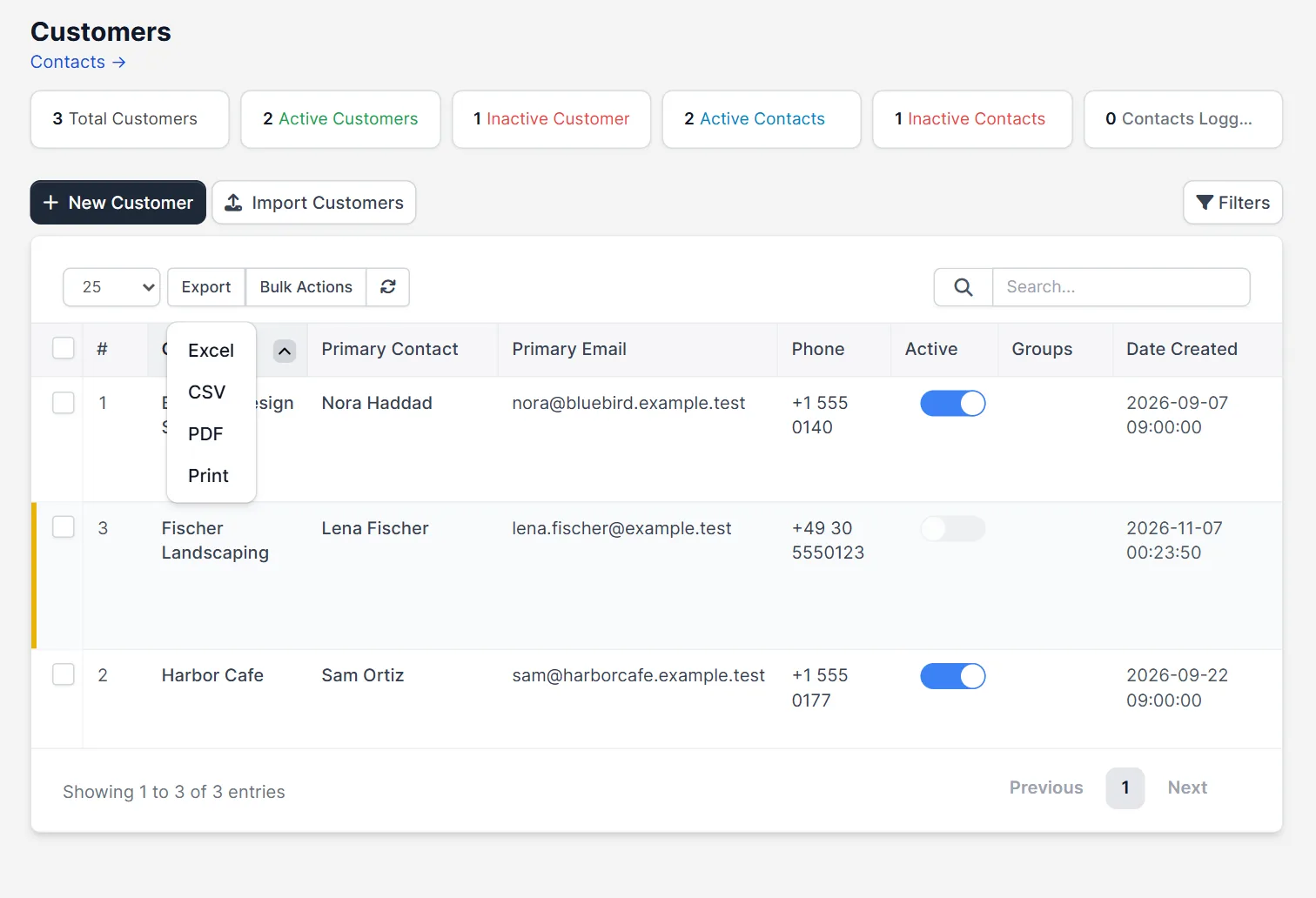
Open Customers in the main menu and click Export above the table. The menu offers Excel, CSV, PDF and Print. This exports the rows of the table, such as company, primary contact, email and phone, not the invoices. It is the quick way to send your customer list to a mailing tool. Perfex CRM export customer data from the list does not include documents.
When to use which Perfex CRM export customer data option #
Use the ZIP buttons when you need documents. Use the table export when you need a list. For a full backup of all data, a customer export is not enough, because it covers only invoices, payments, estimates and credit notes. Use a database backup for that. If you must give a person a copy of their data for privacy rules, look at the GDPR page under Setup. It says GDPR is off until you click Enable GDPR, and the code has a data portability page for customer data. We did not turn it on in our test.
Tips for exports #
- Test Perfex CRM export customer data with one small customer before you export a large one.
- Choose a short date range for large customers, so the ZIP builds quickly.
- Choose the status on purpose. Draft invoices are not final, so do not send them to a customer.
- Name the downloaded file with the customer and the year before you send it.
- To download many invoices for all customers at once, read Perfex CRM bulk PDF export.
- Check the invoice list itself in Perfex CRM create invoice if a number is missing.
Not tested here: the credit note ZIP, the Excel, CSV and PDF files from the customer list, and the GDPR export. Read the official Perfex CRM help for more.
Related module: The PDFs in the ZIP follow your invoice design. The PDF Customizer Module for Perfex CRM lets you change how documents look before you export them.
Frequently asked questions #
How do I use Perfex CRM export customer data for invoices? #
Open the customer, click Invoices, then Zip Invoices. Choose a status and dates, click Save and the browser downloads a ZIP of PDFs.
What is inside the ZIP file? #
One PDF per invoice or payment, in folders named after the document type, the customer and the year.
Can I export the whole customer list? #
Yes. On the Customers page, click Export and choose Excel, CSV, PDF or Print.
Does the export include notes and files? #
No. The ZIP buttons only cover invoices, payments, estimates and credit notes.


