
- What Perfex CRM billable expenses are
- Step 1: Record Perfex CRM billable expenses
- Step 2: Read the expense list
- Step 3: Open the expense
- Step 4: Convert the expense to an invoice
- Step 5: Check that the expense is billed
- Another way: bill expenses with a project
- Tips for billable costs
- Frequently asked questions
You pay for a courier, a domain or a stock photo for a customer, and you want the money back. Perfex CRM billable expenses are costs that you record once and then pass on to the customer on an invoice. This guide, tested on Perfex CRM 3.4.1, shows how to mark an expense as billable, how to read the summary boxes and how to turn the expense into an invoice.
What Perfex CRM billable expenses are #
An expense is a cost of your business. It becomes billable when you tick Billable and link it to a customer. The CRM then tracks it as Not Invoiced until it appears on an invoice. After that it is Billed. An expense that is not billable stays a plain cost and never reaches the customer.
Step 1: Record Perfex CRM billable expenses #
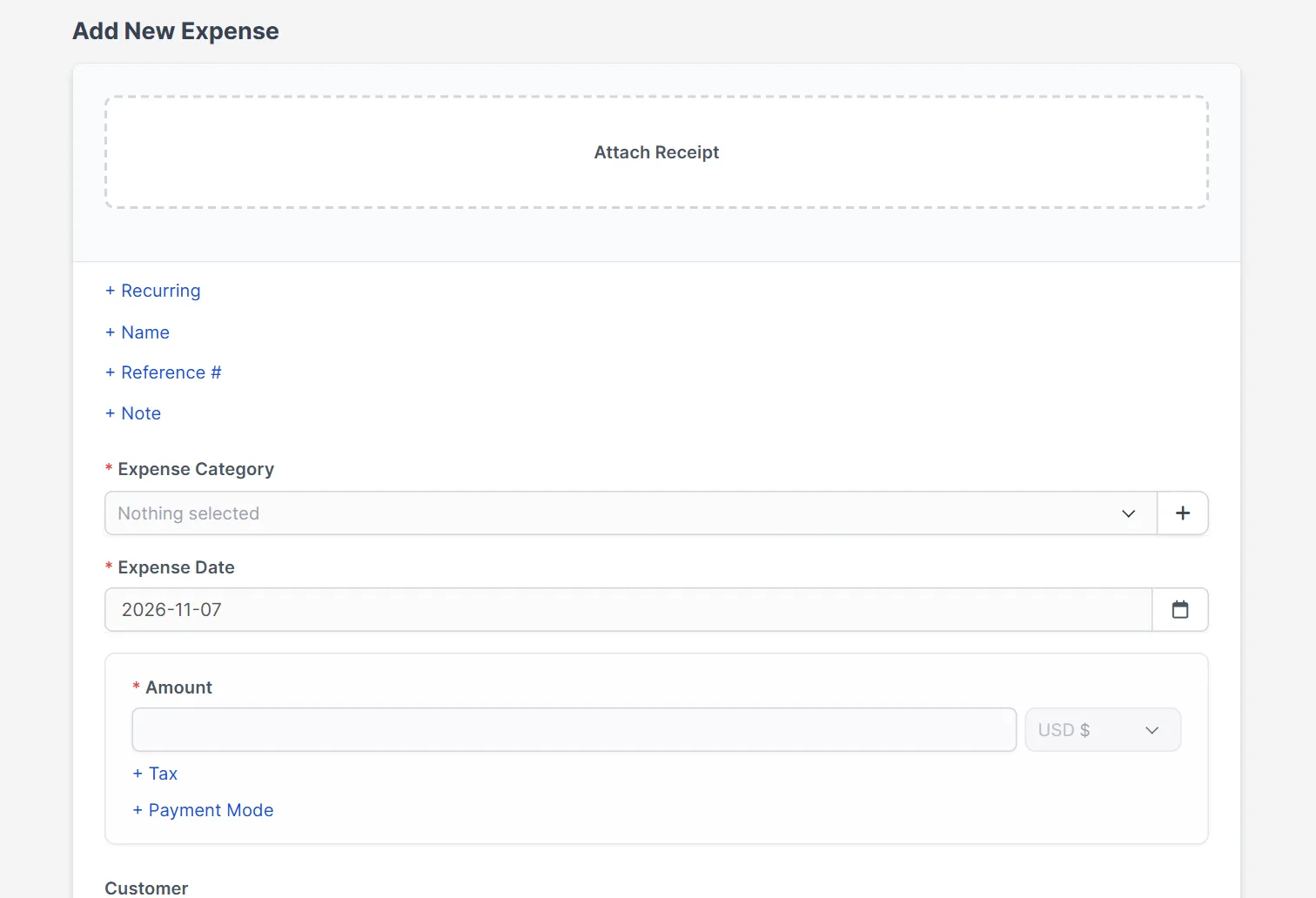
Open Expenses and click Record Expense. The form has Name, Reference #, Note, Expense Category, Expense Date, Amount, the currency, Tax 1, Tax 2 and Payment Mode. Further down, pick the Customer, tick Billable and, if the cost belongs to a project, choose the Project. The category, date and amount are required. You can also attach a receipt at the top.
Step 2: Read the expense list #
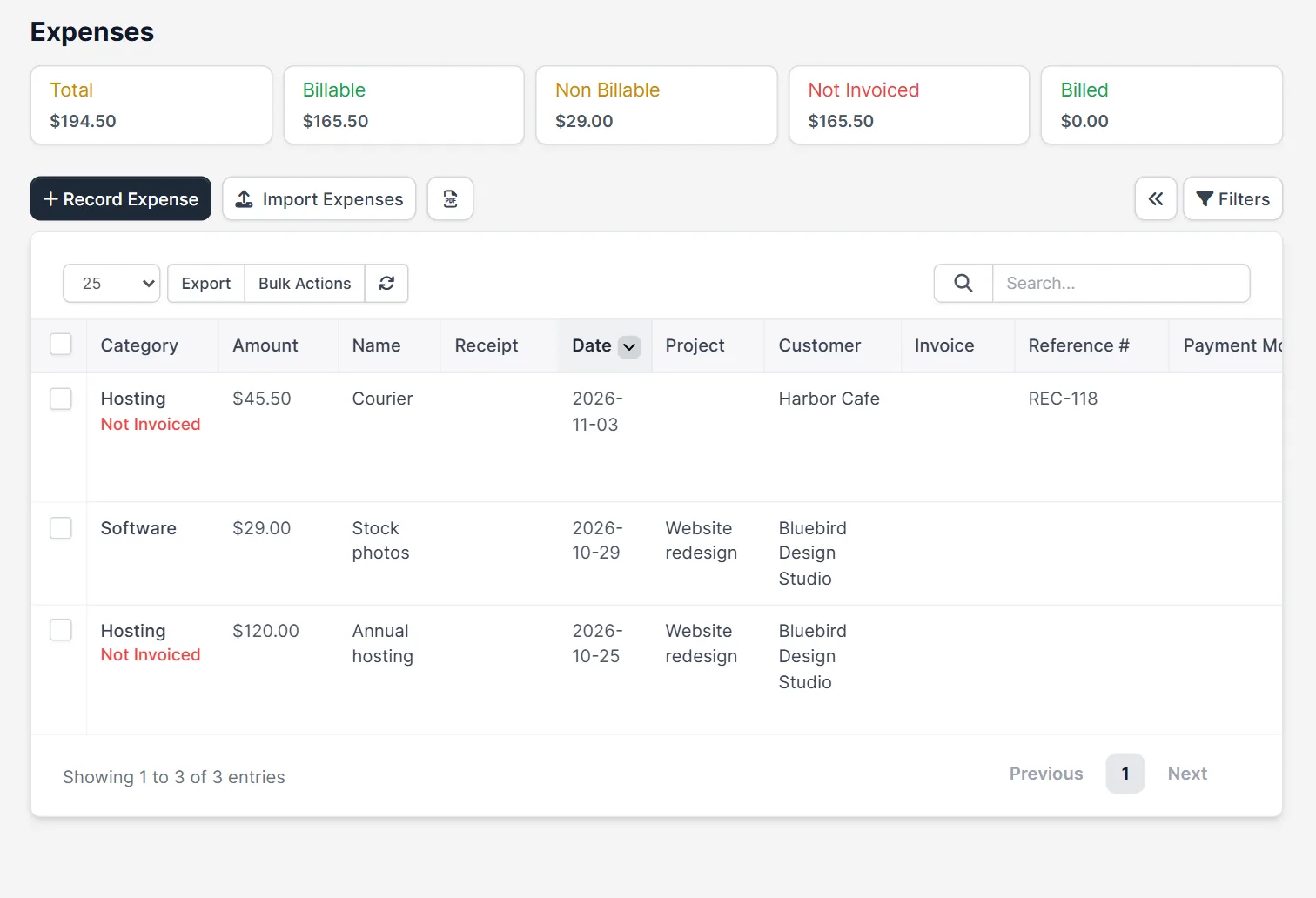
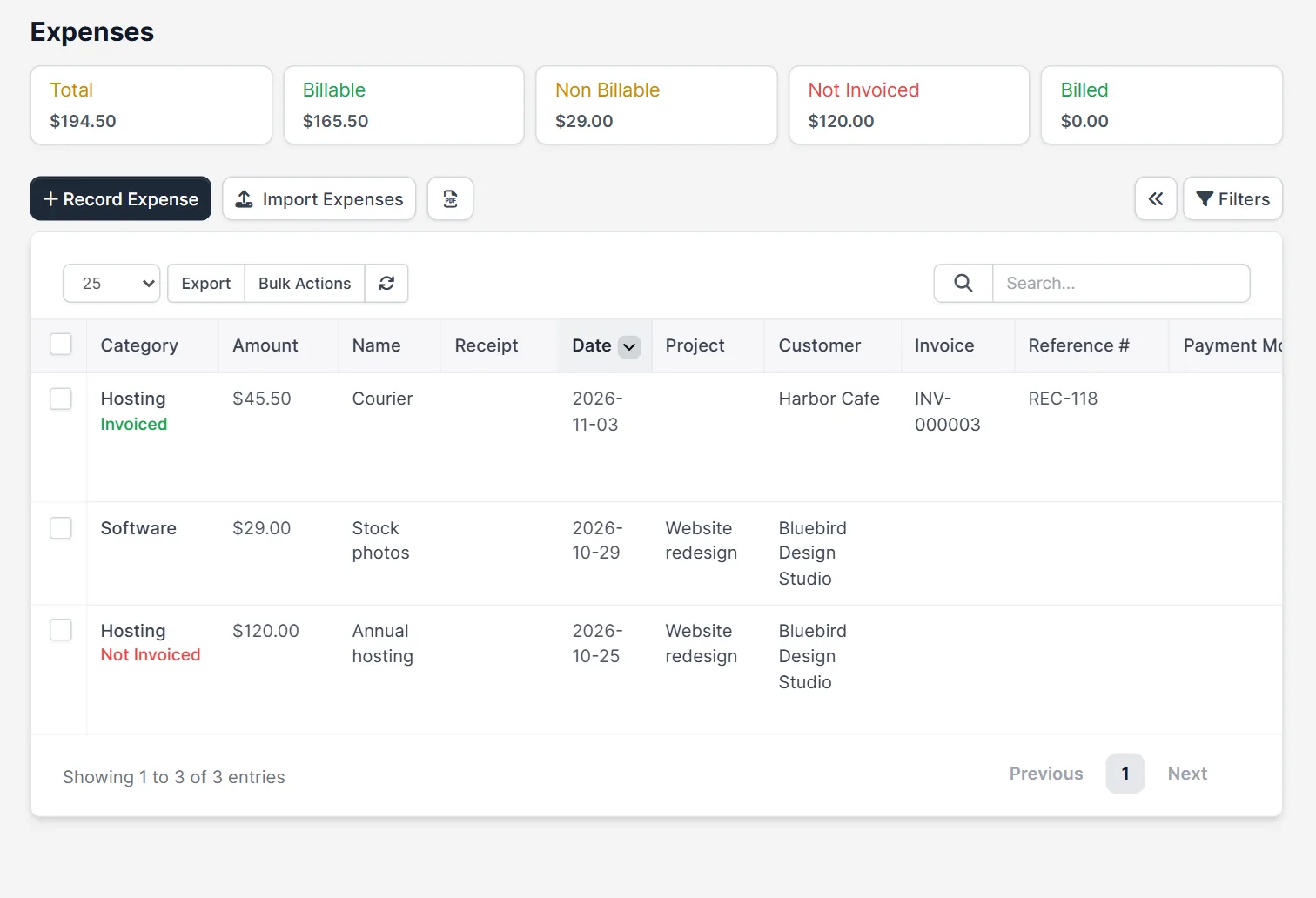
The page has five boxes: Total, Billable, Non Billable, Not Invoiced and Billed. In our test, the total was 194.50, of which 165.50 was billable and 29.00 was not. Under the category, a red Not Invoiced label marks every billable expense that is not on an invoice yet. Use this label as your to-do list at the end of the month. Perfex CRM billable expenses are easy to forget, so look at this list every month.
Step 3: Open the expense #
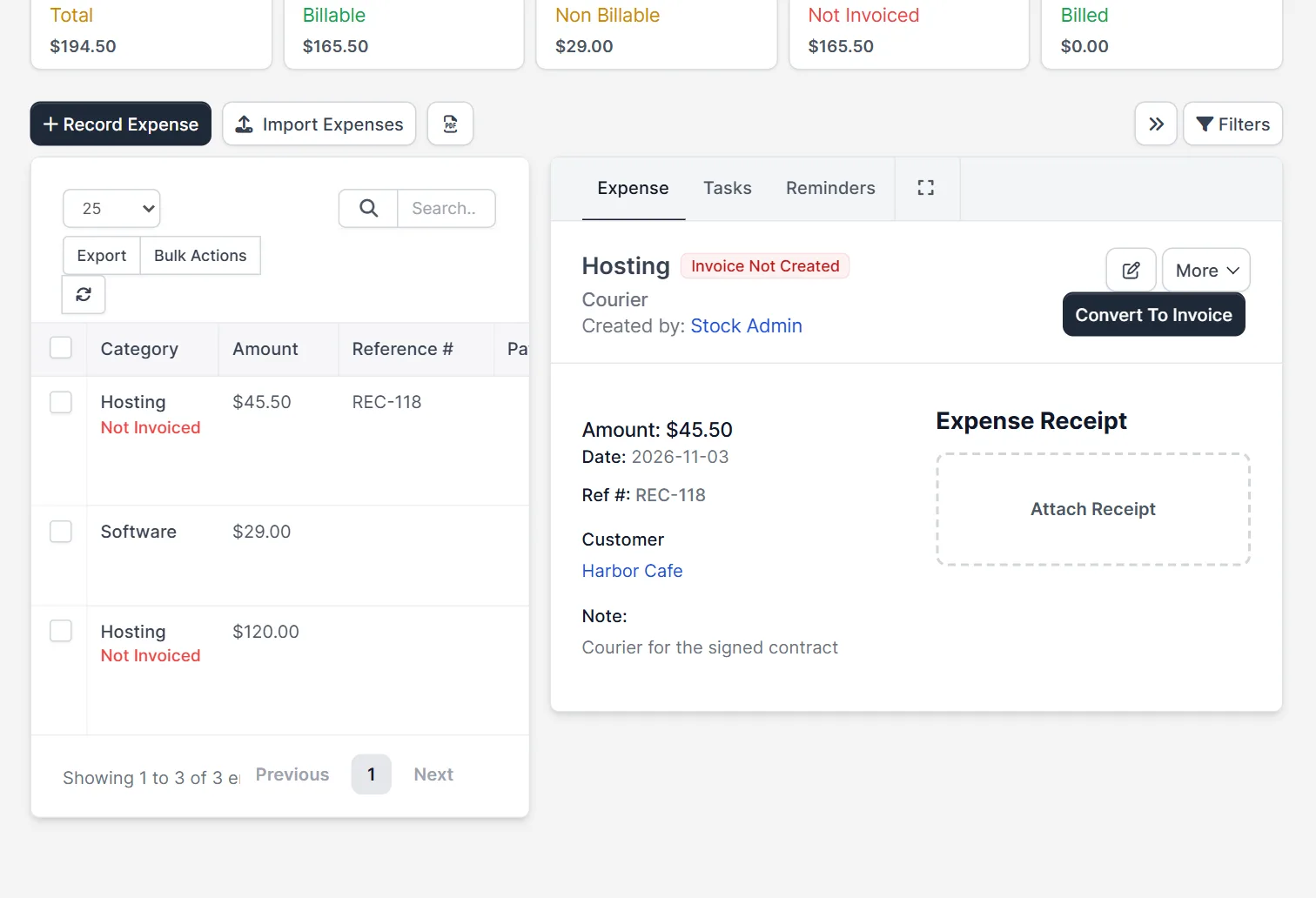
Click an expense in the list. A panel opens on the right with the status Invoice Not Created, the amount, date, reference, customer and note, and a place to attach the receipt. For a billable expense with a customer, the button Convert To Invoice shows next to the More menu.
Step 4: Convert the expense to an invoice #
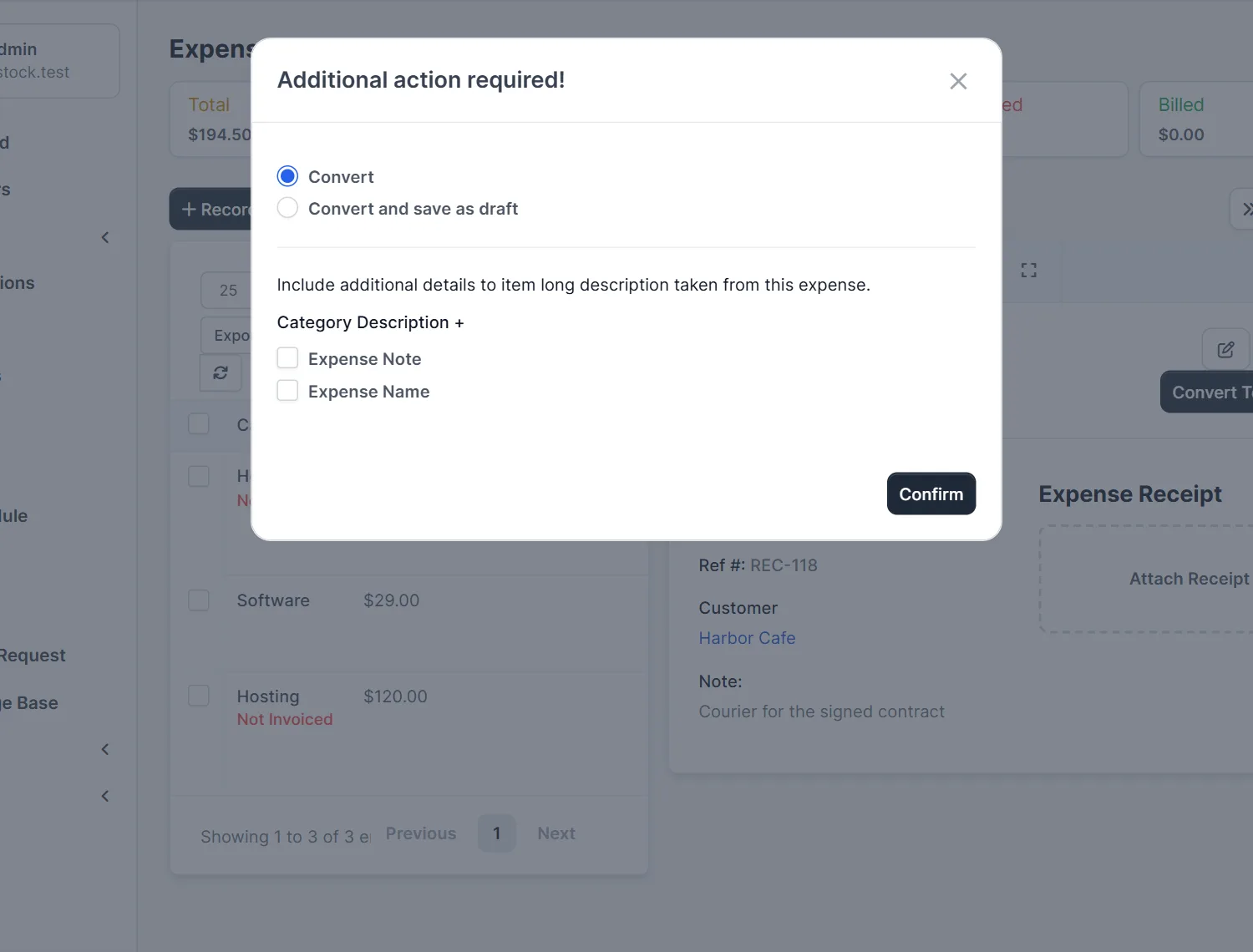
Click Convert To Invoice. The window Additional action required! asks you to choose Convert or Convert and save as draft. Below it you can add details to the long description of the invoice item: Category Description, Expense Note and Expense Name. Tick the ones that help the customer understand the line, then click Confirm. To convert to invoice as a draft first is a good habit when you want to check the amount before the customer sees it.
Step 5: Check that the expense is billed #
The CRM opens the new invoice. In our test, a courier cost of 45.50 became invoice INV-000003 for the customer Harbor Cafe. Back on the Expenses page, the expense now shows the invoice number and the label Invoiced, and the Not Invoiced box fell from 165.50 to 120.00. Now the expense cannot be billed twice. This is how Perfex CRM billable expenses leave the to-do list.
Another way: bill expenses with a project #
If an expense belongs to a project, it is offered when you invoice the project. The window shows the line See expenses that will be billed on this invoice, and the expense becomes a line of the invoice together with the task hours. Choose this way when a project has many small costs. Choose the convert button for a single cost that is not part of a project. Both ways make Perfex CRM billable expenses appear on an invoice, and both mark the expense as billed.
Tips for billable costs #
- Record Perfex CRM billable expenses on the day you pay them and attach the receipt, so the proof is ready.
- Always pick the customer for Perfex CRM billable expenses. Without a customer, the CRM has nobody to bill.
- Use the reference number of the receipt, so you can find it later.
- Add a small handling fee as its own invoice item if your contract allows it.
- Read Perfex CRM expenses for the basics, Perfex CRM expense categories for the list of categories, and Perfex CRM recurring expenses for costs that repeat.
Not tested here: Convert and save as draft, the option Auto Create Invoice for repeating expenses, expenses with tax, and billing an expense in another currency. Read the official Perfex CRM help for more.
Related module: For full accounting next to your invoices, the Perfex CRM Financial Management Module turns the CRM into an accounting suite for freelancers and larger companies.
Frequently asked questions #
How do I make Perfex CRM billable expenses? #
Record an expense, choose the customer and tick Billable. It then shows as Not Invoiced until you bill it.
How do I convert an expense to an invoice? #
Open the expense and click Convert To Invoice. Choose Convert or Convert and save as draft and click Confirm.
Can an expense be billed twice? #
No. After the conversion the expense shows the invoice number and leaves the Not Invoiced total.
Can I bill expenses together with project hours? #
Yes. When you invoice a project, billable expenses of that project are offered in the same window.


