
Time you spend on a customer is only money once it is on an invoice. Perfex CRM billing tasks turn the hours logged on tasks into invoice lines, so you do not retype them. This guide, tested on Perfex CRM 3.4.1, shows how to mark a task as billable, how the hourly rate works and how a project becomes an invoice.
How Perfex CRM billing tasks works #
A task has a Billable switch and an Hourly Rate. Staff log time with the task timer or on the timesheets tab. When you invoice the project, the CRM multiplies the logged hours by the rate and writes one line per task. The tasks are then marked as billed, so they cannot be billed twice. Billable tasks are the link between the work you do and the money you ask for.
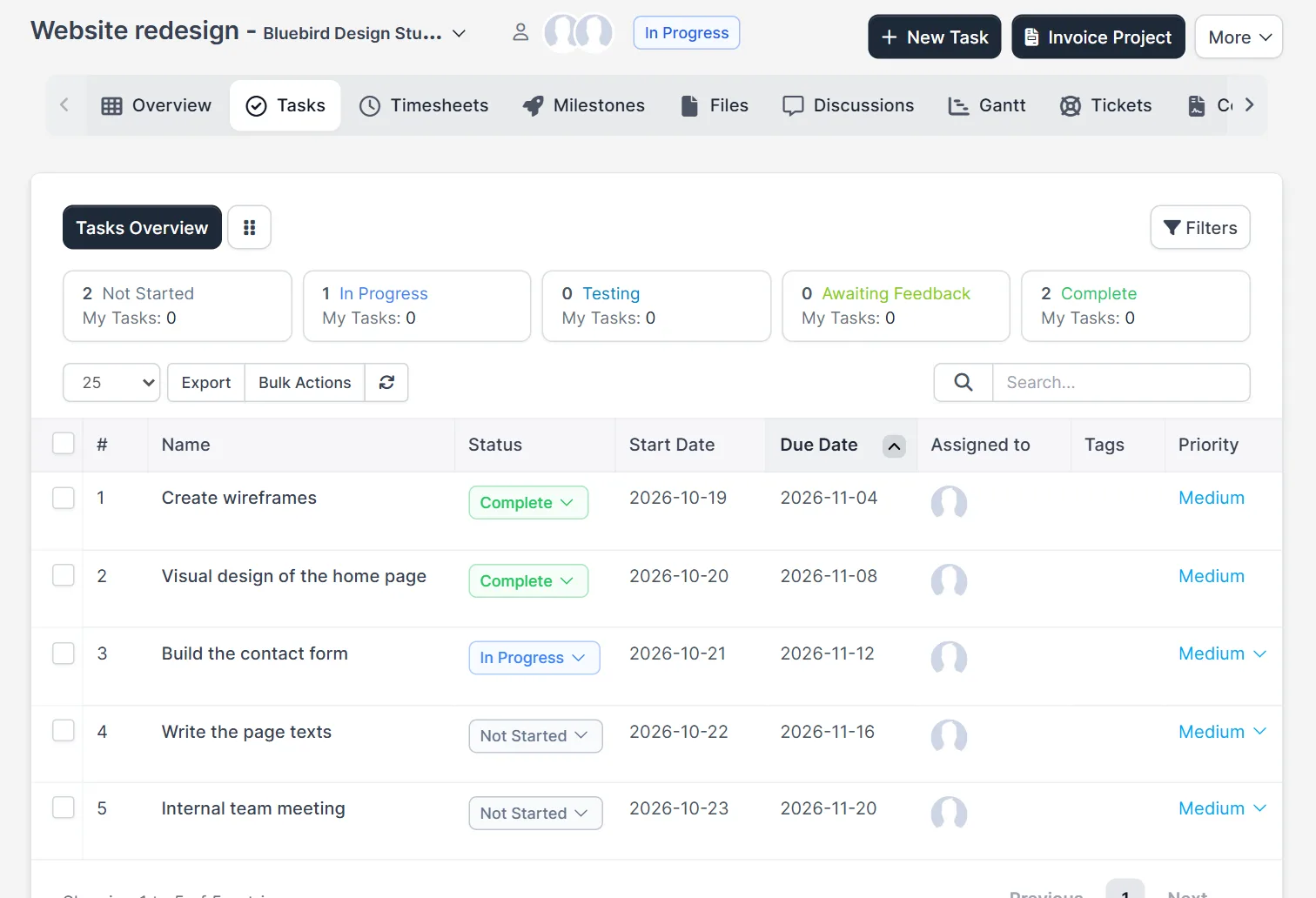
Step 1: Mark the task as billable #
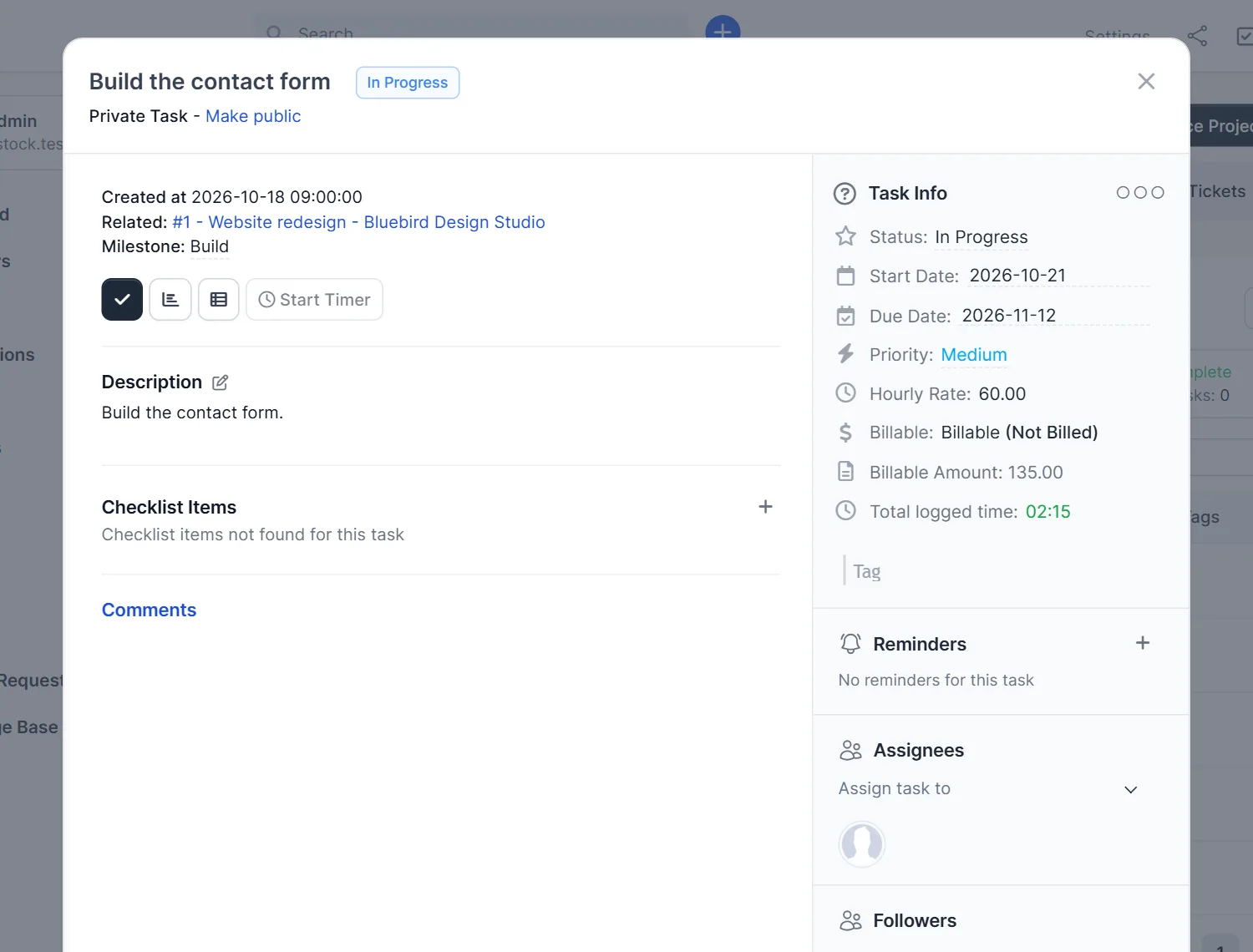
Open a project and click Tasks, then click a task name. The task window shows Billable: Billable (Not Billed), the Hourly Rate and the Billable Amount. In our test, a task with 02:15 logged time at a rate of 60.00 showed a billable amount of 135.00. Change the rate in the task edit form when one task costs more than another.
Step 2: Log the time #
Click Start Timer in the task window, or add the hours on the Timesheets tab of the project. The billable amount grows with the logged time. Accurate logs make Perfex CRM billing tasks quick and fair. A task without time has nothing to bill, and the invoice window warns about it. See Perfex CRM timesheets for the timesheet screen.
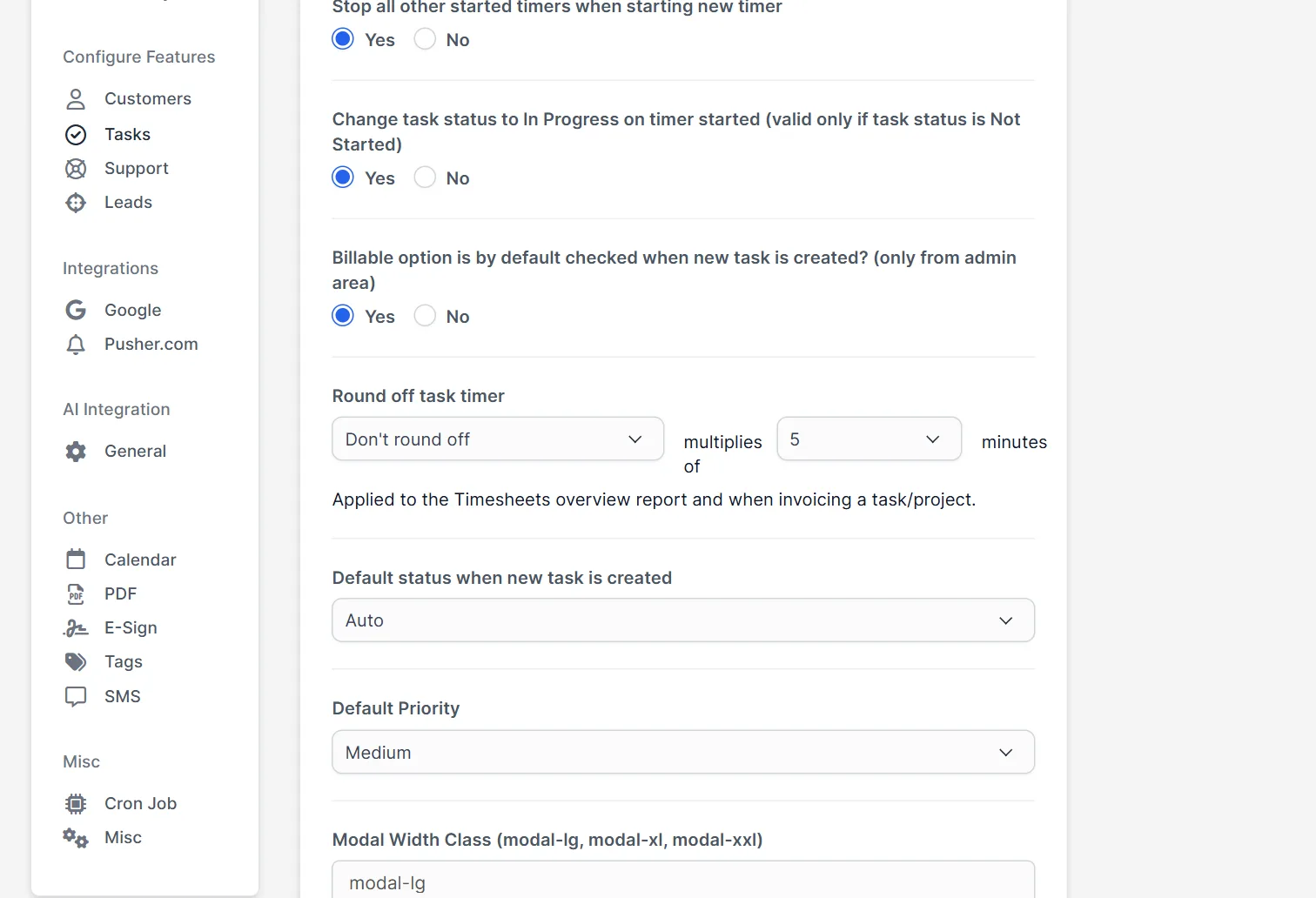
Step 3: Set the default for Perfex CRM billing tasks #
Open Setup > Settings > Tasks. The question Billable option is by default checked when new task is created? (only from admin area) saves a click if most of your work is billable. In the same page, Round off task timer lets you round time up, down or to the nearest 5 to 45 minutes. The help text says it applies when you invoice a task or a project.
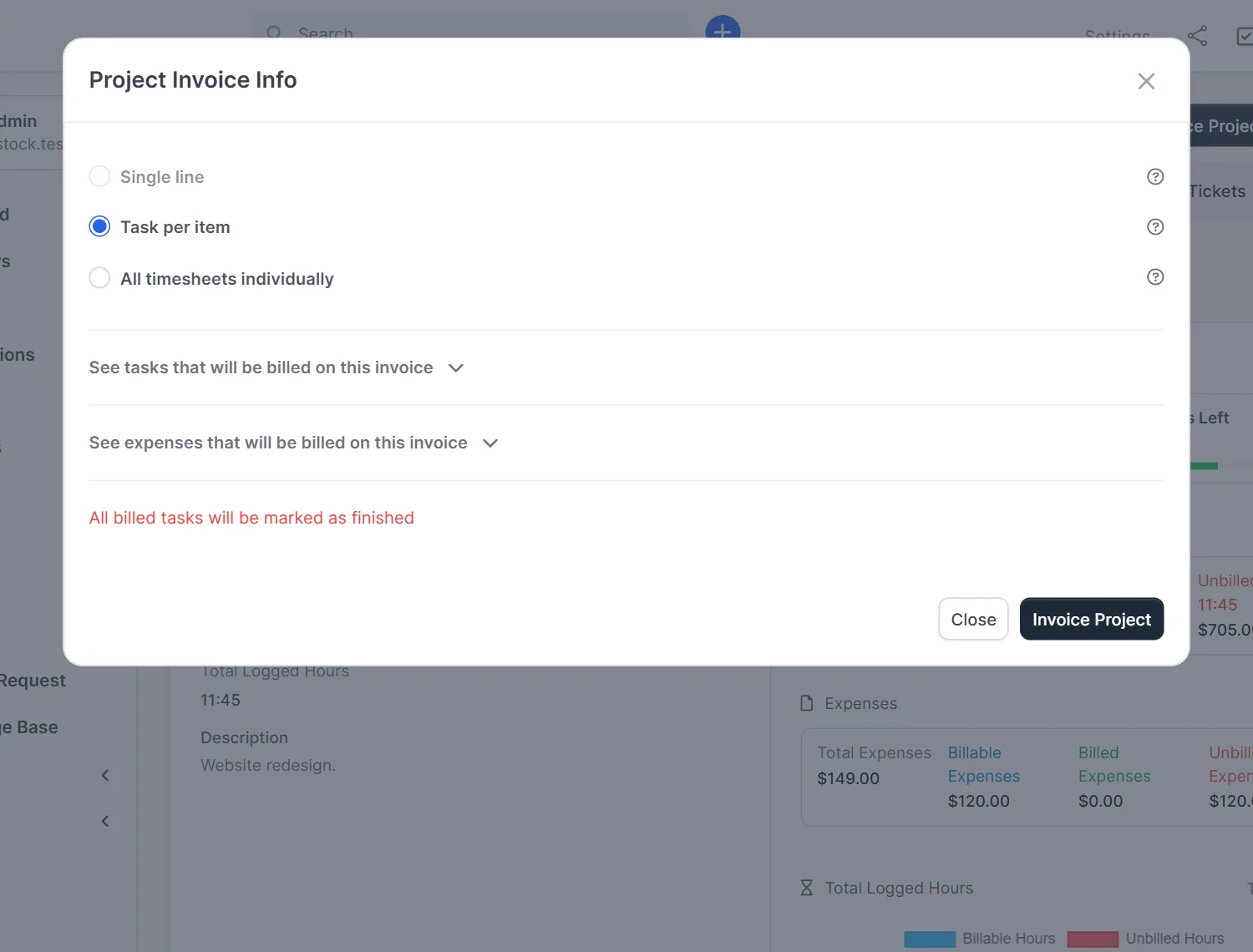
Step 4: Open the project invoice window #
To start Perfex CRM billing tasks at project level, click Invoice Project on the project page. The window Project Invoice Info offers three styles: Single line, Task per item and All timesheets individually. Click See tasks that will be billed on this invoice to open the list. Tasks that are finished are ticked. Tasks that are not finished are listed but not ticked. The code keeps tasks with a start date in the future out of the billable list. A red line warns that all billed tasks will be marked as finished.
Step 5: Save the invoice #
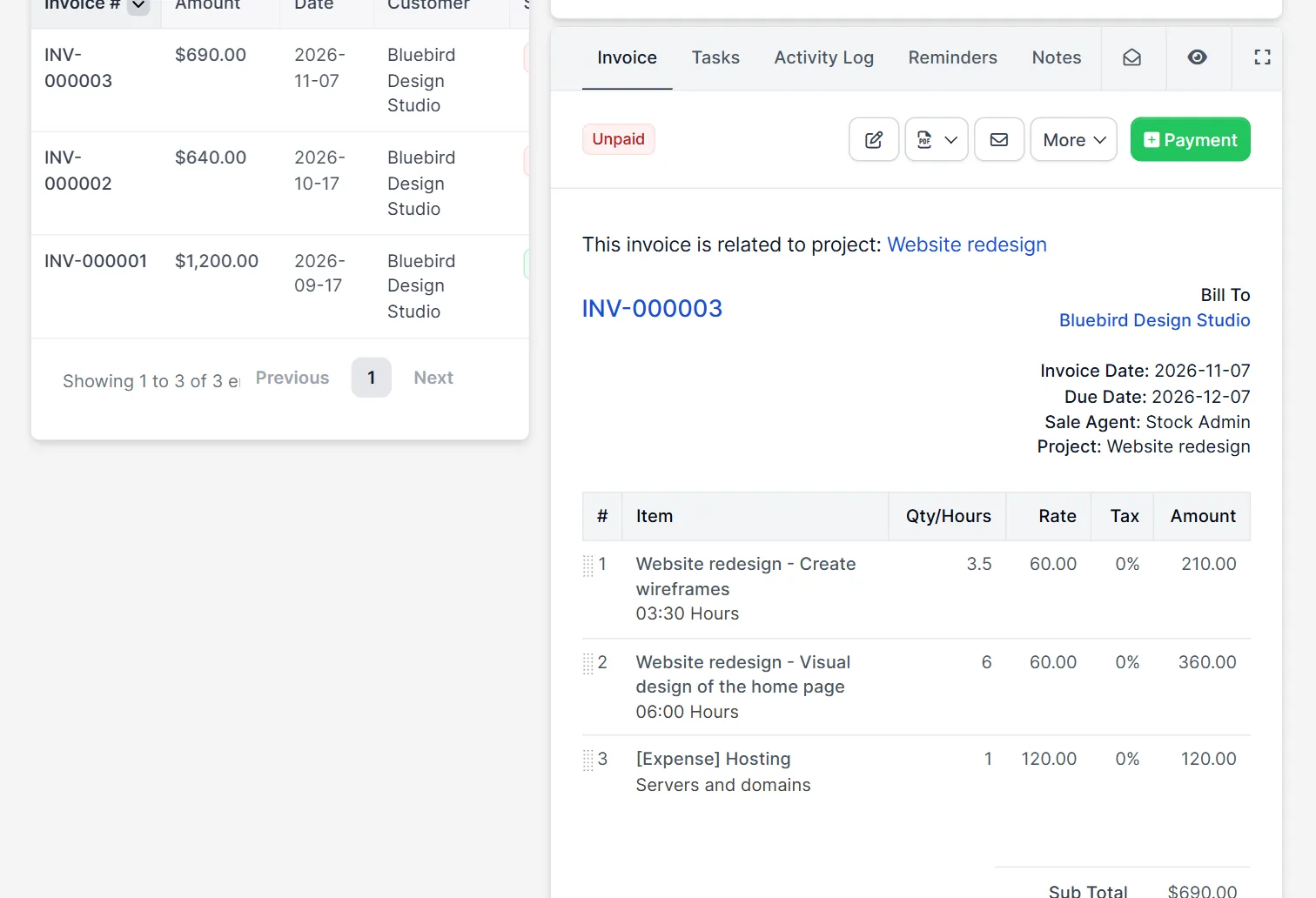
Click Invoice Project. A new invoice opens, filled in with the customer, the project and one line per task. In our test, two finished tasks gave 3.5 hours and 6 hours at 60.00, which made 210.00 and 360.00, and the billable expense for hosting was added as a third line of 120.00. The total was 690.00. Check the lines, click Save and the invoice is created. The two tasks showed as Billed afterwards.
A short example of Perfex CRM billing tasks #
A designer works on a website at 60.00 an hour. At the end of the month, the project has four billable tasks and two are finished. The designer opens Invoice Project, ticks the two finished ones, saves, and sends the invoice. The other tasks stay billable and not billed, so they go on next month’s invoice. This is the normal way to use Perfex CRM billing tasks: finish, invoice, repeat. For fixed projects, read Perfex CRM invoice project.
Tips for billing #
- Untick tasks you do not want to bill yet, such as internal meetings, or switch Billable off for them.
- Check the hourly rate on every task before the first round of Perfex CRM billing tasks.
- Use the project overview from Perfex CRM projects to see billed and unbilled hours.
- Do not edit a billed task. It is already on an invoice.
- Record the cost of extras with Perfex CRM expenses and mark them billable.
Not tested here: the Single line style, ticking an unfinished task, a fixed rate project, sending the invoice to the customer and recording the payment. Read the official Perfex CRM help for more.
Related module: If your team also needs attendance and leave, the Timesheets and Leave Management for Perfex CRM module adds employee attendance, project hours and leave requests.
Frequently asked questions #
How do I make a task billable? #
Open the task and set Billable. Each task also has an Hourly Rate that is used to calculate the billable amount.
Can I invoice unfinished tasks? #
Yes. They are listed in the Project Invoice Info window but not ticked. Tick them to include them. Billed tasks are marked as finished.
Why is a task missing from the invoice window? #
It may be already billed, not billable, or its start date may be in the future.
Can I bill a task twice? #
No. After invoicing, the task is marked as billed and leaves the list.


