
- What the Perfex CRM global search finds
- Step 1: Click the box and type
- Step 2: Search for a customer name
- Step 3: Search for a document number
- Step 4: Search for a lead or a person
- Step 5: Search for a project or a word
- Search habits that save time
- Tips for better results
- Why use the Perfex CRM global search
- Frequently asked questions
Somewhere in your CRM is the invoice, the lead or the ticket you need right now. The Perfex CRM global search box at the top of every page looks through many parts of the CRM at once and shows the results in groups. This guide, tested on Perfex CRM 3.4.1, shows what to type, what you get back and how to search well.
What the Perfex CRM global search finds #
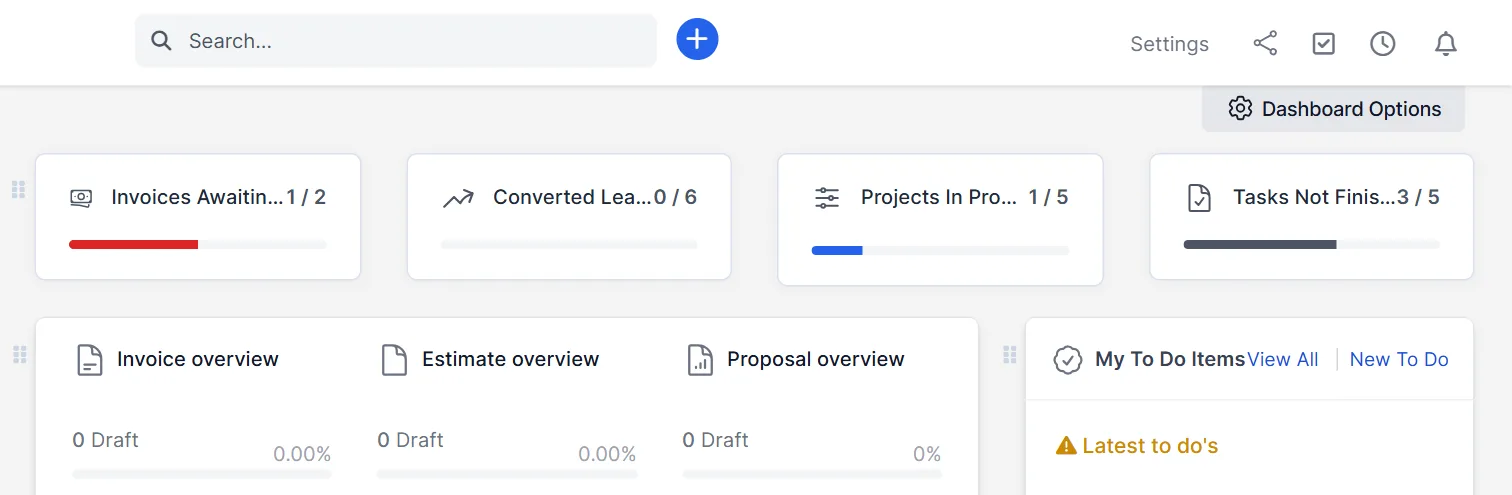
The search box sits at the top of every admin page, with the word Search… and a magnifier. You type, and after a moment a list drops down. The list is grouped by type, and each group has a heading. In our tests, the groups included Customers, Contacts, Support Tickets, Invoices, Estimates, Expenses, Payments, Invoice Items, Estimate Items, Leads and Projects.
Step 1: Click the box and type #
Click the box and start to type. You do not need to press Enter, as the list updates while you type. Two or three letters are often enough. The search looks for your text inside names, numbers and descriptions, so partial words work.
Step 2: Search for a customer name #
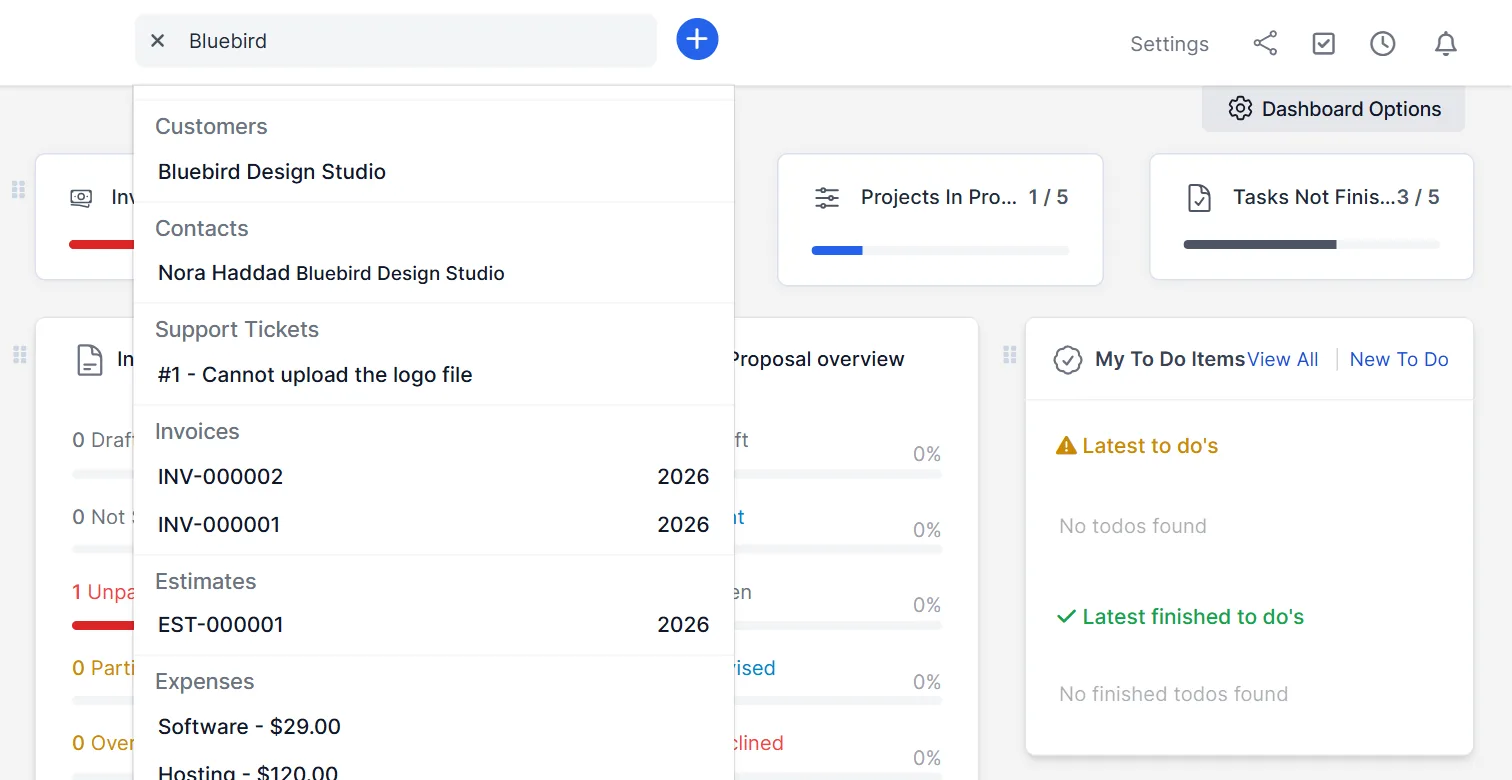
We typed Bluebird. The Perfex CRM global search showed the customer Bluebird Design Studio, its contact Nora Haddad, the support ticket #1 – Cannot upload the logo file, two invoices with their number and year, an estimate and two expenses. One word gave us every record connected to that customer. Click a line to open it.
Step 3: Search for a document number #
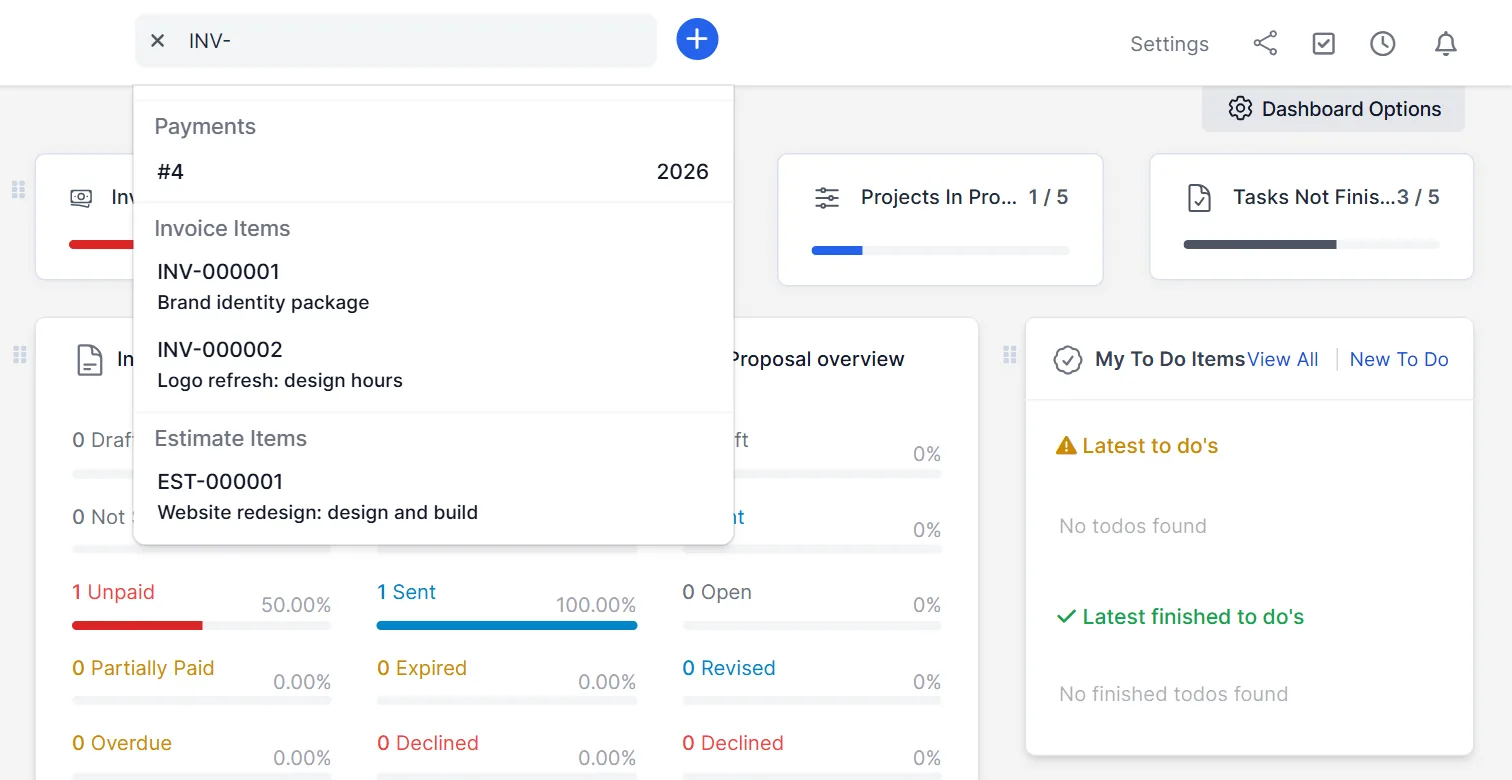
We typed INV-. The results listed a payment (#4), the invoice items with their descriptions, such as “Brand identity package” and “Logo refresh: design hours”, and the invoices INV-000001 and INV-000002, with a group for estimate items too. This shows that the search also reads the lines inside documents, not only the numbers. Use this when you remember what you sold but not to whom.
Step 4: Search for a lead or a person #
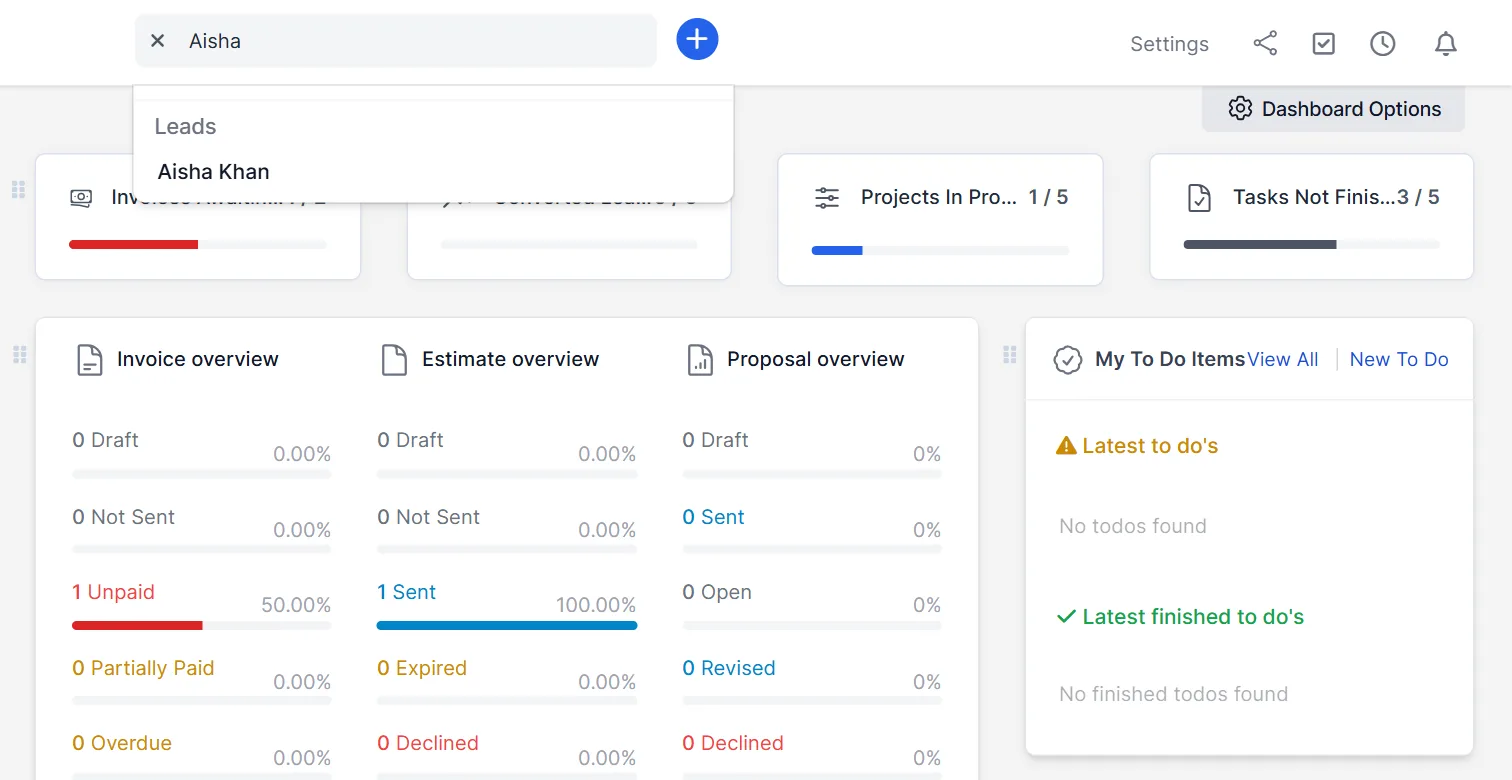
We typed Aisha. A single group, Leads, showed the lead Aisha Khan. If a name exists as a customer contact and as a lead, both groups show, which helps you notice duplicates. Our guide to Perfex CRM add lead explains how leads are created.
Step 5: Search for a project or a word #
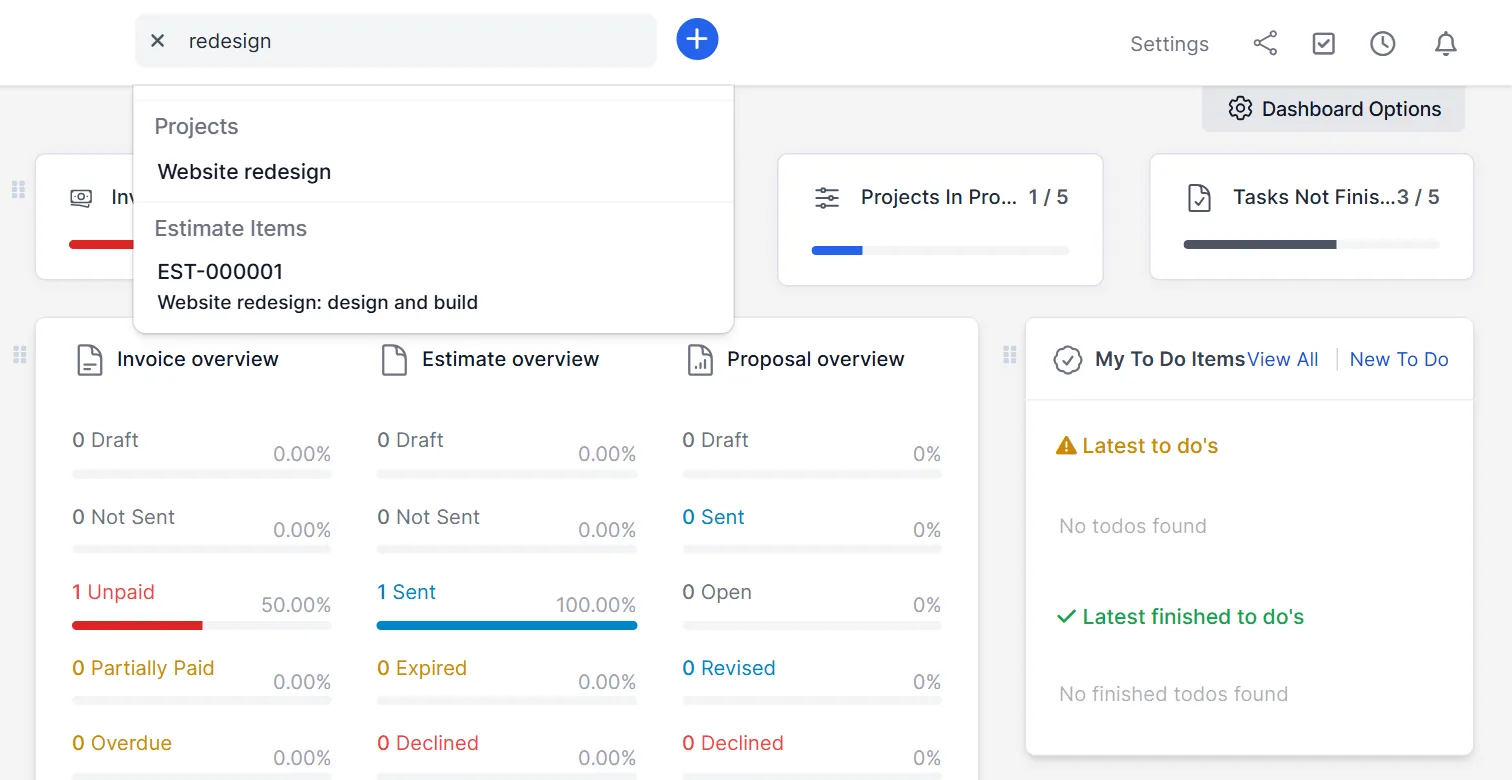
We typed redesign. The Perfex CRM global search showed the project Website redesign and an estimate item with the same words. Use words from a project name, an item description or a subject when you do not remember a number. If the list is empty, try a shorter word.
Search habits that save time #
Search first, click second. Do not browse menus to find a customer, as one word in the box is faster. Use document prefixes such as INV- or EST- to list documents of one kind. Type the customer’s company name to see everything about them, as in the second test. Teach your team to use the box, because it replaces many clicks. The search results follow what you may see, as Perfex CRM roles and permissions explains, so a colleague may see fewer groups than you.
Tips for better results #
- Use distinct words. “Bluebird” finds more than “design”.
- Put the exact invoice or estimate number if you have it.
- If a record does not show, check its spelling in the CRM. A typo in the data hides it.
- Use the list of Perfex CRM reports when you want totals, not single records.
- Keep names consistent, so one customer is not entered three times.
Why use the Perfex CRM global search #
The Perfex CRM global search is the fastest way to move around the system. Staff who learn the Perfex CRM global search stop browsing menus. A quick Perfex CRM global search also helps on the phone with a customer, when you need their invoice in seconds. Make the Perfex CRM global search the first step for any lookup.
Not tested here: how many results the list shows at most, clicking a result to open it, and what a staff member with limited permissions sees. Read the official Perfex CRM help for more.
Related module: If you want to reach records from other tools, the REST API for Perfex CRM offers secure API endpoints to connect the CRM with other apps.
Frequently asked questions #
Where is the Perfex CRM global search? #
In the search box at the top of every admin page. Click it and type.
What does it search? #
Customers, contacts, tickets, invoices, estimates, expenses, payments, items, leads and projects, among others, grouped by type.
Do I need to press Enter? #
No. The list drops down while you type.
Can I search inside an invoice? #
Yes. The search also reads item descriptions, so a word from a line item finds the invoice item and the invoice.


