
Briefs, drafts, contracts and screenshots belong with the project, not in someone’s inbox. Perfex CRM project files give each project a shelf where you upload files, choose who may see them and talk about them. This guide, tested on Perfex CRM 3.4.1, shows the upload, the switch for the customer and the bulk actions.
What Perfex CRM project files offer #
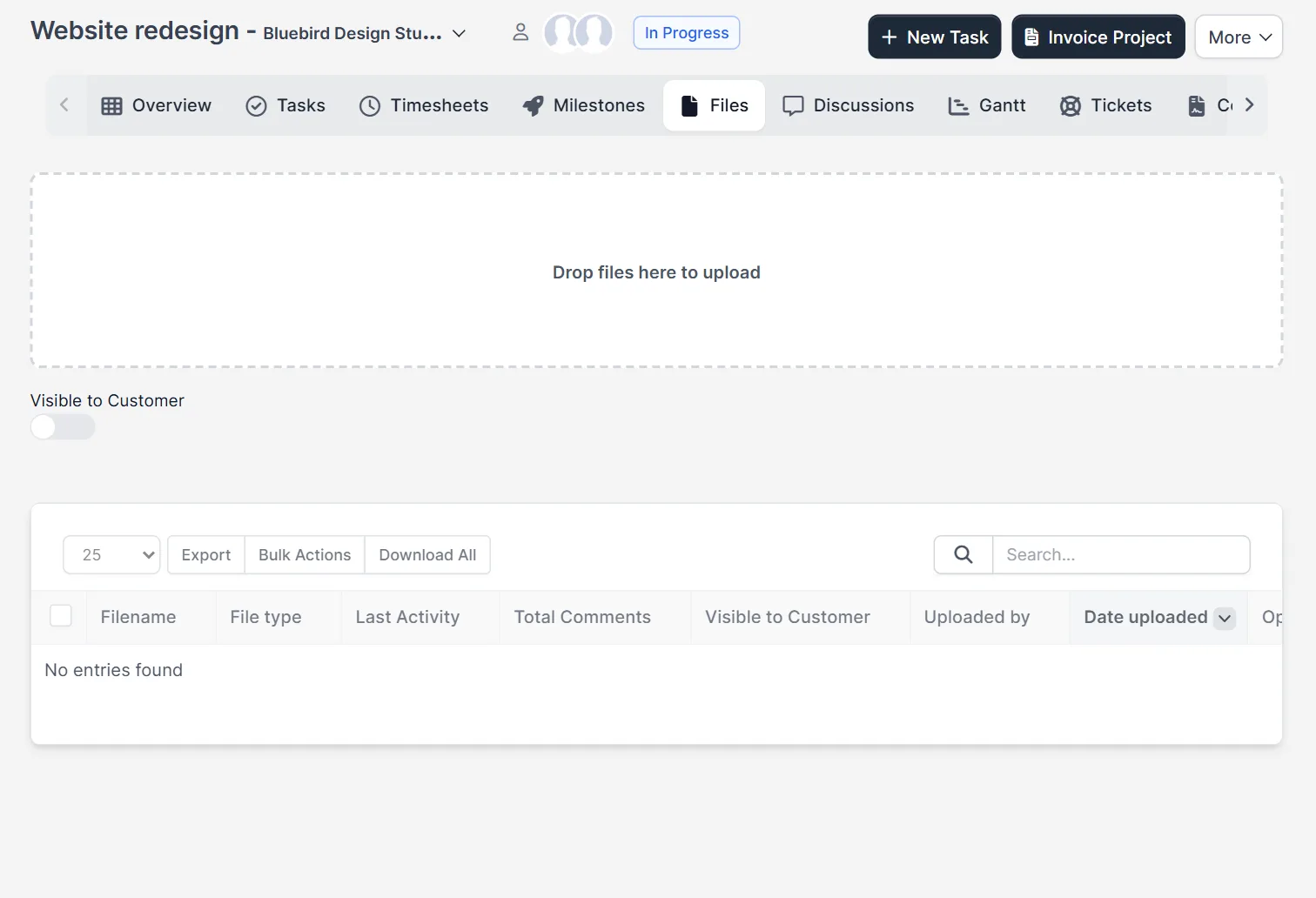
Open a project and click the tab Files. At the top is a dashed area with the text Drop files here to upload. Under it, a switch Visible to Customer. Below is a table with the columns Filename, File type, Last Activity, Total Comments, Visible to Customer, Uploaded by and Date uploaded, and the buttons Export, Bulk Actions and Download All.
Step 1: Upload a file #
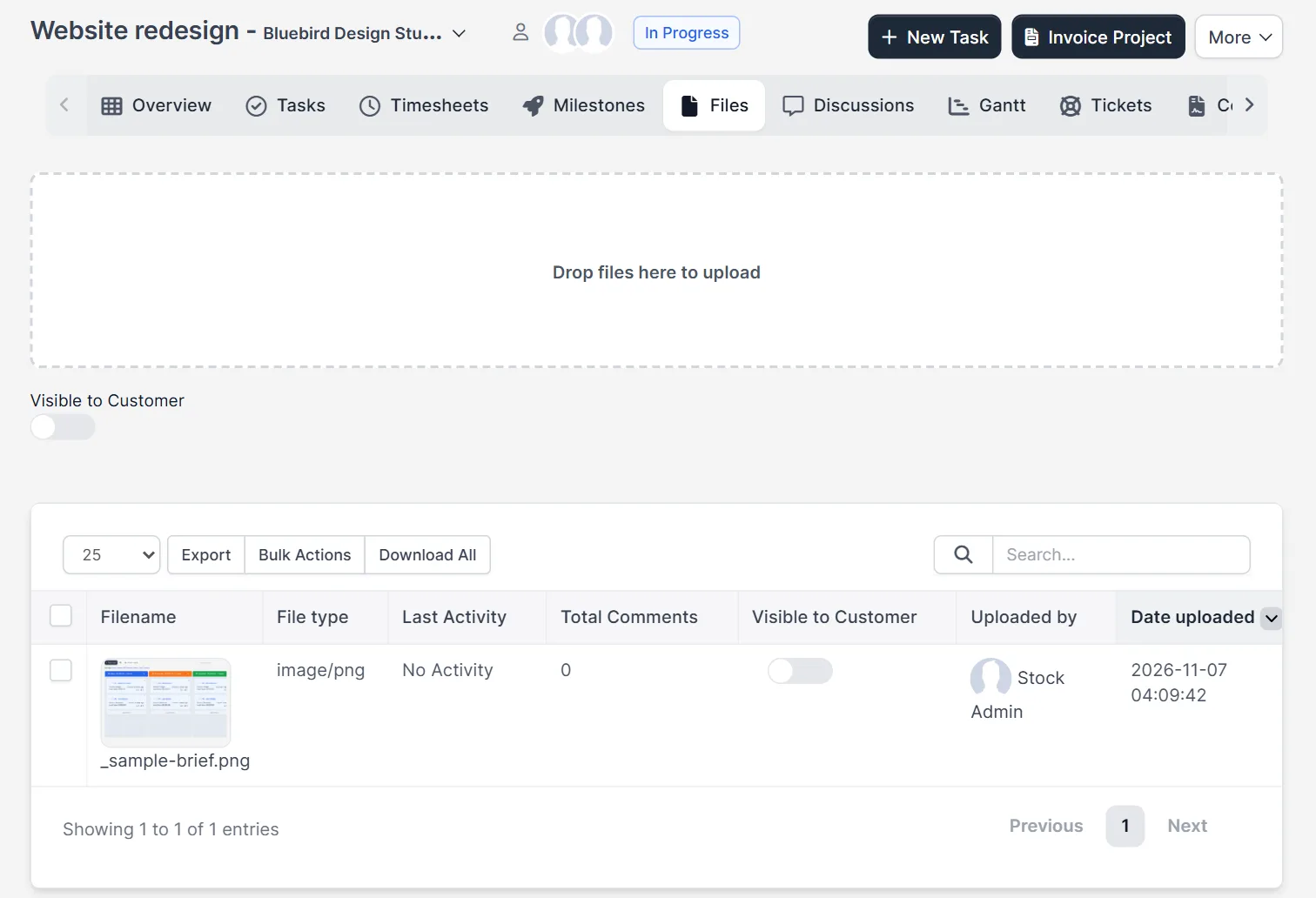
Drag a file onto the dashed area, or click the area to choose a file. In our test, we picked a PNG image. The file appeared in the table within seconds, with a small preview, the type image/png, the name of the uploader and the date and time. Upload one file at a time at first, so you see how each one lands.
Step 2: Read the table #
Each row has a preview of the file and its name. Total Comments counts the comments on the file, and Visible to Customer shows a switch for that file. In our test, the switch was off for the new file, because the upload switch above the table was off. The table helps you sort files by date or by uploader. The Download All button collects the files of the project.
Step 3: Choose who sees the next files #
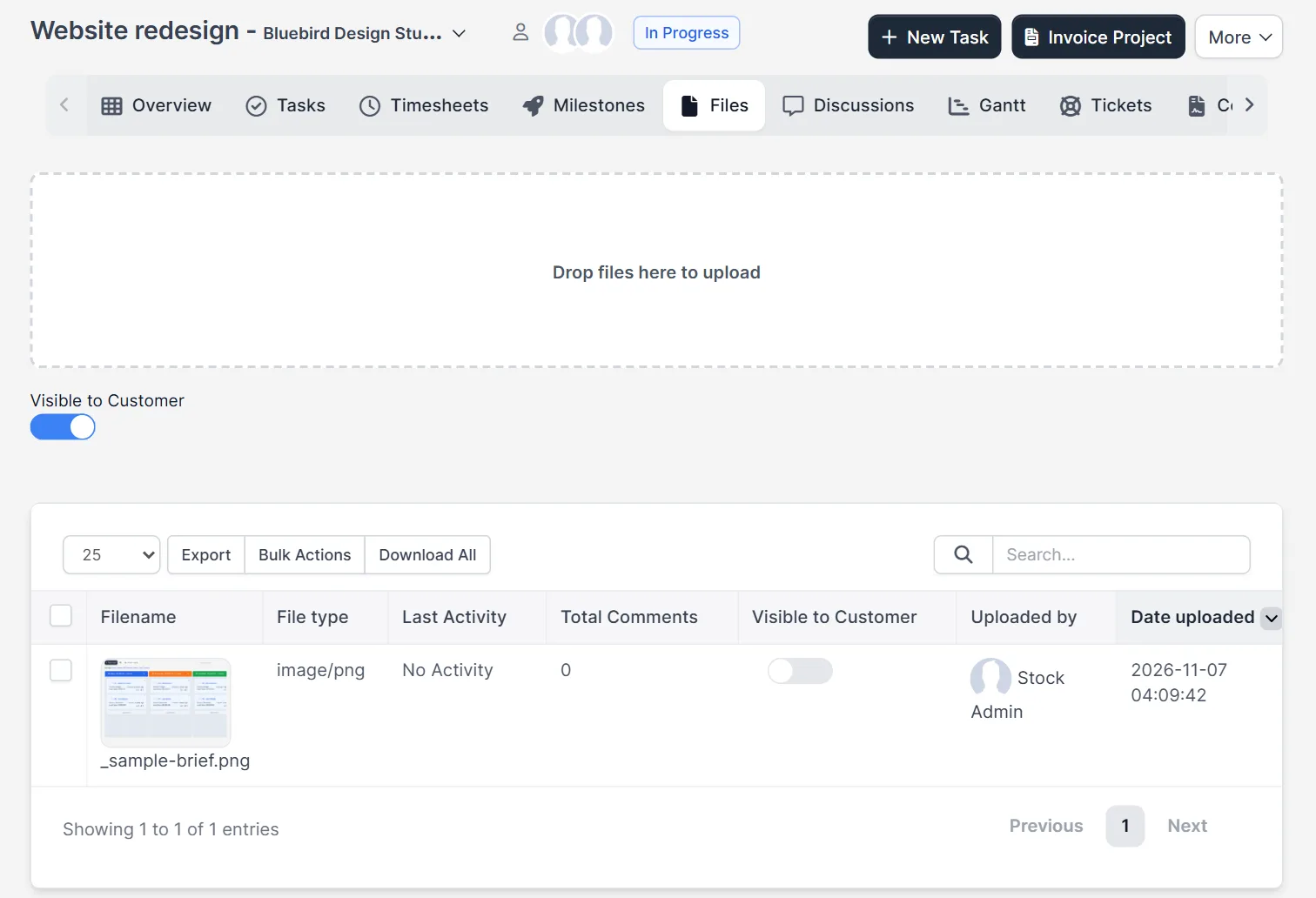
The switch Visible to Customer above the table decides the setting for files that you upload next. Switch it on before an upload when the customer should get the file, such as a delivered design. Leave it off for internal files, such as notes or drafts. With the switch on, the next Perfex CRM project files you upload are shared with the customer. Remember that each file also has its own switch in the table.
Step 4: Open a file #
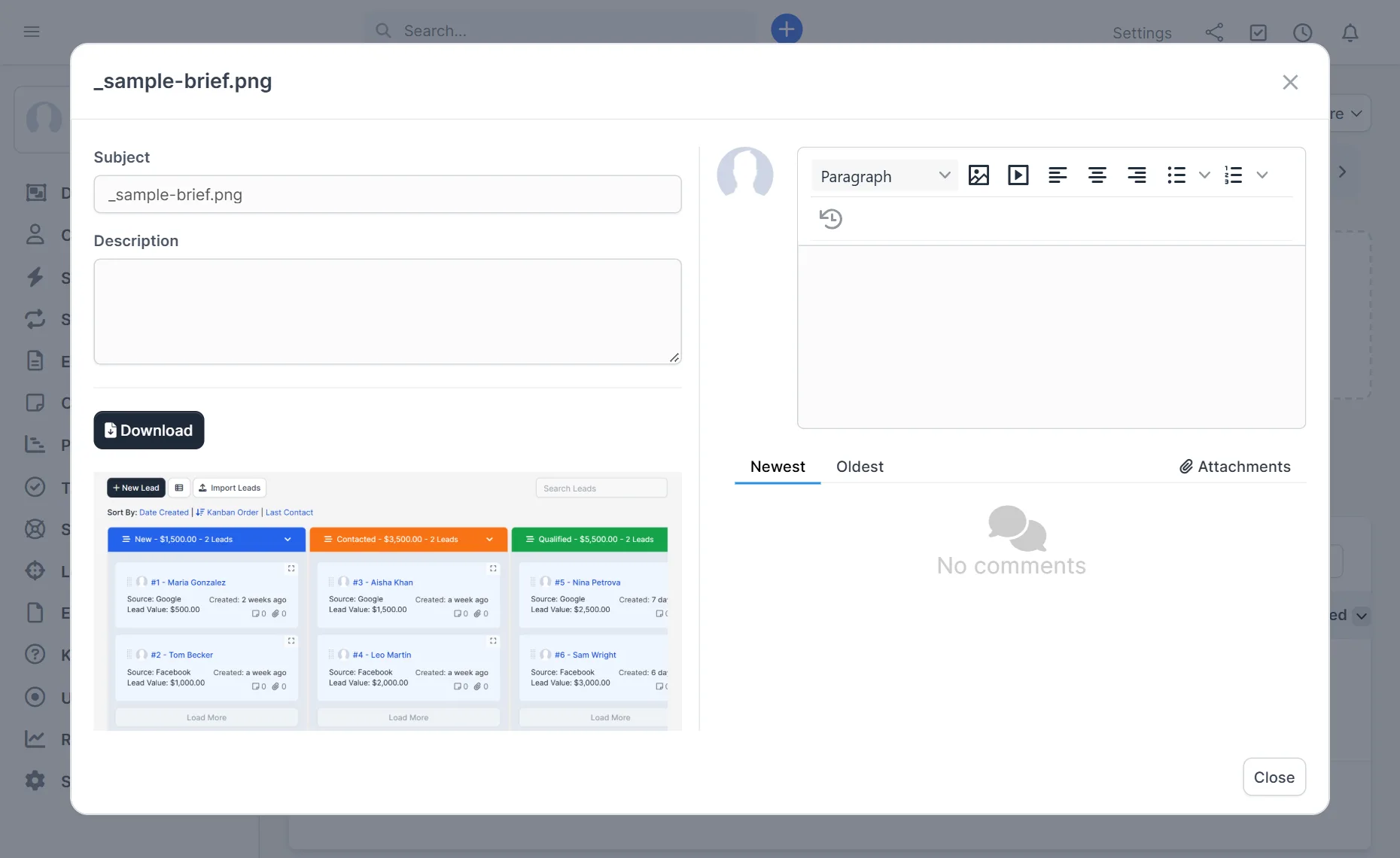
Click the name or the preview. A window opens with the file name as the title. It has a Subject, a Description, a Download button and a preview of an image. On the right is an editor for comments about this file, with the tabs Newest and Oldest, and an empty list that says there are no comments. Use the comments for feedback on a design, so the thread stays with the file.
Step 5: Use bulk actions #
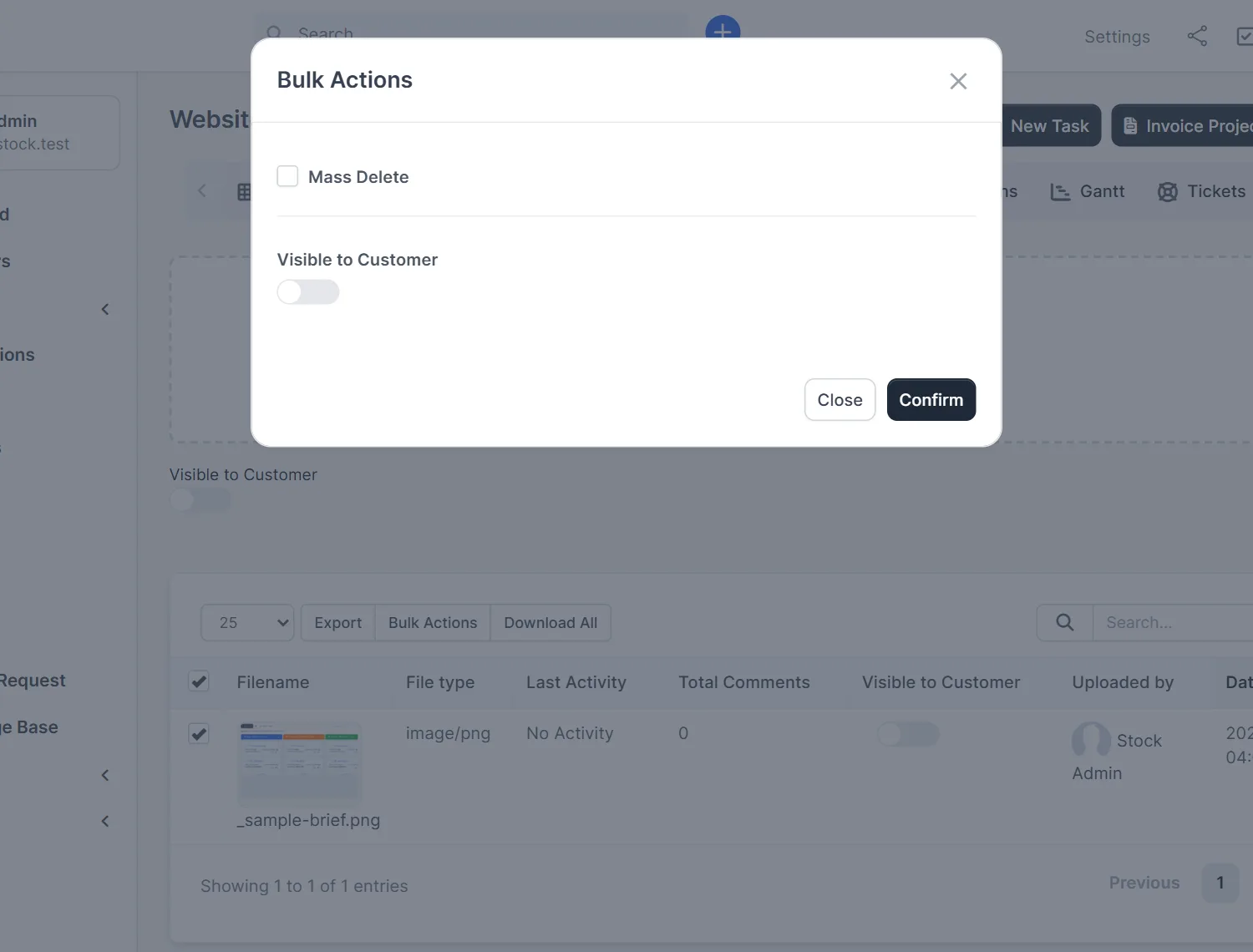
Tick the box in the first column of one or more rows and click Bulk Actions. A window offers Mass Delete and a switch Visible to Customer. Use it to share many files at once, or to remove old files. Mass Delete cannot be undone, so tick it only when you are sure. We opened the window and did not press Confirm.
How to organize project files #
Use clear file names with the date or version, such as brief-2026-11-v2.pdf. Put the customer’s files and your own files into the same tab and use the Visible to Customer switches to separate them. Keep contracts in the contract itself, as Perfex CRM contracts explains. For talk about the project, use Perfex CRM project discussions. Check the upload limits of your server if big files fail, because PHP has its own size limits. See Perfex CRM file upload size.
Tips for sharing files #
- Check the customer switch before you upload. A private file shared by mistake is hard to take back.
- Name files so that the customer understands them without opening them.
- Delete old versions, or add the version to the name, so nobody uses the wrong one.
- Look at Perfex CRM projects for the other tabs of a project.
- Use Download All when you hand over a project, and keep the ZIP with your records.
Why use Perfex CRM project files #
Perfex CRM project files keep every document next to the work it belongs to. Your team finds Perfex CRM project files without asking around, and customers get only the files you share with them. Keep Perfex CRM project files clean, and a project hand-over becomes a single download.
Not tested here: Download All, large uploads, deleting a file, and what the customer sees in the customers area. Read the official Perfex CRM help for more.
Related module: If you need versions, folders and approval of documents, the Document Management Module for Perfex CRM controls the whole life of a document.
Frequently asked questions #
How do I upload Perfex CRM project files? #
Open the project, click Files and drop a file on the dashed area, or click the area to choose one.
How do I share a file with the customer? #
Switch on Visible to Customer above the table before the upload, or use the switch in the file row.
What can I do with several files at once? #
Tick them and click Bulk Actions. You can delete them or change Visible to Customer.
Can I comment on a file? #
Yes. Open the file and use the comment editor in its window.


