
A table shows a list, but a board shows progress. The Perfex CRM kanban view turns leads and tasks into cards in columns, one column for each status. This guide, tested on Perfex CRM 3.4.1, shows where to switch, what the columns and cards tell you and how to open a card.
What the Perfex CRM kanban view is #
A kanban board is a row of columns. Each column is a status, and each card is one item. A lead that moves from New to Contacted moves from one column to the next. Perfex CRM kanban works for leads and for tasks. Both pages start as tables, and a button switches them to the board.
Step 1: Start from the table #
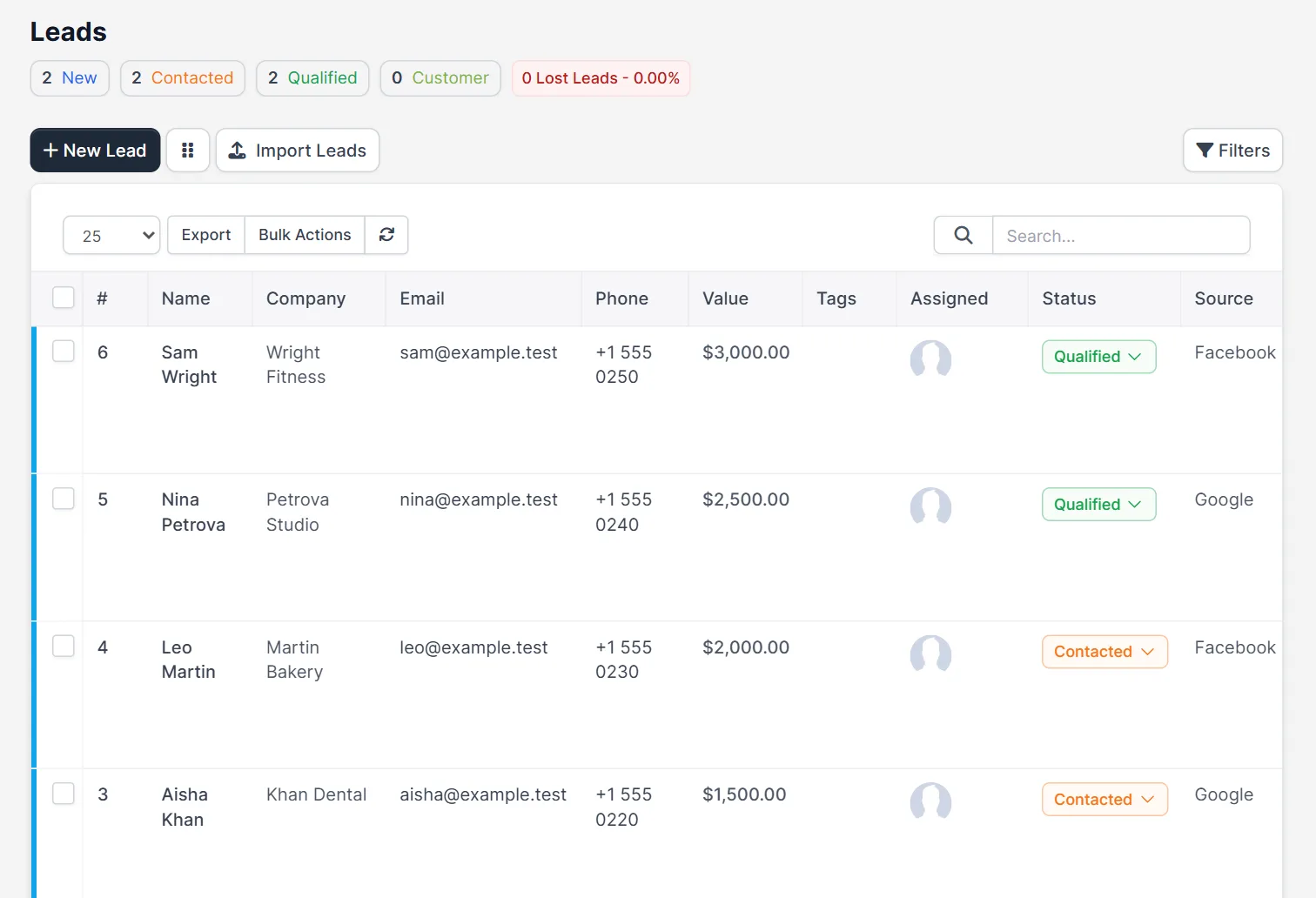
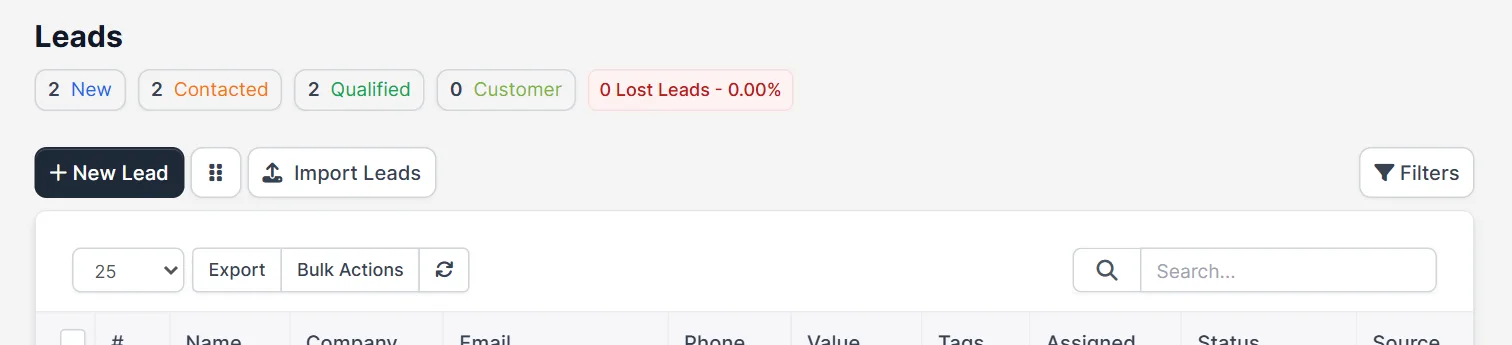
Open Leads in the main menu. The page shows the lead statuses as small counters at the top, for example 2 New, 2 Contacted and 2 Qualified, then the buttons New Lead, a small grid button and Import Leads. The table lists the columns #, Name, Company, Email, Phone, Value, Tags, Assigned, Status and Source. The grid button is the switch.
Step 2: Switch to the Perfex CRM kanban board #
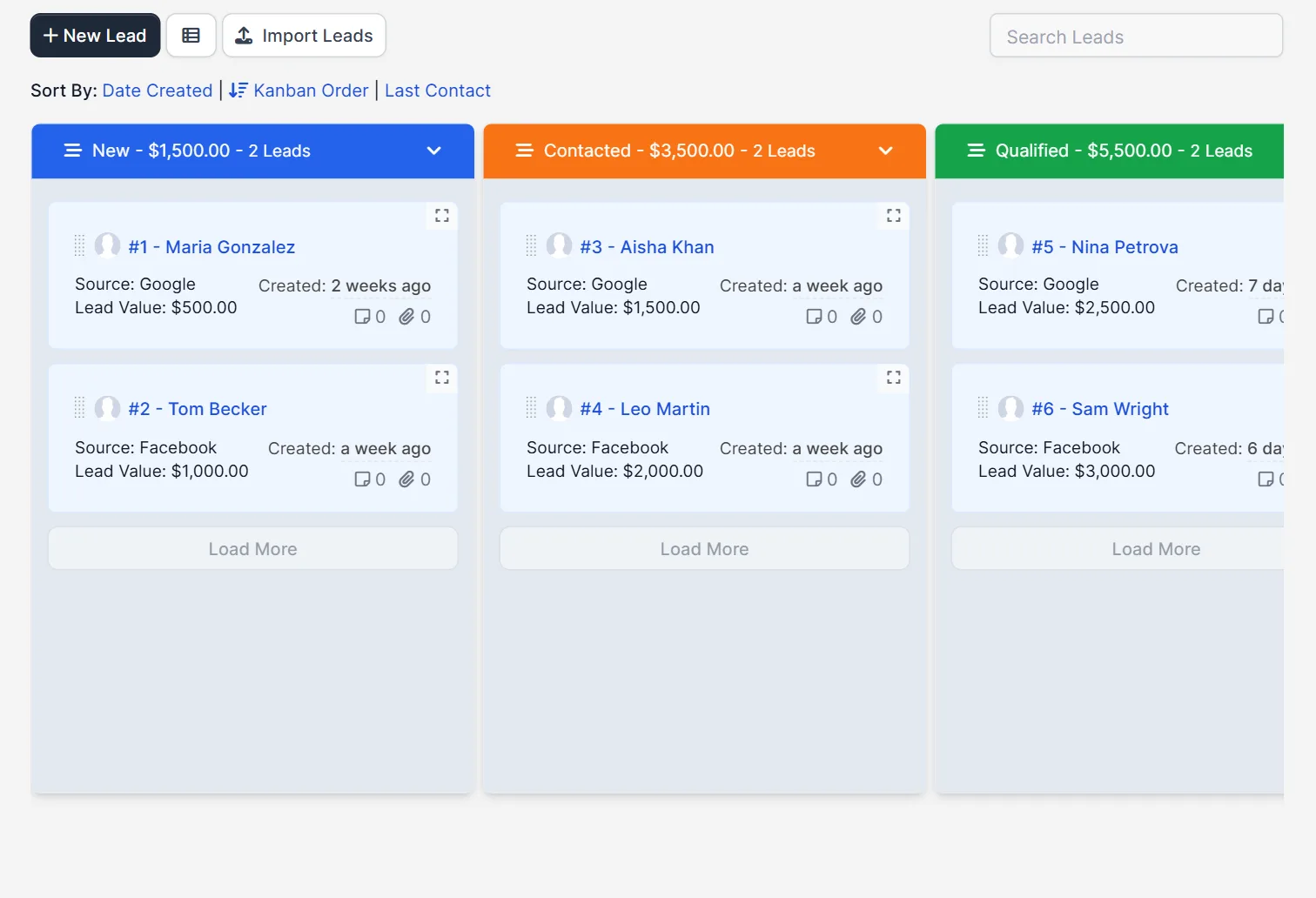
Click the grid button next to New Lead. The table changes to a board with one column per lead status. Each column header shows the status, the total value of its leads and the number of leads, for example New – $1,500.00 – 2 Leads. A card shows the number and name of the lead, the source, how long ago it was created and the lead value. At the bottom of each column, a button Load More brings more cards. Click the same button again to go back to the table.
Step 3: Open a card #
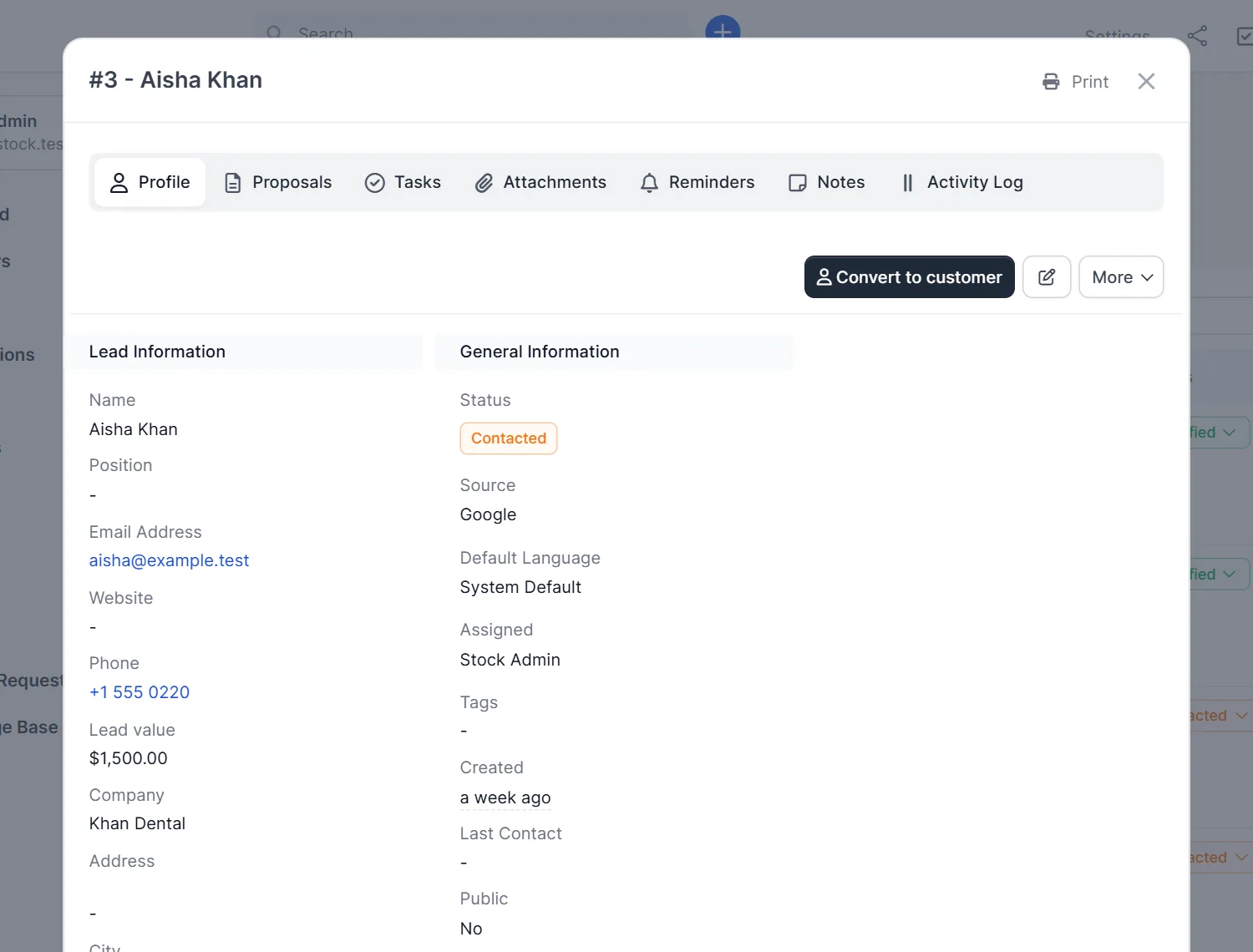
Click a lead name on a card of the Perfex CRM kanban board. A window opens with the lead, for example #3 – Aisha Khan. The tabs are Profile, Proposals, Tasks, Attachments, Reminders, Notes and Activity Log. The profile shows the status, the source, who is assigned, the tags, when it was created and the last contact. The button Convert to customer and a More menu are at the top. See Perfex CRM convert lead to customer.
Step 4: Use Perfex CRM kanban for tasks #
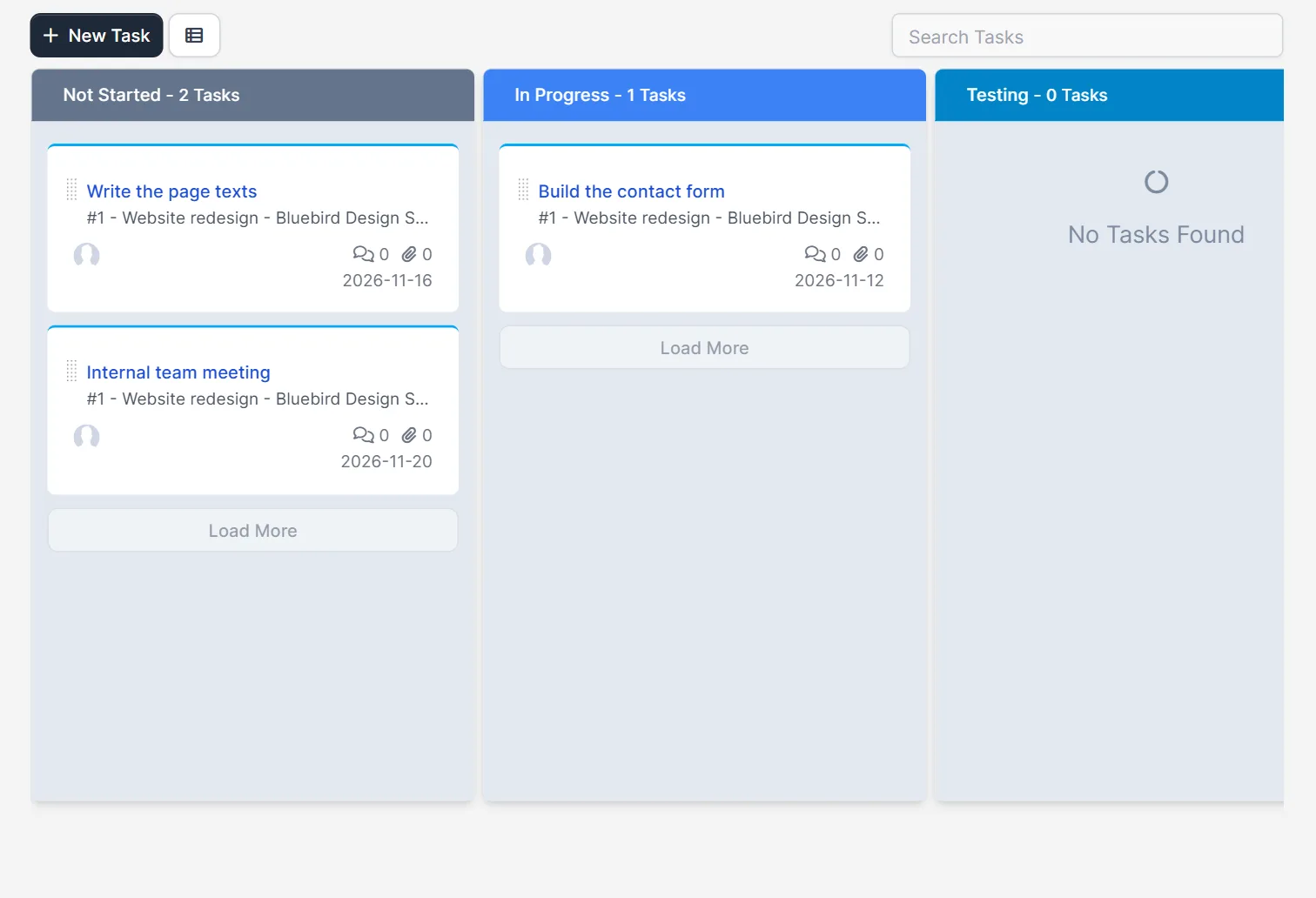
Open Tasks and click the switch button next to New Task. The board has a column for each task status: Not Started, In Progress, Testing, and further to the right Awaiting Feedback and Complete. Each header shows the count, such as Not Started – 2 Tasks. A card shows the task name, the project and customer, the counters for comments and files, the people and the due date. A column without cards says No Tasks Found. Read Perfex CRM tasks for the task fields.
Step 5: Sort and filter the cards #
Above the lead board, a line Sort By offers Date Created, Kanban Order and Last Contact. Use Last Contact to find leads that nobody called for a long time. A search box on the right finds a lead by name, and the Filters button narrows the board to a source, a person or a status.
Move a card to change its status #
The usual way to use Perfex CRM kanban is to drag a card from one column to the next. The status of the lead or task follows the column. We did not drag a card in our test, so check it with a test lead before you rely on it. The status names come from your settings. See Perfex CRM lead sources for sources and Perfex CRM ticket statuses for the idea of statuses.
Tips for boards #
- Keep the number of lead statuses small, four to six, so the board fits on one screen.
- Look at the Perfex CRM kanban board in a short daily meeting, column by column from right to left.
- Use the table when you need to export or search many rows, and the board when you need to see progress.
- Give every card an owner, so nobody waits for someone else.
- Check Perfex CRM project statuses to see how the other statuses work.
Not tested here: dragging a card to another column, the Filters button, the search box, and the board for projects. Read the official Perfex CRM help for more.
Related module: If a card should lead to a task or an email by itself, the Workflow Rules for Perfex CRM module lets you write “when this happens, do that” rules. Check the product page for the events it supports.
Frequently asked questions #
How do I switch to Perfex CRM kanban? #
Open Leads or Tasks and click the small switch button next to New Lead or New Task. Click it again to return to the table.
What do the columns mean? #
Each column is a status. For leads they are your lead statuses, and for tasks they are Not Started, In Progress, Testing, Awaiting Feedback and Complete.
What does a lead card show? #
The number and name, the source, how long ago it was created and the lead value.
Can I sort the lead cards? #
Yes. The Sort By line offers Date Created, Kanban Order and Last Contact.


