
- What the Perfex CRM PayPal security header error means
- Step 1: Open the PayPal settings
- Step 2: Check the values behind the Perfex CRM PayPal security header error
- Step 3: Match the test mode
- Step 4: Try the payment yourself
- Step 5: Use the other gateway if needed
- A short checklist
- Tips for PayPal payments
- Frequently asked questions
A customer clicks Pay Now on an invoice, chooses PayPal and sees a white page with one line: “Security header is not valid”. This is the Perfex CRM PayPal security header error. It means PayPal did not accept the login data that the CRM sent. This guide, tested on Perfex CRM 3.4.1, shows how we made the error appear, which settings cause it and how to fix them.
What the Perfex CRM PayPal security header error means #
The gateway called Paypal in the CRM talks to PayPal with three values: the PayPal API Username, the PayPal API Password and the API Signature. PayPal checks them first. If any of them is wrong, PayPal answers with the error code 10002 and the text “Security header is not valid”. We sent a request with wrong values to the sandbox of PayPal and got exactly that answer. The CRM then shows the text to the customer as it is.
Step 1: Open the PayPal settings #
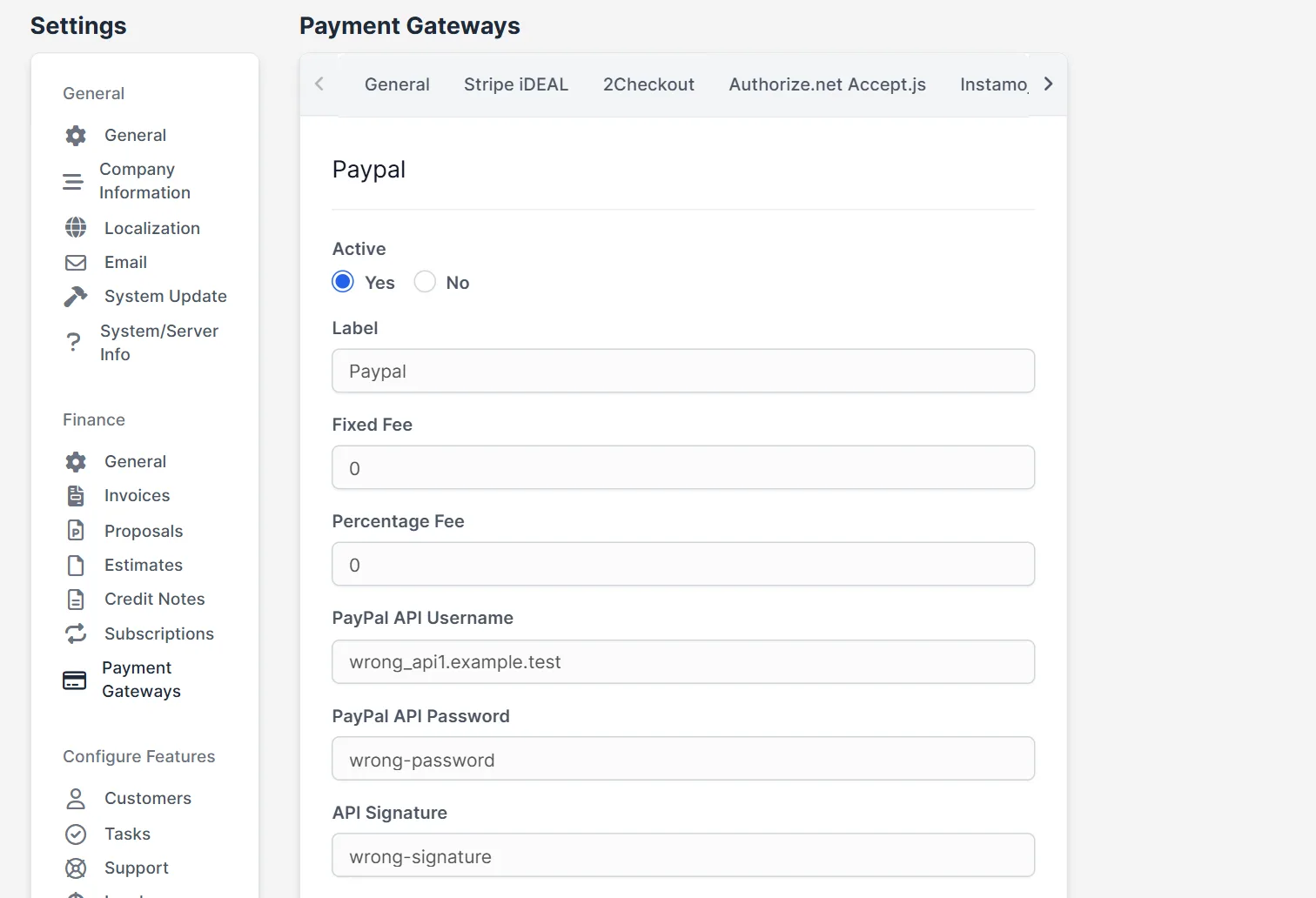
Open Setup > Settings and choose Payment Gateways under Finance. Click the tab Paypal. Do not mix it up with the tab Paypal Smart Checkout, which is a different gateway with a client ID and a secret. The tab Paypal has the fields Active, Label, Fixed Fee, Percentage Fee, the three API fields, a description, the currencies and the switch Enable Test Mode.
Step 2: Check the values behind the Perfex CRM PayPal security header error #
Copy the API username, password and signature again from your PayPal account, one by one, and paste them without a space at the start or the end. These three values are the usual cause of the Perfex CRM PayPal security header error. A single wrong character in the PayPal API signature is enough. In our test, we typed wrong values on purpose and the error appeared at once.
Step 3: Match the test mode #
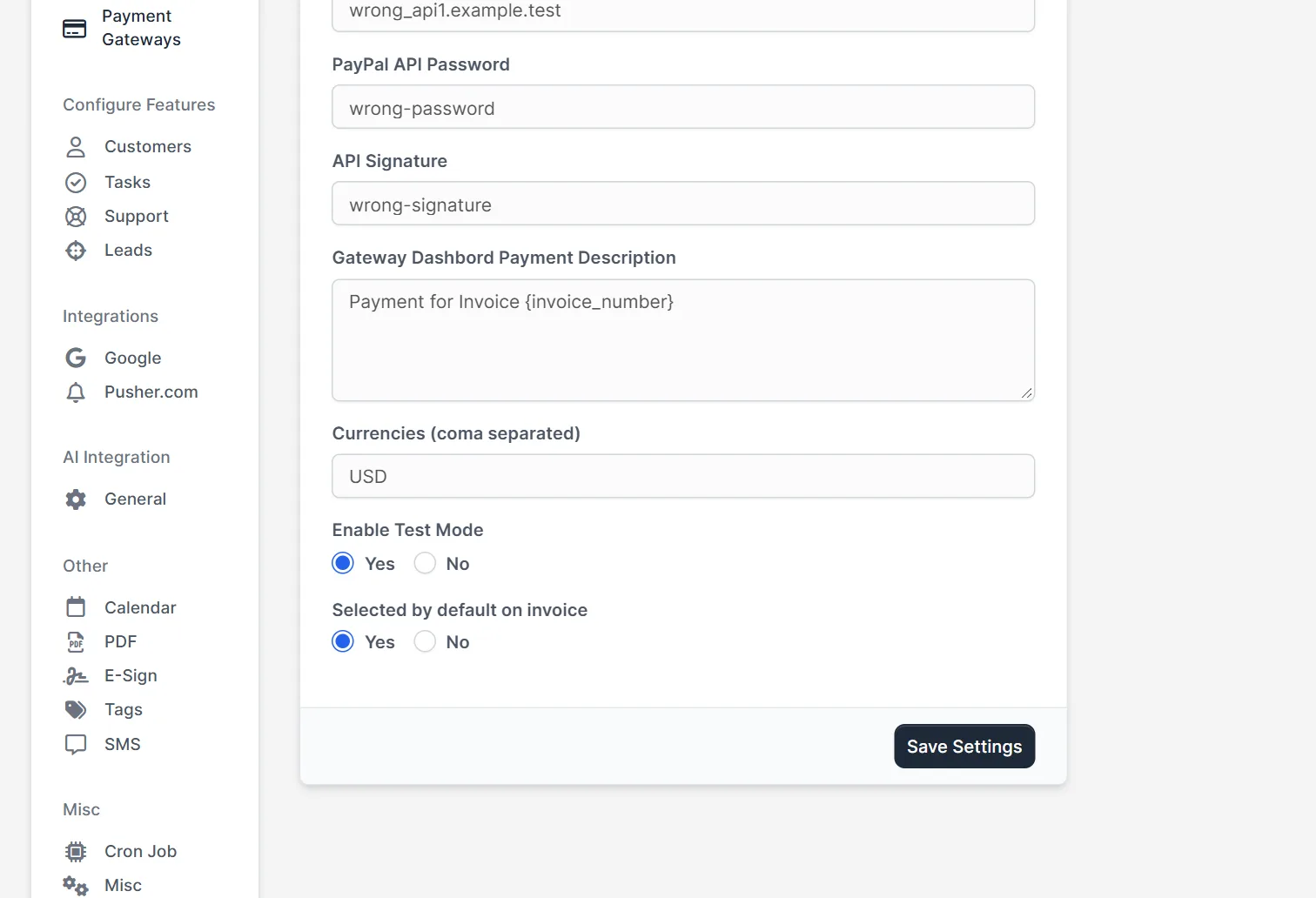
PayPal has two worlds: the sandbox for tests and the live system. Their credentials are different. If Enable Test Mode is Yes, the CRM talks to the sandbox, so you need sandbox credentials. If it is No, you need live credentials. Live values with test mode on, or sandbox values with test mode off, give the same Perfex CRM PayPal security header error. This matching rule is how PayPal works in general, and in our test we only proved the case of wrong values.
Step 4: Try the payment yourself #
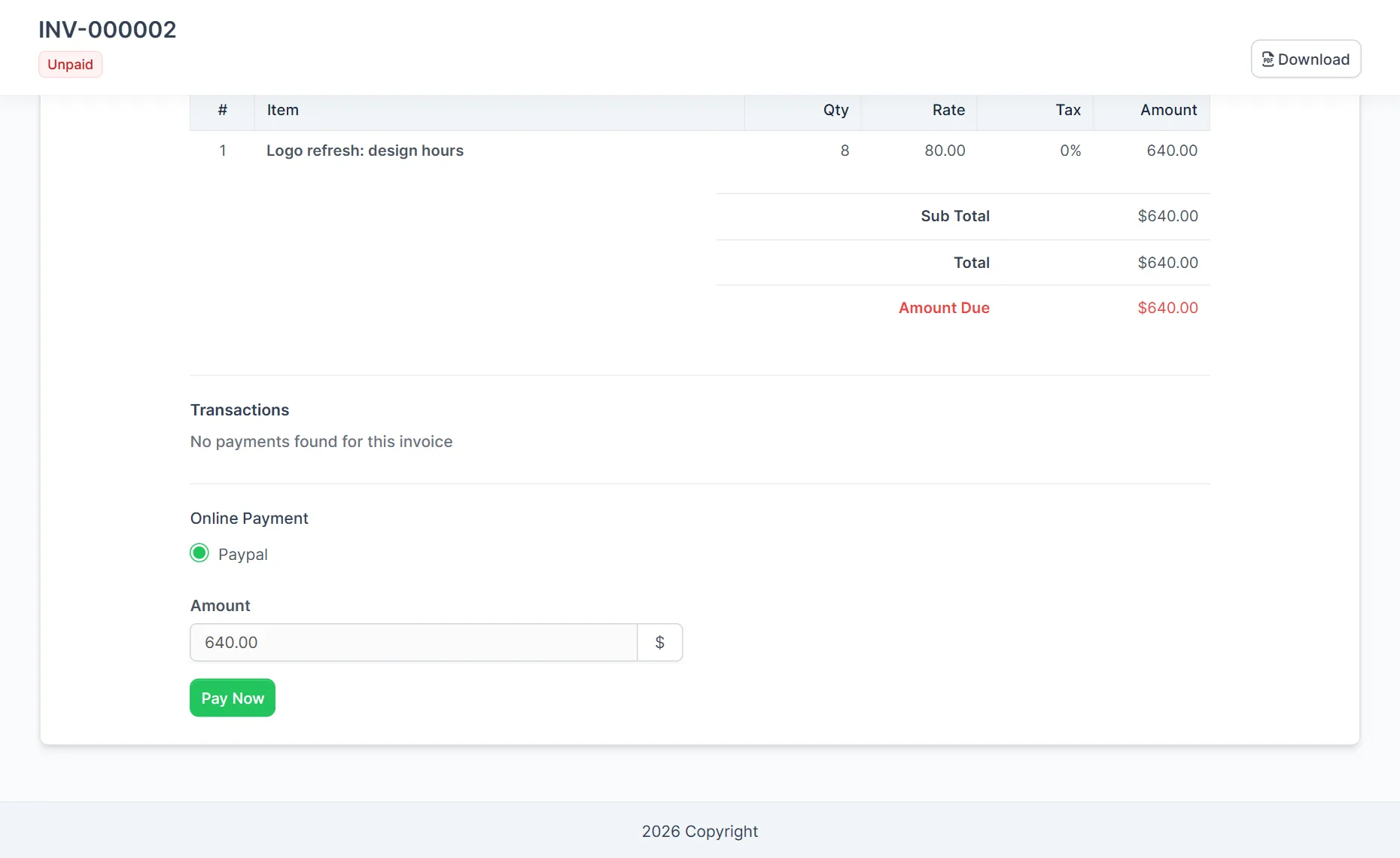
Open an unpaid invoice as the customer does. Allow PayPal on the invoice, open its public link and look for Online Payment with the option Paypal, the amount and the button Pay Now. Click the button. With correct values you go to PayPal. With wrong values you see the white page.

Step 5: Use the other gateway if needed #
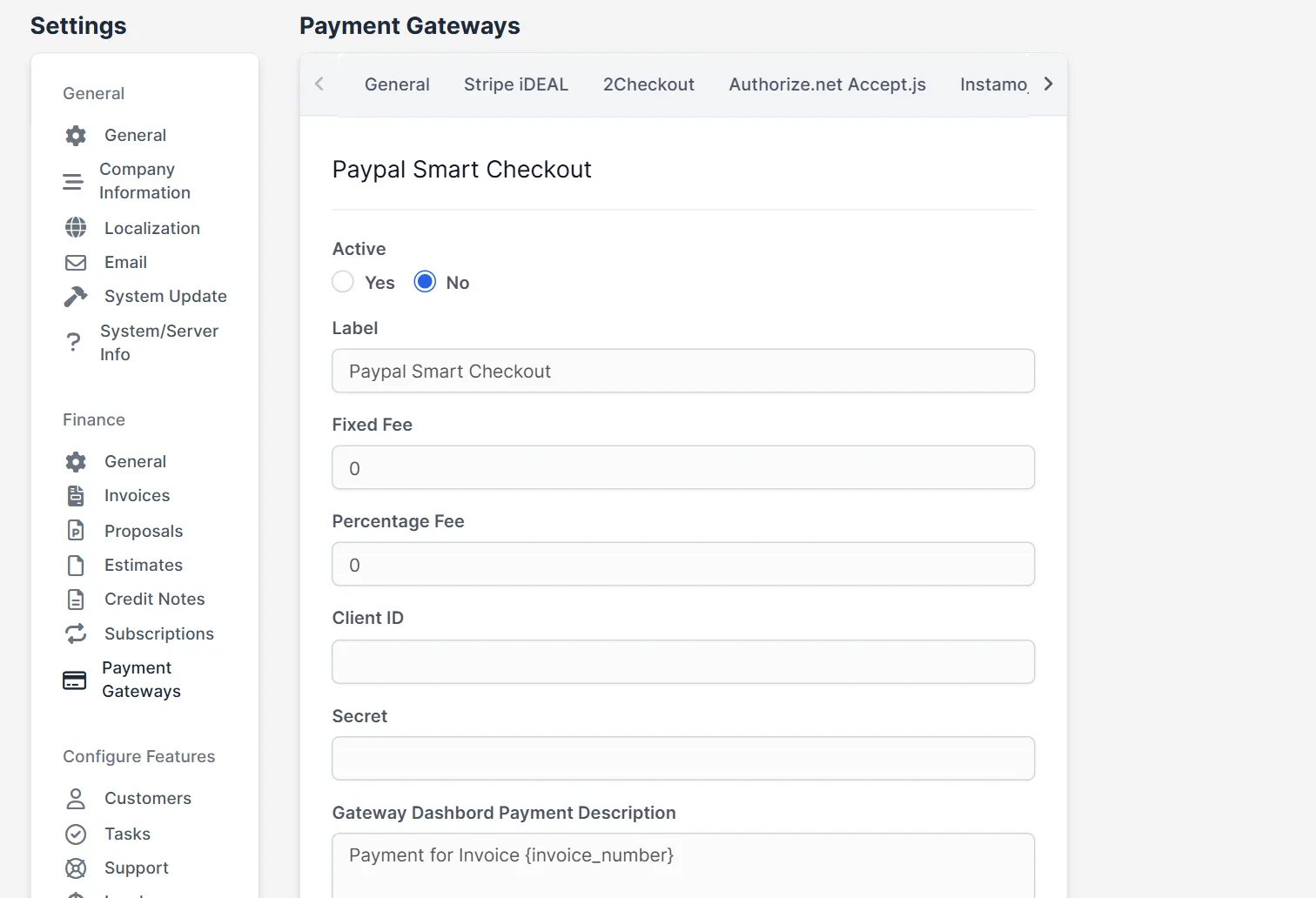
If you cannot get the API values for your PayPal account, look at the tab Paypal Smart Checkout. It asks for a Client ID and a Secret instead of the three API values. It is a separate gateway with its own switch, so the Perfex CRM PayPal security header error does not belong to it. Test it in the sandbox before you switch it on for customers.
A short checklist #
When the Perfex CRM PayPal security header error shows up, go through the list in this order. First, is the right tab active? Second, are the three values copied again without spaces? Third, does the test mode match the kind of credentials? Fourth, is the currency of the invoice listed in the field Currencies of the gateway, for example USD? Fifth, does a small test payment work in the sandbox? Write down the result of each point. Most problems end at the second or third point.
Tips for PayPal payments #
- Never send the PayPal API signature by email or chat. Paste it only into the settings.
- Keep the sandbox and the live values in a safe place and label them.
- Test with a small invoice after every change of credentials, so a Perfex CRM PayPal security header error shows up before a customer sees it.
- Read Perfex CRM payment methods not showing if PayPal does not appear on the invoice at all.
- Check Perfex CRM payment gateways and Perfex CRM currencies for the other settings.
Not tested here: a successful PayPal payment with correct sandbox values, live credentials in test mode, a currency that is missing from the Currencies field, the Smart Checkout gateway and the email a customer gets after paying. Read the official Perfex CRM help for more.
Related module: If you want to be told in another tool when an invoice is paid, the Webhooks for Perfex CRM module connects the CRM with services such as Zapier, Slack and Google Sheets.
Frequently asked questions #
What does the Perfex CRM PayPal security header error mean? #
PayPal did not accept the API username, password or signature that the CRM sent. PayPal answers with the text Security header is not valid.
Where do I fix it? #
Open Setup, Settings, Payment Gateways, the Paypal tab. Check the API username, API password and API signature.
Can test mode cause the error? #
Yes. Sandbox credentials only work with test mode on, and live credentials only with test mode off.
Is Paypal Smart Checkout the same gateway? #
No. It is a separate gateway that uses a client ID and a secret instead of the three API values.


