
- What Perfex CRM non-writable permissions mean
- Step 1: Open the System/Server Info page
- Step 2: Read the Files Permissions row
- Step 3: Find the folder in the message
- Step 4: Fix Perfex CRM non-writable permissions
- Step 5: Check the result
- Other places where Perfex CRM non-writable permissions show
- Tips for permissions
- Frequently asked questions
Uploads fail, PDFs are not saved or an update stops. In many cases the cause is the same: Perfex CRM cannot write to a folder. This guide on Perfex CRM non-writable permissions, tested on Perfex CRM 3.4.1, shows where the CRM tells you which folder is the problem, what the message looks like and how to fix the folder permissions on your server.
What Perfex CRM non-writable permissions mean #
The CRM saves files in the folder uploads, in many sub folders, and in the folder temp. The PHP process of your web server must be allowed to write there. If it is not, the folder is non-writable, and every function that saves a file into it can fail. The same problem has other faces: a bulk PDF export that stops with the text “temp folder is not writable. You need to change the permissions to 0755”, and an update that says “Temporary directory not writable”. The first step is always to find the exact folder.
Step 1: Open the System/Server Info page #
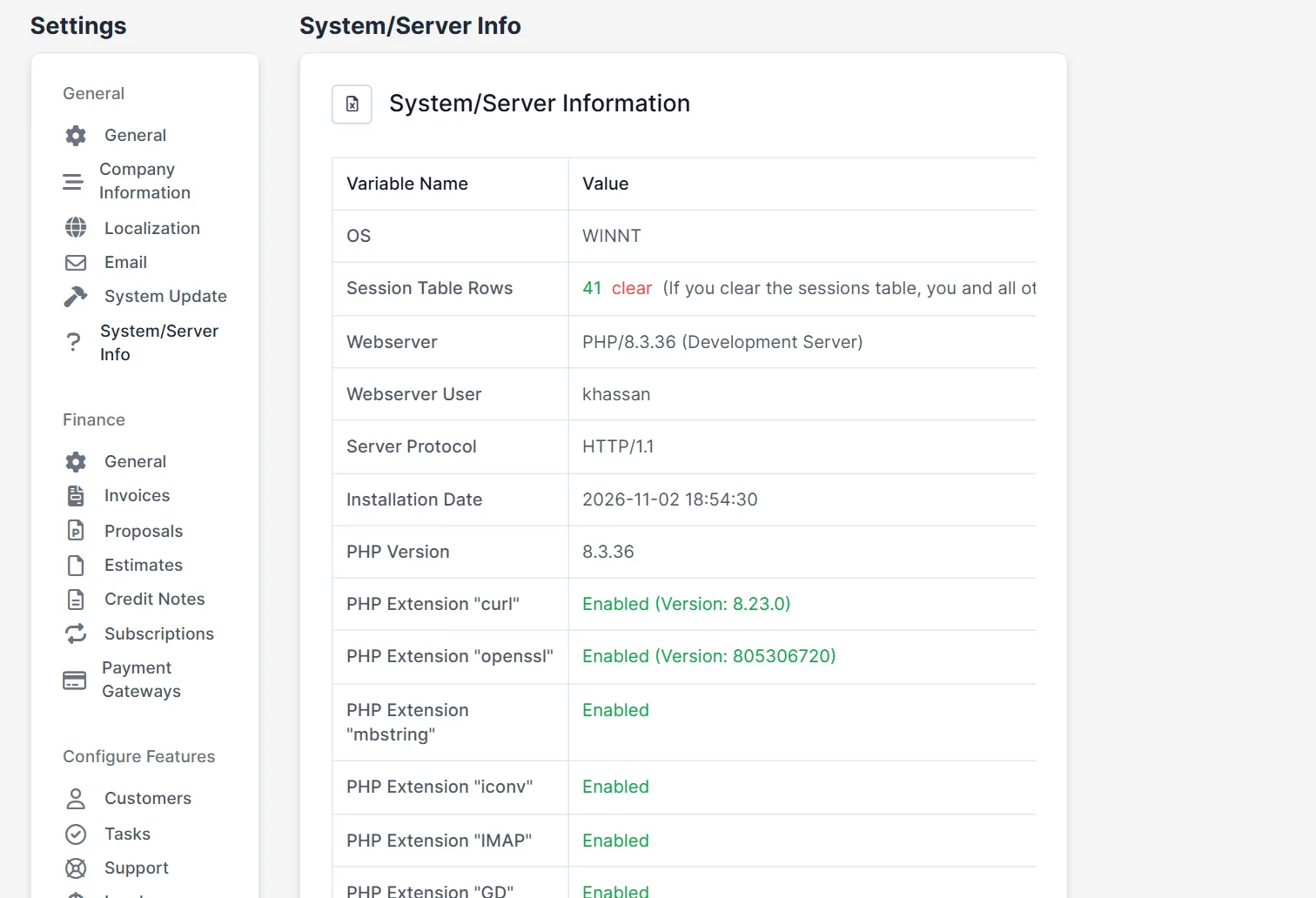
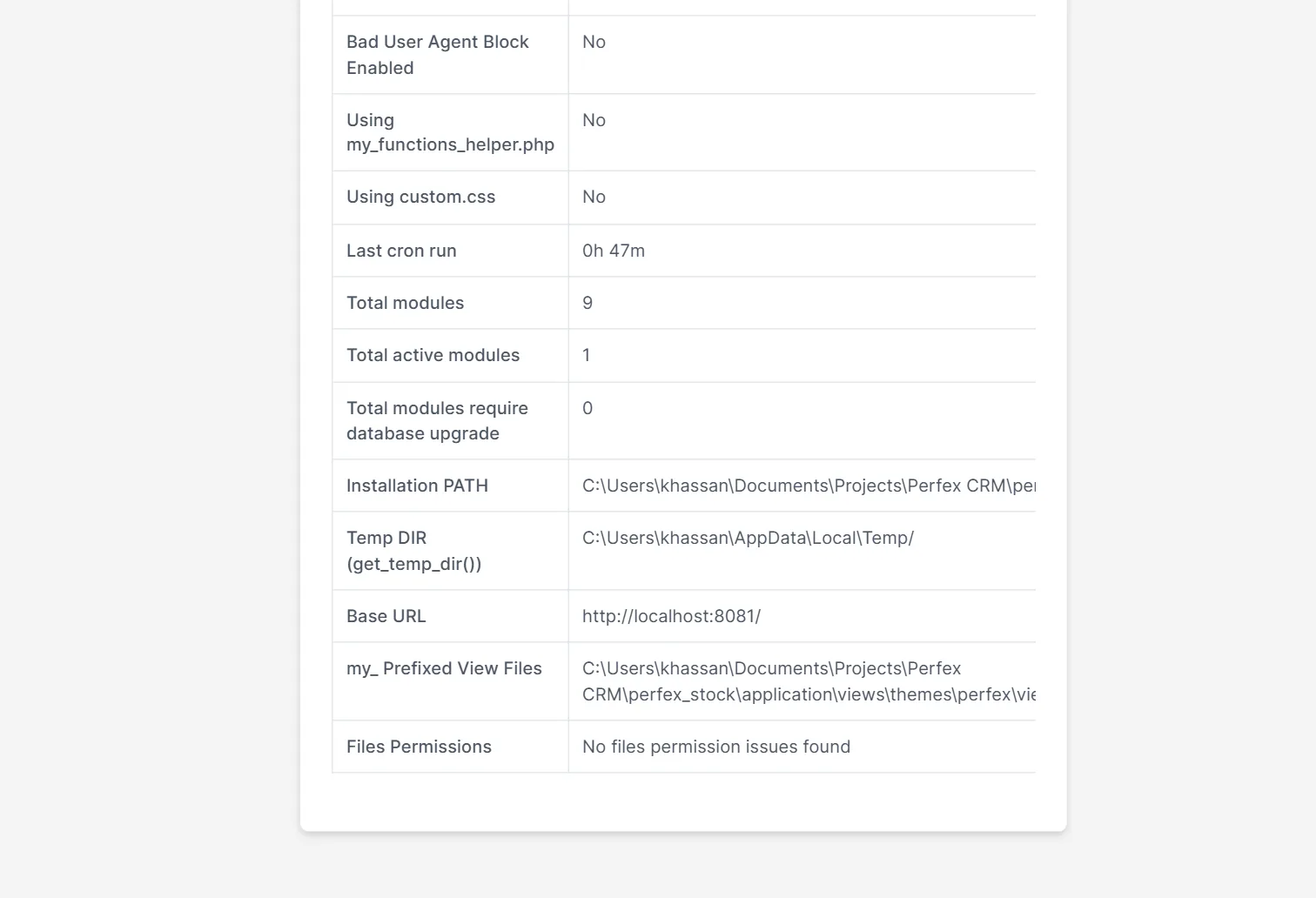
Open Setup > Settings and choose System/Server Info under General. The page lists the operating system, PHP version, PHP extensions and paths. Scroll to the end of the table. The row Files Permissions is the check for Perfex CRM non-writable permissions.
Step 2: Read the Files Permissions row #
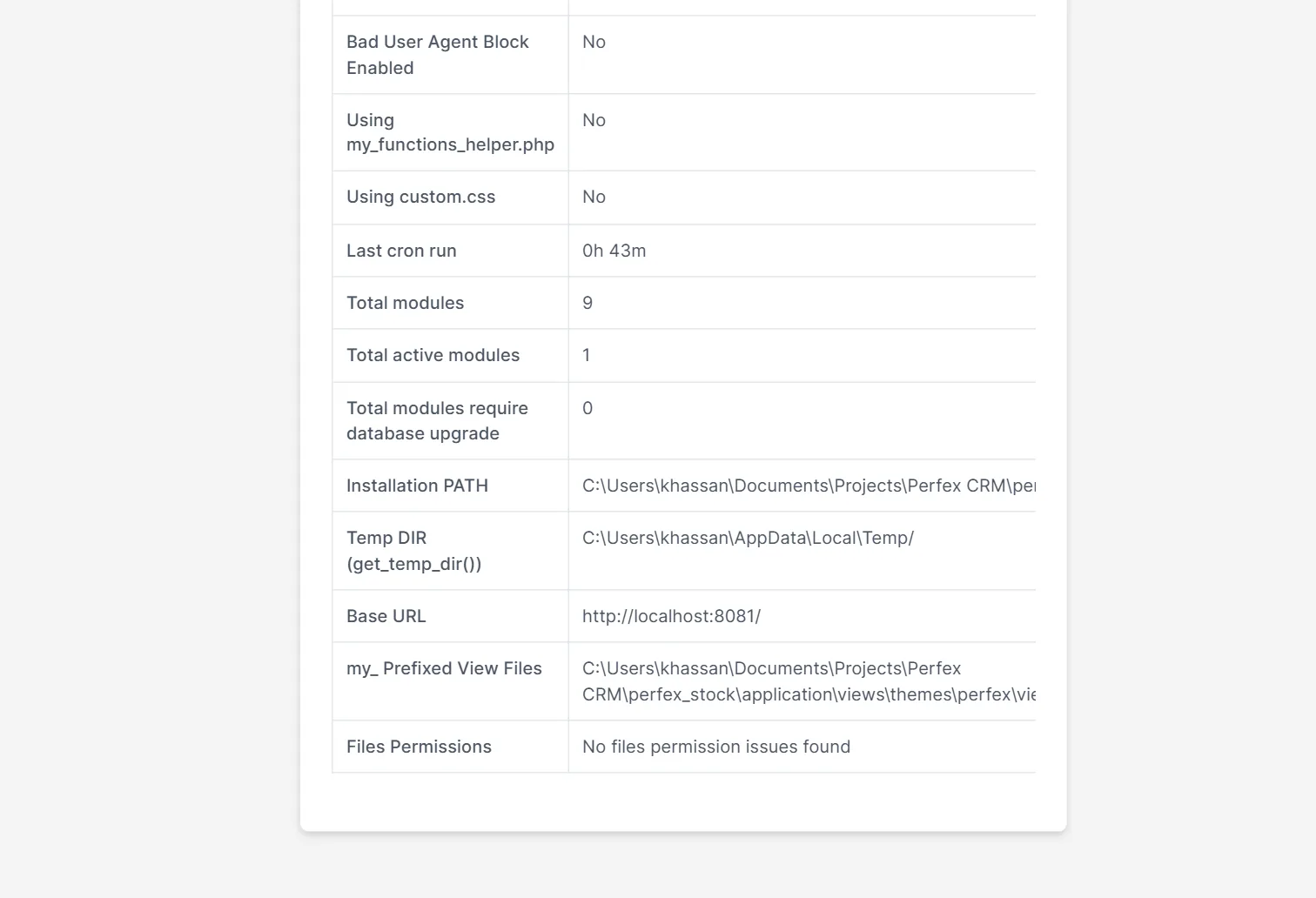
When everything is fine, the row says No files permission issues found. Note the row Installation PATH above it. It tells you where the CRM files are on the server, so you know where to look for the folders.
Step 3: Find the folder in the message #
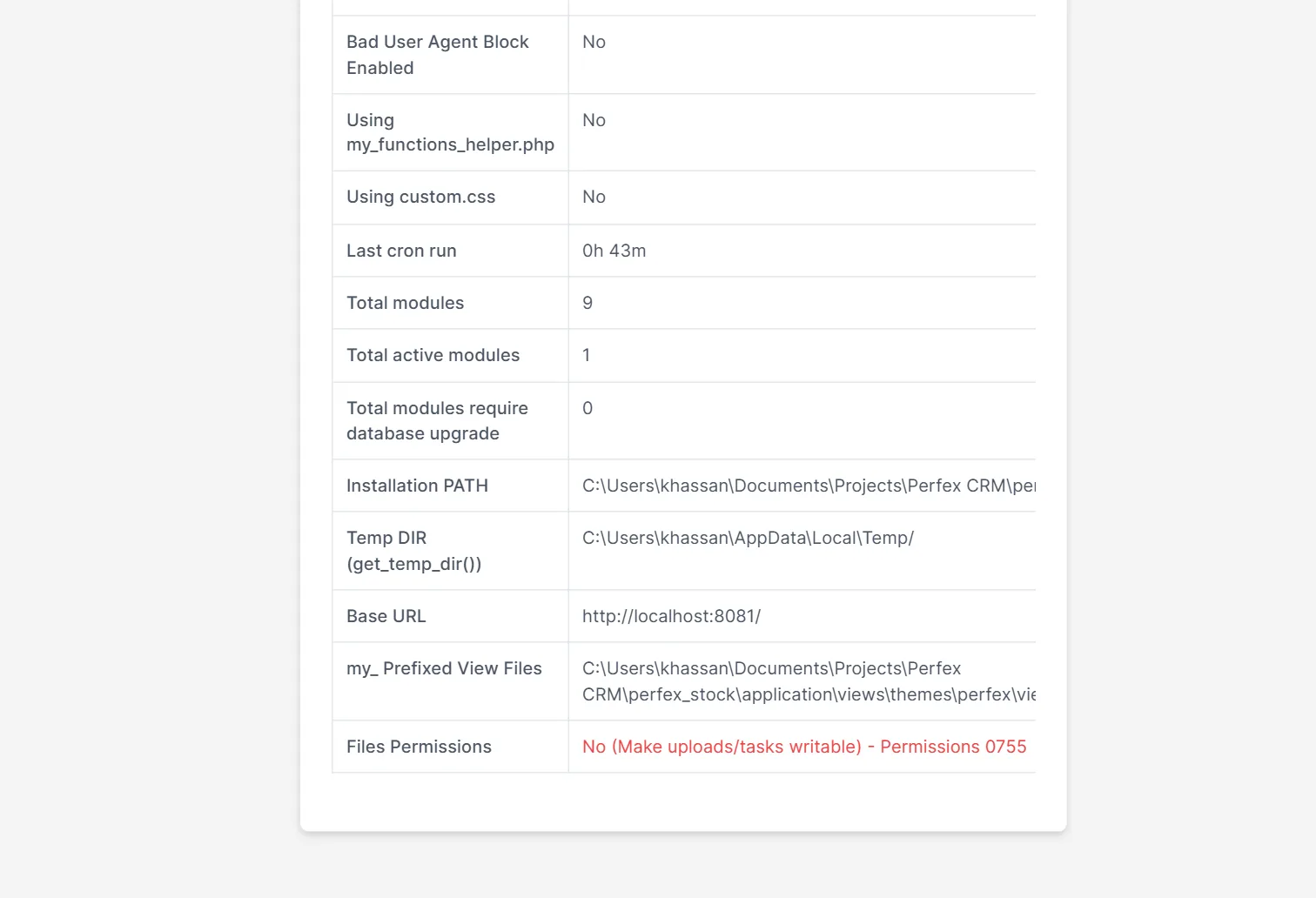
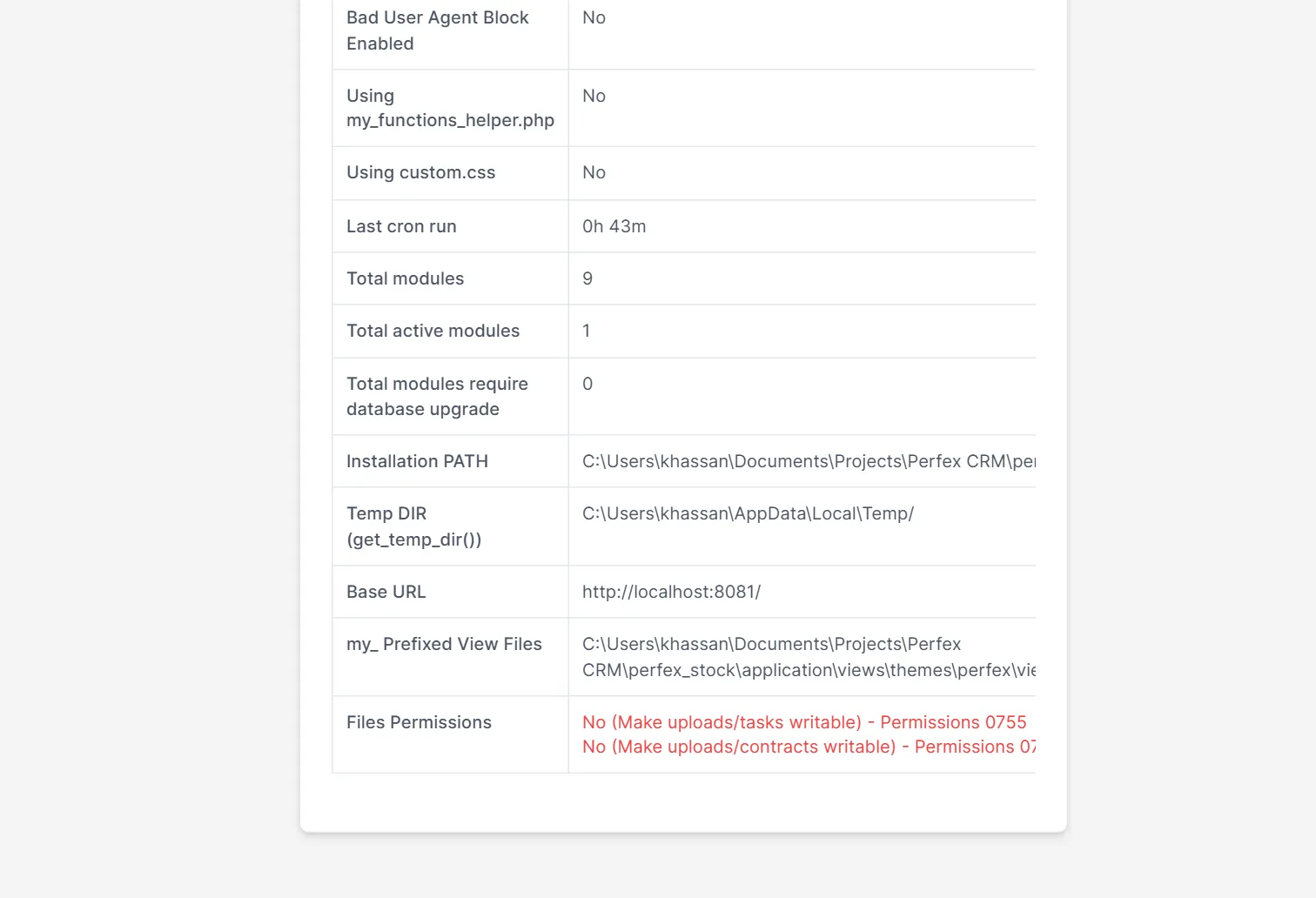
When a folder cannot be written, the row shows a red line such as No (Make uploads/tasks writable) – Permissions 0755. The CRM checks the sub folders of uploads, for example estimates, proposals, ticket_attachments, tasks, projects, leads, invoices, expenses, contracts, company, clients and credit_notes. Each folder with a problem gets its own red line. To test this, we renamed the folder uploads/tasks and the line appeared. We did not try to make a folder read-only on our Windows test machine. A missing folder fails the same check, so we used that to show the message. On a real server the cause is usually the owner or the mode. Each red line is one of the Perfex CRM non-writable permissions to fix.
Step 4: Fix Perfex CRM non-writable permissions #
The message asks for the permissions 0755. In cPanel, open File Manager, right click the folder, choose Change Permissions and set 0755. On a server with SSH, a command such as chmod 755 on the folder does the same. If the folder still cannot be written, the folder belongs to another user than the one that runs PHP. Change the owner to the web user, or ask your host to do it. Avoid 0777 on a shared server, because every account on it could then write to the folder.
Step 5: Check the result #
Reload the System/Server Info page to see whether the Perfex CRM non-writable permissions are gone. The red lines should be gone and the row should say that no problems were found again. Then repeat the action that failed, such as an upload to a task or a contract. If the row is clean and the action still fails, the cause is another limit, for example the PHP upload size. Read Perfex CRM file upload size.
Other places where Perfex CRM non-writable permissions show #
The check page covers the uploads folders only. The temp folder has its own message when you use a bulk PDF export, and the update function needs a writable temporary directory. Sessions can fail too when the PHP session folder is not writable, and then the CRM logs a line that the configured save path is not writable by the PHP process. When you move the CRM to a new server, check all these folders in the same visit. Our guide to Perfex CRM bulk PDF export shows the export itself.
Tips for permissions #
- Fix Perfex CRM non-writable permissions right after an installation or a server move, not when the first upload fails.
- Set folder permissions to 0755 and file permissions to 0644 as a rule.
- Keep a note of the owner and group of the working folders before a migration.
- Run the System/Server Info check after every update of the CRM.
- Follow Perfex CRM migrate to a new server when you move, and Perfex CRM update manually for updates.
Not tested here: changing permissions with cPanel or SSH, a folder owned by another user, the bulk PDF export message, the update message and the PHP session folder. Read the official Perfex CRM help for more.
Related module: Moving a CRM often means moving custom modules too. If you need a module to be adjusted for your server or workflow, read about custom Perfex CRM modules.
Frequently asked questions #
Where do I find Perfex CRM non-writable permissions? #
Open Setup, Settings, System/Server Info and read the row Files Permissions at the end of the table.
What permissions should the folders have? #
The message asks for 0755. Avoid 0777 on a shared server.
Why is a folder still not writable after chmod 755? #
The folder may belong to another user than the one that runs PHP. Change the owner or ask your host.
Does the CRM show the problem anywhere else? #
Yes. A bulk PDF export can stop with a message about the temp folder, and the update function needs a writable temporary directory.


