
- What Perfex CRM contract templates are
- Step 1: Open the Templates tab
- Step 2: Add one of your Perfex CRM contract templates
- Step 3: Use merge fields
- Step 4: Insert one of the Perfex CRM contract templates
- Step 5: Check the customer view
- Build a small set of templates
- Tips for templates
- Frequently asked questions
Most contracts say the same things with a few names and dates changed. Perfex CRM contract templates let you write the text once and reuse it in every new contract. This guide, tested on Perfex CRM 3.4.1, shows where templates live, how to add one, how merge fields fill in names and dates, and how to insert a template into a contract.
What Perfex CRM contract templates are #
A template is saved text with a title. It is not a contract. A contract belongs to one customer and has dates and a value, while a template has neither, so you can insert it into any contract. Perfex CRM contract templates work well together with merge fields. A merge field is a short code in curly braces, such as {client_company}, that the CRM replaces with real data when the customer opens the contract.
Step 1: Open the Templates tab #
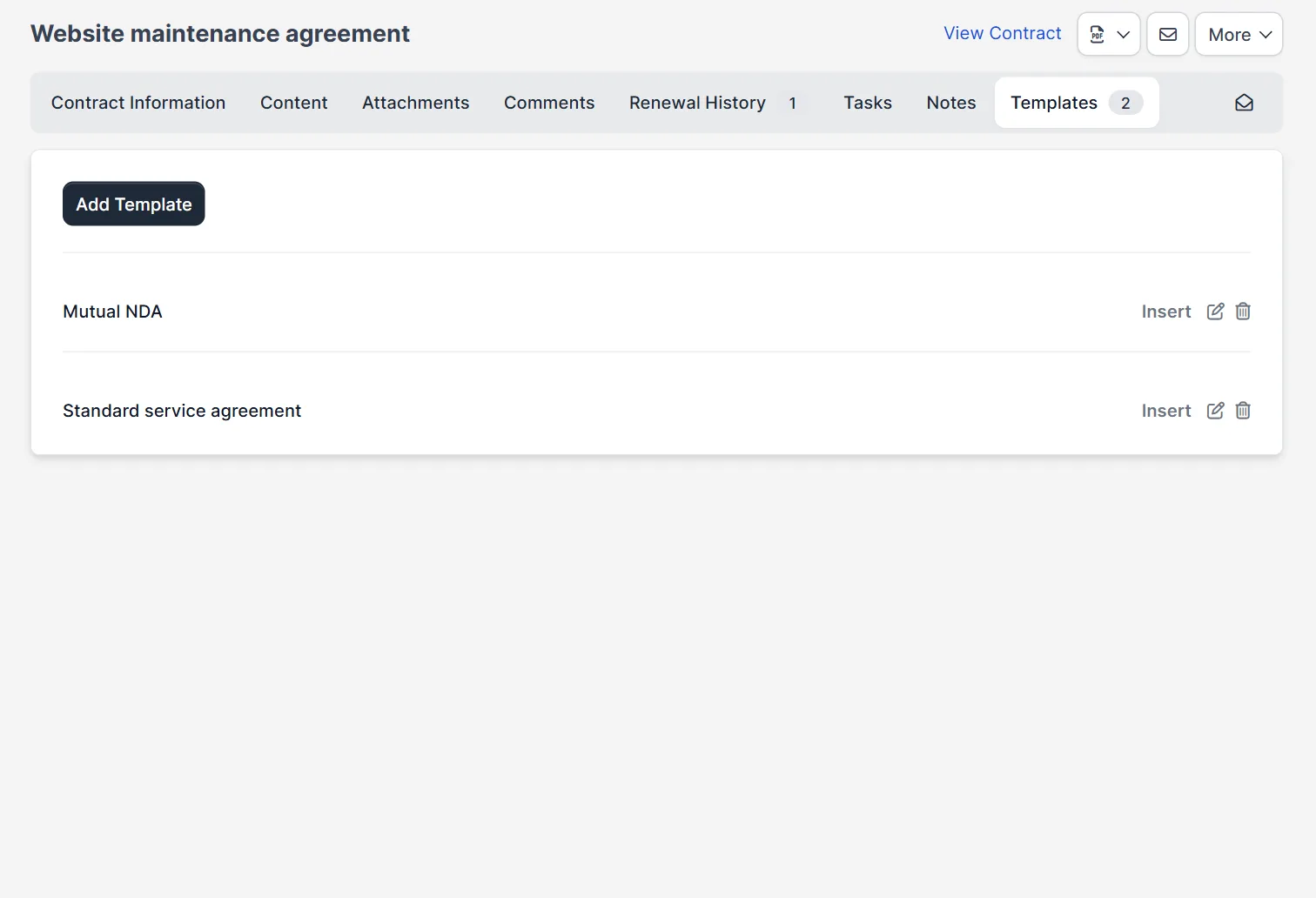
Open Contracts, click a contract and then the tab Templates. A number on the tab shows how many templates exist. The list has one row per template with Insert, an edit icon and a delete icon, and the button Add Template sits on top. Templates are managed inside a contract, so create or open any contract first. In the code, staff without the permission to view all templates see only the templates they created.
Step 2: Add one of your Perfex CRM contract templates #
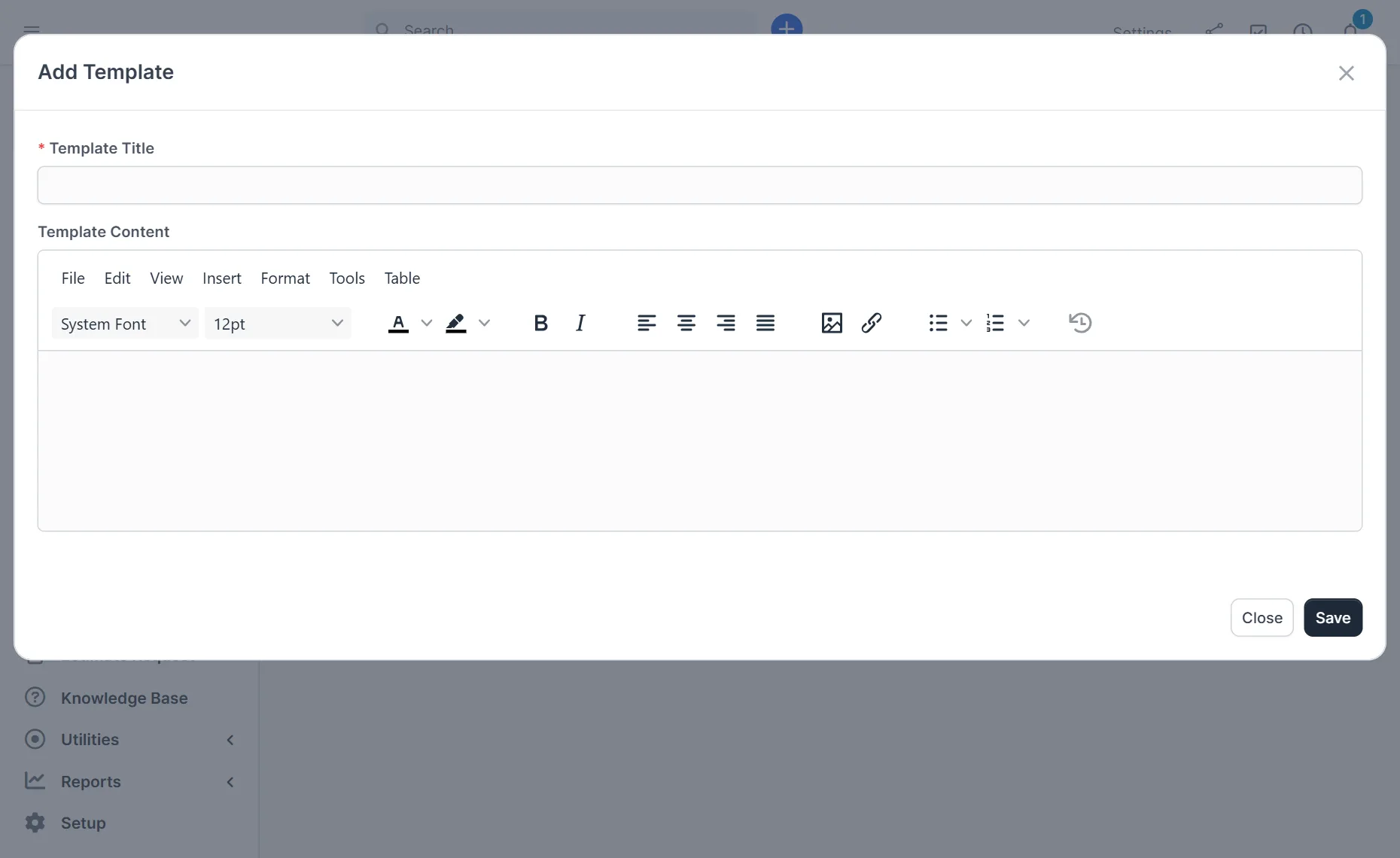
Click Add Template. The window has Template Title, which is required, and Template Content, an editor like the one used for contracts. Write the text, add headings and clauses, and click Save. Good Perfex CRM contract templates have a clear title. Give the title a use, such as Standard service agreement or Mutual NDA, so your team picks the right one.
Step 3: Use merge fields #
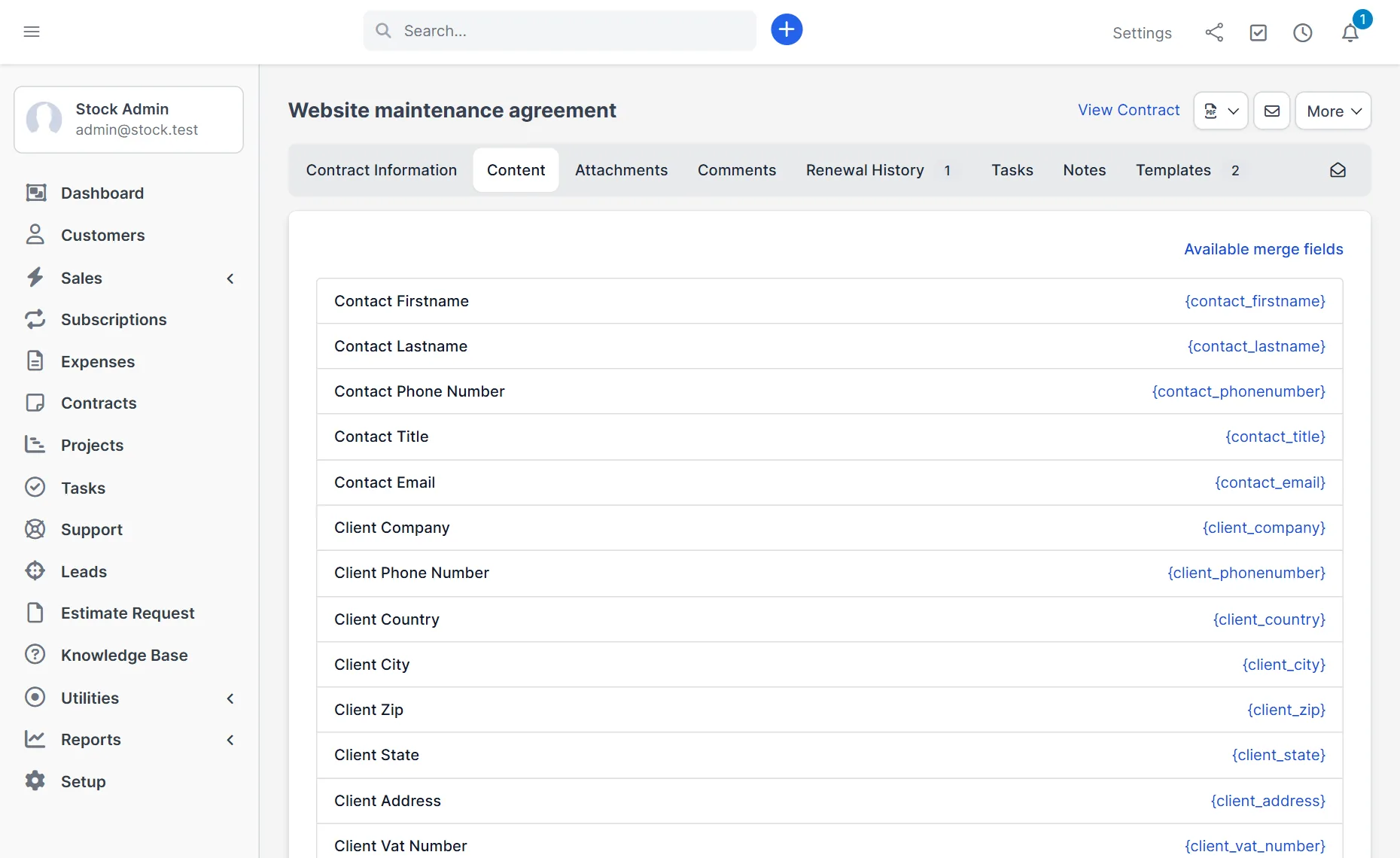
Open the Content tab of a contract and click Available merge fields. A list shows each field with its code, for example {contact_firstname}, {client_company}, {client_address} and {client_vat_number}. The code of the 3.4.1 release also has contract fields: {contract_subject}, {contract_type}, {contract_datestart}, {contract_dateend}, {contract_contract_value} and {contract_description}. Type a code where the data belongs. In our tests, the customer view replaced {client_company}, {contract_subject}, {contract_type}, both dates and the value with the real data.
Step 4: Insert one of the Perfex CRM contract templates #
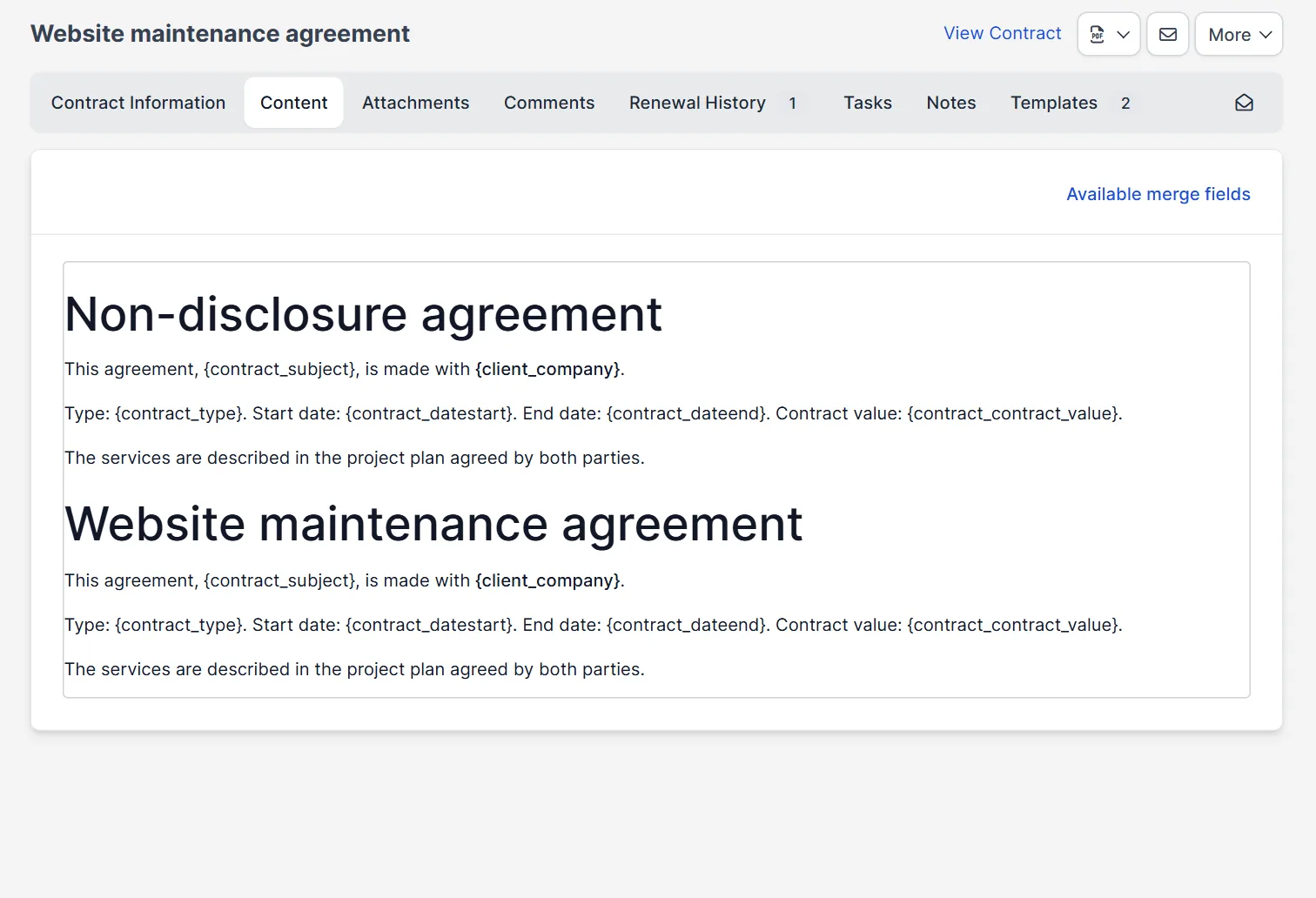
On the Templates tab, click Insert next to a template. The CRM opens the Content tab and adds the text. In our test, the template Mutual NDA appeared above the text that was already in the contract. Edit what you need and click Save. We did not save after the insert, so read the result before you send the contract.
Step 5: Check the customer view #
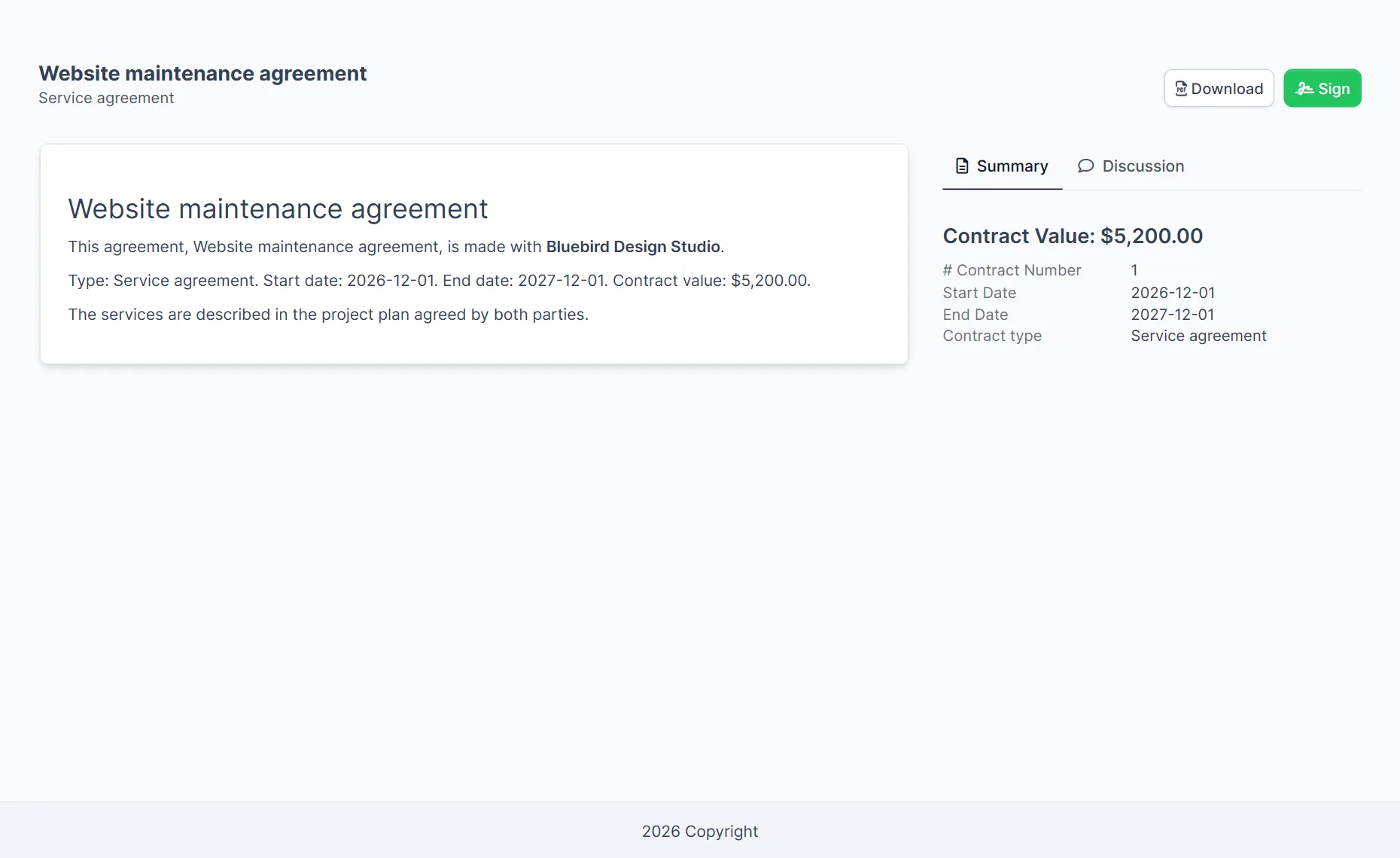
Click View Contract at the top right to see what the customer sees. The merge fields now show the company name, the dates and the value, and the right side lists the contract number, start date, end date and type. Look for codes in curly braces that are still visible. A code with a typing mistake is not recognised, so it stays in the text.
Build a small set of templates #
Start with the two or three contracts you use most. Write each one as one of your Perfex CRM contract templates, with merge fields in place of every name, date and amount. Keep clauses that change from customer to customer, such as the scope of work, short and clearly marked, so nobody sends the wrong text. Review the templates once a year with your lawyer, because an old clause in a template is copied into every new contract.
Tips for templates #
- Use one merge field everywhere for the same fact, so one change updates all contracts.
- Name your Perfex CRM contract templates by use, not by date, for example Standard service agreement.
- Test every new template of your Perfex CRM contract templates on a dummy customer, and open View Contract before you send it to a real one.
- Set the contract type, value and dates in the Contract Information tab first, because the merge fields read them.
- For expiry dates and renewals, read Perfex CRM contract expiry, and for the contract types, read Perfex CRM contract types.
Not tested here: saving the contract after an insert, editing or deleting a template, what a staff member without the template permission sees, and merge fields in the PDF of a contract. Read the official Perfex CRM help for more.
Related module: Contracts are documents. If you also need to control how files are stored and shared, the Document Management Module for Perfex CRM covers the document lifecycle in one place.
Frequently asked questions #
Where do I add Perfex CRM contract templates? #
Open a contract, click the Templates tab and click Add Template. Give it a title, write the content and save.
What are merge fields? #
Short codes in curly braces, such as {client_company}, that the CRM replaces with real data when the customer opens the contract.
How do I use a template in a contract? #
Open the Templates tab of the contract and click Insert. The text is added to the Content tab.
Does inserting a template change the contract at once? #
It adds the text to the editor. Check it and save the contract to keep the change.


