
- The five Perfex CRM project statuses
- Step 1: Read the Perfex CRM project statuses on the project list
- Step 2: Filter by status
- Step 3: Change the status in the project form
- Step 4: Use the Mark as menu
- Step 5: Mark a project as finished
- Which status to use
- Tips for project statuses
- Frequently asked questions
Every project in the CRM has a status, and the status tells your team and your customer where the work stands. Perfex CRM project statuses are a fixed list of five values. This guide, tested on Perfex CRM 3.4.1, shows what each one means, where to change it and what happens when you mark a project as finished.
The five Perfex CRM project statuses #
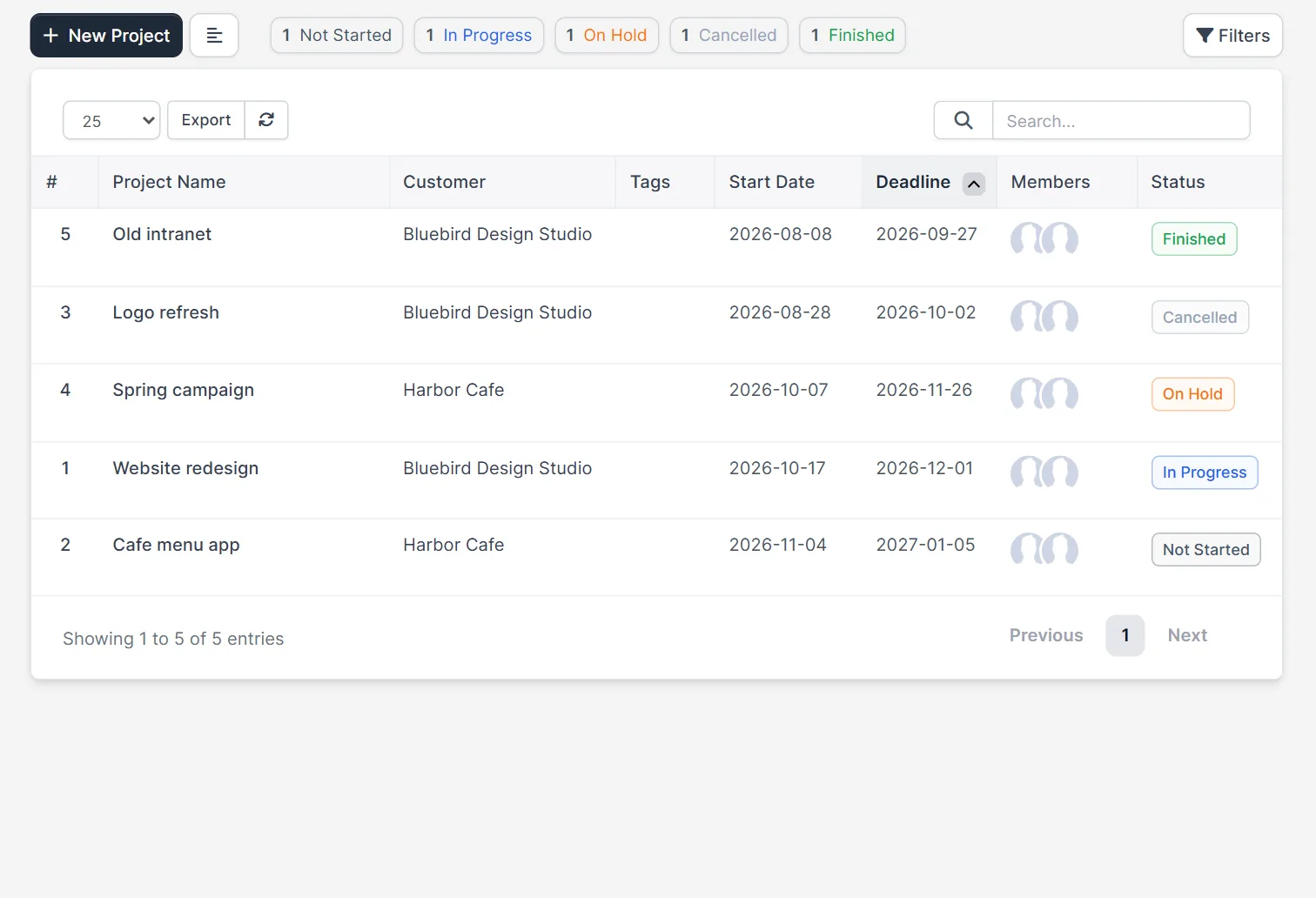
The statuses are Not Started, In Progress, On Hold, Cancelled and Finished. Each has its own color on the project list. Not Started is gray, In Progress is blue, On Hold is orange, Finished is green and Cancelled is light gray. The CRM does not have a Setup page to add a status. The list is built into the code, so a developer would need a code hook to change it.
Step 1: Read the Perfex CRM project statuses on the project list #
Open Projects in the main menu. The badges at the top show how many projects have each status, for example 1 Not Started, 1 In Progress and 1 On Hold. The table has a Status column on the right. Use the badges as a quick overview of the workload.
Step 2: Filter by status #
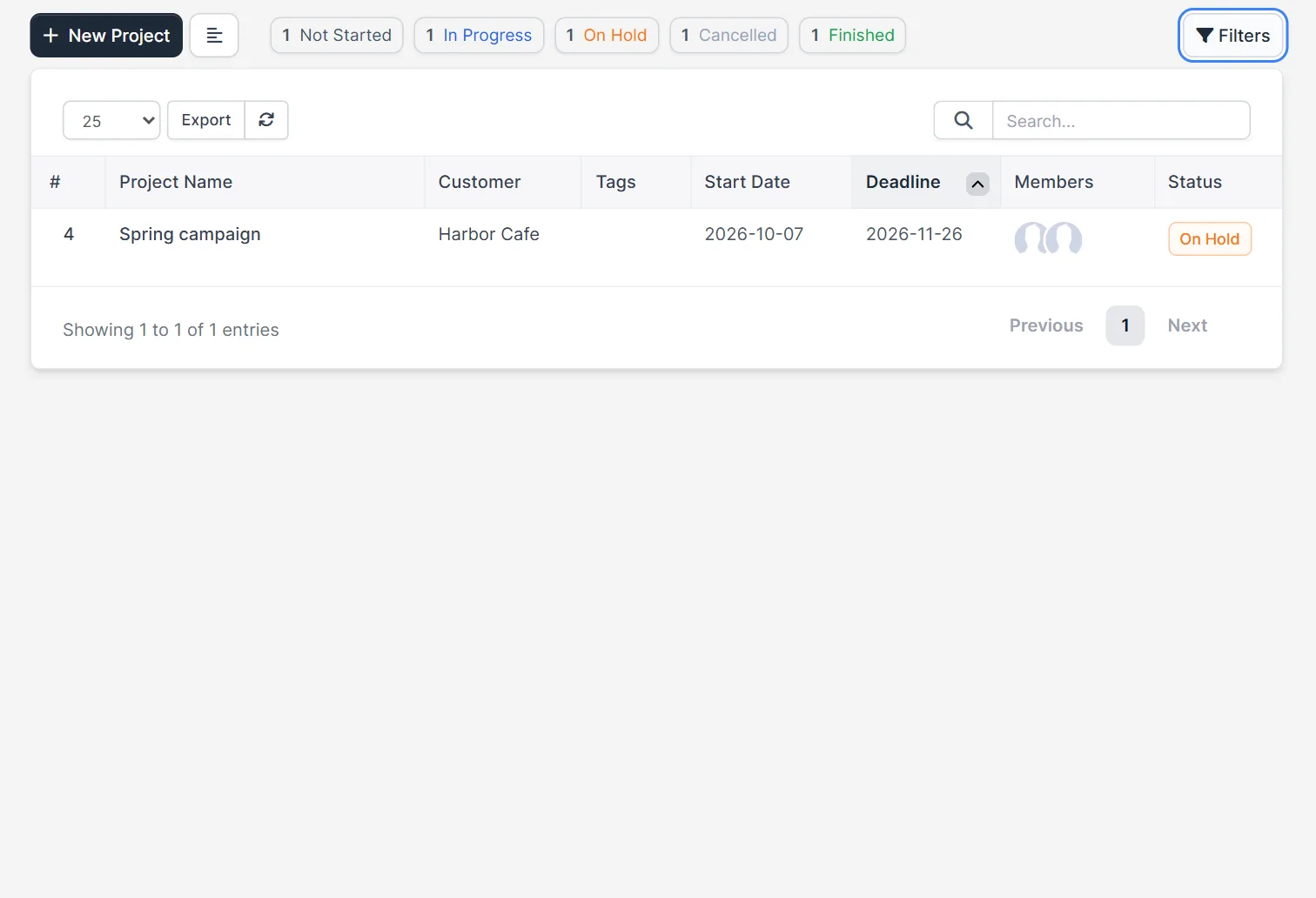
Click one of the badges, for example On Hold. The table then shows only those projects. Click it again to remove the filter. This is the fastest way to find projects that wait for a customer, so you can write to them. Filters like this make the Perfex CRM project statuses useful, because they turn colors into a to-do list.
Step 3: Change the status in the project form #
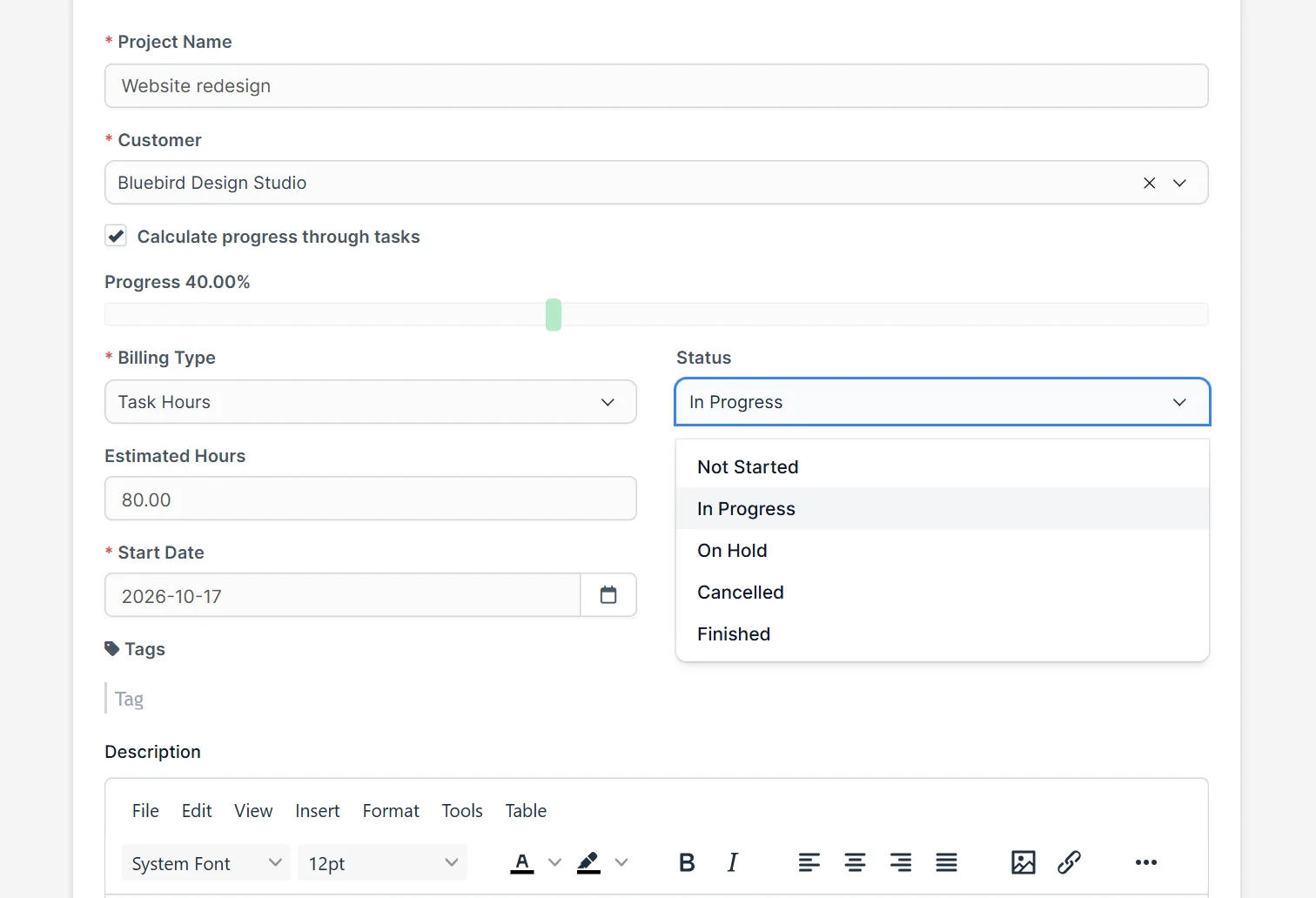
Open a project, click More and then Edit Project. The Status field is a list with the five values, next to Billing Type. Pick the new status and save. Use this way when you also change dates, the customer or the estimated hours. The five Perfex CRM project statuses are the same in every form and menu.
Step 4: Use the Mark as menu #
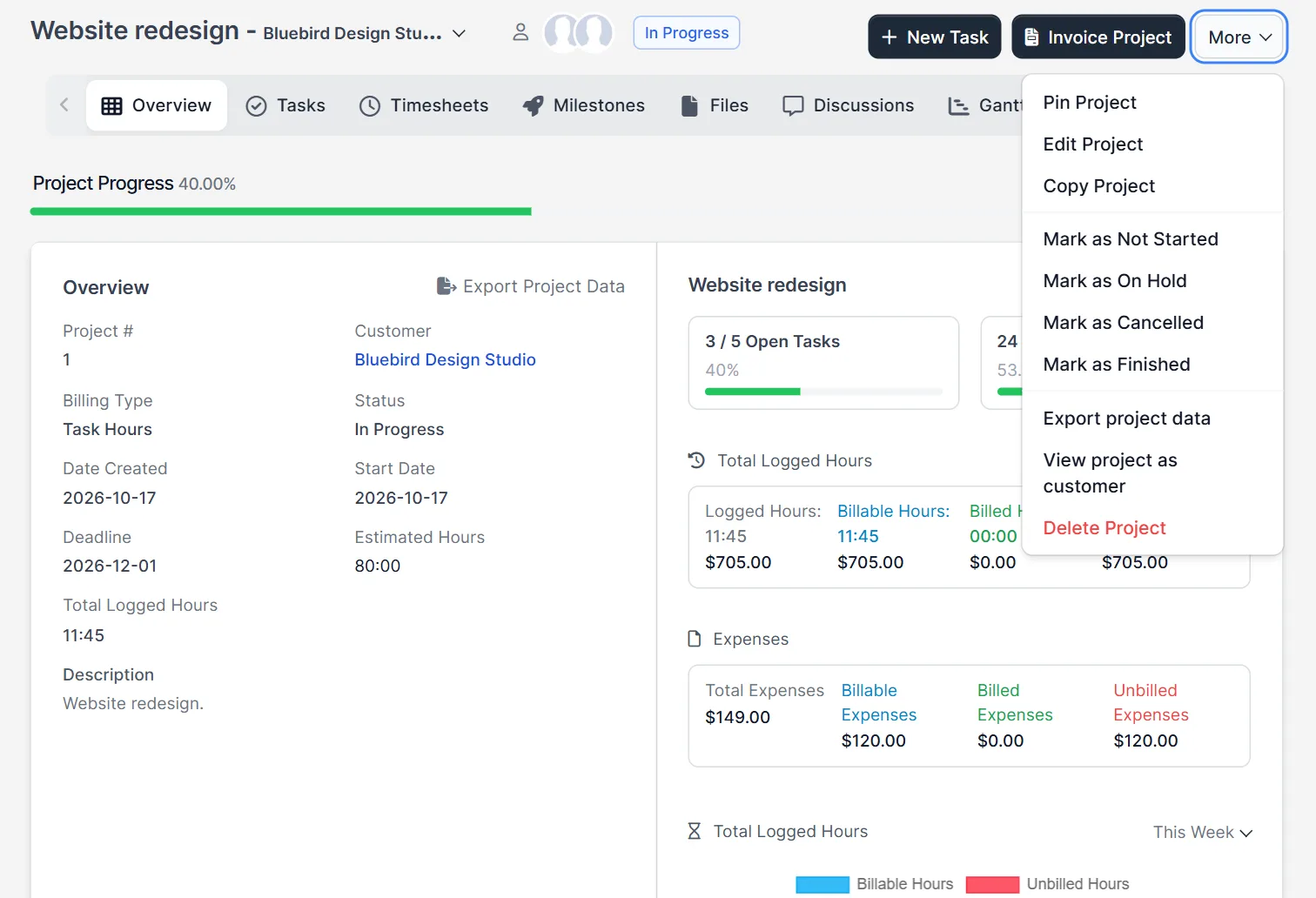
The quickest way to change Perfex CRM project statuses is the More menu on the project page. It lists Mark as Not Started, Mark as On Hold, Mark as Cancelled and Mark as Finished, and it leaves out the current status. In the code, a change here is written to the project activity log, and the CRM can notify the project members.
Step 5: Mark a project as finished #
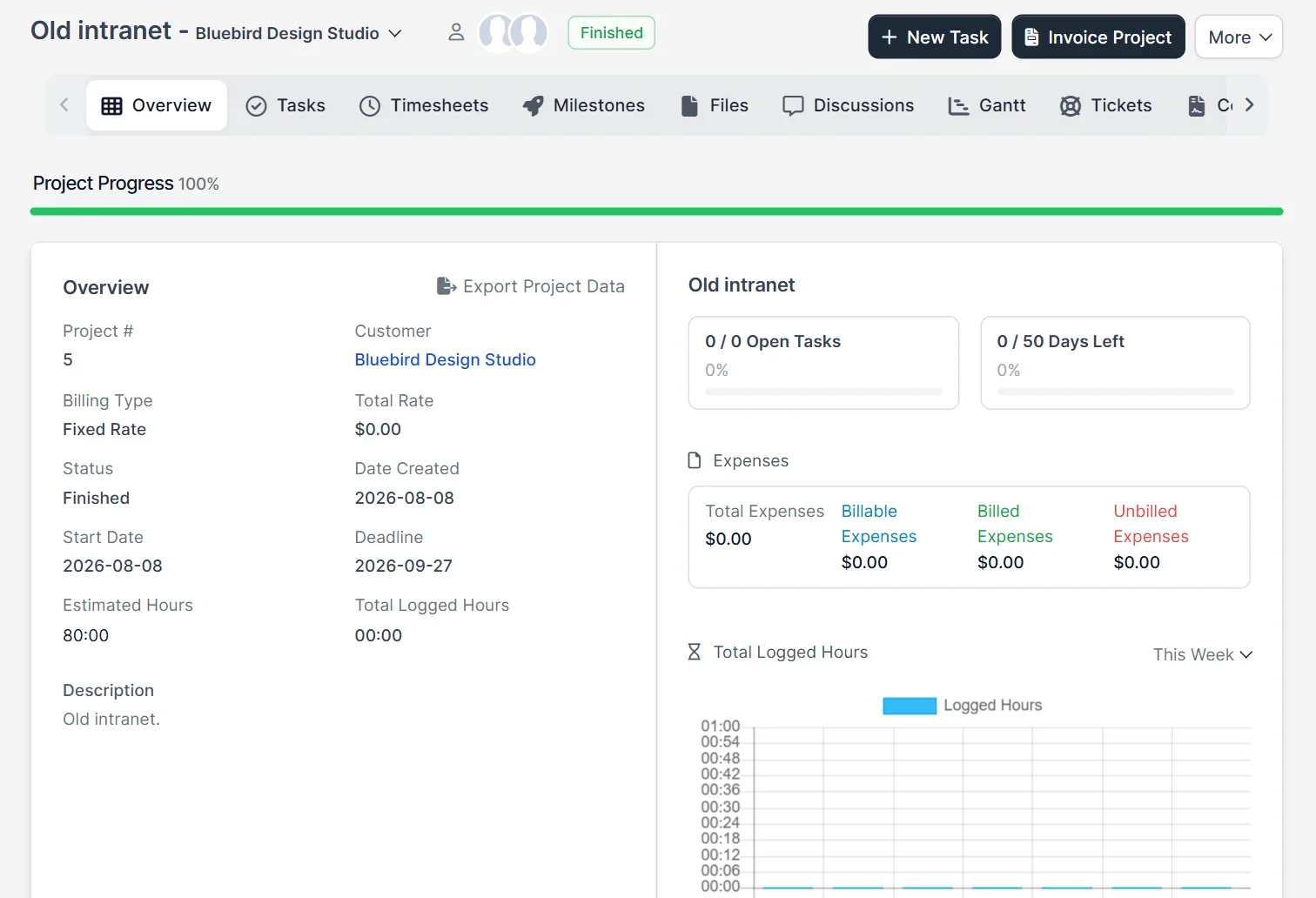
When you choose Mark as Finished, the CRM sets a finished date. The window that opens has options, as the code shows: notify project members, mark all tasks as completed and cancel recurring tasks. You can also send an email to the customer contacts, which uses the template for a finished project. Tick only what you need. If you open the project later, its overview shows the status Finished and a progress of 100 percent when all tasks are done.
Which status to use #
Use Not Started for projects you have sold but not begun. Use In Progress for active work. Use On Hold when you wait for the customer, a payment or a supplier, and say why in the project notes. Use Cancelled when the customer stops the work, and Finished when the work and the invoices are done. Clear Perfex CRM project statuses make reports easier, because the counts on the list become true. If you bill by project, finish the invoices before you mark the project as finished. See Perfex CRM invoice project.
Tips for project statuses #
- Agree with your team what each of the Perfex CRM project statuses means, and write it down.
- Review the On Hold badge every week, so no project waits forever.
- Mark a project as finished only after the last task is complete and billed.
- Check Perfex CRM projects for the other project settings.
- Use Perfex CRM project milestones to track steps inside one project.
- Read Perfex CRM roles and permissions if some staff should not change a status.
Not tested here: the finished email to customer contacts, the window options after Mark as Finished, and a code hook for custom statuses. Read the official Perfex CRM help for more.
Related module: To automate follow-up when work changes, the Workflow Rules for Perfex CRM module lets you write “when this happens, do that” rules. Check the product page for the events it supports.
Frequently asked questions #
What are the Perfex CRM project statuses? #
Not Started, In Progress, On Hold, Cancelled and Finished.
Can I add my own project status? #
Not in the settings. The list is built into the code, and a developer would need a code hook to change it.
How do I change a project status quickly? #
Open the project, click More and choose Mark as, then the new status.
What happens when I mark a project as finished? #
The CRM saves a finished date and logs it. The window can also notify members, mark tasks as completed and email the customer contacts.


