
- How Perfex CRM auto close tickets works
- Step 1: Open the cron settings
- Step 2: Set the hours for Perfex CRM auto close tickets
- Step 3: Know which tickets close
- Step 4: Check the email the customer gets
- Step 5: Test it with one ticket
- Choose a good number of hours
- Tips for ticket housekeeping
- Frequently asked questions
Tickets that nobody answers fill the list and hide the ones that need you. You can close inactive tickets by hand, but it is better to let the CRM do it. Perfex CRM auto close tickets closes a ticket by itself when it has been quiet for a number of hours. This guide, tested on Perfex CRM 3.4.1, shows where the setting is, which tickets it closes and what the customer receives.
How Perfex CRM auto close tickets works #
You enter a number of hours. Each time the cron job runs, the CRM looks at the open tickets. If the last reply is older than that number of hours, it sets the ticket to Closed. If a ticket has no reply yet, it counts from the day the ticket was created. Then it sends the customer the email template Auto Close Ticket. Nothing happens if the cron job does not run, so check Perfex CRM cron job first.
Step 1: Open the cron settings #
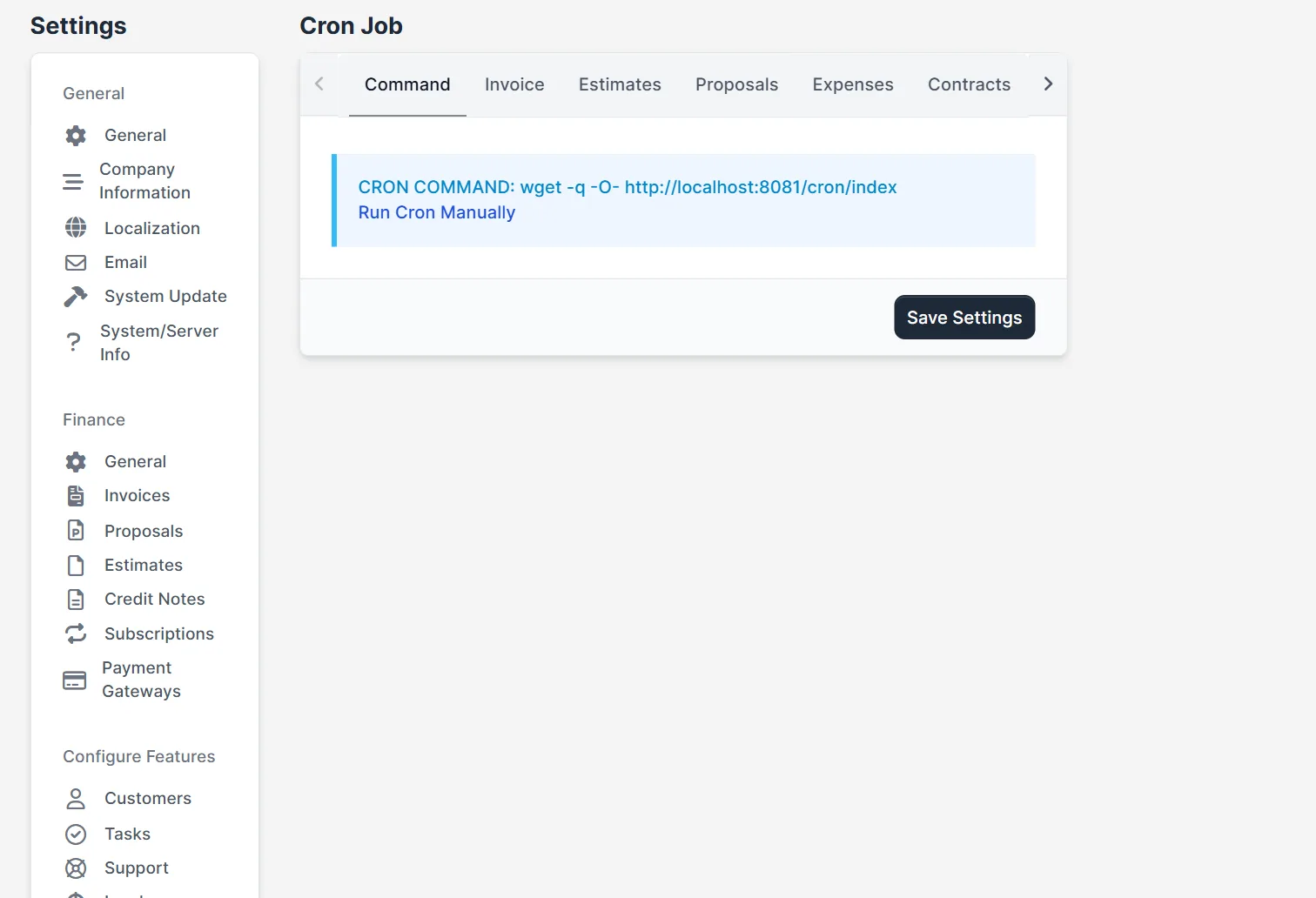
Open Setup > Settings and choose Cron Job under Misc. The first tab, Command, shows the cron command and a Run Cron Manually link. The tabs next to it hold the settings for invoices, estimates, proposals, expenses, contracts and tickets.
Step 2: Set the hours for Perfex CRM auto close tickets #
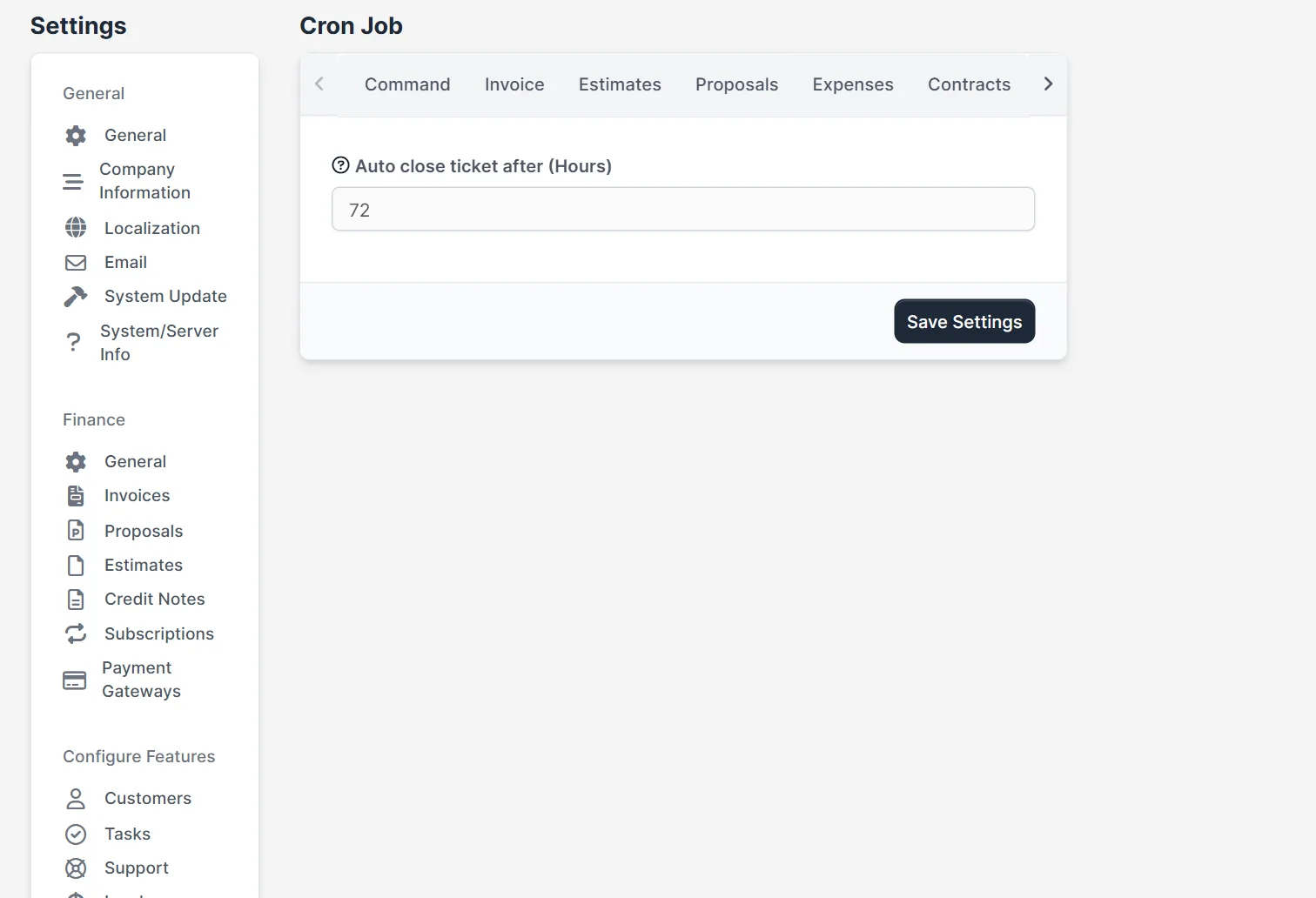
Click the Tickets tab. The field Auto close ticket after (Hours) is 0 by default, and the help icon next to it says that zero turns the function off. Type a number, for example 72 for three days, and click Save Settings. Pick a number that gives customers enough time to answer, because a closed ticket is not deleted but it needs reopening.
Step 3: Know which tickets close #
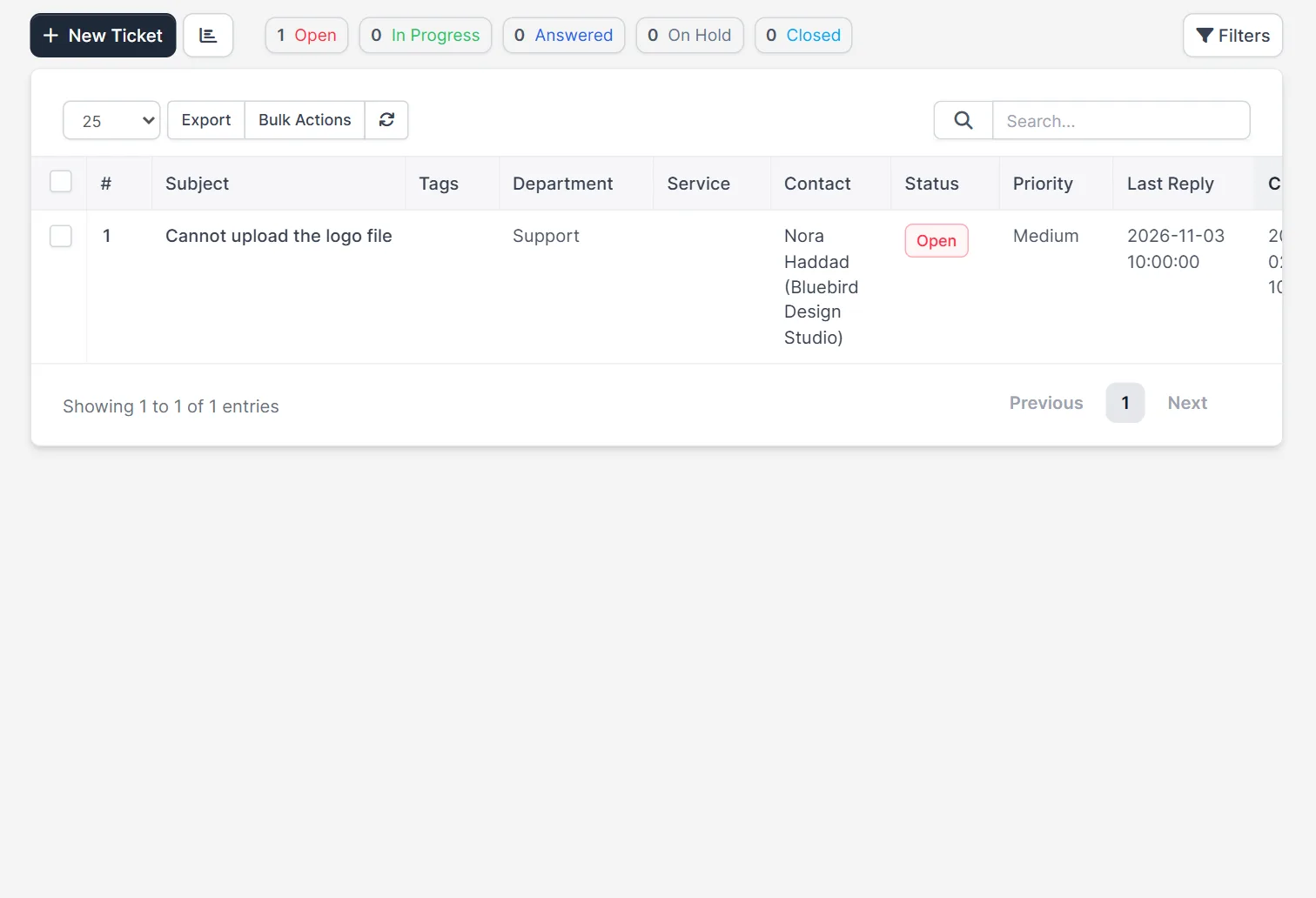
The code closes tickets in the status Open or Answered. It skips tickets that are In Progress, On Hold or already Closed. This is a useful rule for Perfex CRM auto close tickets: set a ticket to On Hold when you wait for a third party, and it stays open. The list on the Support page shows the statuses at the top, with a count for each, and it is easier to read when you close inactive tickets on time.
Step 4: Check the email the customer gets #
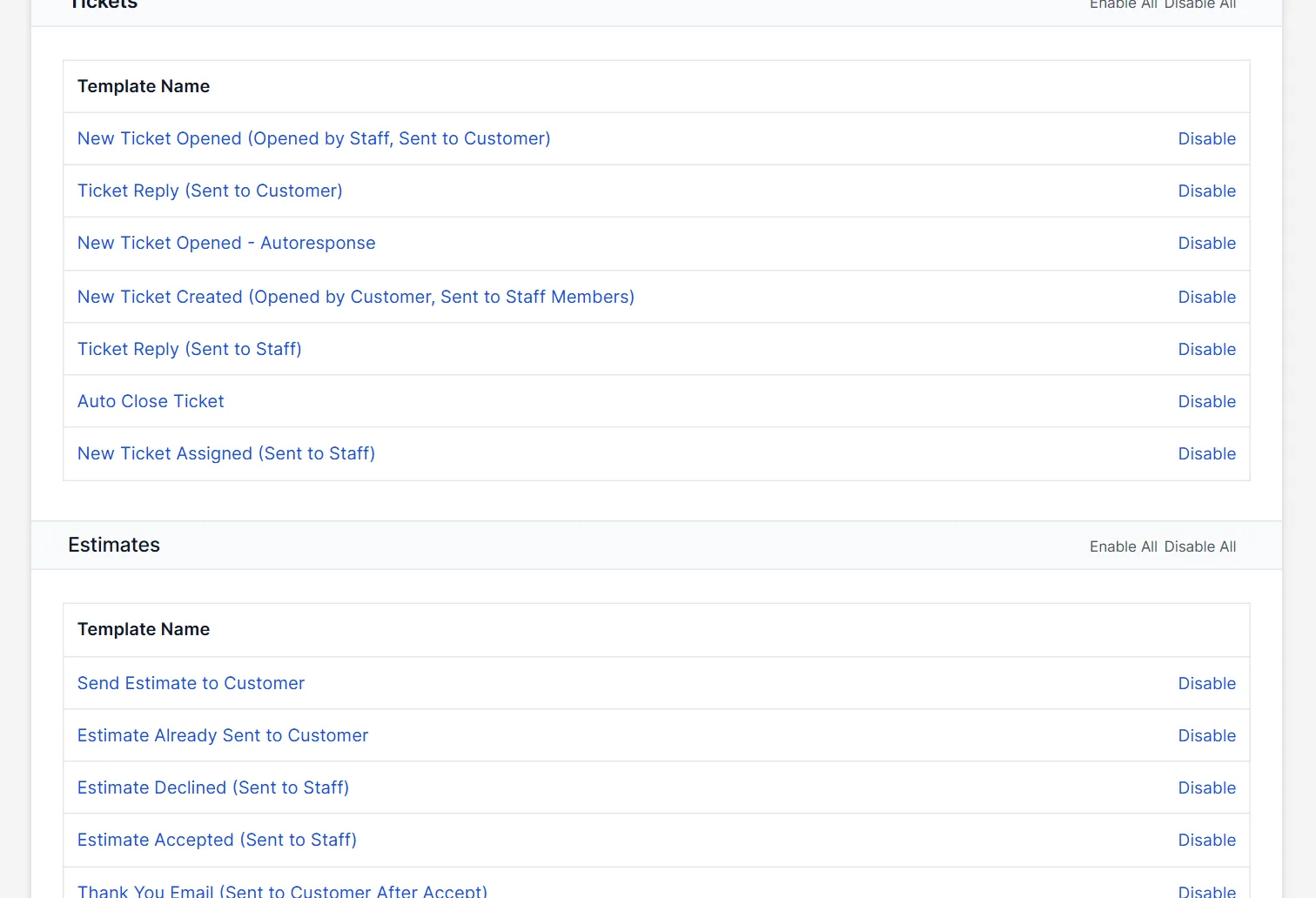
Open Setup > Email Templates and scroll to the group Tickets. The template Auto Close Ticket is in the list, with a Disable link on the right. Every message from Perfex CRM auto close tickets goes out through this template. Edit it to tell customers how to reopen the ticket, or disable it if you want tickets to close without a message. The email is also skipped for a contact whose ticket emails are switched off. Our guide to Perfex CRM email templates explains the editor.
Step 5: Test it with one ticket #
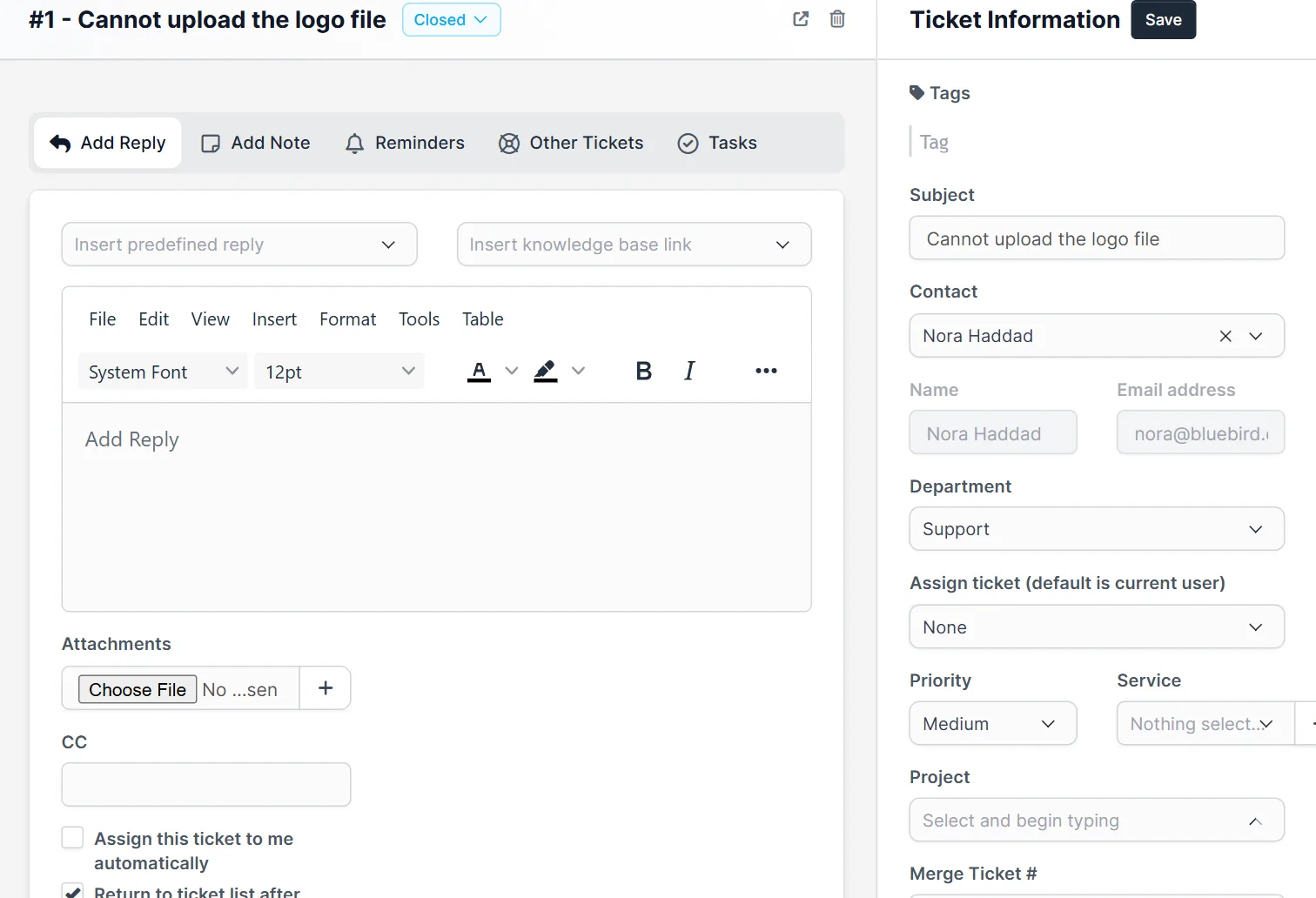
We tested Perfex CRM auto close tickets with a ticket whose last reply was three days old and the setting at 72 hours. After we opened the cron address once, the ticket status changed from Open to Closed. You can do the same: create a test ticket, set a low number of hours, click Run Cron Manually and open the ticket. Then put the real number back.
Choose a good number of hours #
A support team that works on weekdays should not use 24 hours, because a ticket that waits over a weekend would close on Monday morning. Many teams choose 72 or 120 hours for Perfex CRM auto close tickets. Ask what the customer needs. If an answer often takes a week, for example in an approval process, use On Hold or a longer time. You can see closed tickets any time with the Closed status badge on the Support page.
Tips for ticket housekeeping #
- Switch Perfex CRM auto close tickets on first with a long time, then shorten it after a few days.
- Write a polite closing text in the template and say how to reopen the ticket.
- Use Perfex CRM ticket statuses to see what each status means.
- Check Perfex CRM ticket notifications so your team sees replies before the timer ends.
- After a change of hours, wait for the next cron run before you judge the result.
- Do not set a very low number on a live system without a warning to your team.
Not tested here: the email text that reaches a real customer, because no mail server was set up in our test, and what a customer sees when they answer a closed ticket. Read the official Perfex CRM help for more.
Related module: If you want your team told when a ticket changes, the Workflow Rules for Perfex CRM module lets you write rules that create tasks, send emails and notify people. Check the product page for the events it supports.
Frequently asked questions #
Where is the Perfex CRM auto close tickets setting? #
Open Setup, Settings, Cron Job, then the Tickets tab. The field is called Auto close ticket after (Hours).
How do I turn it off? #
Set the number of hours to 0. The help icon on the field says that zero disables the function.
Which tickets does it close? #
Tickets with the status Open or Answered. Tickets In Progress or On Hold are not closed.
Does the customer get an email? #
Yes, the Auto Close Ticket template is sent, unless you disabled the template or the contact has ticket emails switched off.


