
- What the Perfex CRM project finance overview shows
- Step 1: Read the logged hours box
- Step 2: Read the expenses box
- Step 3: Check the expenses tab
- Step 4: Check the invoices tab
- Step 5: Check the timesheets tab
- How the billing type changes the Perfex CRM project finance overview
- Tips for reading the overview
- Frequently asked questions
Before you send an invoice, you want to know how much work and how many costs a project has, and how much of it you already billed. The Perfex CRM project finance overview answers this on one page. This guide, tested on Perfex CRM 3.4.1, explains each box, where the numbers come from and how they change after you invoice.
What the Perfex CRM project finance overview shows #
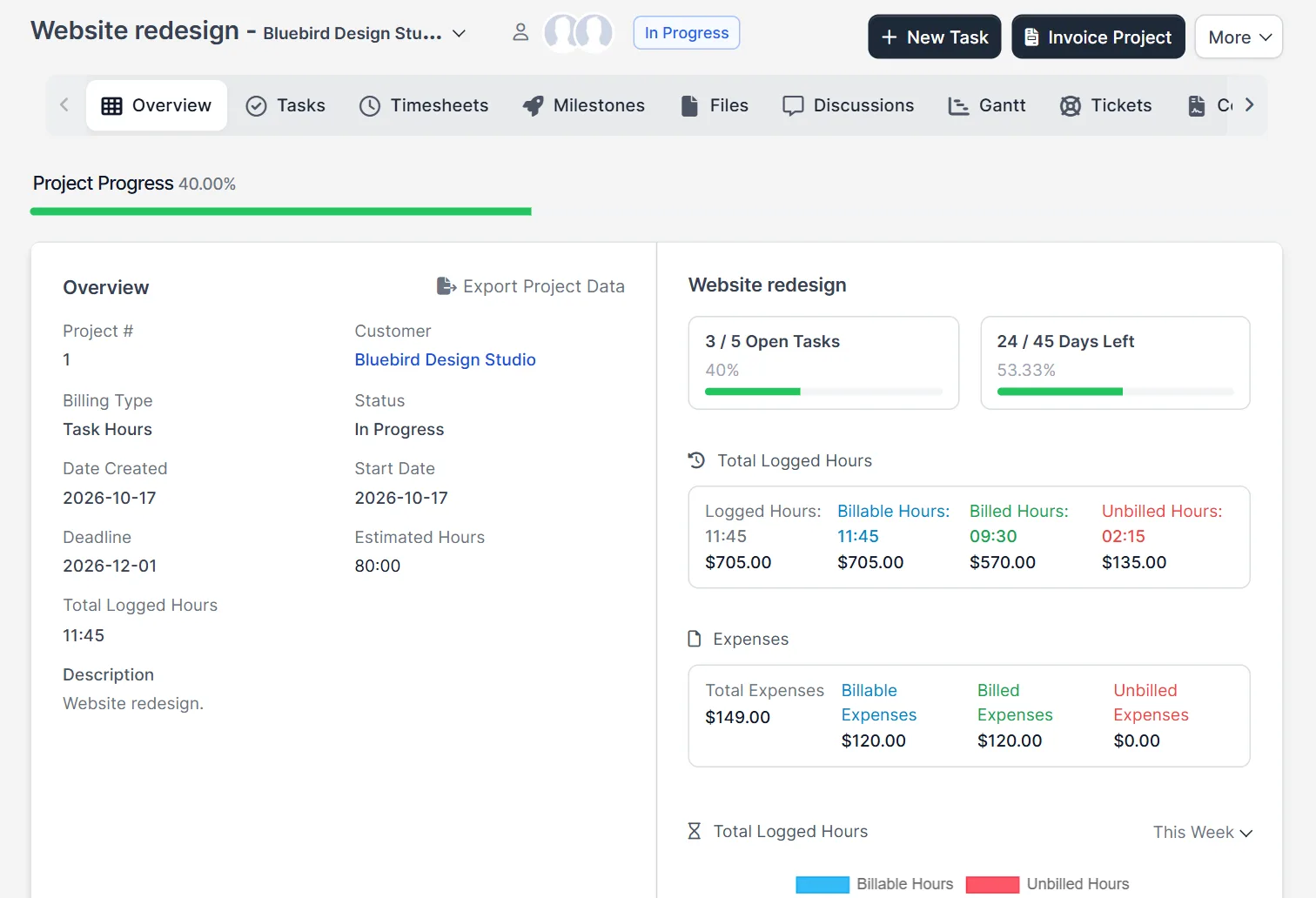
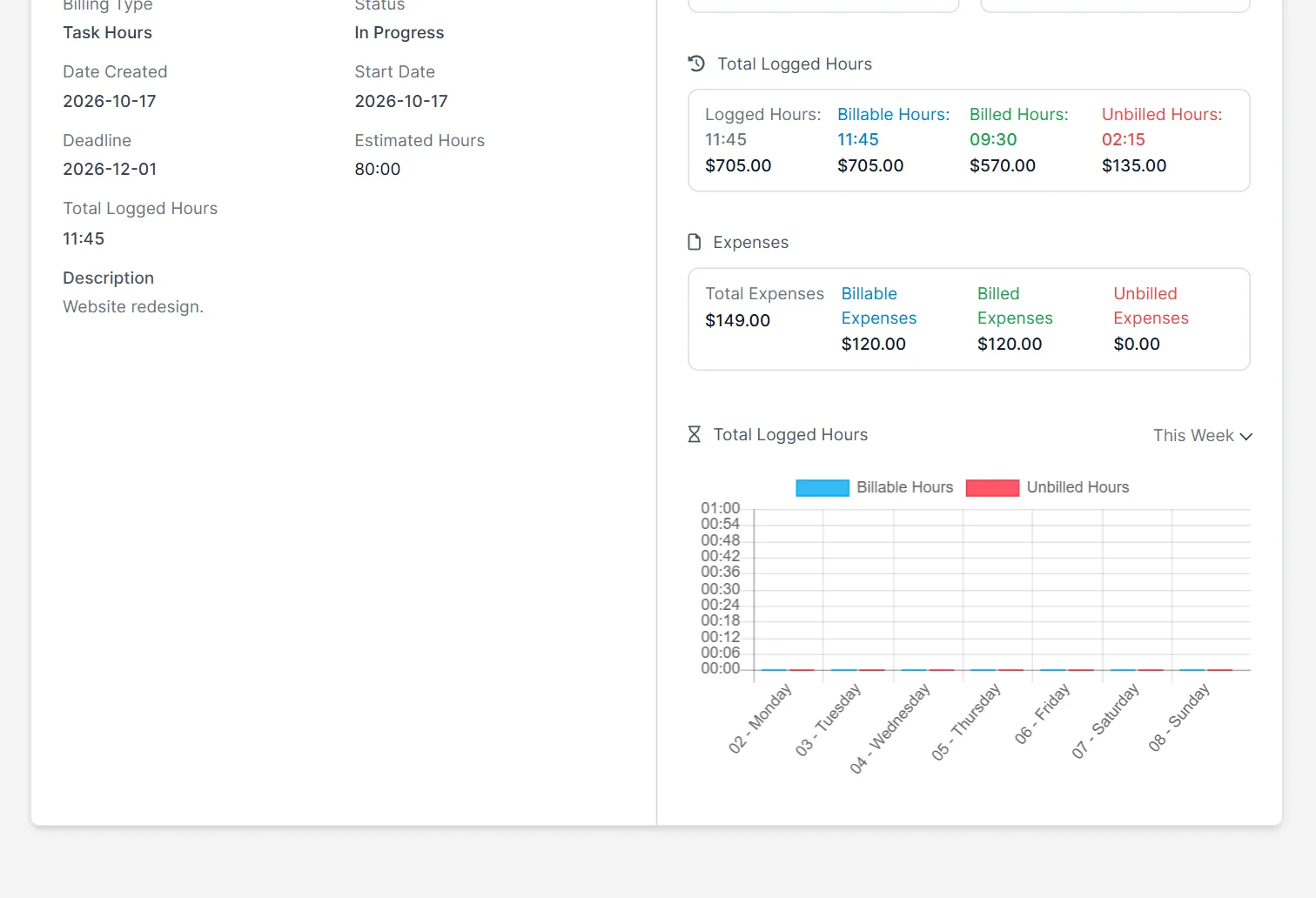
Open a project and stay on the Overview tab. The right side shows two groups of boxes: Total Logged Hours and Expenses. Under them, a chart compares billable and unbilled hours by day for the period you pick, This Week by default. Together they form the Perfex CRM project finance overview. The left side lists the project data, such as the billing type, the status and the estimated hours.
Step 1: Read the logged hours box #
The box Total Logged Hours has four numbers, each with an amount. Logged Hours is all time on the project. Billable Hours is the part of it on billable tasks. Billed Hours is the part already on an invoice, and Unbilled Hours is the rest. In our test, 11:45 hours were logged and billable, worth 705.00. After one invoice, billed hours were 08:30 (570.00) and unbilled hours were 02:15 (135.00).
Step 2: Read the expenses box #
The second half of the Perfex CRM project finance overview is the box Expenses. It has Total Expenses, Billable Expenses, Billed Expenses and Unbilled Expenses. In our test, the total was 149.00, of which 120.00 was billable. After the invoice, billed expenses showed 120.00 and unbilled expenses showed 0.00. A cost that is not marked billable stays in the total only. Add costs in Perfex CRM expenses and pick the project.
Step 3: Check the expenses tab #
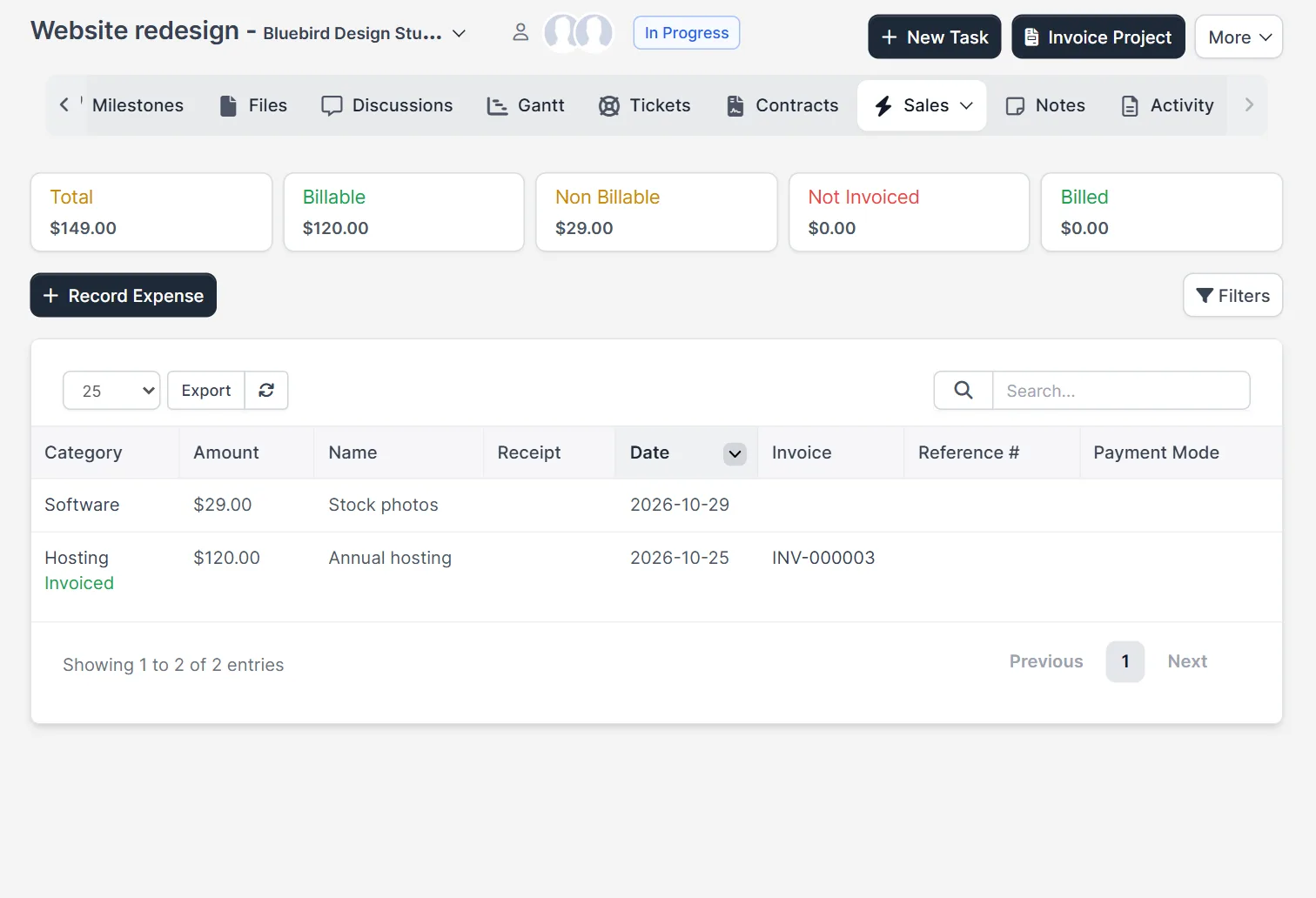
Open the Sales menu of the project tabs and choose Expenses. Five boxes sum up the costs: Total, Billable, Non Billable, Not Invoiced and Billed. The table lists each expense with its category, amount, name, date and the invoice number once it is billed. A button Record Expense adds one from here.
Step 4: Check the invoices tab #
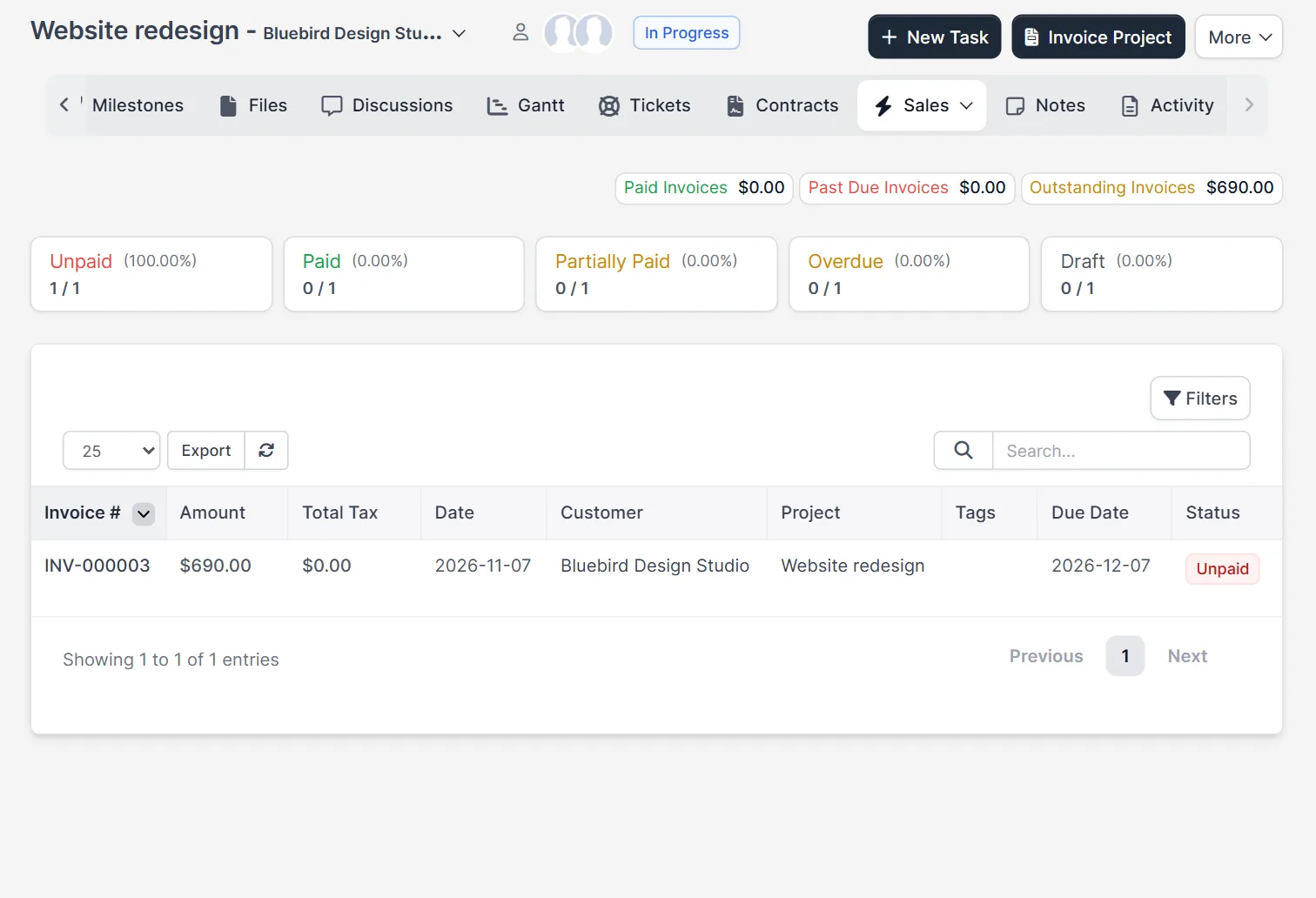
Choose Sales and then Invoices. The boxes Unpaid, Paid, Partially Paid, Overdue and Draft show how many invoices of the project are in each state and their share. The table below lists the invoices of this project only. After our test invoice, the tab showed one unpaid invoice of 690.00. Compare this with the billed amounts in the Perfex CRM project finance overview: they should match.
Step 5: Check the timesheets tab #
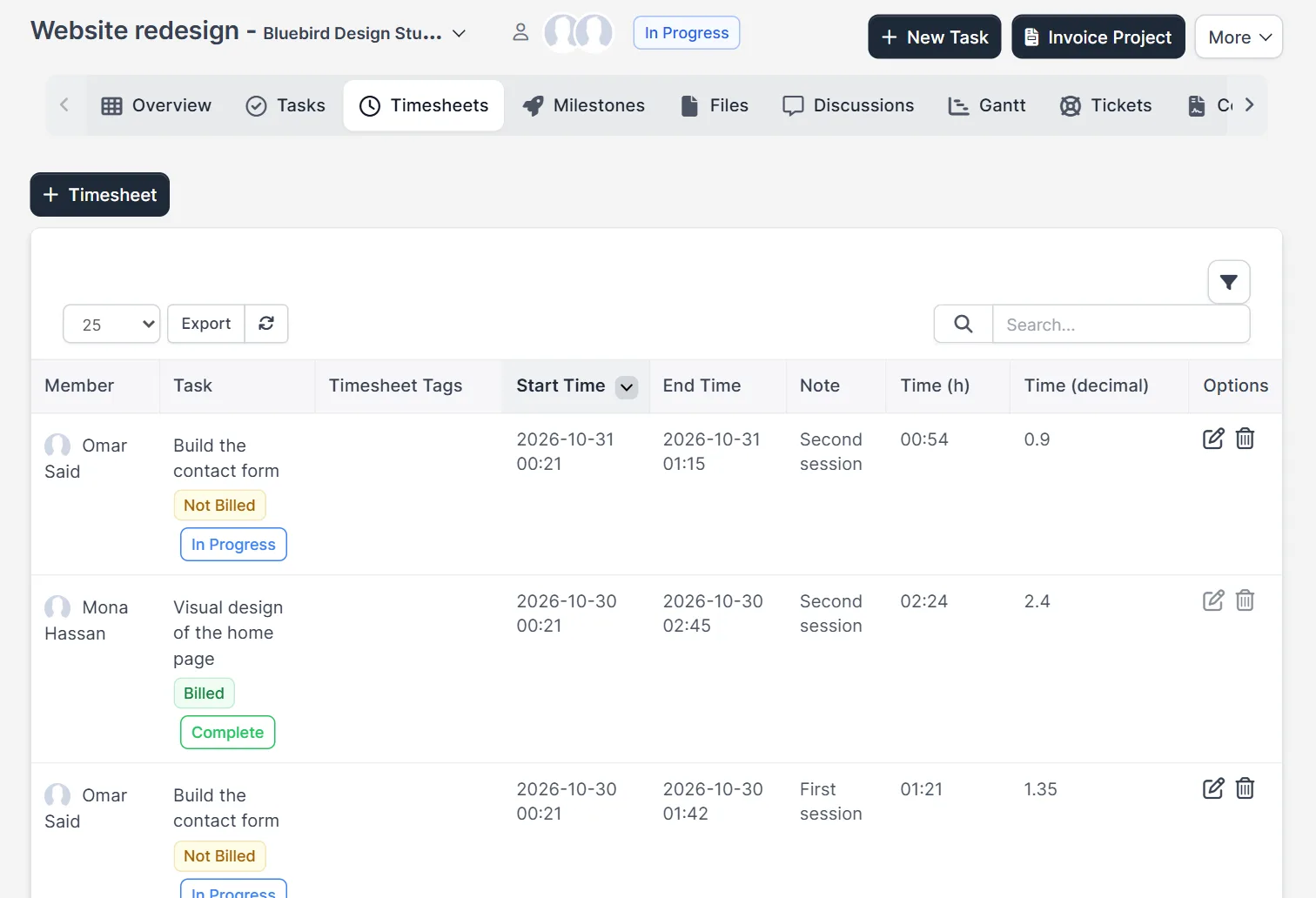
Open Timesheets. Every row shows the member, the task, the start and end time, the note and the time in hours. Under the task name, a label says Billed or Not Billed. When the Perfex CRM project finance overview shows unbilled hours you did not expect, look here to find which task still has the label Not Billed.
How the billing type changes the Perfex CRM project finance overview #
The project overview shows Billing Type. With Task Hours, the amount comes from the rate of each task. With a fixed rate, the overview shows a Total Rate instead of an hourly rate. A finished fixed rate project in our test showed Total Rate, no hours and no expenses. We did not test how a fixed rate project is invoiced. Choose the billing type when you create the project, and read Perfex CRM billing tasks to see how hours become invoice lines.
Tips for reading the overview #
- Check the Perfex CRM project finance overview before every invoice. Unbilled hours should be what you are about to bill.
- If billed hours do not match the invoice, look at the timesheets tab for Not Billed labels.
- Use Perfex CRM invoice project to create the invoice from this page.
- Look at Perfex CRM reports for totals across all projects.
- Remember that the numbers include only what staff logged, so remind them to log time.
Not tested here: projects with several currencies, discounts on the invoice, and what the customer sees in the customers area. Read the official Perfex CRM help for more.
Related module: For full accounting next to your projects, the Perfex CRM Financial Management Module turns the CRM into an accounting suite for freelancers and larger companies.
Frequently asked questions #
Where is the Perfex CRM project finance overview? #
Open a project. The Overview tab shows the logged hours and expenses boxes on the right side.
What are billed hours? #
Billed hours are the logged hours of tasks that already appear on an invoice. Unbilled hours are still open for billing.
Why are my expenses not billed? #
The expense must be marked billable and added to the project invoice. A cost that is not billable only counts in the total.
Why do the numbers stay at zero? #
Hours appear only when staff log time on tasks, and a fixed rate project shows a total rate instead of hourly amounts.


