
Perfex CRM themes control how the admin area and the customer portal look: colors, fonts, spacing, buttons and menus. A good theme makes the CRM feel like your own product and easier to read all day. This guide covers what Perfex CRM themes can change, five style wins that matter most and how to test a new look without disturbing your team.
What Perfex CRM themes can change
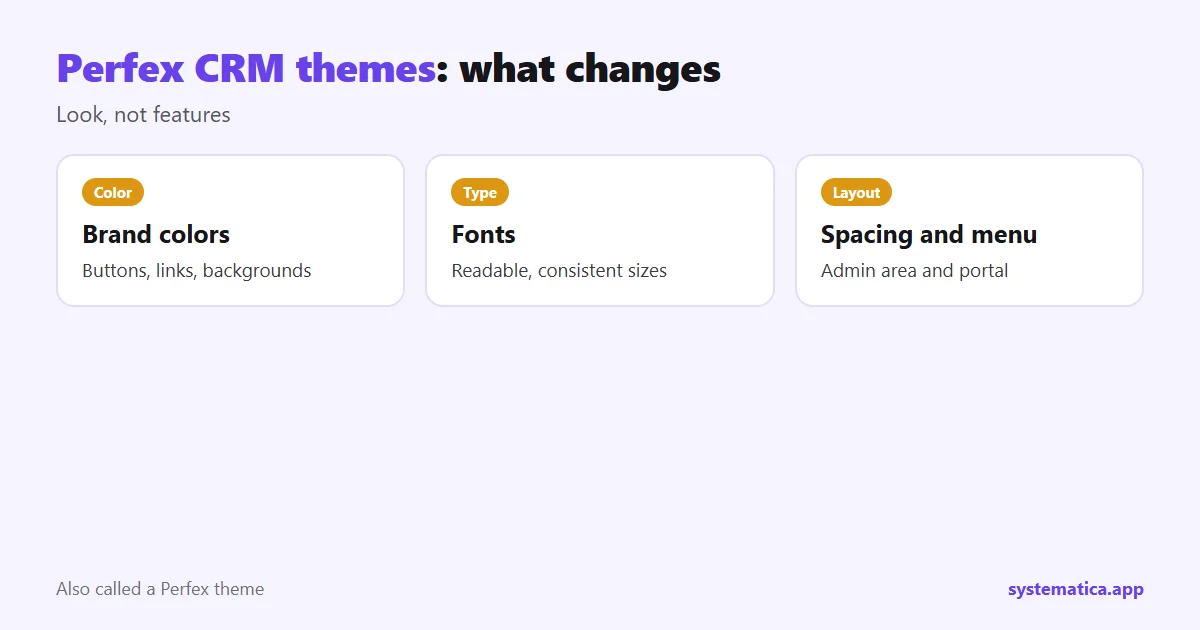
- Colors: the main brand color, backgrounds, buttons and links.
- Typography: the font and size of text.
- Layout: spacing, sidebars and the width of pages.
- Customer portal: what your clients see when they log in.
- Documents: invoices and estimates carry your logo and colors. See PDF Customizer.
People search for both “perfex theme” and “perfex crm themes”. Both mean the same thing here: a stylesheet and settings that change the look, not the features.
5 style wins for a Perfex CRM theme
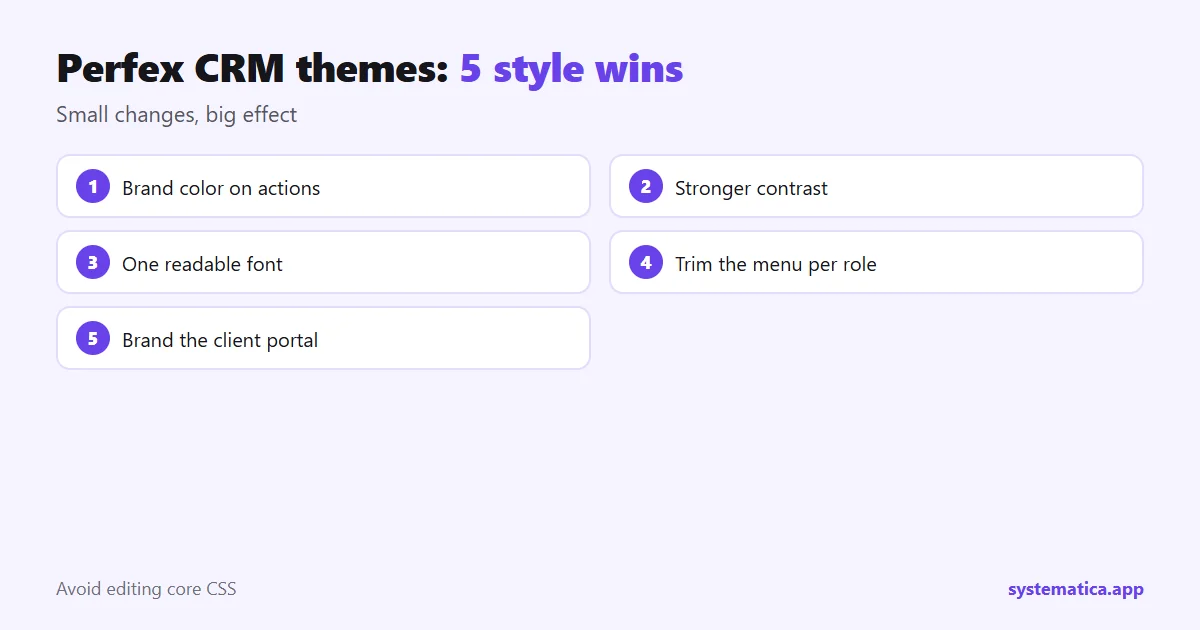
- Use your brand color for buttons and links so the CRM looks like part of your business.
- Raise contrast. Dark text on light backgrounds, or the reverse, with no pale grey on white.
- Pick one readable font and keep sizes consistent.
- Trim the menu. Hide what each role never uses: Custom Links helps you add your own shortcuts.
- Brand the portal. Clients notice your logo and name first.
How to apply a Perfex CRM theme with Theme Studio
Theme Studio lets you change the look from a settings screen instead of editing files. You choose colors and fonts, preview the result and save. Because it works through settings, an update to the CRM is less likely to wipe your changes. Read the product page for the current options.
How to test Perfex CRM themes safely
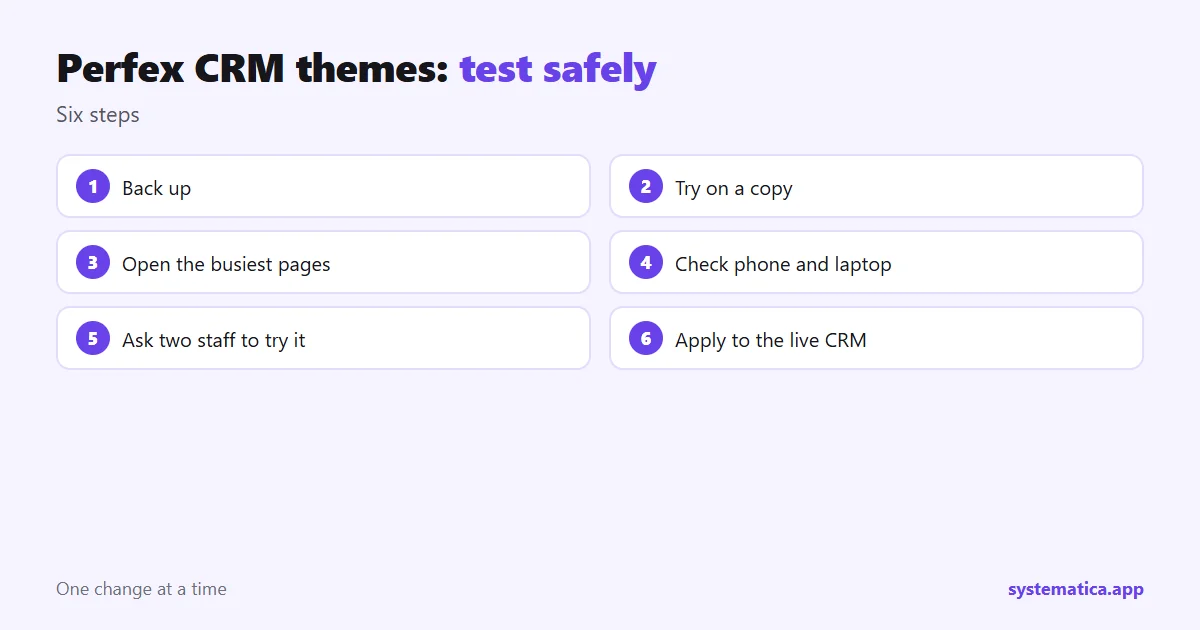
- Back up the database and files.
- Try the theme on a copy of your CRM, not the live one.
- Open the pages your team uses most: dashboard, customers, invoices, tasks and tickets.
- Check on a phone and a small laptop.
- Ask two staff members to use it for a day and report anything hard to read.
- Apply it to the live CRM once they are happy.
Mistakes to avoid with Perfex CRM themes
- Editing core CSS files by hand. The next update will overwrite them.
- Using colors with low contrast that tire the eyes. The W3C explains minimum contrast in plain terms.
- Installing a theme from an unknown source: Perfex CRM plugin safety checks applies to themes too.
- Changing everything at once. Make a few changes and review them.
Where themes fit with other changes
Look is one part of making the CRM yours. Fields, roles and email templates are covered in Perfex CRM customization, and other ways to add to the CRM in Perfex extensions. If you plan to offer the CRM to clients under your own brand, see Perfex SaaS. Browse everything in the module shop.
Choosing colors that work all day
Staff look at the CRM for hours, so comfort matters more than novelty. A few simple rules help:
- Use your brand color for actions such as Save, and keep it out of large background areas.
- Keep text dark on light backgrounds, or light on dark, with strong contrast.
- Use red only for warnings and errors, so it keeps its meaning.
- Check each page at 100 percent zoom and at a smaller laptop size.
- Keep the logo clear: a simple, wide logo works best in a header.
For invoices, estimates and other PDFs, the same brand choices carry over through PDF Customizer. A matching portal, PDF and email make the whole business look consistent. See Perfex CRM customization for the other parts of that picture.
Frequently asked questions
What are Perfex CRM themes?
They are styles that change how the CRM looks, including colors, fonts and layout, without changing what the CRM does.
Can I change the Perfex CRM look without code?
Yes. A tool such as Theme Studio changes colors and fonts through settings instead of file edits.
Will a theme survive an update?
Settings-based themes usually do. Hand-edited core files do not, so avoid editing them.
Can clients see my theme?
The customer portal can carry your brand colors and logo, so clients see your look when they log in.