
A Perfex CRM update brings new features and security fixes, but it can also break a module or a customization if you rush it. This checklist gives eight steps to run a Perfex CRM update safely, from the backup to the checks after it finishes. Follow them in order and you can go back in minutes if something looks wrong.
Why a Perfex CRM update needs care
The CRM updates its own files and, often, its database structure. Modules plug into those same parts. If a module was written for an older version, it may stop working after the update. A little preparation avoids most problems. Our guide to updating Perfex CRM manually shows the file steps in detail, and this page is the safety checklist around it.
8 steps for a safe Perfex CRM update
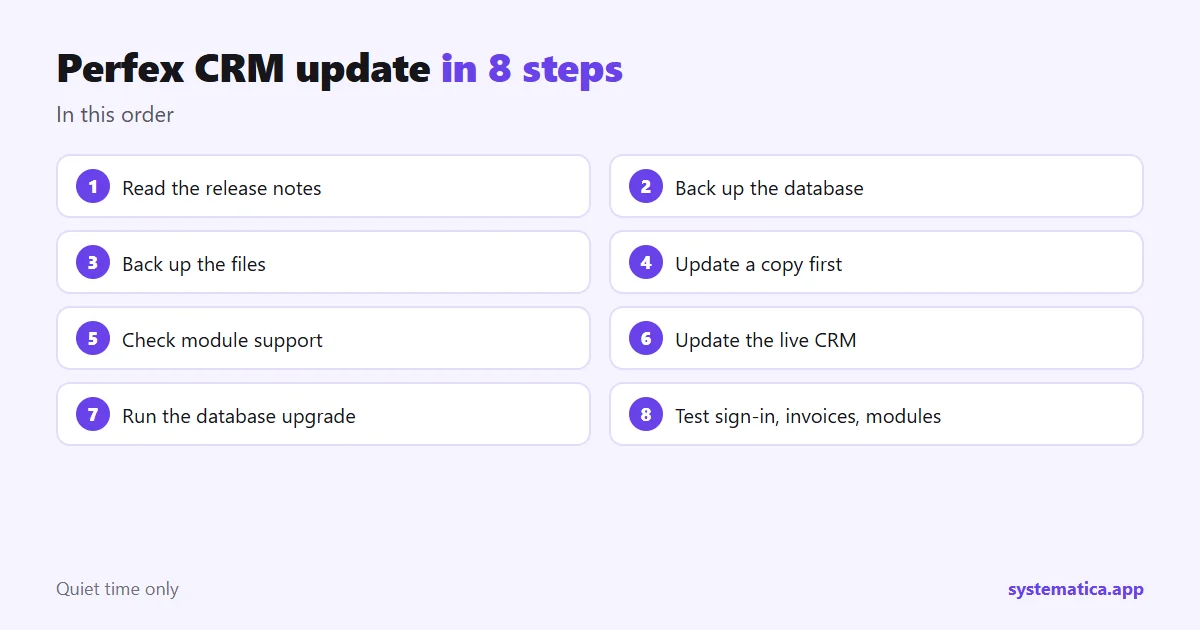
- Read the release notes. Note any changes that affect modules, themes or settings.
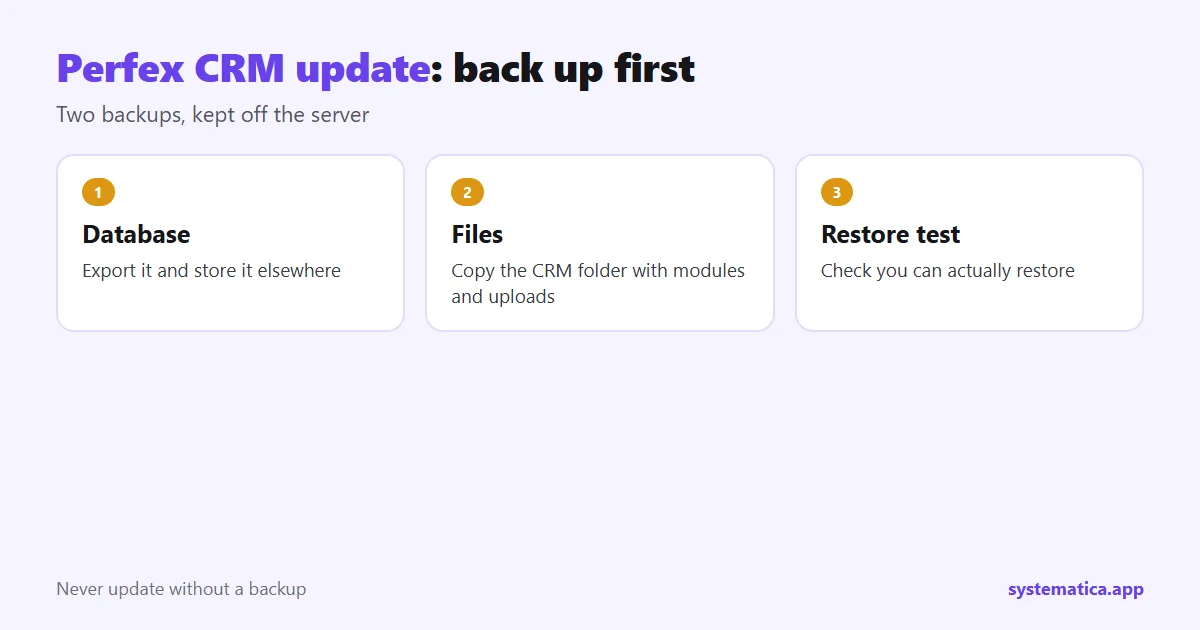
- Back up the database. Export it and store it away from the server.
- Back up the files. Copy the whole CRM folder, including uploads and modules.
- Update a copy first. Restore the backup to a test address and update there.
- Check your modules. Confirm each one supports the new version. Ask the author if you are unsure.
- Update the live CRM at a quiet time, using the same steps that worked on the copy.
- Run the database update if the CRM asks for it, and clear caches.
- Test. Sign in, open a customer, create an invoice, send a test email and open each module.
What to test after a Perfex CRM update
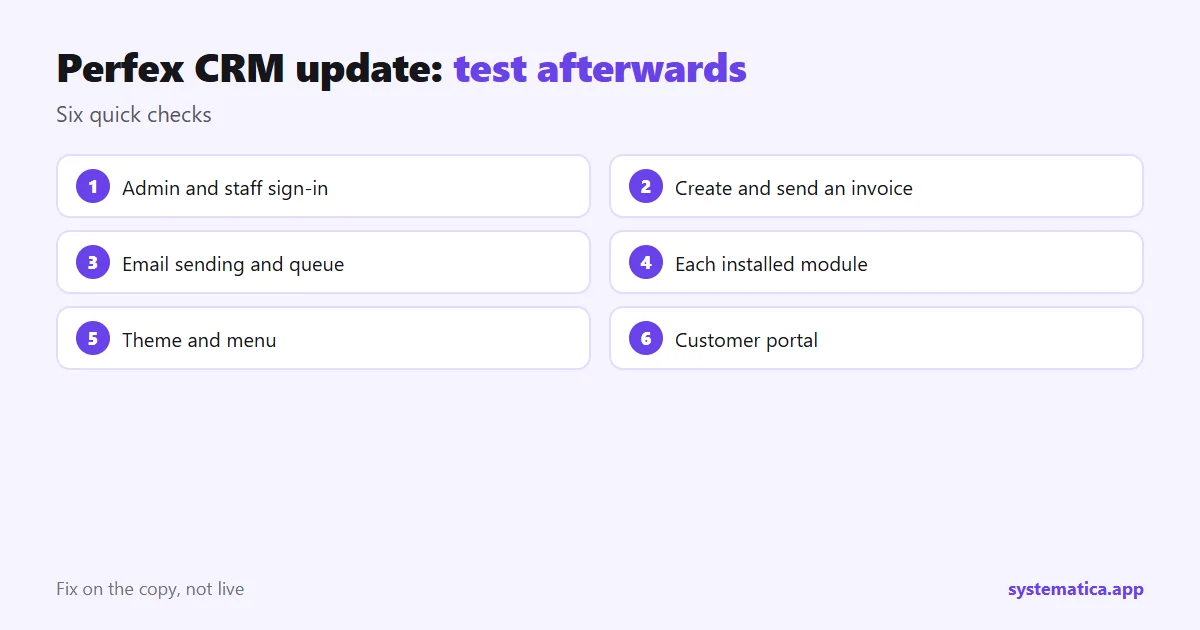
- Sign-in for admin and a normal staff member.
- Creating and sending an invoice, and the PDF layout.
- Email sending and the queue. See Perfex CRM hosting for cron.
- Each installed module, one by one: how Perfex modules work.
- Your theme and menu, if you changed them.
- The customer portal.
If the Perfex CRM update fails
- Do not keep clicking. Note the exact message.
- Switch off the most recently added module by renaming its folder, then reload.
- If the CRM still fails, restore the files and database from your backup.
- Re-try on the test copy and fix the cause before you touch the live site.
Habits that make each Perfex CRM update easier
- Never edit core files. Use settings, fields and modules instead: ways to extend Perfex CRM.
- Keep a list of installed modules with their versions.
- Update often. Small jumps are easier than large ones.
- Use original module files so updates arrive from the author: why nulled modules are risky.
- Keep PHP current. The CRM and modules need a supported PHP version.
Our modules, such as WhatsApp for Perfex CRM and Financial Management, list the CRM versions they support. For the bigger picture, see running Perfex CRM self hosted.
Sample update plan for a small team
A simple rhythm works well for most teams:
- Monday: read the release notes and check module support.
- Tuesday: restore last night’s backup to a test copy and update it.
- Wednesday: let two staff members test the copy for a day.
- Thursday evening: update the live CRM after hours, with a fresh backup beside it.
- Friday: watch for problems and note anything to report to authors.
Avoid updating on a Friday evening or just before a busy period. If your team is small, a shorter version still works: back up, test on a copy, update, test again. For hosting that makes this easier, see running Perfex CRM self hosted, and for a list of things that can change after an update read how Perfex modules work.
Frequently asked questions
How do I update Perfex CRM?
Back up files and database, update a test copy first, then update the live CRM and run the database upgrade if asked.
Will a Perfex CRM update delete my data?
It should not, but always take a backup first so you can restore if something goes wrong.
Do my modules keep working after an update?
Most do, but check each module supports the new version, and test them on a copy before the live update.
How often should I update Perfex CRM?
Update when a release brings security fixes or features you need. Small, regular updates are easier than big jumps.