
Perfex modules are folders of code that plug into the Perfex CRM core. You upload one, activate it, and it adds screens, settings and database tables without editing the CRM itself. This guide explains how Perfex modules work from the inside, what happens when you activate, update or remove one, and the habits that keep an install stable as you add more.
How Perfex modules fit into the CRM
Perfex CRM keeps its own code in one place and all modules in a separate modules folder. The core looks in that folder, finds each module and loads the ones you have switched on. A module can add menu items, pages, permissions, email templates, scheduled jobs and extra fields to existing screens.
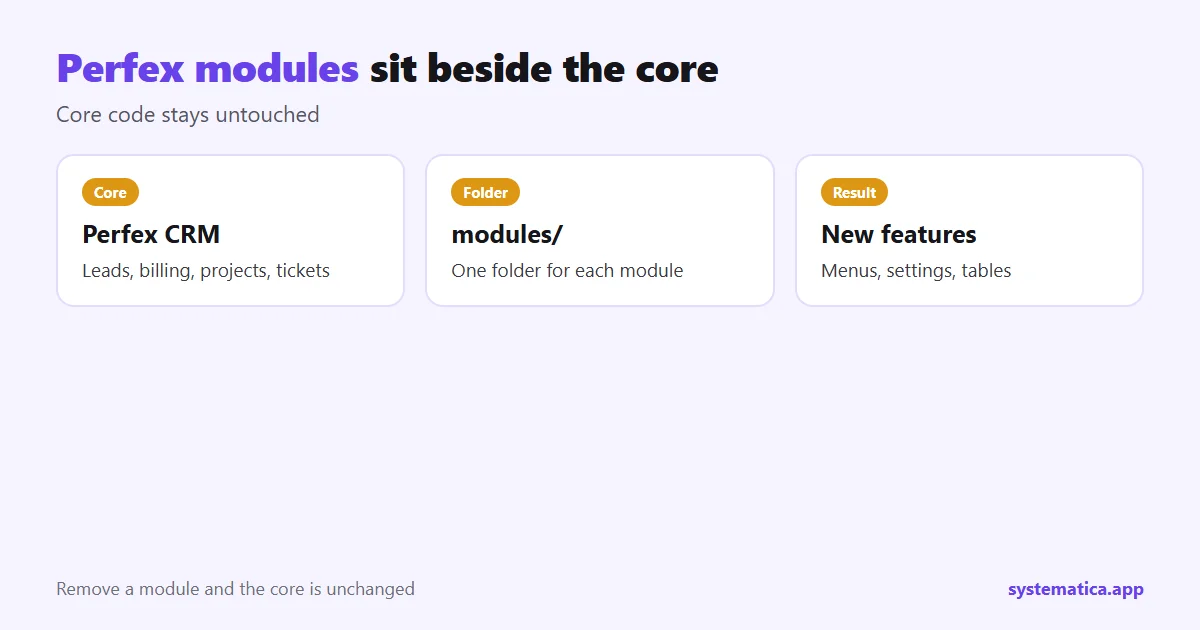
Because modules live apart from the core, you can add or remove them without touching the CRM files. That is also why a good module never asks you to edit core code. If an author tells you to, treat it as a warning sign. If you want to see the range available, browse the Systematica module shop or read our list of the best Perfex CRM modules.
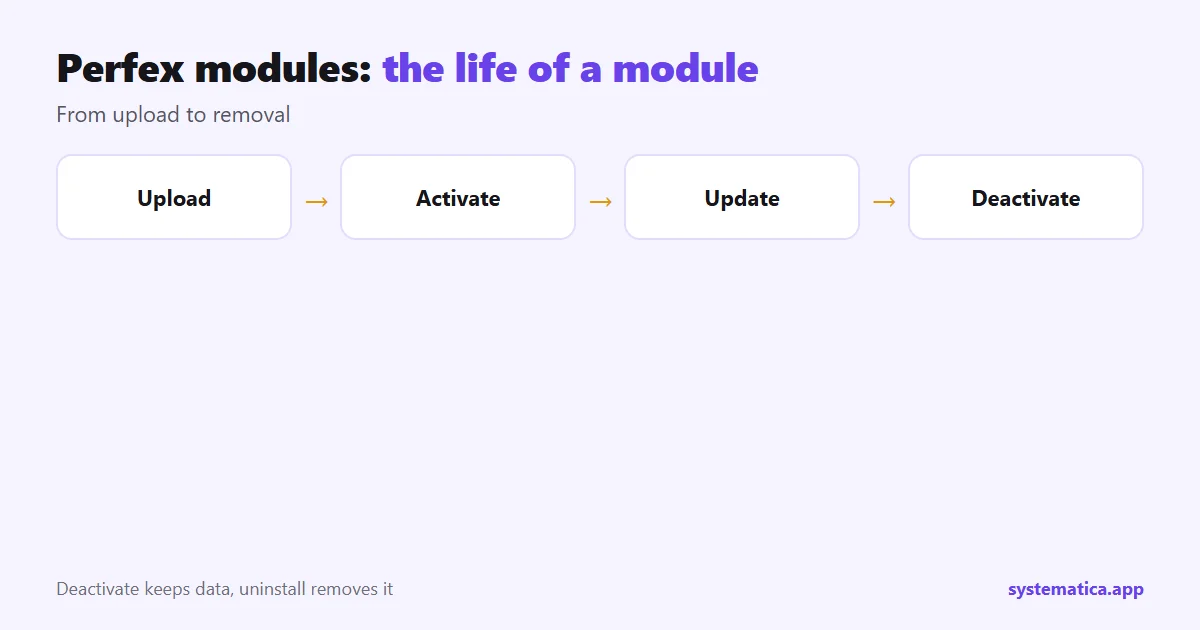
The life of a Perfex module
Upload
In the admin area, open Setup, then Modules, and upload the zip file. The module folder is unpacked into the modules directory. Nothing runs yet.
Activate
Activation is when most of the work happens. The module creates its database tables, adds default settings and registers its menu items. This is the step where problems show up, such as a missing PHP extension or a version mismatch, so do it on a copy first.
Use and update
When the author releases a new version you replace the module files and run the update. Good authors keep their own tables backward compatible, so your data survives. Always read the notes that come with a release and take a backup before you start.
Deactivate and uninstall
Deactivating hides the module but keeps its data. Uninstalling usually removes the data too. If you might come back to a module later, deactivate instead of uninstalling.
What Perfex modules need from your server
Modules run on the same server as the CRM, so they share its limits. Check these before you add one:
- PHP version. Use a current, supported version. Older ones get no security fixes. See the list of supported PHP versions.
- PHP extensions. Mail, WhatsApp and API modules may need extra extensions such as IMAP or cURL.
- Memory and time limits. Reports and imports need room. Low limits cause blank pages.
- Cron. Reminders, queues and automations depend on a working scheduled job. See Perfex CRM hosting.
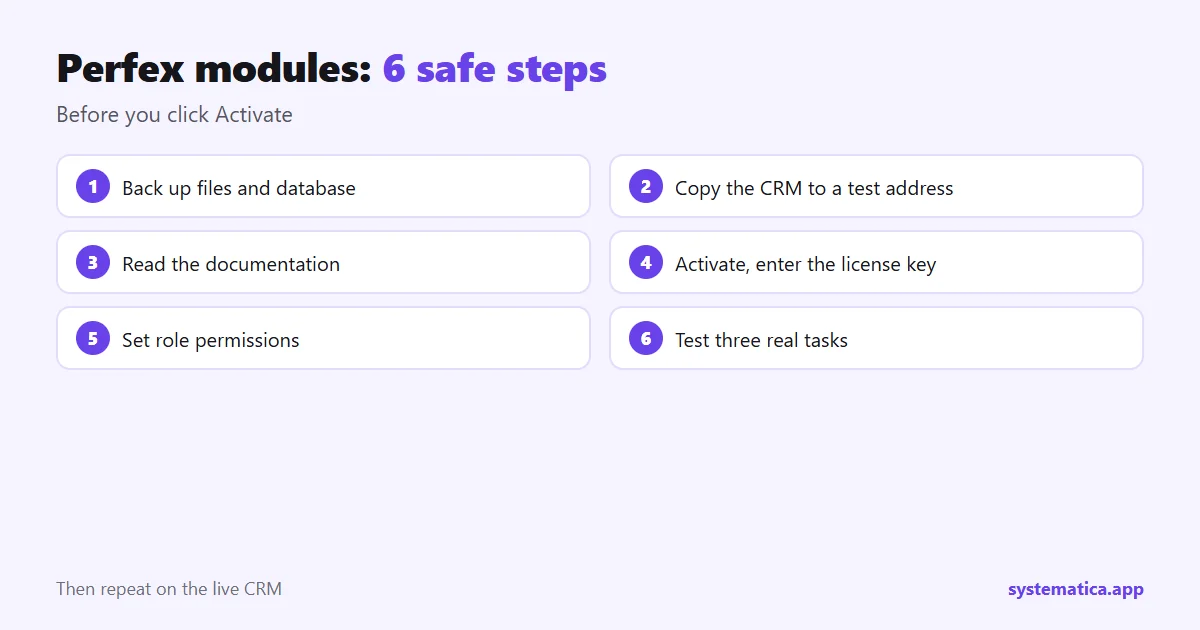
6 safe steps to add a Perfex module
- Back up the database and the files folder.
- Copy your CRM to a test address and install there first.
- Read the documentation before you click Activate. Our modules have step-by-step guides and product pages.
- Activate and enter the license key if there is one.
- Set permissions. Decide which roles may see the new menu.
- Test three real tasks, then repeat on the live CRM.
Habits that keep Perfex modules trouble-free
- Add one module at a time and wait a few days before the next.
- Keep a short list of what is installed, its version and the date.
- Use original files from the author. Copies can carry hidden code and never receive updates: why nulled modules are risky.
- Remove modules nobody uses. Fewer moving parts means fewer surprises.
- Update the CRM and its modules together, and read how to update Perfex CRM manually before a major jump.
Where to start
If you are not sure which module to add first, begin with the channel your customers already use, such as WhatsApp for Perfex CRM or Mailbox, then a money module such as Financial Management. For the full process of choosing, see Perfex CRM addons. Prices and licenses are covered in Perfex CRM pricing.
Common Perfex module problems and quick fixes
- A blank page after activation. Usually a missing PHP extension or a low memory limit. Check the server error log, then ask your host to raise the limit or enable the extension.
- The new menu does not appear. Open Setup, then Roles, and make sure your role has permission for the module.
- A module stops working after a CRM update. Look for a newer version from the author, or roll back and wait.
- Two modules clash. Deactivate one, test, and tell both authors what you saw.
Keep notes on each fix. After a few months you will have your own short manual, which is worth more than any generic one. If you are also thinking about a bigger move, such as Perfex SaaS, plan module testing even more carefully because every customer is affected.
Frequently asked questions
What are Perfex modules?
They are packages you upload to Perfex CRM to add features. Each one lives in its own folder and plugs into the core without changing it.
Do Perfex modules slow the CRM down?
Each module adds some work, but a well-built one has little effect. Heavy ones, such as reports and mail, need enough server memory.
Can I remove a Perfex module?
Yes. Deactivate it to hide it and keep the data, or uninstall it to remove its data as well. Back up first either way.
Do modules survive a CRM update?
They normally do, but check the author notes for your version and test on a copy before you update the live CRM.