
People search for Perfex CRM extensions, plugins and addons. Perfex CRM calls them all modules. This is the short guide to what a module is, how it differs from a WordPress plugin, how to install and test one, and how to avoid the ones that cause trouble. If you want a list by job, read the best Perfex CRM modules next.
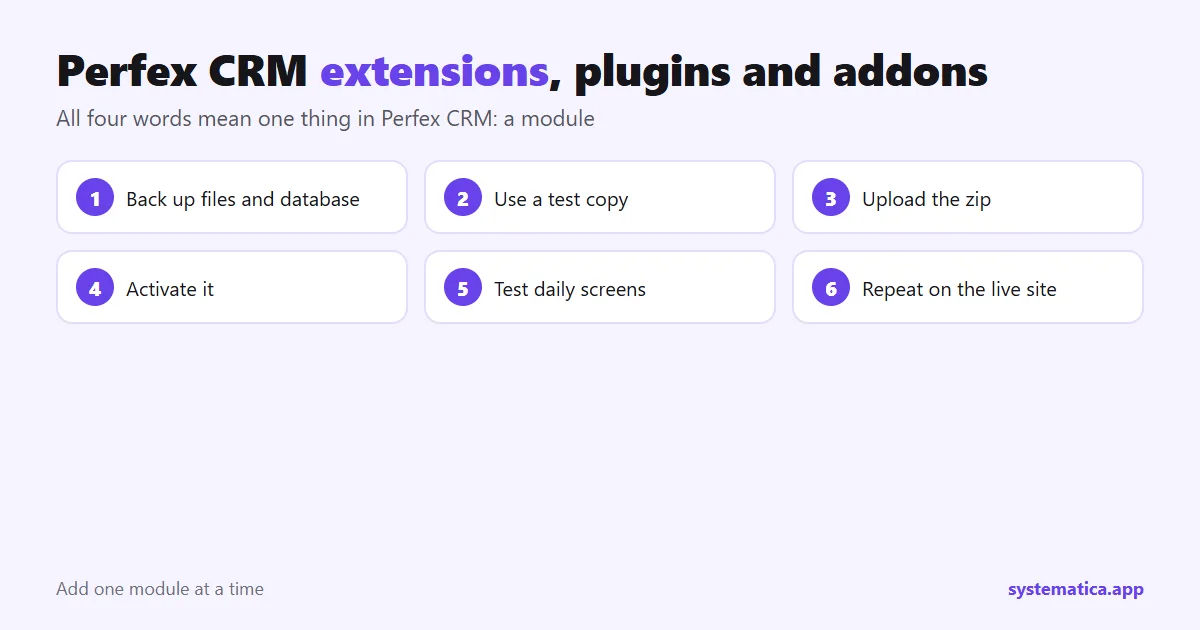
Perfex CRM extensions, plugins, addons and modules: one thing
All four words mean a package of code that adds a feature to Perfex CRM. You upload it in the admin area, activate it, and a new menu item or setting appears. Perfex CRM is not WordPress, so a WordPress plugin does not work in it. A module for Perfex CRM is built for Perfex CRM only.
| You may see | It means |
|---|---|
| Module | The official word in Perfex CRM. The menu is Setup, then Modules. |
| Addon or add-on | Another name for a module, mostly used in marketing. |
| Extension | Same thing, or sometimes a small integration for a service. |
| Plugin | Same thing, borrowed from WordPress. Check that it is made for Perfex CRM. |
Where Perfex CRM extensions come from
- Author shops such as our Systematica module shop, where the author sells and supports directly.
- The CRM itself comes from the Perfex store pricing page. Modules are sold separately by other authors.
- Custom work. A developer builds a module for your exact process. See why a custom module can pay off.
What good Perfex CRM extensions give you
- A clear Perfex CRM version it was tested on.
- Documentation with real screenshots.
- An uninstall that removes what it created, or says what stays.
- Support that you can reach, and updates when Perfex CRM changes.
- A license that matches your use, such as one installation.
How to install Perfex CRM extensions safely
- Back up your files and database. See how to back up the database.
- Use a test copy of your CRM if you can. A subdomain with a copy of the data is enough.
- Upload the zip in Setup, Modules, then activate it. The full steps are in install a Perfex CRM module.
- Test the one thing the module is for, then test the screens you use every day (invoices, tasks, tickets).
- Check the error log after a day of normal use.
- Repeat on the live site only when the copy is clean.
Add one module at a time. If something breaks, you know which one caused it.
Warning signs in Perfex CRM extensions
- The price is far below everyone else’s. It is usually a copied file with no updates. Read the risks of nulled modules.
- No version number and no screenshots.
- Asks for your license key or admin login on a page that is not the vendor’s own checkout.
- A module that edits Perfex CRM core files. It will be overwritten at the next update. Good modules use the hooks that Perfex CRM provides.
Which Perfex CRM extensions to look at first
- Automation: Workflow Rules for tasks, emails and alerts.
- Messaging: WhatsApp and Chat.
- Integrations: REST API and Webhooks.
- Look and feel: Theme Studio.
- Scheduling: Booking System.
Prices and the full range are in the shop. If the feature you need does not exist, a custom module is the next step.
Check compatibility before you install
Most module problems come from a mismatch, not from a bad module. Before you upload anything, collect three facts and compare them with the seller’s page.
- Your Perfex CRM version. Look at the admin footer. The module page should name the version it was tested on.
- Your PHP version. Check it in your hosting panel. A module built for a newer PHP can fail on an older one.
- Your other modules. Two modules that change the same screen can clash. Install the new one on a copy and look at the screens that matter to you.
If the seller gives no version information, ask before you buy. A clear reply is a good sign. No reply is also an answer.
A 30-minute test plan
Do not trust a module because it installed without an error. Run a short test on a copy of your CRM and write down what you see.
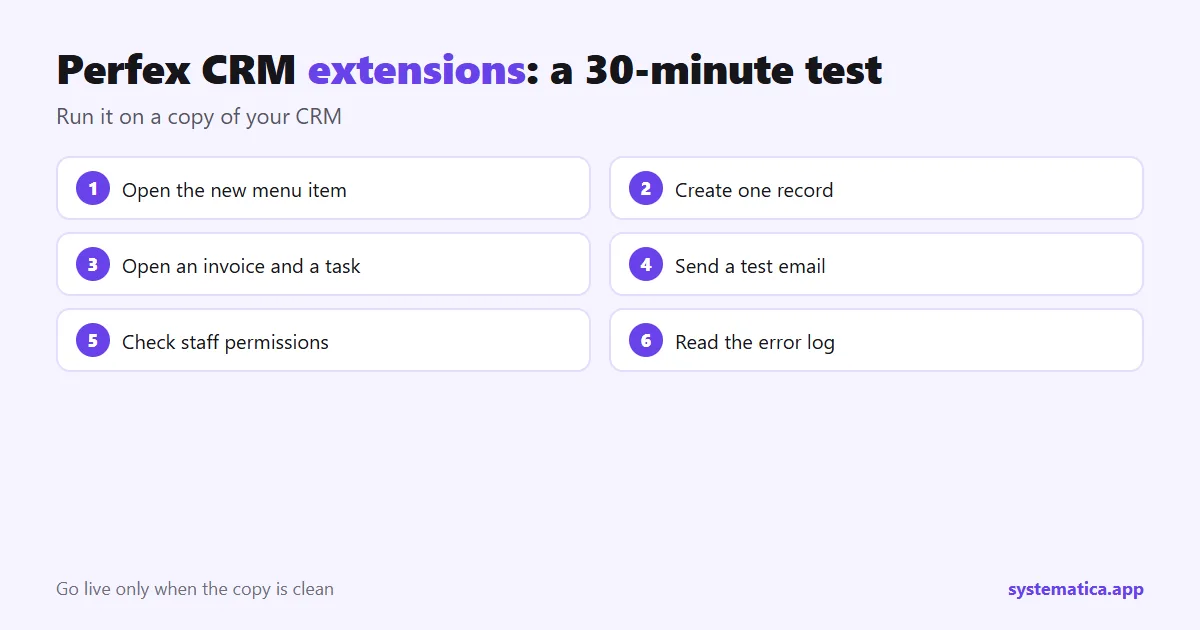
- Open the new menu item and make sure the page loads.
- Create one record the way a real user would, then edit and delete it.
- Open the screens you use every day: an invoice, a task, a ticket, a lead.
- Send a test email if the module sends mail, and check it arrives.
- Log in as a normal staff member and check what they can and cannot see.
- Read the error log on your host. A module can work on screen and still write warnings.
If anything fails, write down the exact steps and send them to the seller. Good support teams can fix a problem when they can repeat it.
Warning signs worth walking away from
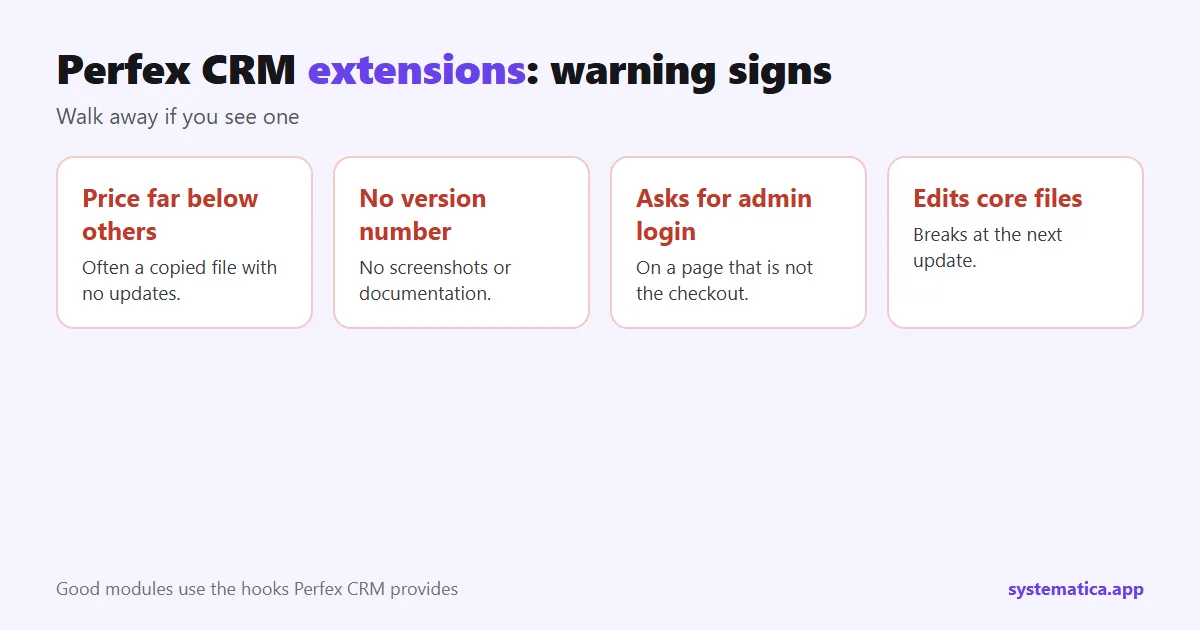
The four signs above cover most bad purchases. There are two more that only show after you pay: a download link that expires with no way to renew it, and a seller who answers questions only when you do not mention a problem. If you see either, stop and ask for a refund inside the refund window.
How to roll back a module that causes trouble
- Deactivate it in Setup, Modules. If the admin area will not load, rename the module’s folder in the modules directory over FTP or the file manager. The CRM then ignores it.
- Restore the backup you took before the install if data was changed. This is why the backup comes first: database backup guide.
- Read the seller’s uninstall notes. Some modules leave tables behind. That is normal, but you should know.
- Report the problem with the steps that led to it, the Perfex CRM version and the PHP version.
Keep your Perfex CRM extensions up to date
Treat modules like phone apps: new versions fix bugs and keep them in step with Perfex CRM. A simple routine works for most teams.
- Once a month, check the seller’s page for new versions of each module.
- Before a Perfex CRM update, check that your modules support the new version. See how to update Perfex CRM manually.
- Update on a copy first, then on the live site, outside working hours.
- Remove modules you no longer use. Fewer modules mean fewer things that can break.
Common problems and where to look
- Blank page after activation: usually a PHP version mismatch or a missing extension. Check the error log and the seller’s requirements.
- Menu item missing: the staff role may not have the new permission. Open the role and enable it. See roles and permissions.
- 404 on the module page: URL rewriting or a cached menu. See the 404 fix and menu setup.
- Emails not sent by the module: check your mail settings first: SMTP settings.
- Slow pages after install: the module may add load. Check your plan using our hosting guide.
When you are ready to choose, start with the best Perfex CRM modules by job or browse the shop.
Frequently asked questions
Do Perfex CRM extensions work like WordPress plugins?
No. Perfex CRM modules are written for Perfex CRM. A WordPress plugin will not run in it, and the reverse is also true.
Can I install a module without a developer?
Yes. Upload the zip in Setup, Modules and activate it. A developer helps only when a module needs extra server settings, such as a cron job or an extension.
Does a module slow down Perfex CRM?
A well-built module adds little. A module that polls the server often, such as live chat, adds load, so test it on your hosting plan.
How do I remove a module?
Deactivate it, then uninstall it from the Modules list. Read the notes from the seller first to see whether any data stays in the database.