
An advanced email system for Perfex CRM puts your inbox inside the CRM, so customer messages sit next to their records and an email turns into a task, ticket or lead in one click. This guide shows what such a system includes, the five steps to set it up and what to check before you give it to the whole team. The example is our Mailbox module for Perfex CRM.
What an advanced email system for Perfex CRM gives you
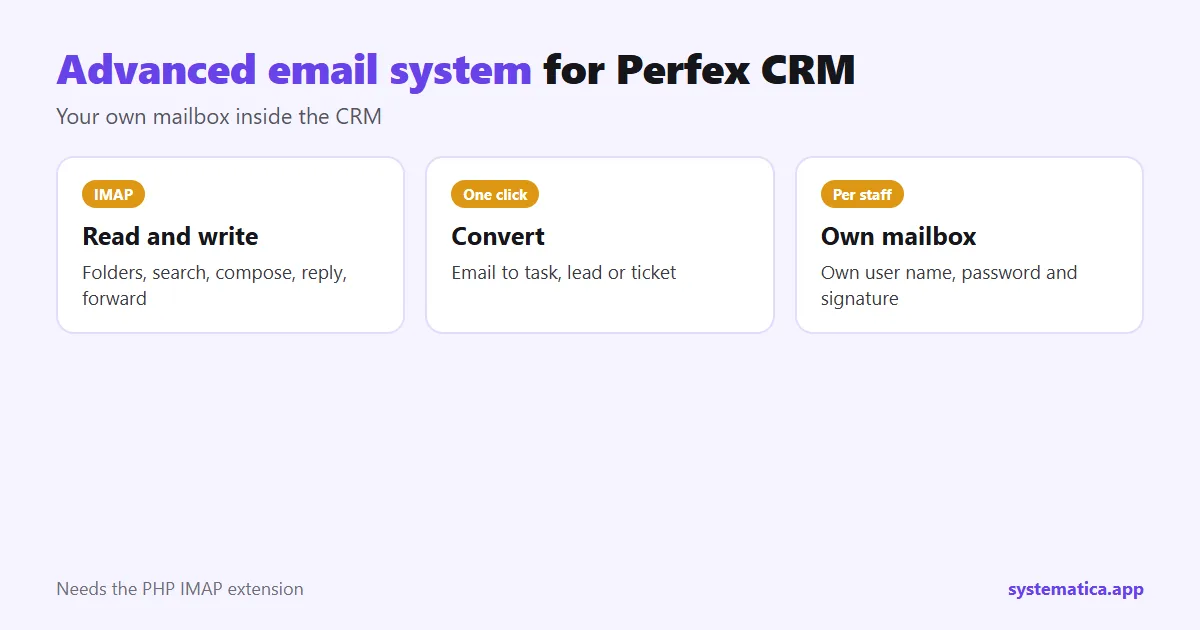
- Folders for Inbox, Starred, Sent, Important, Draft and Trash, with an unread count.
- A mail list with sender, subject, date, attachment mark and quick star, flag and delete buttons.
- A compose screen with To, CC, subject, an editor, attachments, Save Draft, reply all and forward.
- One-click conversion: Convert to Task, Assign to Leads or Convert to Ticket.
- Per-staff settings: each person’s own IMAP user name, password and signature.
- Tags, contacts, email templates and auto replies.
Advanced email system for Perfex CRM in 5 steps
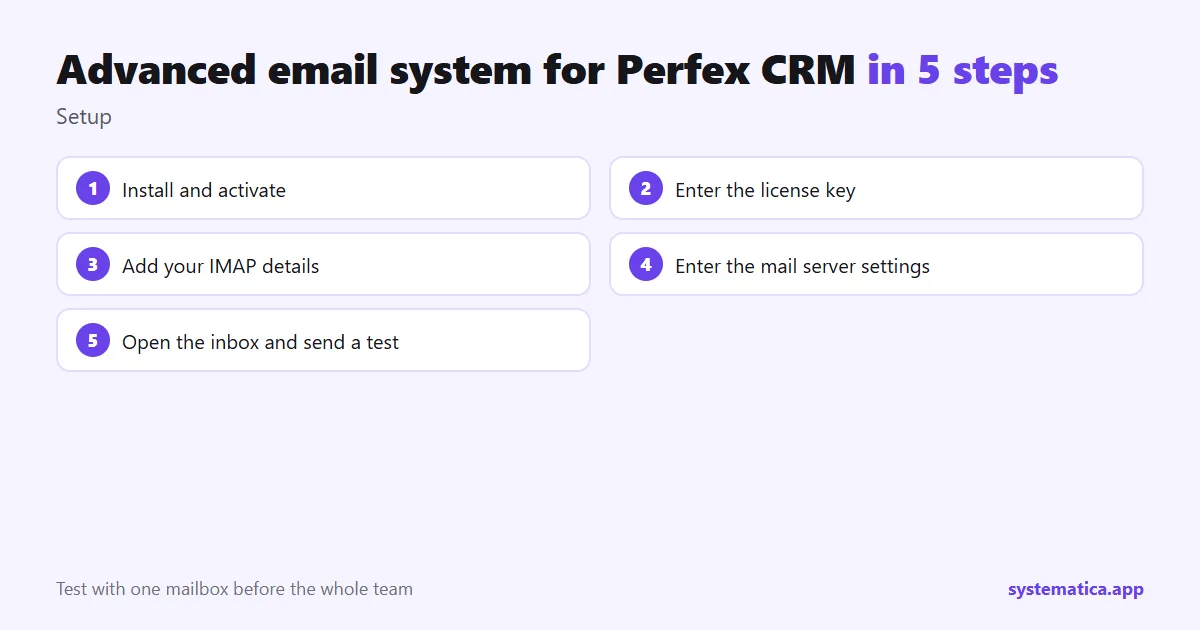
- Install and activate the module under Setup, Modules: install a module.
- Enter the license key under Mailbox, License Management.
- Add your mailbox: under Mailbox, Configuration, enter your IMAP user name, password and signature.
- Enter your mail server details under Setup, Settings, Mailbox.
- Open the Inbox and send a test message to yourself.
You need an email account with IMAP access, the PHP IMAP extension on the server and Perfex CRM 3.0 or newer (tested on 3.4.1). If the extension is missing, ask your host; see Perfex CRM hosting for what to ask.
Turn an email into work
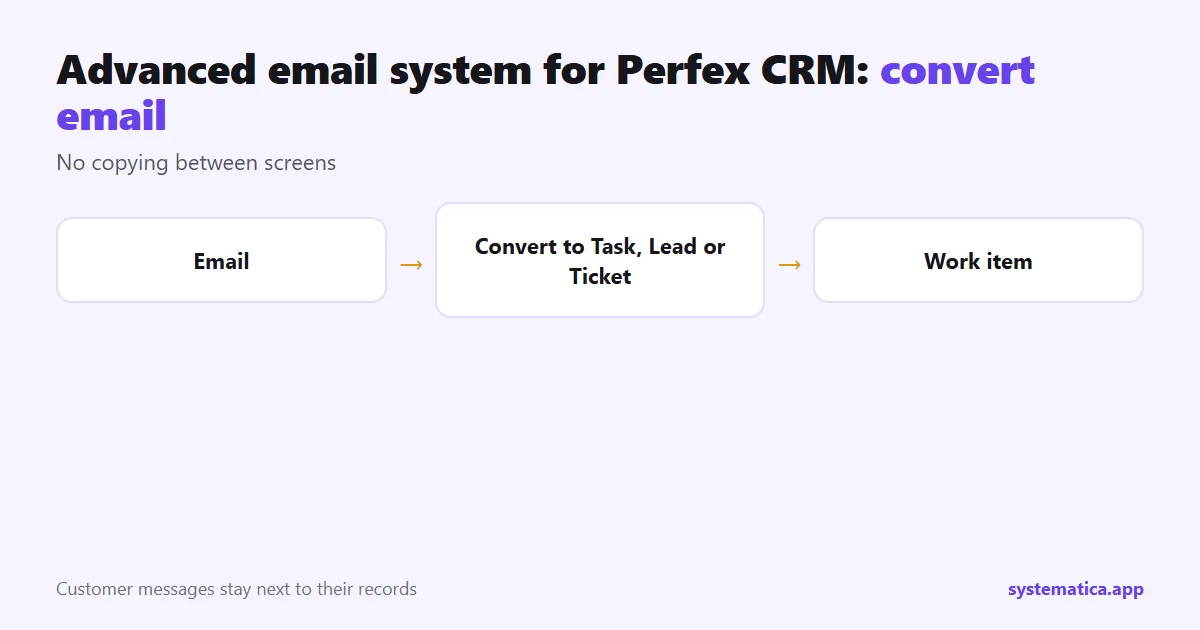
Open any email and use the buttons. Convert to Task makes a task from the message, Assign to Leads attaches it to a lead and Convert to Ticket opens a support ticket. No copying between screens. For tickets that arrive by email without a mailbox, see email piping.
Before you give it to the team
- Test with one mailbox first.
- Remember that your provider’s limits and rules apply to sending and receiving.
- Each person enters their own password, so give access only to staff who need it.
- Set up outgoing mail correctly: SMTP settings.
- Keep email templates tidy: email templates.
If you also message on WhatsApp or SMS, see WhatsApp for Perfex CRM and CRM SMS integration, and add Workflow Rules to react to new items.
See also the best Perfex CRM modules, Perfex CRM pricing and Perfex CRM hosting. The CRM itself comes from the official Perfex store.
Email habits that save time
- Use star and important for messages that need action today.
- Turn requests into tasks straight away, so nothing hides in the inbox.
- Use email templates for answers you type often, and an auto reply when you are away.
- Keep a signature per person, so every message looks consistent.
- Convert customer problems into tickets, so the team can see them.
Common problems and where to look
- Login fails: check the IMAP user name, password and server details. Some providers need an app password for IMAP.
- No mail loads: check that the PHP IMAP extension is enabled and that your server can reach the mail server.
- Cannot send: check your outgoing settings and your provider’s sending limits.
- Slow inbox: test on a host with enough memory; see Perfex CRM hosting.
Privacy
Each person connects their own mailbox, so give the module only to staff who should read that mail. Use strong passwords, HTTPS and the minimum role permissions: roles and permissions.
Frequently asked questions
What is an advanced email system for Perfex CRM?
A module that adds a webmail client to the CRM, so staff read, write and send email and turn emails into tasks, tickets or leads.
Which email accounts can I use?
Any account that offers IMAP access. Each staff member enters their own user name and password.
Does it need anything on my server?
The PHP IMAP extension, and a server that can reach your mail server.
Can I turn an email into a ticket?
Yes. Open the email and click Convert to Ticket.