
The Perfex CRM calendar shows your tasks, invoices, reminders and own events on one page, so you can see what is due this week. This guide, tested on Perfex CRM 3.4.1, shows the views, the filter and how to add your own calendar events.
What the Perfex CRM calendar shows #
Open Utilities > Calendar. The page starts in month view. Arrows move to the previous or next month, Today jumps back to the current date, and the title shows the month. On the right, the buttons Month, Week, Day and Filter By change what you see. Invoices appear as orange bars with their numbers.
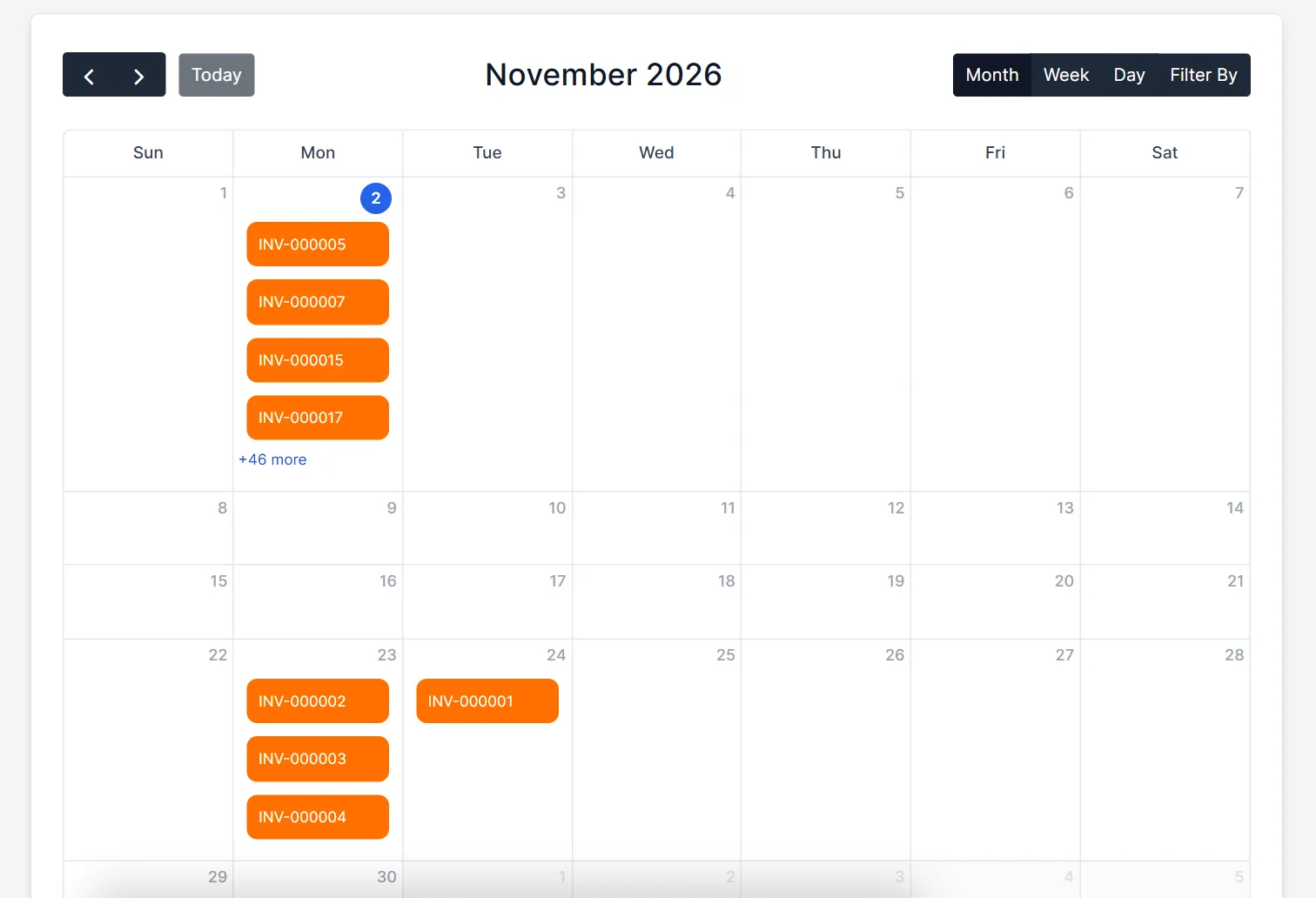
Step 1: Choose a view #
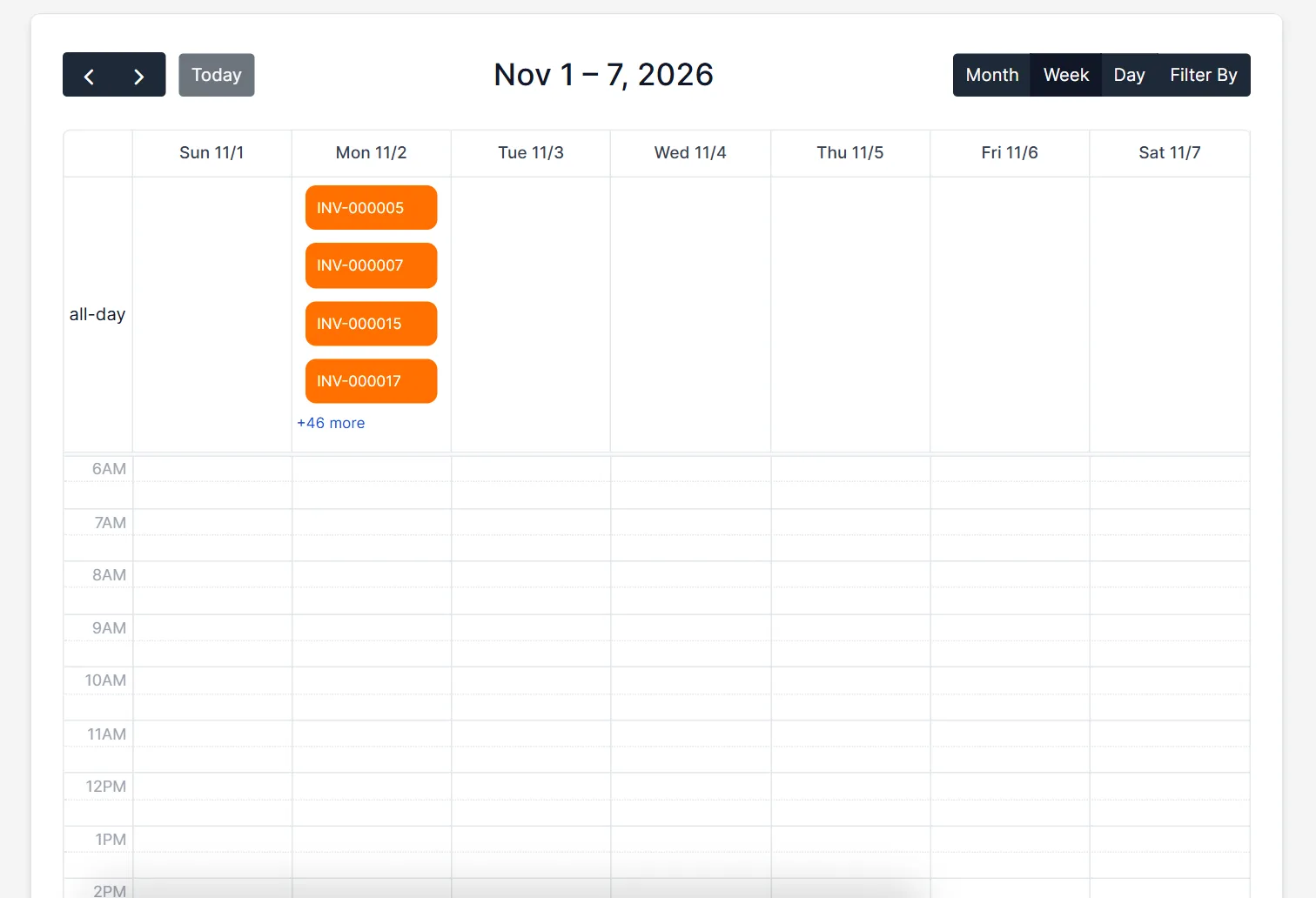
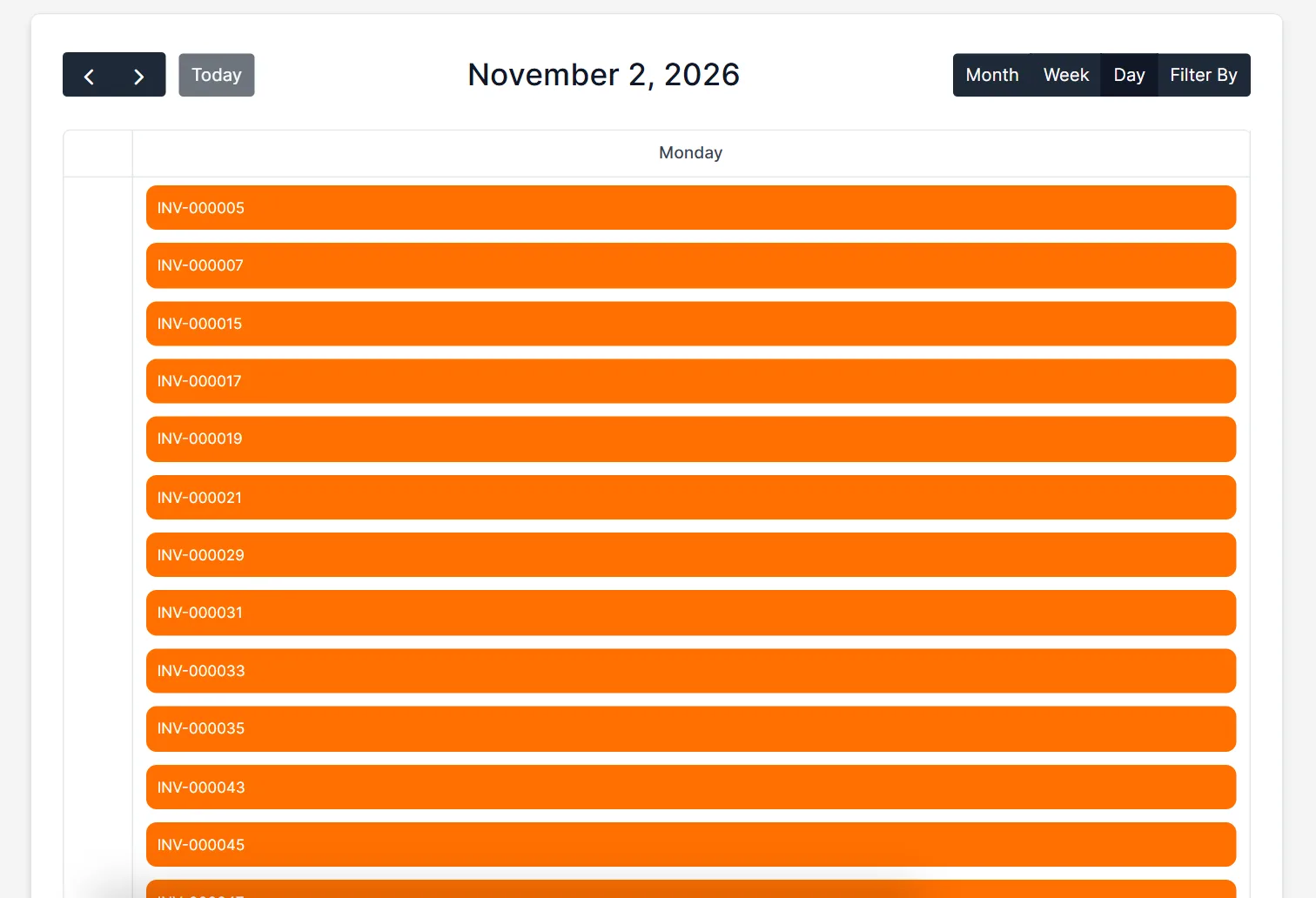
Click Week to see seven days with an all-day row on top and the hours below. Click Day for one date, which lists every item of that day in a column. Month view is best for planning, and week and day views are best for busy days.
Step 2: Filter what you see #
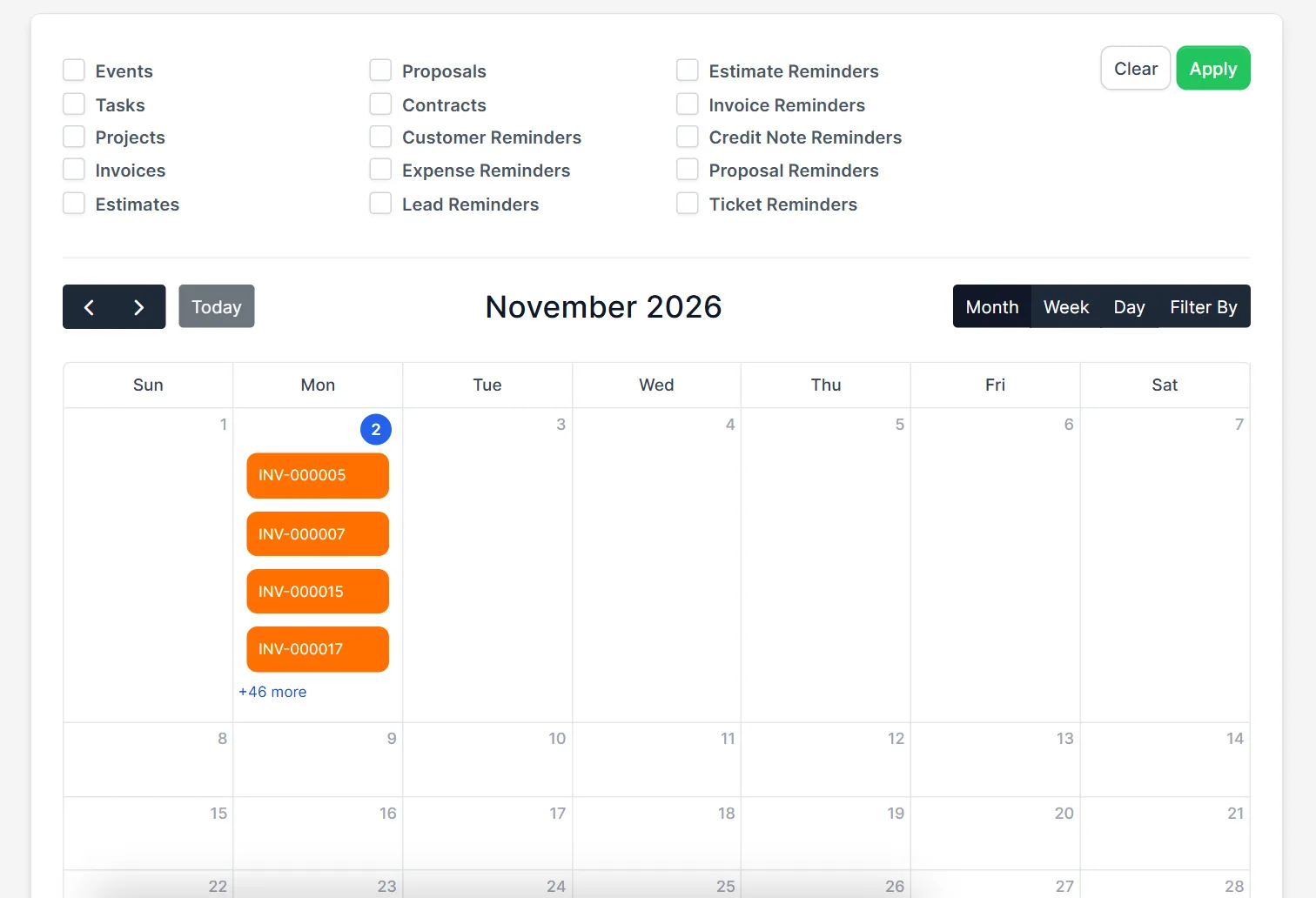
Click Filter By. A panel with check boxes opens: Events, Tasks, Projects, Invoices, Estimates, Proposals, Contracts, and the reminders for expenses, customers, leads, estimates, invoices, credit notes, proposals and tickets. Tick the types you want and click Apply. Clear removes the choice. A short list gives a clearer picture.
Step 3: Add your own calendar event #
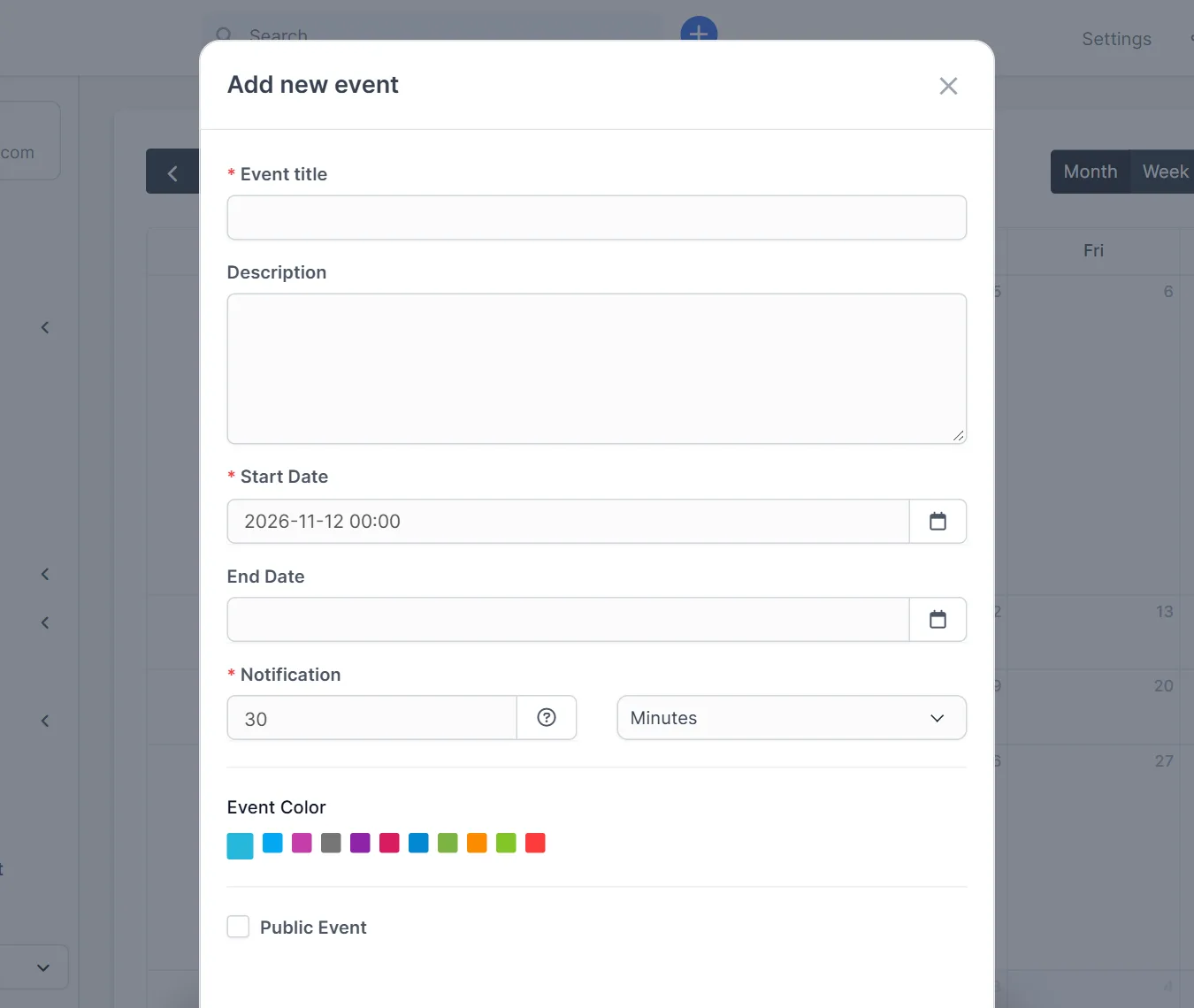
Click a day in the calendar. The window Add new event opens with the fields Event title, Description, Start Date, End Date, Notification (30 minutes before by default) and Event Color. Tick Public Event if the team should see it, then save.
Step 4: Open an item from the calendar #
Click an invoice, task or event to open it. This is a quick way to find the invoice that is due on a given day. Reminders you create on customers, leads or estimates show up here too. Learn about tasks in Perfex CRM tasks and reminders in Perfex CRM reminders.
Step 5: Use the calendar every day #
Start the day on the Perfex CRM calendar in week view with only Tasks and Events ticked. At the end of the week, switch on Invoices and Projects and check what comes next.
Plan a week with the calendar #
On Monday, open the Perfex CRM calendar in week view and tick Tasks, Events and Projects. Move tasks that cannot be done to a new date from the task window, and add an event for each meeting. On Friday, switch on Invoices and the reminders to see what is due next week. The Perfex CRM calendar works best when due dates are set on tasks, invoices and reminders, because only items with a date appear on it.
Tips for the calendar #
- Give each type of event its own color.
- Use public events for team meetings and private ones for yourself.
- If the month view shows “more”, click it to open the list of that day.
- The calendar is not a booking system. Clients cannot book a time in it.
- Check Perfex CRM timezone if times look wrong.
Not tested here: saving a new event and editing it, and the notification before an event. Read the official Perfex CRM help for more.
Related module: The Perfex CRM calendar is for your team. If clients should book a free time themselves, the Booking System for Perfex CRM adds an online booking page and a provider calendar with reminders.
Frequently asked questions #
Where is the Perfex CRM calendar? #
Open Utilities, then Calendar.
Can I add my own event? #
Yes. Click a day, fill in the Add new event window and save.
How do I show only tasks? #
Click Filter By, tick Tasks and click Apply.
Can clients book appointments in the calendar? #
No. A booking module is needed for that.


