
Perfex CRM database backup saves your customers, invoices, tasks and settings in one file, so you can restore them after a mistake or a server problem. This guide, tested on Perfex CRM 3.4.1, shows how to activate the Database Backup module, create a backup, set an automatic backup and keep a copy off your server.
What the Perfex CRM database backup module does #
Database Backup is a default module, so it is already in your CRM but switched off until you activate it. It creates a zip file that holds an SQL dump of the database. It does not copy the files in the uploads folder, for example attachments, so those need their own copy.
Step 1: Activate the Database Backup module #
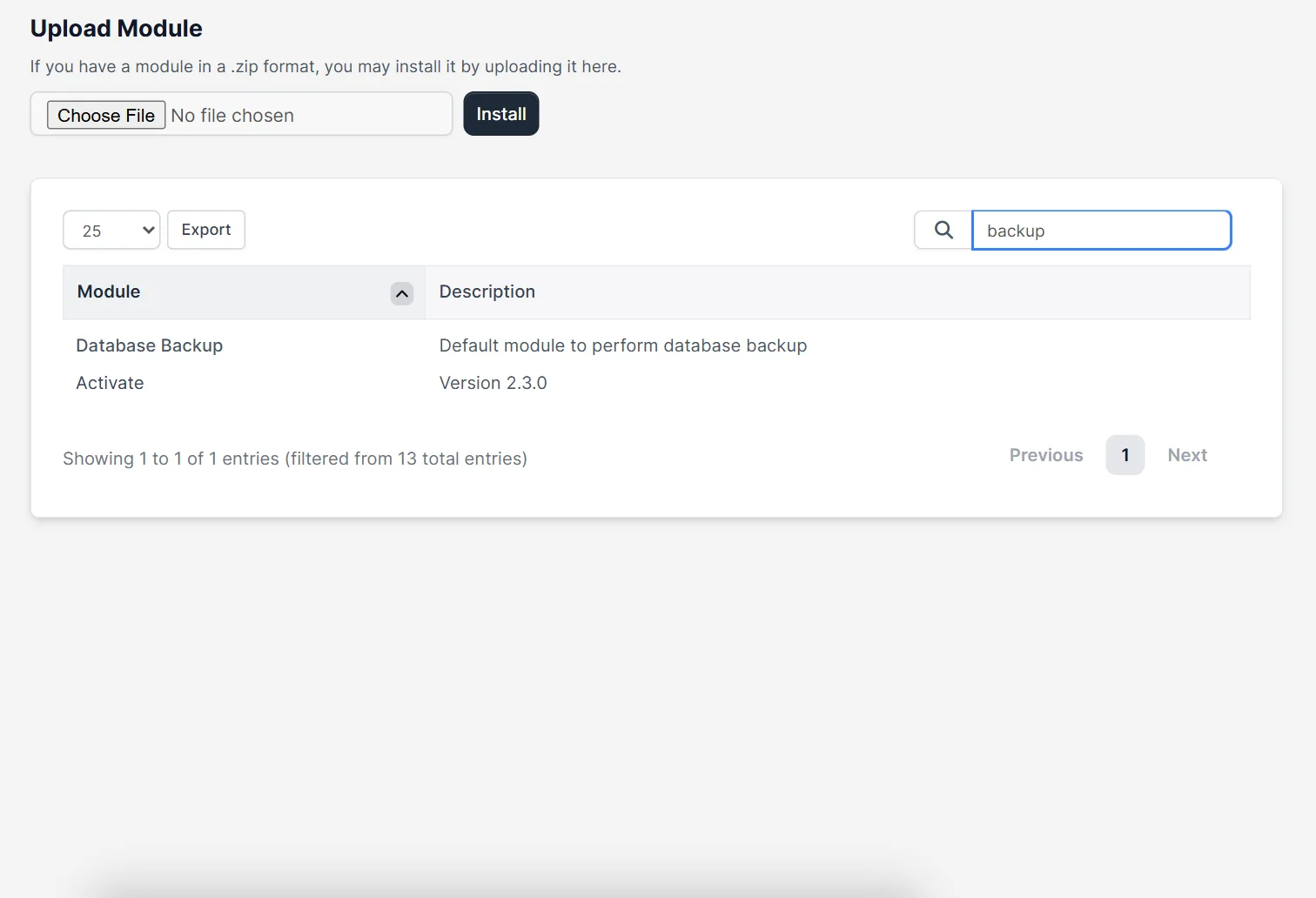
Open Setup > Modules, find Database Backup (description “Default module to perform database backup”) and click Activate. More about modules in Perfex CRM install module.
Step 2: Open the backup page #
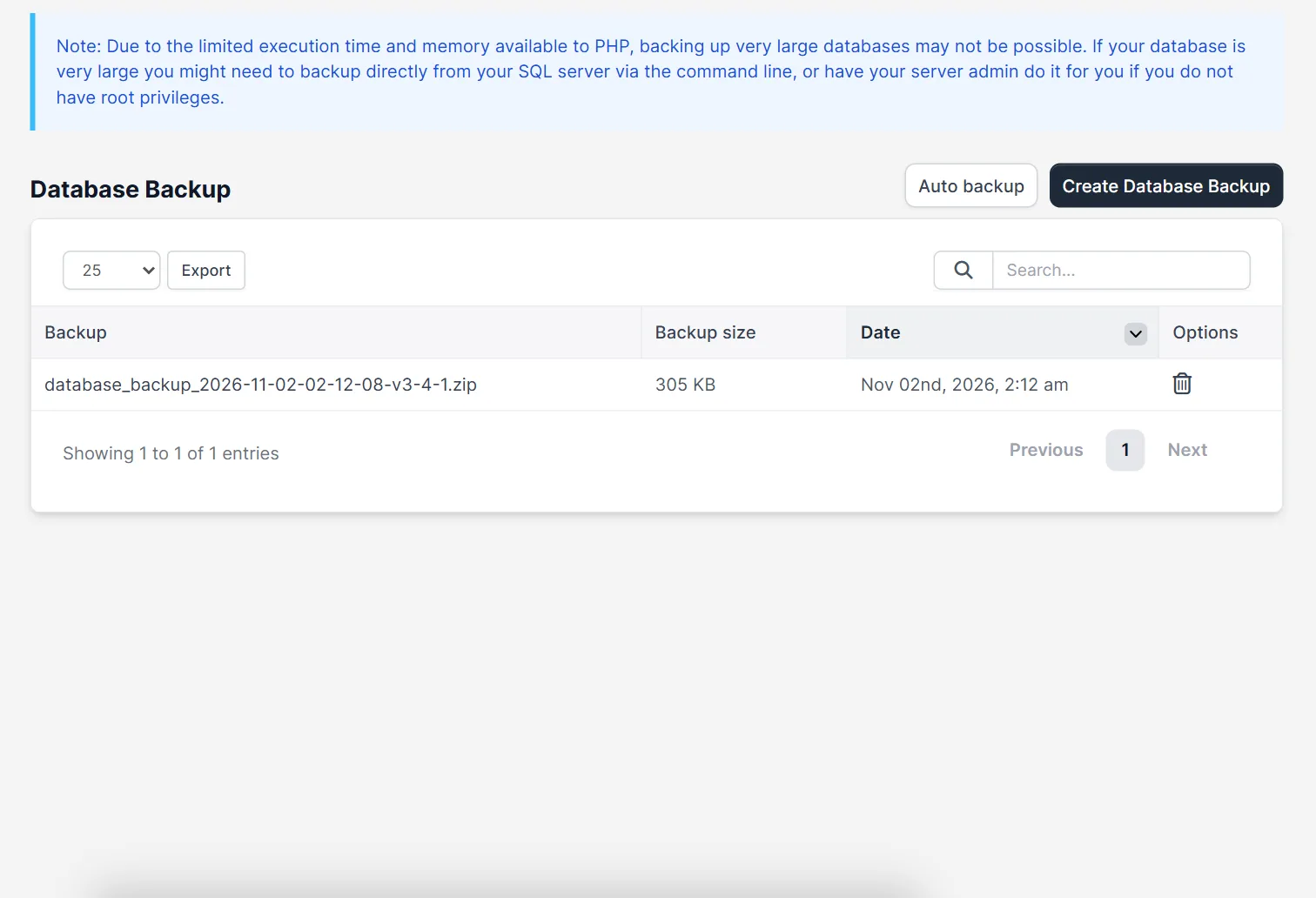
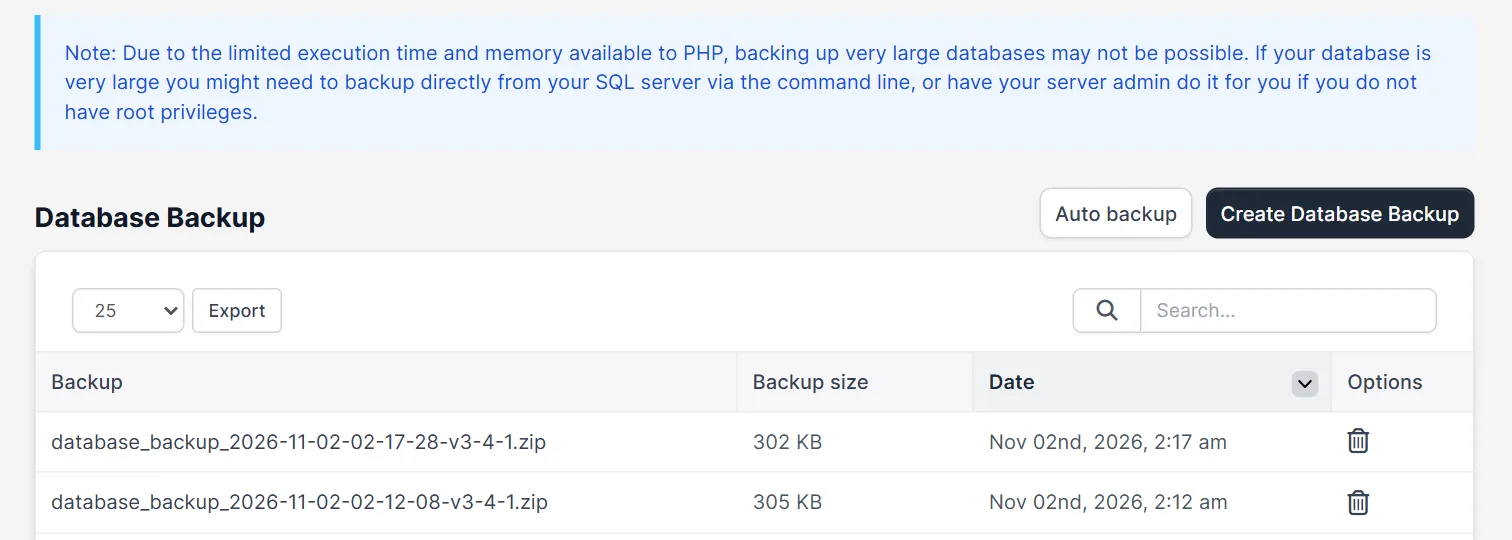
After activation, Database Backup appears in the Utilities menu. The page starts with a note: because PHP has a limited time and memory, a very large database may not back up in the browser. In that case ask your server admin to back up from the command line. Two buttons sit above the table: Auto backup and Create Database Backup.
Step 3: Create a database backup #
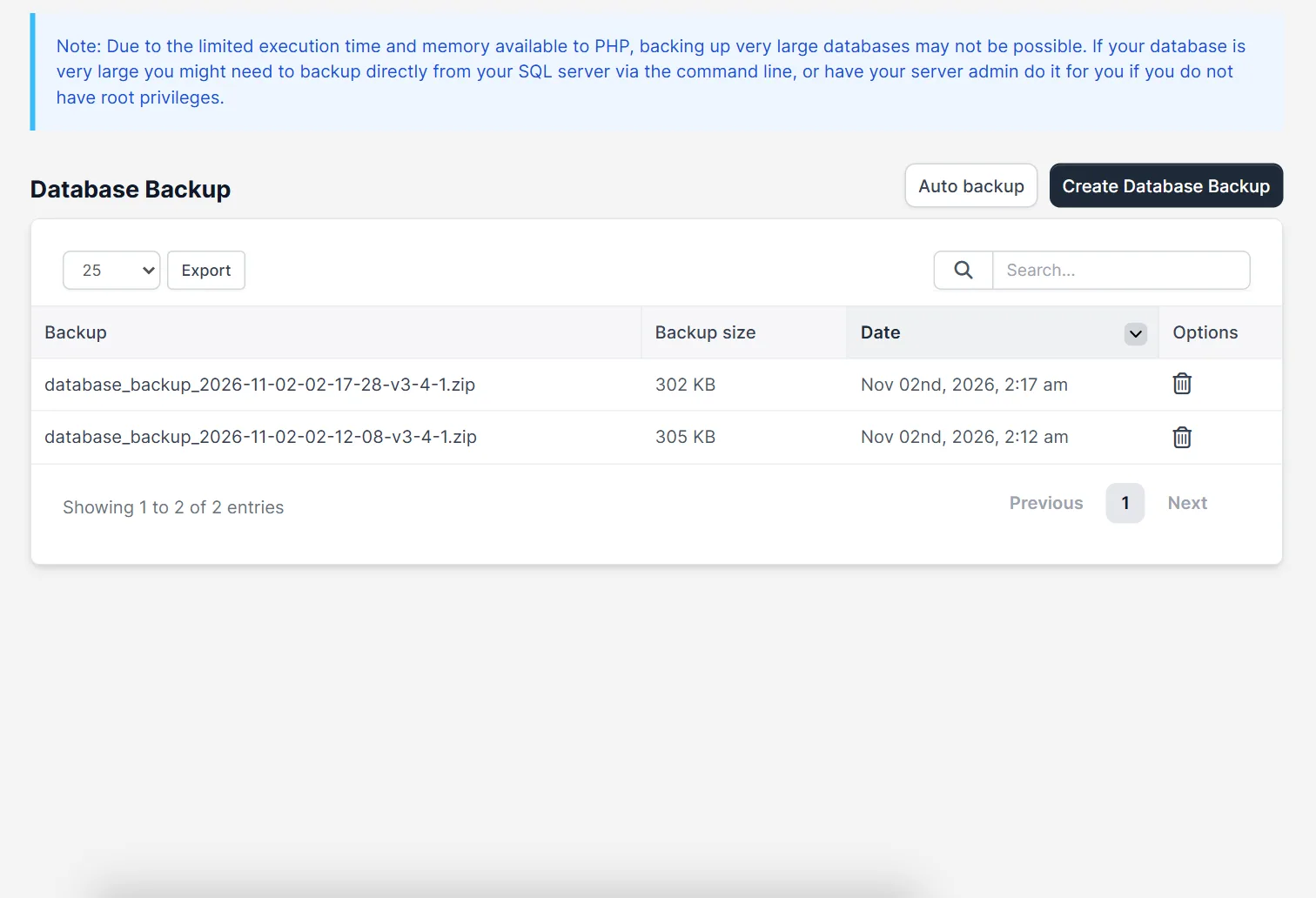
Click Create Database Backup. After a few seconds the list shows a new row with the file name, the size and the date. The file name starts with database_backup_, then the date and the Perfex CRM version. In the test, the zip was about 300 KB and held one .sql file. The Options column has a delete icon.
Step 4: Set the auto backup #
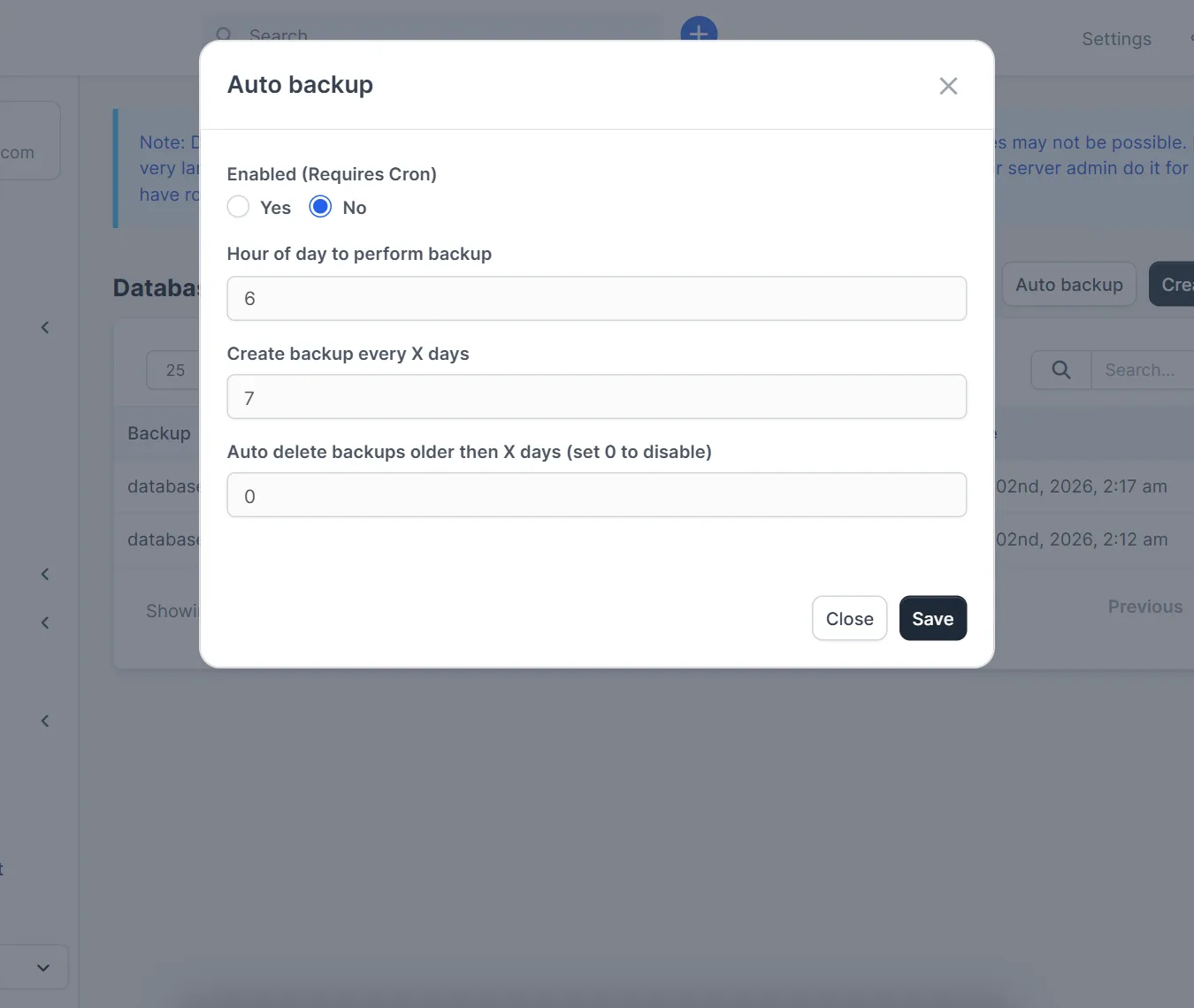
Click Auto backup. The window has four settings: Enabled (Requires Cron) with Yes and No, the hour of the day for the backup, create a backup every X days and auto delete backups older than X days (0 switches the deletion off). Auto backup runs through the cron job, so check the Perfex CRM cron job first.
Step 5: Keep a copy away from the server #
The backup zip is stored on your server, in the backups folder of the CRM, which is protected from direct downloads. Copy the files to another place with FTP or your hosting file manager, for example to your own computer or a cloud drive. A backup that lives only on the same server is lost with the server.
Tips for your Perfex CRM database backup #
- Create a manual backup before every update or new module.
- Keep at least three copies from different days.
- Back up the uploads folder too, because the database backup does not contain it.
- Move to a new host with migrate Perfex CRM to a new server and use the newest backup.
- Test a restore on a copy from time to time.
Not tested here: restoring a backup and the automatic run through cron. The screenshots come from a demo CRM and the test backup was deleted afterwards. Read the official Perfex CRM help for the restore steps of your version.
Frequently asked questions #
Does Perfex CRM have a built-in backup? #
Yes. The Database Backup module comes with Perfex CRM and you only need to activate it.
Where is the backup file stored? #
In the backups folder of the CRM on your server. Copy it to another place for safety.
Does the backup include uploaded files? #
No. It holds the database only. Copy the uploads folder separately.
How often should I back up the database? #
Every day is a good rule for an active CRM. Use auto backup and keep several days of copies.


