
- What a lead is in Perfex CRM add lead
- Step 1: Start Perfex CRM add lead with New Lead
- Step 2: Fill in the contact details
- Step 3: Use the lead kanban board
- Step 4: Open the lead and follow up
- Tips for a clean list after Perfex CRM add lead
- Common mistakes with Perfex CRM add lead
- Quick checklist for Perfex CRM add lead
- Related guides
- Summary
- Frequently asked questions
Perfex CRM add lead is a short form: you click New Lead, fill in the name, the status and the source, and save. The lead then appears in your leads list and on the lead board, ready for your follow-up. This guide, tested on Perfex CRM 3.4.1, shows the form field by field, how to read the lead board and how to open a lead to work with it.
What a lead is in Perfex CRM add lead #
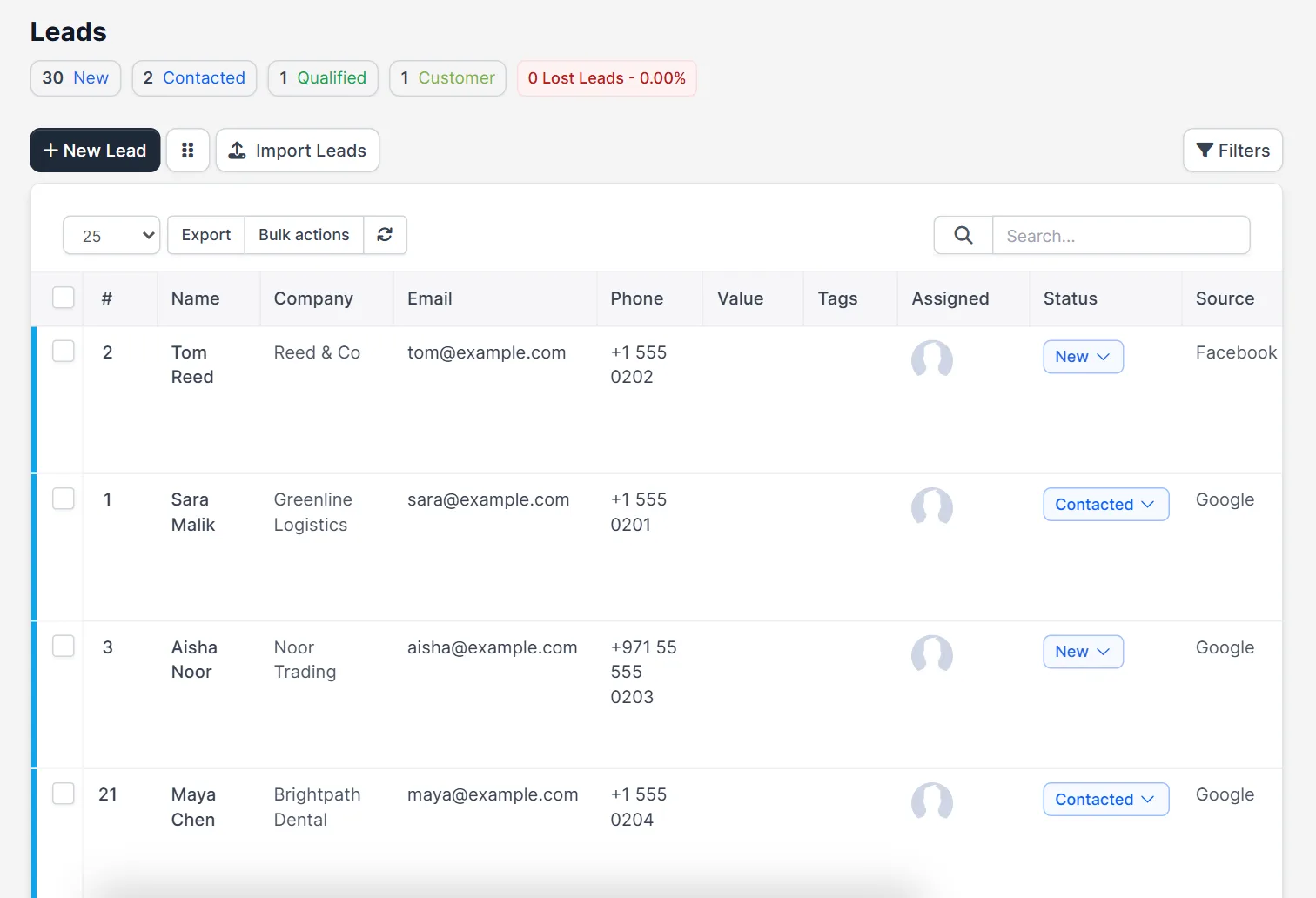
A lead is a person or company that has shown interest but is not a customer yet. You collect leads by hand, from a web to lead form or by import, and you move each one through statuses until you can convert the lead to a customer. The Leads page starts with small counters for each status, such as New, Contacted, Qualified and Customer, and a count of lost leads with its percentage.
Step 1: Start Perfex CRM add lead with New Lead #
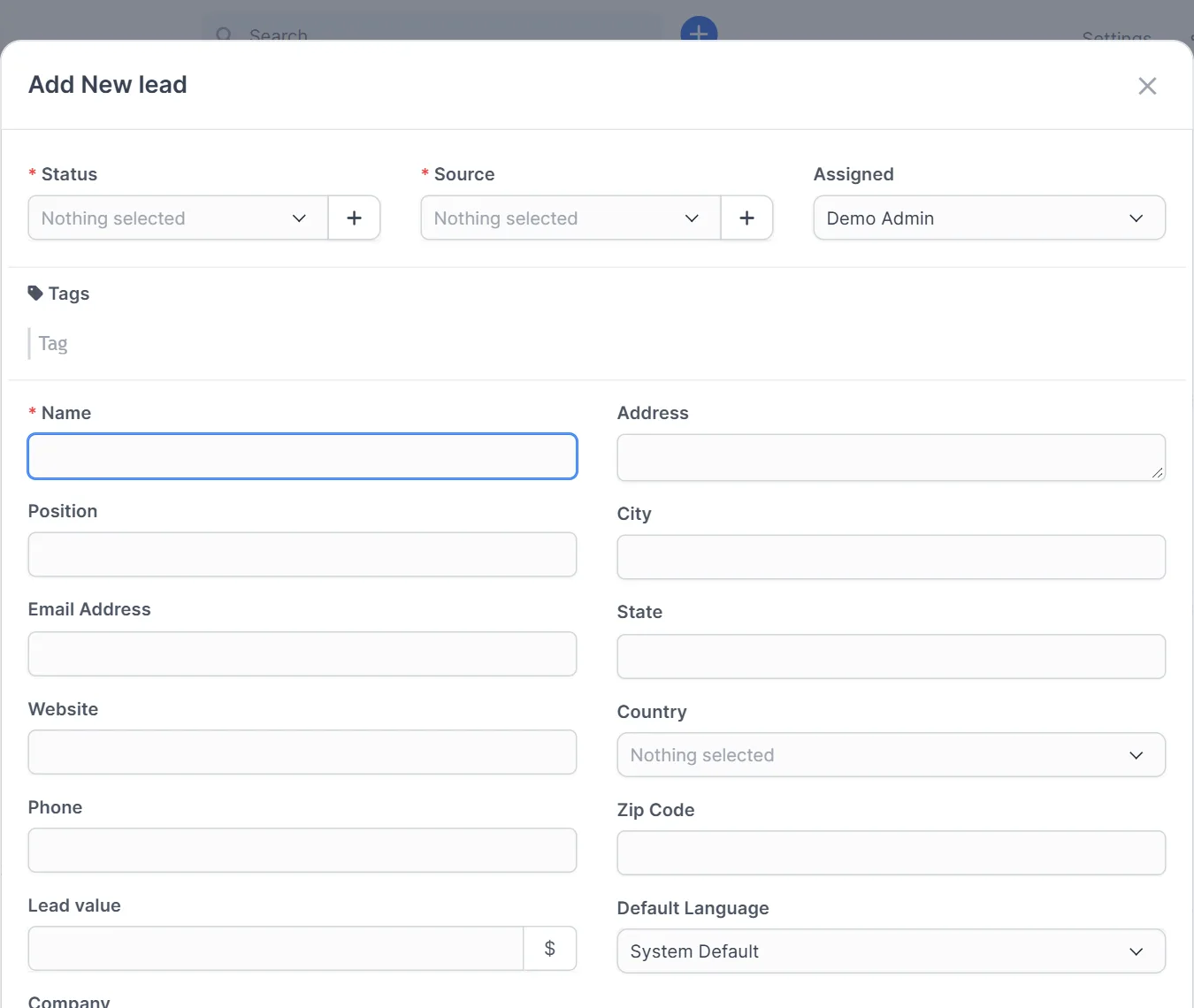
Open Leads and click New Lead. The window Add New lead opens with the main fields at the top: Status, Source and Assigned. Status and Source are required. The Assigned field is filled with you, and you can pick another staff member. If a status or source is missing, use the plus button next to the field, or read Perfex CRM lead sources first.
Step 2: Fill in the contact details #
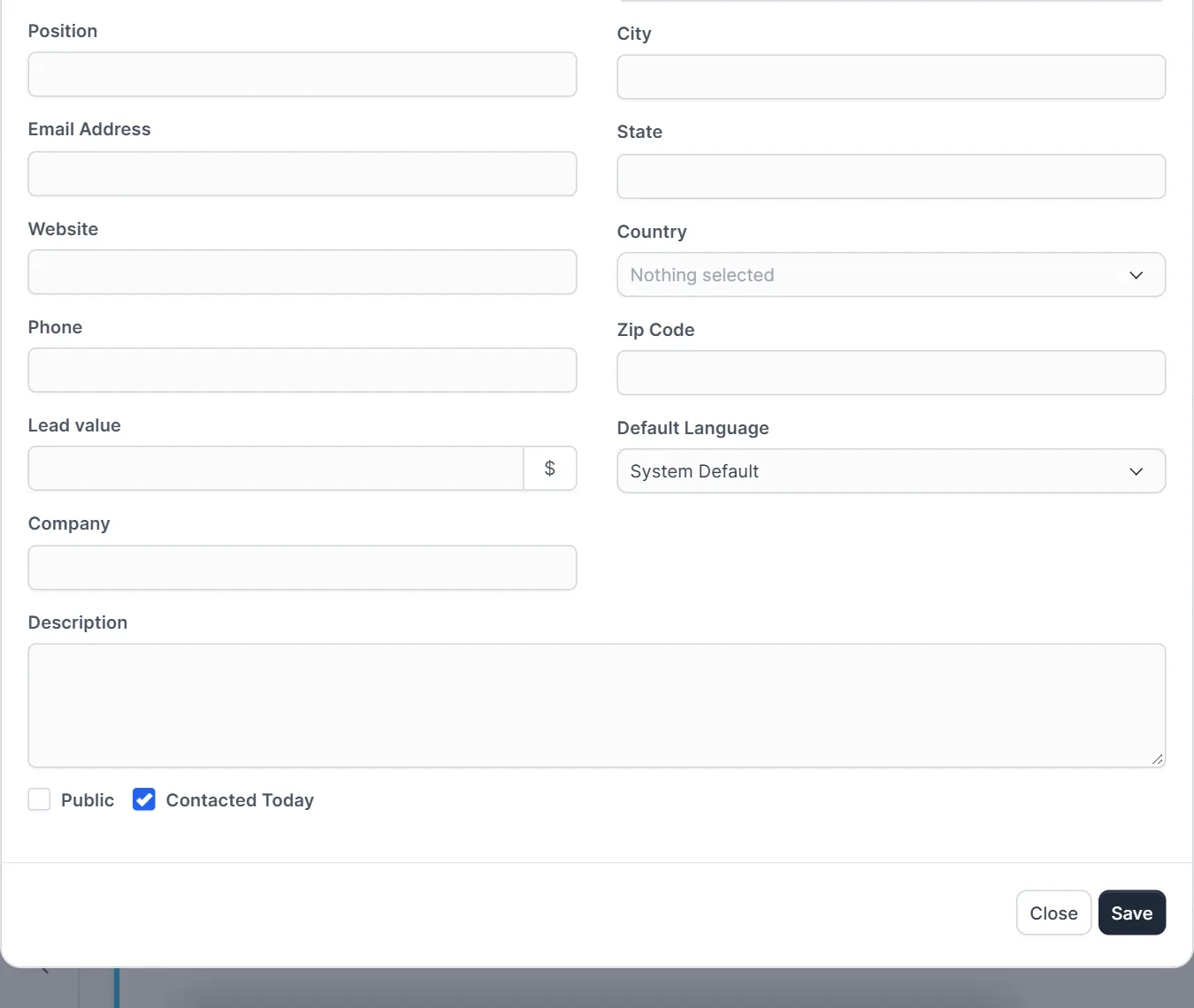
Type the Name, which is required, and then what you know: the position, the email address, the website, the phone number, the company and the address with city, state, country and zip code. Lead value stores the expected amount, and Default Language sets the language of emails to this lead. Scroll down for the Description, the Public option and Contacted Today, which is ticked by default so the lead starts with today as the last contact.
- Enter the email address so the lead can be converted and contacted later.
- Add tags such as the campaign name to filter the list.
- Keep the description short and factual, for example what the person asked for.
Step 3: Use the lead kanban board #
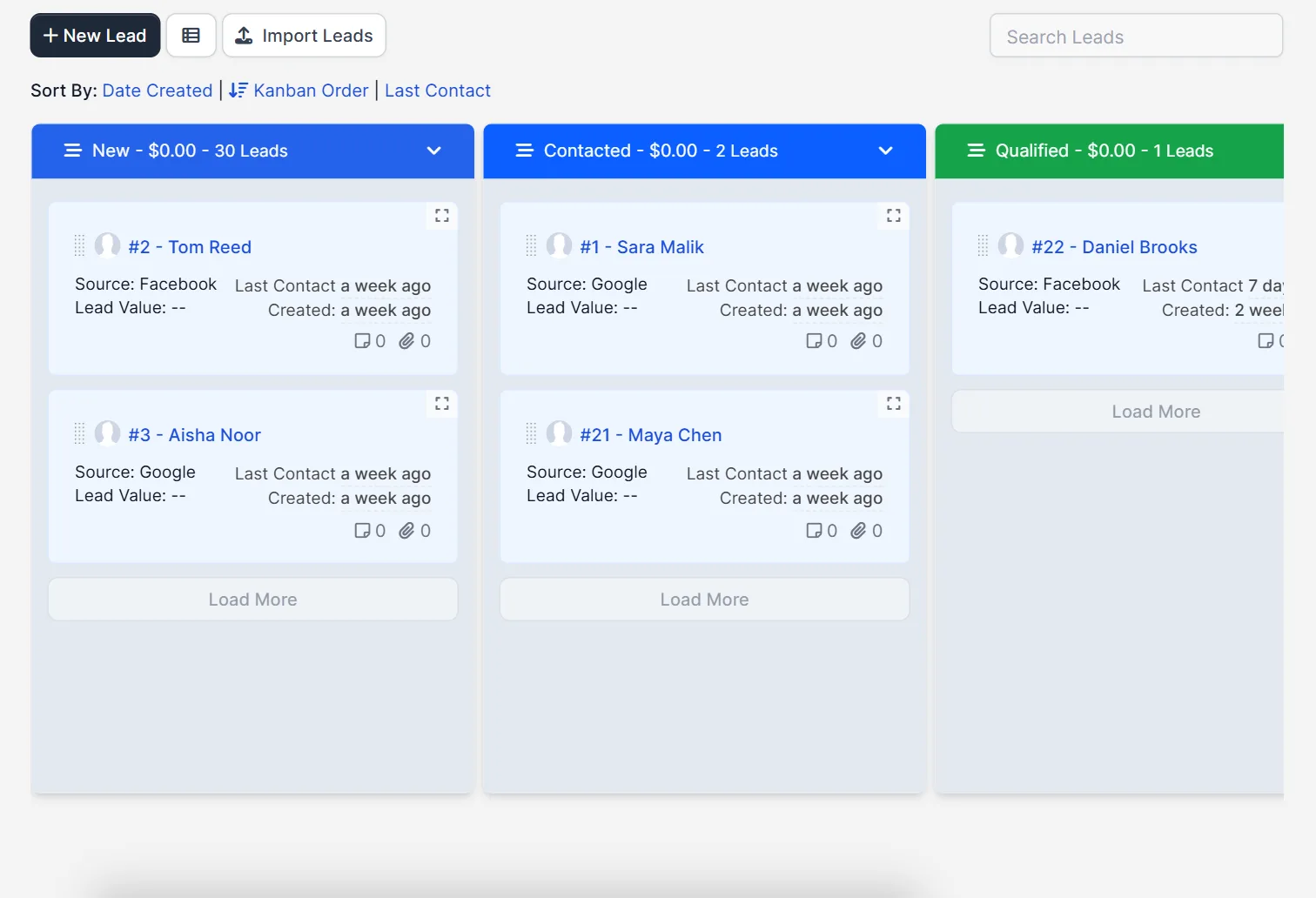
Click the board icon next to New Lead to switch from the table to the lead kanban board. Each status is a column that shows the number of leads and the total lead value. A card shows the name, the source, the last contact, the creation date and small counters for tasks and files. Sort the board by Date Created, Kanban Order or Last Contact with the links above it. Drag a card to the next column when the status changes.
Step 4: Open the lead and follow up #
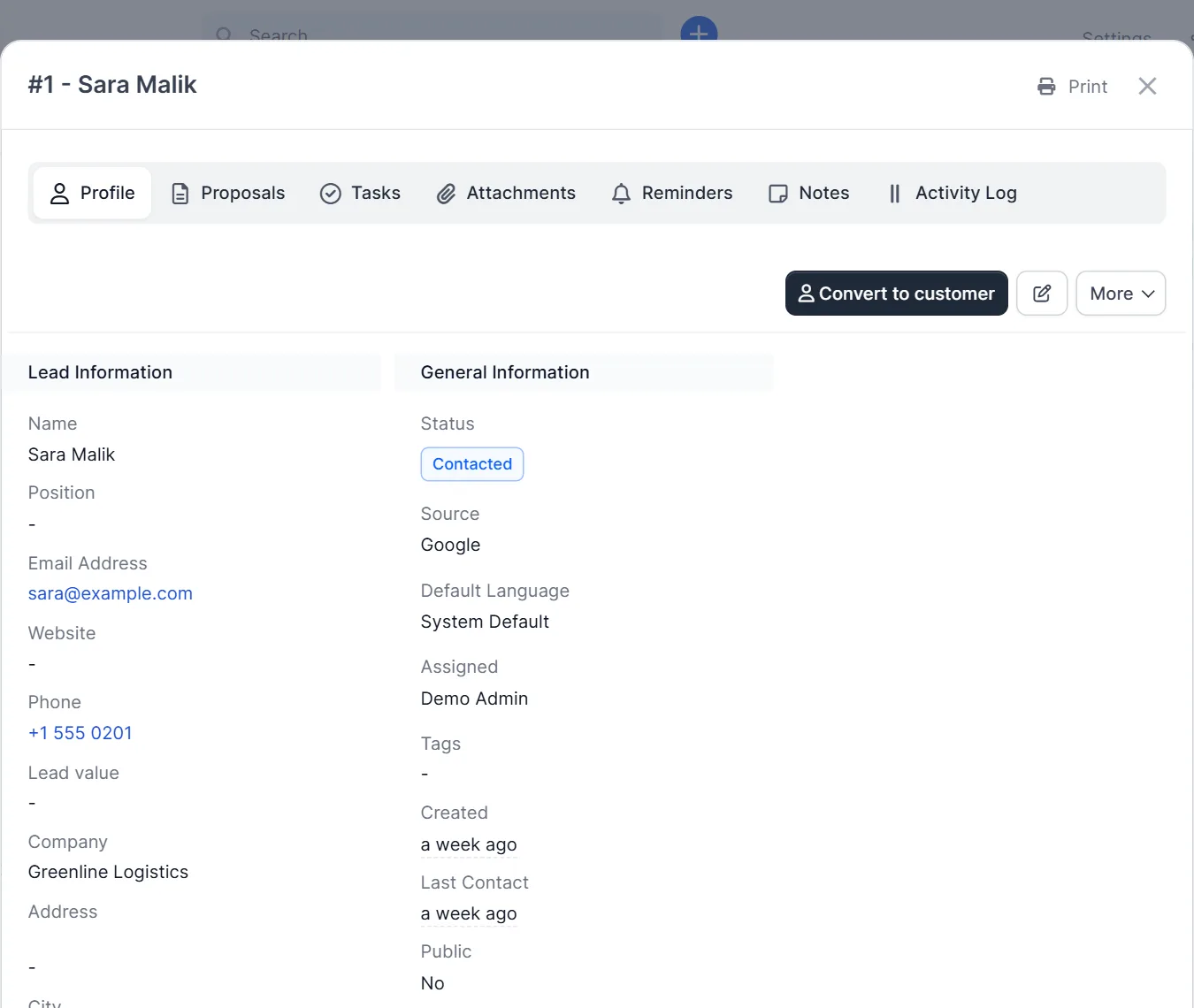
Click a lead name to open its window. The Profile tab shows the lead information and the general information with the status, source, assigned staff member and the created date. The other tabs are Proposals, Tasks, Attachments, Reminders, Notes and Activity Log. The button Convert to customer turns a qualified lead into a customer when the deal is won.
Tips for a clean list after Perfex CRM add lead #
- Use one status list for the whole team, and move leads on the same day you talk to them.
- Set a reminder on the lead after every call, so nobody waits for an answer.
- Check for duplicates before you add a lead whose email you already have.
Common mistakes with Perfex CRM add lead #
When you use Perfex CRM add lead, the usual mistakes are small. A name that is only a company makes the list hard to search. A missing email address stops you from writing to the lead later. A wrong source spoils the source report. And leaving every lead in the first status makes the lead kanban board one long column. Move a lead to the next status the same day, and check the board once a week. Duplicates are easy to create when two people add the same person, so search the list before you add a new lead.
Quick checklist for Perfex CRM add lead #
- The name is a person or a company, not a note.
- The status and the source are chosen on purpose.
- The assigned staff member is the person who will call.
- The email address and the phone number are filled in.
- A tag or a description says where the lead came from.
- A reminder is set for the first follow-up.
Related guides #
- Collect leads from your website with the web to lead form.
- Win the deal with proposals and estimates.
- Create leads from WhatsApp chats with our WhatsApp module.
- Read the official Perfex CRM help for more lead topics.
The screenshots come from a demo CRM. The lead was not saved in these pictures, drag and drop between board columns was not tested, and the plus button next to Status and Source was only seen, not used.
Summary #
With Perfex CRM add lead, click New Lead, choose the status and source, type the name and contact details and save. Use the lead board to keep the follow-up in order and open a lead to add tasks, notes and reminders. When the deal is won, convert the lead to a customer.
Frequently asked questions #
How do I add a lead in Perfex CRM? #
Open Leads, click New Lead, choose the Status and Source, type the Name and save.
Which fields are required for a new lead? #
Status, Source and Name are required. The other fields are optional.
How do I see leads as a board? #
Click the board icon next to New Lead. Each status becomes a column, and you can sort by date created, kanban order or last contact.
How do I turn a lead into a customer? #
Open the lead and click Convert to customer.


