
- What project milestones do in Perfex CRM
- Step 1: Add a milestone
- Step 2: Give tasks to a milestone
- Step 3: Follow the project milestones in the overview
- Step 4: See the milestones on the Gantt chart
- Tips for good Perfex CRM project milestones
- Common mistakes with Perfex CRM project milestones
- Quick checklist for Perfex CRM project milestones
- Related guides
- Summary
- Frequently asked questions
Perfex CRM project milestones split a project into stages such as Design, Build and Launch, each with its own due date. Tasks sit under a milestone, so you can see at a glance which stage is late and how much time it has used. This guide, tested on Perfex CRM 3.4.1, shows how to add milestones, give tasks to a milestone and follow the stages on the board and the Gantt chart.
What project milestones do in Perfex CRM #
A milestone is a named stage of one project. It has a start date, a due date and an order. The Milestones tab shows one column per milestone and the tasks of that stage inside it, with the logged time of each task. You can hide finished work with the Exclude Completed Tasks option, which keeps the board short on a long project.
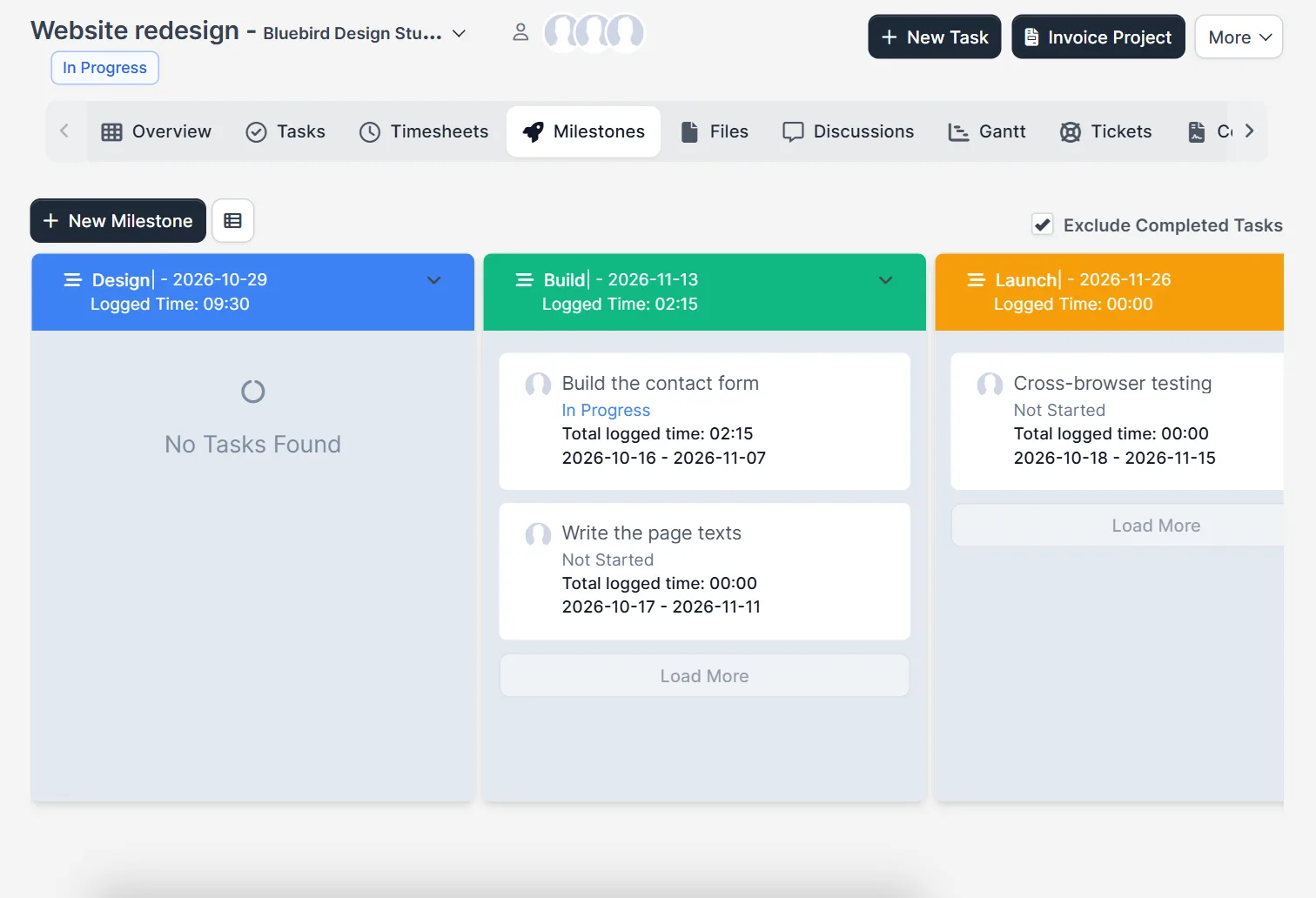
Step 1: Add a milestone #
Open the project, click Milestones and then New Milestone. The window asks for a Name, a Start Date, a Due date, an optional Description and an Order number. Tick Show description to customer if the customer should read the text in the customer area. Click Save.
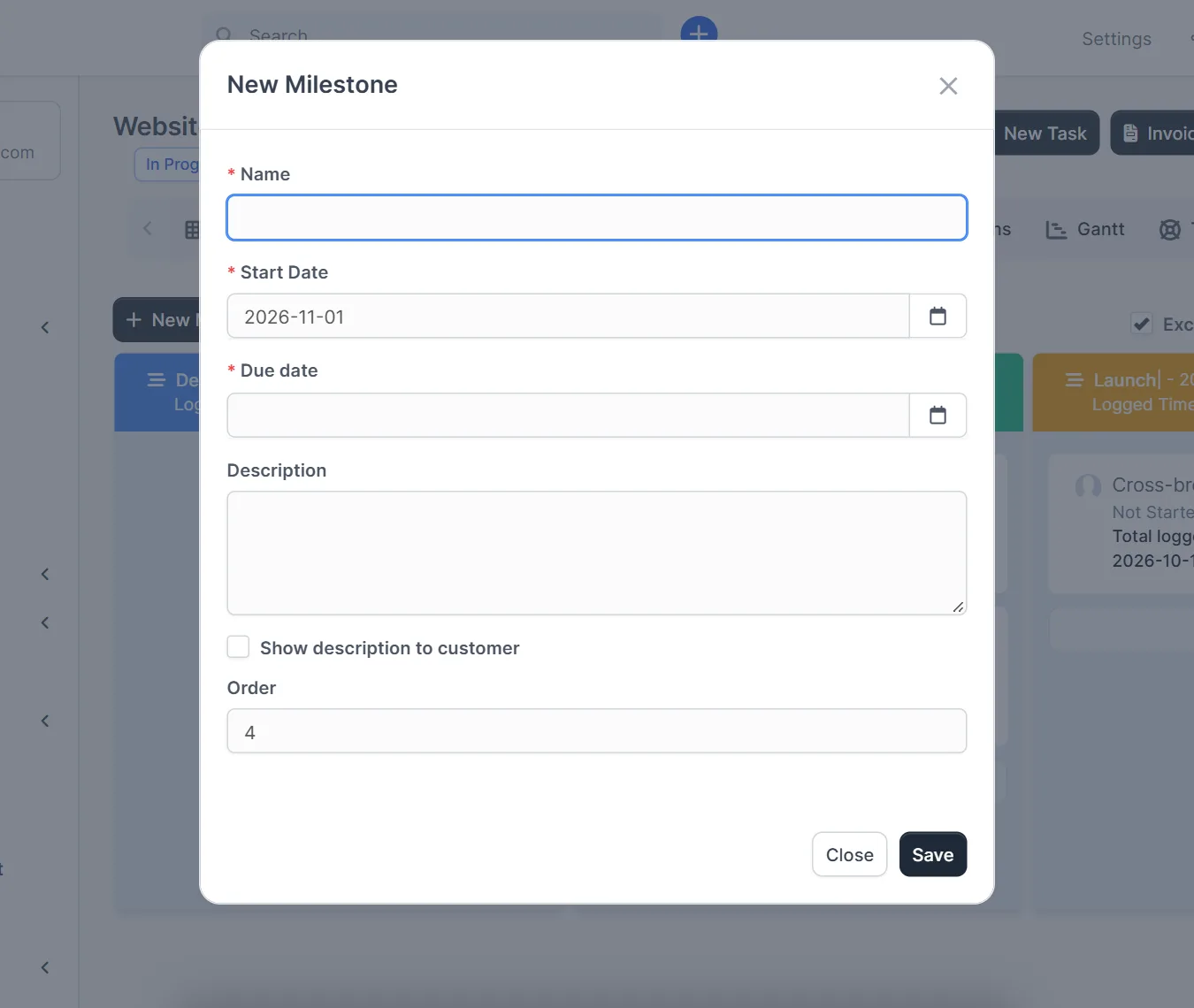
- Name the milestone after the result, for example Design, not after a task.
- Use the order number to control the left to right order of the columns.
- Give each milestone a realistic due date, because the board shows it in the column header.
Step 2: Give tasks to a milestone #
Every task of a project can belong to one milestone. Choose the Milestone when you create or edit the task; the task window then shows it under the project name. The Tasks tab of the project lists all tasks with their status, start date, due date and priority, so you can check that nothing is left without a stage.
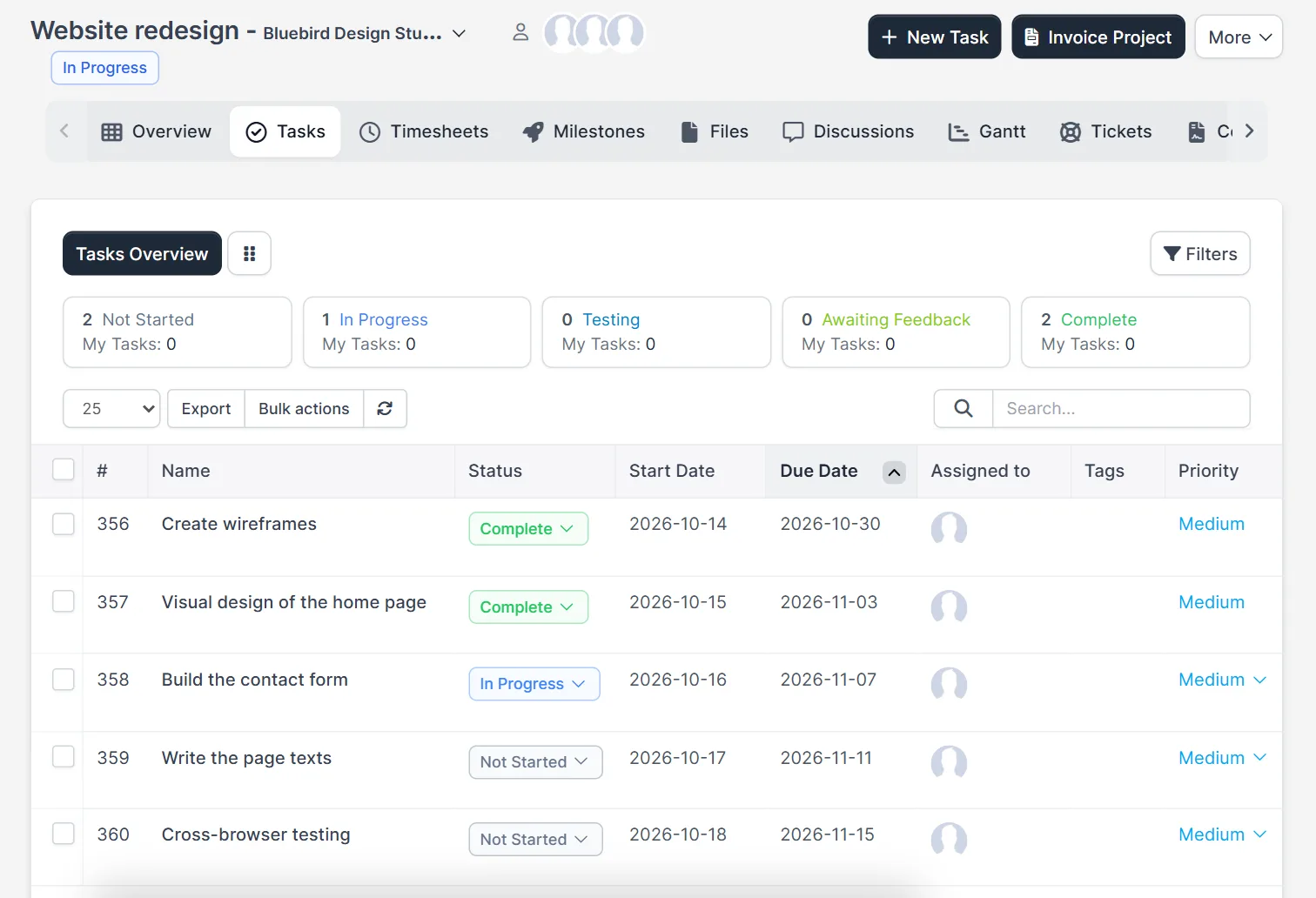
Step 3: Follow the project milestones in the overview #
The project Overview shows the progress bar, the number of open tasks, the days left and the logged hours. When you calculate progress through tasks, finishing tasks moves the bar, so a milestone with all tasks complete lifts the whole project.
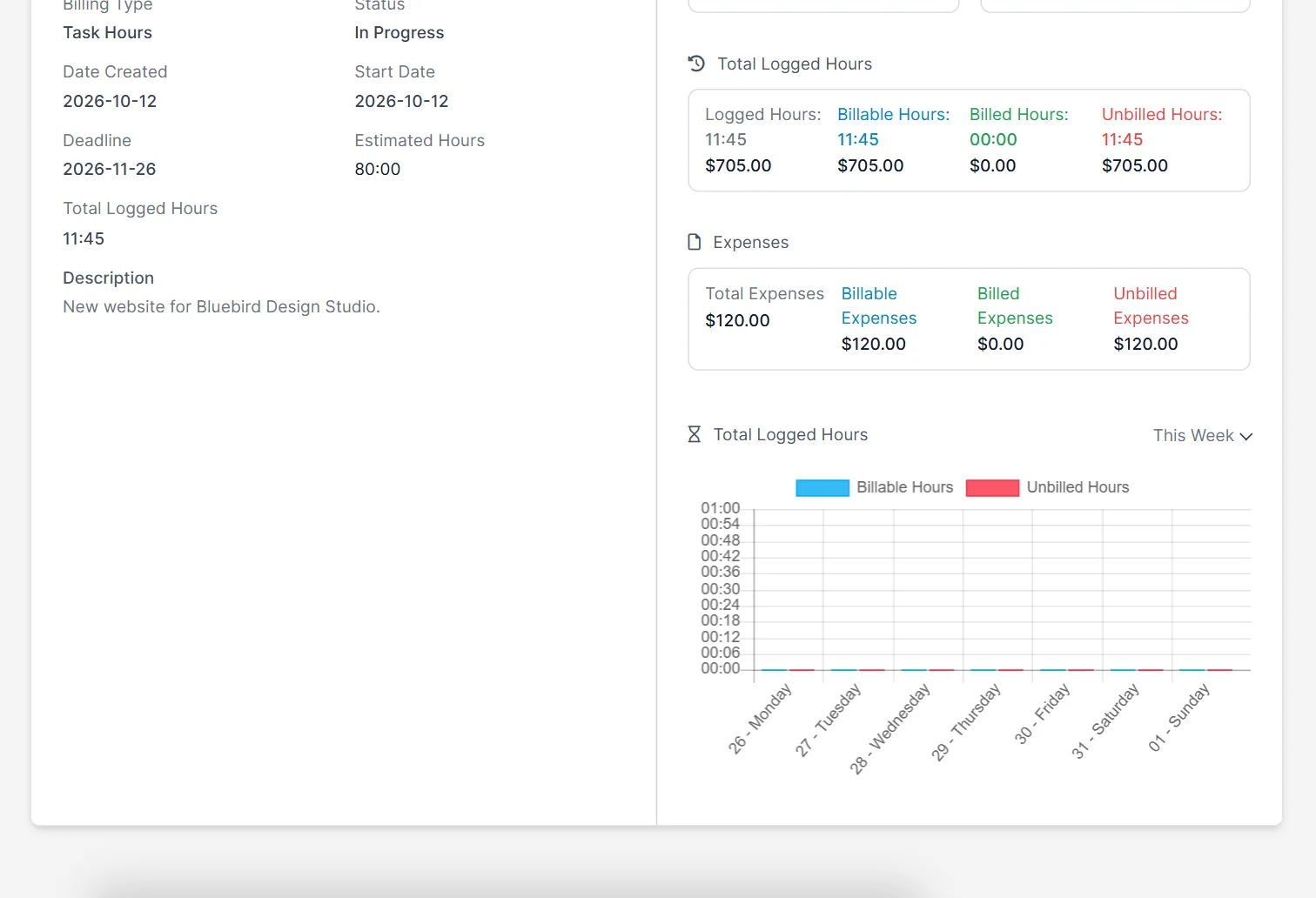
Step 4: See the milestones on the Gantt chart #
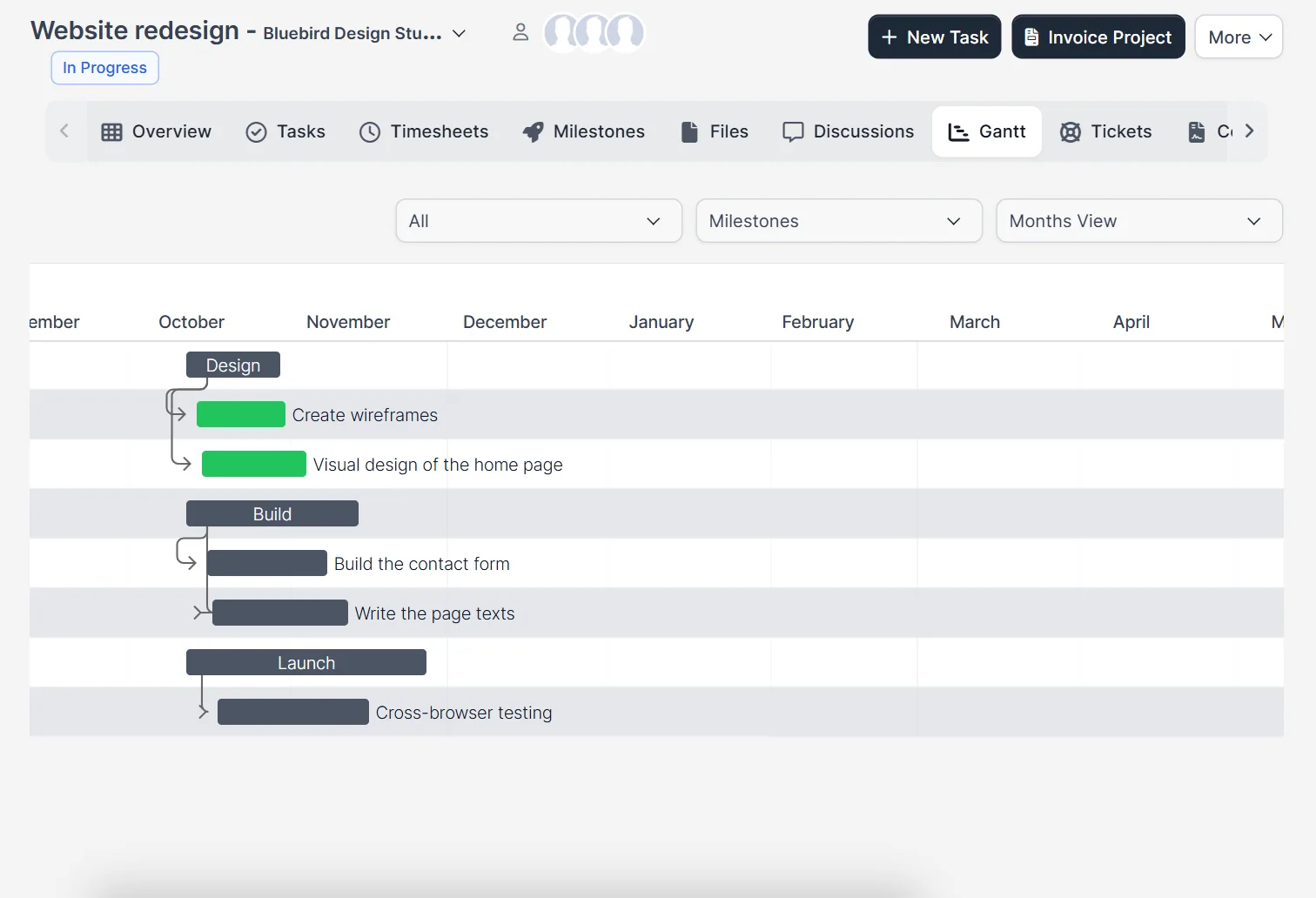
Open Gantt and choose Milestones in the grouping list. Each milestone becomes a bar, with its tasks below it, along a month view. Use it in a meeting to show the plan without opening each task.
Tips for good Perfex CRM project milestones #
- Keep three to six milestones per project. More than that is a task list in disguise.
- Close a milestone by completing its tasks before you move on to the next one.
- Bill by stage by agreeing the milestone with the customer first, then invoice the project when a stage ends.
Common mistakes with Perfex CRM project milestones #
The first mistake is to make a milestone for every task, which turns the board into a second task list. The second is a milestone due date that does not fit the plan: a date in the past shows the stage as late from day one. The third is to leave tasks without a milestone, so they do not appear in a stage column of the board. Check the Tasks tab once a week, move forgotten tasks into a stage and update each milestone due date when the plan changes. Review the Gantt chart before every customer meeting.
Quick checklist for Perfex CRM project milestones #
- Every stage of the project has a milestone with a start date and a due date.
- Every task belongs to one milestone.
- The order numbers put the columns in the order of the work.
- The progress of the project is calculated through its tasks.
- The Gantt chart is grouped by milestones before you share the plan.
- Finished tasks are hidden on the board, so the open work stands out.
Related guides #
- Create the project first with Perfex CRM projects and add work with tasks.
- Count the hours with Perfex CRM timesheets.
- Automate the follow-up with our Workflow Rules module.
- Read the official Perfex CRM help for more project topics.
The screenshots come from a demo CRM. Moving a task from one milestone column to another by drag and drop, and the customer view of a milestone description, were not tested.
Summary #
Perfex CRM project milestones give a project a clear shape: add the stages, give each task a stage and watch the board and the Gantt chart. Set a milestone due date for every stage and review them each week.
Frequently asked questions #
Where do I add Perfex CRM project milestones? #
Open the project, click the Milestones tab and then New Milestone.
Can a task belong to more than one milestone? #
No. A task has one Milestone field, so it sits in one stage.
How do I hide finished tasks on the milestone board? #
Tick Exclude Completed Tasks above the board.
Can the customer see a milestone? #
The New Milestone window has a Show description to customer option, so you decide whether the text is shown in the customer area.


