
Perfex CRM Booking System Documentation: Set Up Online Appointments
This guide shows how to set up and use Booking Suite, the Perfex CRM booking system from Systematica. It covers installation, the license, the first ten minutes of setup, the calendar, the booking page, reminders, payments, clients, staff rights and reports. Every section says what to click and what you should see.
What Booking Suite does
Booking Suite adds online booking and appointment management to Perfex CRM 3.4 or newer. Your clients book from a public page. Your team works from one colour calendar inside the CRM.
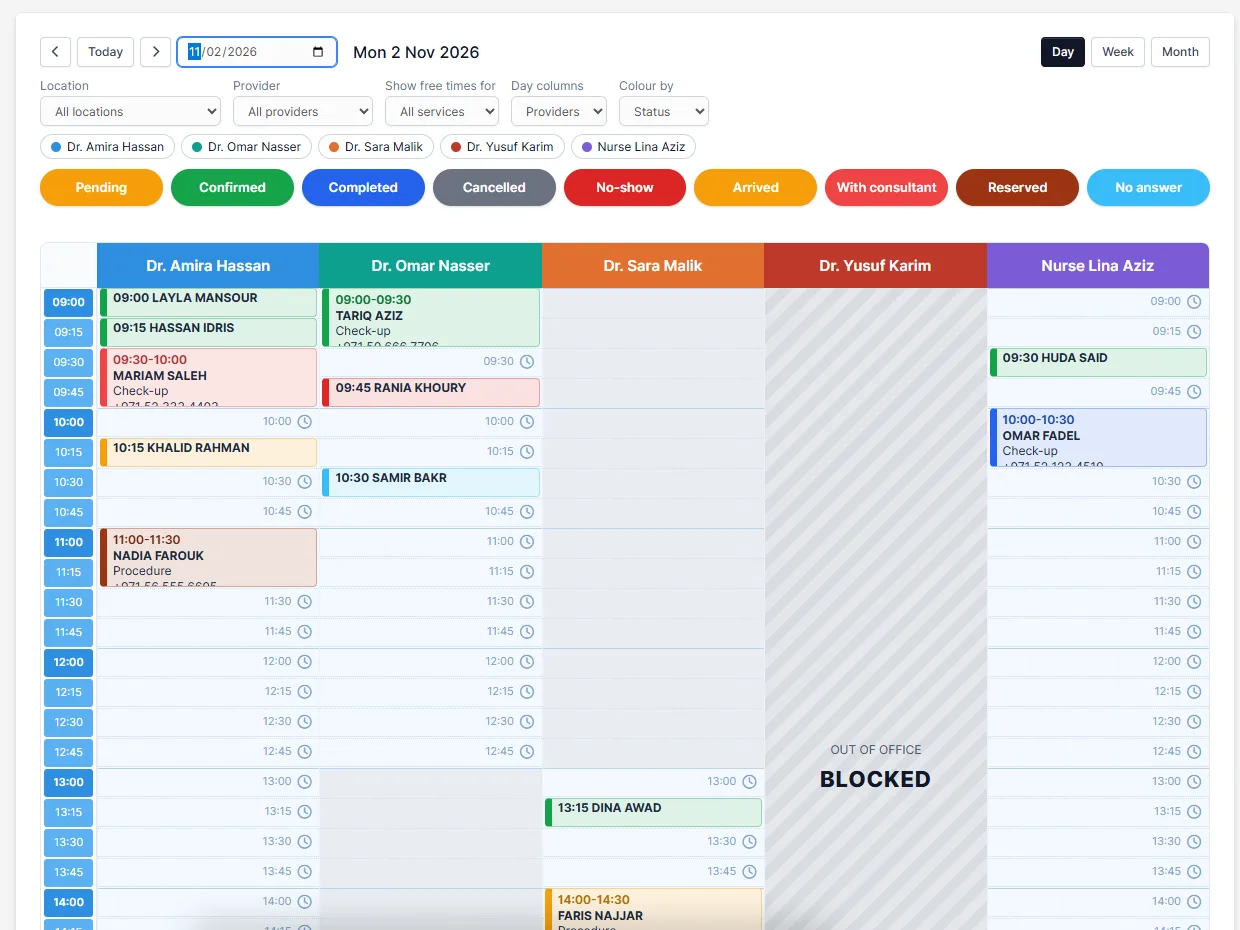
- Calendar with a column per provider, status colours, free times, drag and drop, and pop-ups to book, edit, change status and cancel
- Booking page that works on a phone, shows times in the client’s time zone, and needs no login
- Providers, services, rooms, statuses and sources that you name, colour and order yourself, with a slot length and price per provider for each service
- Emails and reminders with seven editable texts and links to confirm, cancel or change the time
- Invoices and payments through Perfex CRM invoices, or Booking Suite’s own numbered invoices with lines, discount and tax, and payments recorded by your staff
- Clients kept in Perfex CRM (customers and leads) or in Booking Suite’s own client list
- Staff rights for bookings, clients, payments, reports and setup, and a calendar view per provider
- 14 reports with comparison, CSV export, print view and scheduled emails
Install and activate the license
- In Perfex CRM open Setup > Modules, upload
booking_suite.zipand click Activate. - Open Booking Suite > Setup > Booking Suite license.
- Paste the license key from your order email and click Activate. You should see License is valid and active.
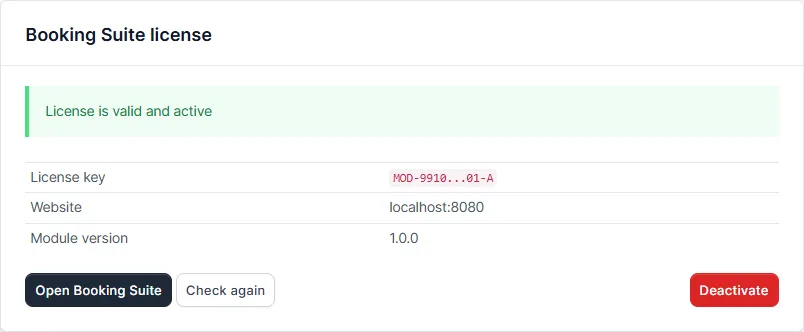
One license key works for one website. To move Booking Suite to another site, click Deactivate here first, then activate the key on the new site. Until a license is active the booking page is closed and no emails are sent. The check needs your server to reach systematica.app over HTTPS and PHP’s sodium extension, which comes with PHP since version 7.2.
Updating: replace the module folder with the new version. New tables and columns are created the first time the new files load, so you do not need to deactivate and activate the module.
How to set up online appointment booking in Perfex CRM (quick start)
This takes about ten minutes. Open Booking Suite > Setup. Each tile is a list you can add to.
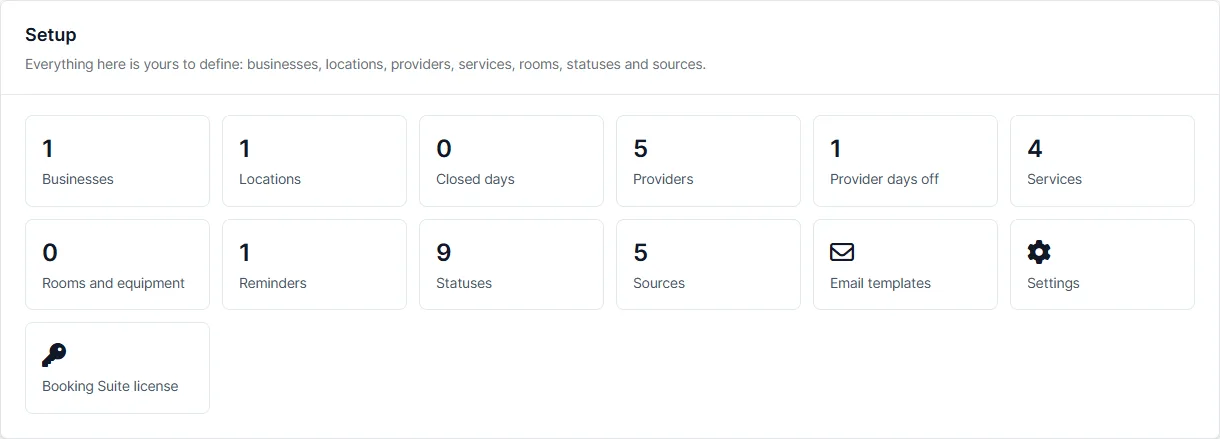
- Add a business. Give it a name, the time zone, and a Booking page address such as
my-clinic. Your booking page will then behttps://your-site/booking_suite/book/my-clinic. - Add a location with its address, phone and opening hours for each weekday.
- Add services with a duration and a price. Leave the rest at the defaults for now.
- Add providers, tick the locations and services each one offers, and enter their weekly hours.
- Check the settings under Setup > Settings: which status new bookings get, where clients are kept, and how payments work.
- Open your booking page and make a test booking. It appears on the calendar at once.
Set up your business in detail
Businesses and locations
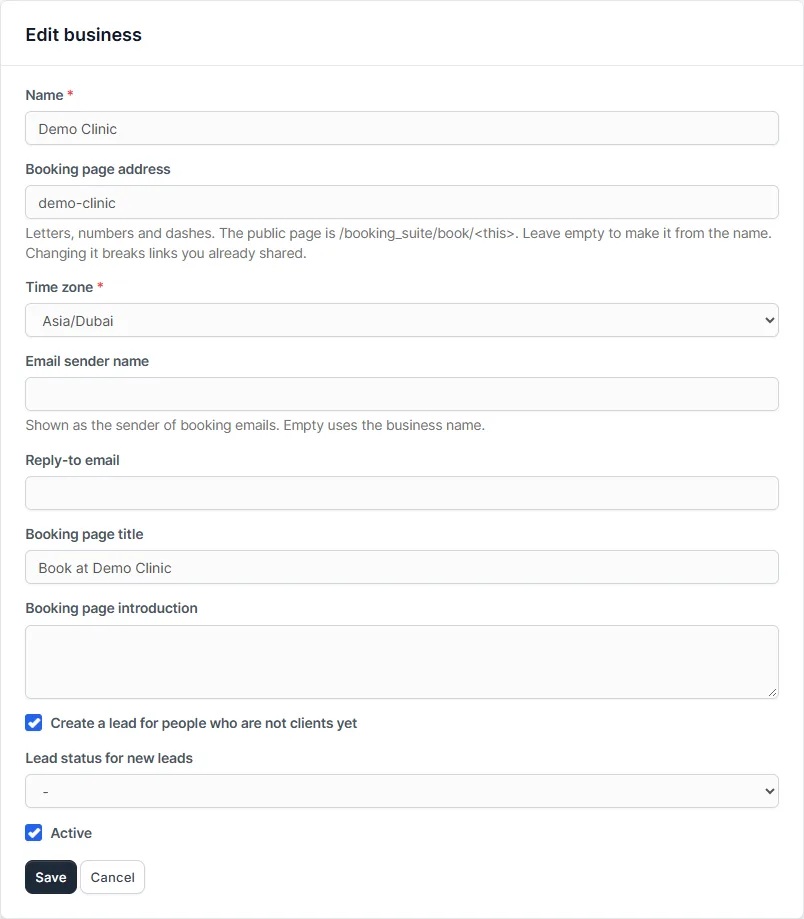
A business is the name your clients see. It has its own time zone, email sender name, reply-to address, booking page title and introduction. You can tick Create a lead for people who are not clients yet when you keep clients in Perfex CRM. A business can have several locations, each with an address, a phone number and its own opening hours. A location can use a different time zone from the business.
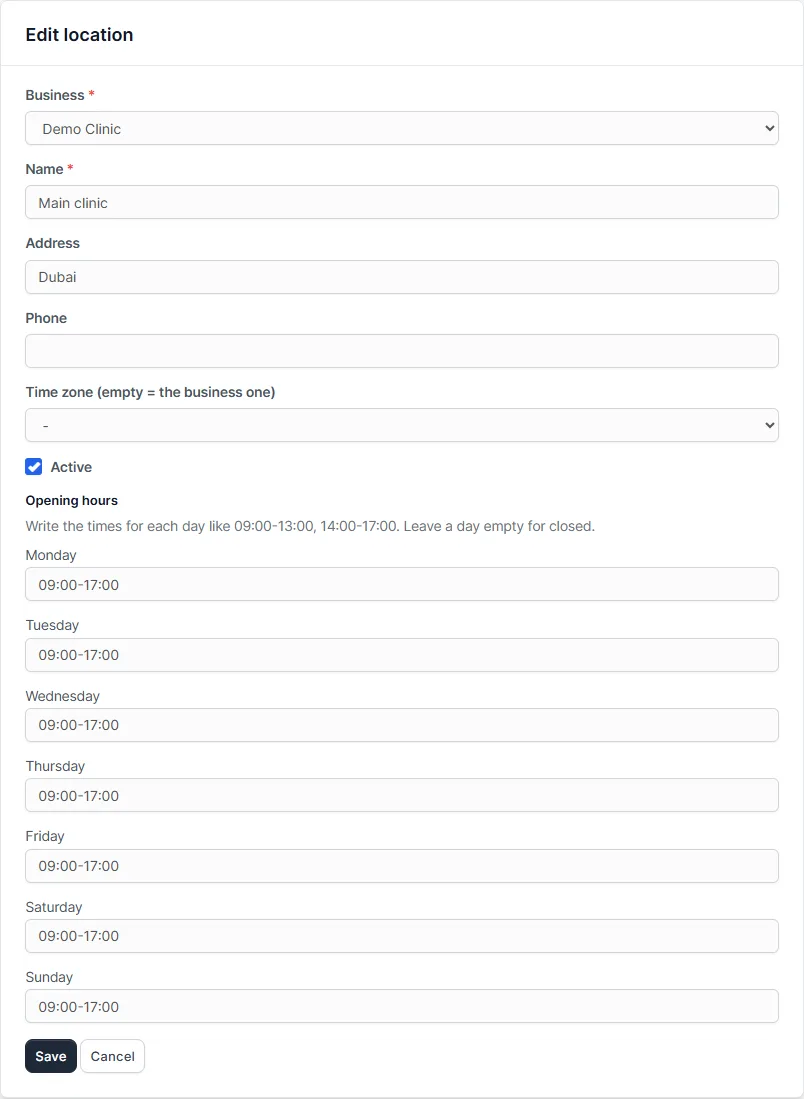
Closed days and holidays
Under Closed days add a date and a reason. Tick Repeats every year for holidays such as 1 January. Leave the location empty to close every location of the business. Closed days are shaded on the calendar with their reason, and nobody can book them.

How to set different appointment lengths for each provider
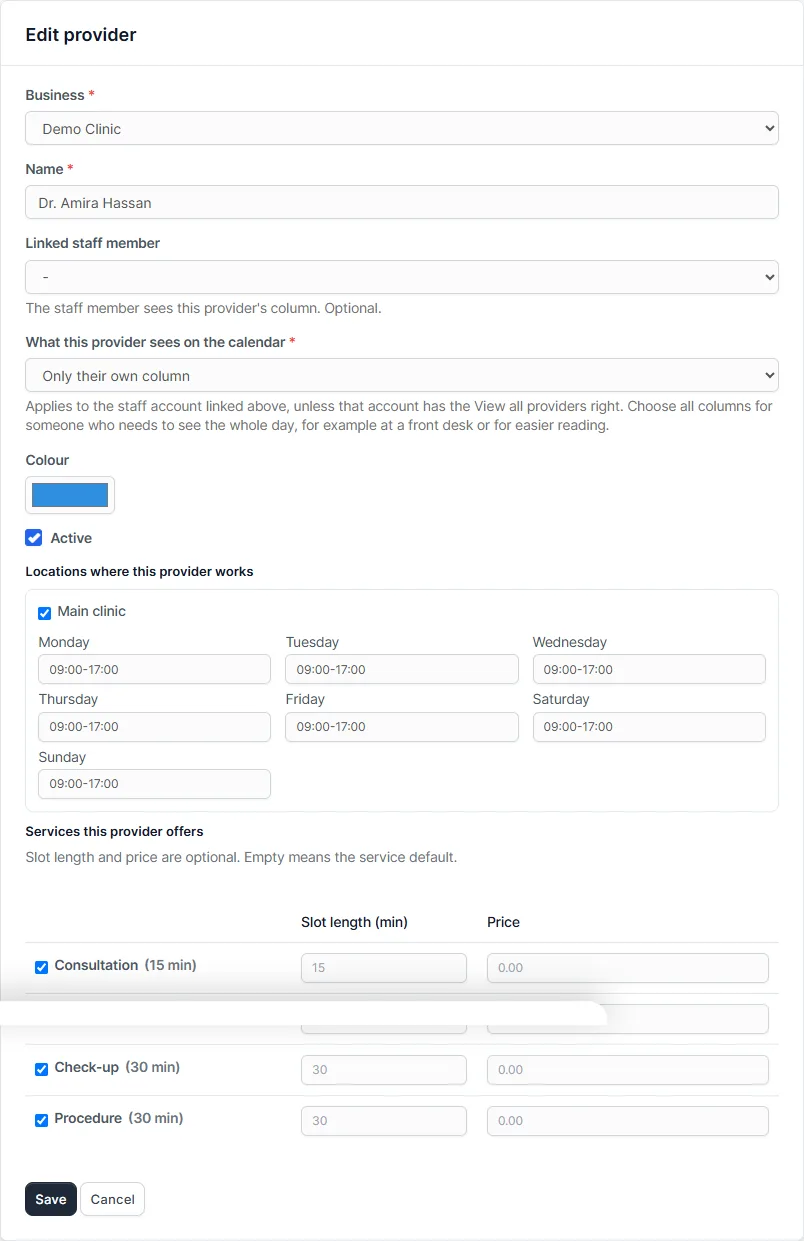
Every service has a duration (how long the visit lasts) and a slot length (how far apart start times are; 0 means the same as the duration). A provider can override the slot length and the price for each service. For example, a consultation can start every 30 minutes with one doctor and every 45 minutes with another. Open the provider, find the service in the list and enter the provider’s own slot length or price.
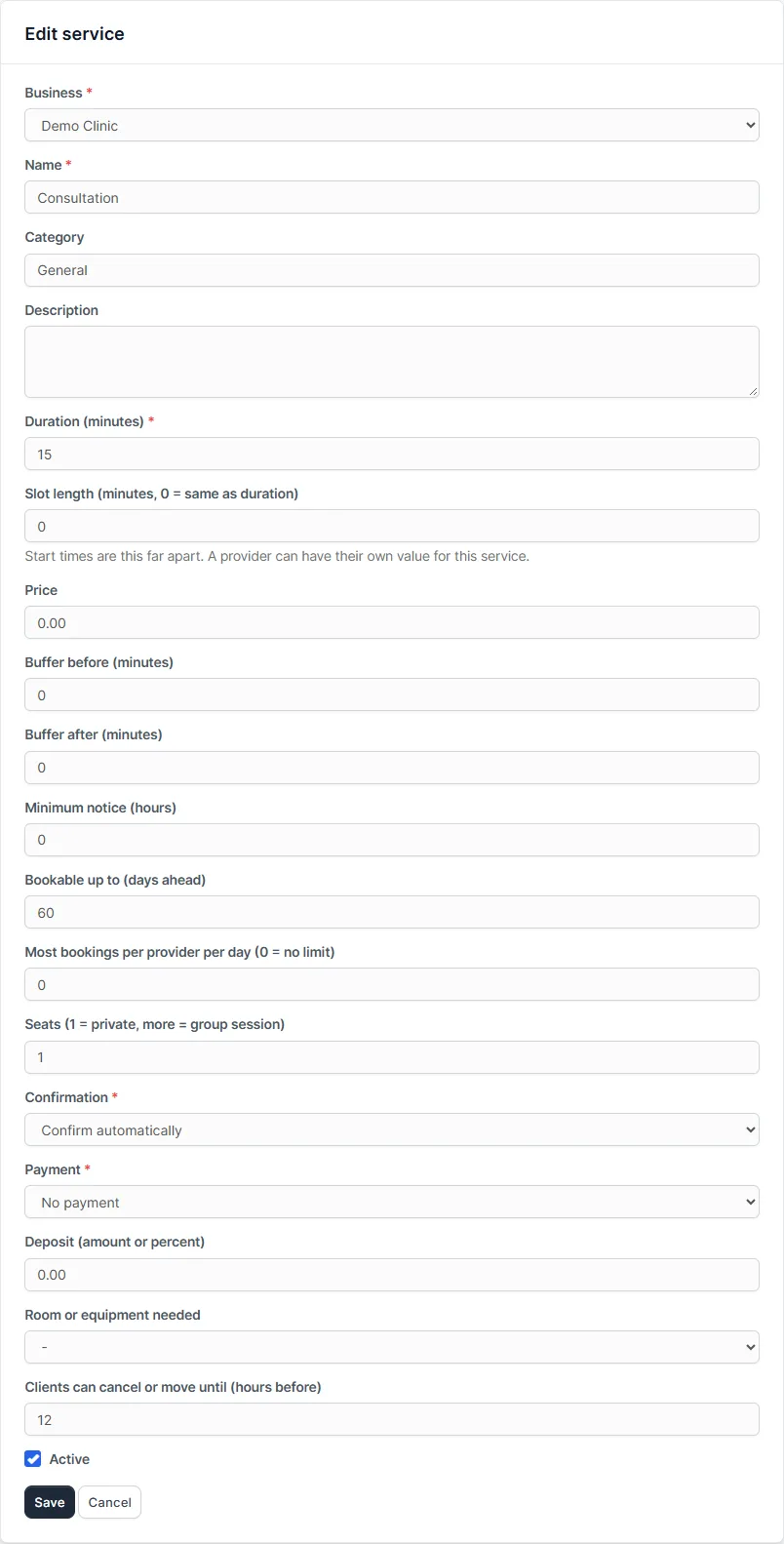
On the same form you can set:
- Buffer before and after in minutes, for cleaning or notes
- Minimum notice in hours, so nobody books five minutes ahead
- Bookable up to a number of days ahead
- Most bookings per provider per day, where 0 means no limit
- Seats: 1 for a private visit, more for a group session or class
- Confirmation: confirm automatically, or require approval by staff
- Payment: none, full payment, a fixed deposit or a percent deposit
- Room or equipment needed, so a room cannot be double booked
- Clients can cancel or move until a number of hours before the visit
How to add service providers to the Perfex CRM calendar
Under Providers click Add. Give the provider a name and a colour, then link a staff member if the provider logs in to Perfex CRM. Tick the locations they work at and the services they offer, and enter their weekly hours for each location. Split shifts are allowed: add two time ranges for the same day. Add Provider days off for leave, with a reason that shows on the calendar.
The setting What this provider sees on the calendar decides what that person sees once they are linked to a staff account: only their own column, or all providers’ columns. The own-column view keeps the screen clear and uncluttered, which also helps staff who prefer a simpler screen.
Rooms and equipment
Add a room or a piece of equipment under Rooms and equipment and choose it on a service. Two bookings that need the same room can never overlap, even with different providers. On the day view you can show rooms as columns instead of providers.
How to create custom appointment statuses
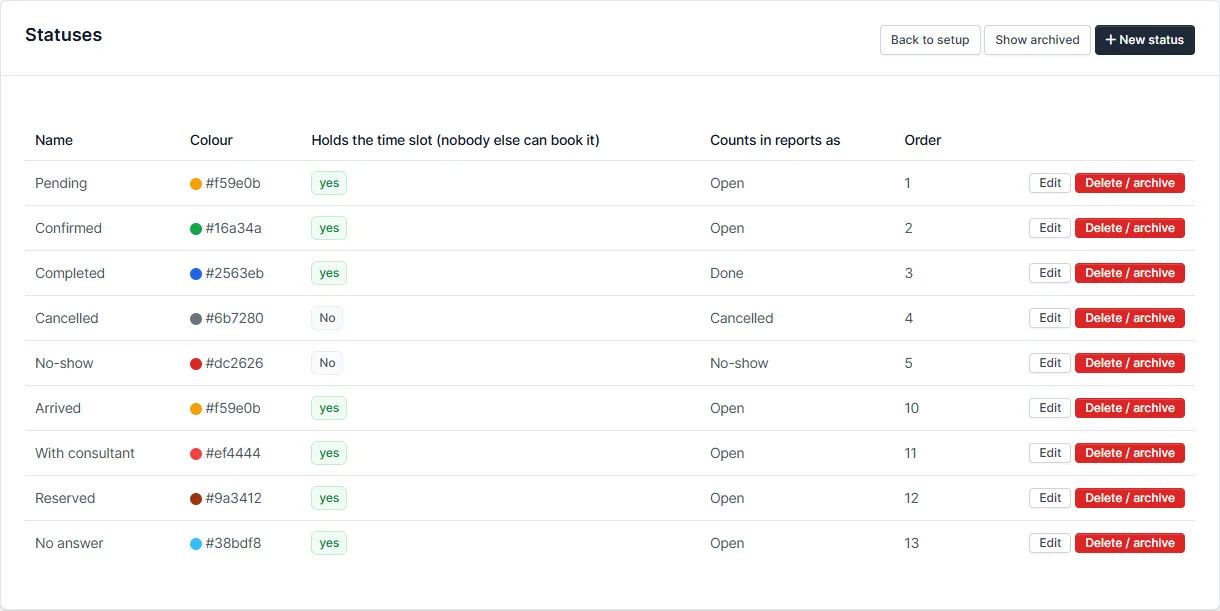
Statuses are yours to define. For each one choose a name, a colour, whether it holds the time slot, how it counts in reports (open, done, cancelled or no-show), which email is sent when a booking gets that status, and which statuses it can move to. Leave Can move to empty to allow any status.
Sources
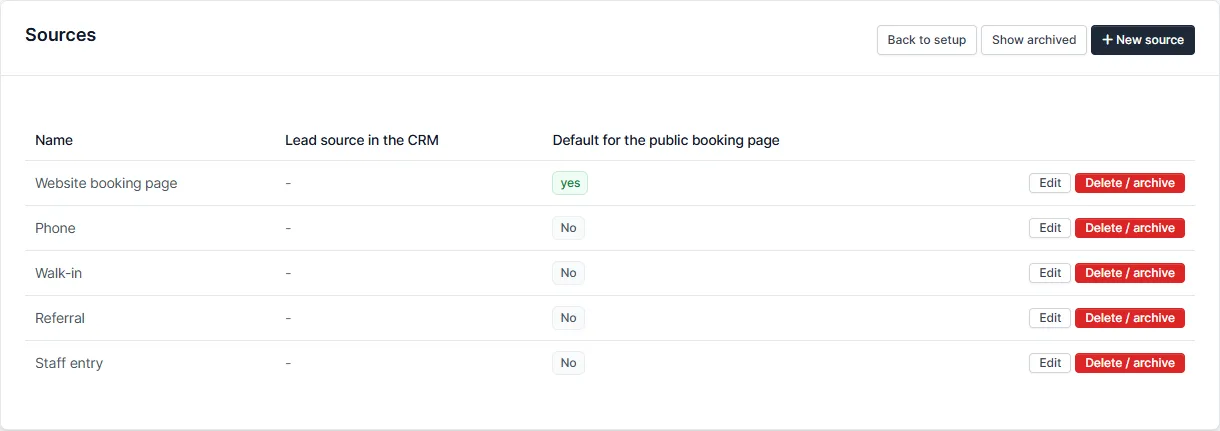
A source says where a booking came from, such as the website, the phone or a walk-in. Choose which source is the default for the public page, and link a source to a Perfex CRM lead source if you create leads. Reports can count bookings by source.
Settings
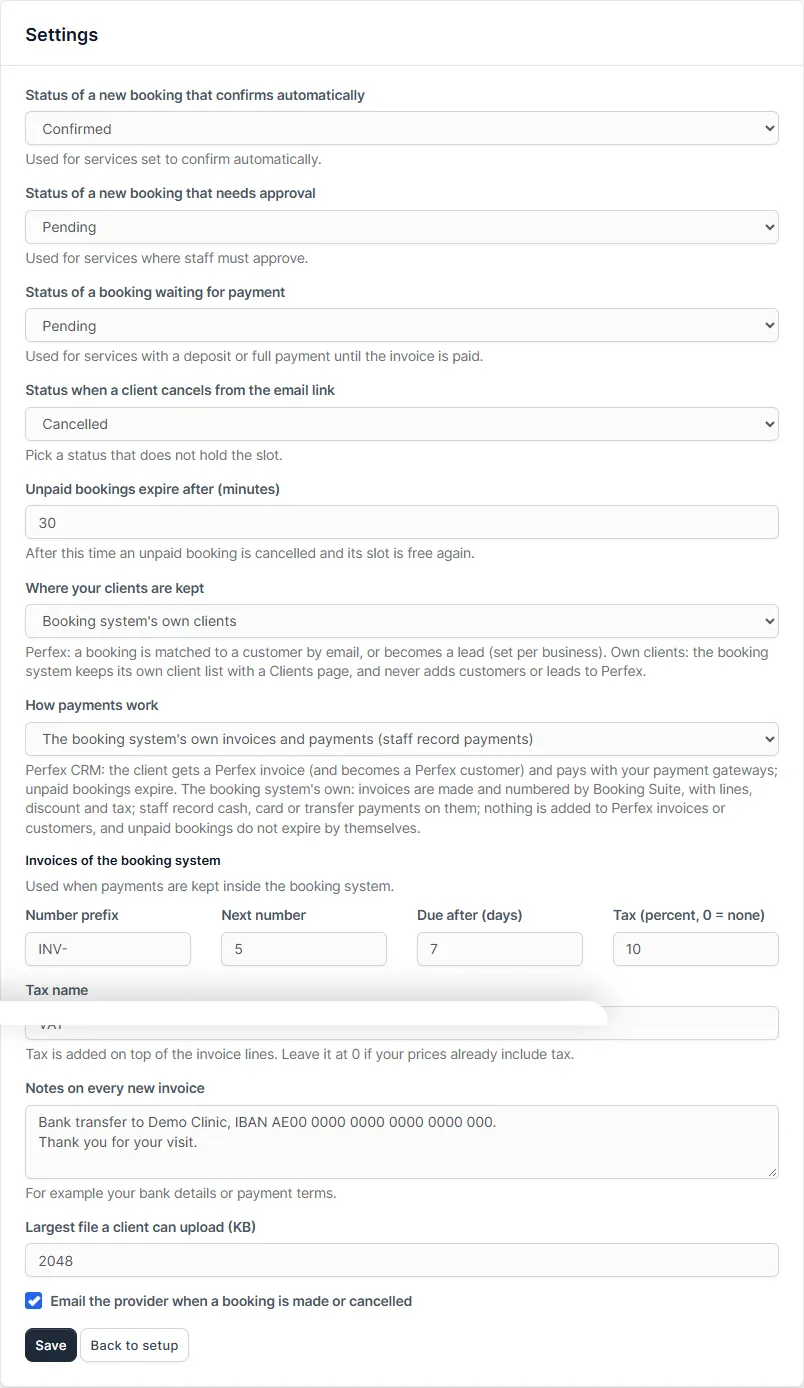
Under Setup > Settings you choose the status a new booking gets (confirmed automatically, waiting for approval, waiting for payment, cancelled by the client), how long an unpaid booking is held, the largest file a client can attach, and whether the provider gets an email for each new or cancelled booking. Two choices here decide how Booking Suite fits your business: Where your clients are kept and How payments work. They are explained below.
Use the calendar
Open Booking Suite > Calendar. The top bar has Today, previous and next arrows, a date picker, and the Day, Week and Month views.
Filters
- Location, Provider and Show free times for all start on All. Pick one to narrow the calendar down. With all services selected, a time is free when any service the provider offers fits it.
- Day columns shows providers or rooms.
- Colour by status or provider.
- Click a provider chip to hide or show that provider. Click a status in the legend to hide or show bookings with that status.
Book from the calendar
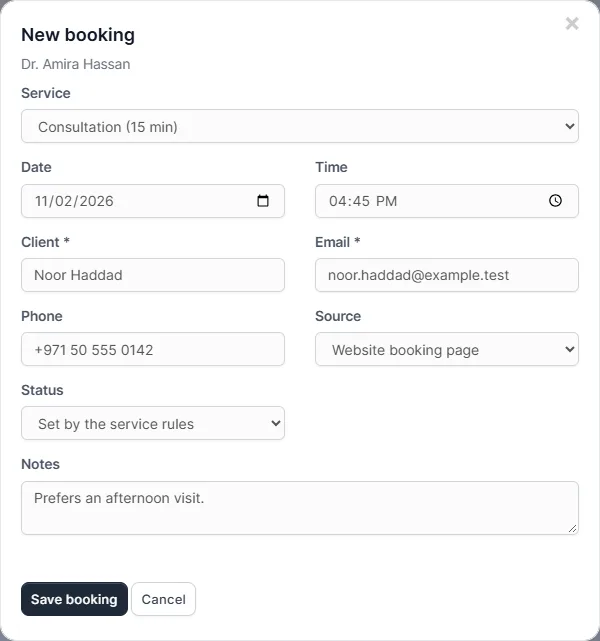
- Click a free time. A pop-up opens with the provider, date and time filled in.
- Choose the service (only services that fit that time are listed), enter the client’s name, email and phone, and click Save booking.
Change status, edit or cancel
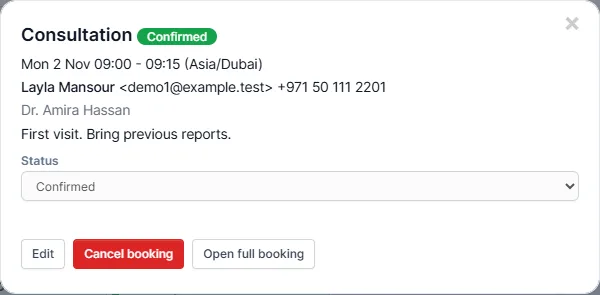
Click a booking. Pick a new status from the drop-down, or click Edit, Cancel booking or Open full booking. Every pop-up has a close button at the top right.
Move a booking by drag and drop
Drag a booking to another time, or onto another provider’s column. Booking Suite checks that the new time is free before it moves the booking. If it is not free, the booking stays where it was and you see a message.
The list of bookings
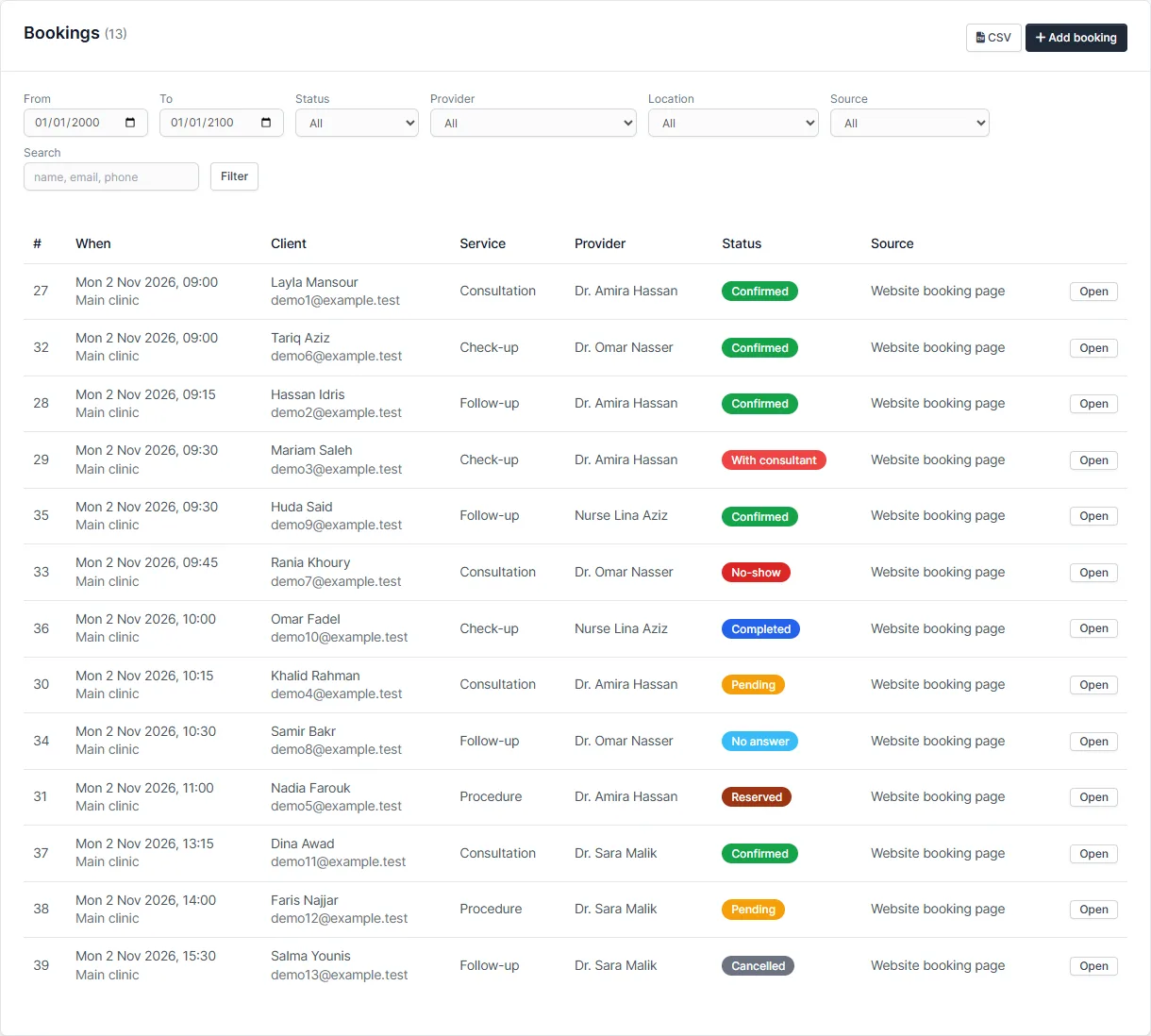
Booking Suite > Bookings is the list view: filter by date, status, provider, location and source, search by name, email or phone, and export CSV.
The booking page your clients see
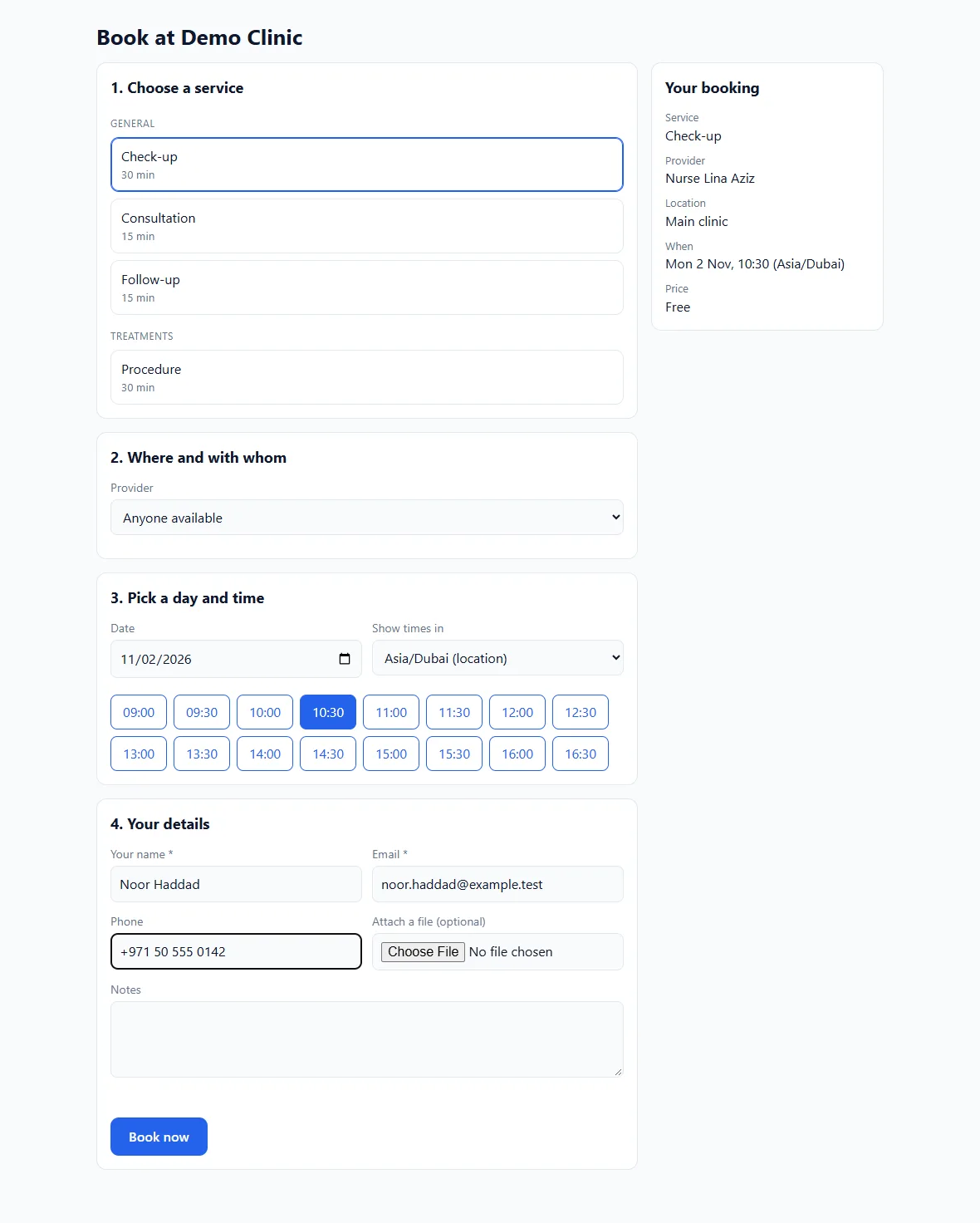
Share the address https://your-site/booking_suite/book/your-business on your website, in your emails and on social media. Clients choose a service, a provider or anyone available, a day and a time, then enter their name, email and phone and can attach a file. They can switch the page to their own time zone. The page works on a phone and needs no login.
Every email has links to confirm that the client will come, cancel, change the time, and add the booking to a calendar. The links are signed and work only for that booking. Clients who are logged in to the Perfex CRM customer area also get a My bookings page with their upcoming and past bookings.
How to send appointment reminders from Perfex CRM
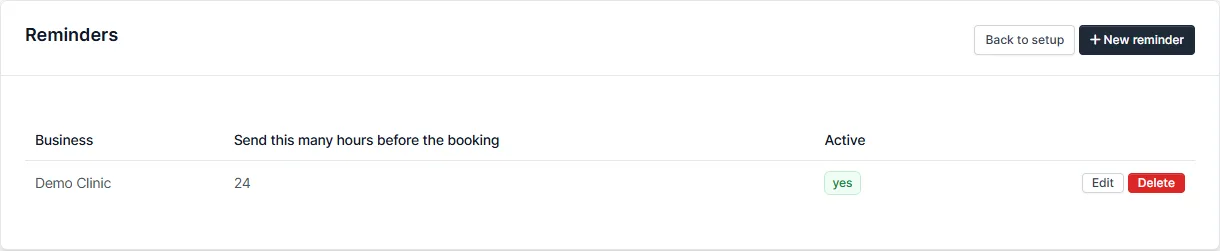
- Open Setup > Reminders and click Add.
- Enter how many hours before the booking the email should go, for example 24. Add a second reminder for 2 hours if you like.
- Make sure the Perfex CRM cron job runs. Reminders are sent by cron, and each reminder is sent once per booking.
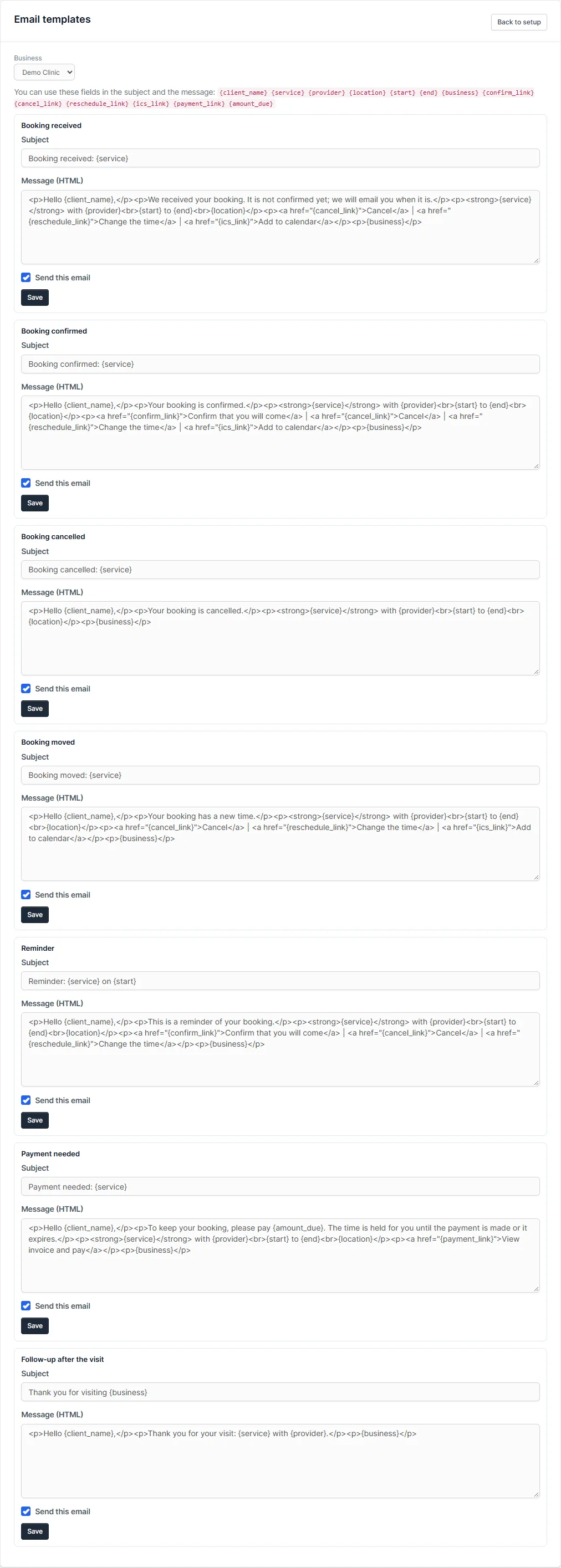
Emails go out through the email settings you already have in Perfex CRM. Edit the texts under Setup > Email templates. There are seven: received, confirmed, cancelled, moved, reminder, follow-up and payment needed. Each business can have its own versions. In a text you can use these fields: {client_name}, {service}, {provider}, {business}, {location}, {start}, {end}, {amount_due}, {confirm_link}, {cancel_link}, {reschedule_link}, {ics_link} and {payment_link}.
How to prevent double booking in Perfex CRM
You do not need to set anything up. When two people choose the same time at the same moment, Booking Suite locks the provider (and the room, if the service needs one), checks the time again, and gives it to the first request. The second person sees that the time was taken and can pick another. The same check runs when staff book from the calendar, when a booking is moved by drag and drop, and when a cancelled booking is brought back. Statuses that do not hold the time slot, such as Cancelled, free the time again.
How to create invoices and record payments for appointments in Perfex CRM
A service can ask for full payment, a fixed deposit or a percent deposit. Under Setup > Settings > How payments work choose one of two ways. This choice is separate from where your clients are kept.
- Perfex CRM invoices and payments. Booking Suite makes a Perfex CRM invoice and emails a payment link. The client becomes a Perfex customer. The booking waits in the waiting for payment status. When the invoice is paid through your payment gateways the booking is confirmed. If nobody pays within the number of minutes you set, the booking is cancelled and the time is free again.
- The booking system’s own invoices and payments. Booking Suite makes and numbers its own invoices and records the payments. No Perfex CRM invoice or customer is made, and unpaid bookings do not expire by themselves.
How to create invoices for appointments without Perfex CRM invoices
- Open Setup > Settings and choose The booking system’s own invoices and payments.
- Under Invoices of the booking system set the number prefix (for example
INV-), the next number, how many days until an invoice is due, a tax name and percent, and the notes that go on every new invoice, such as your bank details. Leave the tax at 0 if your prices already include tax. - Save. From now on every booking that has an amount due gets an invoice, such as
INV-0001, and the client receives the payment needed email with a link to it. A new Invoices page appears in the menu. - For a booking that has a price but no amount due, open the booking and click Create invoice.
How to add tax and a discount to an appointment invoice
- Open Booking Suite > Invoices and open an invoice.
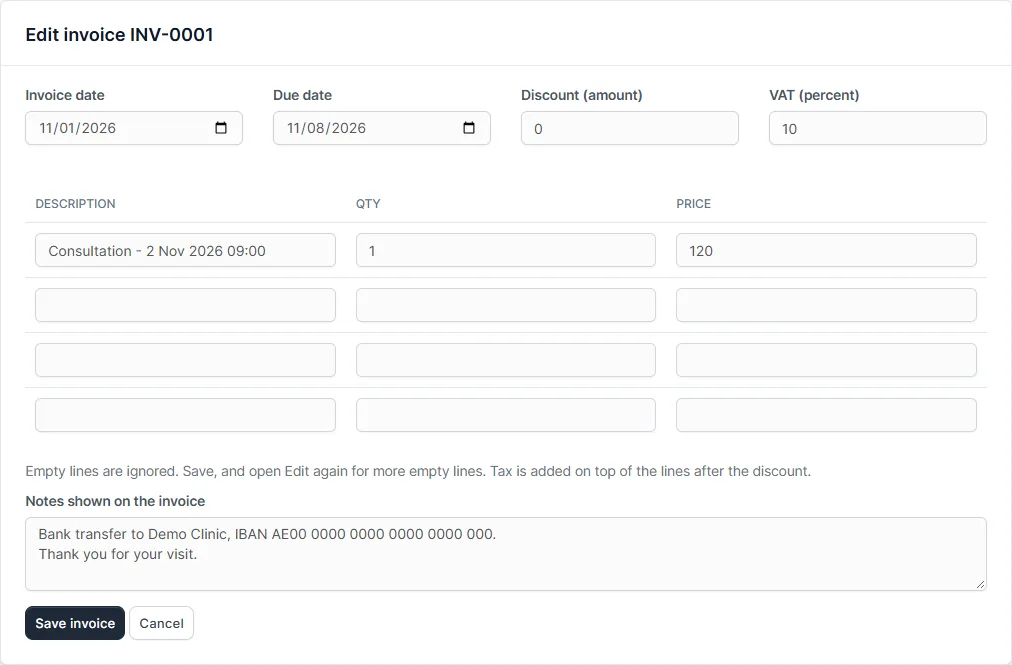
- Click Edit. Change the invoice date and due date, type a discount amount, and change the tax percent for this invoice.
- Add extra lines in the empty rows: a description, a quantity and a price. Empty rows are ignored. Save and open Edit again if you need more empty rows.
- Click Save invoice. The total is the lines, minus the discount, plus tax on what is left.
If you change the total of an invoice that is already paid, it becomes Part paid again and the booking waits for the balance. A cancelled invoice cannot be edited.
How to send, print or save an appointment invoice as a PDF
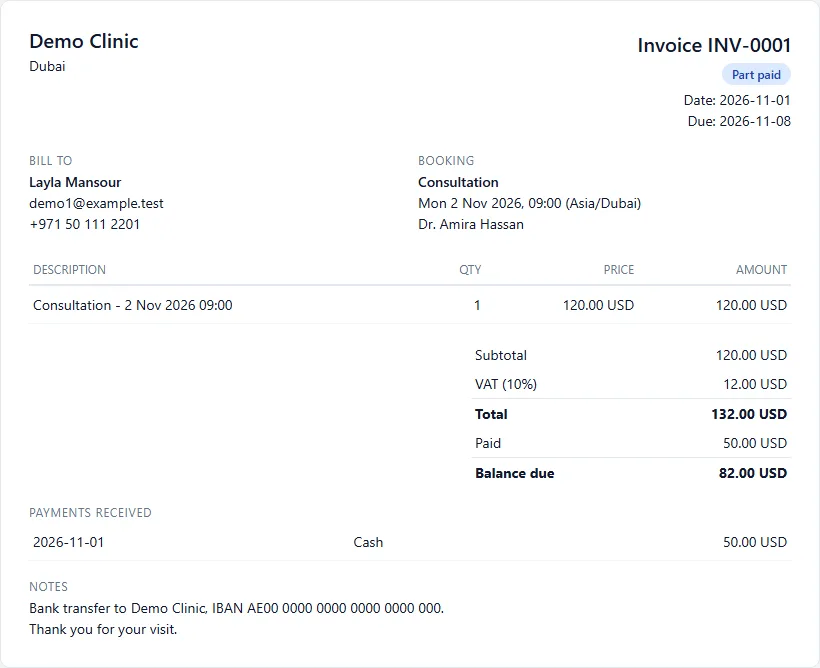
On the invoice page click Email to client to send the payment needed text with the link to the invoice. Click Print or save as PDF and choose Save as PDF in the print window of your browser. The Client’s page button opens the page your client sees. It shows the invoice, the payments received and the balance, and has its own Print button. The link is signed and works only for that invoice.
How to record cash and card payments for appointments in Perfex CRM
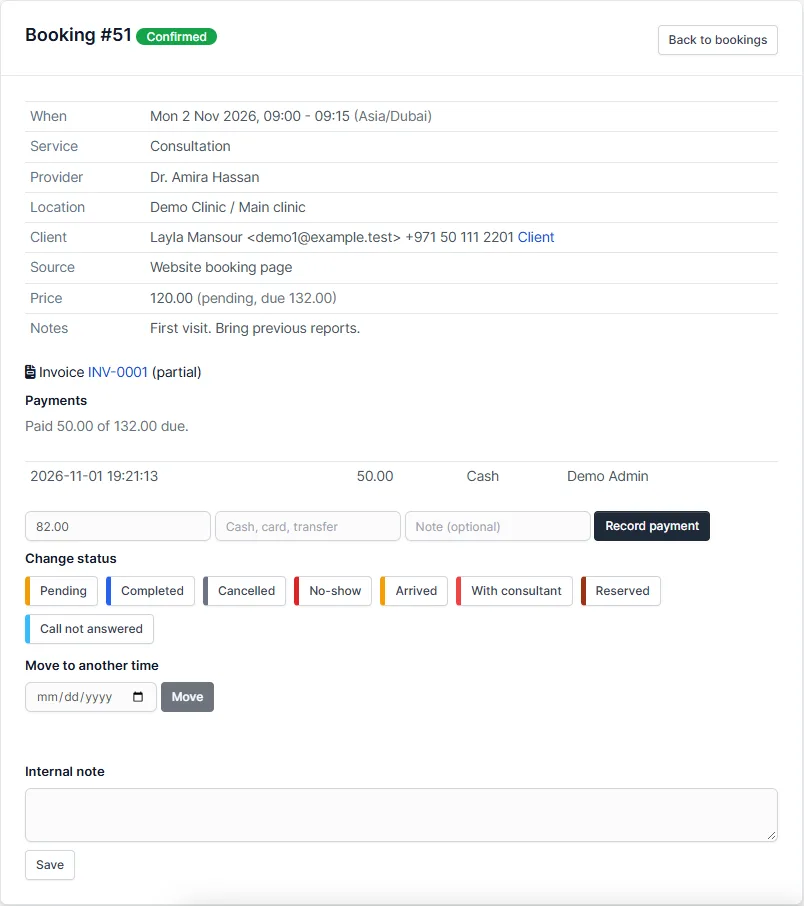
On the invoice, enter the amount, how it was paid (cash, card or transfer) and an optional note, and click Record payment. You can also do it from the booking page. The invoice moves from Unpaid to Part paid to Paid, and when it is paid in full the booking is confirmed. Recording a payment does not charge a card. Online card payment needs the Perfex CRM invoice option and your own payment gateway. Recording payments needs the right Record payments on bookings.
The Invoices page
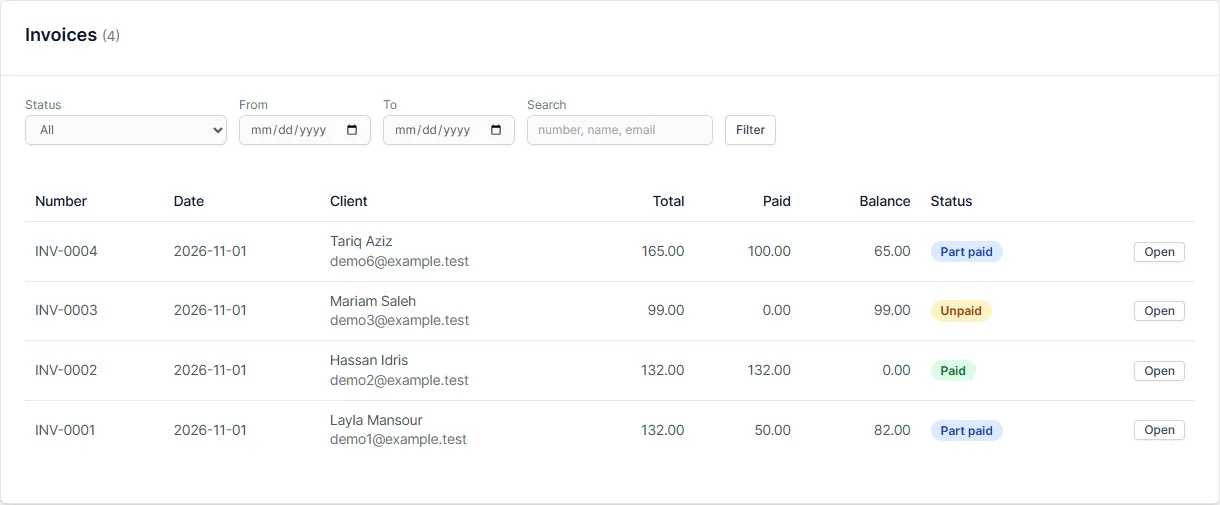
Booking Suite > Invoices lists every invoice with its date, client, total, amount paid, balance and status. Filter by status (open, unpaid, part paid, paid, cancelled) and by date, and search by invoice number, client name or email. To cancel an invoice, open it and click Cancel invoice. The booking stays, and you can create a new invoice for it from the booking page.
How to keep booking clients separate from Perfex CRM customers
Under Setup > Settings > Where your clients are kept choose:
- Perfex CRM customers and leads. A booking is matched to a customer by email, or becomes a lead if you ticked that on the business.
- Booking system’s own clients. Booking Suite keeps its own list and never adds customers or leads to Perfex CRM. A Clients page appears in the menu.
On the Clients page you can add a client, edit the details, search by name, email, phone or company, and open a client to see all their bookings. People who book online are added automatically, once per email address. Archive hides a client without losing past bookings. Delete is offered only for a client without bookings.
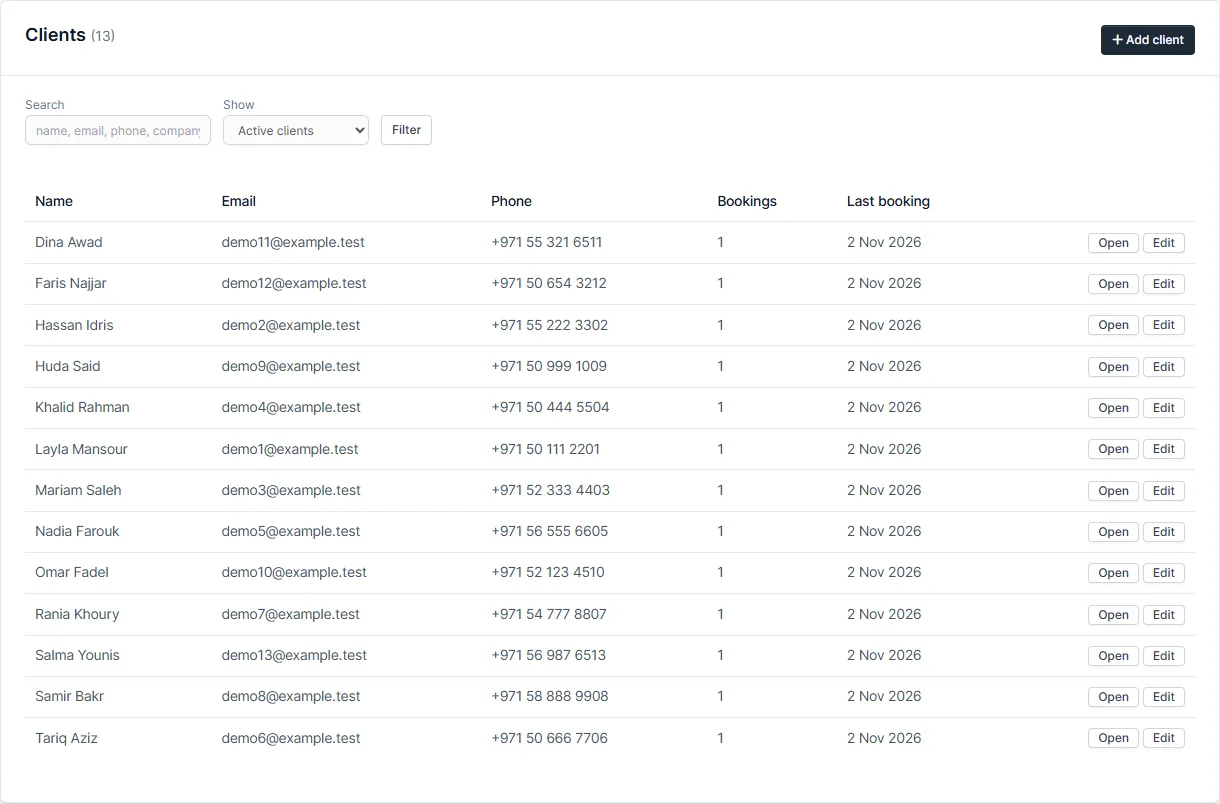
You can switch the setting later. Bookings that are already linked keep their client.
How to give staff limited access to the booking calendar
Open Setup > Staff in Perfex CRM, edit a staff member and open the Permissions tab. Booking Suite adds these rights:
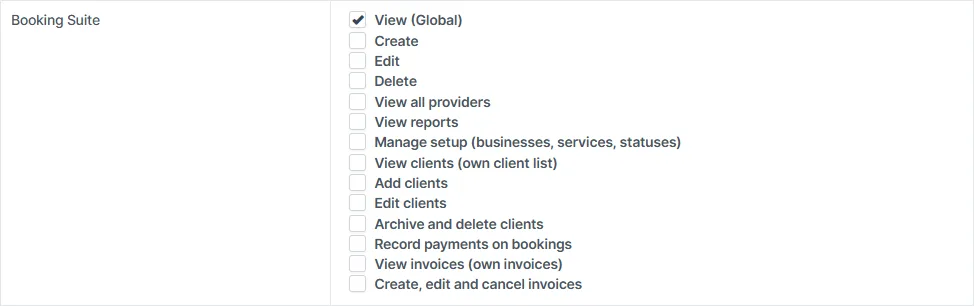
- View, Create, Edit, Delete bookings
- View all providers: without it a staff member sees only the providers linked to their account
- View reports and Manage setup
- View clients, Add clients, Edit clients, Archive and delete clients (own client list)
- View invoices and Create, edit and cancel invoices (the booking system’s own invoices)
- Record payments on bookings
Staff without a right do not see the page or the button, and the server refuses the action even if they type the address. Administrators always have every right.
Reports
Open Booking Suite > Reports. You can count bookings by provider, service, status, source, day, hour, location, room or client, and see hours booked, hours free and utilisation for each provider. There are also reports on payments, emails sent and how far ahead clients book. Every report has filters, a comparison with the previous period, CSV export and a print view. Save a report and have it emailed every day, week or month.
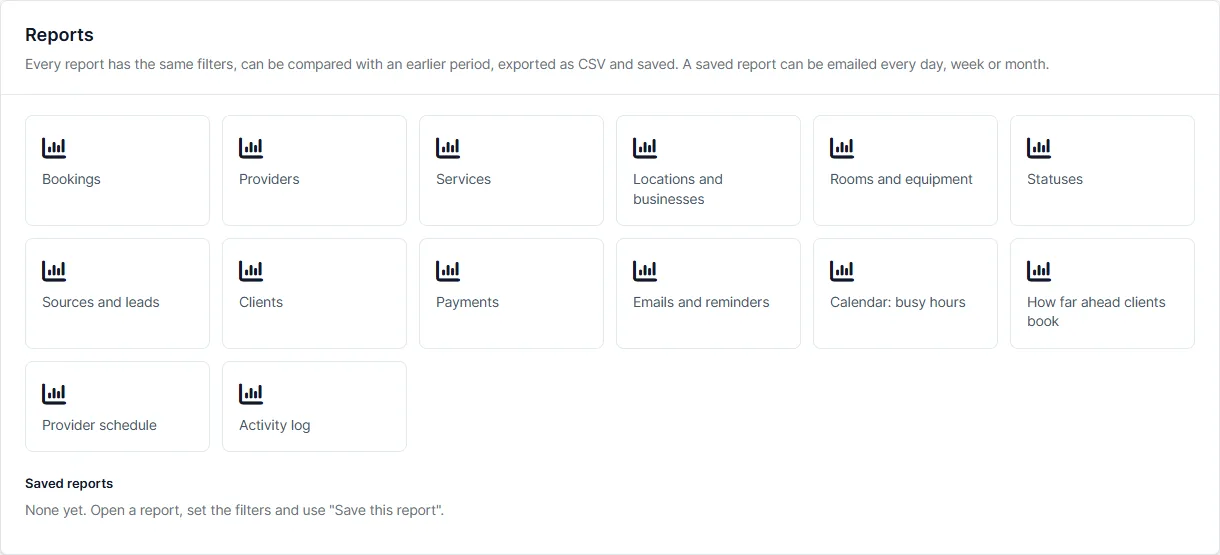
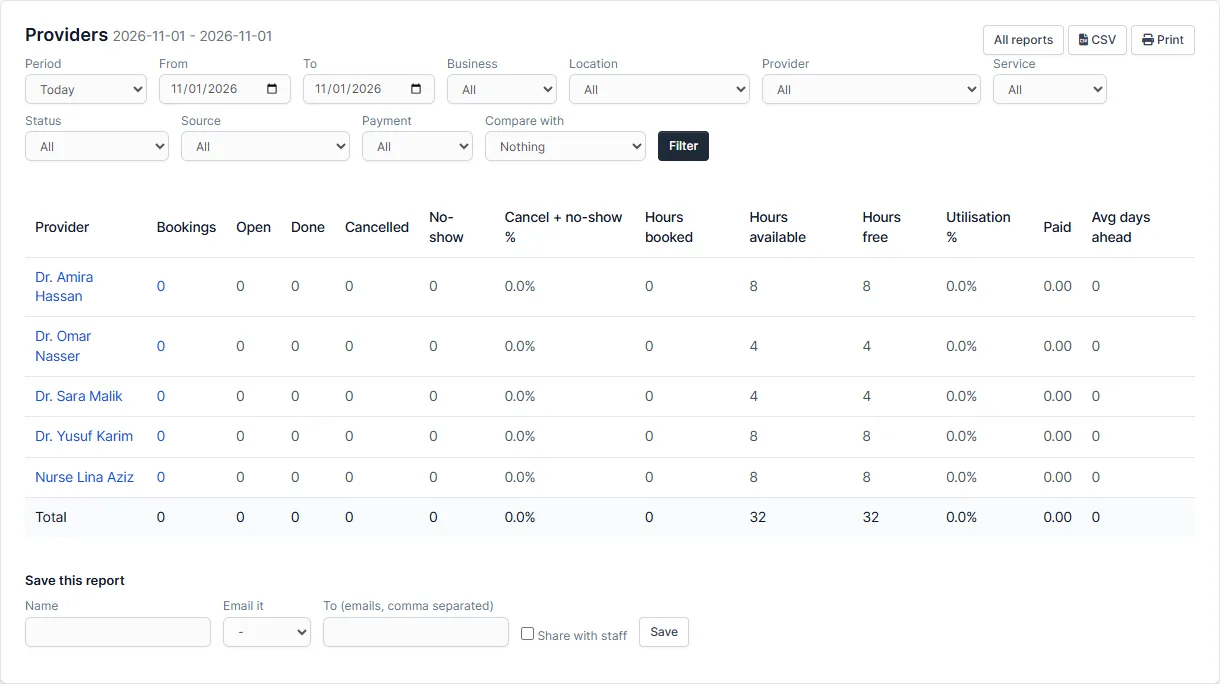
The Dashboard shows today’s numbers at a glance.

Troubleshooting
No free times show on the booking page
Check, in this order: the provider offers the service at that location; the provider has hours for that weekday at that location; the location has opening hours for that weekday; the day is not a closed day or a provider day off; the service’s minimum notice and bookable up to days allow that date; the room, if the service needs one, is free.
The calendar is empty
Set Location, Provider and Show free times for back to All and click Today. A provider needs hours at the location to get a column. If you hid every status in the legend, click a status to show it again.
Emails or reminders do not arrive
Booking Suite sends through the email settings of Perfex CRM, so send a test email from Perfex CRM first. Reminders and expiry of unpaid bookings need the Perfex CRM cron job. Check the sender and spam folder of the receiving mailbox.
The license cannot be verified
Your server must reach systematica.app over HTTPS, and PHP’s sodium extension must be on. Check that the key is for Booking Suite and is not active on another website, then click Check again on the license page.
A client says they cannot cancel
Each service has Clients can cancel or move until (hours before). After that time the links no longer work and the client has to contact you.
Frequently asked questions
How do I add online booking to Perfex CRM?
Install Booking Suite, activate the license, add a business, a location, services and providers, and share the booking page address. The quick start above takes about ten minutes.
Does Perfex CRM have a built-in appointment booking calendar?
No. Perfex CRM does not include a public booking page or a provider calendar. Booking Suite adds both.
Can clients book without an account?
Yes. The booking page needs no login. Customers who do log in to the customer area also see a My bookings page.
Can I use more than one location or business?
Yes. Add as many businesses and locations as you need. The calendar starts on all locations, and you can pick one. A provider who works in two places has one column.
Can one booking need a room as well as a provider?
Yes. Choose a room or piece of equipment on the service. Both the provider and the room must be free.
Can I run group sessions or classes?
Yes. Set the number of seats on the service. The time stays bookable until all seats are taken.
Can staff see only their own bookings?
Yes. Link a provider to a staff account and do not give that staff member the right to view all providers, or choose Only their own column for that provider.
Does it sync with Google Calendar or Outlook?
Not in this version. Clients get a calendar file (.ics) with each booking that they can add to their own calendar. There is no two-way sync.
Can I take online card payments?
Yes, through the Perfex CRM invoice option and the payment gateways you already use in Perfex CRM. The booking system’s own invoices are for recording cash, card machine and transfer payments; they do not charge a card.
Can Booking Suite make its own invoices without Perfex CRM invoices?
Yes. Choose the booking system’s own invoices and payments in Settings. Each booking with an amount due gets a numbered invoice with lines, a discount and tax. Nothing is added to Perfex CRM invoices or customers.
Can I add tax to the invoices?
Yes. Set a tax name and percent in Settings, and change it on any single invoice. Tax is added on top of the lines after the discount. Own invoices use the base currency of Perfex CRM.
Do invoice numbers ever repeat?
No. The counter is locked while a number is taken, so two bookings made at the same moment still get different numbers. If you set the next number lower than one already used, the next free number is used.
What happens to my data if I uninstall the module?
Deactivating keeps all data. Uninstalling the module in Perfex CRM removes the Booking Suite tables and settings, so export what you need first. The license settings stay.
Which Perfex CRM version does it need?
Perfex CRM 3.4 or newer. It was tested on 3.4.1.
Where do I get support and updates?
You get 1 year of support through the ticket system and free updates through your Systematica account.