
Perfex CRM Call Manager Module: Setup and Documentation
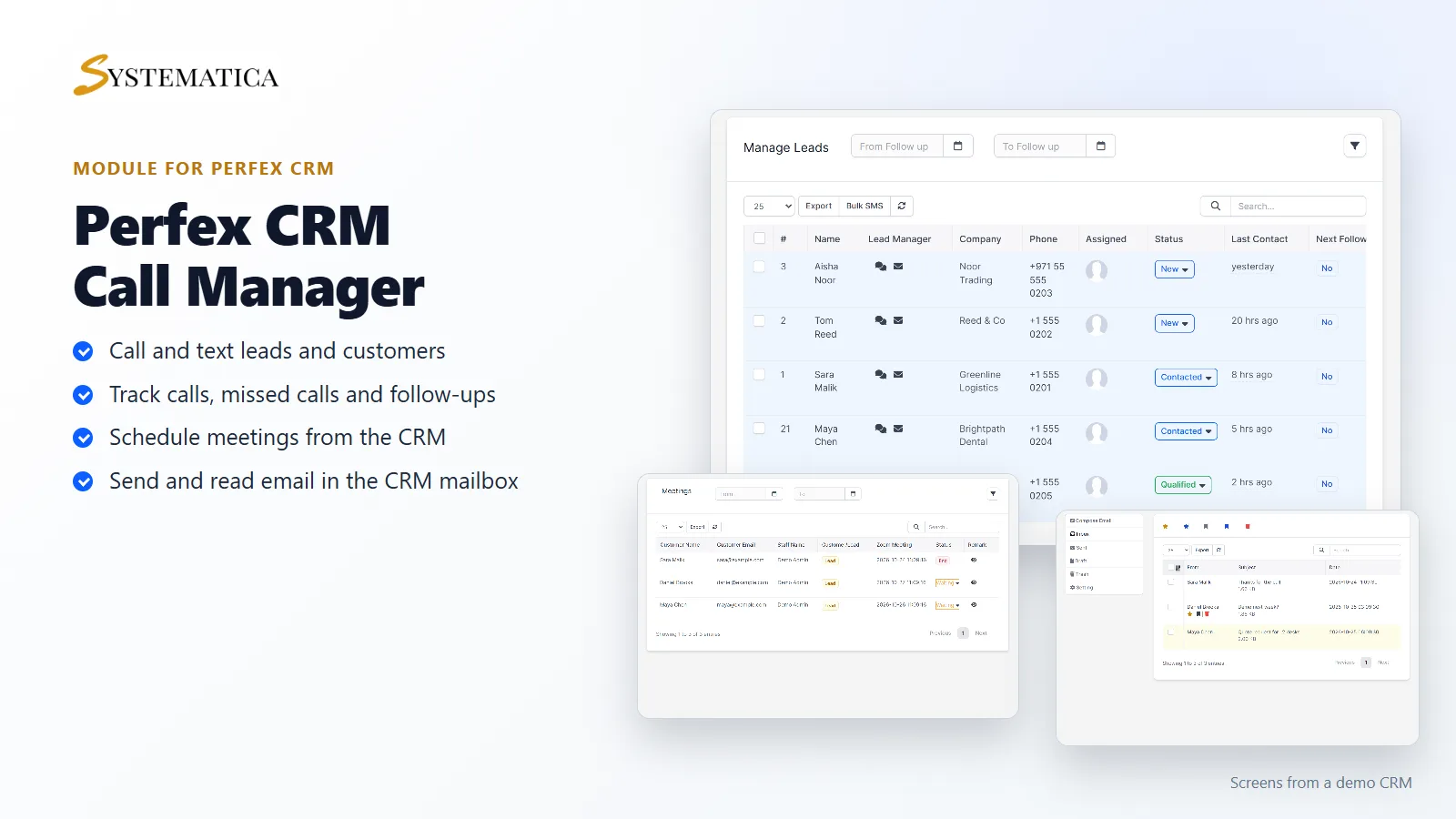
This guide explains how to install and set up the Perfex CRM call manager module and how your team uses it every day. It is also known as the lead manager module, after its module folder, lead_manager. The Perfex CRM call manager module puts calls, texts, meetings and email for your leads and customers inside Perfex CRM, so nobody needs a second tool.
What the Perfex CRM call manager module does
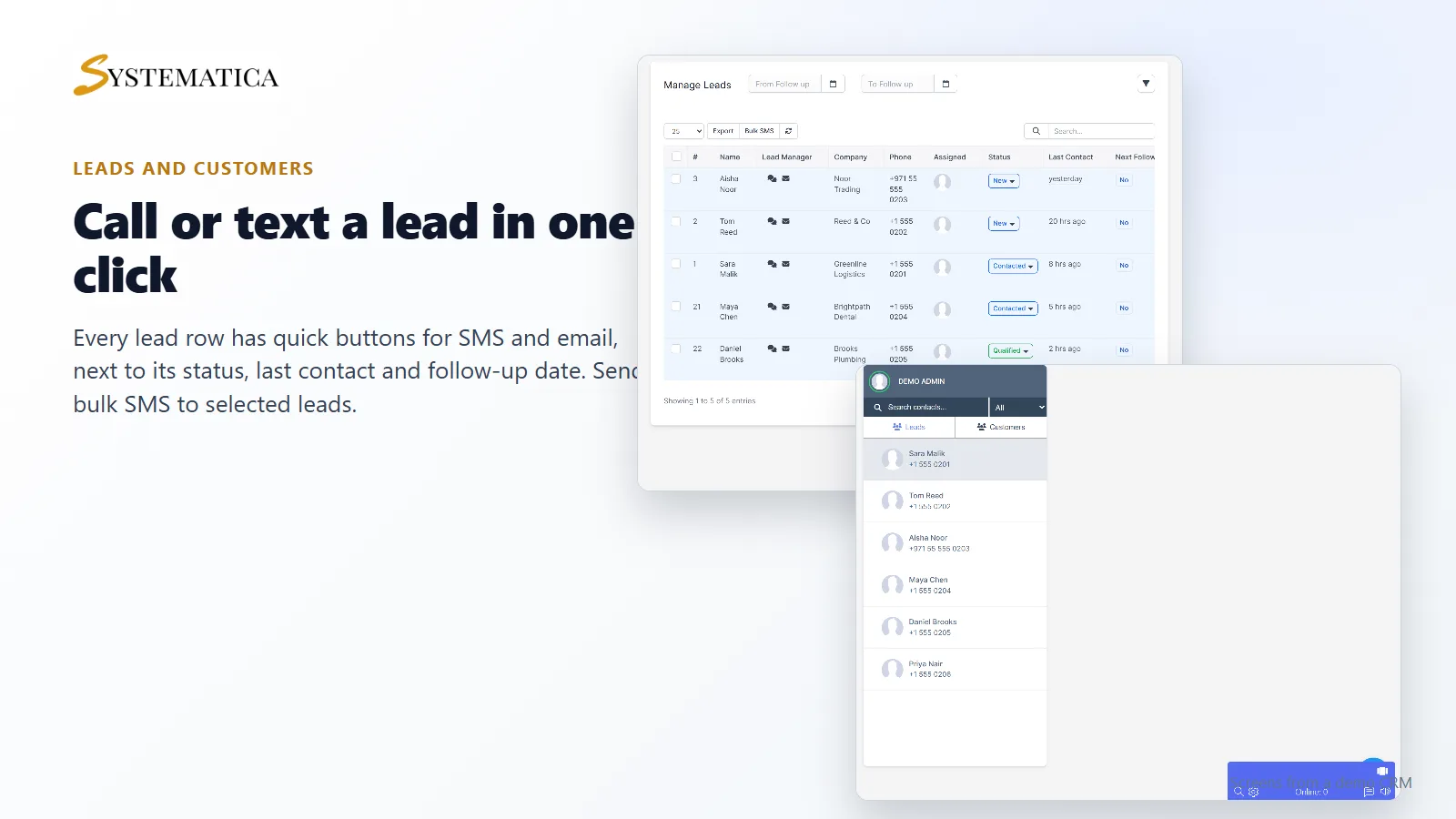
- A leads list with quick SMS and email buttons, status, last contact and next follow-up
- Bulk SMS to the leads you select
- A phone button in the CRM for staff who have a phone number assigned
- An SMS screen with your leads and customers as contacts
- Meetings with a lead or customer, with status and remarks, shown on the CRM calendar
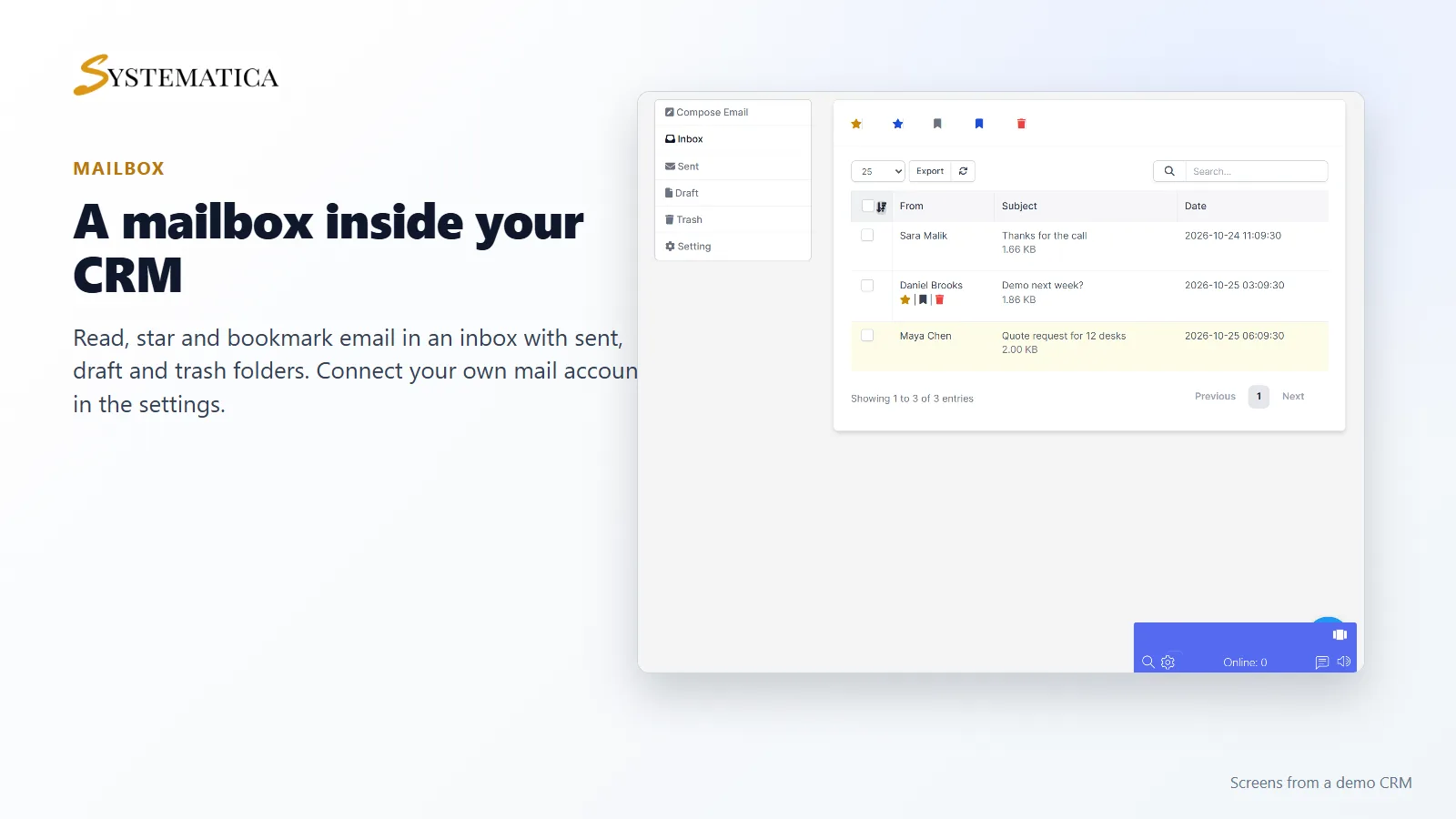
- A mailbox with inbox, sent, draft and trash folders, using your own mail account
- A dashboard with outbound and inbound calls, missed calls, converted leads, SMS sent, meetings and call time
Requirements
- Perfex CRM 3.4 or newer (tested on 3.4.1)
- A Twilio account for calls and SMS. Twilio bills you directly for its usage.
- A mail account with SMTP and IMAP details for the mailbox
- A connection from your server to systematica.app over HTTPS for the license check
How to install the Call Manager Module for Perfex CRM
- Upload the Perfex CRM call manager module under Setup > Modules and click Activate.
- Open Call Manager > License Management and enter your license key.
- Open Setup > Settings > Call Manager and enter your Twilio details. Add your Zoom details too if you want to schedule Zoom meetings.
- Give each staff member a Twilio number in their profile. The Perfex CRM call manager module checks that the number has no spaces or letters and is not given to two people.
- Open Call Manager > Mailbox > Setting and add your mail account.
- Open Call Manager > Leads and start with your first follow-up.
Back up your database before you activate any new module. It takes a minute and protects your data.
Work your leads from one list
The leads list shows each lead with company, phone, assigned staff, status, last contact and next follow-up. Next to the name there are buttons to text or email the lead. Select several leads to send one SMS to all of them. Staff who are not administrators see their own leads only.
Calls, texts and the phone button
Calls and text messages go through your own Twilio account. Missed calls are recorded, and call length is added up on the dashboard, so you keep a simple call log for your team.
Meetings with leads and customers
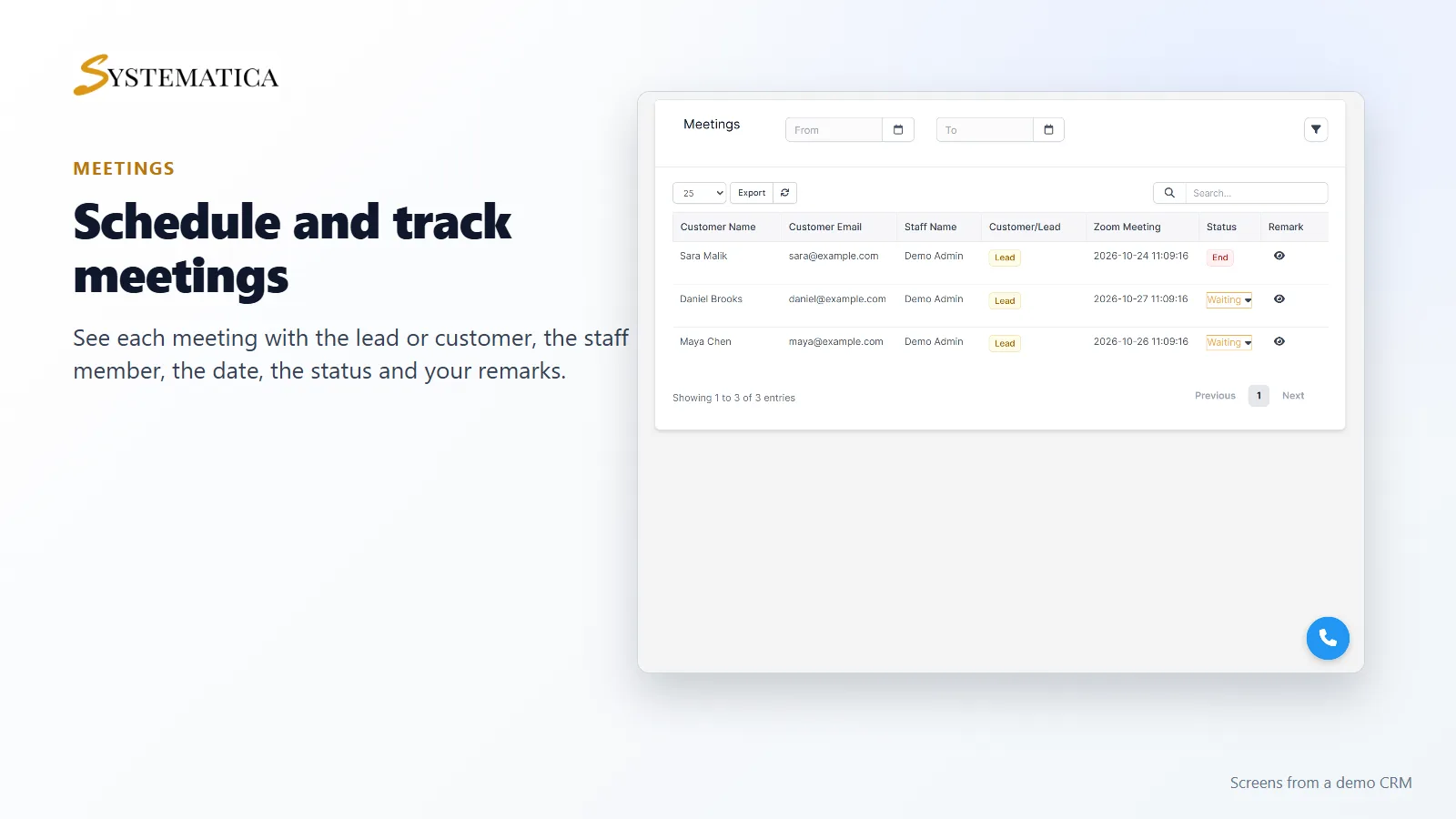
The Meetings screen lists each meeting with the person, their email, the staff member, the date, a status of waiting or ended, and your remark. You can filter by date or search by name. Meetings also show on the CRM calendar.
Email without leaving the CRM
Each staff member connects their own mail account with SMTP for sending and IMAP for receiving. You can star a message, bookmark it, reply, forward it or move it to trash.
Who uses the Call Manager Module for Perfex CRM
Sales teams use the leads list as a daily call sheet. Each person sees their own leads, the last contact and the next follow-up date, so the first call of the day is never a guess. Support and account managers use the SMS screen and the mailbox to keep conversations with customers in one place. Managers use the dashboard to see outbound and inbound calls, missed calls, converted leads, SMS sent, meetings and total call time.
Because everything sits inside Perfex CRM, a new team member needs one login and one screen to learn. There is no second tool to buy, connect or keep in sync.
A typical day with the Perfex CRM call manager module
- Open Call Manager > Leads and sort by next follow-up.
- Call or text the first lead. Add a remark about what was said.
- Set the next follow-up date before you leave the lead.
- If the lead asks for a meeting, add it on the Meetings screen. It also shows on the CRM calendar.
- Answer email in the mailbox without leaving the CRM.
- At the end of the day, check the dashboard for missed calls that need a callback.
Troubleshooting checklist
- The Perfex CRM call manager module menu does not appear: check that the Perfex CRM call manager module is active under Setup > Modules and that your role has permission to see it.
- Calls or texts do not go out: re-enter your Twilio details under Setup > Settings > Call Manager and check the staff member has a number in their profile.
- A number is refused: it must have no spaces or letters and must not belong to another staff member.
- The mailbox stays empty: check the SMTP and IMAP details, user name and password in the mailbox settings.
- The license is refused: check that your server can reach systematica.app over HTTPS, then use the license screen to check again.
If the checklist does not solve it, open a ticket on the support page and include the exact message you see.
Tips to get more from the Perfex CRM call manager module
- Write a short remark after every contact. The next person who opens the lead will thank you.
- Use Bulk SMS for reminders and announcements, and calls for conversations that need a voice.
- Give each staff member their own mail account, so replies stay with the right person.
- Review the dashboard weekly and compare call time with converted leads.
Good to know
- The Perfex CRM call manager module does not include Twilio or Zoom. You bring your own accounts.
- The screens in the pictures are from a demo CRM with sample data.
- Some small notes on the dashboard are fixed text. The numbers themselves are calculated from your data.
Your license is valid for 1 year and includes support through our ticket system and free updates through your Systematica account. One license key activates the Perfex CRM call manager module on one website. To move it, deactivate the license under Call Manager > License Management and activate it on the new site. The module runs inside Perfex CRM, which you need to own.
Frequently asked questions
Do I need a Twilio account for the Call Manager Module for Perfex CRM?
Yes, for calls and SMS. You add your own Twilio details and Twilio bills you for what you use.
Can I send one text to many leads?
Yes. Select the leads in the list and use Bulk SMS.
Can each person use their own email account?
Yes. Each staff member adds their own SMTP and IMAP details in the mailbox settings.
Where do I enter the license key?
Open Call Manager > License Management after activating the module.
Is this the same module as the Call Center module?
Yes. The call center guide explains the same module from the point of view of a daily calling routine.
Related guides and support
- Buy or read the details on the Call Manager product page.
- Turn calls into follow-up tasks with Workflow Rules.
- Read the call center module for Perfex CRM guide.
- Need help? Open a ticket on the support page.
- Read more in the Perfex CRM documentation.