
Perfex CRM tax rates are the percentages that the CRM adds to your invoices, estimates and proposals. Set them up once and your documents show the right tax on every line, whether you charge VAT, sales tax or both. This guide, tested on Perfex CRM 3.4.1, shows how to add a VAT rate, use it on invoice items and save it on your items list.
What Perfex CRM tax rates do #
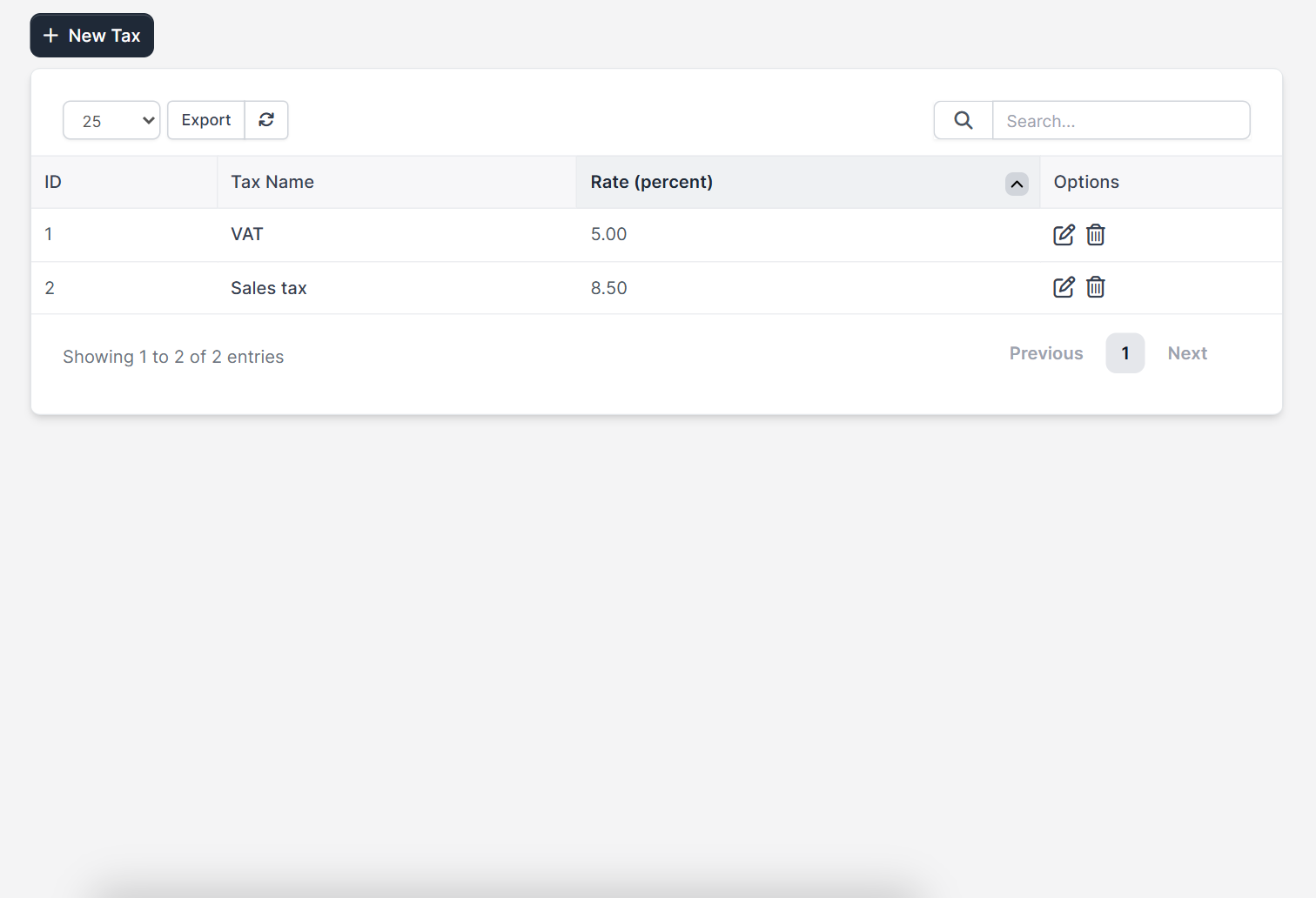
A tax rate has a name and a percentage. When you pick a tax on a line, Perfex CRM calculates the tax amount and adds it to the total. You manage the list under Setup > Finance > Tax Rates. The table shows the ID, the tax name, the rate in percent and the edit and delete icons, with a New Tax button above it.
Tax laws differ by country, so check the rate and the rules with your accountant before you issue invoices.
Step 1: Add a VAT rate to Perfex CRM tax rates #
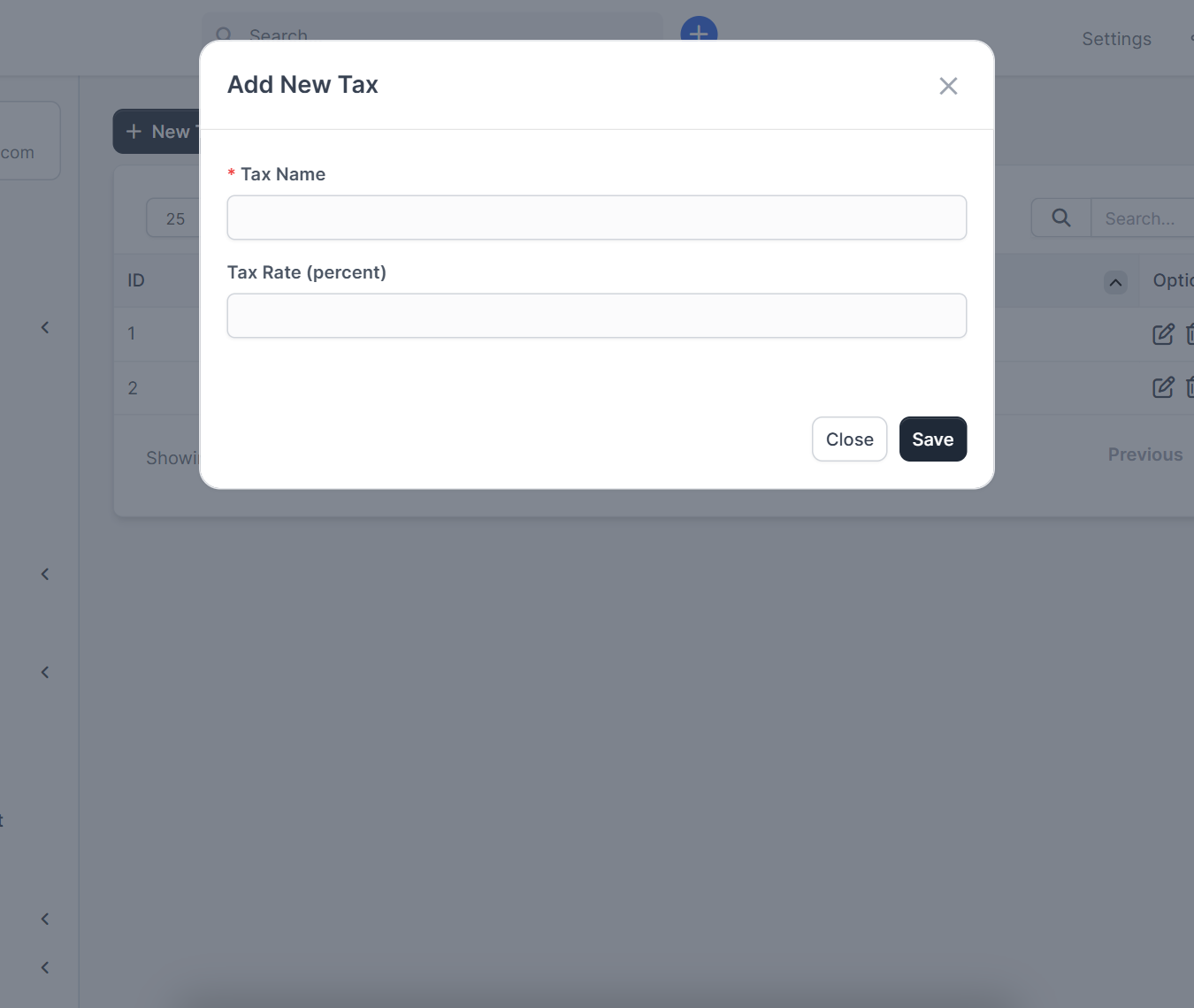
Click New Tax. A window with two fields opens: Tax Name and Tax Rate (percent). Type a name that your team understands, for example VAT, and the percentage, for example 5. Click Save. Repeat for every tax you charge, such as Sales tax at 8.5 percent.
- Use clear names such as VAT 5% or Sales tax for every VAT rate, not codes.
- Add a separate tax for each rate you charge.
- Edit a rate when the law changes, and check old documents first.
Step 2: Apply a tax to an invoice item #
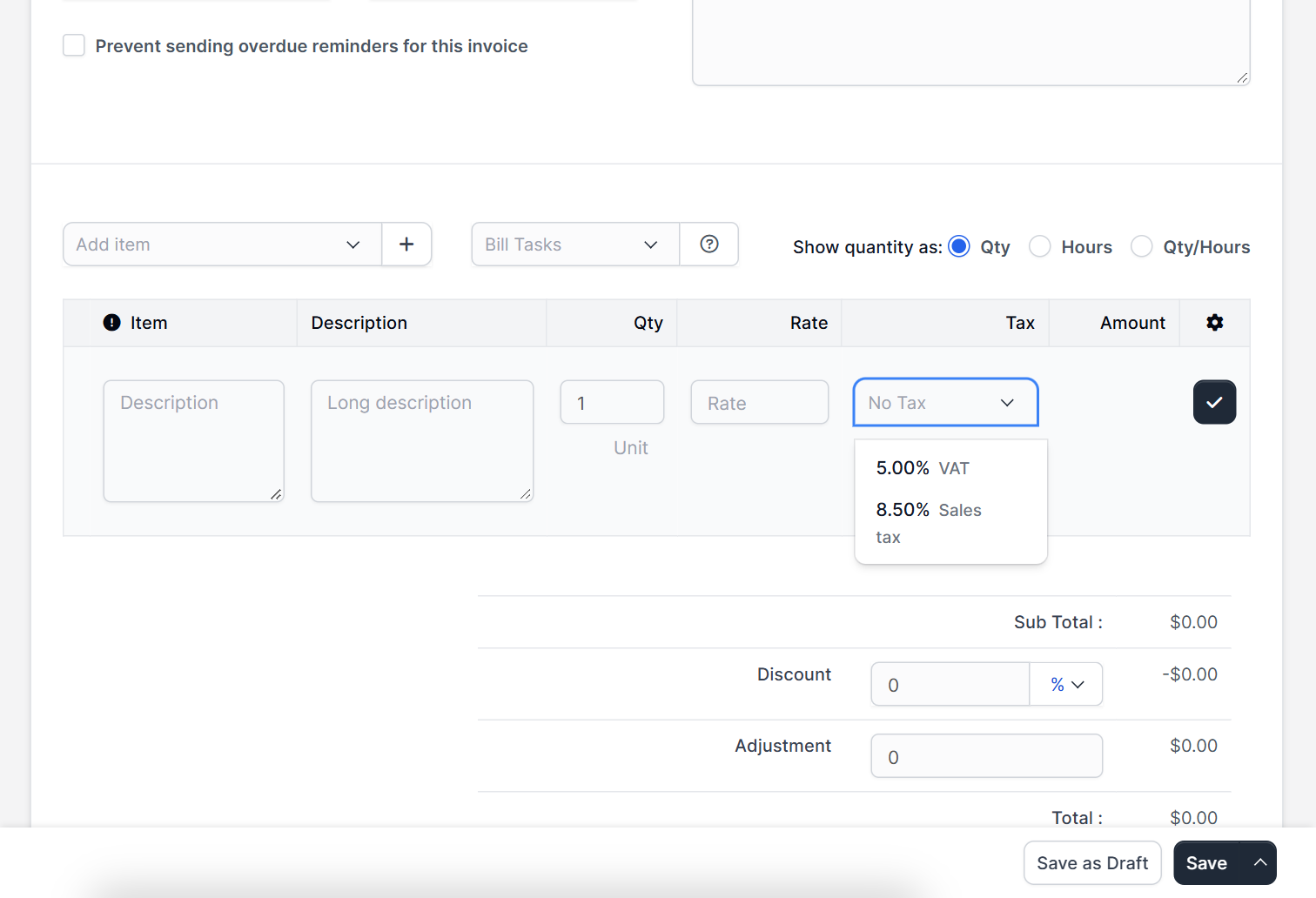
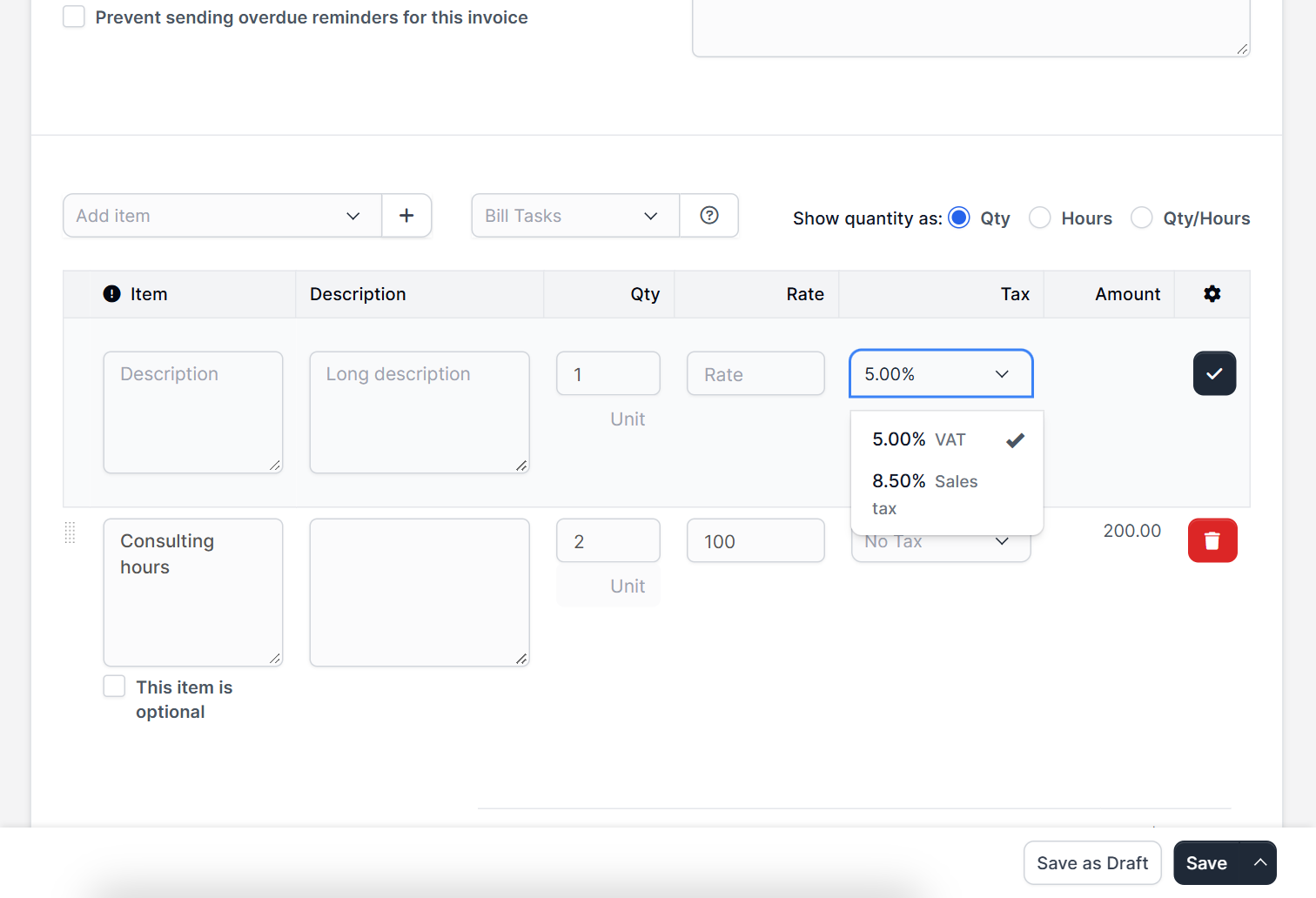
Create an invoice under Sales > Invoices. In the item row the Tax column holds a drop-down list. It shows No Tax and every tax you added, each with its percentage, for example 5.00% VAT and 8.50% Sales tax. Choose one, fill in the quantity and the rate, and confirm the line with the check button. The invoice adds the tax to the total.
For the whole invoice flow see Perfex CRM create invoice. Estimates and proposals use the same tax drop-down.
Step 3: Save a default VAT rate on your items #
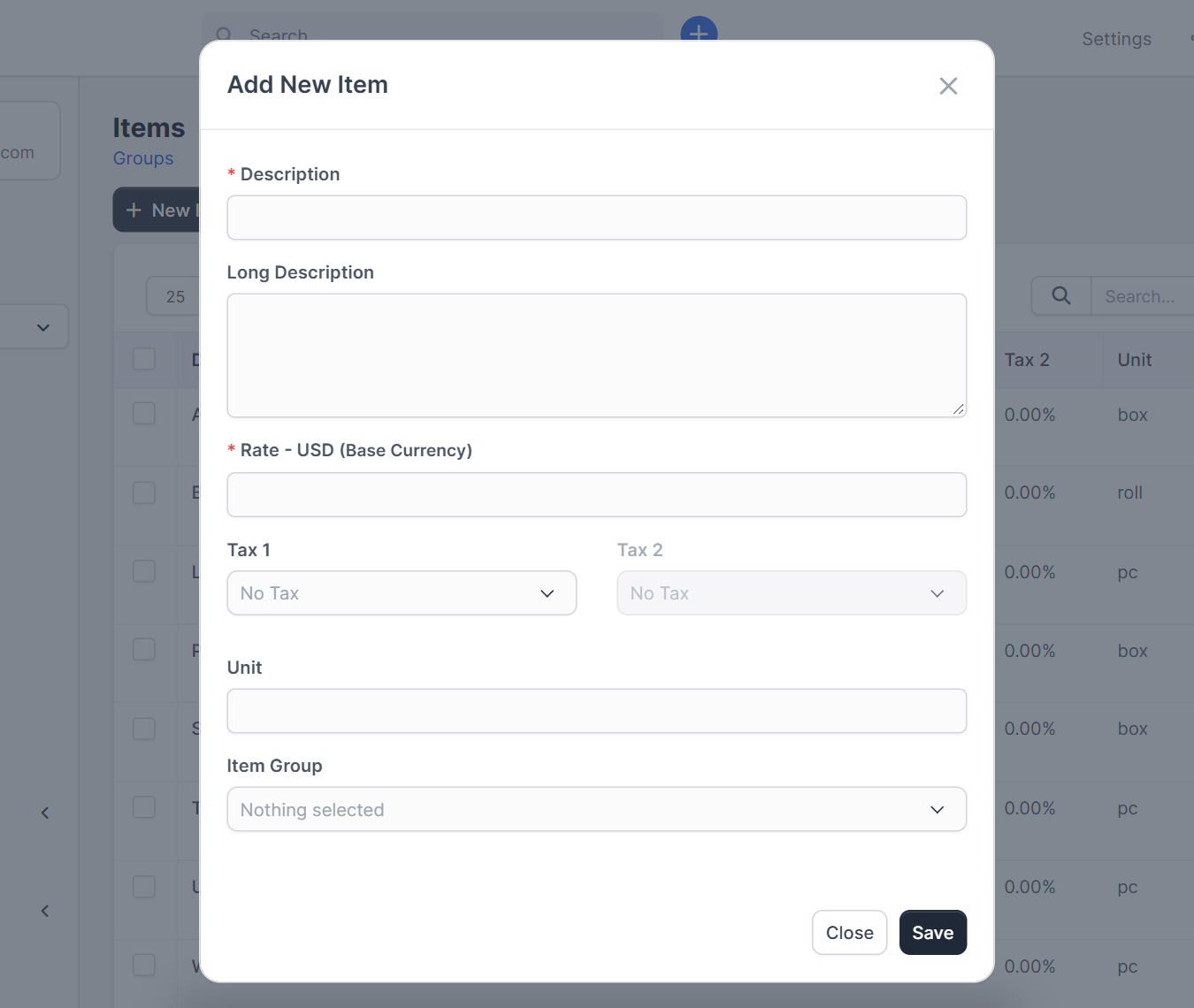
If you sell the same service again and again, store the tax with the item. Open Sales > Items and click New Item. The window has a Description, a Rate in your base currency, Tax 1 and Tax 2 drop-downs, a unit and an item group. Two tax fields let you combine, for example, a state tax and a city tax on one item.
Items are explained in Perfex CRM invoice items.
Step 4: Check the VAT rate on the result #
Open the invoice and read the totals of your Perfex CRM tax rates. Perfex CRM shows the sub total, the tax lines and the total. Send a test invoice to yourself before the first real one. If customers pay online, check that your payment settings and currencies match, see Perfex CRM currencies and Perfex CRM payment modes.
Tips for tax rates #
- Keep the list of Perfex CRM tax rates short and named clearly.
- Do not delete a rate that old invoices still use. Add a new rate instead.
- Keep your reports in order with the Financial Management module, which links invoices and payments to your accounts.
- Charge cards on a schedule with Perfex CRM subscriptions, where the taxes come from Stripe.
- Read the official Perfex CRM help for more finance topics.
The screenshots come from a demo CRM. How a changed rate affects invoices that already exist was not tested.
Frequently asked questions #
Where do I add Perfex CRM tax rates? #
Open Setup, Finance, Tax Rates and click New Tax.
Can I use two taxes on one item? #
Yes. An item has Tax 1 and Tax 2 fields, so you can combine two taxes.
How do I add a VAT rate? #
Click New Tax, enter VAT as the name, type the percentage and save. Then choose it in the Tax drop-down of an invoice item.
Is a tax shown on estimates too? #
Yes. Estimates and proposals use the same tax drop-down as invoices.


