
Perfex CRM announcements are short messages that appear on the dashboard where everyone will see them. Use a staff announcement for a holiday, a new price list or a change in the process, and show it to customers when it concerns them too. This guide, tested on Perfex CRM 3.4.1, shows how to write, publish and manage them.
What Perfex CRM announcements do #
An announcement is a title and a message with two audience switches. When you save it, it shows as a blue box at the top of the dashboard. Open Utilities > Announcements to see every announcement in a list with its name and date, and a New Announcement button.
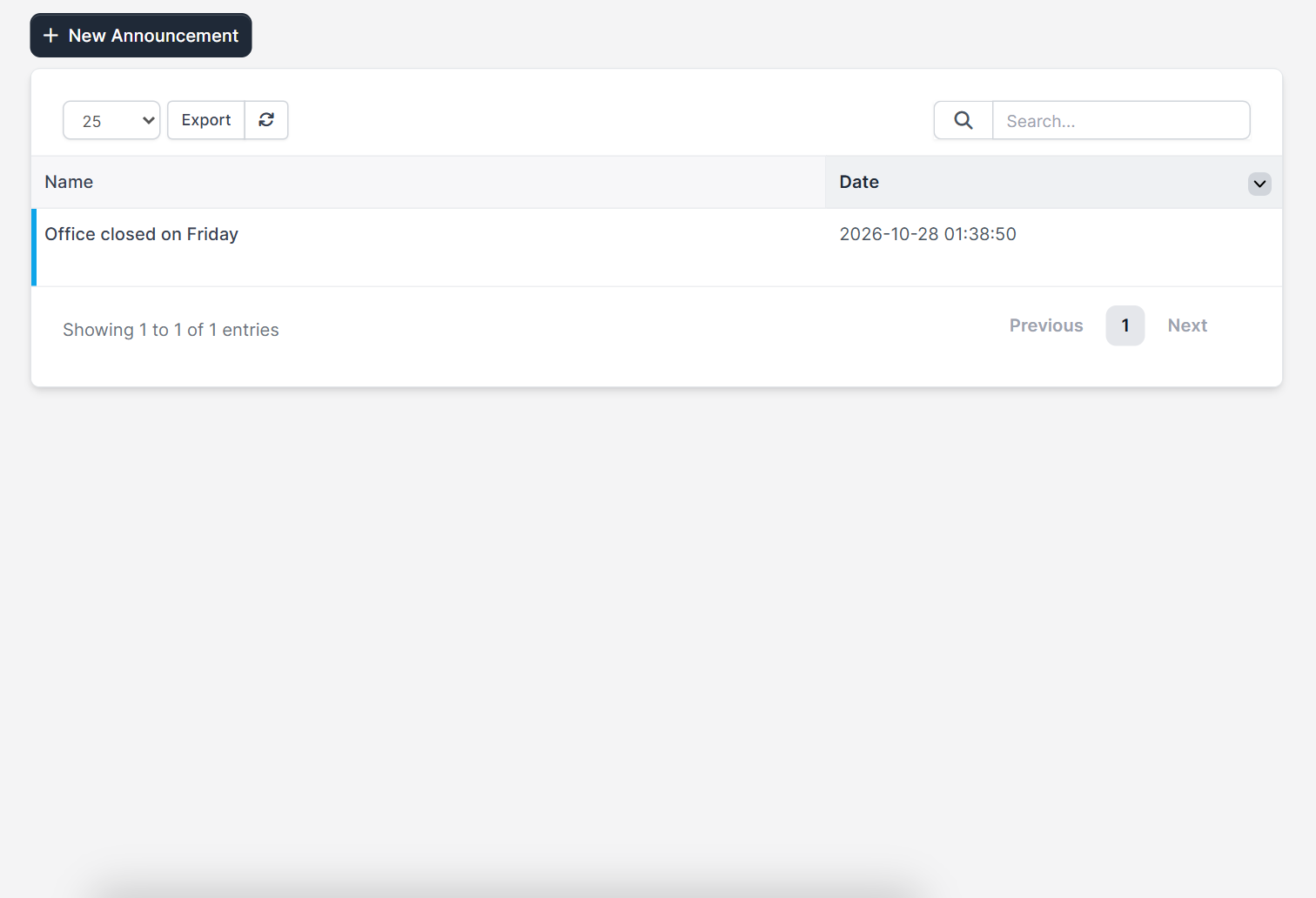
Step 1: Start a new announcement #
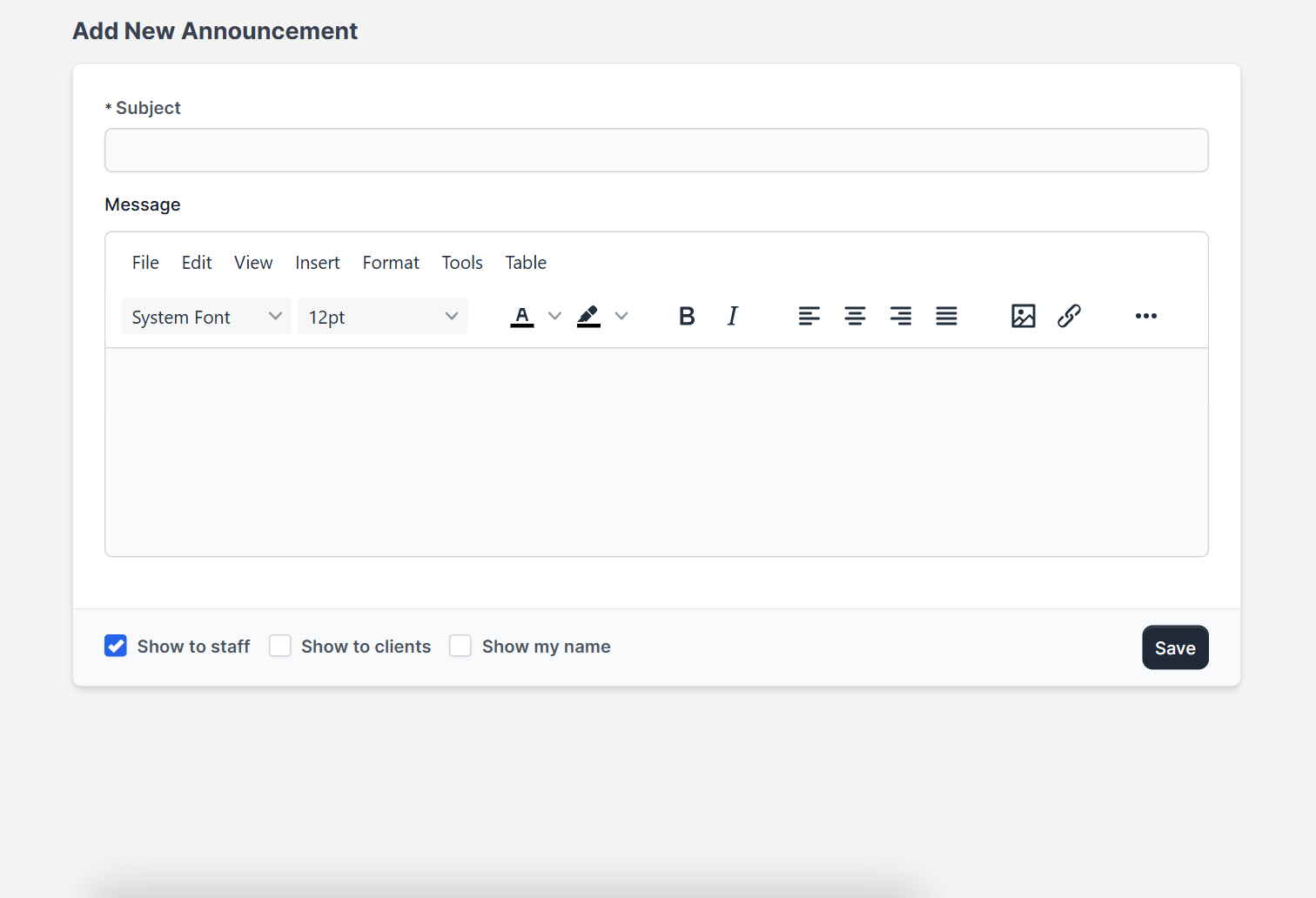
Click New Announcement. The first field is the Subject. Write it like a headline, for example Office closed on Friday. Under it sits the Message editor with the usual formatting buttons, a font and size menu, colours, alignment, an image button and a link button.
Step 2: Choose who sees it #
Below the editor are three checkboxes:
- Show to staff: ticked by default, so your team sees the announcement.
- Show to clients: tick it when customers should read it too.
- Show my name: shows the person who wrote the announcement.
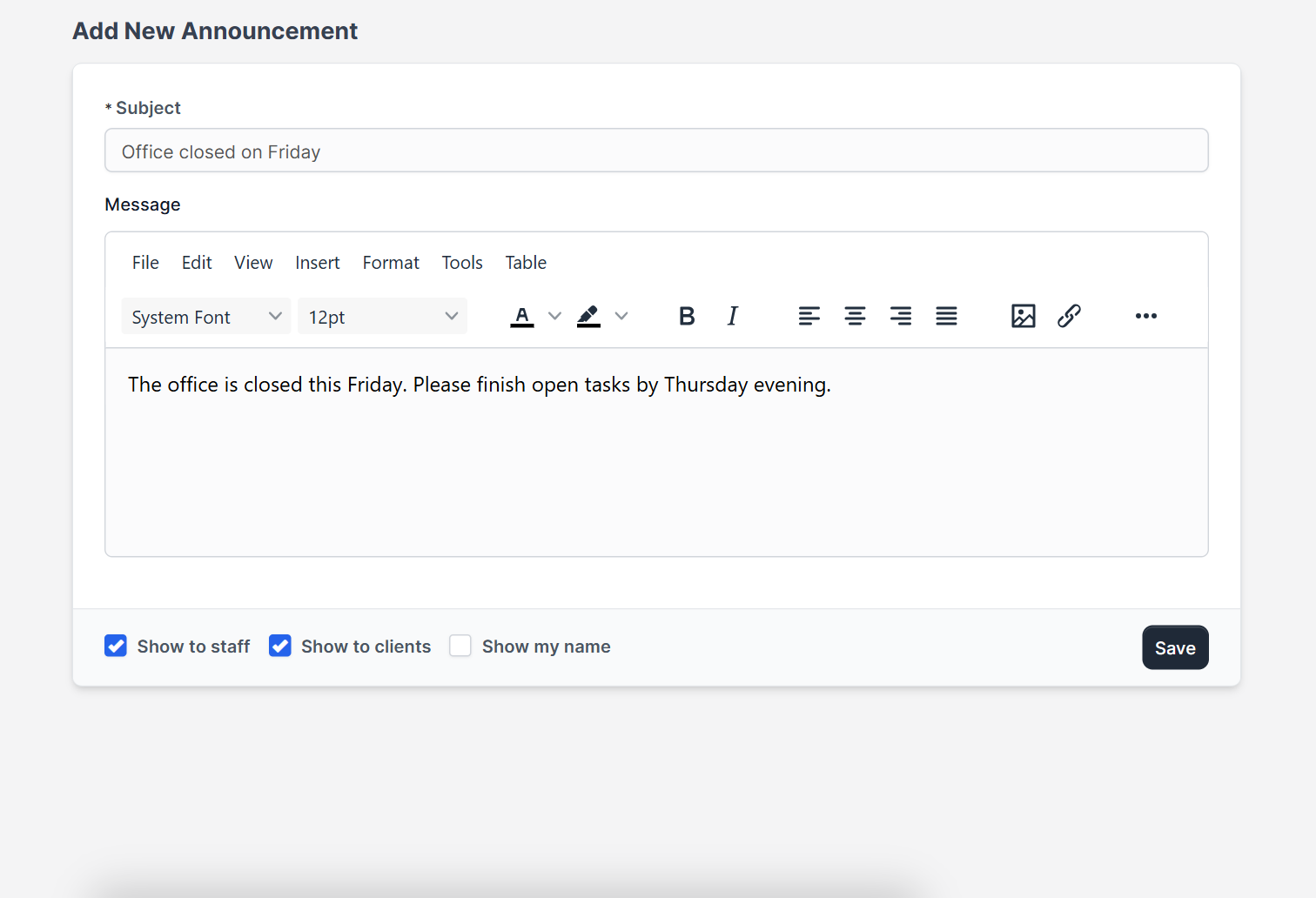
Keep the message short. A few lines work better than a long text, because people read the box while they look for something else. Click Save to publish.
Step 3: See it on the dashboard #
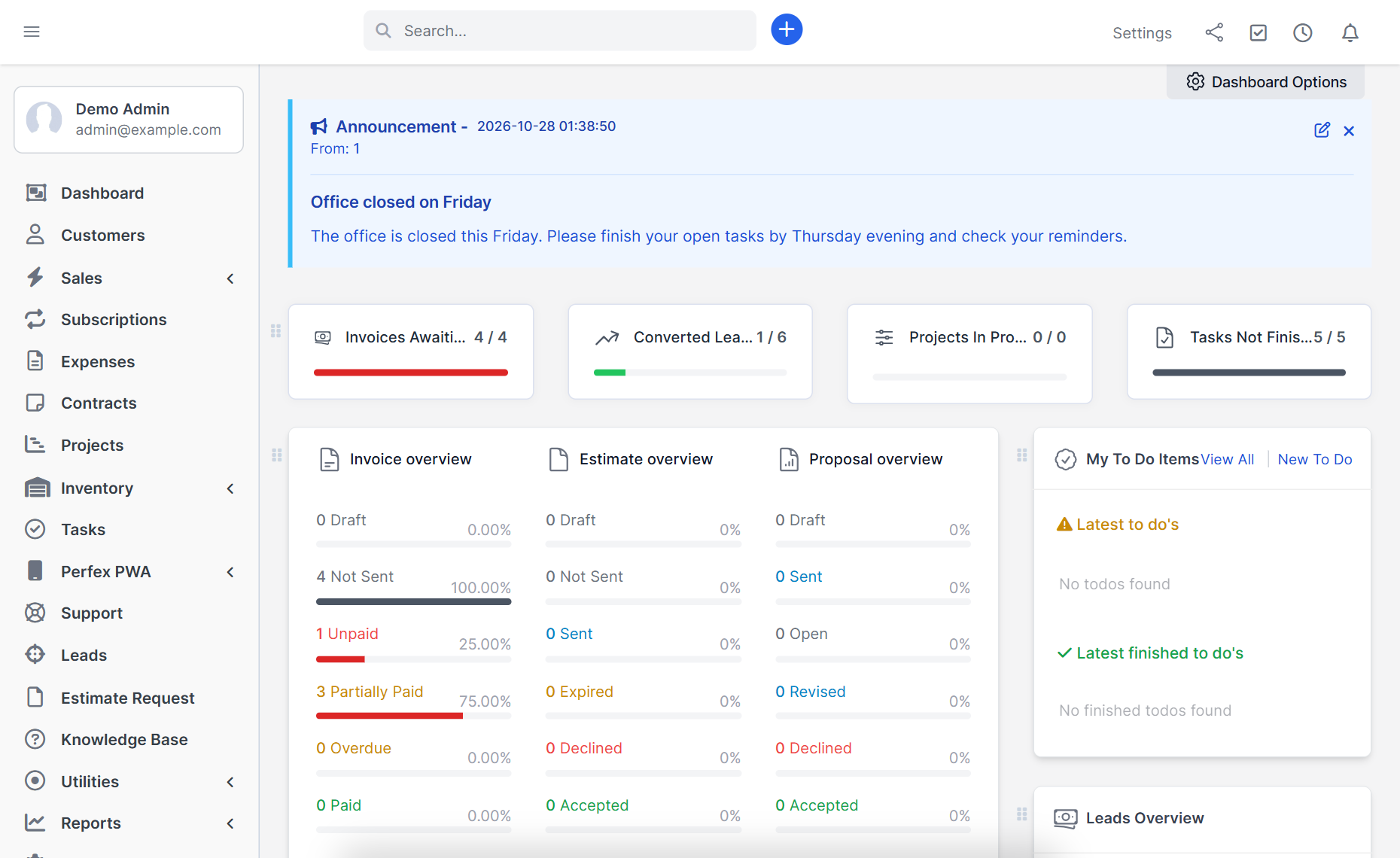
Staff see the announcement on the dashboard in a blue box with the subject, the date and the message. Two small icons in the box let you edit the announcement or close the box.
Announcements marked Show to clients are meant for the customer area. That part was not tested in the demo CRM.
Write a better staff announcement #
A good staff announcement is easy to read in ten seconds. Perfex CRM announcements work best when they follow a few simple habits:
- Put the news in the subject, so the headline already answers the question.
- State the date or deadline in the first sentence of the message.
- Say who should act. If nobody needs to act, say that too.
- Link to the page with the details instead of pasting a long text into the box.
- Use Perfex CRM announcements for news that affects many people, and use a task or a direct message for one person.
Reading the message again before you save is the cheapest quality check. A staff announcement with a typo in the date causes more questions than it answers.
Step 4: Read or change an announcement later #
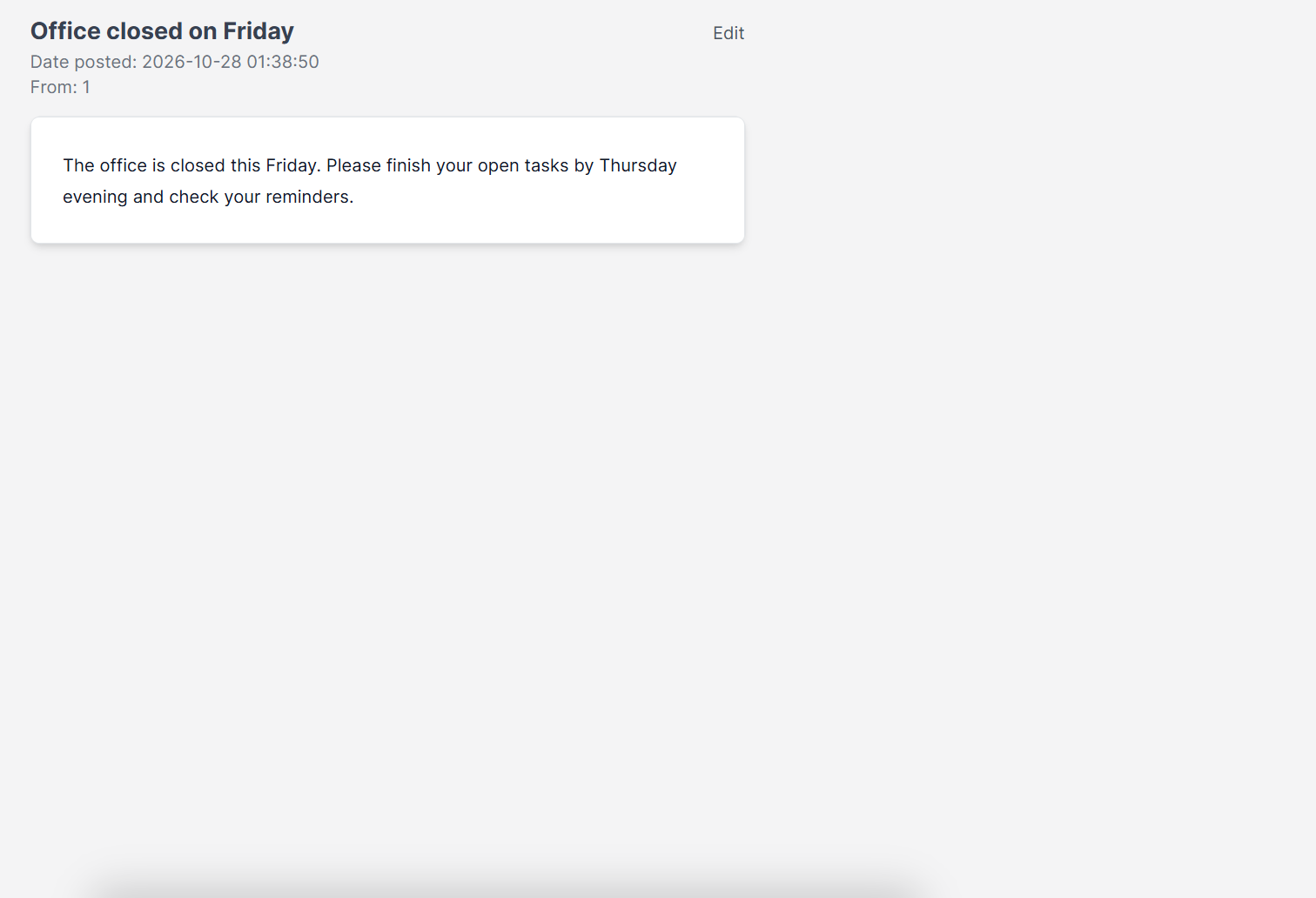
Click the name in the list to open the announcement page. It shows the subject, the date it was posted and the message, with an Edit link. Click Edit to fix a mistake or to update the text when the news changes.
Tips for a staff announcement #
- Write one topic per announcement, so it is easy to close.
- Replace old announcements with new ones, because a dashboard full of boxes is ignored.
- Reach people on their phones with the Perfex CRM Mobile App, which sends push alerts for new leads, tickets and tasks.
- Chat with your team in real time using the Perfex CRM Chat module.
- Control who can create announcements with Perfex CRM roles and permissions.
For other notices, see Perfex CRM email templates, which control the emails the CRM sends.
The announcement feature is part of Perfex CRM, and the official Perfex CRM help site lists more topics for your team.
Frequently asked questions #
Where do I create Perfex CRM announcements? #
Open Utilities, then Announcements, and click New Announcement.
Can customers see an announcement? #
Yes, when you tick Show to clients. Staff see announcements on the dashboard by default.
Can I change a Perfex CRM announcement after I publish it? #
Yes. Open the announcement from the list and click Edit. Save it to publish the new text.
Can I send an announcement by email? #
The announcement feature shows messages inside Perfex CRM. Use email templates or a mailing tool for email.


