
Perfex CRM surveys let you ask customers, leads or your own staff a few questions and see the answers in one place. A short customer survey after a project or a support ticket tells you what to fix next. This guide, tested on Perfex CRM 3.4.1, shows how to create a survey, add questions, send it and read the results.
What Perfex CRM surveys are #
Surveys are a built-in part of Perfex CRM. The list shows each survey with its ID, name, total questions, total participants, the date it was created and an Active switch. Two buttons sit above the list: New Survey and Mail Lists.
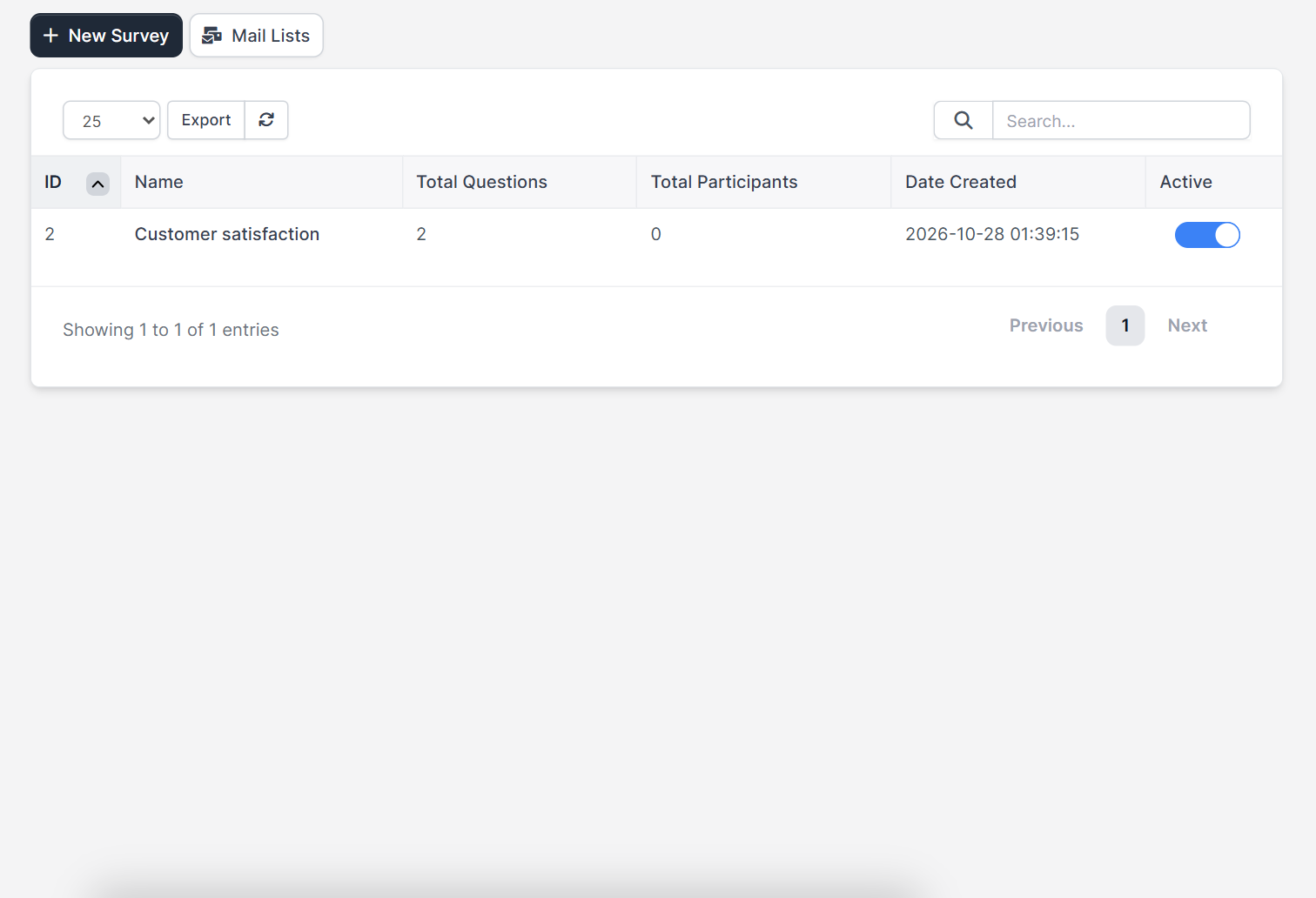
Find Surveys under Utilities > Surveys. In a fresh installation the Surveys and Goals features are modules that may not be active yet. If you do not see the menu item, open Setup > Modules and activate Surveys.
Step 1: Create the survey #
Click New Survey. Perfex CRM surveys need a subject first, and the questions come after you save:
- Survey subject: the title people see.
- Survey short description (View Description): the text shown on the survey page.
- Survey description (Email Description): the text used in the email that invites people.
- From (displayed in email): the sender name.
- Survey redirect URL: where participants go after they finish.
- Disabled and Only for logged in participants (staff, customers) as options.
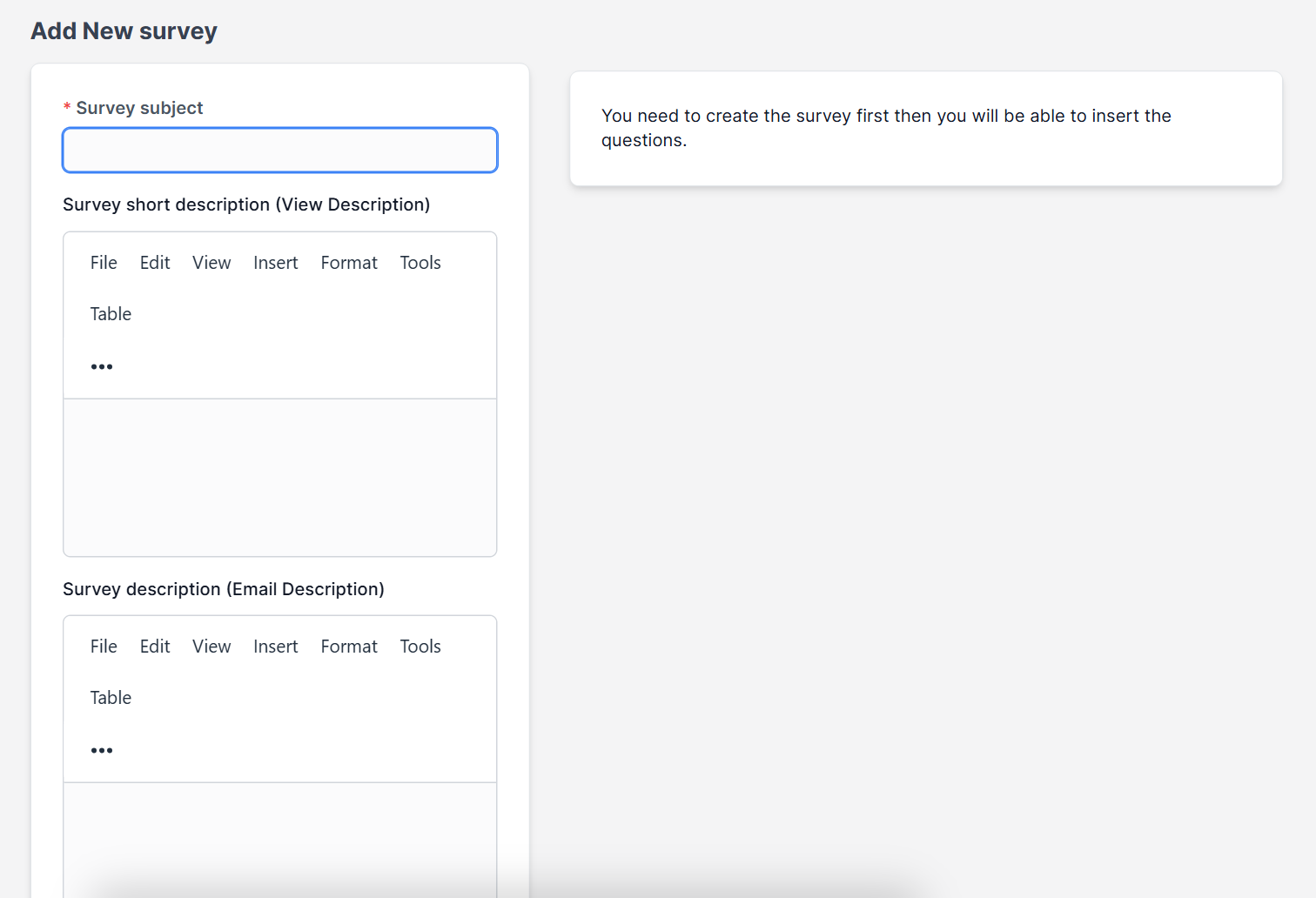
A note on the right side of the form says you need to create the survey first, then you can insert the questions. Click Save.
Step 2: Add the questions #
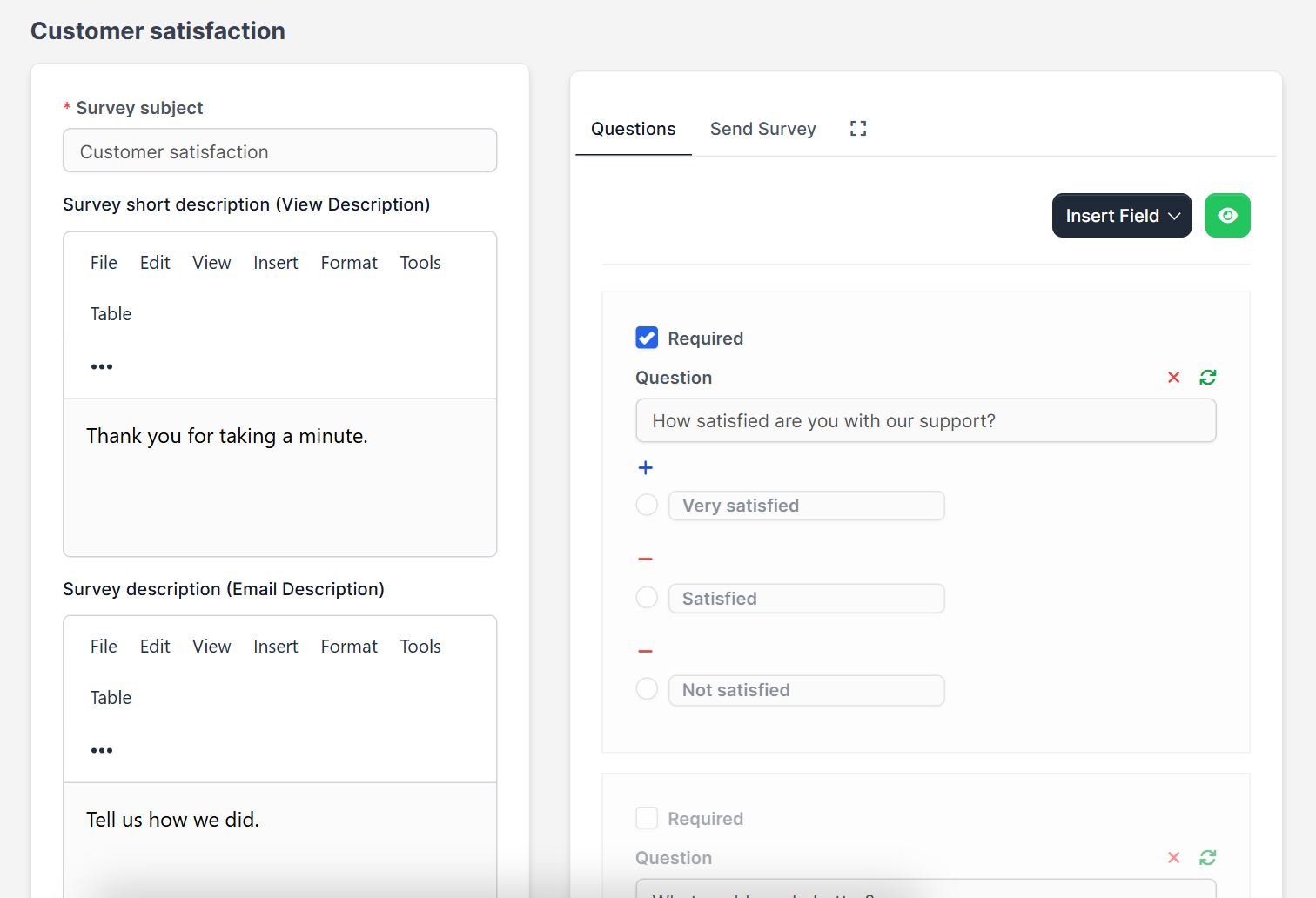
After saving, the Questions tab opens on the right. Use Insert Field to add a question. Each question has a Required checkbox and the question text. For a choice question you add the answer options one by one with the plus button. A text question shows a preview box that participants fill in.
- Keep the survey to three to five questions.
- Mark only the questions you really need as required.
- Put the most important question first.
Step 3: Send the customer survey #
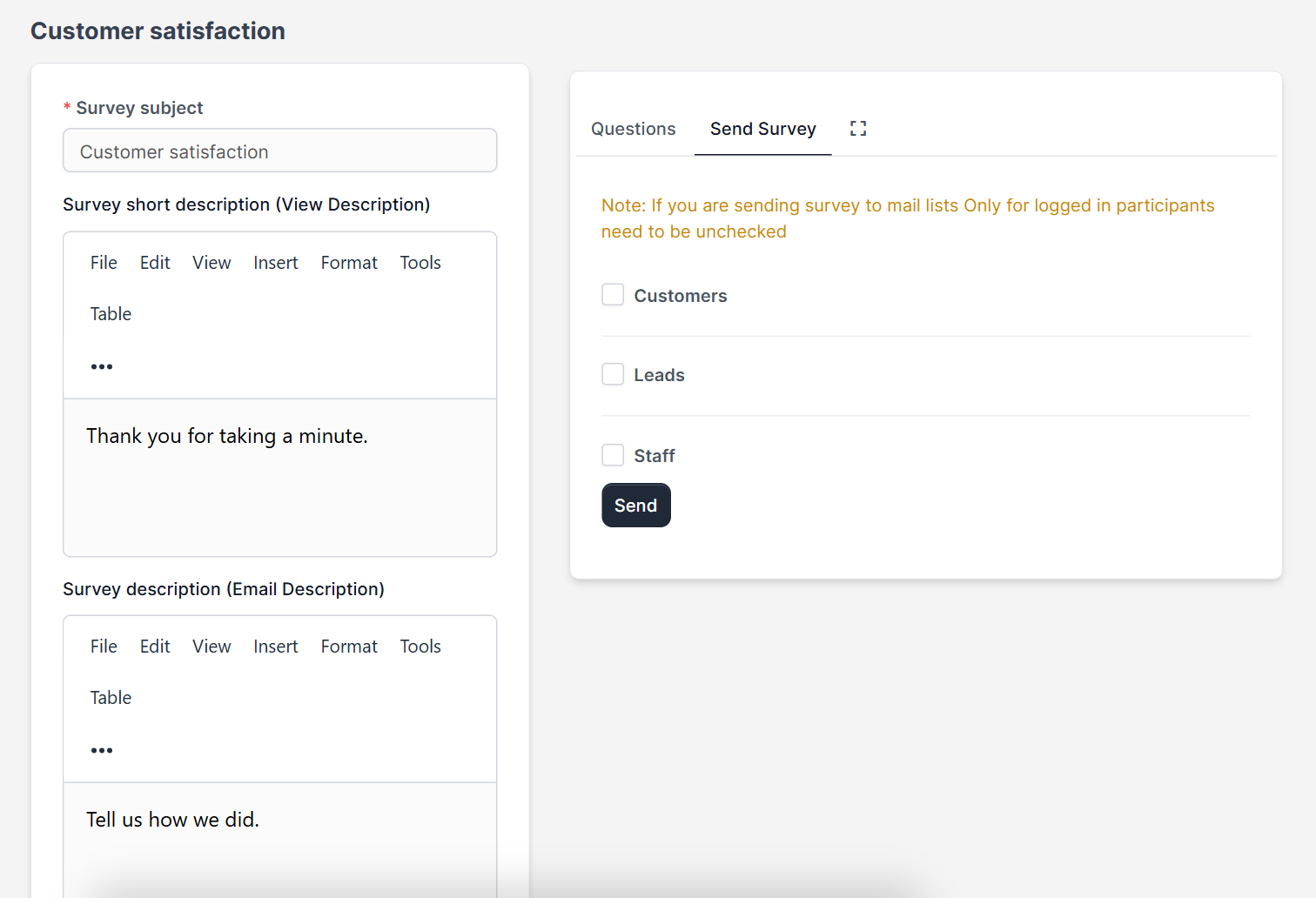
Open the Send Survey tab. Choose who gets the invitation: Customers, Leads or Staff, then click Send. A yellow note explains one rule: if you send the survey to mail lists, the option Only for logged in participants must be unchecked, because people on a mail list are not signed in.
The invitation is an email, so your email settings must work. If messages do not arrive, read Perfex CRM SMTP settings and Perfex CRM email not sending.
Step 4: Read the results #
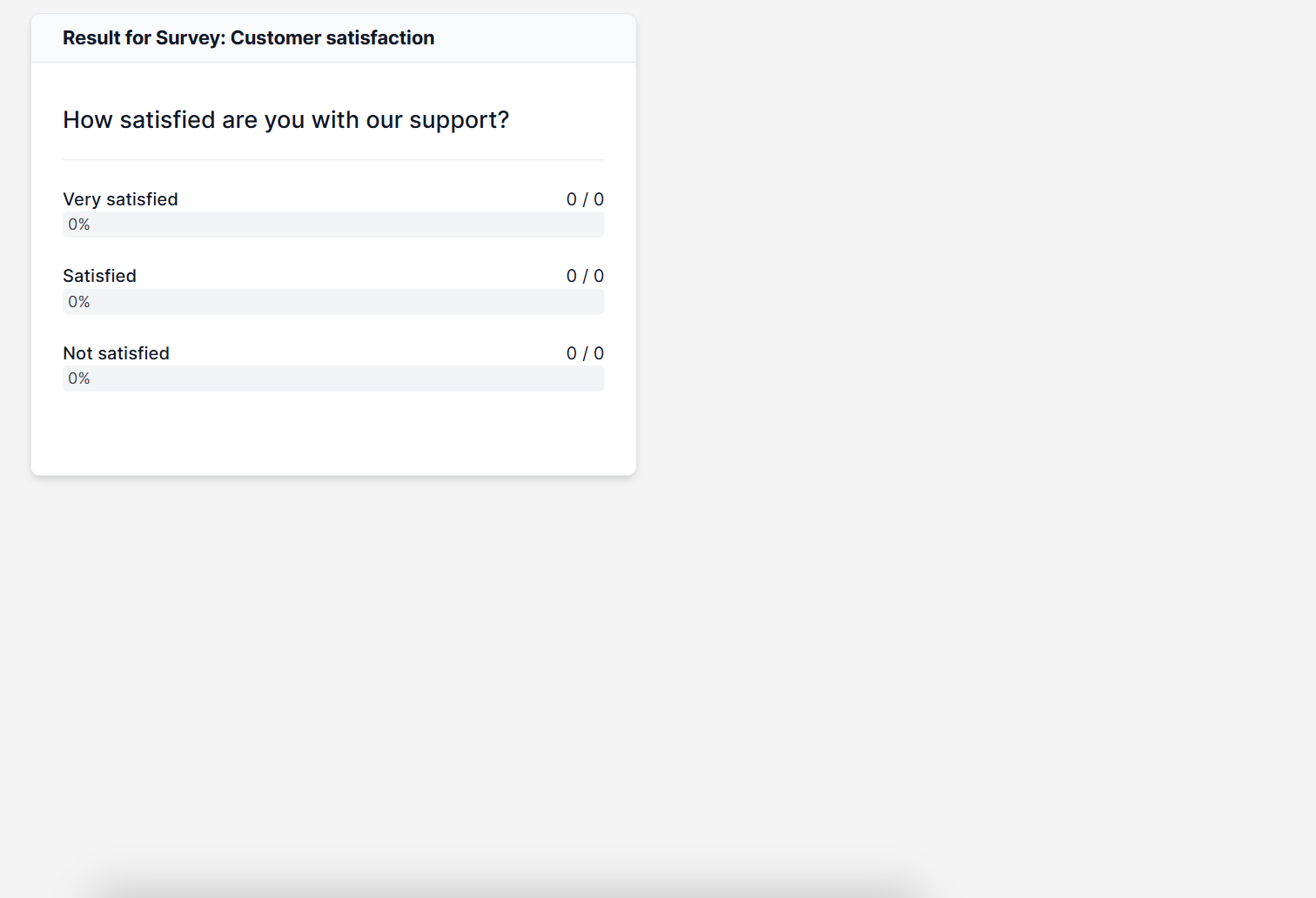
The results page shows each question with the answers, how many participants chose each one and the percentage. In the screenshot nobody has answered yet, so every bar is at zero.
Use survey answers #
- Call unhappy customers back with the Call Manager module.
- Send a thank-you message through WhatsApp with the WhatsApp module.
- Turn new tickets into follow-up tasks with Workflow Rules.
- Keep the people you survey tidy with Perfex CRM customer contacts.
See also the official Perfex CRM help about surveys. The demo CRM in the screenshots has no participants, and sending the invitation email and answering as a participant were not tested here.
Frequently asked questions #
Are Perfex CRM surveys built in? #
Yes. Surveys is a feature of Perfex CRM. If the menu item is missing, activate the Surveys module under Setup, Modules.
Can I send a customer survey to leads and staff? #
Yes. The Send Survey tab lets you choose customers, leads or staff.
Do participants need to sign in? #
Only if you tick Only for logged in participants. For mail lists this option must be unchecked.
When can I add questions? #
After you save the survey for the first time. Perfex CRM asks you to create the survey first, then insert the questions.


