
Perfex CRM goals give your team a number to aim for, such as the income of a quarter or the leads you want to convert, and show the progress while the work happens. This guide, tested on Perfex CRM 3.4.1, explains the goal types, how to set up goal tracking and where to watch the result.
What Perfex CRM goals track #
Open Utilities > Goals. The list shows each goal with its subject, staff member, achievement target, start date, end date, goal type and a progress circle. If the Goals item is missing, open Setup > Modules and activate Goals first.
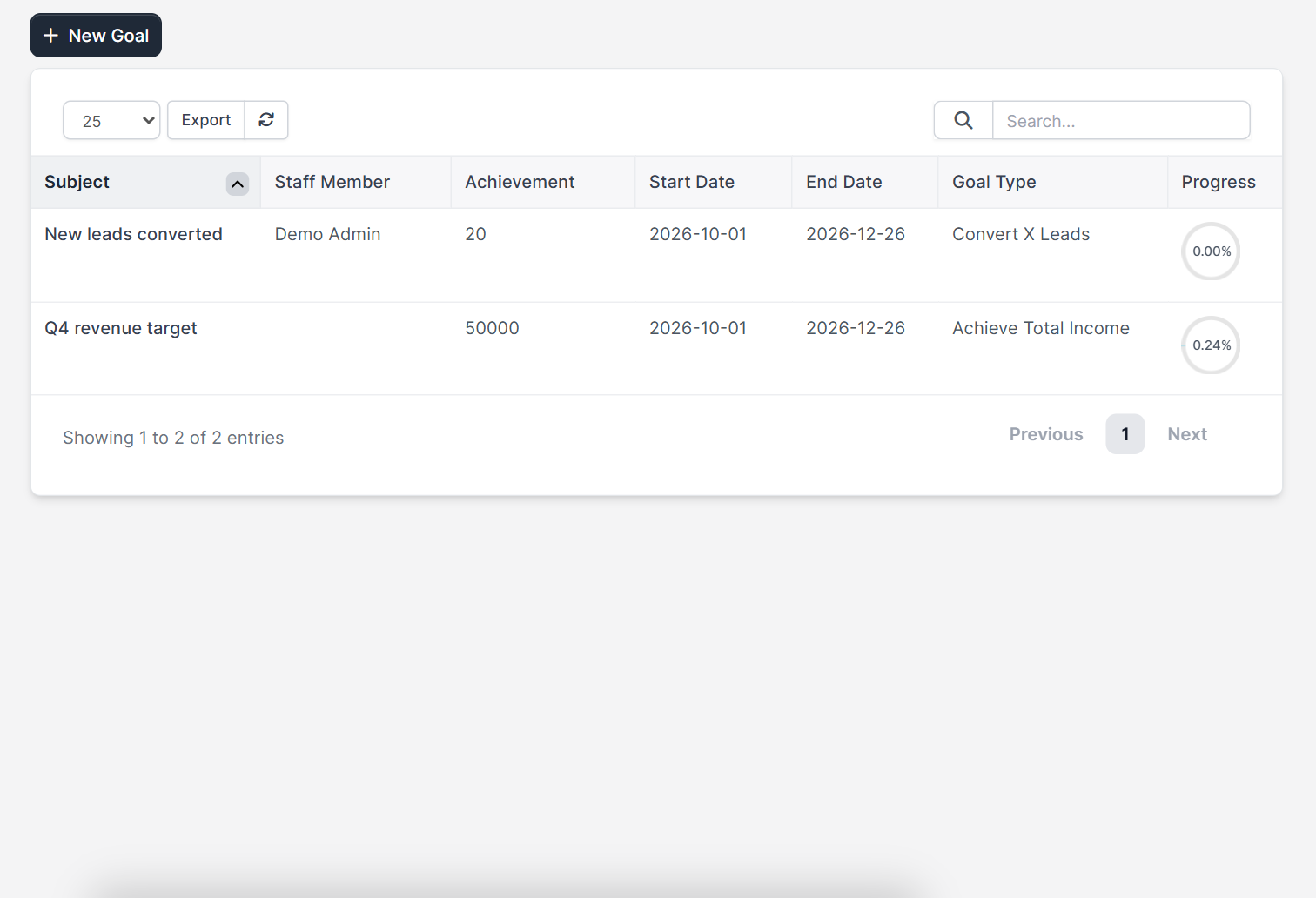
Goal tracking works for the whole company or for one staff member. A goal that belongs to a person is useful for a sales team, and a company goal fits a revenue target.
Goal types in Perfex CRM goals #
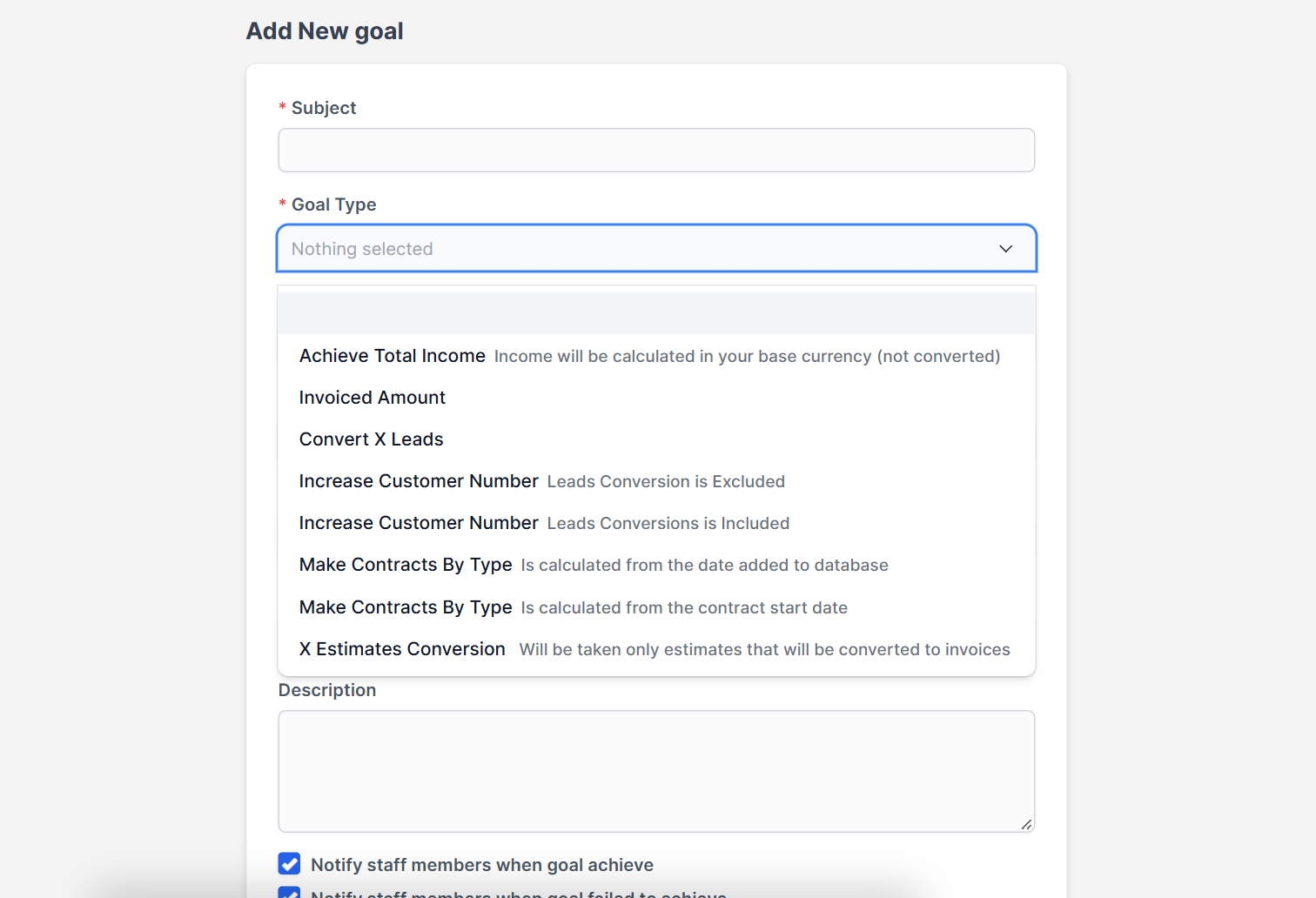
- Achieve Total Income: income is calculated in your base currency and is not converted.
- Invoiced Amount: the amount you invoice in the period.
- Convert X Leads: how many leads you turn into customers.
- Increase Customer Number: available with leads conversion excluded or included.
- Make Contracts By Type: counted by the date a contract was added or by its start date.
- X Estimates Conversion: only estimates that were converted to invoices are taken into account.
Step 1: Add a new goal #
Click New Goal. Enter a Subject that your team will recognise, for example Q4 revenue target, and choose the Goal Type.
Step 2: Choose the staff member and the target #
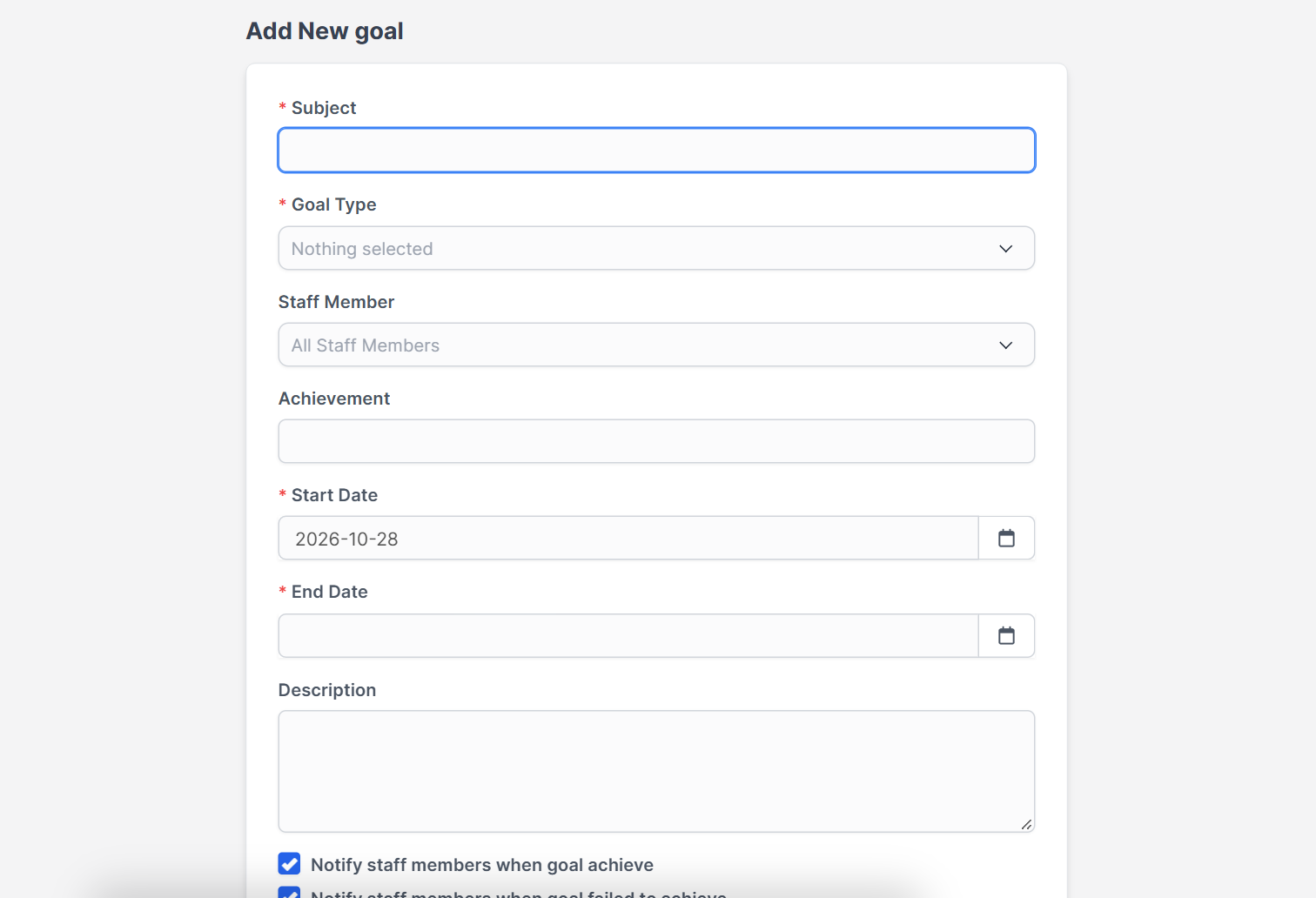
Leave Staff Member on All Staff Members for a company goal, or pick one person. In Achievement type the number to reach: an amount for income goals, a count for leads or estimates. Set the Start Date and the End Date. For contract goals you also choose the Contract Type.
Step 3: Decide who gets notified #
Two checkboxes control the alerts: Notify staff members when goal achieve and Notify staff members when goal failed to achieve. Add a short Description so everyone knows why the target exists, then click Save. According to the official Perfex CRM help about goal tracking, the achievement is checked by the cron job, so make sure Perfex CRM cron job is set up.
Step 4: Follow the progress #
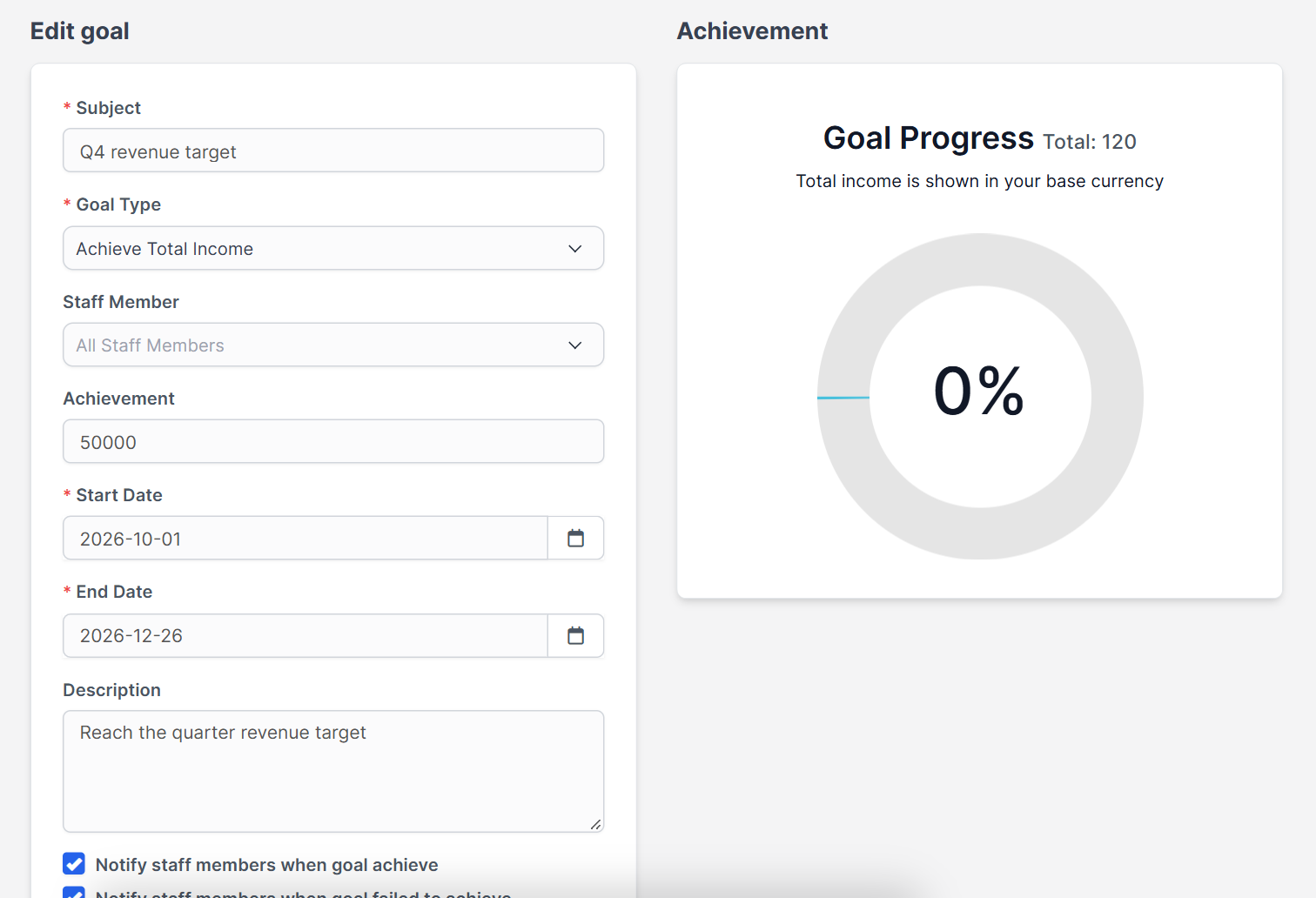
Open a goal to edit it. The right side shows Goal Progress with the total reached and a percentage circle. For income goals the note says the total is shown in your base currency.
Step 5: Watch goals on the dashboard #
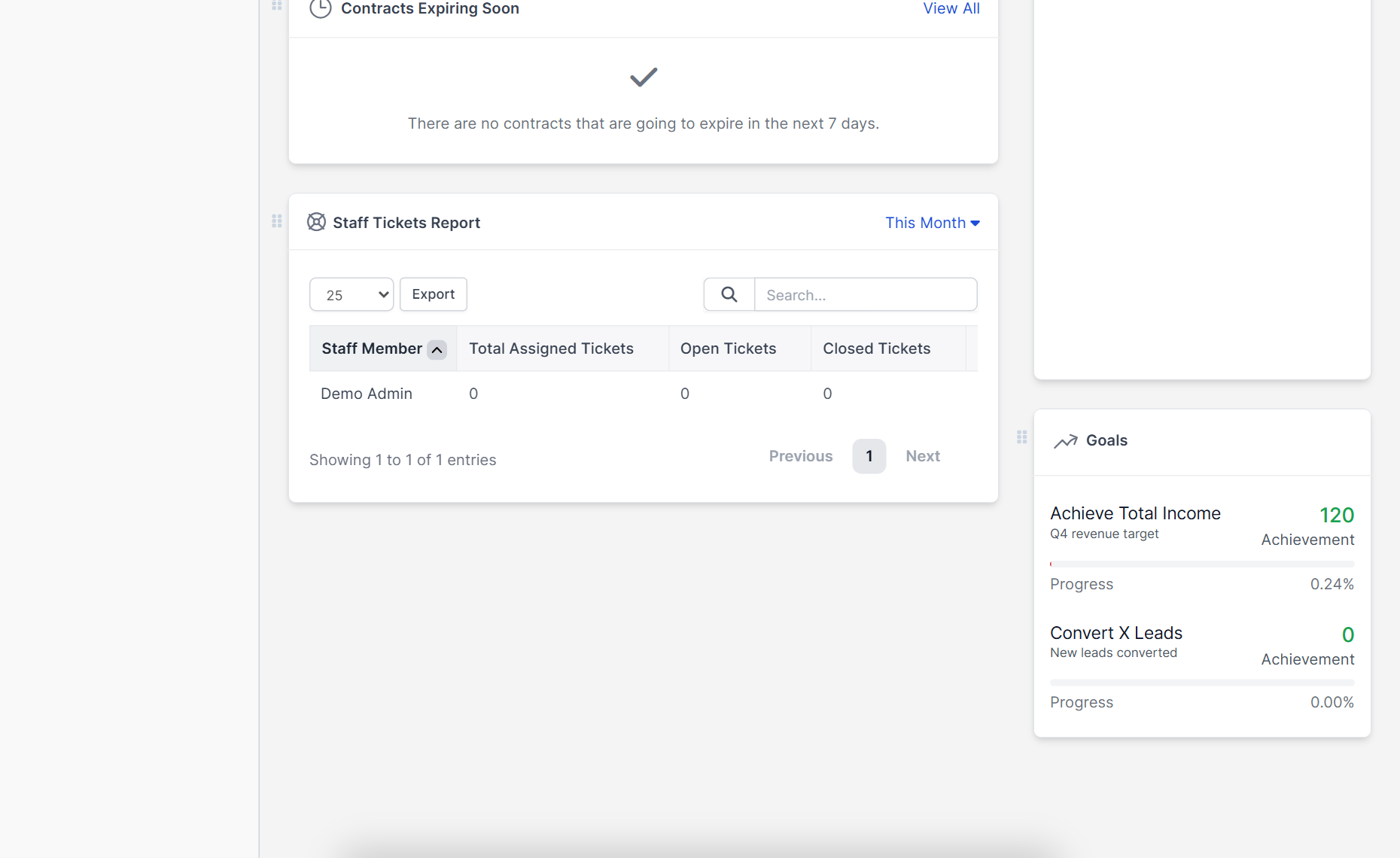
Perfex CRM also shows goals on the staff dashboard in a Goals widget. Each goal appears with its type, subject, the achievement so far and a progress bar, so the team sees the target every day.
Tips for goal tracking #
- Pair a lead goal with convert lead to customer in Perfex CRM so everyone converts leads the same way.
- Reward results with the Sales Commission module.
- Check the numbers behind an income goal with the Financial Management module.
- Help your team reach a call goal with the Call Manager module.
The demo CRM in the screenshots has little data, so the progress circles are near zero. The alerts for achieved and failed goals were not triggered in this test.
Frequently asked questions #
What can Perfex CRM goals measure? #
Total income, invoiced amount, converted leads, new customers, contracts by type and converted estimates.
Can a goal belong to one person? #
Yes. Choose a staff member when you add the goal, or leave All Staff Members for a company goal.
Does Perfex CRM tell me when a goal is reached? #
Yes. Tick Notify staff members when goal achieve. The check runs with the cron job.
Why is the Goals menu missing? #
Goals is a module. Open Setup, Modules and activate Goals.


