
- What the support ticket form contains
- Step 1: Prepare your departments
- Step 2: Add extra questions with custom fields
- Step 3: Test the public form
- Step 4: Embed the ticket form on your website
- Step 5: Make sure tickets and emails work
- Tips for a better support ticket form
- Perfex CRM ticket form FAQ
- Modules for faster support
- Quick checklist for Perfex CRM ticket form
- Summary
The Perfex CRM ticket form is a public support form that works without a customer account. A visitor fills it in, and the message arrives in your CRM as a ticket for the right department. You can open it on its own page or embed it on your website. This guide was tested on Perfex CRM 3.4.1 and shows how to set up and embed the form, so customers can reach you without logging in.
What the support ticket form contains #
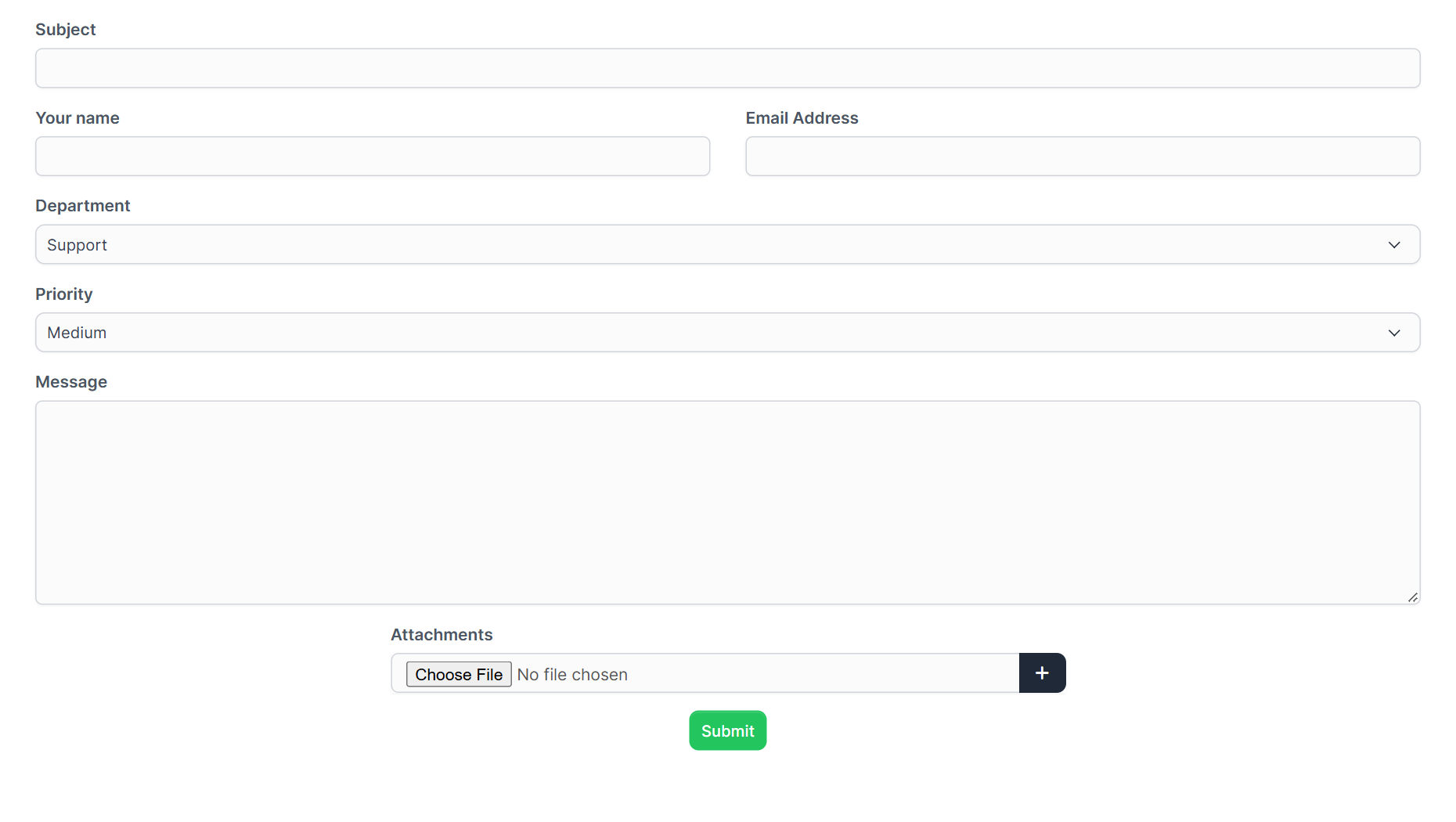
The public form lives on your CRM address at a path ending in /forms/ticket. It has the fields Subject, Your name, Email Address, Department, Priority, Message and Attachments, and a Submit button. The department list comes from your own departments, and the priority starts on Medium.
Step 1: Prepare your departments #
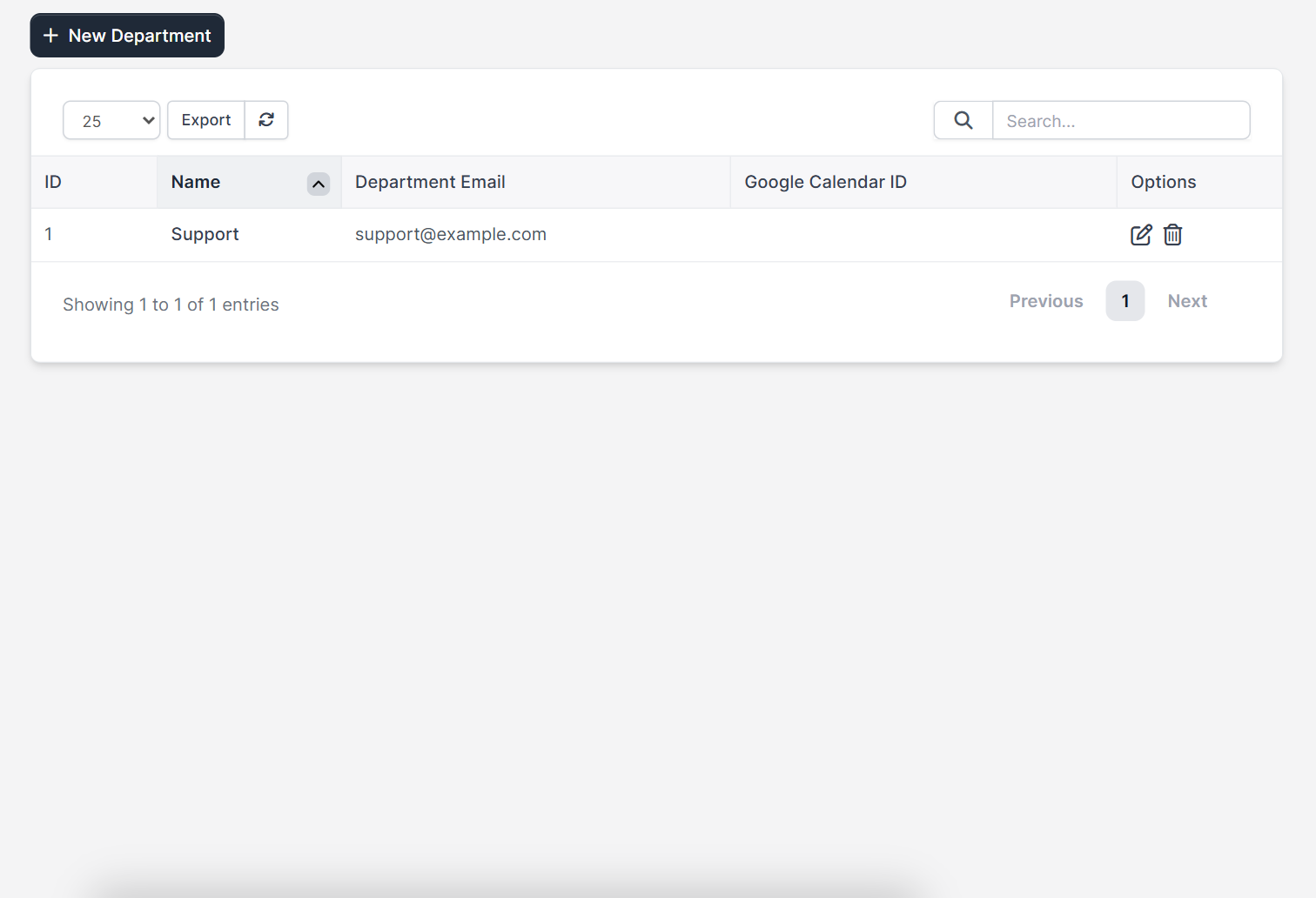
The visitor chooses a department, so create clear ones such as Support and Billing and give each a name that customers understand. Only departments that are not hidden from customers appear in the list. See Perfex CRM ticket departments.
Step 2: Add extra questions with custom fields #
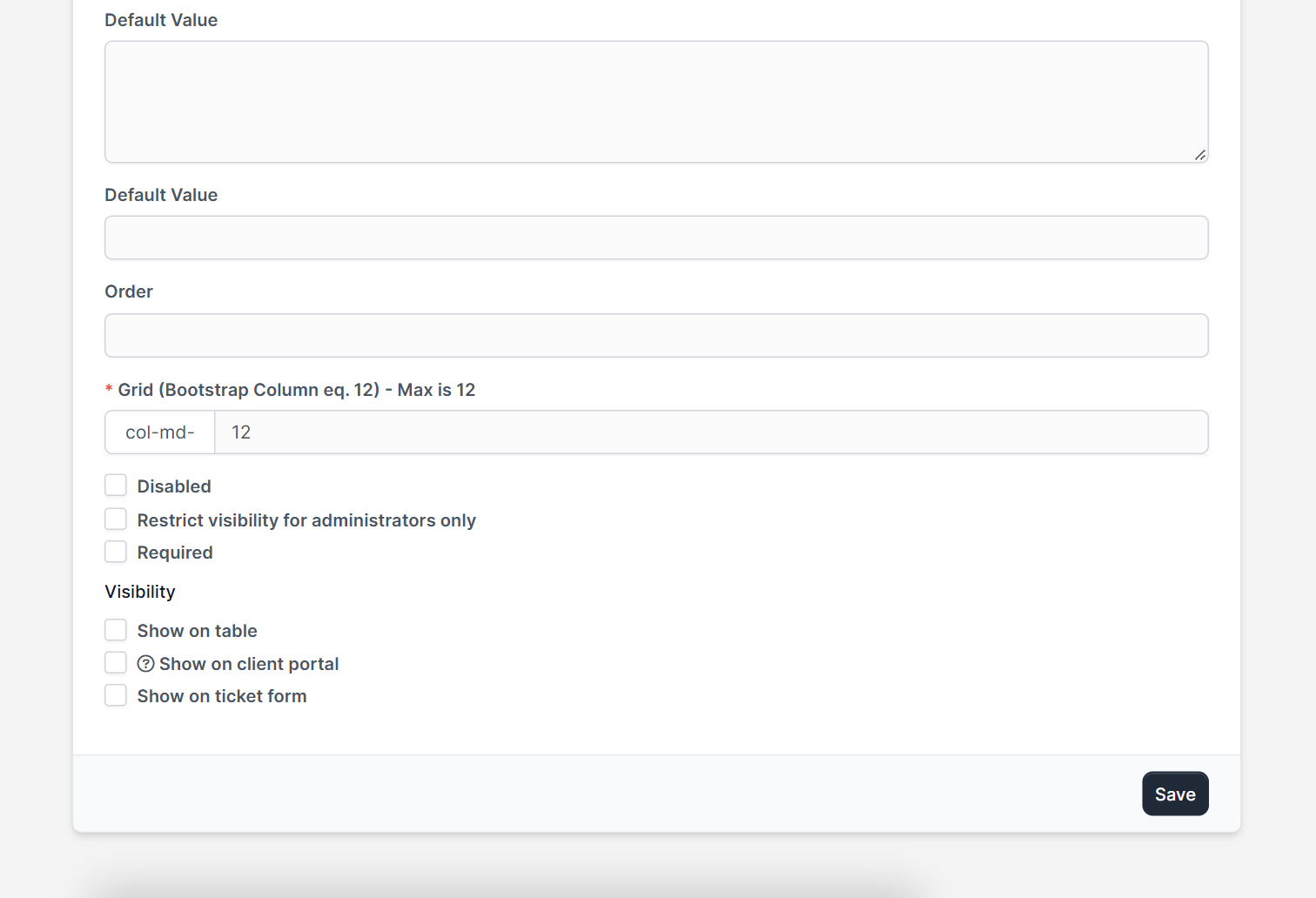
If you need more information, create a custom field that belongs to tickets and switch on Show on ticket form. Good examples are an order number, a product name or a website address. See Perfex CRM custom fields for the full list of options.
Step 3: Test the public form #
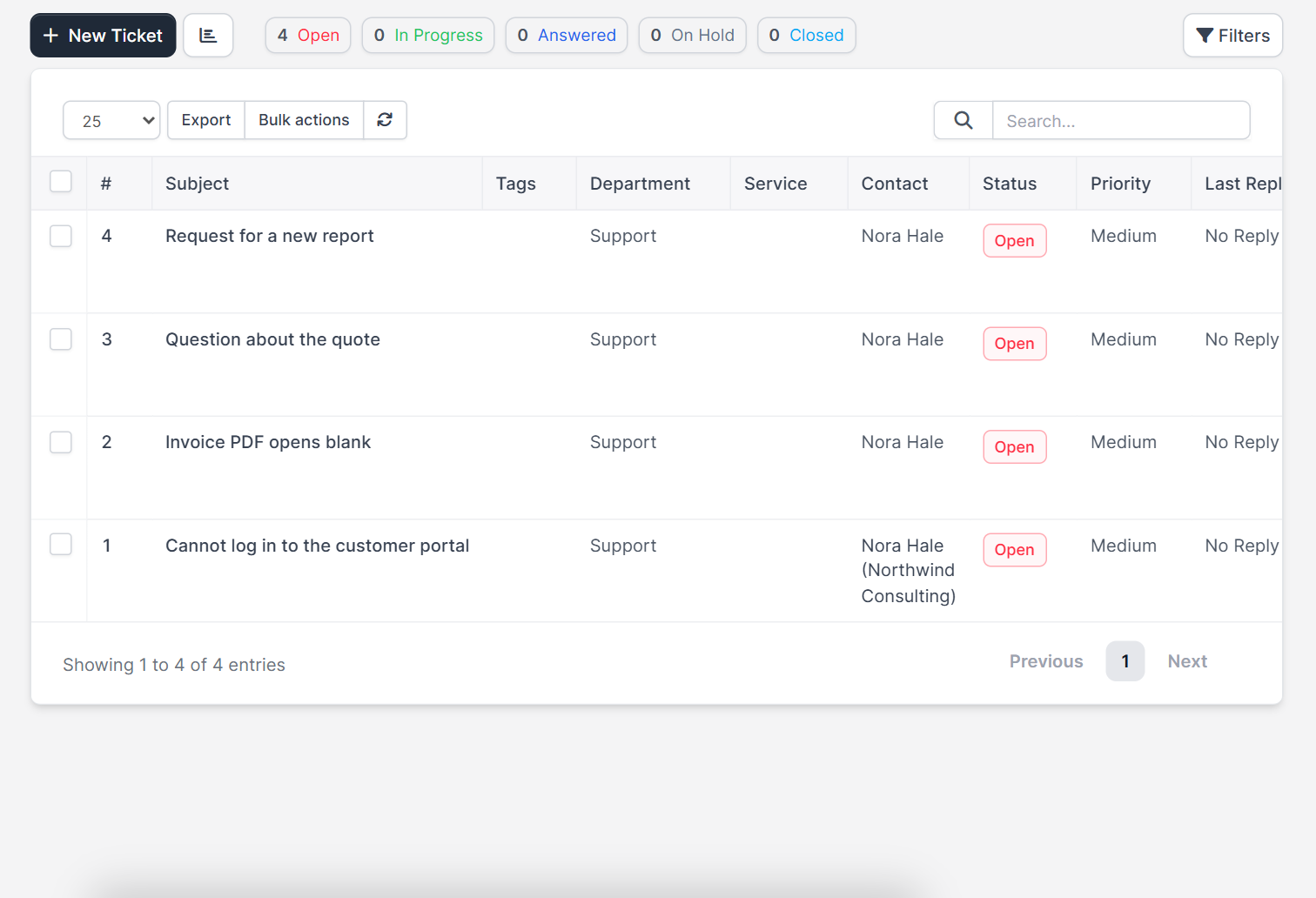
Open the form address in a private browser window and send a test ticket. Check that you receive the confirmation and that the ticket appears in Support > Tickets with the department, priority and attachments you chose.
Step 4: Embed the ticket form on your website #
To embed the ticket form, add an iframe to any page of your website:
<iframe src="https://your-crm-address/forms/ticket" width="100%" height="720" frameborder="0"></iframe>Replace the address with your own. Test the page on a phone as well, and raise the height if the form is cut off. If your site does not show the frame, check the security settings of your web server, because some servers stop pages from being shown inside other sites.
Step 5: Make sure tickets and emails work #
Customers receive an email about their ticket, so check your SMTP settings and the ticket email templates in Perfex CRM email templates. If you also want customers to open tickets by email, set up Perfex CRM email piping.
Tips for a better support ticket form #
- Keep the form short. Every extra required question lowers the number of submissions.
- Use a department name that the customer understands, not an internal team name.
- Write a short help text on the page above the form.
- Link to your Perfex CRM knowledge base so customers can find simple answers first.
- Watch for spam. Check the tickets list for strange submissions.
Perfex CRM ticket form FAQ #
Do customers need an account to use the ticket form? #
No. The public form works for anyone with the address.
How do I embed the ticket form on WordPress? #
Add a Custom HTML block to the page and paste the iframe code with your own address.
Can I add my own fields to the form? #
Yes, create a ticket custom field and switch on Show on ticket form.
Where do submitted tickets go? #
They appear in the Tickets list under the chosen department, and staff in that department are notified.
Modules for faster support #
Add live conversations with the Perfex CRM Chat Module and keep every email thread together with the Mailbox module.
Quick checklist for Perfex CRM ticket form #
- Keep the Perfex CRM ticket form short and clear.
- Test the Perfex CRM ticket form on a phone and on a desktop.
- Review the tickets that arrive through the Perfex CRM ticket form every morning.
Summary #
The Perfex CRM ticket form gives every visitor a simple way to ask for help. Prepare your departments, add custom fields, test the public page and embed it on your site. You can read more on the official Perfex CRM website. A short, clear Perfex CRM ticket form brings you better tickets and fewer back and forth emails.


