
- Where to find Perfex CRM custom fields
- Step 1: Choose where the field belongs
- Step 2: Name the field and pick a type
- Step 3: Set the rules
- Step 4: Choose where it is shown
- Step 5: Fill in the field on records
- Step 6: Use the values
- Tips for good custom fields
- Perfex CRM custom fields FAQ
- Modules that work with your data
- Quick checklist for Perfex CRM custom fields
- Summary
Perfex CRM custom fields let you store information that the standard forms do not have, such as a contract number, a tax office, a delivery note or a customer’s preferred language. You can add them to customers, leads, tickets, invoices and more, and decide where each one is shown. This guide was tested on Perfex CRM 3.4.1 and shows how to add a custom field in Perfex CRM step by step.
Where to find Perfex CRM custom fields #
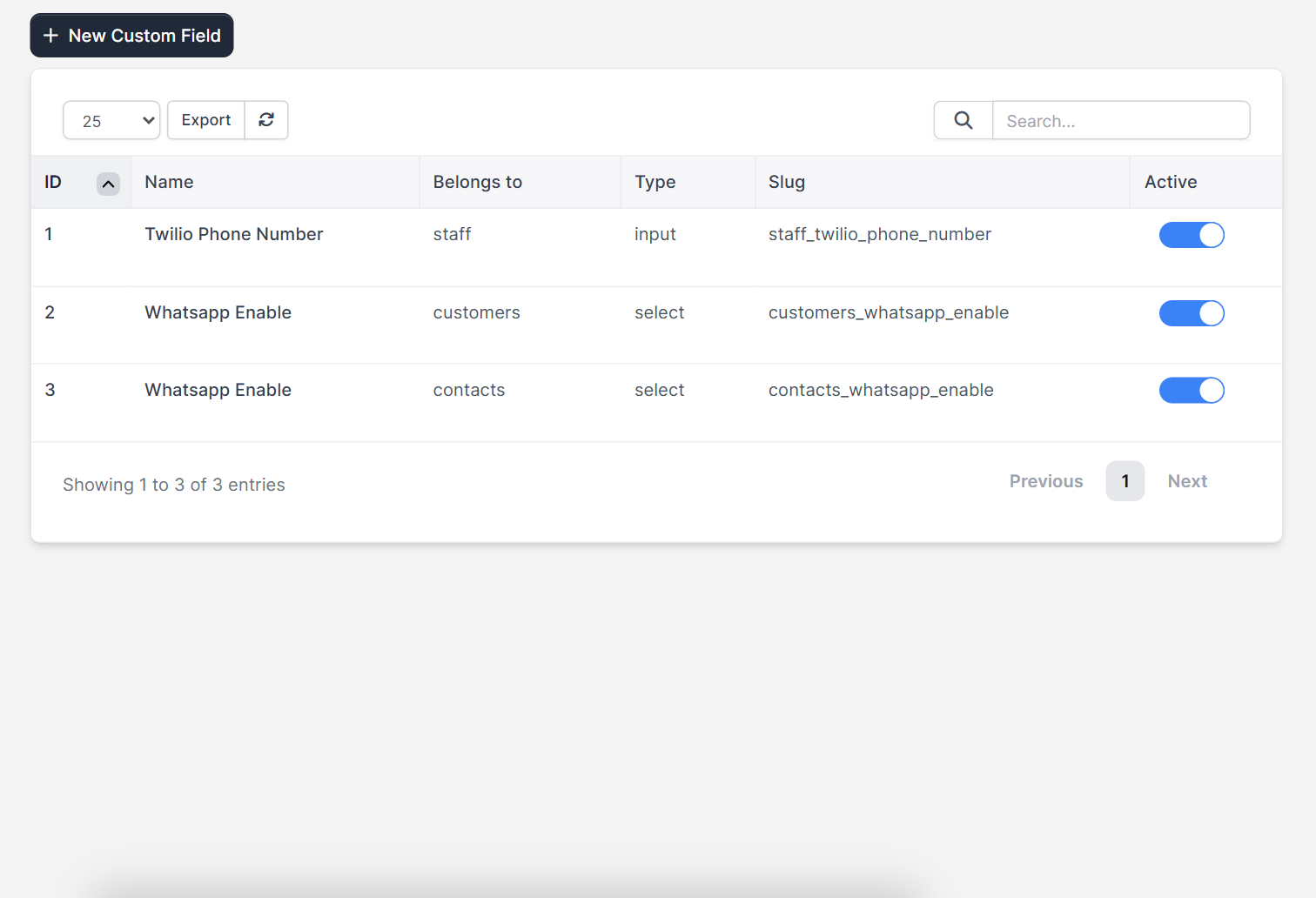
Open Setup > Custom Fields. The table lists each field with its ID, Name, Belongs to, Type, Slug and an Active switch. Click New Custom Field to add one.
Step 1: Choose where the field belongs #
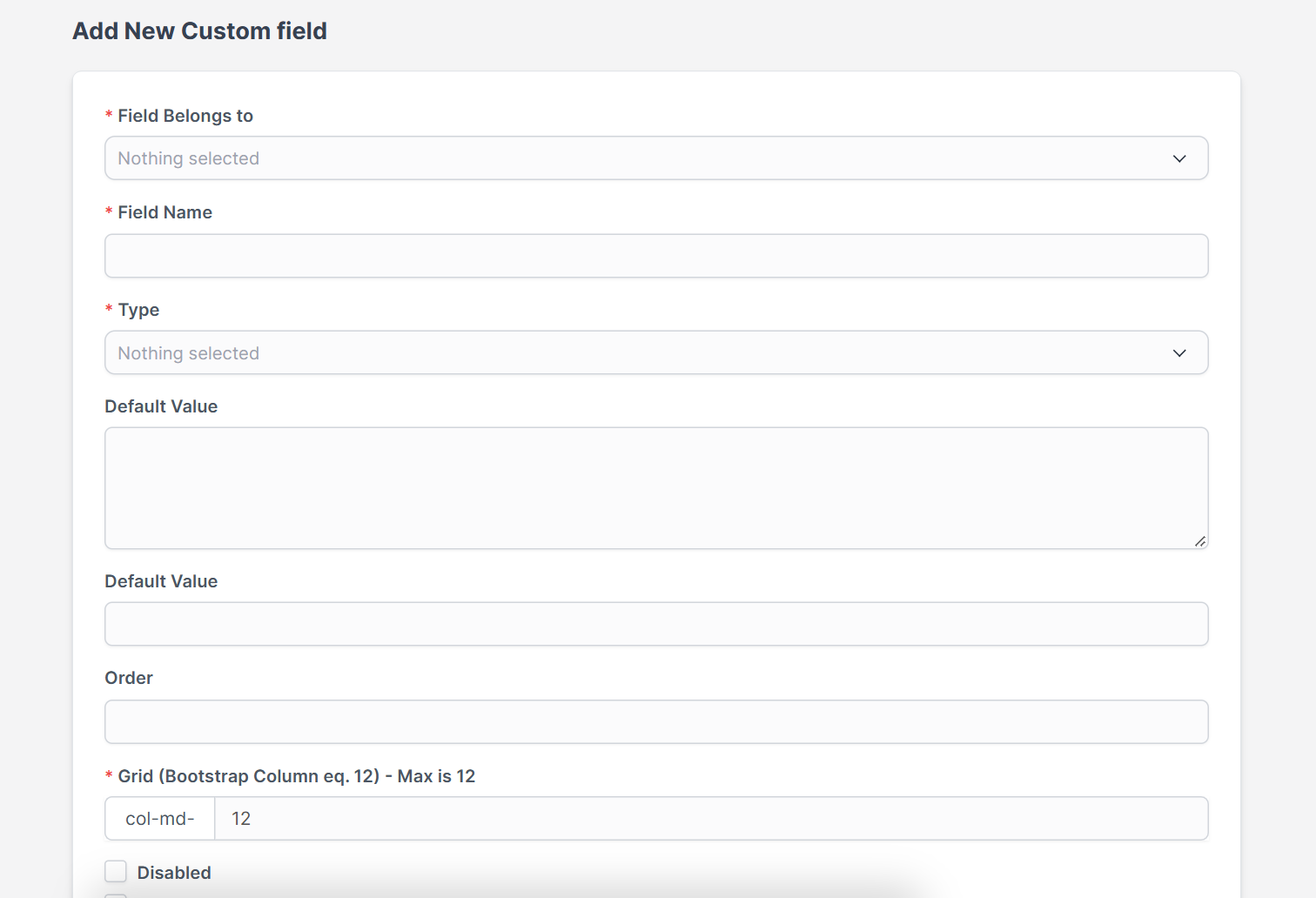
The form Add New Custom field starts with Field Belongs to. This decides which form the field appears on. For custom fields for customers, choose the customer option. Choose tickets if you want the field on support tickets, and so on. You cannot move a field to another place later without recreating it, so choose carefully.
Step 2: Name the field and pick a type #
- Field Name is what staff and customers see, for example “Contract number”. Keep it short.
- Type controls the input: text, number, select, checkbox, date and so on. For lists, enter the choices in Options separated by commas.
- Default Value is filled in for new records.
- Order places the field among the others.
- Grid sets the width of the field on a 12 column grid. Use 6 for half width.
Step 3: Set the rules #
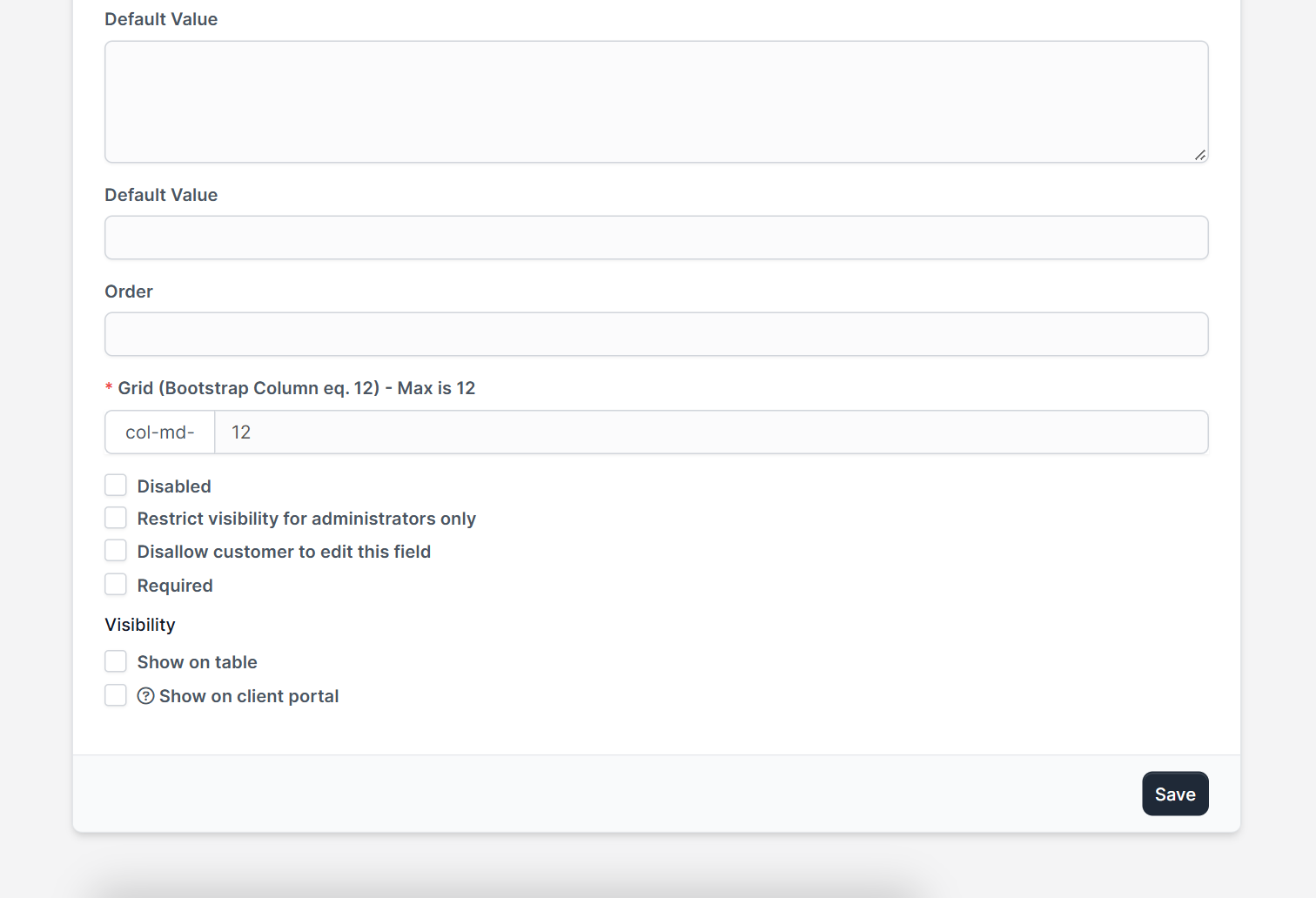
Switches below the grid give you control:
- Disabled hides the field without deleting it or its data.
- Display Inline puts the label and the value on one line.
- Restrict visibility for administrators only keeps the field away from other staff.
- Disallow customer to edit this field is useful for values you control, such as a customer ID.
- Required makes the field mandatory.
Step 4: Choose where it is shown #
After you choose where the field belongs, a block of visibility switches appears. Which ones you see depends on the place you chose: Show on table adds the field as a column in the list, Show on PDF prints it on documents such as invoices, Show on client portal lets customers see it and Show on ticket form adds it to the public form for tickets. Click Save when you are done.
Step 5: Fill in the field on records #
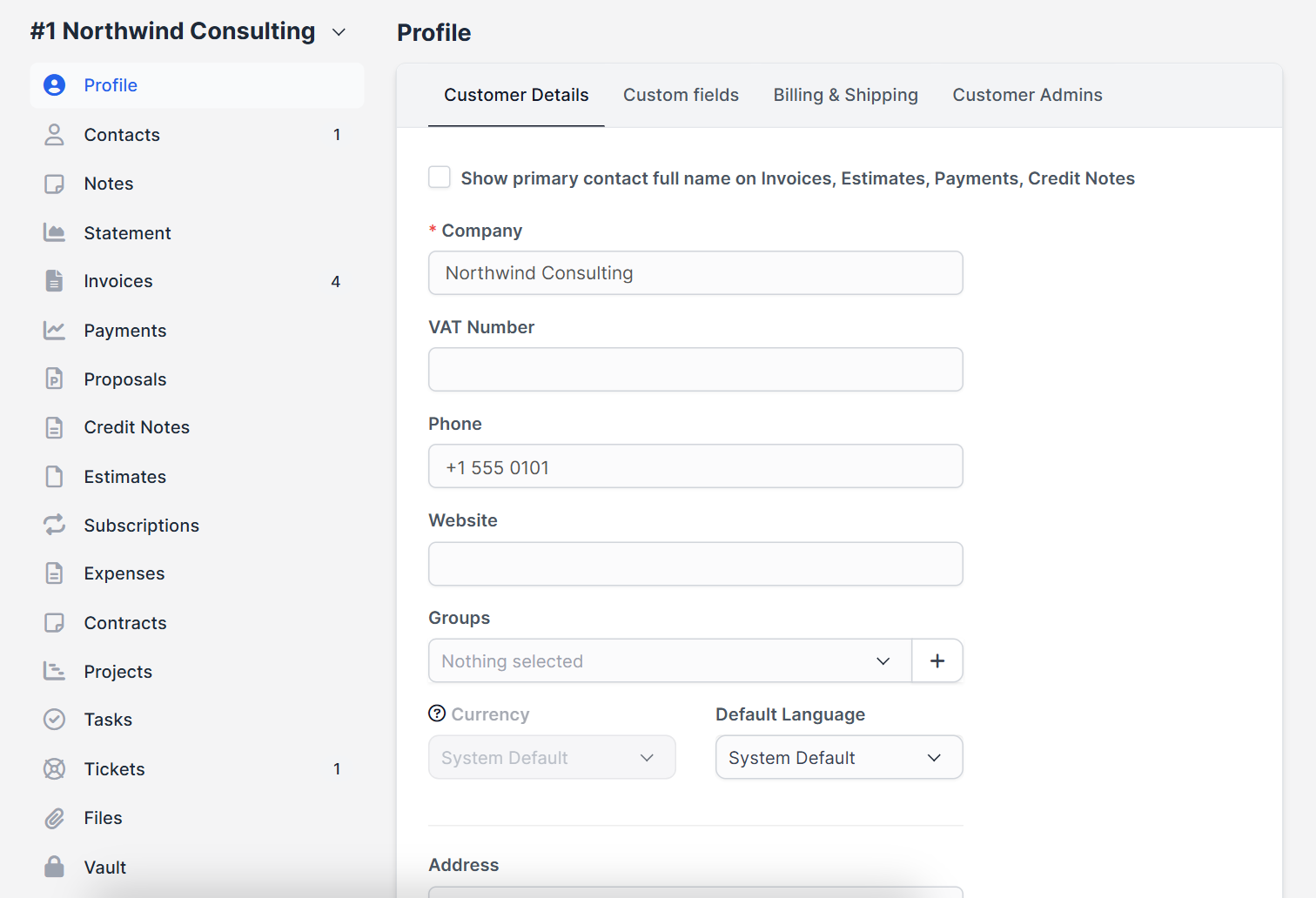
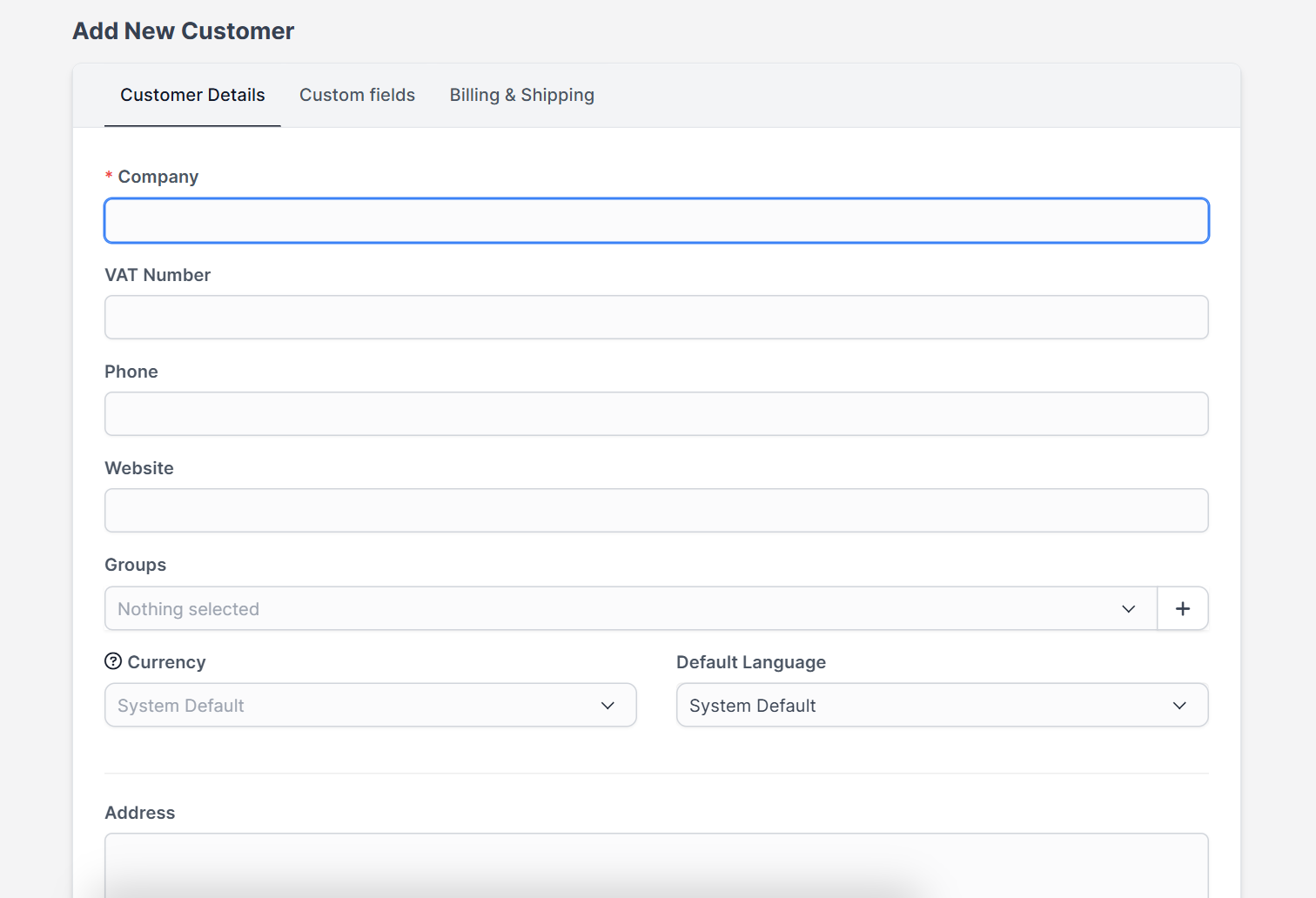
Open a customer, lead or other record of the type you chose. The field appears on the profile and in the matching add form, usually in a tab called Custom fields. Staff can now type the values.
Step 6: Use the values #
Show the field as a table column to sort and filter by it, or print it on PDFs. If you chose the ticket form, read how to set up the Perfex CRM ticket form. If you use it for customers, the same field is available when you import customers from a CSV file.
Tips for good custom fields #
- Add a field only when you will use it. Every extra field slows down data entry.
- Use select lists instead of free text when the answers repeat.
- Use a clear name and a unique slug so reports are easy to read.
- Disable a field you no longer use instead of deleting it.
- Mark fields as required only if staff always have the answer.
Perfex CRM custom fields FAQ #
How do I add a custom field in Perfex CRM? #
Open Setup, choose Custom Fields, click New Custom Field, pick where it belongs, enter a name and type, and save.
Can customers see custom fields? #
Yes, if you turn on Show on client portal. Use the option that stops customers from editing when the value must stay under your control.
Can I add a custom field to the ticket form? #
Yes. Create a field that belongs to tickets and turn on Show on ticket form.
What happens to the data if I disable a field? #
The data stays in the system. The field is just hidden until you turn it back on.
Modules that work with your data #
Capture call notes with the Call Manager module and message customers from their record with the WhatsApp integration.
Quick checklist for Perfex CRM custom fields #
- Decide what you will report on before you create Perfex CRM custom fields.
- Name every one of your Perfex CRM custom fields in plain words.
- Test new Perfex CRM custom fields on one record before the whole team uses them.
Summary #
Perfex CRM custom fields store exactly the data your business needs. Choose where each field belongs, pick the right type, set the rules and decide where it is shown. If you add a custom field in Perfex CRM with a clear name and a limited number of options, your team will actually fill it in. Read more on the official Perfex CRM website, and review your Perfex CRM custom fields every few months.


