
- Where to find Perfex CRM credit notes
- Step 1: Click New Credit Note
- Step 2: Choose the customer
- Step 3: Check the number, date and currency
- Step 4: Add the items
- Step 5: Save and send
- Step 6: Apply or refund the credit
- Set the numbering for Perfex CRM credit notes
- Tips for Perfex CRM credit notes
- Perfex CRM credit notes FAQ
- Modules for finance
- Summary
Perfex CRM credit notes reduce what a customer owes you, for example after a return, a price mistake or a cancelled service. The customer keeps the credit and you can apply it to a current or future invoice, or refund it. This guide shows how to create and use Perfex CRM credit notes, and where the numbering is set.
Where to find Perfex CRM credit notes #
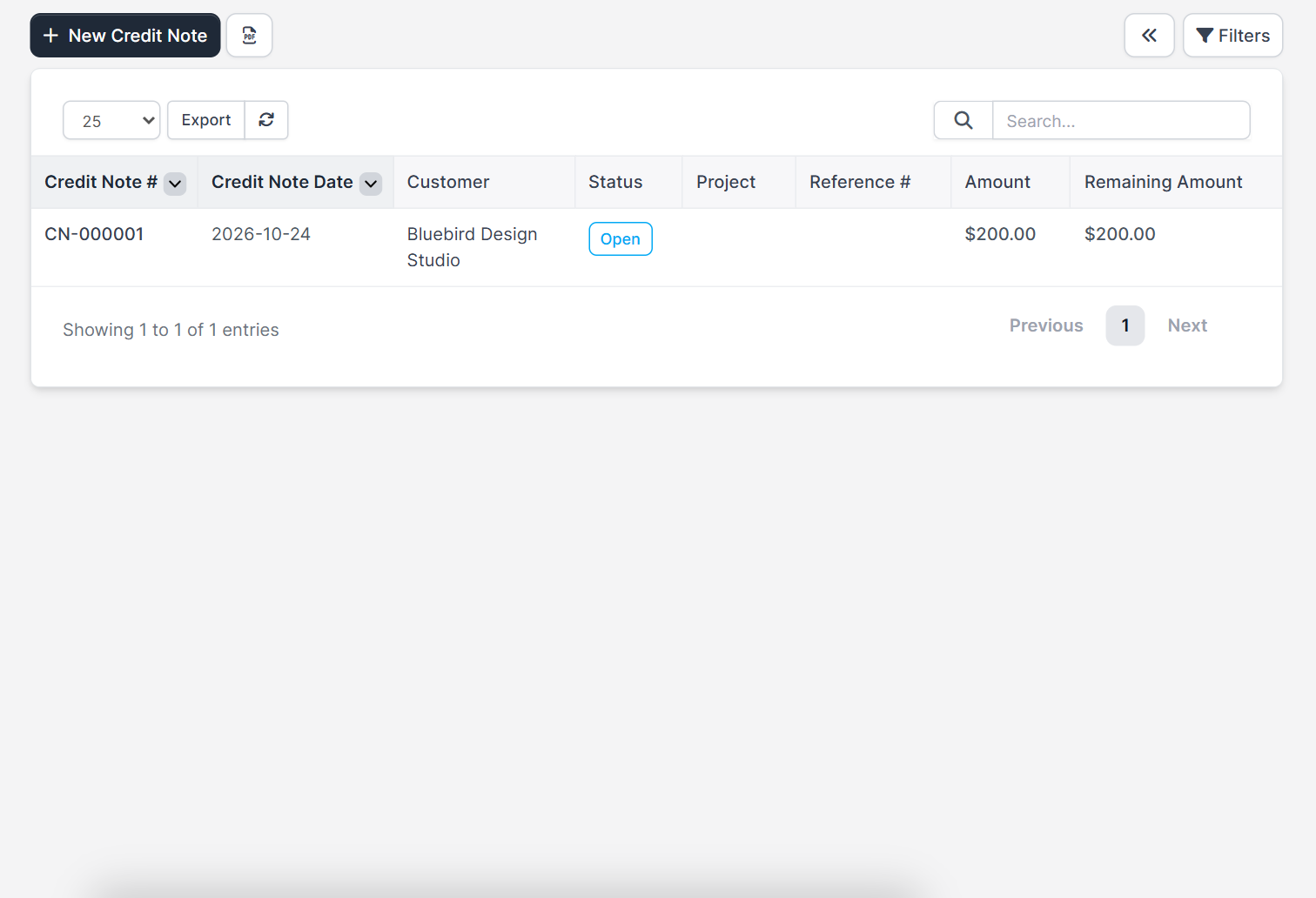
Open Sales > Credit Notes. The table has the columns Credit Note #, Credit Note Date, Customer, Status, Project, Reference #, Amount and Remaining Amount. The remaining amount shows how much of the credit is not yet used. Use Filters to find open credits.
Step 1: Click New Credit Note #
The form New Credit Note opens. Make sure the customer exists, see Perfex CRM new customer.
Step 2: Choose the customer #
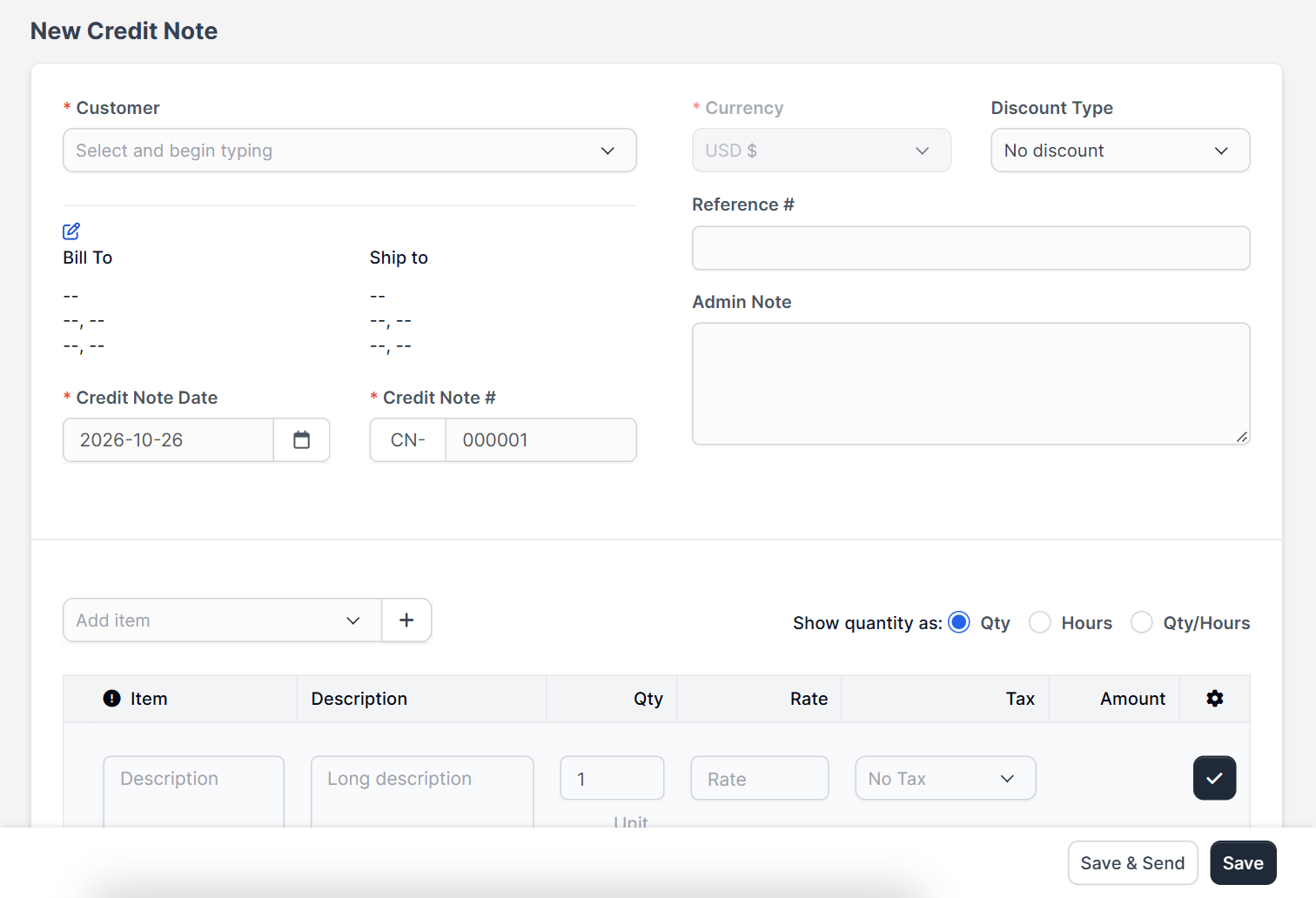
Select the Customer by typing. The billing address is filled in, and the Shipping Address has a switch Show shipping details on credit note. You can also link a Project.
Step 3: Check the number, date and currency #
- Credit Note Date and Credit Note # are required. The number follows your numbering settings.
- Currency should match the invoice you are correcting. See Perfex CRM currencies.
- Discount Type can stay on no discount.
- Reference # can hold the invoice number you are correcting.
- Admin Note is for your team only.
Step 4: Add the items #
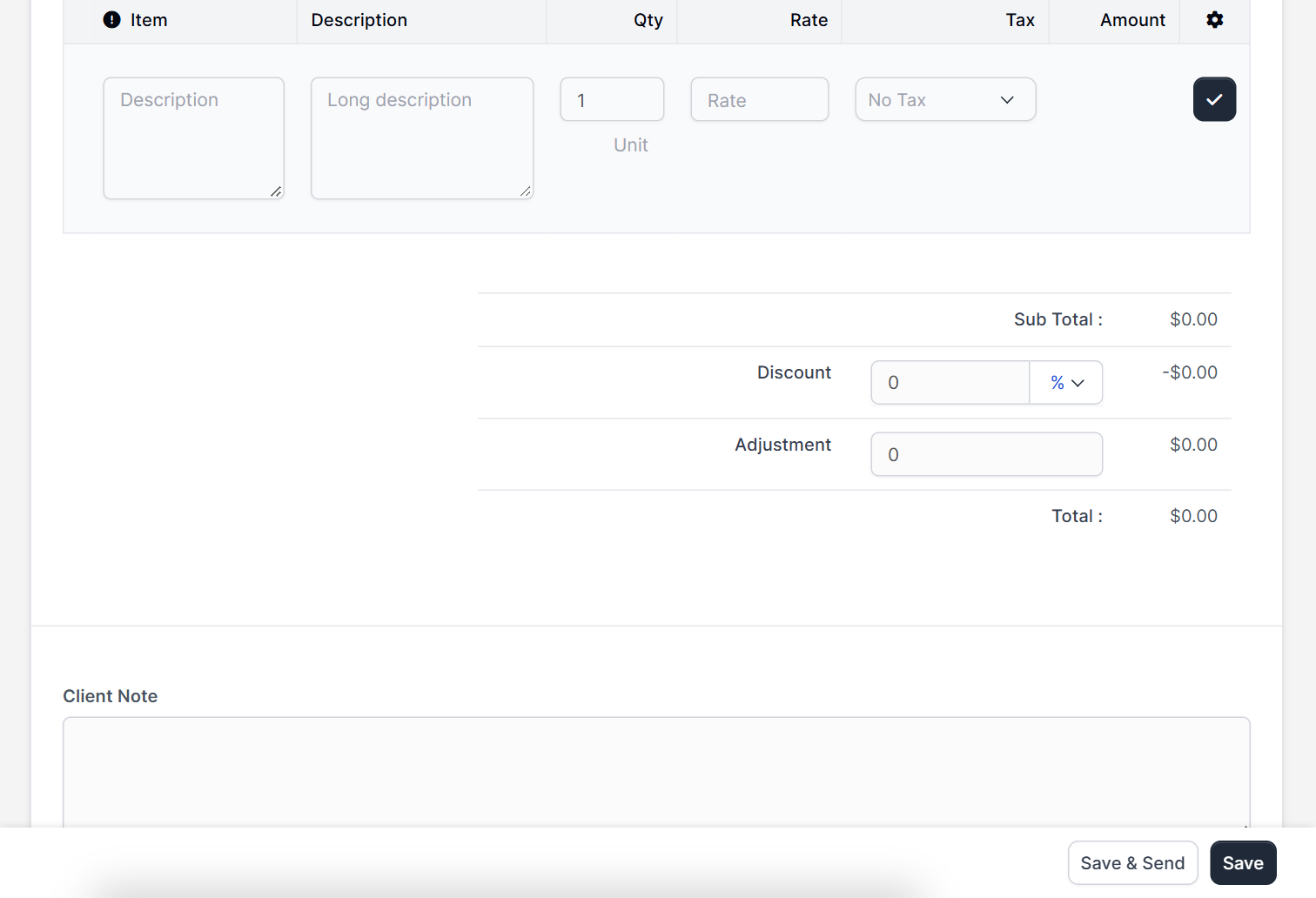
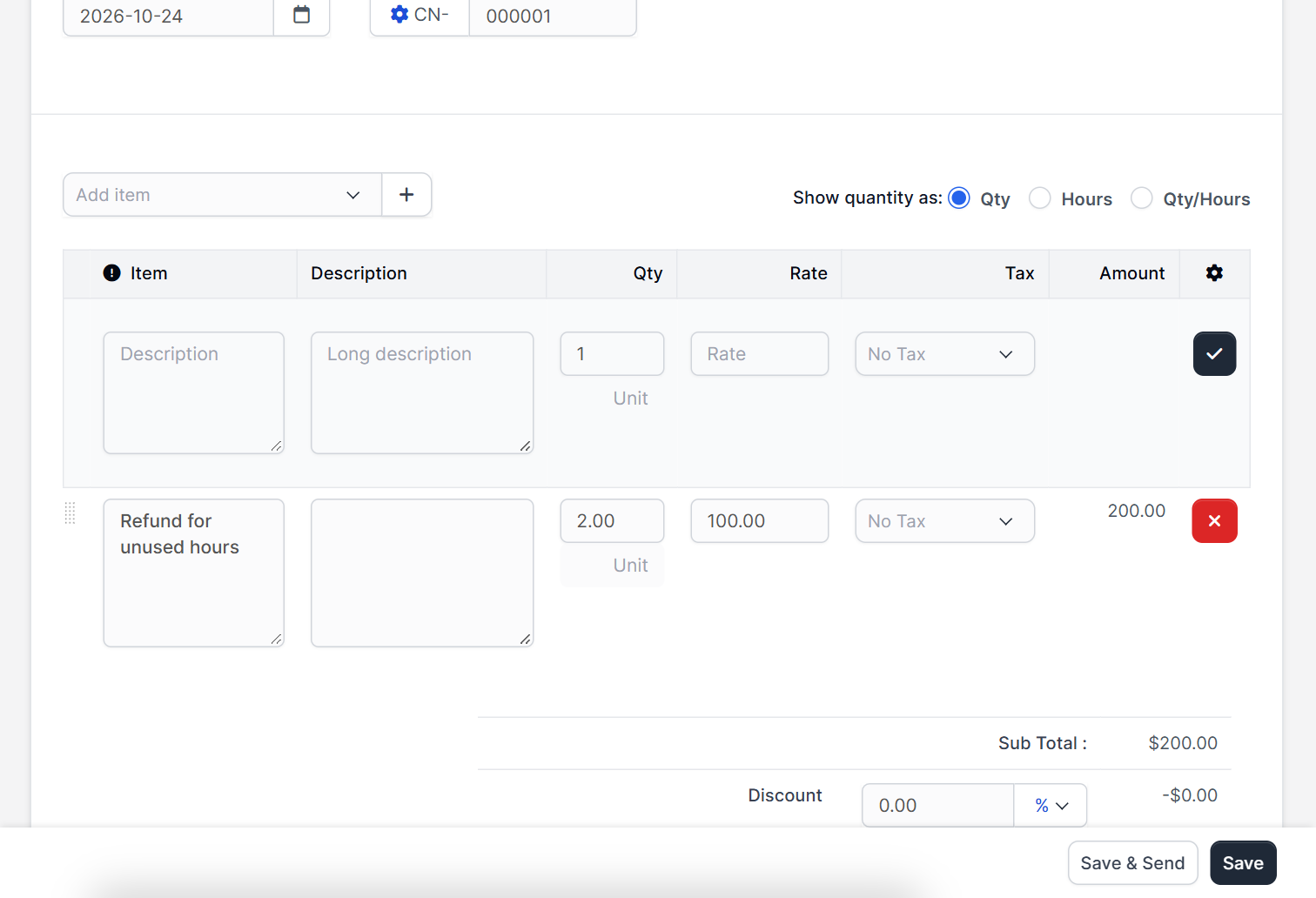
Use Add item and enter what you are crediting: description, quantity, rate and tax. Pick saved items from Perfex CRM invoice items to save time. Add a Client Note to explain the credit and Terms & Conditions if needed.
Step 5: Save and send #
Click Save, or Save & Send to email it to the customer. The message uses your email templates and works only with correct SMTP settings.
Step 6: Apply or refund the credit #
Open the saved credit note. You can apply the credit to an open invoice, which lowers the amount due, or record a refund when you pay the money back. The Remaining Amount then goes down. Refunds should match the payment method used, see Perfex CRM payment modes.
Set the numbering for Perfex CRM credit notes #
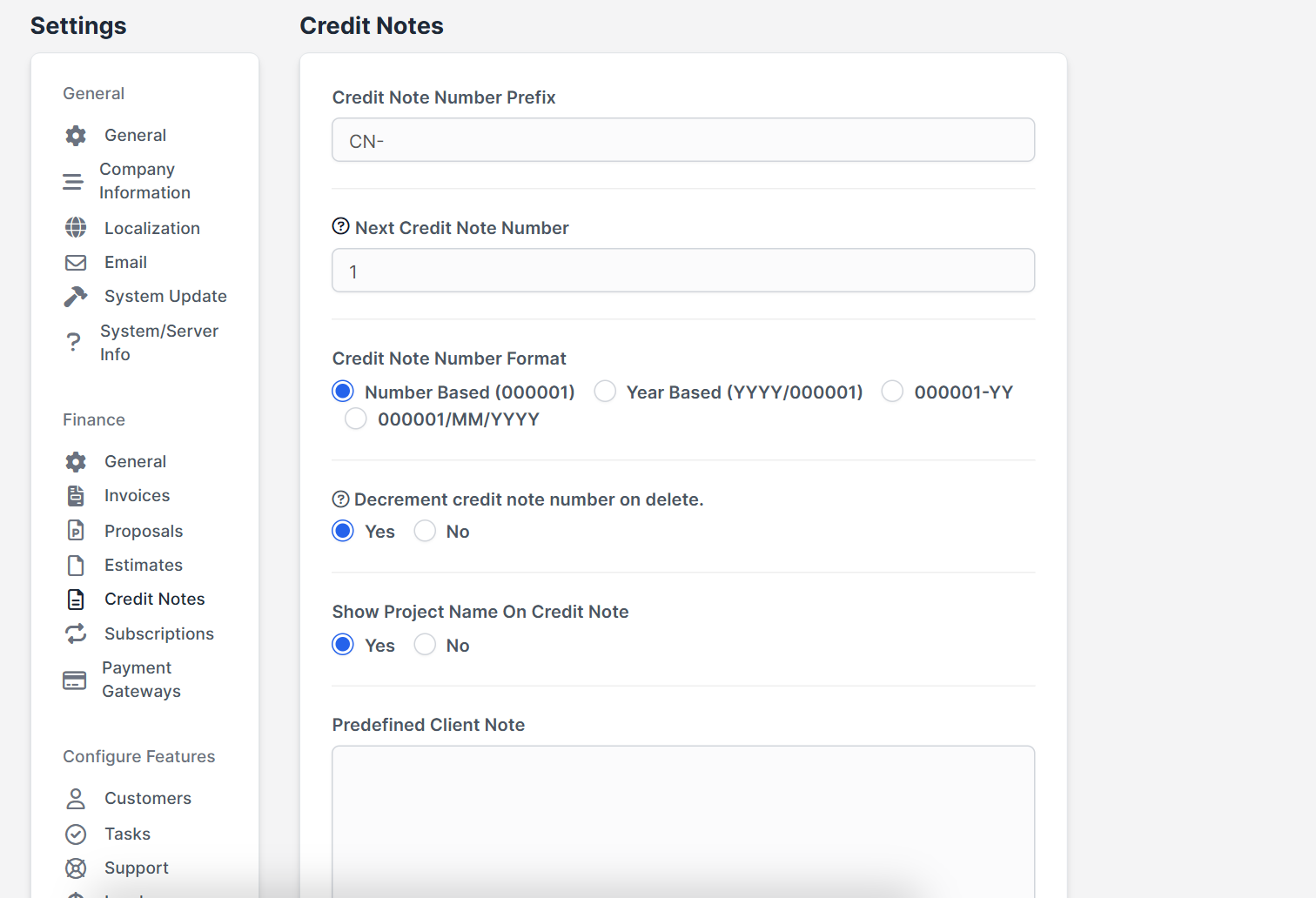
Open Setup > Settings > Finance > Credit Notes. The page has Credit Note Number Prefix, Next Credit Note Number and Credit Note Number Format, with choices such as number based (000001) or year based (YYYY/000001). It also has Decrement credit note number on delete, Show Project Name On Credit Note, and predefined client note and terms for every new credit note.
Tips for Perfex CRM credit notes #
- Never edit a paid invoice. Issue a credit note instead, so the history stays clear.
- Put the invoice number in the reference field.
- Write a short reason in the client note.
- Check the remaining amount each month.
- Keep the predefined terms short and clear.
Perfex CRM credit notes FAQ #
Can a credit note be bigger than the invoice? #
Avoid it. Credit only what you owe the customer.
Can I use one credit note on several invoices? #
Yes, as long as there is remaining amount.
Does the customer see the credit note? #
Yes, in the customer area, and in the email if you use Save & Send.
How is a credit note different from a refund? #
A credit note records the amount you owe the customer. A refund is the money you pay back.
Modules for finance #
Add accounts and reports with the Financial Management module for Perfex CRM, and follow the cost of returned stock with Inventory Management.
Summary #
Use Perfex CRM credit notes to correct invoices without rewriting history: choose the customer, add the items, send it, then apply or refund the credit. Set numbering once, review remaining amounts and keep clear notes. More at the official Perfex CRM website. Clean Perfex CRM credit notes make your accounts easy to audit. Used well, Perfex CRM credit notes protect both your records and your customer relationships.


