
- Where to find Perfex CRM expenses
- Step 1: Create expense categories first
- Step 2: Click Record Expense
- Step 3: Attach the receipt
- Step 4: Link a customer and make it billable
- Step 5: Repeat costs automatically
- Step 6: Bill the expense on an invoice
- Tips for tidy Perfex CRM expenses
- Perfex CRM expenses FAQ
- Modules for money and costs
- Summary
Perfex CRM expenses show where your money goes. You can record a cost, attach the receipt, link it to a customer or project and, when the customer should pay for it, bill it on an invoice. This guide shows how to set up categories, add Perfex CRM expenses and keep the list clean.
Where to find Perfex CRM expenses #
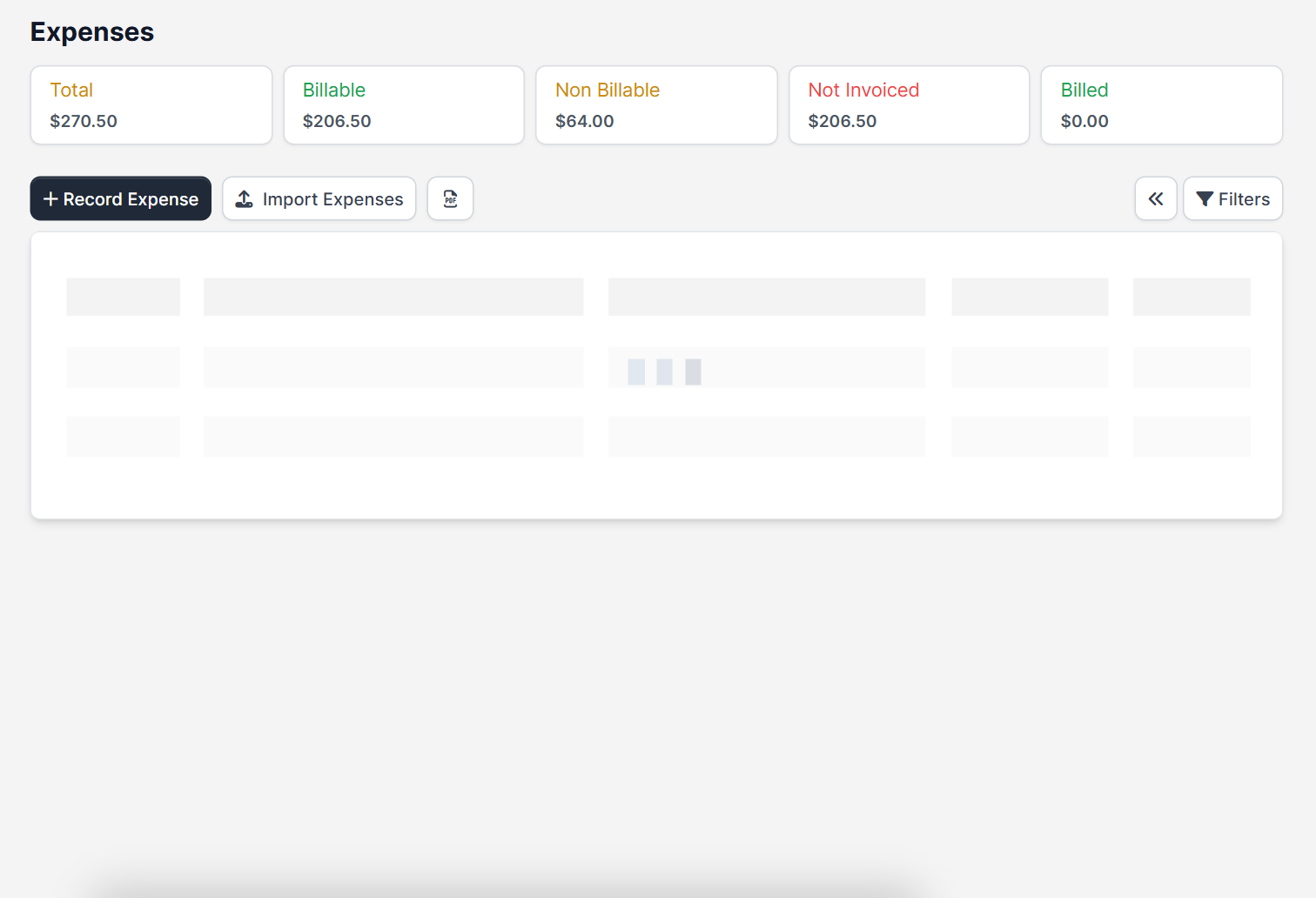
Open Expenses in the main menu. Use Record Expense to add one, or Import Expenses to load many rows. The table lists the Category, Amount, Name, Receipt, Date, Project, Customer, Invoice, Reference # and Payment Mode. Filters narrow the list by category, year or billable status.
Step 1: Create expense categories first #
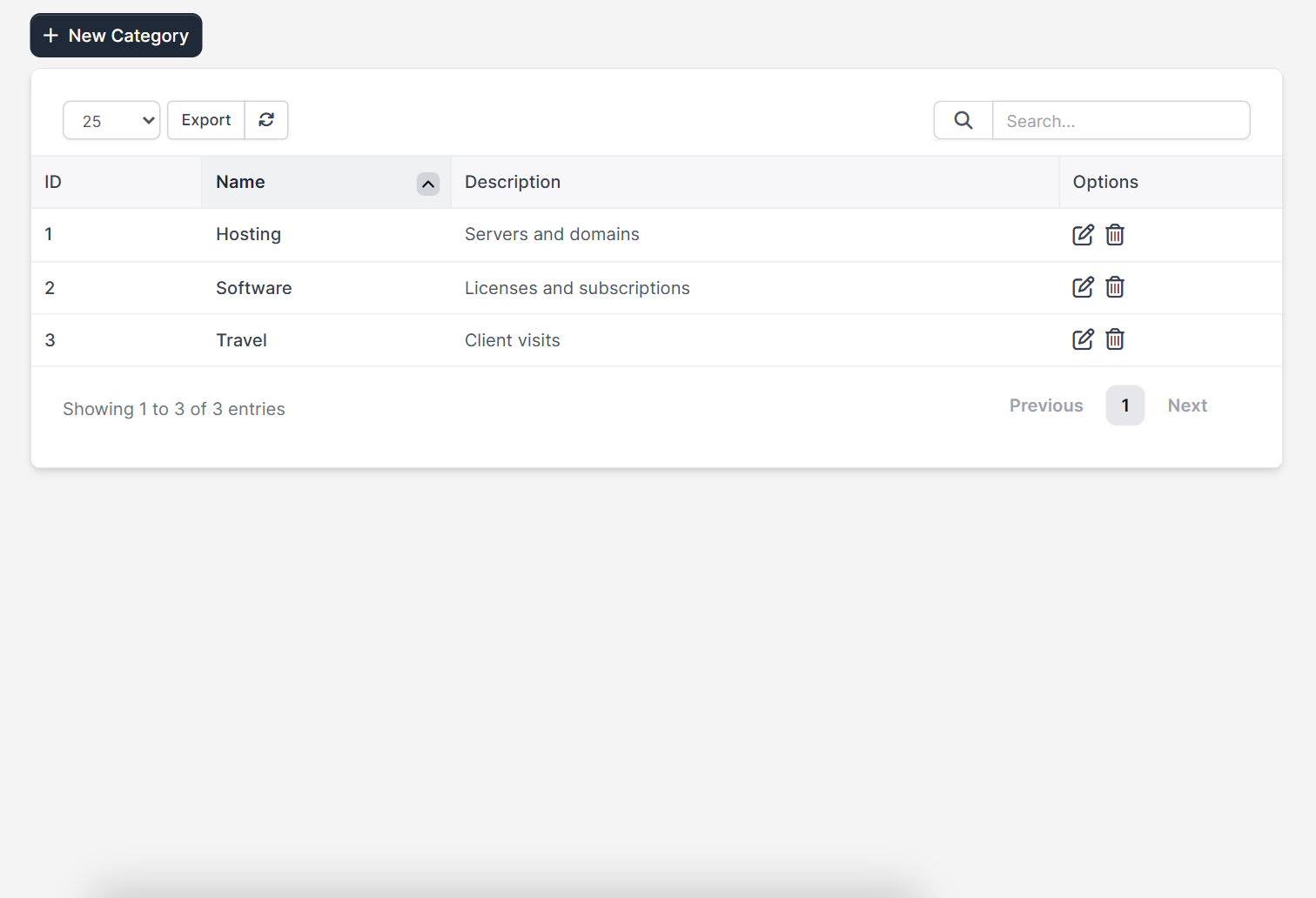
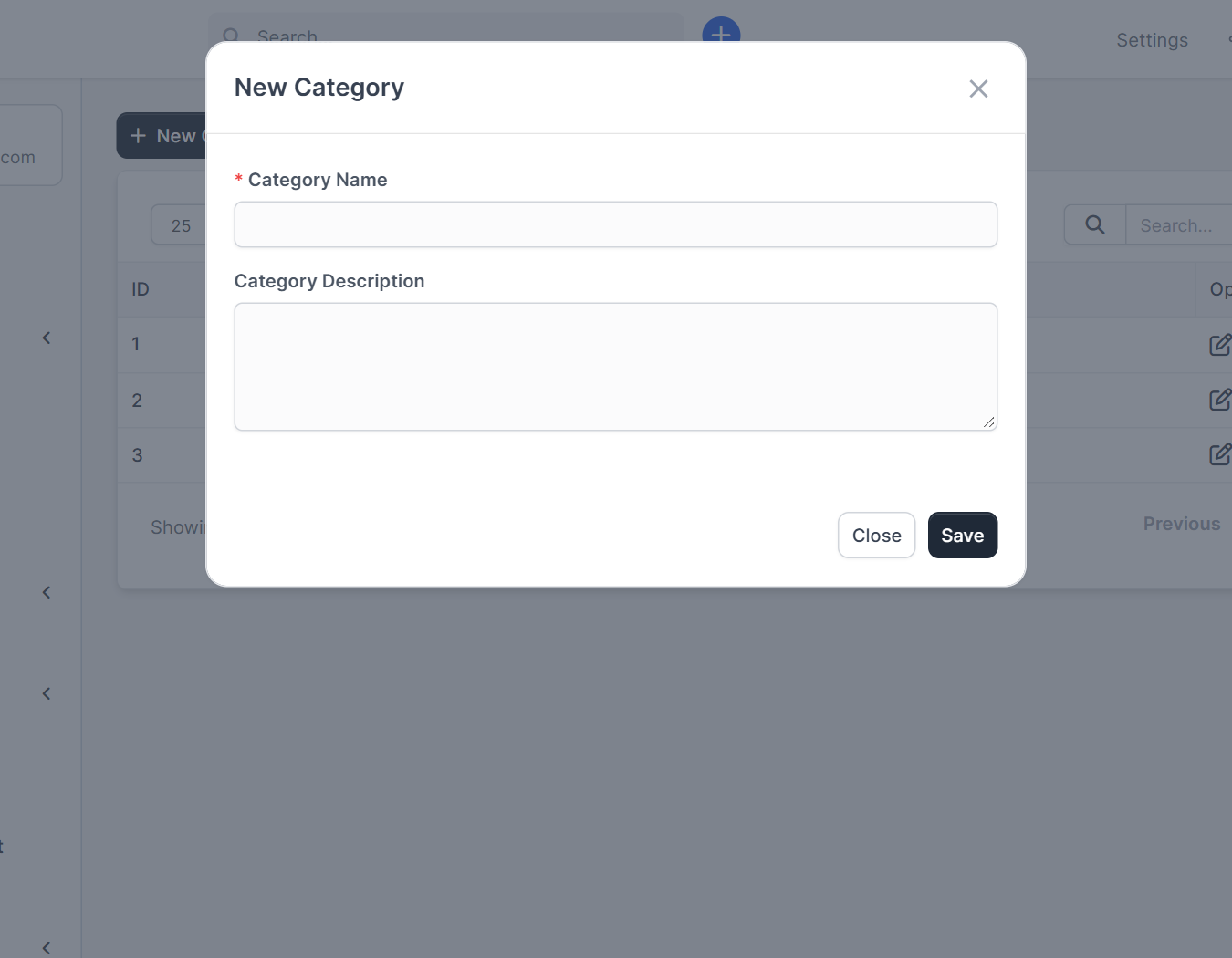
Categories make your reports useful. Open Setup > Finance > Expenses Categories and click New Category. Each category has a Name and a Description. Good examples are Hosting, Software, Travel and Office. Keep the list short and avoid a category called Other.
Step 2: Click Record Expense #
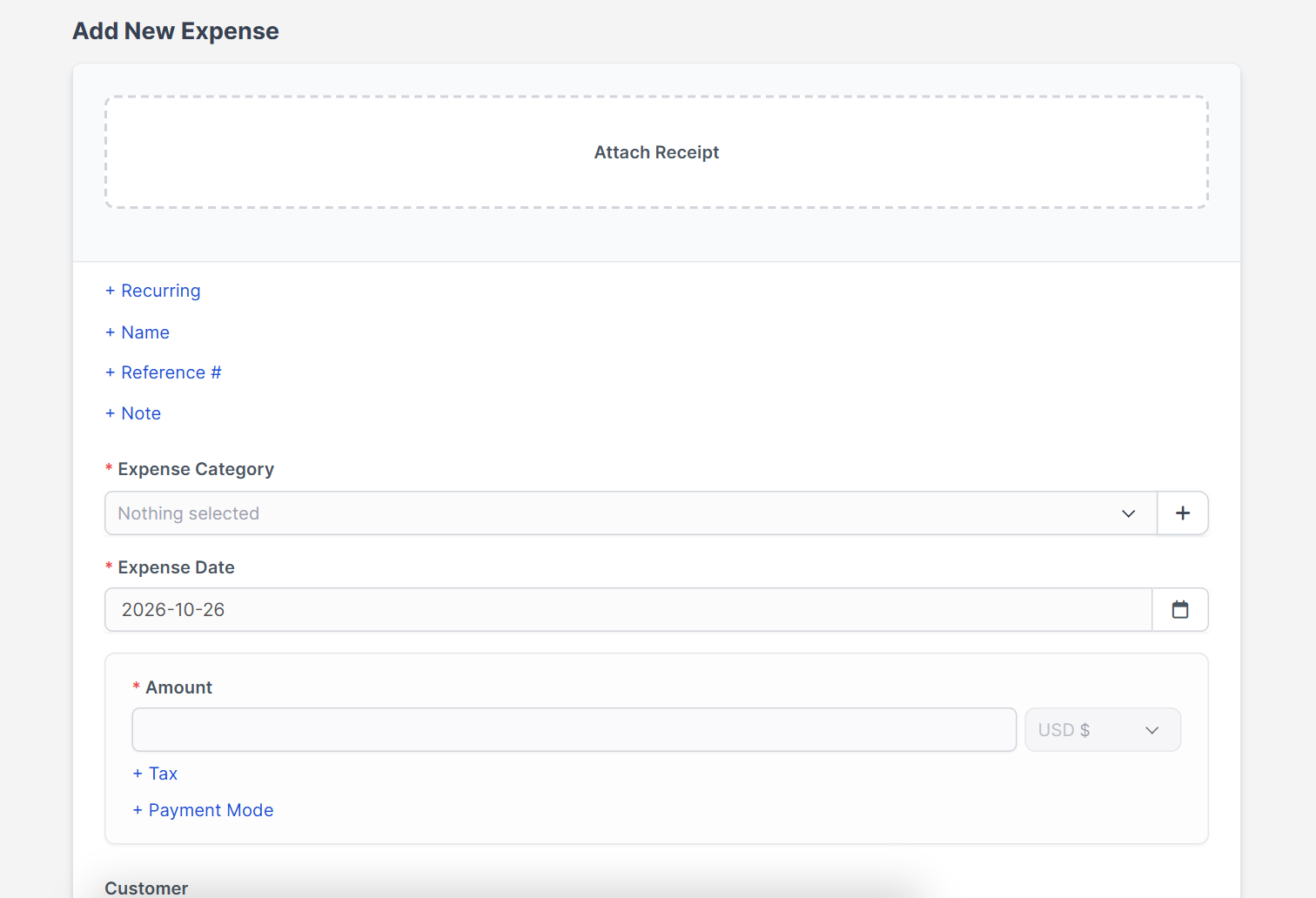
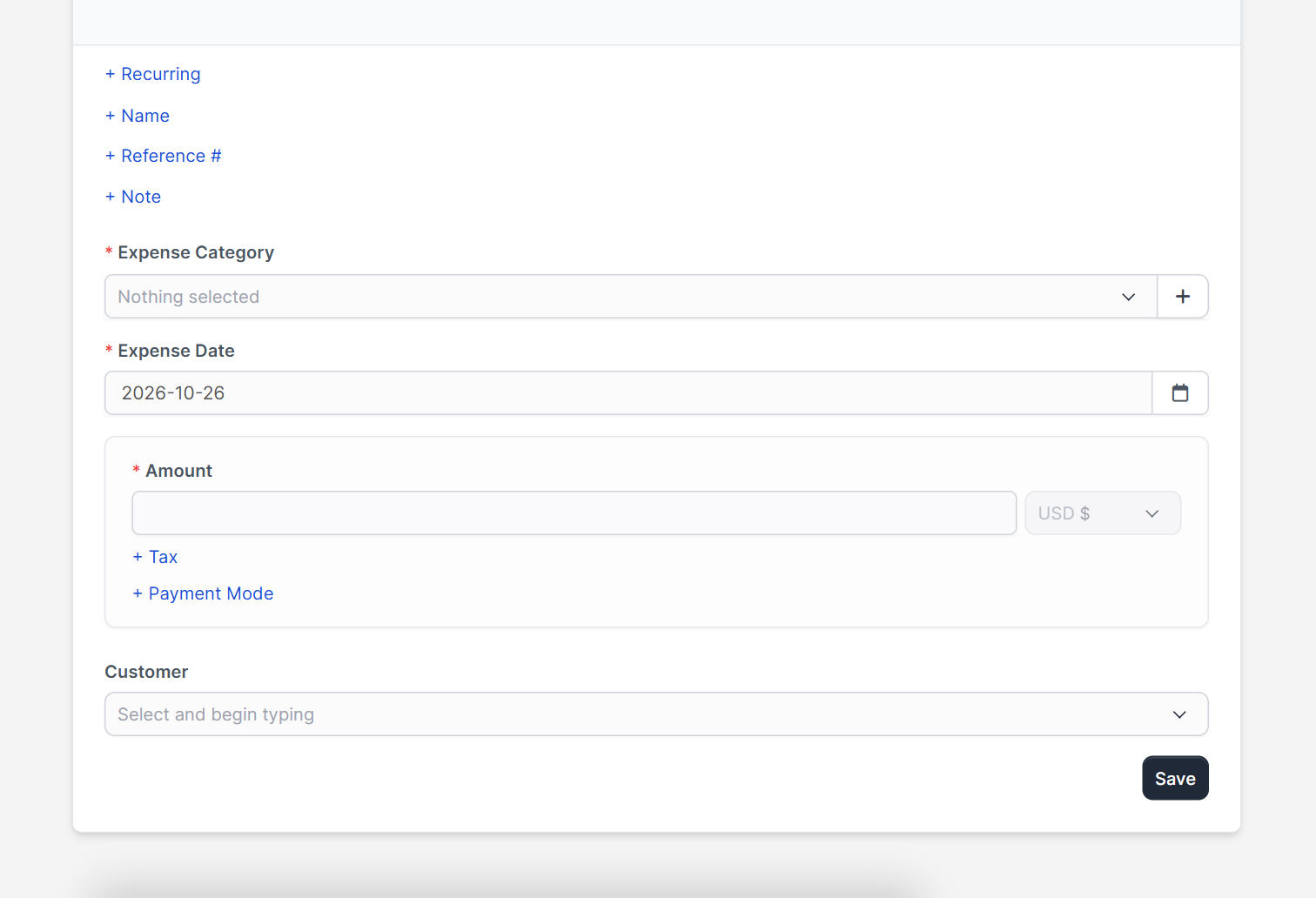
The form Add New Expense opens with an Attach Receipt area at the top and small links that reveal optional fields: + Recurring, + Name, + Reference #, + Note, + Tax and + Payment Mode. Fill in:
- Name and Note, to say what the cost was.
- Expense Category, Expense Date and Amount, which are required.
- Currency, Tax 1 and Tax 2. A switch lets you subtract the tax total from the amount if you typed a gross price. See Perfex CRM currencies.
- Payment Mode, for example bank or cash. Manage them in Perfex CRM payment modes.
- Reference # for the receipt or invoice number of the supplier.
Step 3: Attach the receipt #
Drop the receipt on the Attach Receipt area so you can prove the cost later. It is shown in the Receipt column of the list.
Step 4: Link a customer and make it billable #
Select a Customer and a Project when the cost belongs to them. Switch on Billable when the customer should pay it back. Billable Perfex CRM expenses can then be added to an invoice, and the Invoice column shows which invoice has used them.
Step 5: Repeat costs automatically #
For monthly costs such as hosting, click + Recurring and use Repeat every with a number of days, weeks, months or years, and choose Total Cycles or infinity. When you link a customer you can also choose Auto Create Invoice and Send the invoice to customer email when expense re-created. Repeating expenses need a working Perfex CRM cron job.
Step 6: Bill the expense on an invoice #
When you create or edit an invoice for the customer, the expenses that are billable appear in the add menu. Pick the ones you want, and they become invoice lines. The recurring side is covered in Perfex CRM recurring invoices.
Tips for tidy Perfex CRM expenses #
- Record a cost on the day it happens.
- Always add the receipt and a supplier reference.
- Use a customer or project on every cost you plan to bill.
- Review categories every year and merge unused ones.
- Export the list for your accountant at the end of each period.
Perfex CRM expenses FAQ #
Can I import Perfex CRM expenses from a spreadsheet? #
Yes, use Import Expenses and match the columns. Test with a few rows first.
Can I bill an expense with a markup? #
Add the expense to the invoice and change the rate on that line.
Can staff record expenses? #
Yes, if their role has permission to create expenses. Check the roles in Setup.
Where do I see totals? #
The top of the page and the reports show totals by category and period.
Modules for money and costs #
The Financial Management module for Perfex CRM adds accounts and reports on top of your expense data, and Inventory Management follows the cost of stock.
Summary #
Record Perfex CRM expenses with a category, date, amount, receipt and payment mode, link them to a customer when needed and bill the ones the customer owes. Short category lists and repeat rules keep the books clean. More information is on the official Perfex CRM website, and good habits with Perfex CRM expenses save time at tax season.


