
- Where to create the Perfex CRM web to lead form
- Step 1: Fill in the General tab
- Step 2: Choose what appears on the form
- Step 3: Brand the form
- Step 4: Decide what happens after submitting
- Step 5: Set the notifications
- Step 6: Put the form on your website
- Test and fix the Perfex CRM web to lead form
- Visual guide: Perfex CRM web to lead form
- Perfex CRM web to lead form FAQ
- Modules that help you follow up leads
- Useful resources
- Summary: Perfex CRM web to lead form
A Perfex CRM web to lead form turns a form on your website into new leads inside your CRM, with no copying and pasting. The visitor fills in the form, and a lead is created with the source, status and owner you chose. This guide shows how to build a Perfex CRM web to lead form, which settings matter and how to avoid duplicates.
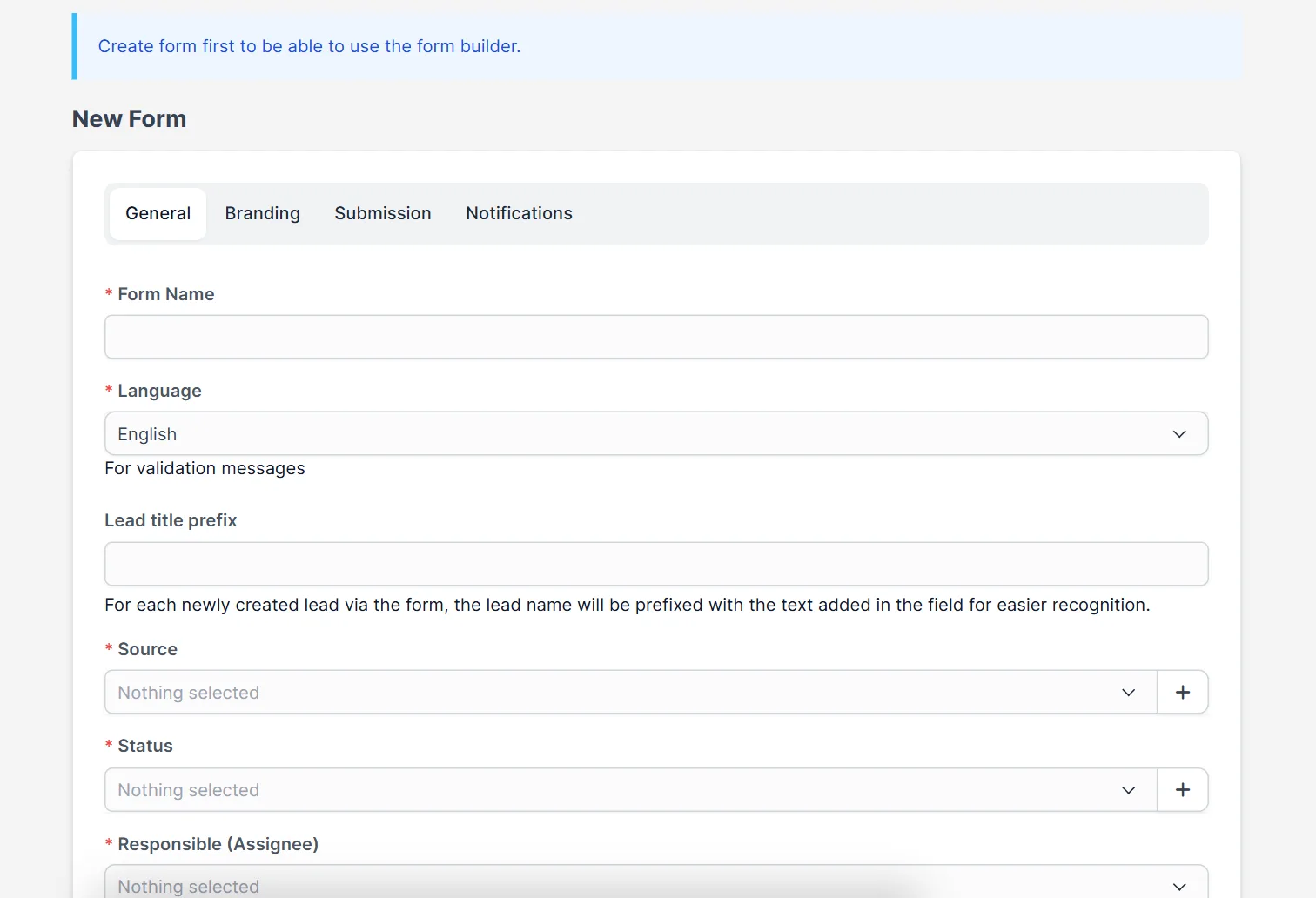
Where to create the Perfex CRM web to lead form #
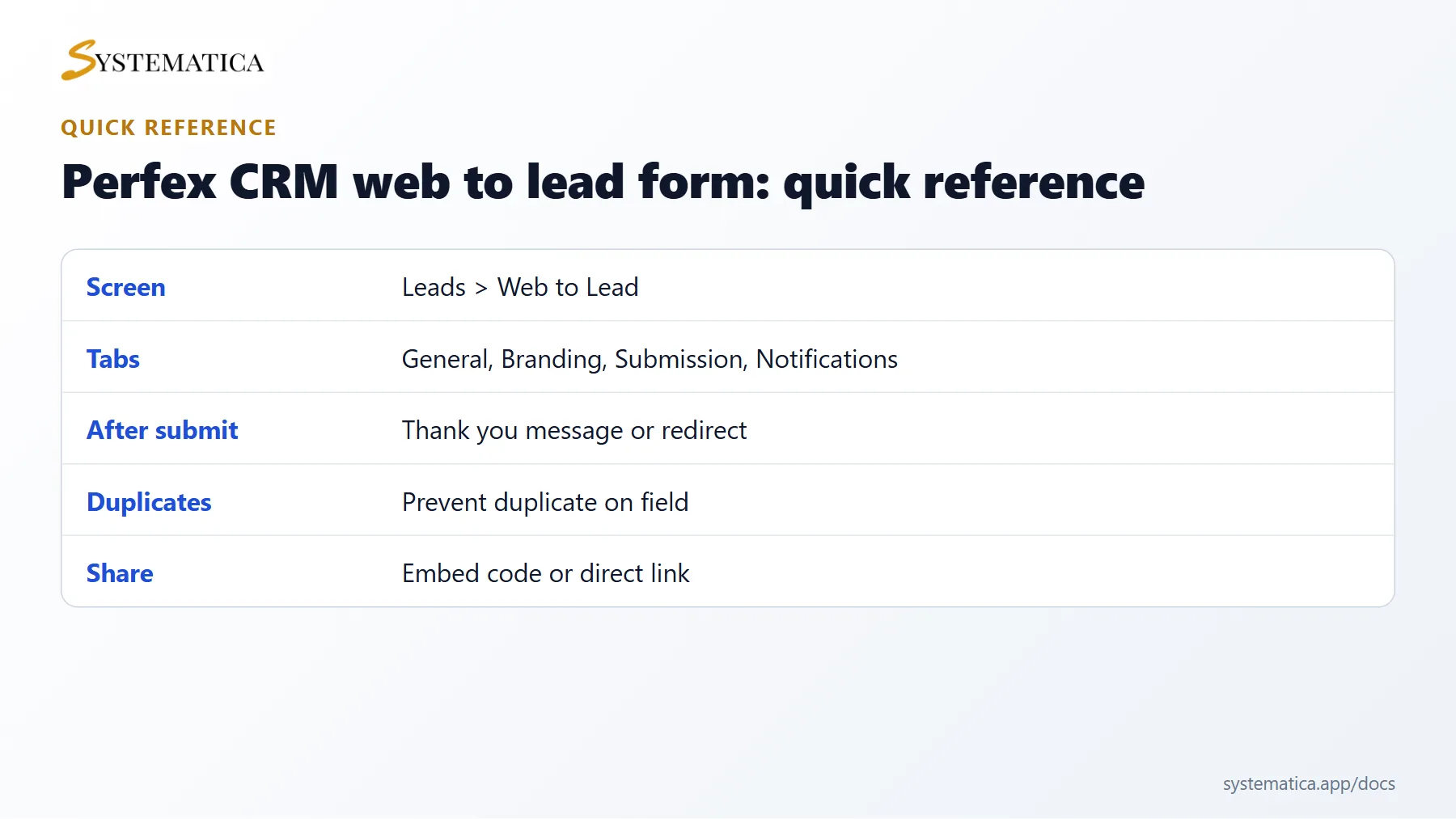
Open Setup > Leads > Web to Lead. The list shows each form’s ID, Form Name, Total Submissions and Created date. Click New Form to start. The form builder has four tabs: General, Branding, Submission and Notifications.
Step 1: Fill in the General tab #
- Form Name is for you only, for example Contact page.
- Language sets the language of the form labels.
- Lead title prefix adds text before the lead name, so you can see where leads came from.
- Source is the lead source for every lead from this form. Create sources first under Setup > Leads > Sources.
- Status is the starting status.
- Responsible (Assignee) is the staff member who owns new leads.
Step 2: Choose what appears on the form #
Add the fields your team needs, such as name, email, phone, company and message. Fewer fields mean more completed forms, so ask for the minimum you need to follow up. Custom fields set up for leads can be added as well.
Step 3: Brand the form #
On the Branding tab, set the Submit button text and the colours of the button. Match them to your website. Use clear text such as Request a quote instead of Submit.
Step 4: Decide what happens after submitting #
On the Submission tab, you choose Display thank you message or Redirect to another website. A redirect is useful when you track conversions on a thank-you page. The tab also holds the duplicate rules:
- Auto mark as public makes the new lead visible to everyone.
- Allow duplicate lead to be inserted into database? controls whether the same person can create two leads.
- Prevent duplicate on field chooses which field is compared, for example the email address.
- Create duplicate lead data as task and assign to responsible staff member turns a repeat submission into a task, so nothing is lost.
Step 5: Set the notifications #
On the Notifications tab, turn on Notify when lead imported and choose who is told: Specific Staff Members, Staff members with roles or the Responsible person. Fast replies win leads, so tell the people who answer them. Notification emails use the Perfex CRM email templates and your SMTP settings.
Step 6: Put the form on your website #
Click Save, then open the form again. Perfex CRM shows an embed code and a direct link that you paste into a page or share. If your website runs on WordPress, you can also send leads from Contact Form 7. Read our Contact Form 7 guide.
Test and fix the Perfex CRM web to lead form #
- Submit the form yourself with a real email address.
- Open Leads and check the source, status and owner.
- Submit the same address again and confirm that the duplicate rule works.
No lead is created? Check that the form’s page is served over HTTPS and that browser blockers or a reCAPTCHA plugin do not stop the request. No email? Check your email settings.
Visual guide: Perfex CRM web to lead form #
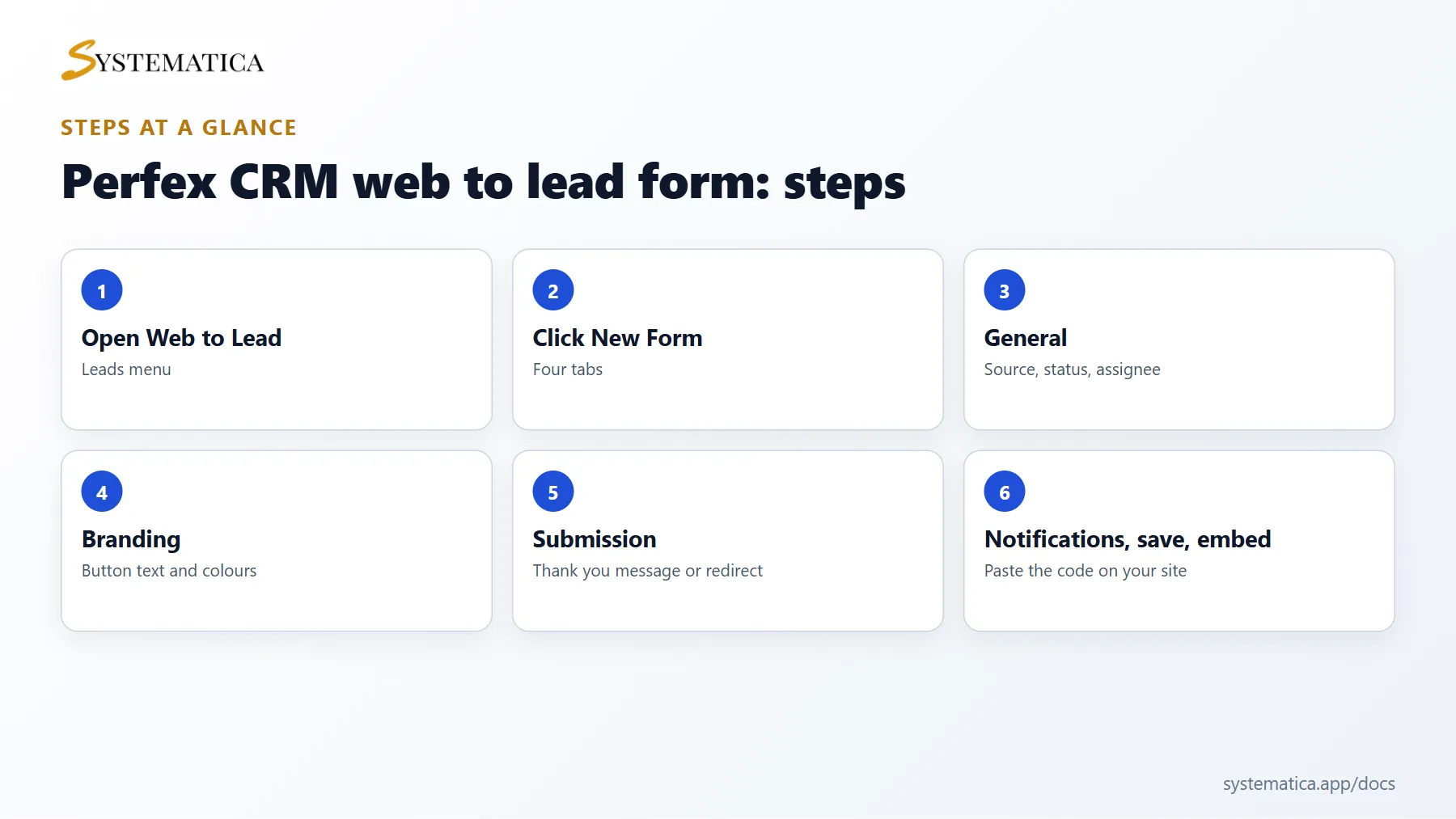
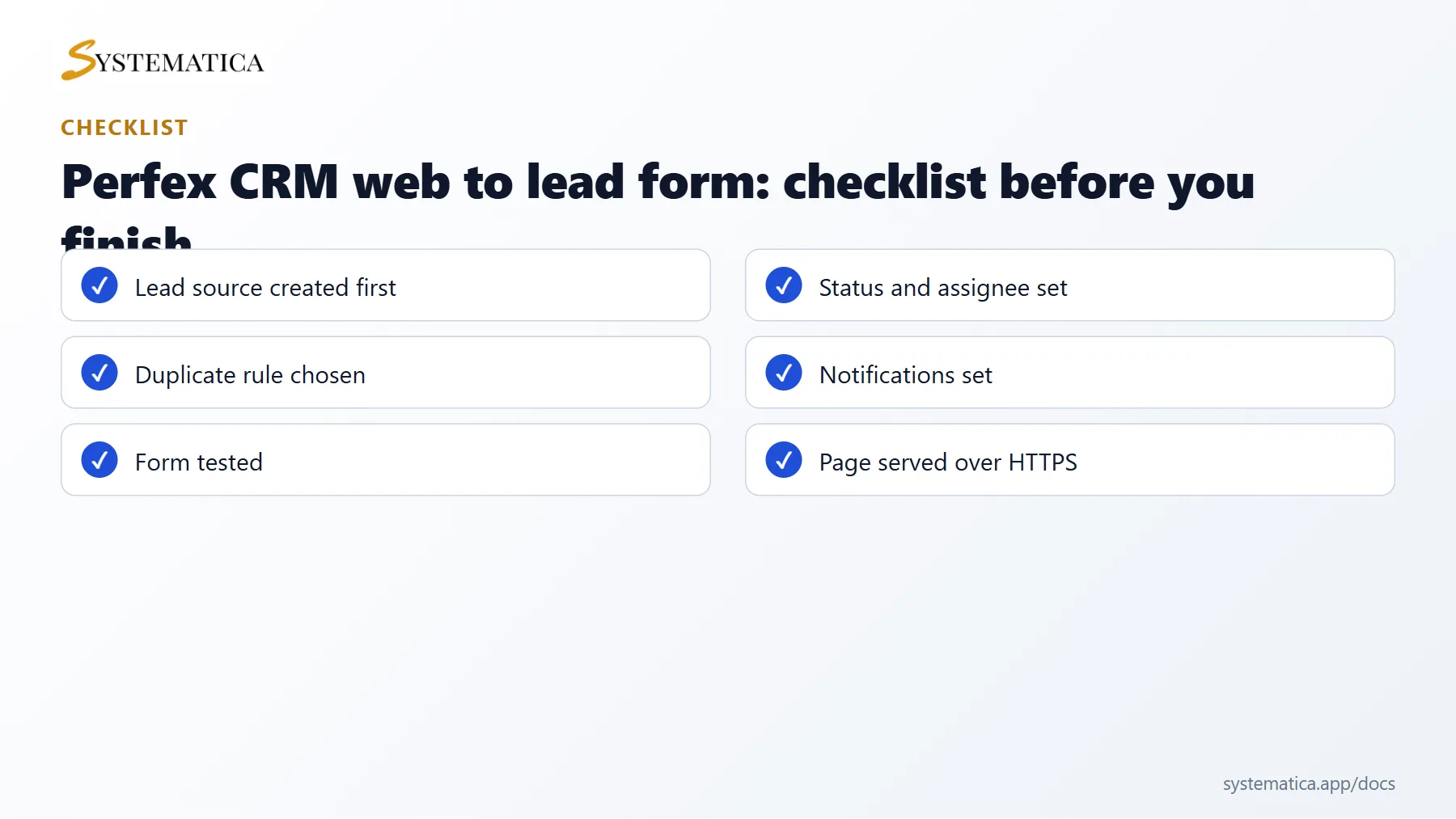
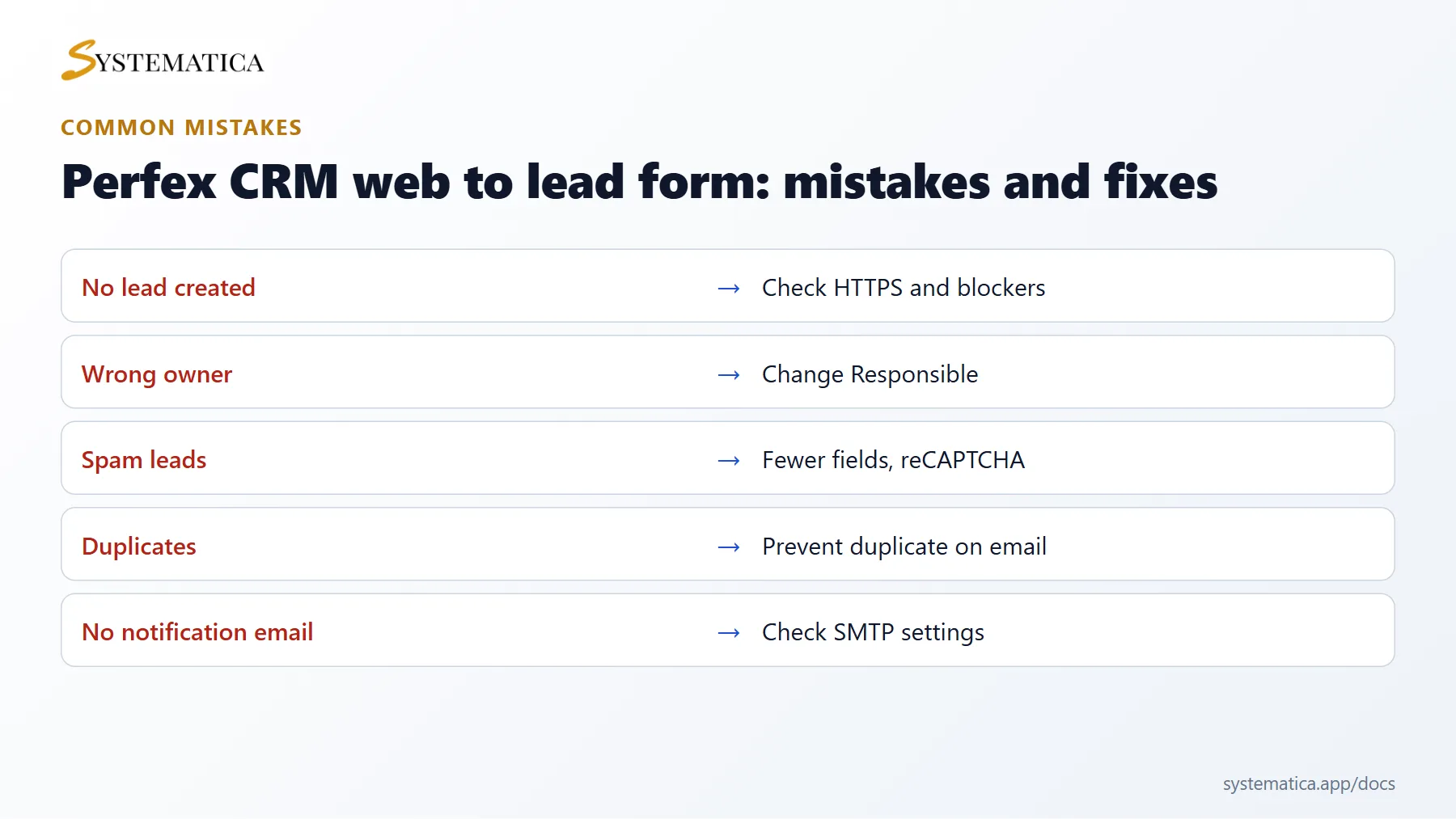
Save or share these four cards. They summarize the steps, the checklist, the usual mistakes and the key values from this guide.
Perfex CRM web to lead form FAQ #
Can I place a Perfex CRM web to lead form on any website? #
Yes. Paste the embed code into any page that accepts HTML, or share the direct link. It works on WordPress, static sites and website builders.
How do I stop spam leads? #
Use the reCAPTCHA option if your version offers it, ask only for needed fields and watch the duplicate rules. You can also review new leads before assigning them.
Can I add custom fields to the form? #
Yes. Create custom fields for leads, and they can be added to the form. Fewer fields usually give more completed forms.
Why is the lead assigned to the wrong person? #
The Responsible setting in the General tab decides the owner. Change it, and send a new test.
Can I track which page sent the lead? #
Use a different form per page, with its own source or title prefix. Then you can see which form brings the best leads.
Does the form work with my own design? #
You can style the embedded form with your own CSS, or build your own HTML form that posts to the Perfex CRM form address. Test it carefully, because field names must match.
Modules that help you follow up leads #
Call new leads from inside the CRM with the Call Manager module, message them with the WhatsApp integration, and turn their emails into leads with the Mailbox module.
Useful resources #
Follow the W3C guide to accessible forms to make your page easy for everyone. A tested Perfex CRM web to lead form is one of the fastest ways to bring new business into your CRM, so check it again after every website change.
Summary: Perfex CRM web to lead form #
A Perfex CRM web to lead form needs a source, a status and an owner, a short list of fields, a clear button and notifications for your team. Test the Perfex CRM web to lead form with your own address, check the lead in the list and test the duplicate rule. Use one Perfex CRM web to lead form per page or campaign to see which one brings the best leads, and review each Perfex CRM web to lead form after website changes.


