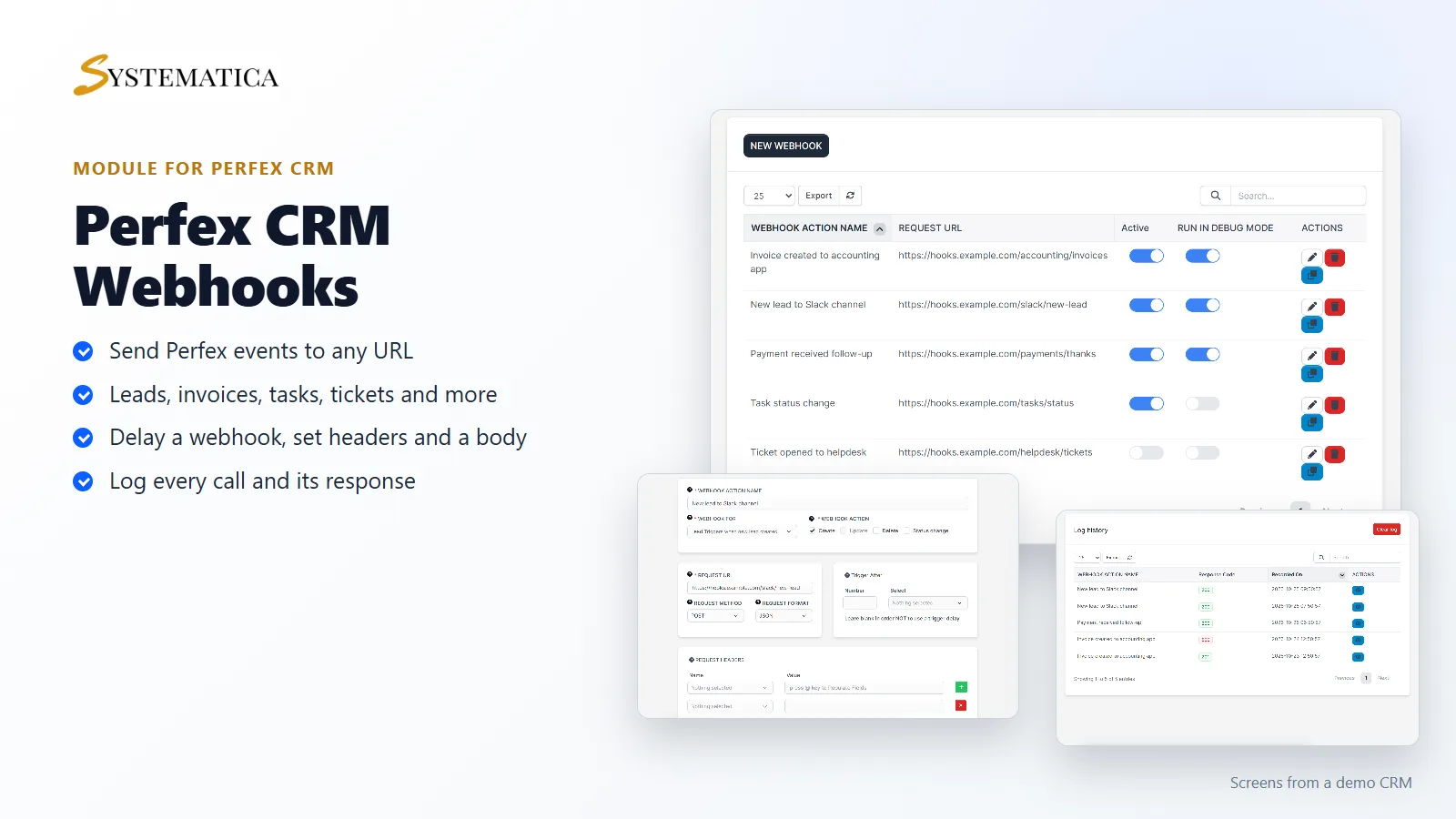
Webhooks For Perfex CRM sends a message to another system the moment something happens in your CRM. A new lead arrives, an invoice is created, a task changes status: the module calls the web address you choose and passes the details along. Your other tools stay up to date without anyone copying data by hand.
What you get with Webhooks For Perfex CRM
- Webhooks for leads, contacts, invoices, tasks, projects, proposals, tickets, payments, staff, contracts, estimates, calendar events and expenses
- Actions to react to: create, update, delete and status change
- A request URL, request method and request format for each webhook
- Request headers and a request body that you fill in, with CRM fields you can insert
- A trigger delay in minutes, hours or days
- Switches to turn each webhook on or off, and to run it in debug mode
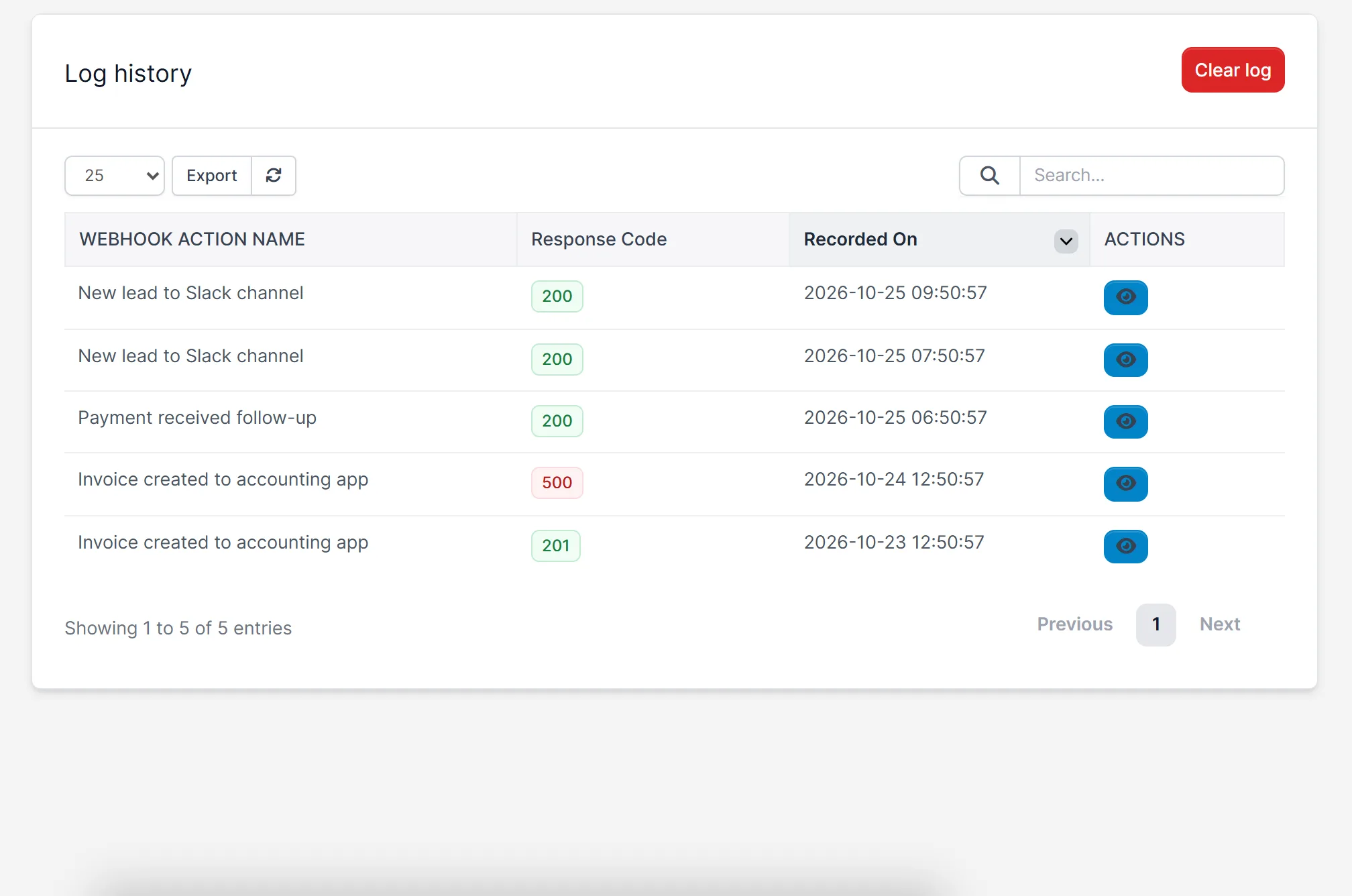
- A log history with the response code and the request and response of each call
- A copy button to duplicate a webhook
Set up a webhook in one screen
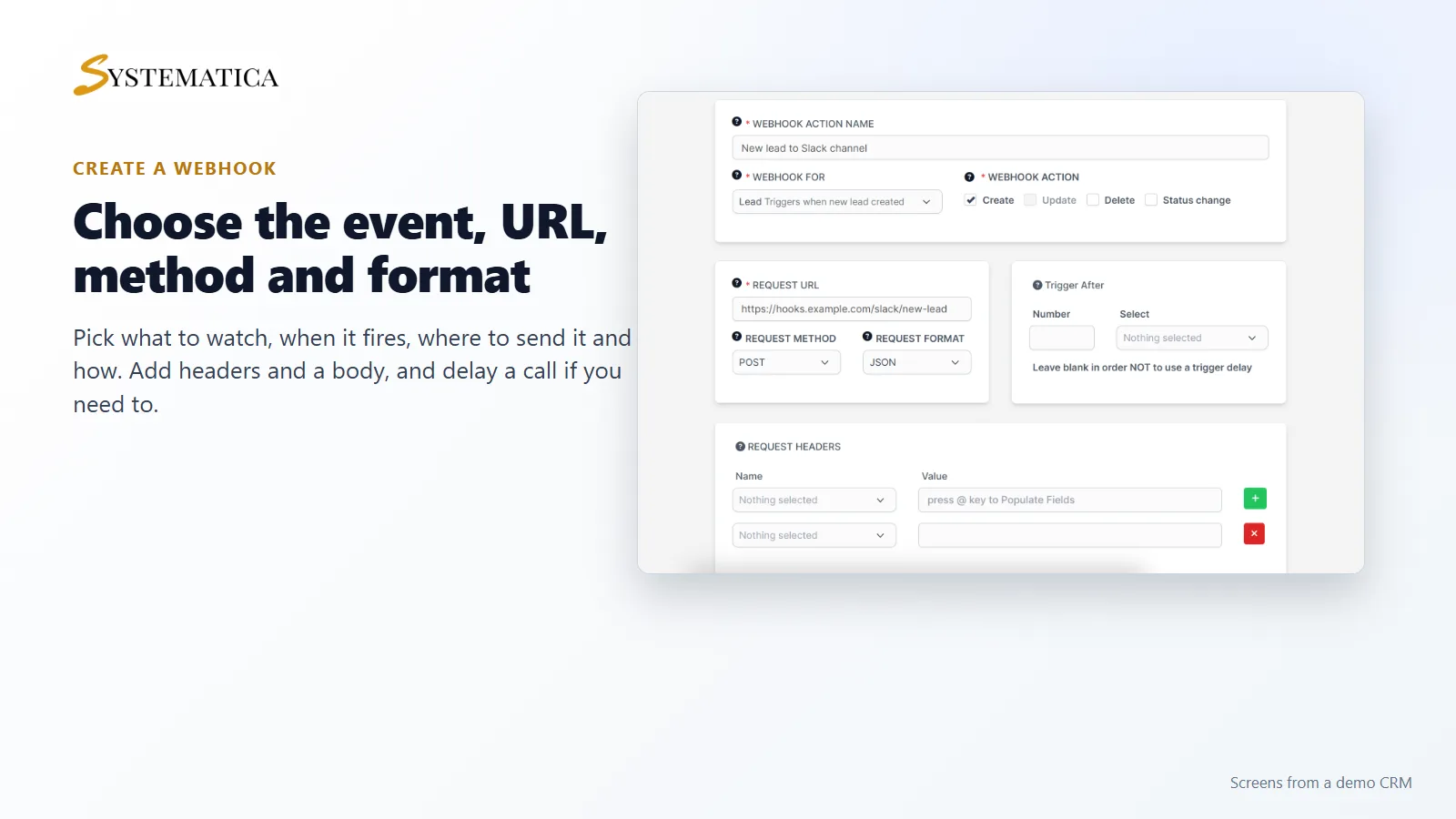
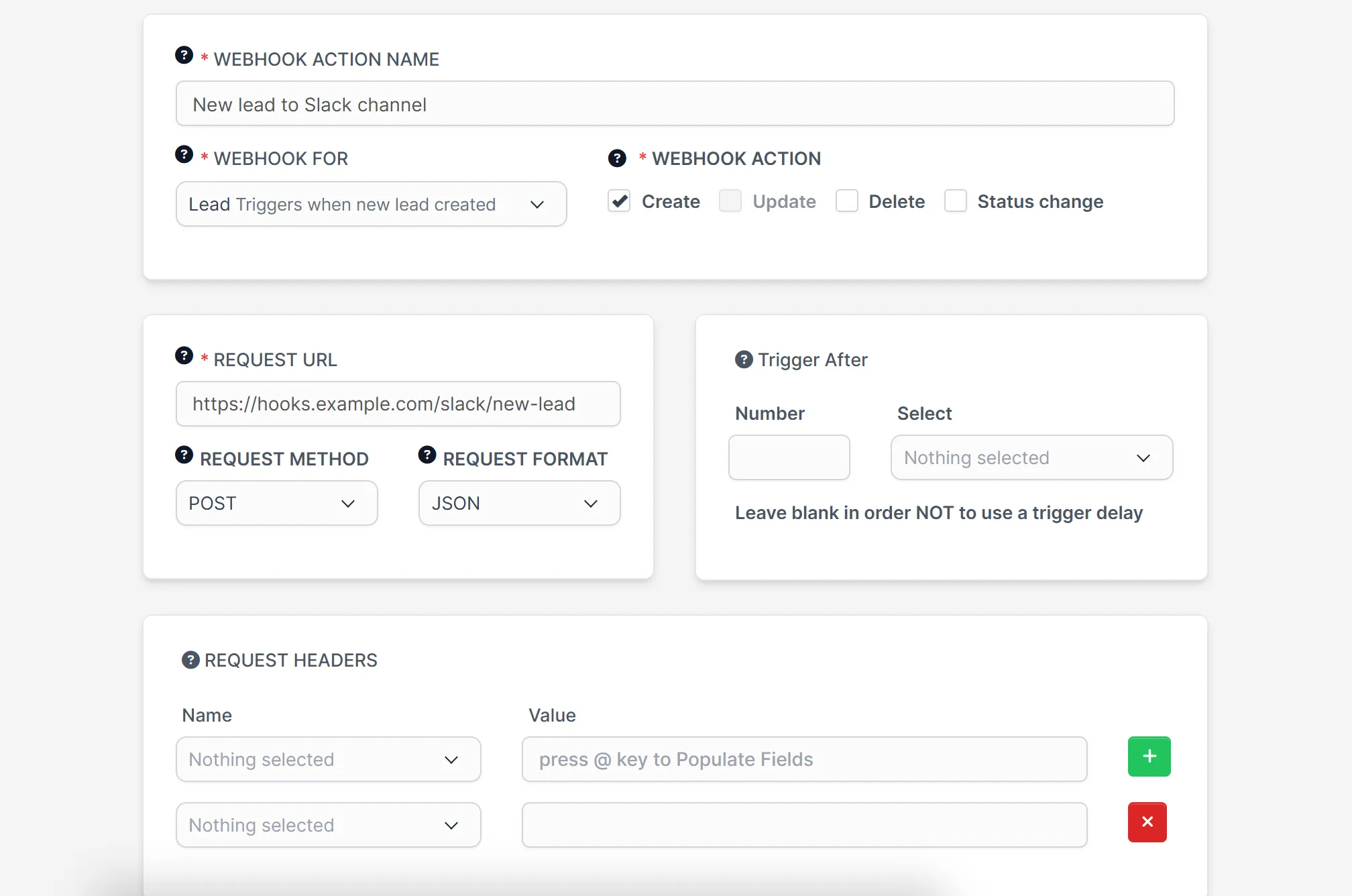
Give the webhook a name and pick what it is for, for example a lead. Tick the actions that should fire it. Then enter the request URL, choose the method and the format, and add any headers or body your other system expects. Webhooks For Perfex CRM stores each one so you can switch it off or copy it later.
See and manage all your webhooks
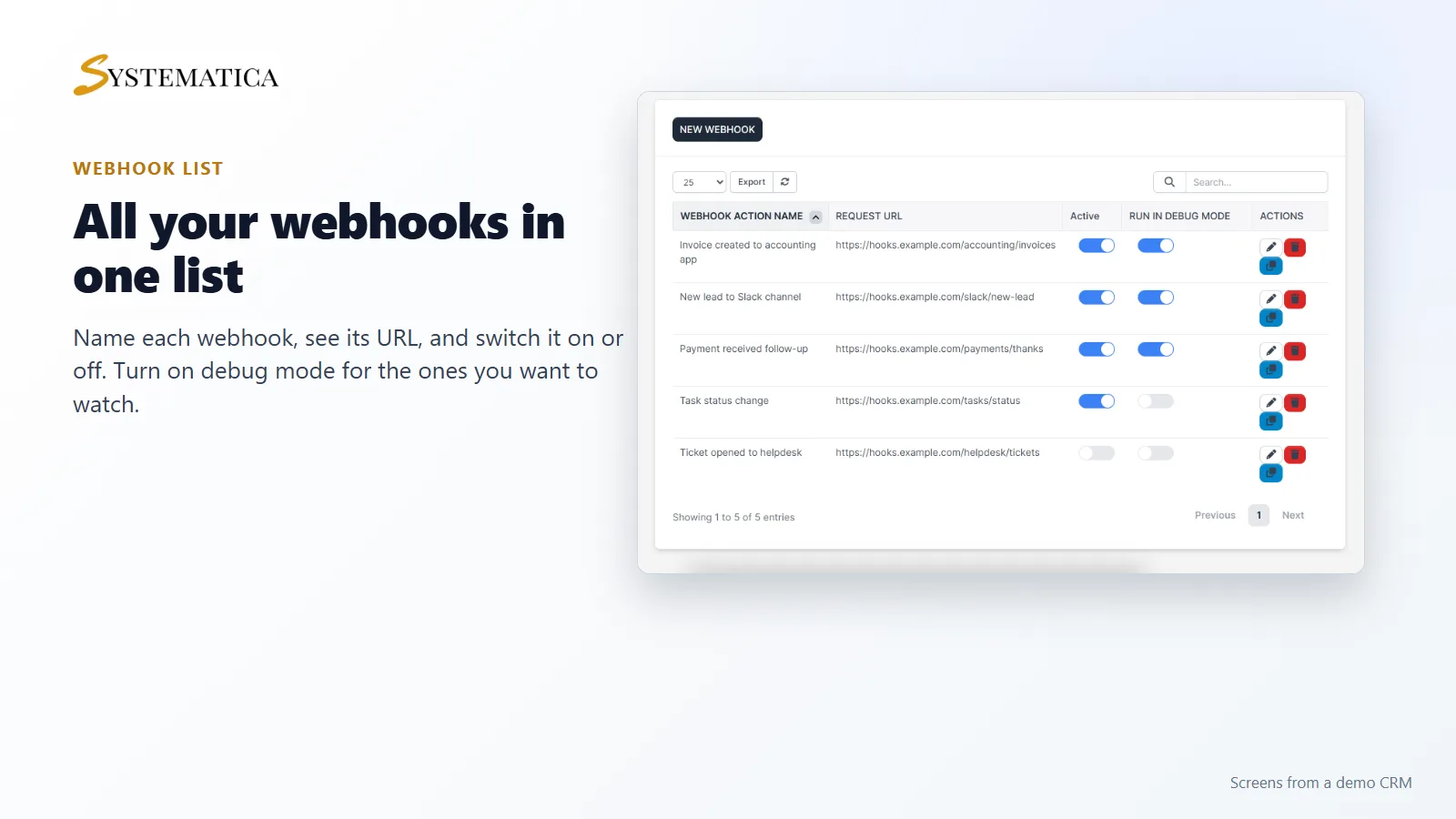
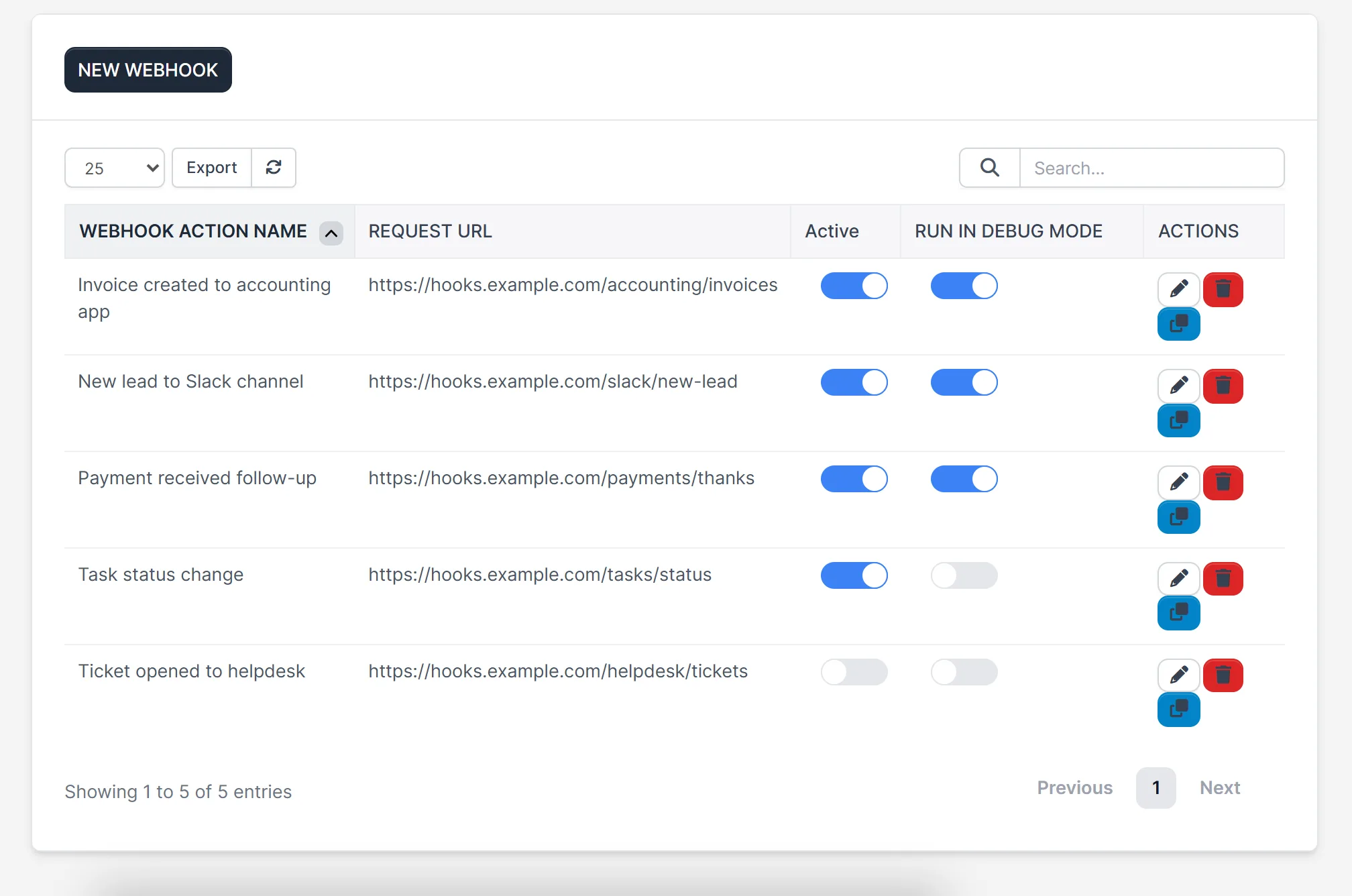
The list in Webhooks For Perfex CRM shows every webhook with its name and request URL. Two switches control whether it is active and whether it runs in debug mode. Edit, copy or delete a webhook from the same row.
Delay a webhook
Sometimes you want a message to go out later, not at once. Set a number and a unit, minutes, hours or days, and the module sends the call after that time. For example, a thank-you message two hours after a payment arrives. Delayed calls in Webhooks For Perfex CRM rely on the Perfex cron job, which you already need for other CRM features.
Check what was sent and what came back
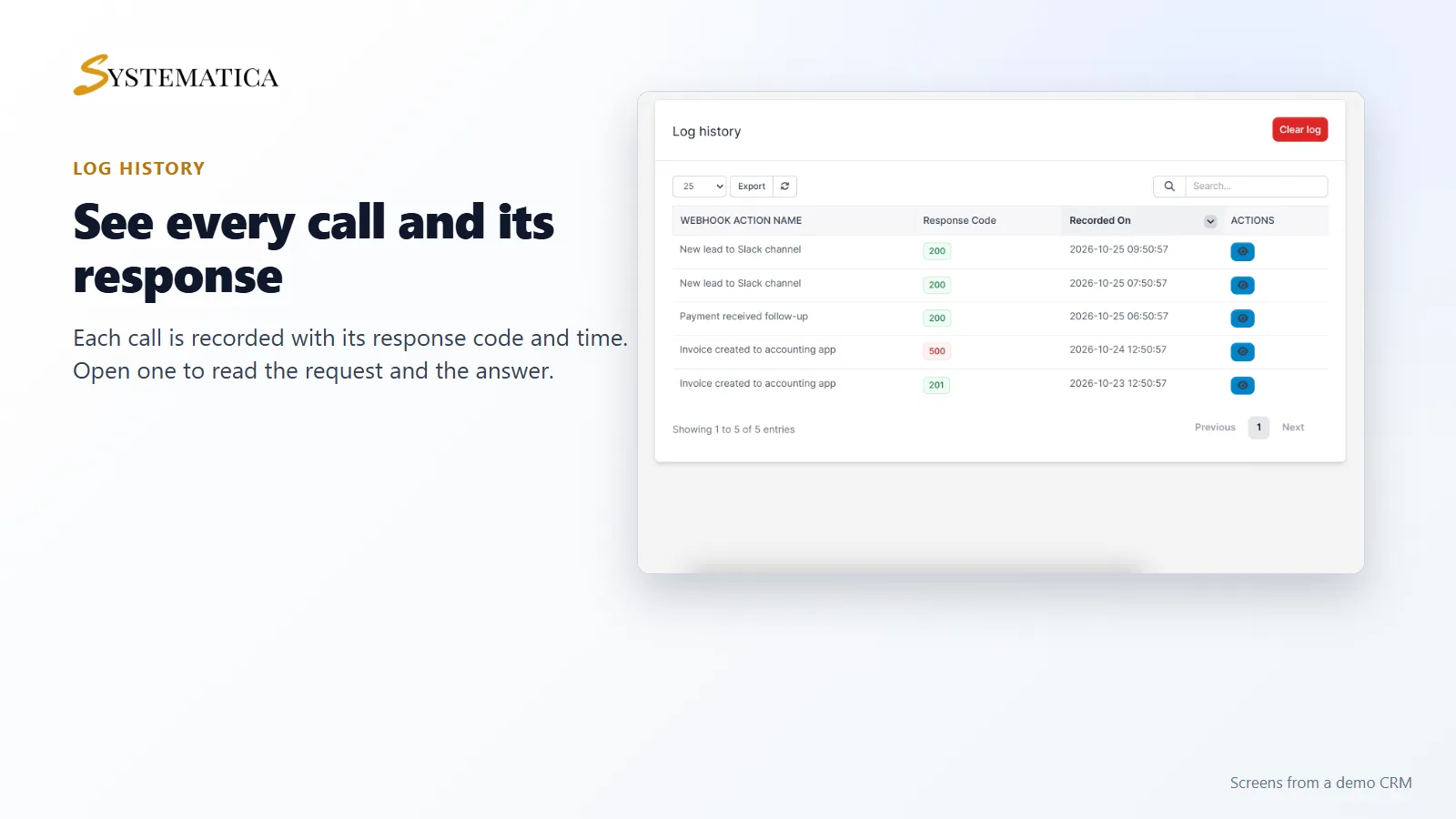
With debug mode on, each call is written to the log history. You see the webhook name, the response code and the time. Open an entry to read the request and the answer, so you can find out why a call failed. A response code of 200 or 201 means the other system accepted it. A 500 tells you to look at the other side.
Set it up
- Upload the module under Setup > Modules and activate it.
- Open Webhooks > License and enter your license key.
- Click New webhook and choose what it is for and which actions fire it.
- Enter the request URL, method, format, headers and body.
- Turn on debug mode while you test, then check the log history.
Requirements
- Perfex CRM 3.4 or newer (tested on 3.4.1)
- The Perfex cron job running, if you use delayed webhooks
- A connection from your server to systematica.app over HTTPS, and to the web addresses you send webhooks to
Good to know
- The screens in the pictures are from a demo CRM with sample data. The web addresses in them are examples.
- Webhooks For Perfex CRM sends data out. It does not receive requests from other systems.
- Which fields are sent depends on the event you pick and on the body you set.
License, support and updates
After purchase you receive a license key by email. One license key activates the module on one website. To move it, deactivate the license under Webhooks > License and activate it on the new site. You get 1 year of use, support through our ticket system and free updates through your Systematica account. Webhooks For Perfex CRM runs inside Perfex CRM, which you need to own.
Frequently asked questions
What does Webhooks For Perfex CRM do?
It sends data from your CRM to a web address you choose when an event happens, such as a new lead, a new invoice or a task status change.
Which events can I send?
Leads, contacts, invoices, tasks, projects, proposals, tickets, payments, staff, contracts, estimates, calendar events and expenses.
Can I delay a webhook?
Yes. Set a number of minutes, hours or days. Delayed calls need the Perfex cron job.
How do I find out if a webhook failed?
Turn on debug mode for it. Each call is saved in the log history with its response code, request and response.
Can I use one license on more than one website?
One license key activates the module on one website. You can move it by deactivating it on the old site and activating it on the new one.
Need help with this module?
Every license is valid for 1 year and includes support through our ticket system and free updates. To keep using the module after that, renew your license.